How to Create YouTube Video Watermark in Canva
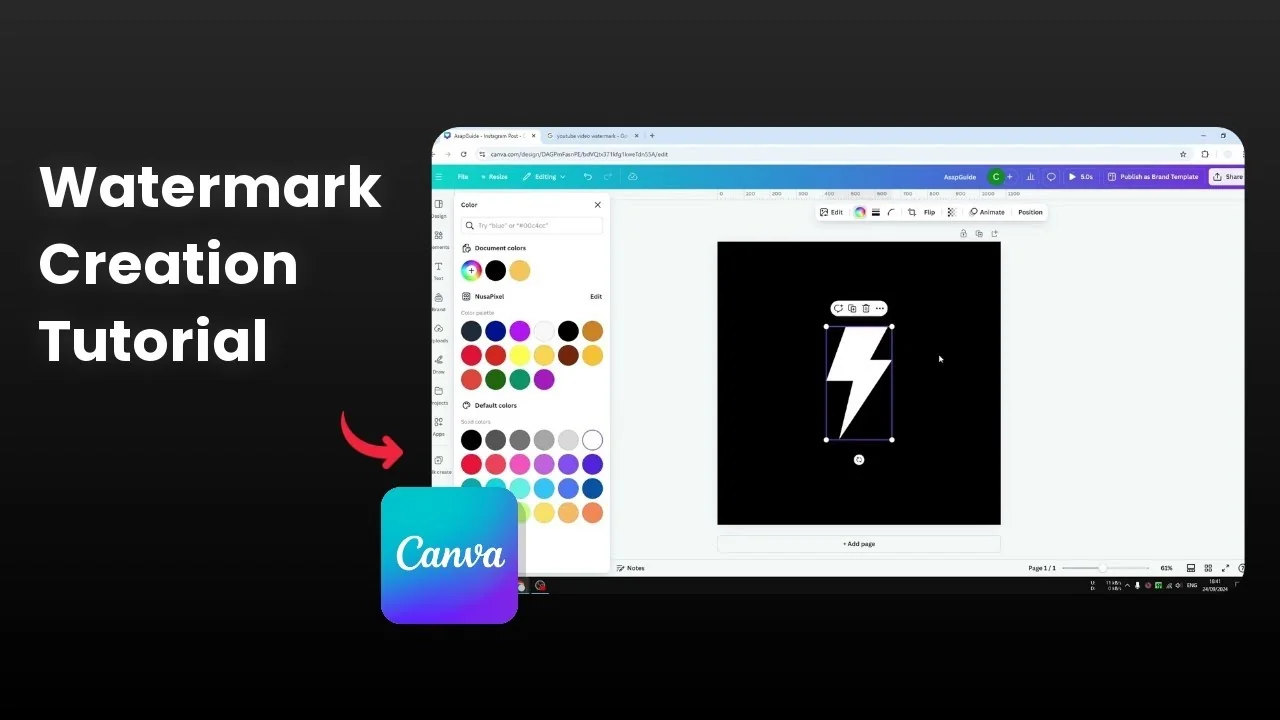
I will show you how to create a YouTube video watermark in Canva. A YouTube video watermark is a small logo at the bottom right of the screen. When viewers click it, it invites them to subscribe to your channel.
Keep the logo minimal and single color. White is usually recommended because it is clear on most footage. For a broader overview of watermarking, see this guide to creating a watermark in Canva.
Create YouTube Video Watermark in Canva
Set up a square document
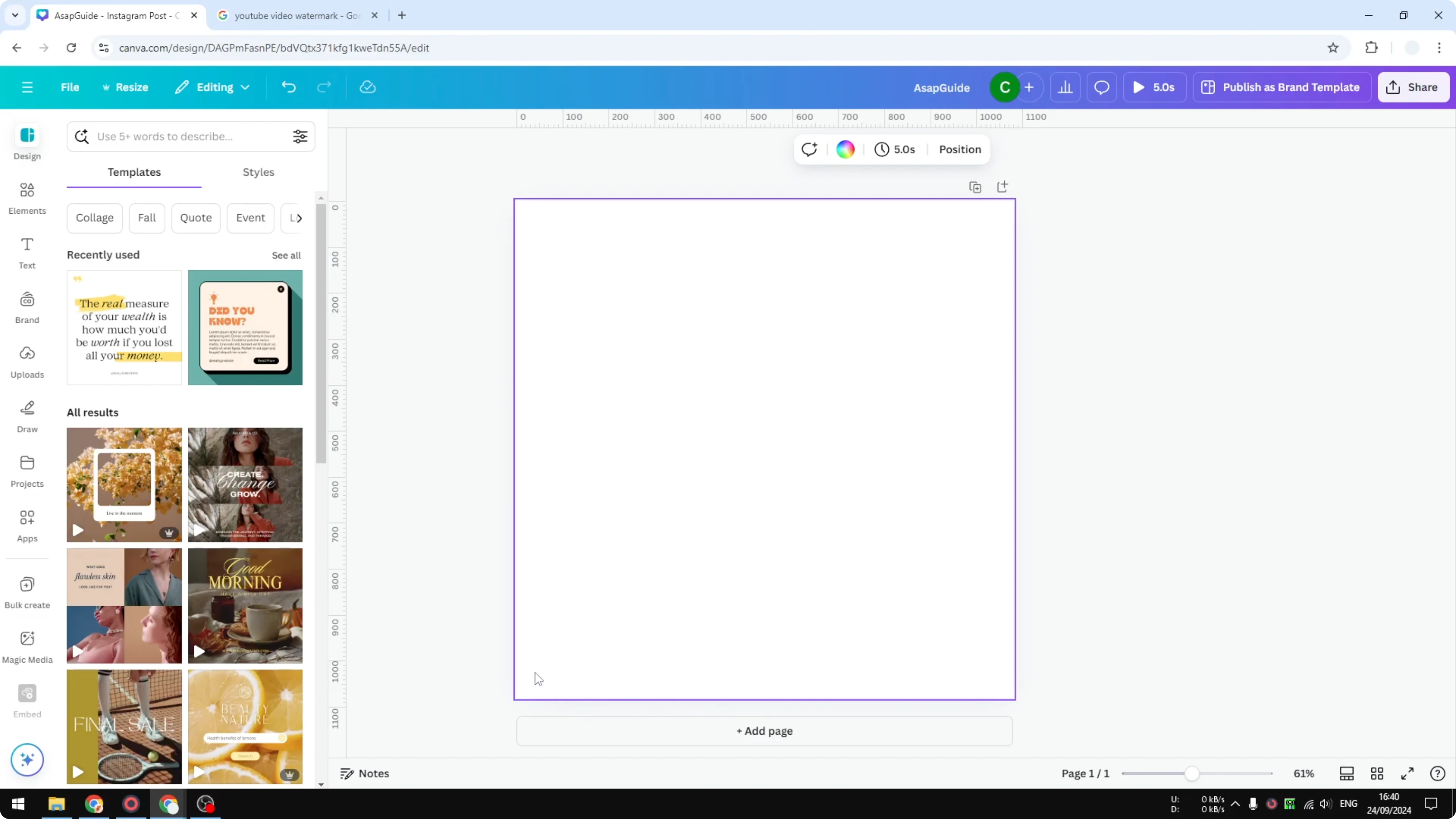
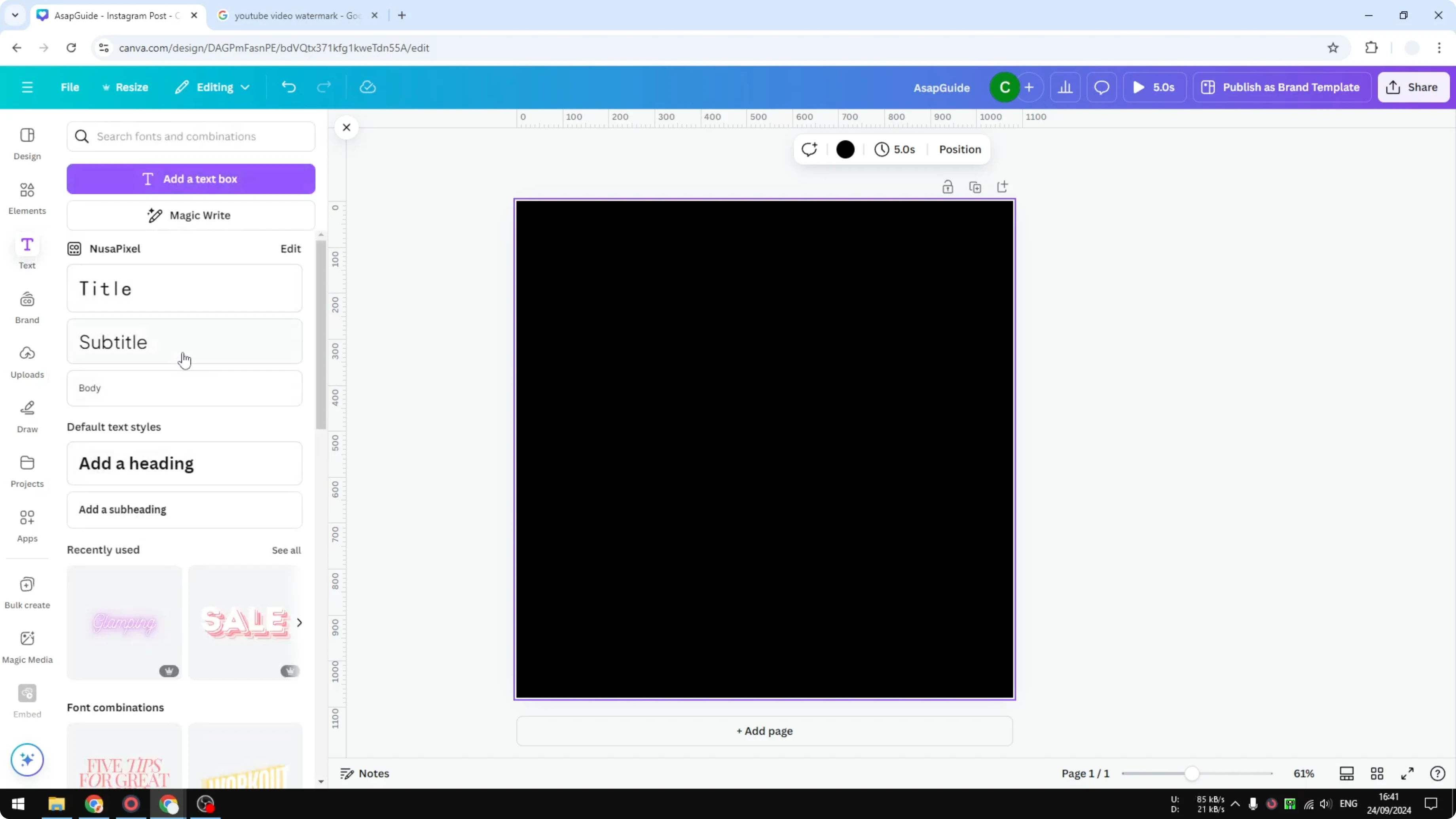
Open a new Canva design. I use the Instagram post template at 1080 x 1080 pixels. The key detail is using a square document.
Change the background to black for contrast. We will design a white logo on top of it. We are not exporting the background.
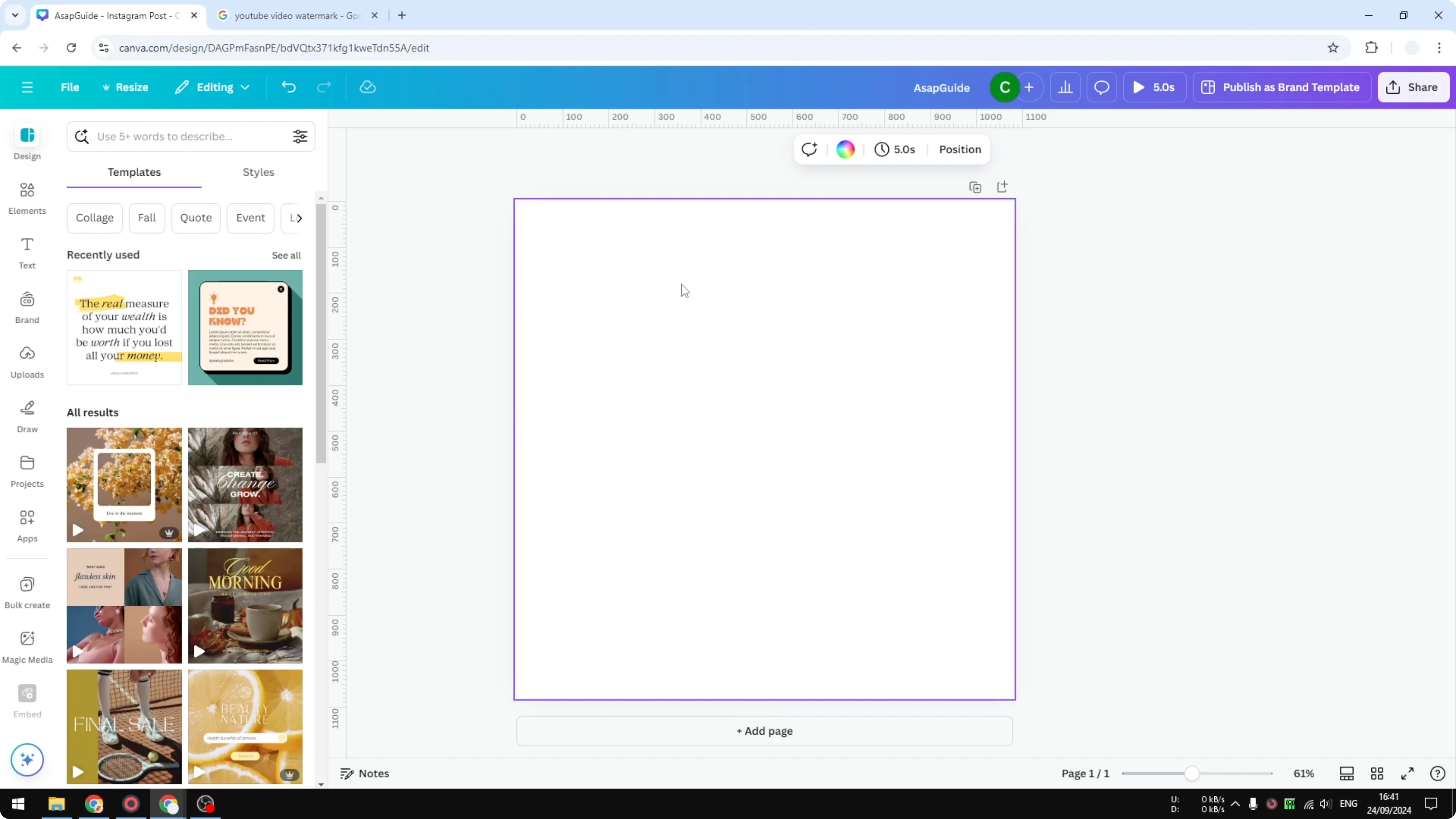
We only need the logo, and the background will be transparent.
Design a minimal white logo
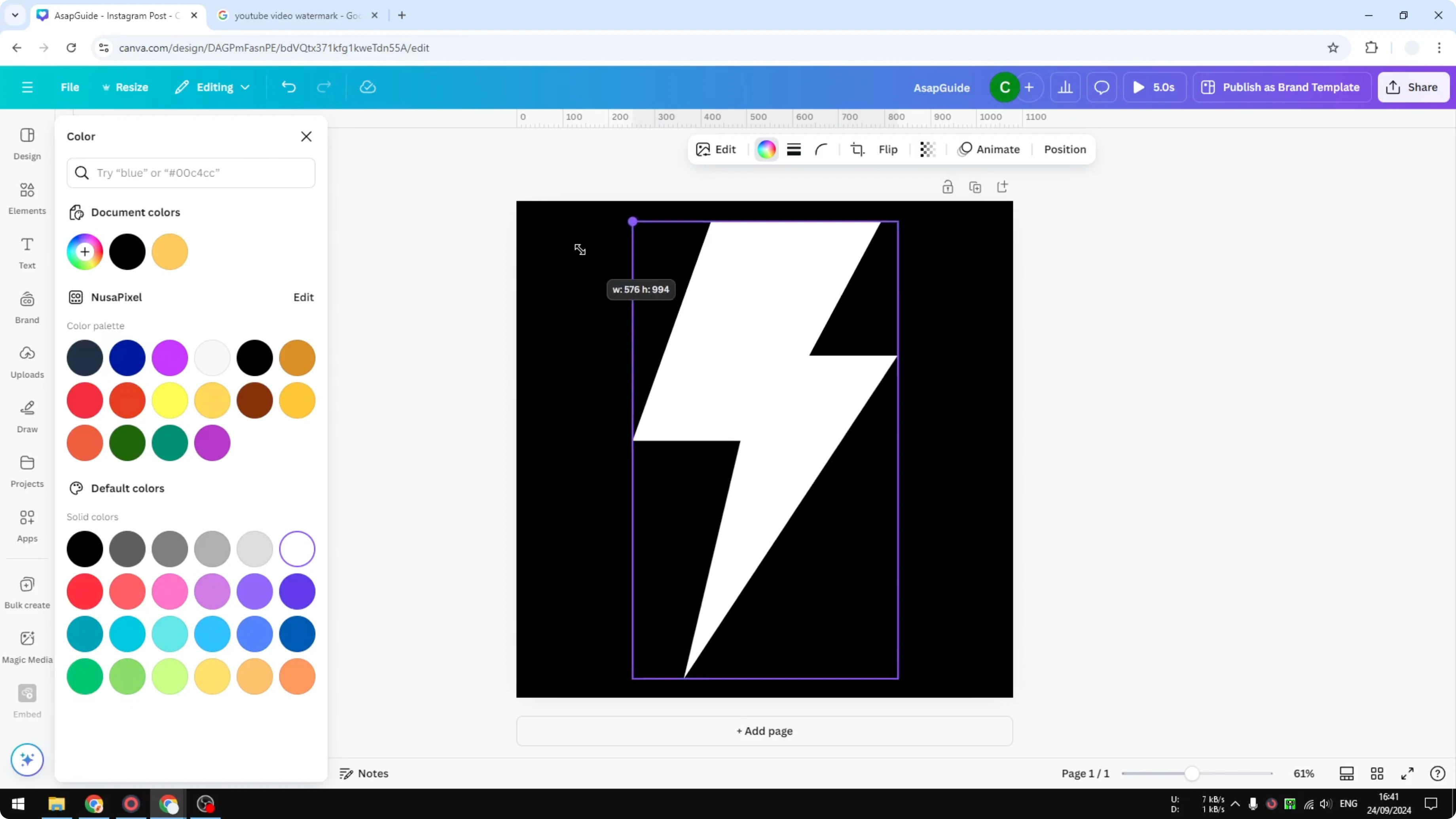
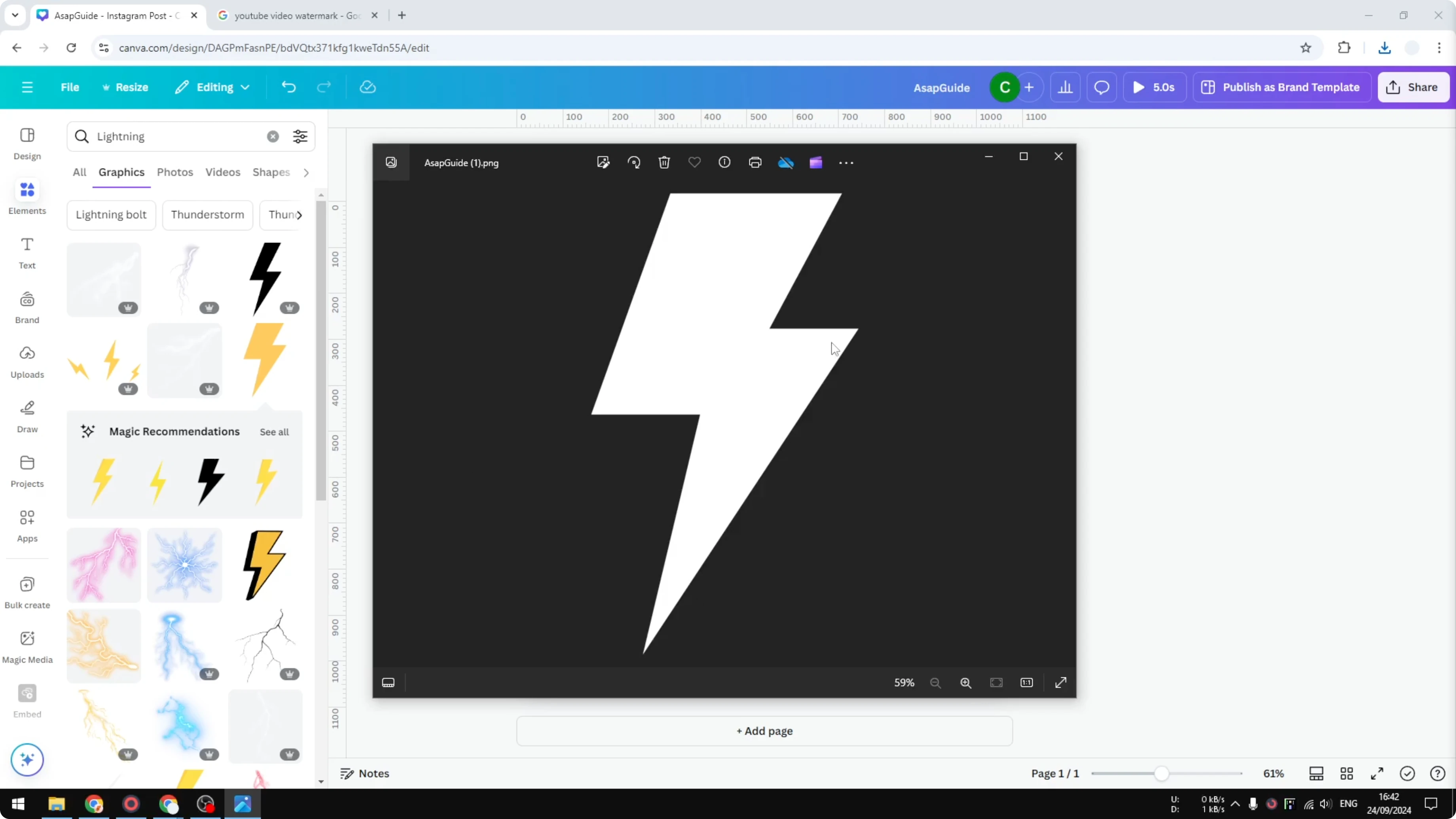
Insert your logo, or type your brand name. I create a simple lightning icon. Click the element and change its color to white.
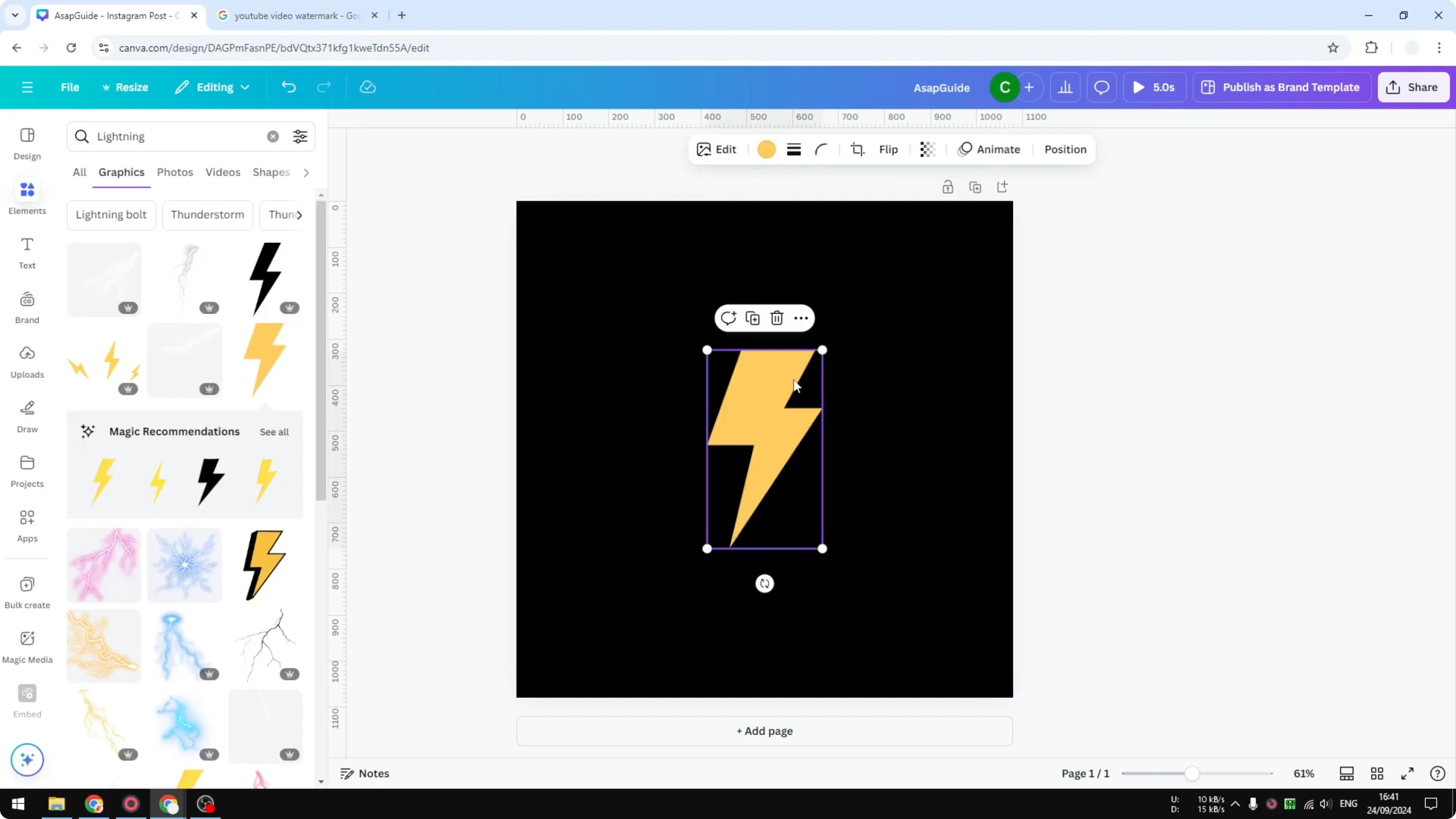
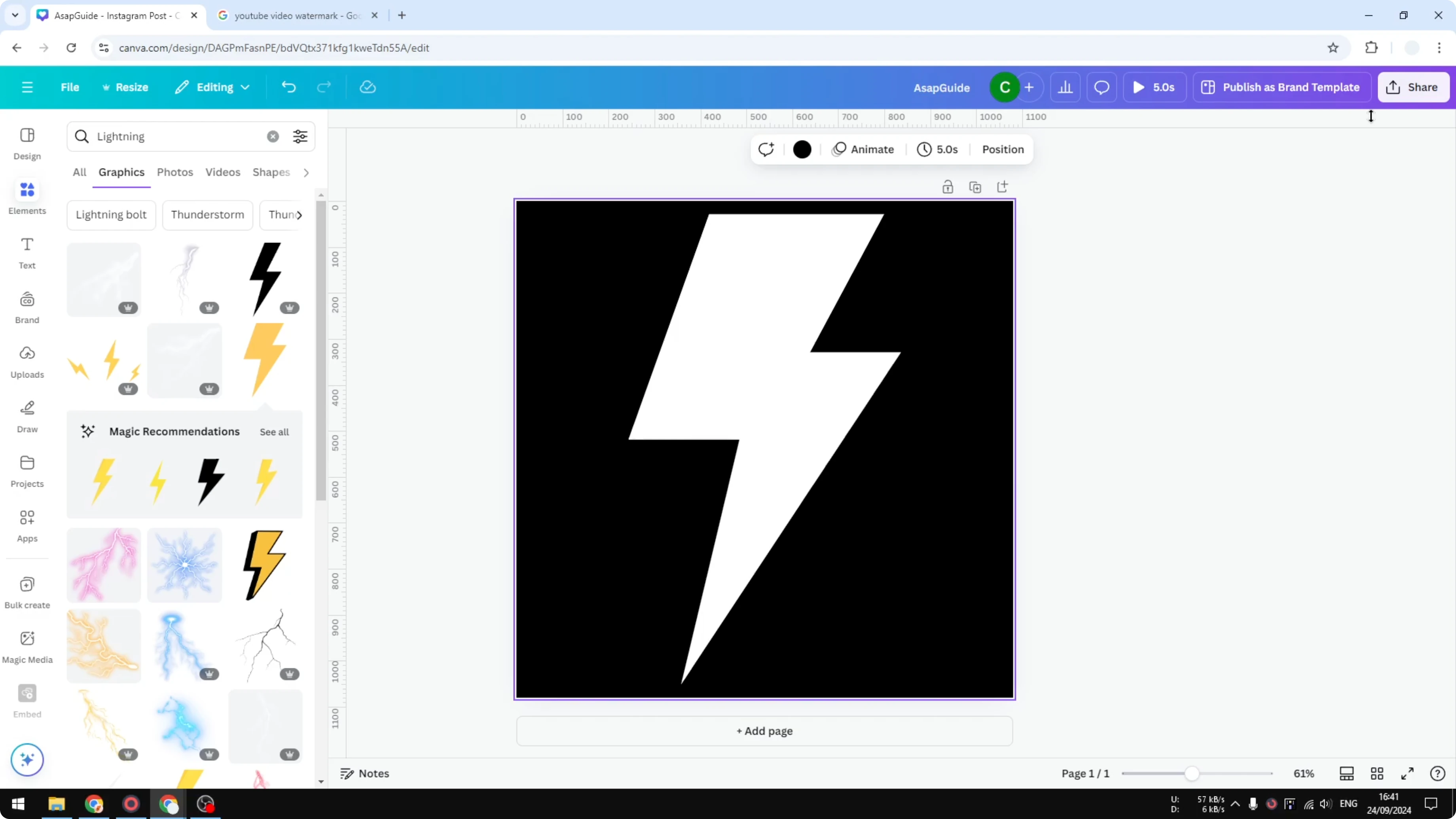
A dark background helps you see and adjust the object quickly. Place the logo in the center. Keep it clean and easy to read at a small size.
Export with transparency
Open Share, choose Download. Set File type to PNG, and enable Transparent background. Click Download.
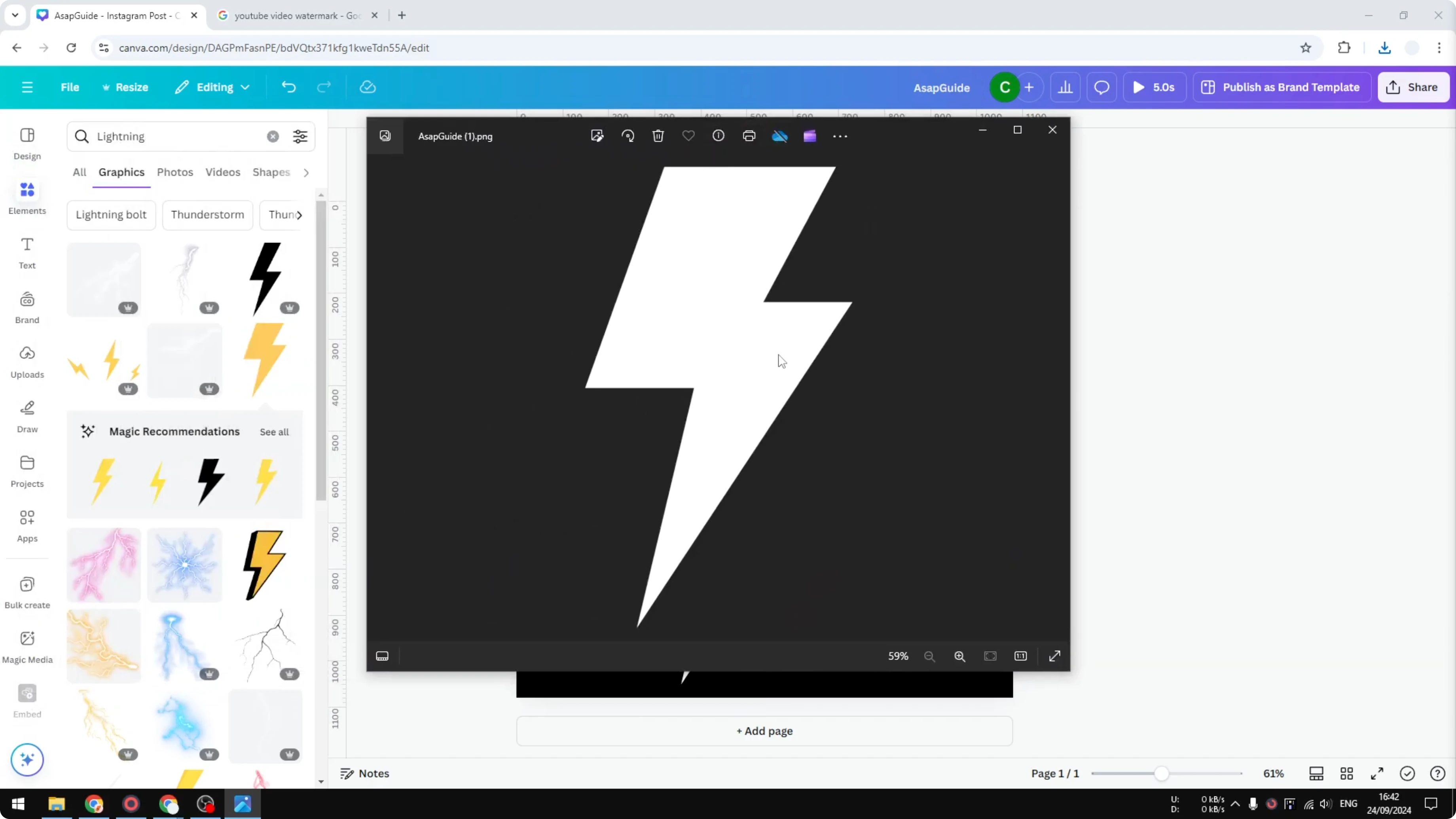
Wait for the file to save. Open it to confirm the background is empty. You should only see the white logo.
Add it to your channel
Use this PNG as your YouTube video watermark in YouTube Studio. It will appear at the bottom right of your videos. This is a simple way to encourage more subscribers.
If you are editing inside Canva and want your logo overlaid on footage, you can add a watermark to a Canva video. This keeps your branding visible across your edits.
Final Thoughts
A clean white logo, a square canvas, and a transparent PNG are all you need. Create it once, then apply it across your channel for consistent branding. For another quick edit, see how to create a slow motion effect in a Canva video.
Recent Posts

How to Visualize Yourself as a Pixelized Character with AI?
How to Visualize Yourself as a Pixelized Character with AI?

How to Revive Faded Memories and Enhance Image Clarity with AI?
How to Revive Faded Memories and Enhance Image Clarity with AI?

How to Visualize Yourself as an Animal Crossing Character with AI?
How to Visualize Yourself as an Animal Crossing Character with AI?