How to Add Watermark to Canva Video
I show you how to add a watermark to a video in Canva. If you have a video project like the one I have, you can add a watermark such as text, a logo, or an image. There is no native watermarking feature in Canva, so we create our own watermark and add it to the video.
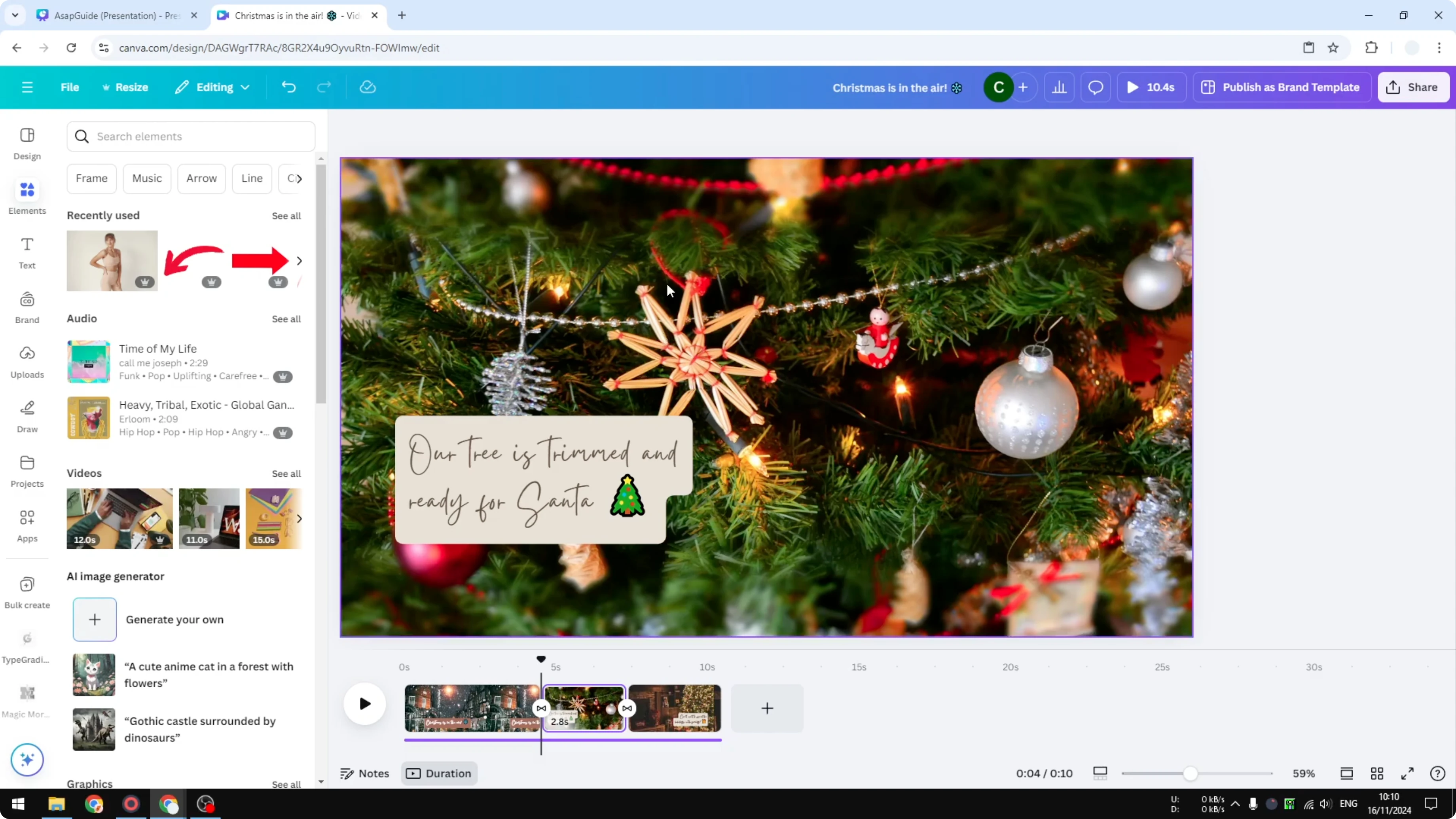
Open the video project. Switch to Thumbnail View if you are using Scroll View. Thumbnail View is very useful when you are managing a video.
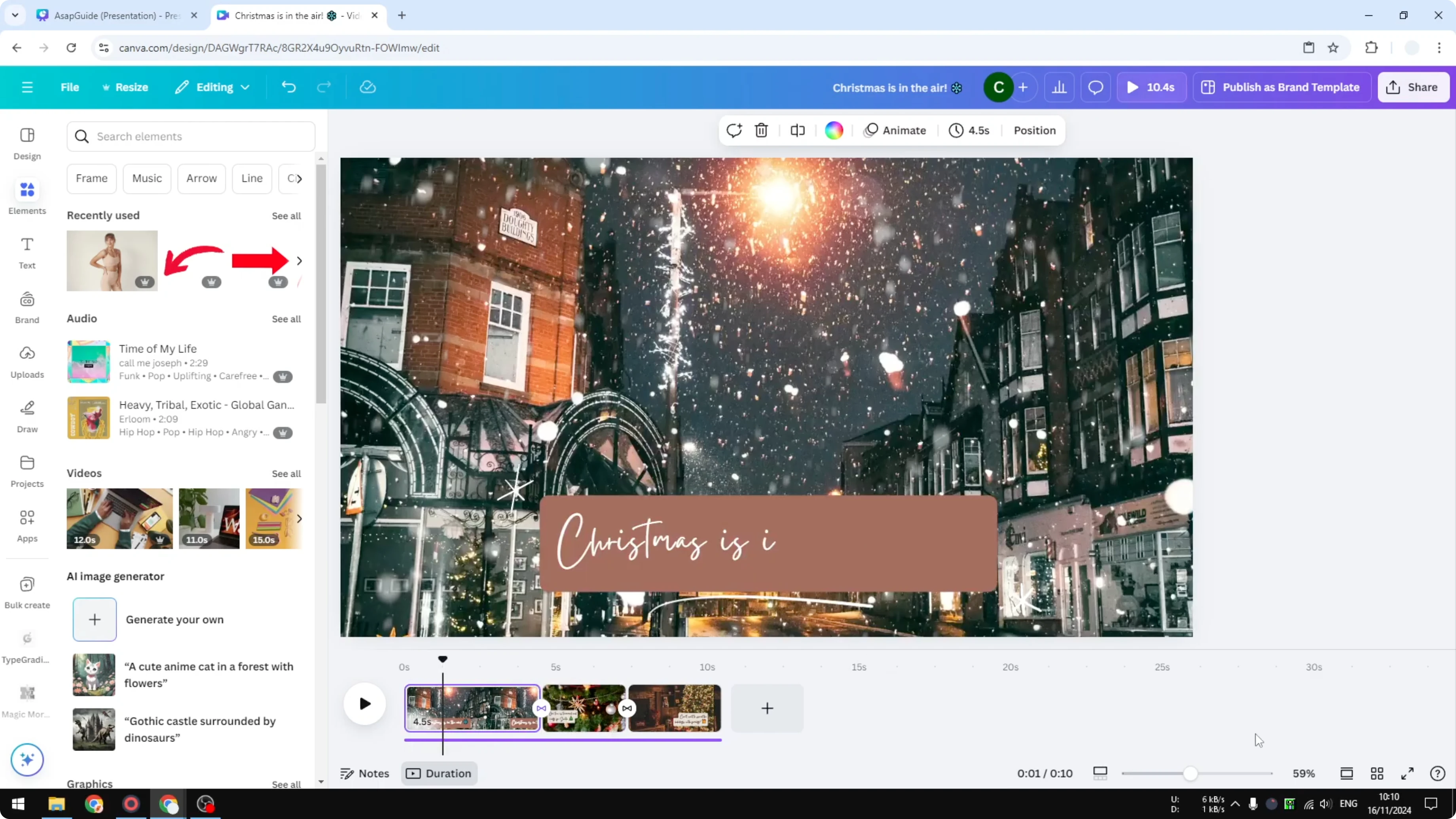
Add Watermark to Canva Video
There are two types of watermark. A simple text watermark is easy. You can also insert an image, a shape, or a vector - the process is the same.
Text option
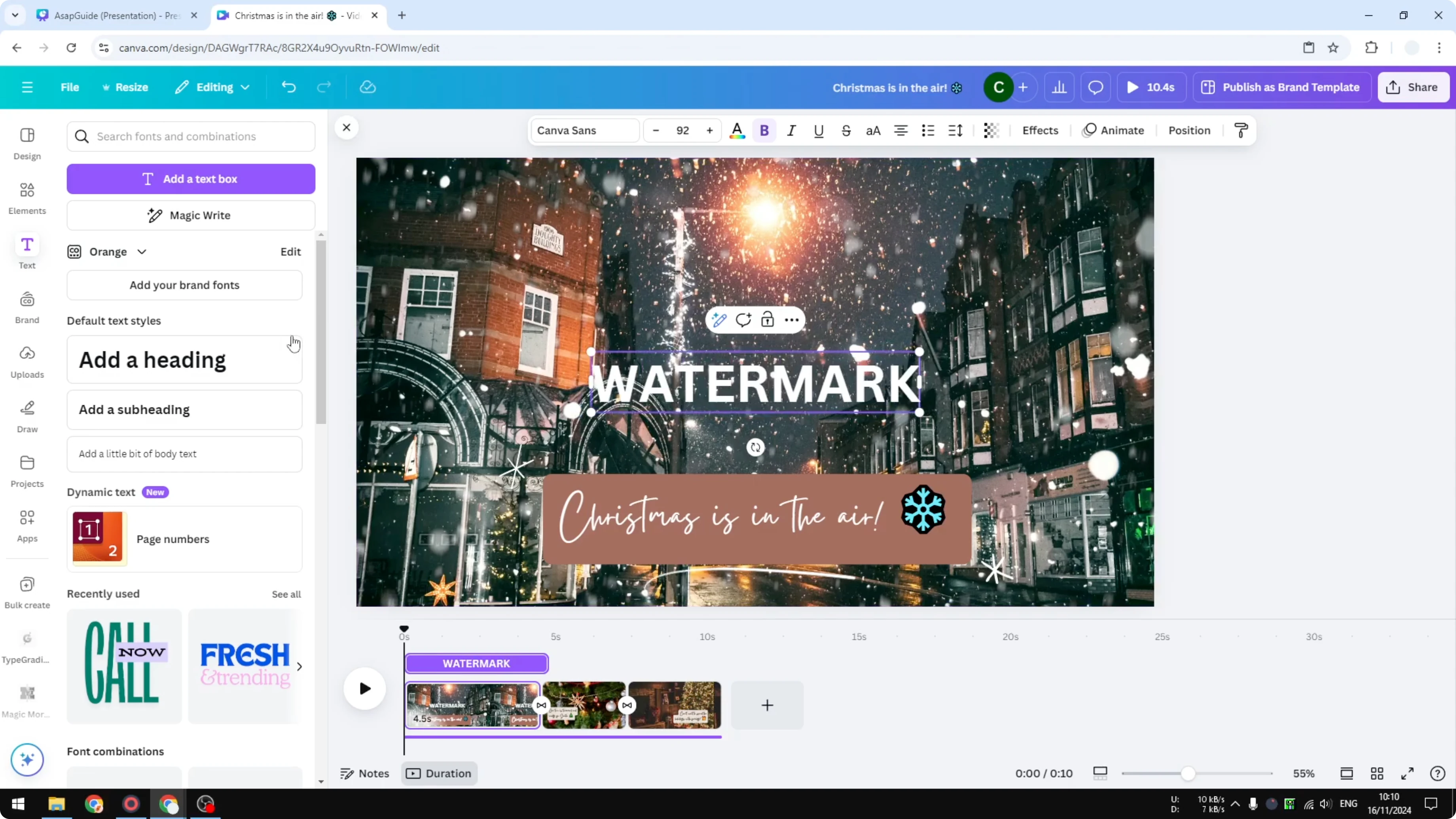
Create a text box for the watermark. I select white for the text color. White is popular, but you can use other colors.
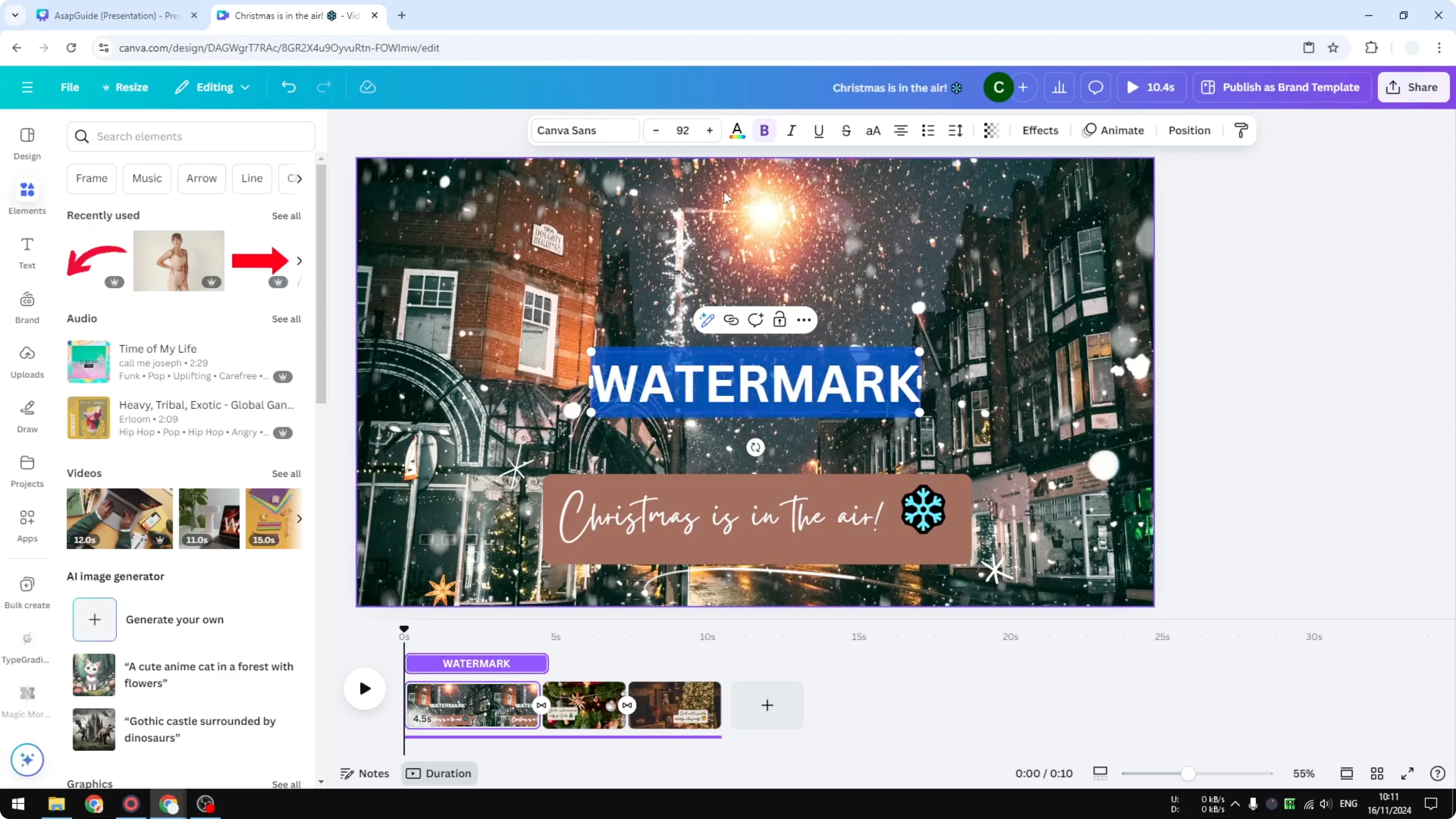
Transparency and placement
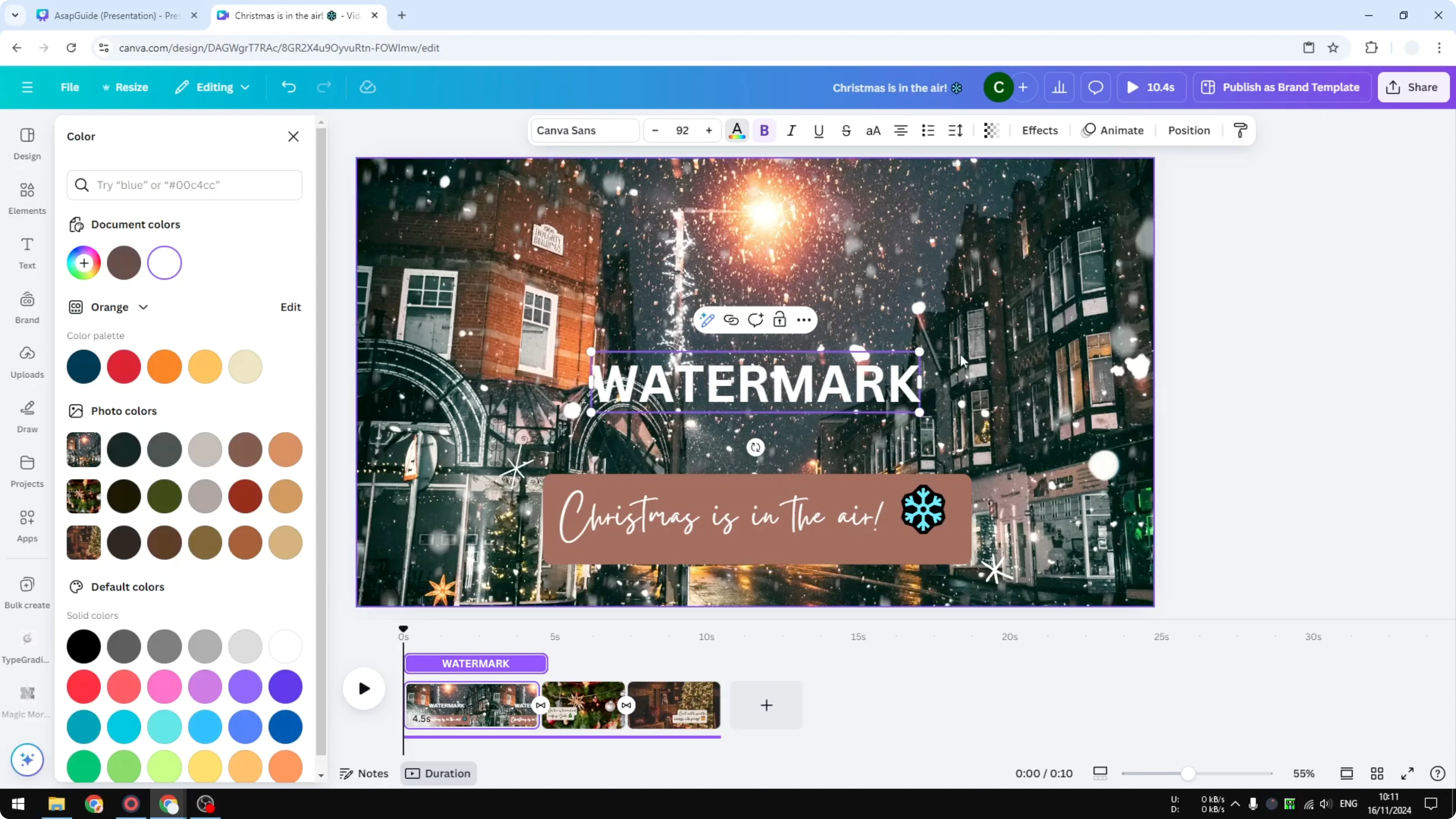
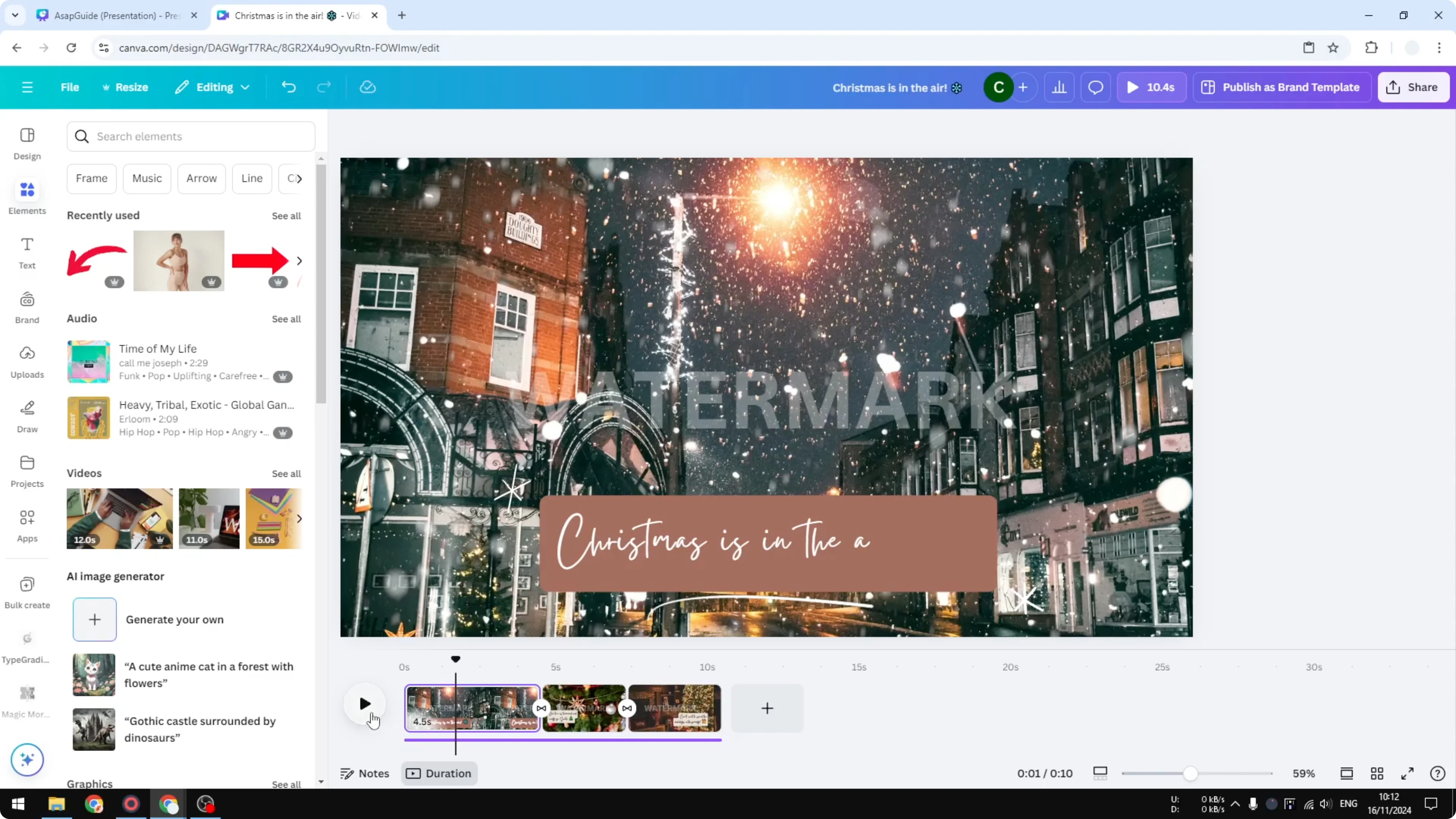
The most important thing is the transparency of the object. A watermark is not the main element that draws attention, it is tiny information people might notice. Add some transparency to the watermark - I think 30 is good enough.
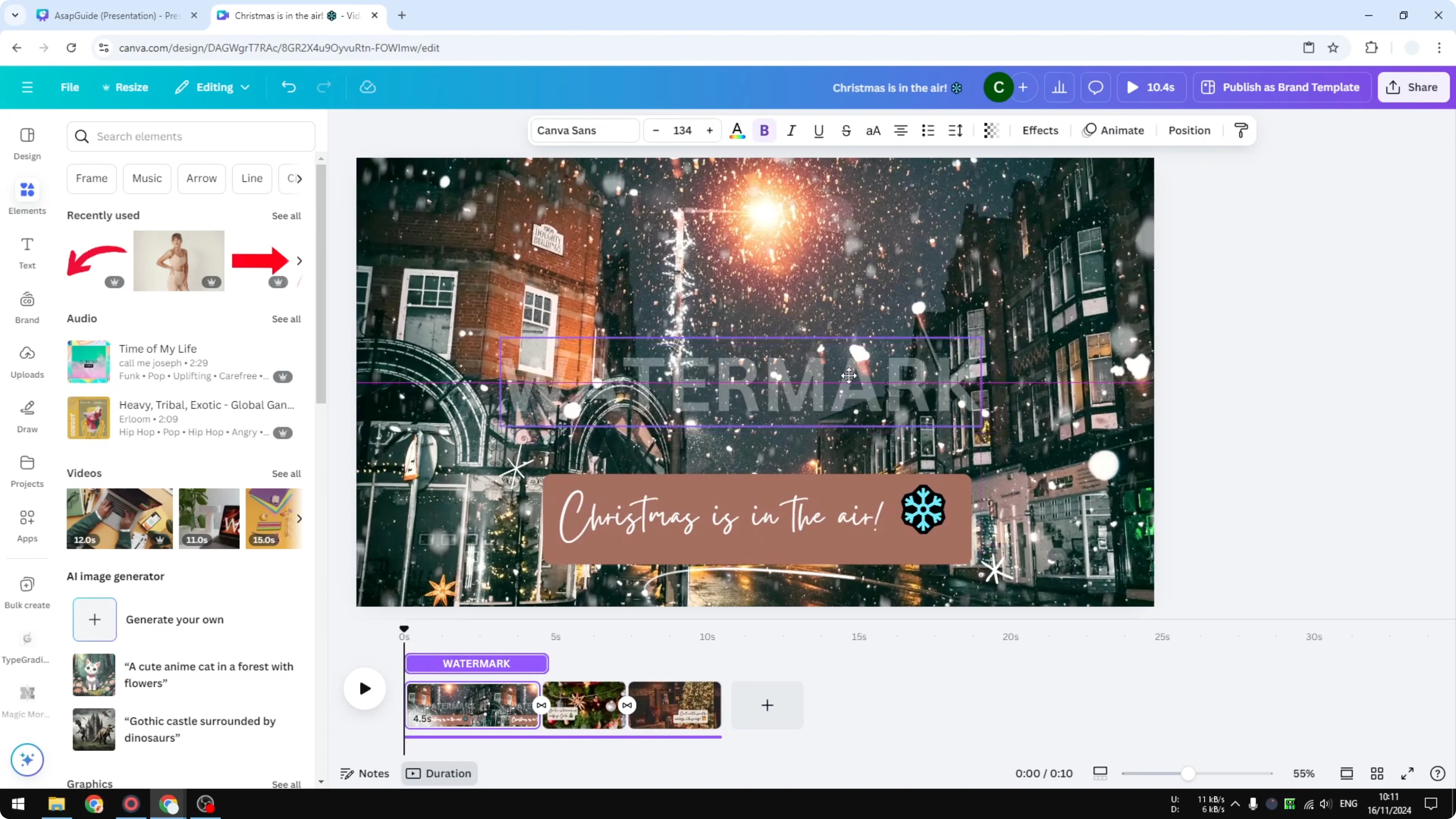
Make the text slightly bigger and put it in the middle, or anywhere else you think is best. When you are done, the watermark will be seen on the clip. If you are also adjusting the look of your footage, see how to add filters to a video in Canva.
Show timing and apply to all clips
If you do not see the section that shows where the item sits, right click and choose Show element timing. It gives you a sense of where the watermark is located on the timeline. You cannot just make this text longer to cover other clips.
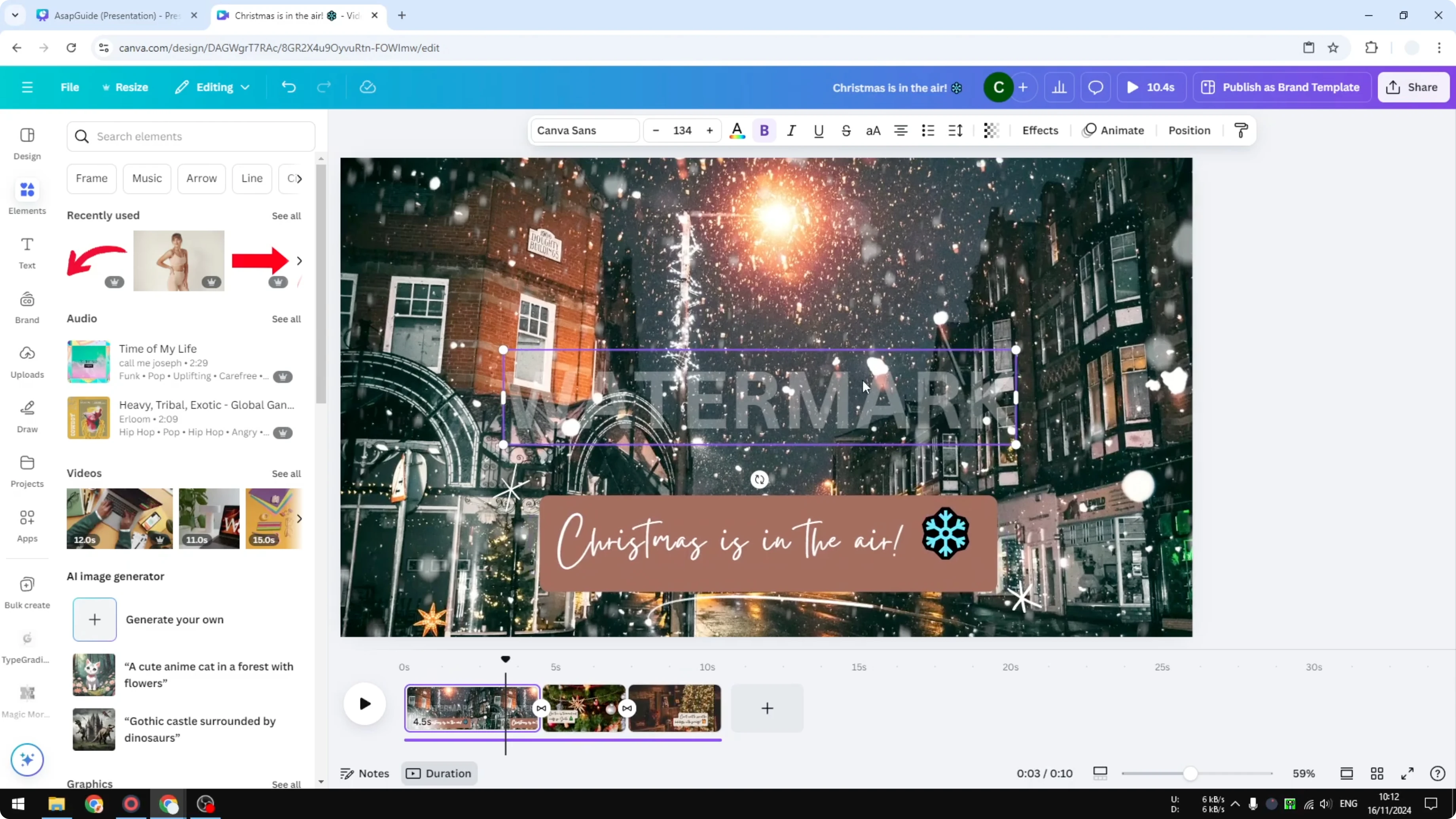
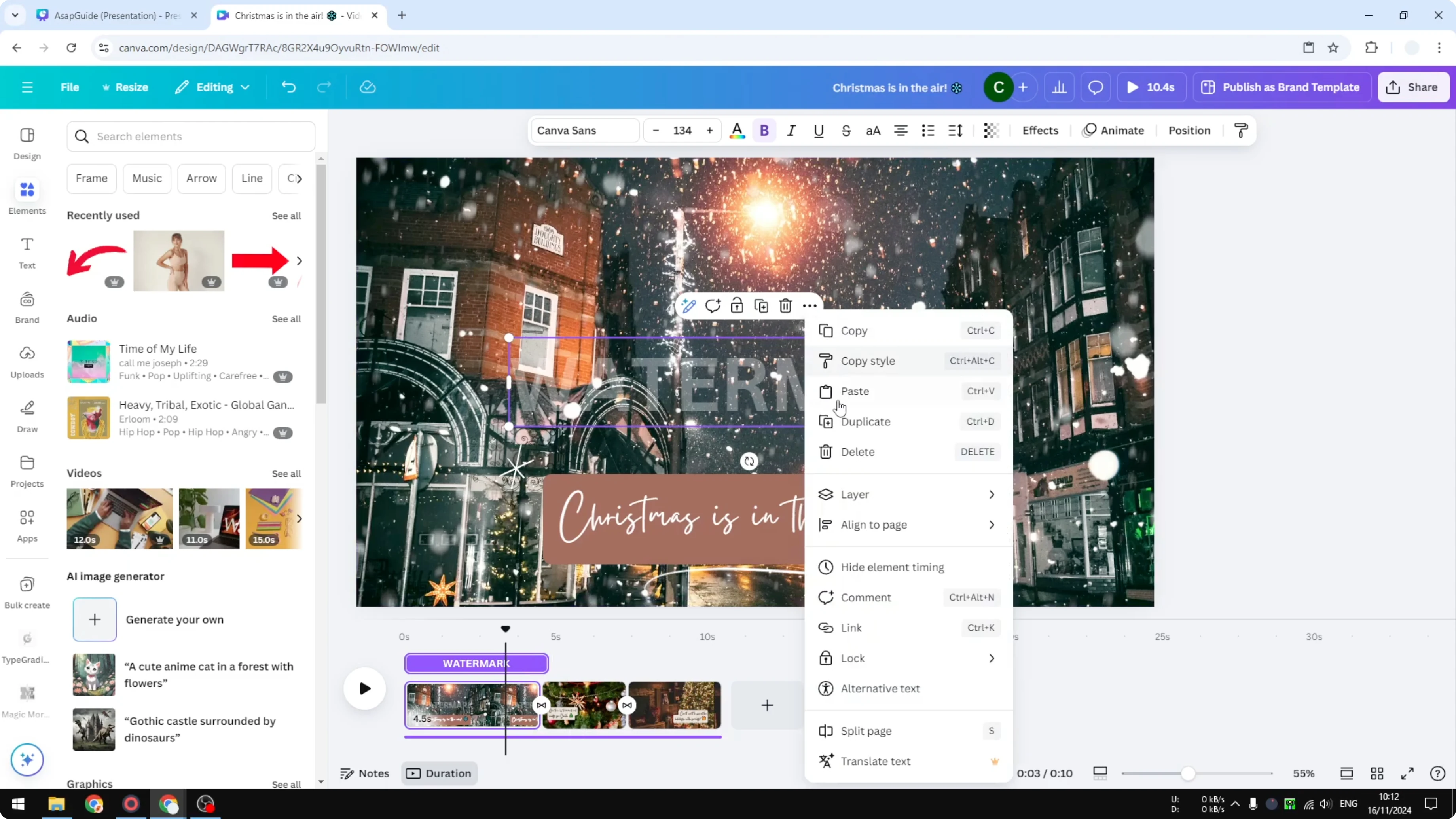
To add the same watermark to another clip, right click the watermark and select Copy. Go to another clip, right click again, and Paste. Repeat this process until all the clips in the video have a watermark.
While you are managing clips, consider adding video transitions in Canva to smooth the cuts between scenes. This keeps the visual flow consistent with your watermark placement. It also helps when you are working across multiple short clips.
Final thoughts
That is how I create a watermark for a video in Canva. Build a simple text or image mark, lower its transparency, place it where it does not distract, and copy it across clips. If you want to level up the edit, you can also add a cool video transition in Canva to polish the final result.
Recent Posts

How to Visualize Yourself as a Pixelized Character with AI?
How to Visualize Yourself as a Pixelized Character with AI?

How to Revive Faded Memories and Enhance Image Clarity with AI?
How to Revive Faded Memories and Enhance Image Clarity with AI?

How to Visualize Yourself as an Animal Crossing Character with AI?
How to Visualize Yourself as an Animal Crossing Character with AI?