How to Revive Faded Memories and Enhance Image Clarity with AI?
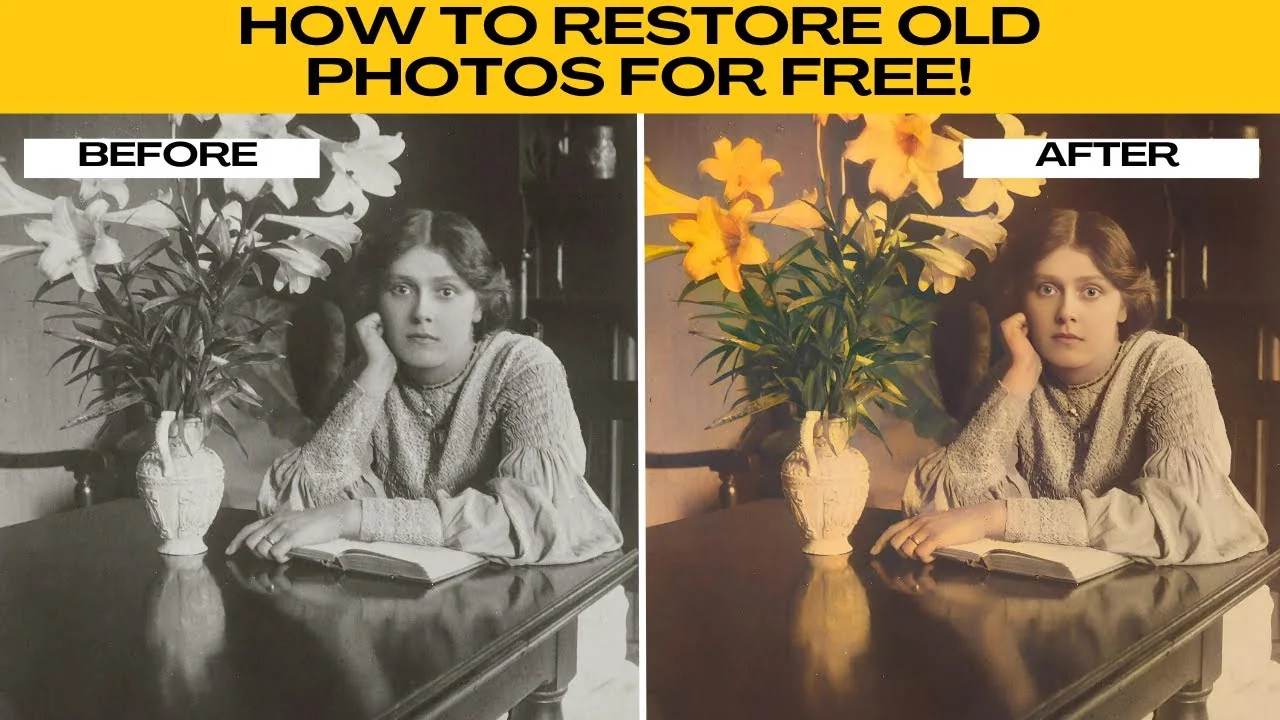
I will teach you how to restore old photos instantly with a free AI tool. If your photo is faded, blurry, or stuck in black and white, this AI photo restore tool can bring it back to life with just a few clicks.
If you also need to improve dark shots, see how to enhance low light photos with AI.
Open the tool
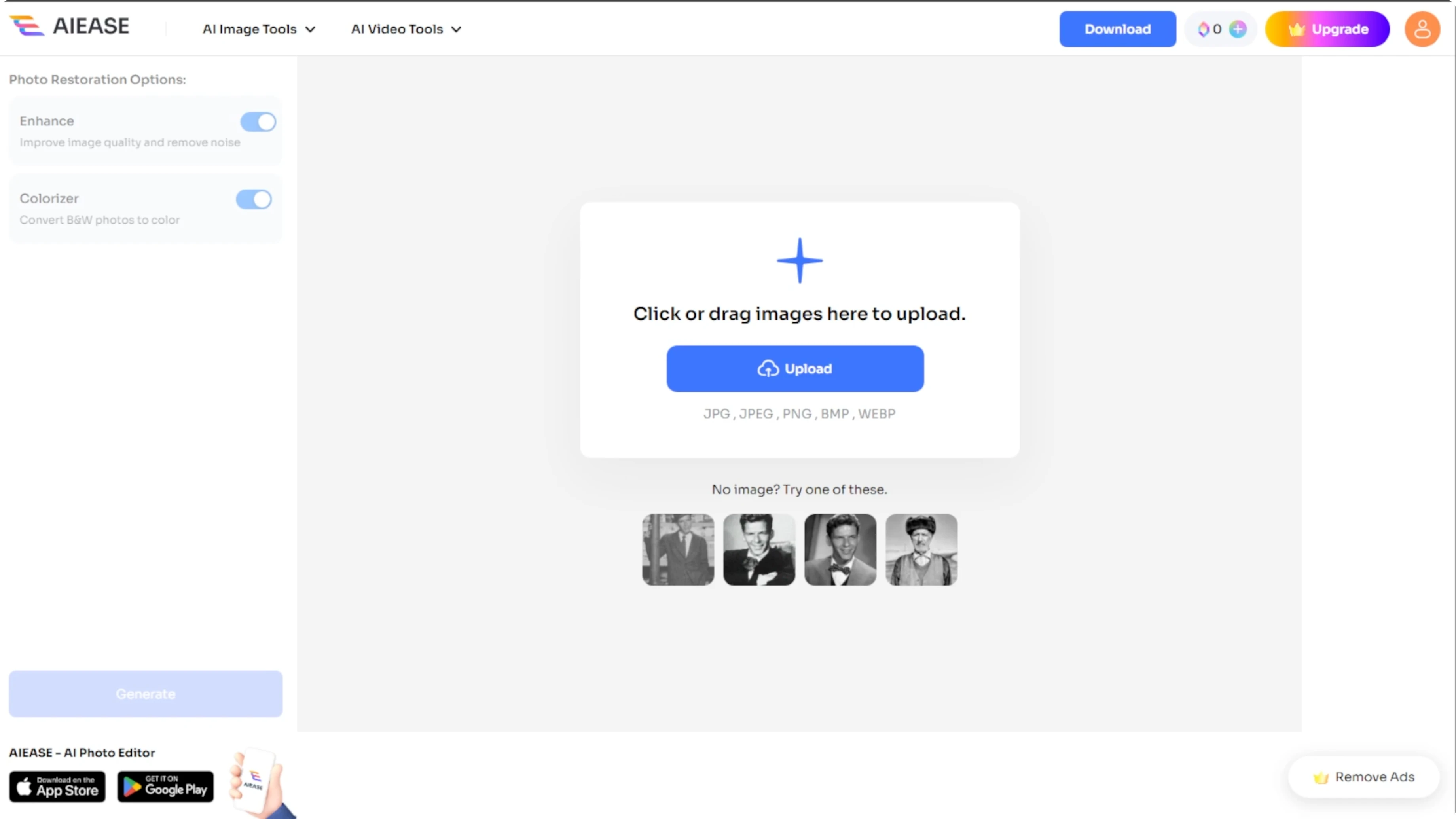
Open your browser and head to the AI restore photo tool. You will be greeted with a clean and intuitive interface where you can either upload your own image or experiment with the site's free sample photos.
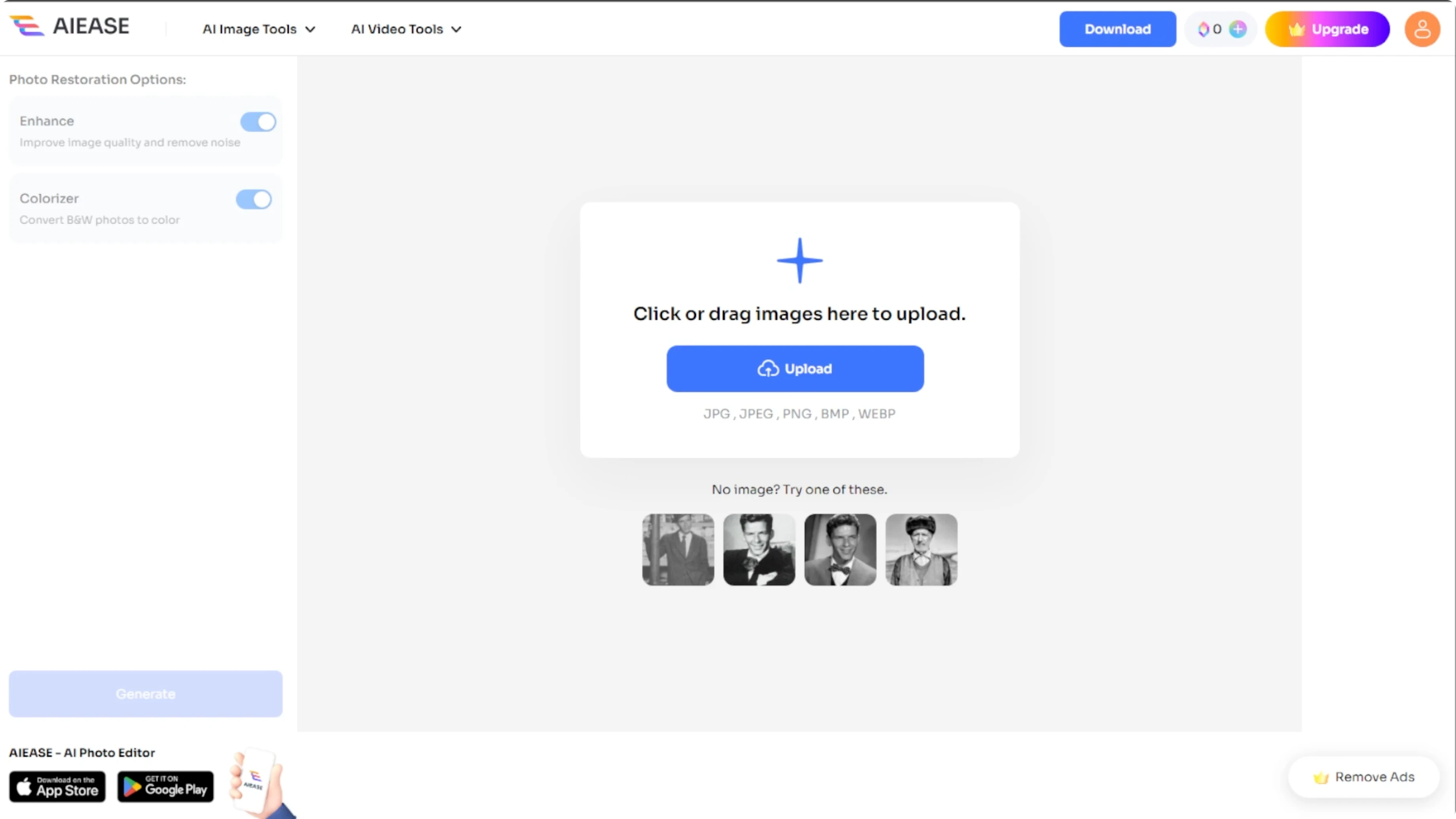
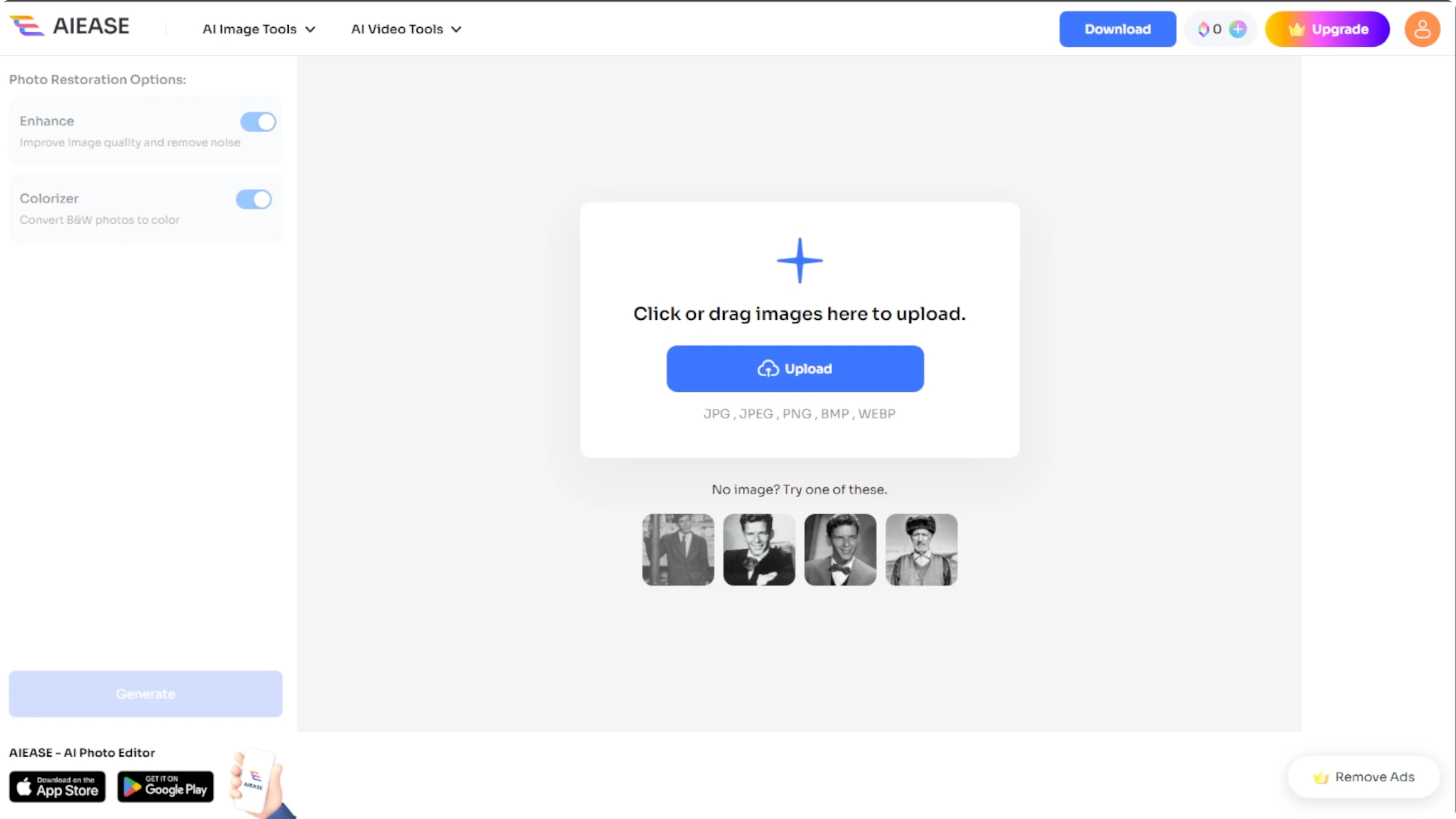
Supported file types include JPG, JPEG, PNG, BMP, and WEBP.
Upload and preview
Click the Upload button to choose a photo from your computer, or select one of the sample images to test out the tool first. Once uploaded, the image will appear in the preview area ready for enhancement.
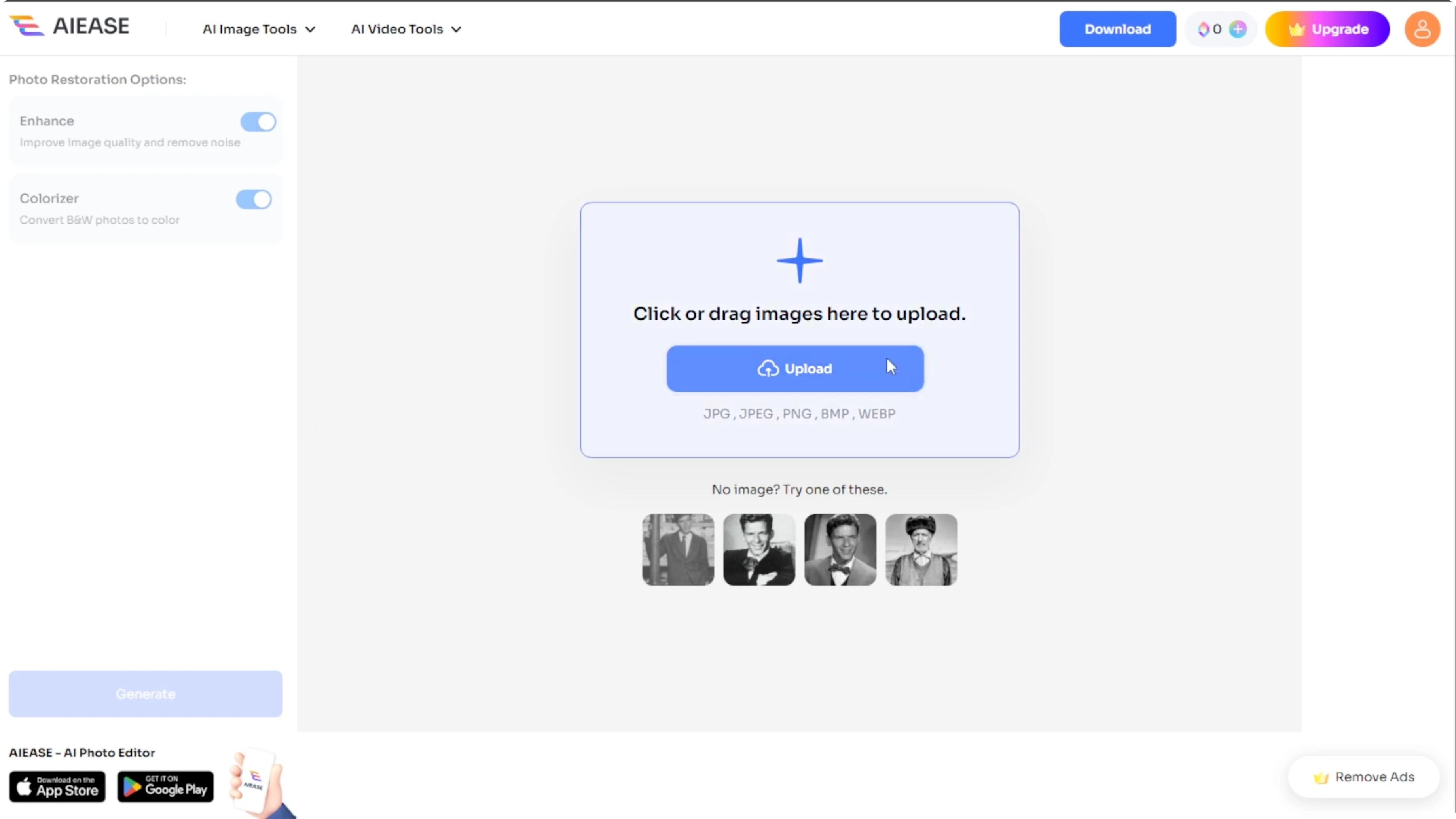
Enhancement options
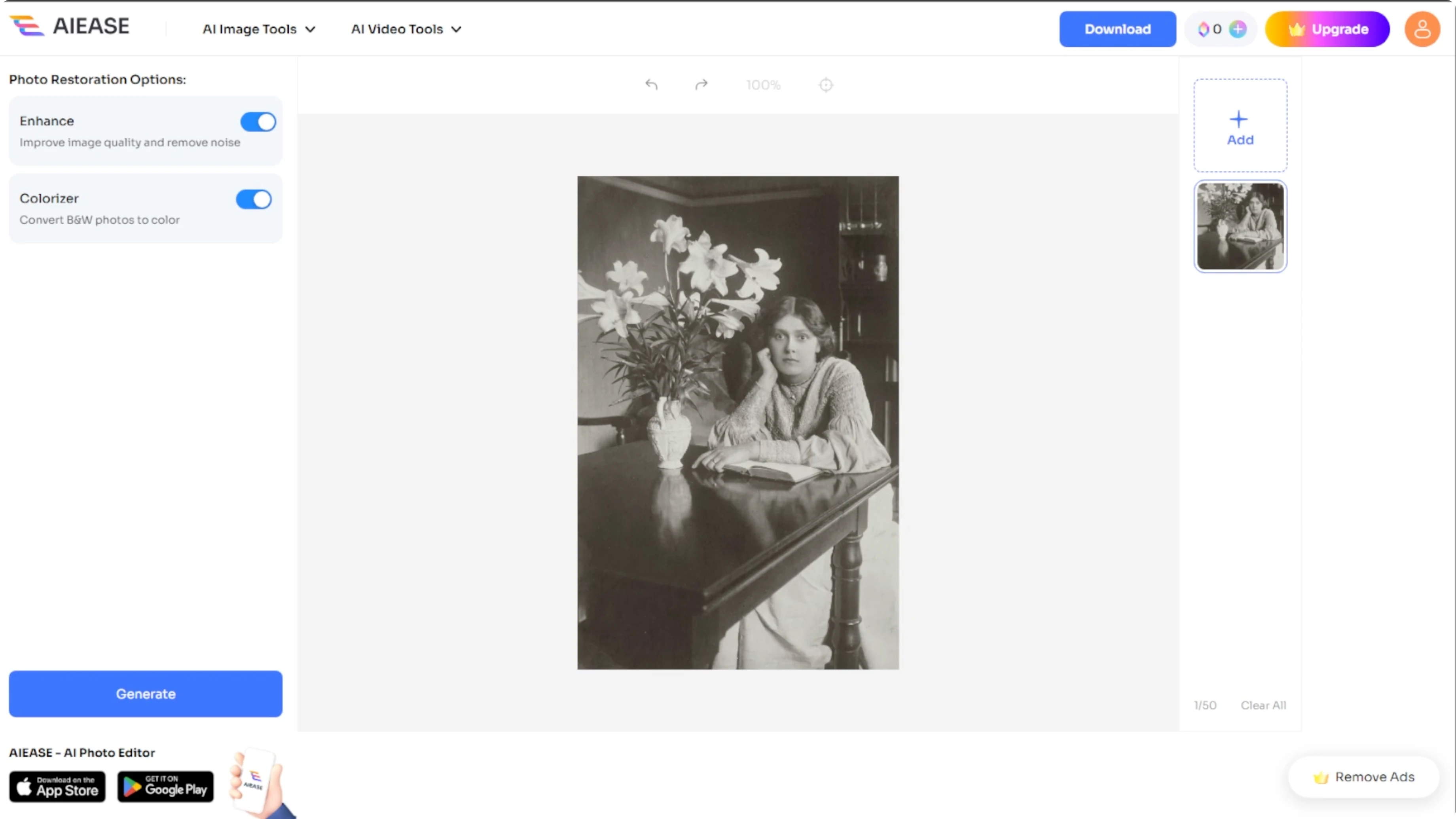
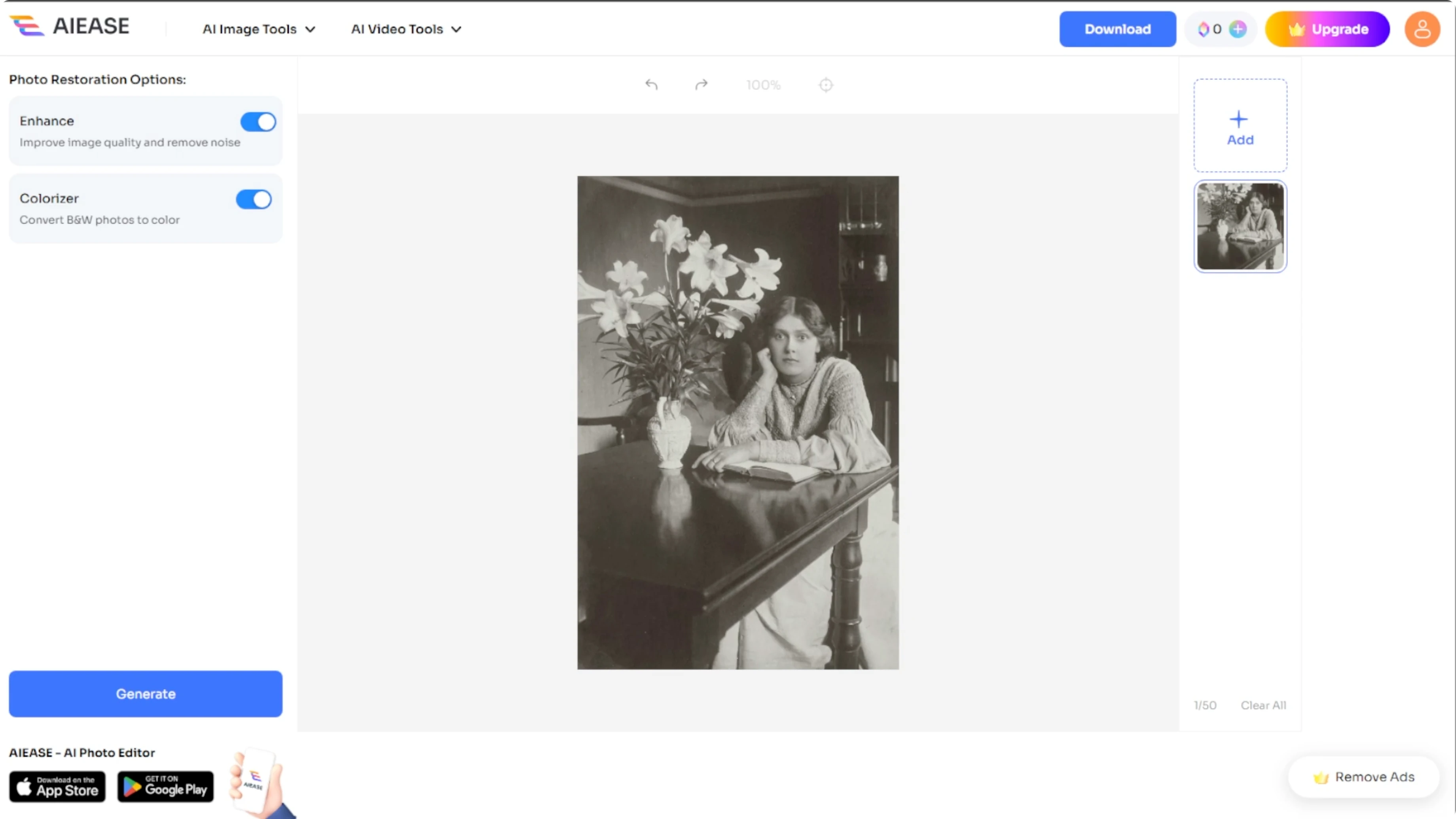
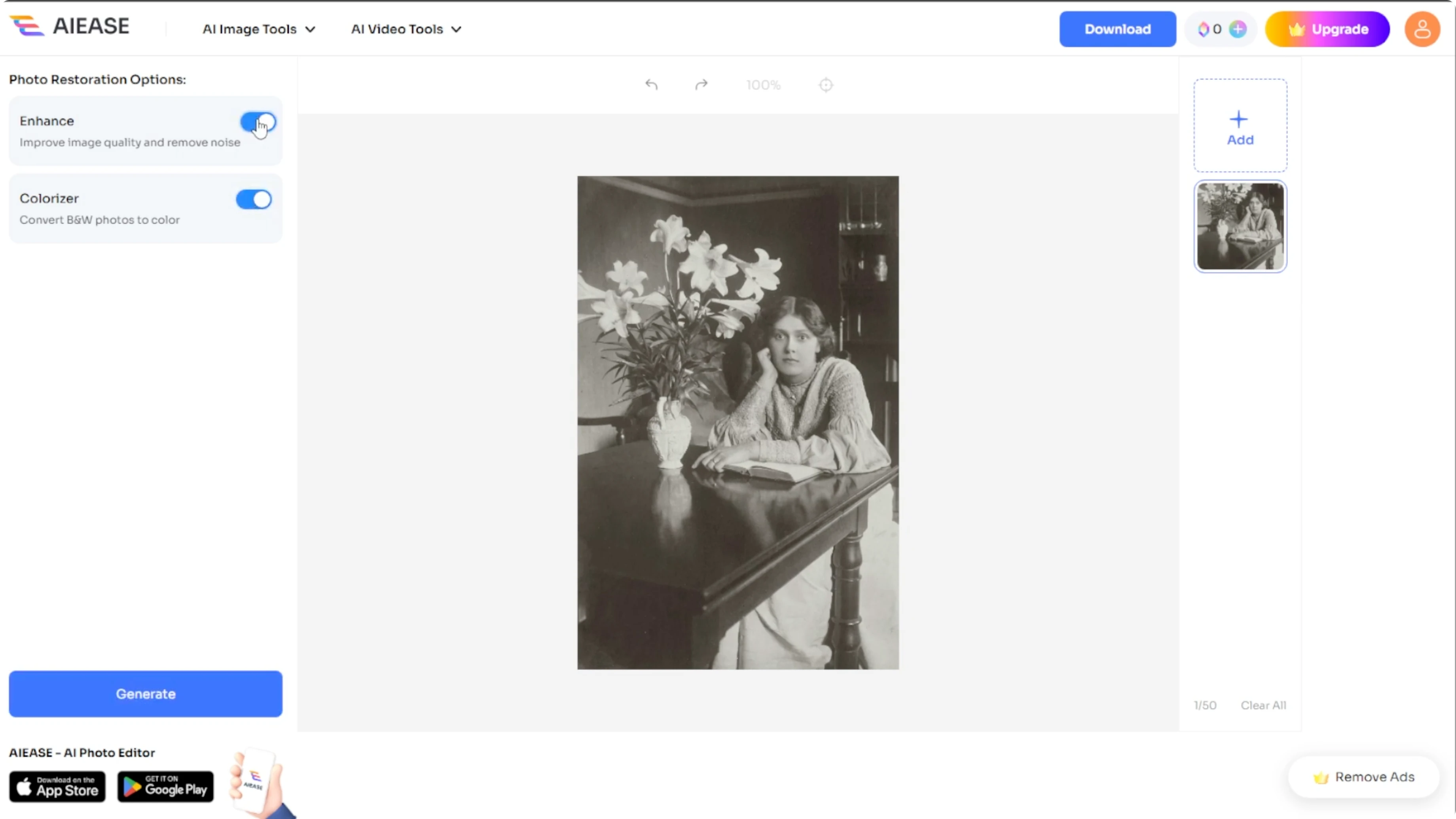
On the left panel, you will see two enhancement options. The first one is Enhance, which improves overall image quality by sharpening blurry areas and removing grainy noise, and the Colorizer, which converts black and white photos into full color using AI. You can enable either or both tools depending on your photo's condition.
For broader edits beyond restoration, check our guide to image editing with Icedit AI.
Generate the restore
After choosing your enhancement settings, click the Generate button and let the AI work its magic. It typically takes just a few seconds.
Compare and download
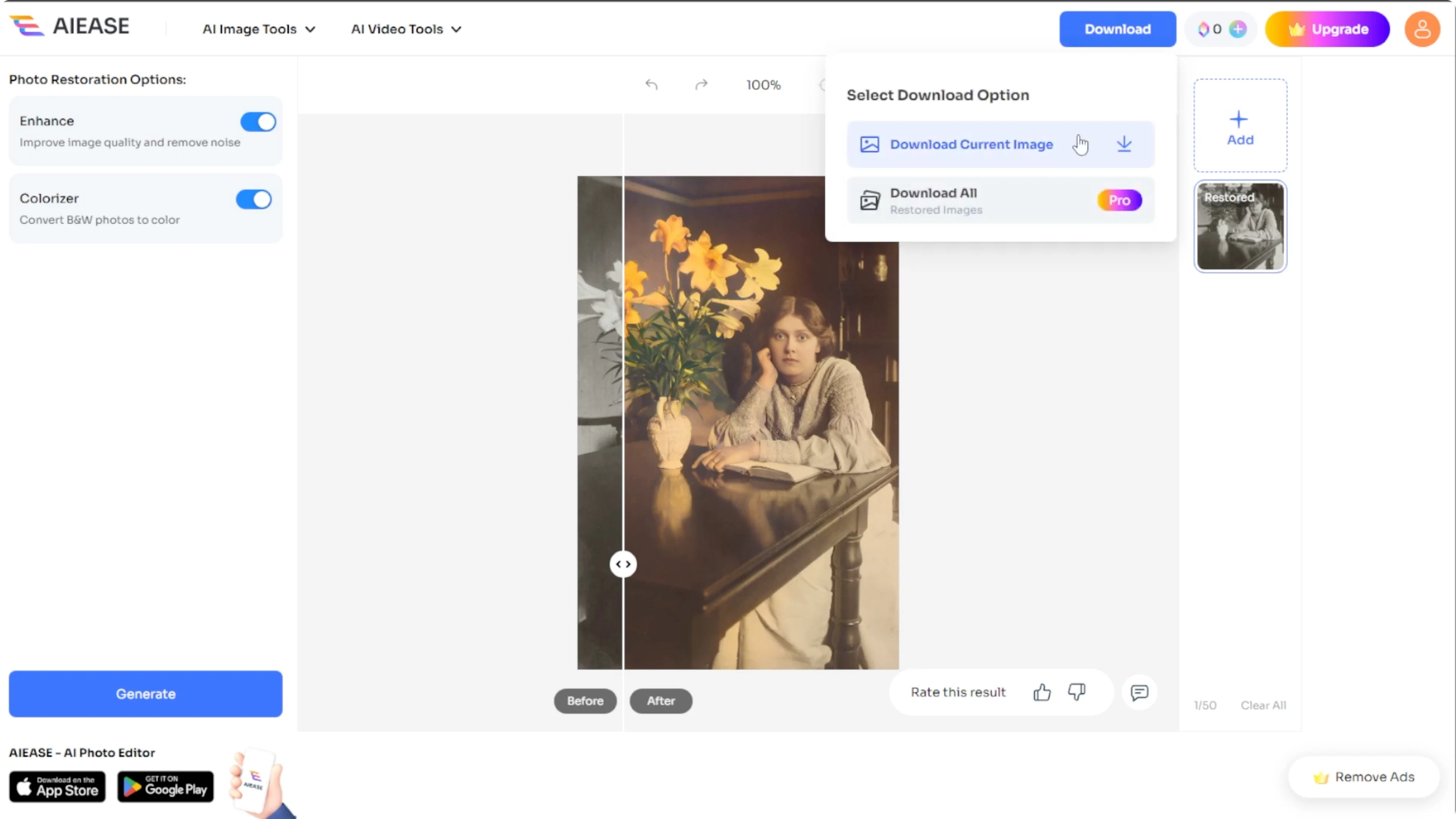
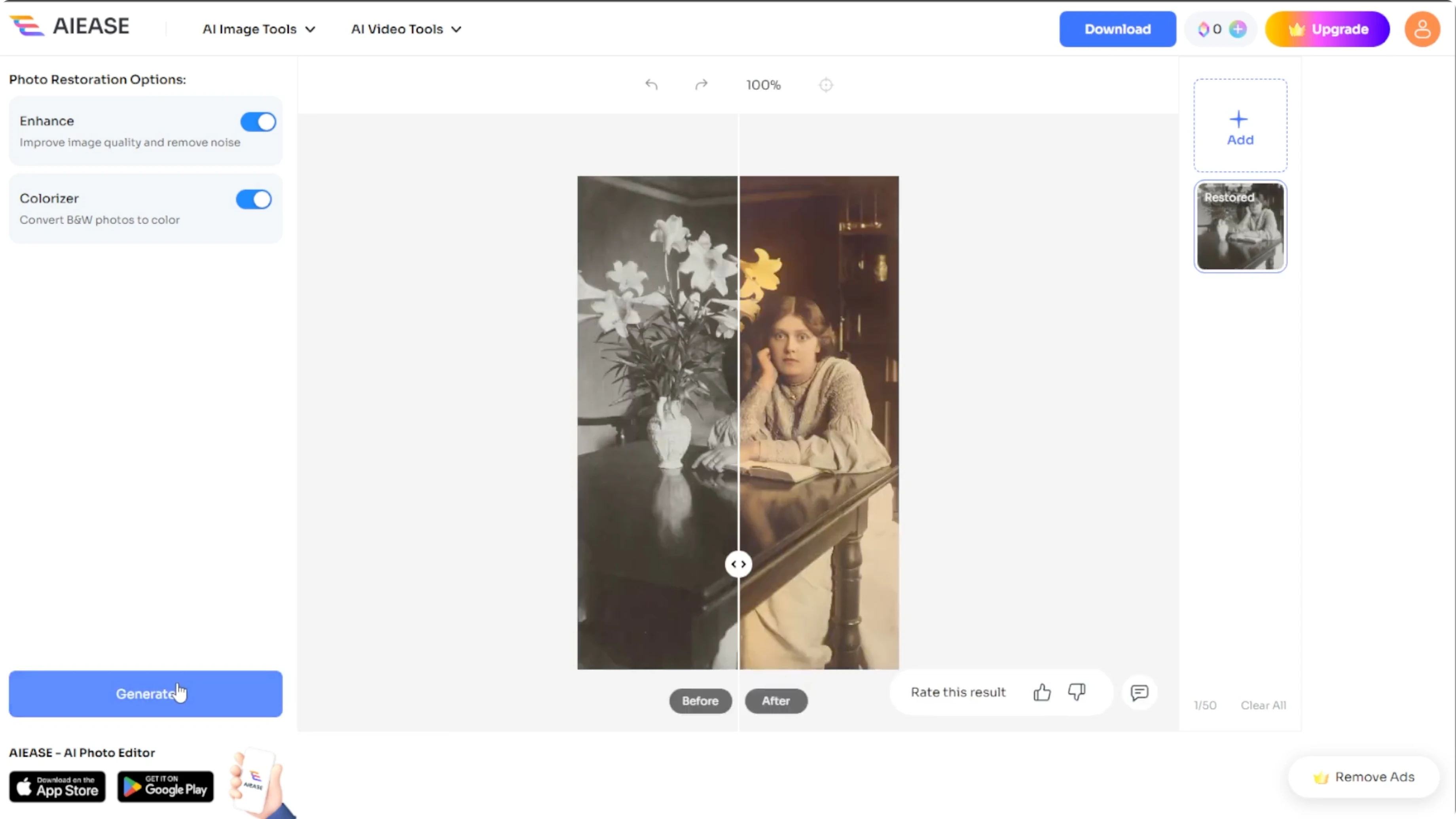
Once the processing is complete, use the before and after slider to compare the original with the restored version. It is a great way to appreciate how much the photo has improved. If you are happy with the result, click the Download button to save the enhanced version to your computer.
Results you can expect
Reviving cherished memories is now just a few clicks away. It works for a vintage family portrait or an old school photo, and this AI photo restore tool is a powerful free solution to breathe new life into your images.
If you want to create new visuals from scratch, see how to generate AI images with Adobe Firefly.
Final thoughts
Upload a supported image, preview it, and pick Enhance and Colorizer based on what your photo needs. Click Generate, compare with the slider, and Download the result when you are satisfied. This quick workflow restores clarity and color so your memories look fresh again.
Recent Posts
How to Visualize Yourself as a Pixelized Character with AI?
How to Visualize Yourself as a Pixelized Character with AI?
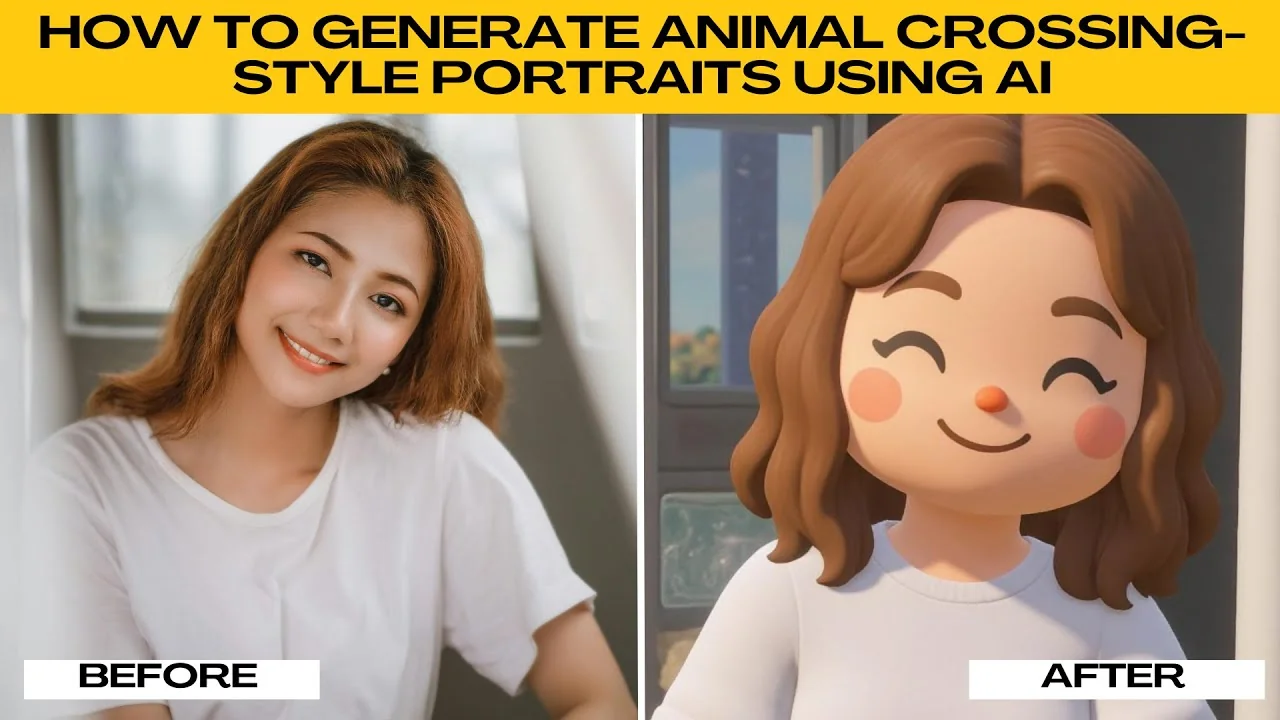
How to Visualize Yourself as an Animal Crossing Character with AI?
How to Visualize Yourself as an Animal Crossing Character with AI?
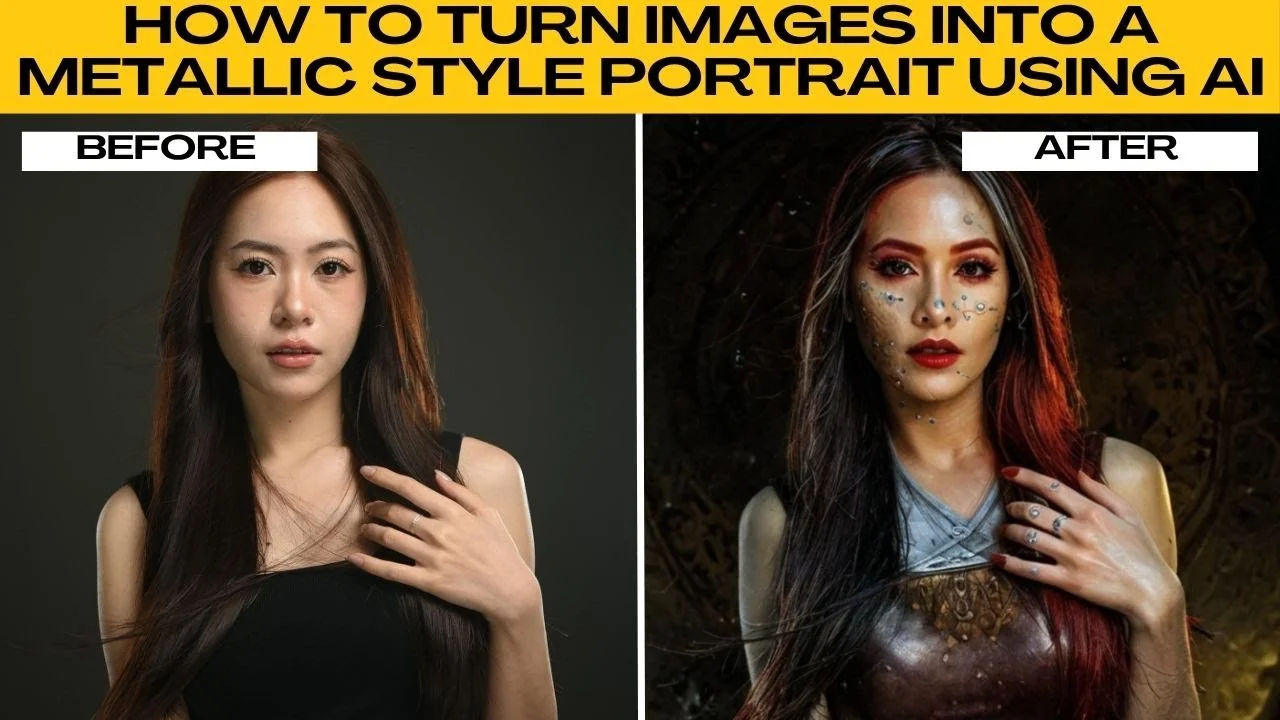
How to Turn Your Photos into a Radiant Metallic Masterpiece with AI?
How to Turn Your Photos into a Radiant Metallic Masterpiece with AI?