How to Generate High-Quality Images and Graphics with Adobe Firefly?
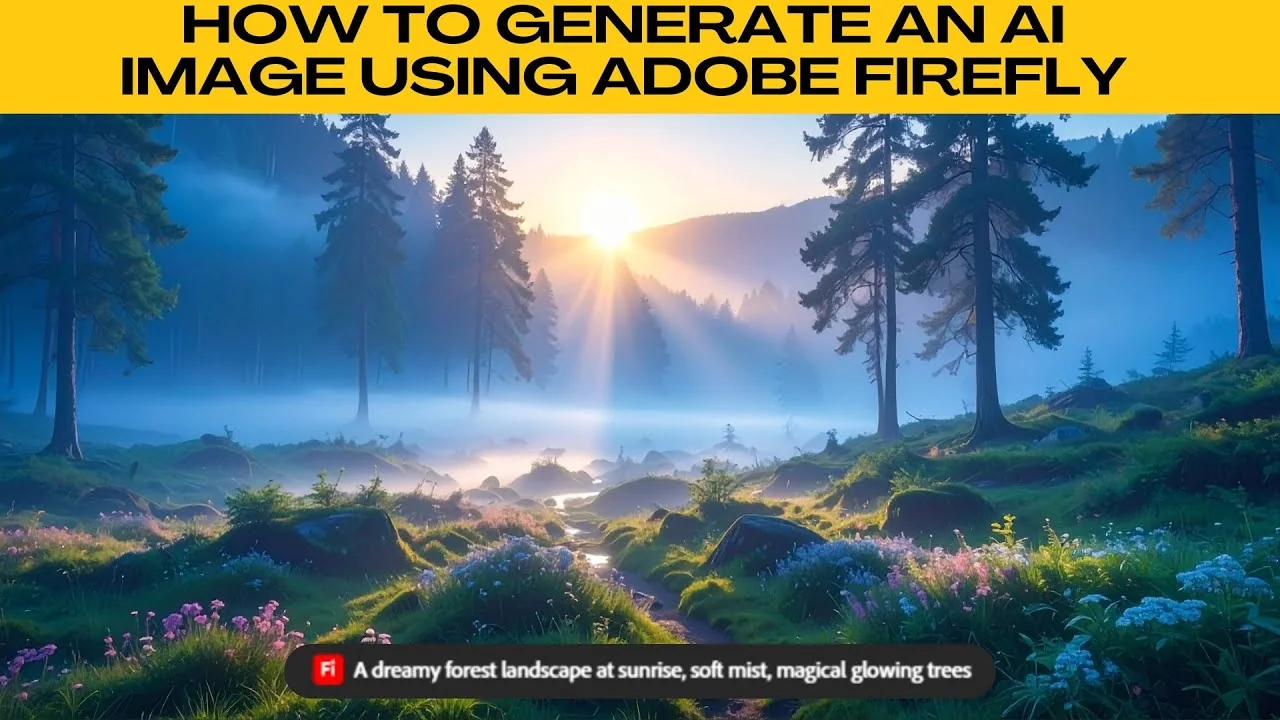
I will teach you how to generate an AI image using Adobe Firefly. Adobe Firefly is Adobe's AI powered creative tool that allows you to generate images from text prompts. If you want realistic photos, artistic styles, or conceptual visuals, Firefly makes it easy even for complete beginners.
If you prefer working in Canva, see this guide on creating AI images in Canva for a similar workflow.
Get started
Go to firefly.adobe.com in your browser.
Log in with your Adobe ID. If you do not have one, click sign up to create a free account.
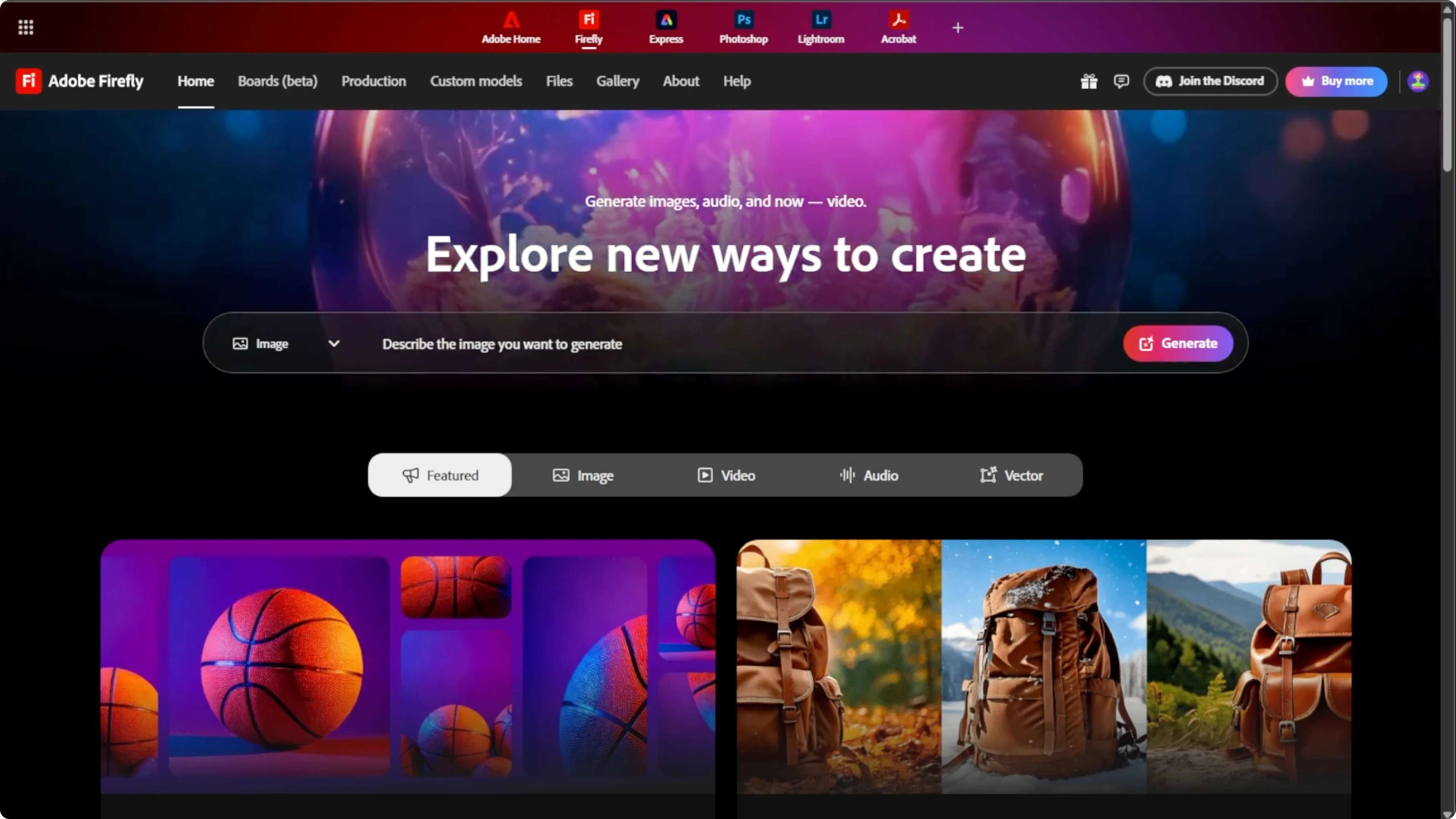
On the homepage, you will see a text prompt box front and center.
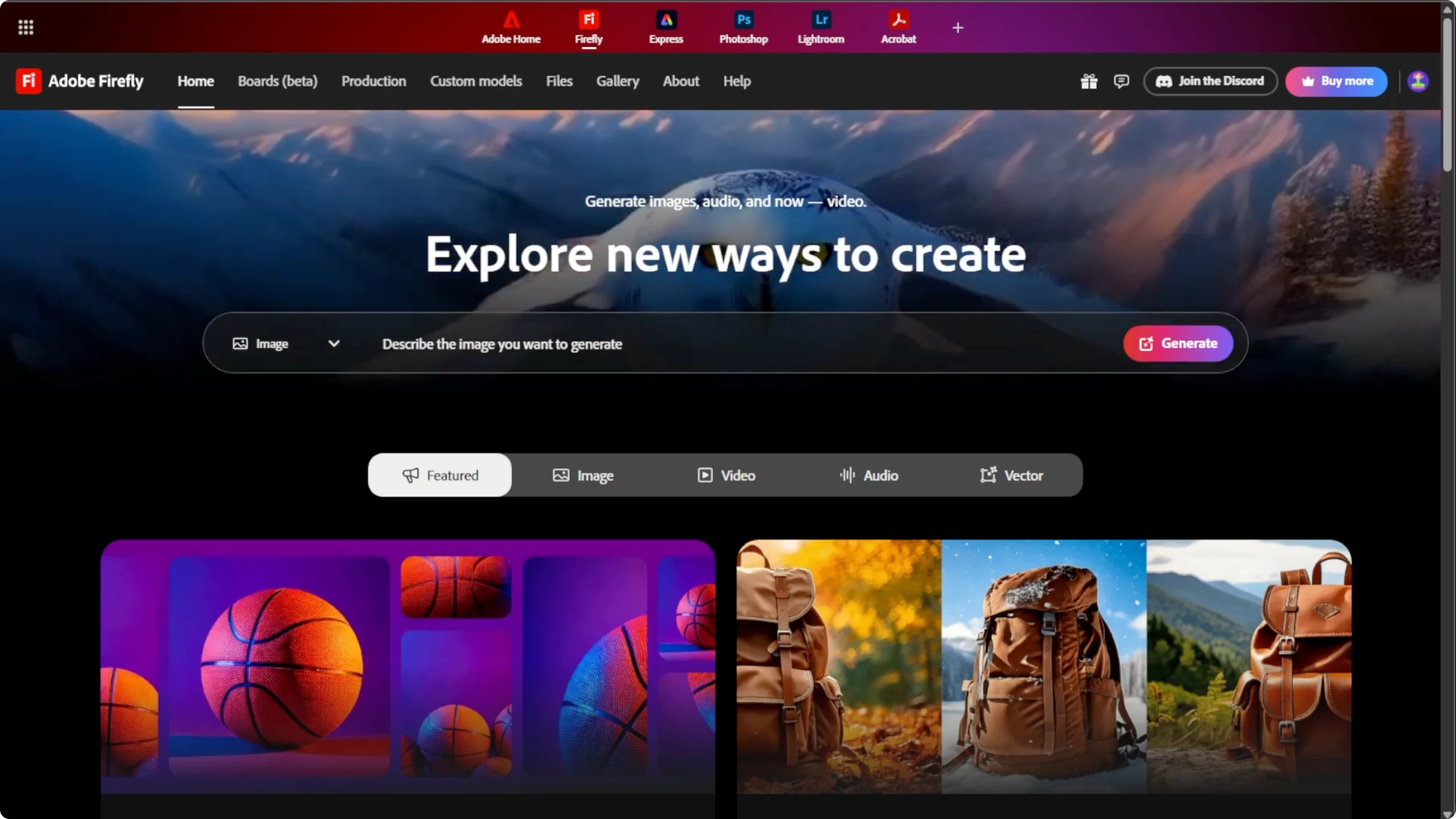
On the left side of the prompt box, click the drop down menu and make sure image is selected. This tells Firefly that you want to generate an image from your text prompt.
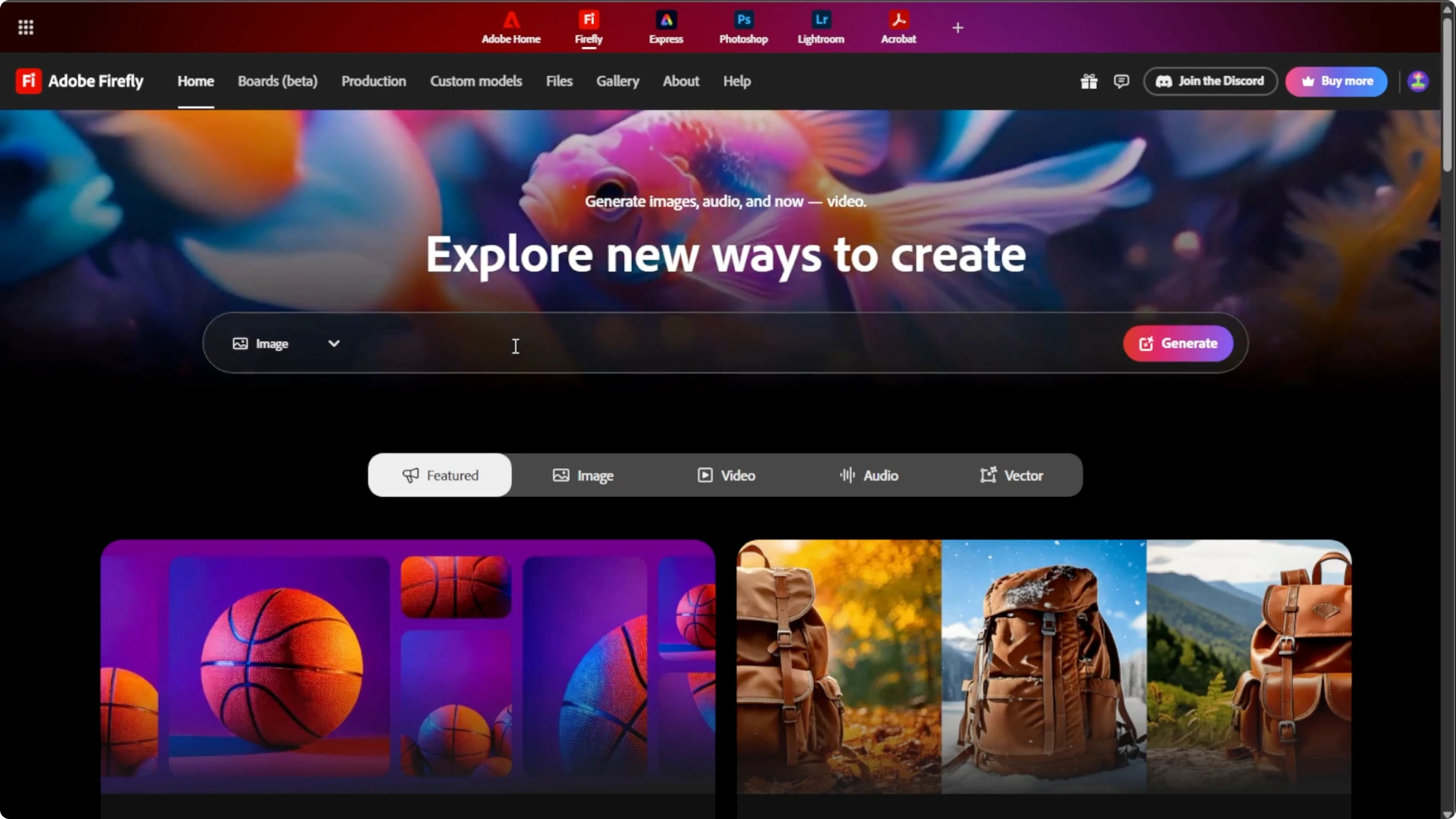
In the prompt box, type in what you want to see and be as descriptive as possible. The more specific and vivid your prompt, the better the result.
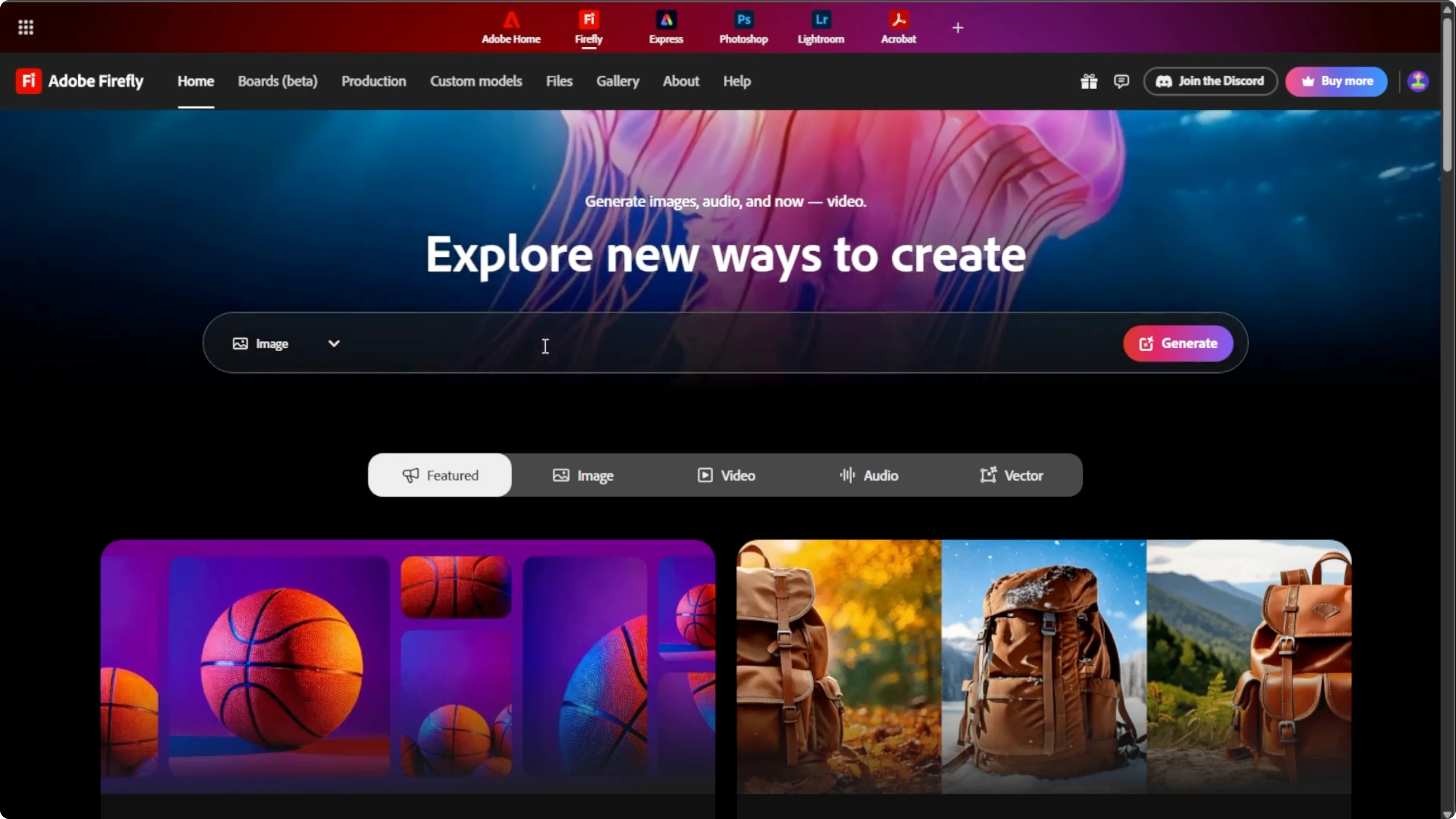
Click Generate when ready. Firefly will take you to the text to image workspace where the image will appear in a few seconds.

Write a prompt
Describe the subject, the setting, and the style you want. Add details for lighting, camera angle, and mood.
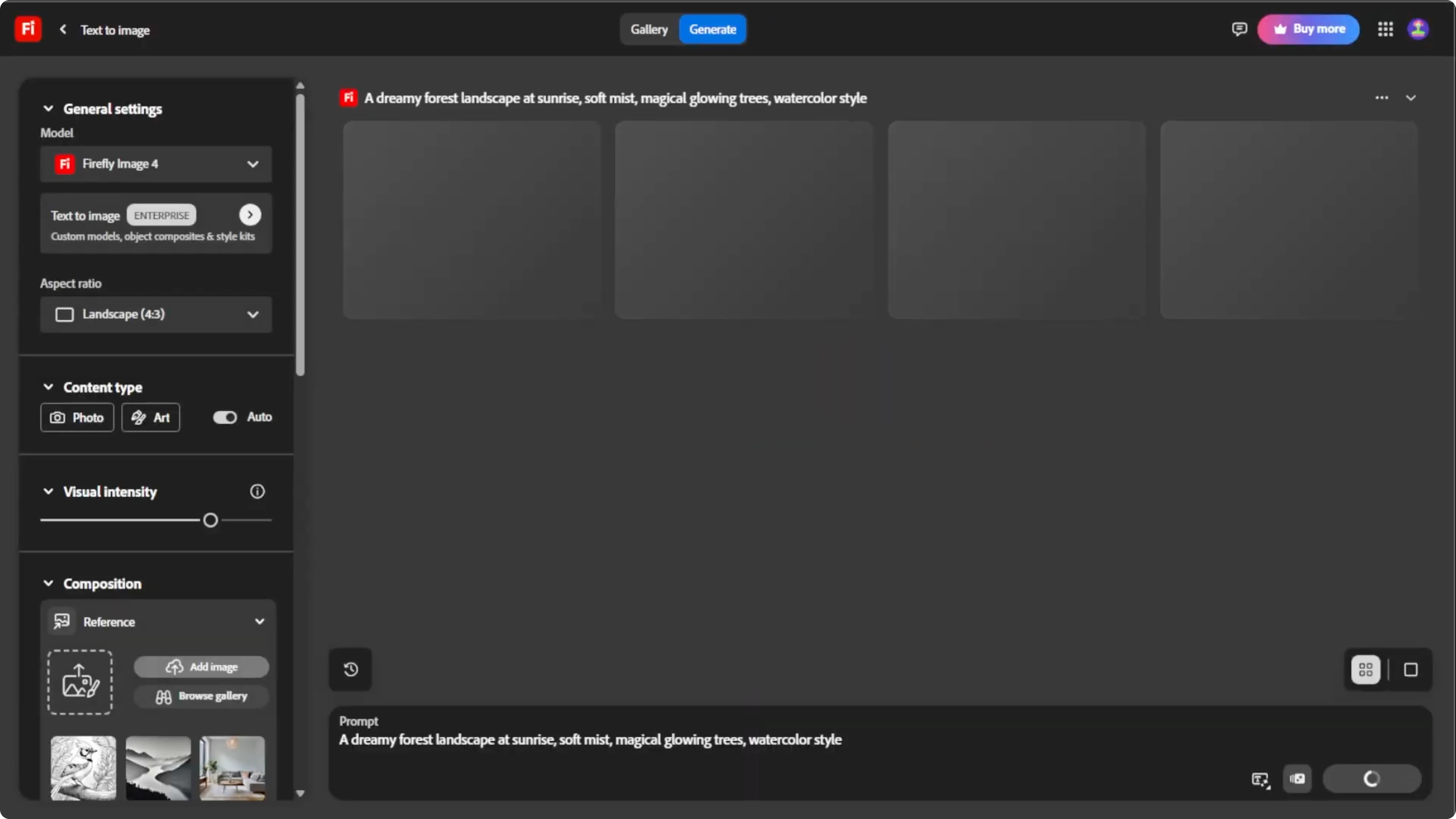
A clear prompt saves time because good inputs produce better outputs.
Example prompt:
a serene mountain lake at sunrise with soft golden light, mist over the water, ultra detailed reflections, photo style, 35mm, shallow depth of field
Fine tune in the workspace
Look to the left sidebar to fine tune your image.
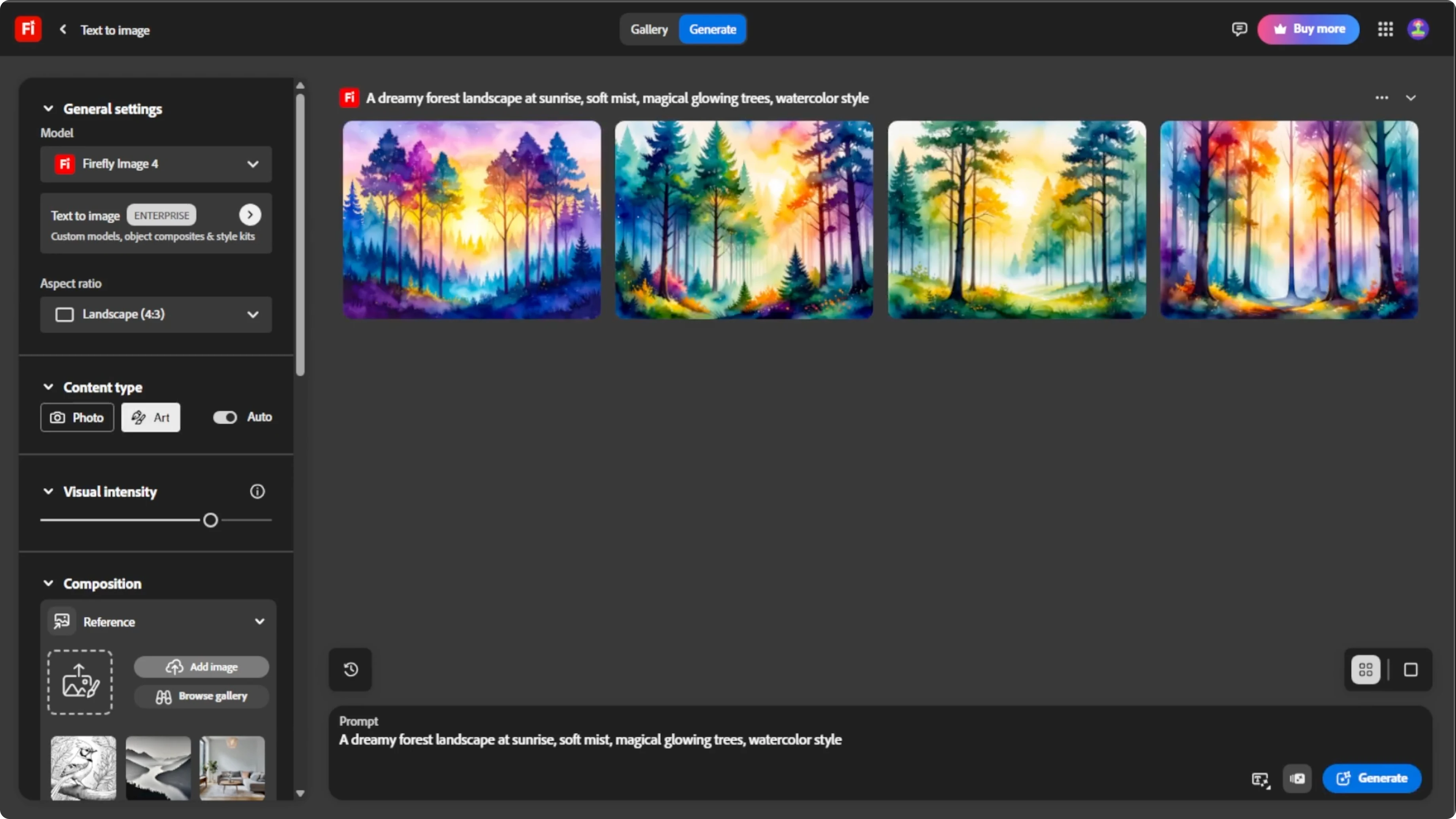
Under the general settings, you can change the AI model. Select the latest model for best results.
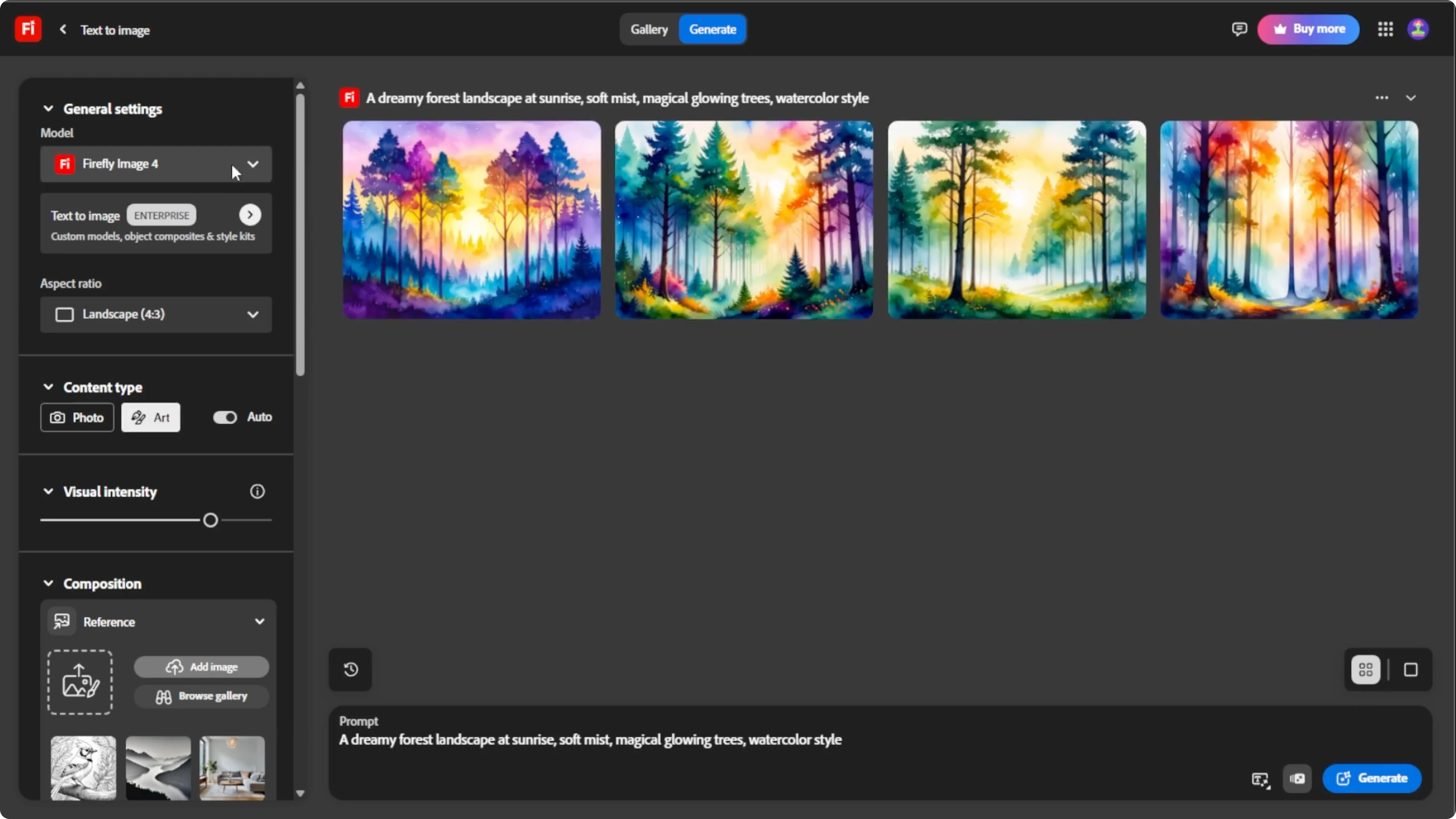
You can also change the aspect ratio and the content type.
Aspect ratio
Under the aspect ratio, choose the shape of your image. For example, 1x1 square, 4x5 portrait, or 16x9 wide.
Content type
Under the content type, choose from auto where Firefly chooses for you, photo for realistic results, and art for painted, drawn, or stylized looks. If you want bold stylization like pop art, see how to create pop art images with AI.
Visual intensity
You can also adjust the visual intensity. This controls how bold or stylized the image is. Keep it in the middle for balanced results because too high might distort realism.
References
An optional step is adding a composition and style reference.
Composition reference
Under the composition reference, upload a photo or select from the Firefly gallery to guide the layout and structure.
Style reference
Under the style reference, add an image to influence color, texture, or mood. These tools help Firefly mirror a visual theme or layout from another image.
Effects
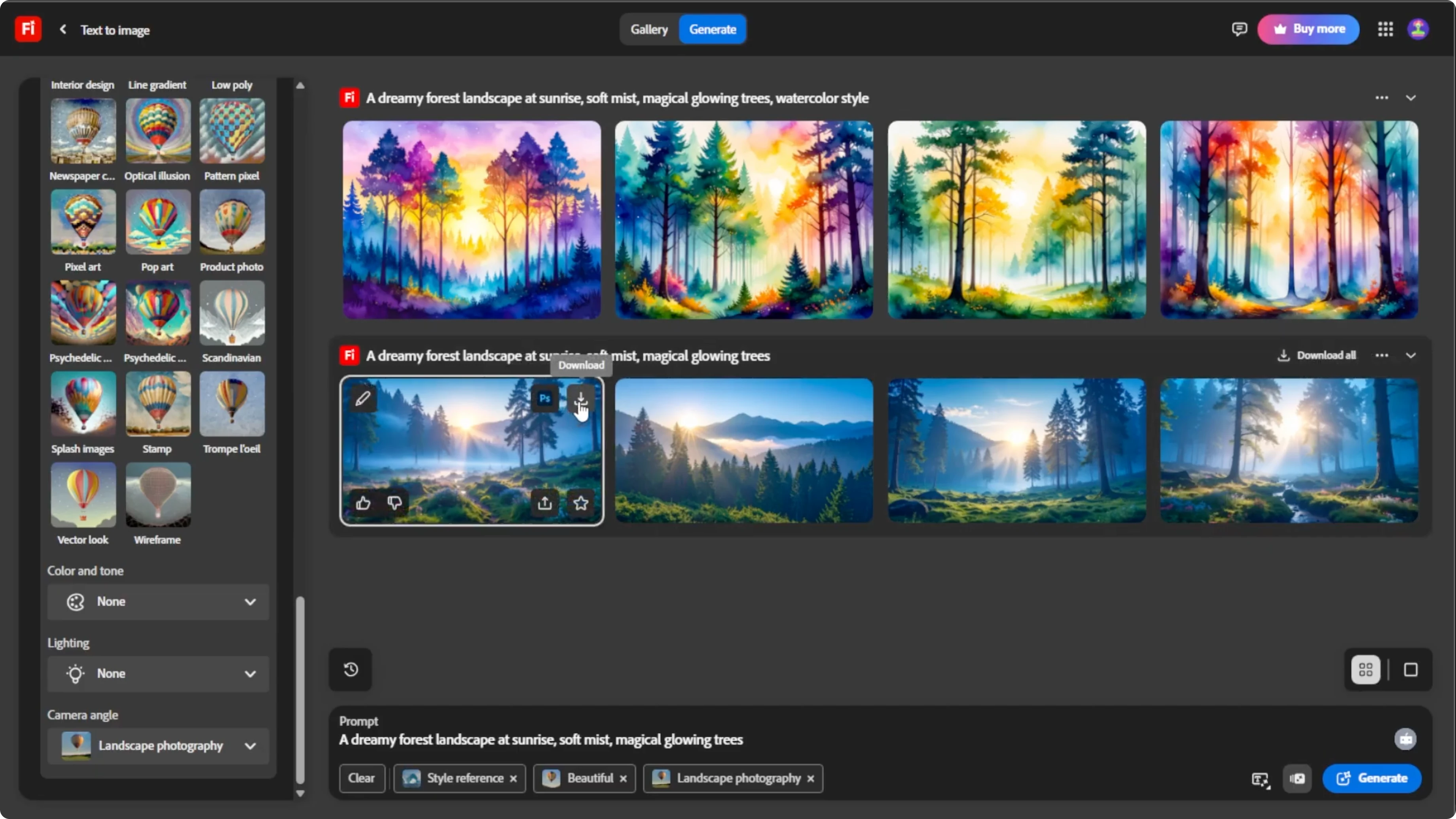
Under the effect settings, add filters to customize lighting, camera angles, or color mood. Click any tag to add it to your prompt settings. You will see a preview of all the selected options added to your prompt below the text box.
Generate and download
Once everything is set, click Generate again to refresh the results with your selected options. Firefly will generate four new image variations per batch based on your updated prompt and settings.
Once you find an image that you like, hover over the image and click the download icon to save it individually. Or click Download all in the top right to save all four images in the batch. If you plan to bring your images into Canva and animate them, learn how to export high quality 4K video from Canva.
Final thoughts
Firefly makes text to image creation straightforward once you master prompts and the left sidebar controls. Start with a clear idea, fine tune with references and effects, then regenerate until you land on a result you love. Finish by downloading your favorites for your project or portfolio.
Recent Posts

How to Visualize Yourself as a Pixelized Character with AI?
How to Visualize Yourself as a Pixelized Character with AI?

How to Revive Faded Memories and Enhance Image Clarity with AI?
How to Revive Faded Memories and Enhance Image Clarity with AI?

How to Visualize Yourself as an Animal Crossing Character with AI?
How to Visualize Yourself as an Animal Crossing Character with AI?