How to Generate AI Images in Canva
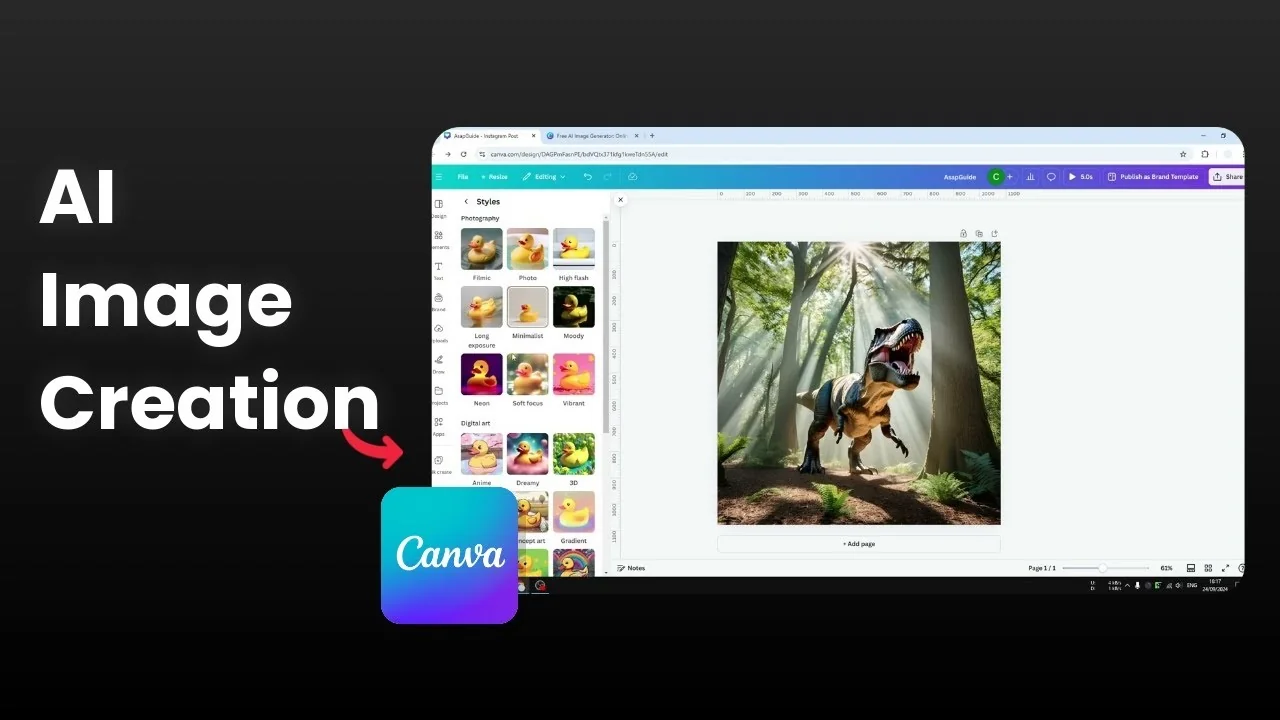
I will show you how to generate an AI image using Canva. This is a simple workflow that creates images from text with built-in options. Everything happens inside Canva without installing any third party app.
Generate AI Images in Canva
Canva has a feature called Magic Media. Magic Media lets you create AI images by describing them in text. You can try styles like watercolor, anime, photo, and more.
This tool is first party and appears directly inside Canva. It is available in the Apps menu and works inside any design. You can switch between Images and Graphics, and there is a Video option, but I will focus on images and graphics.
Open Magic Media
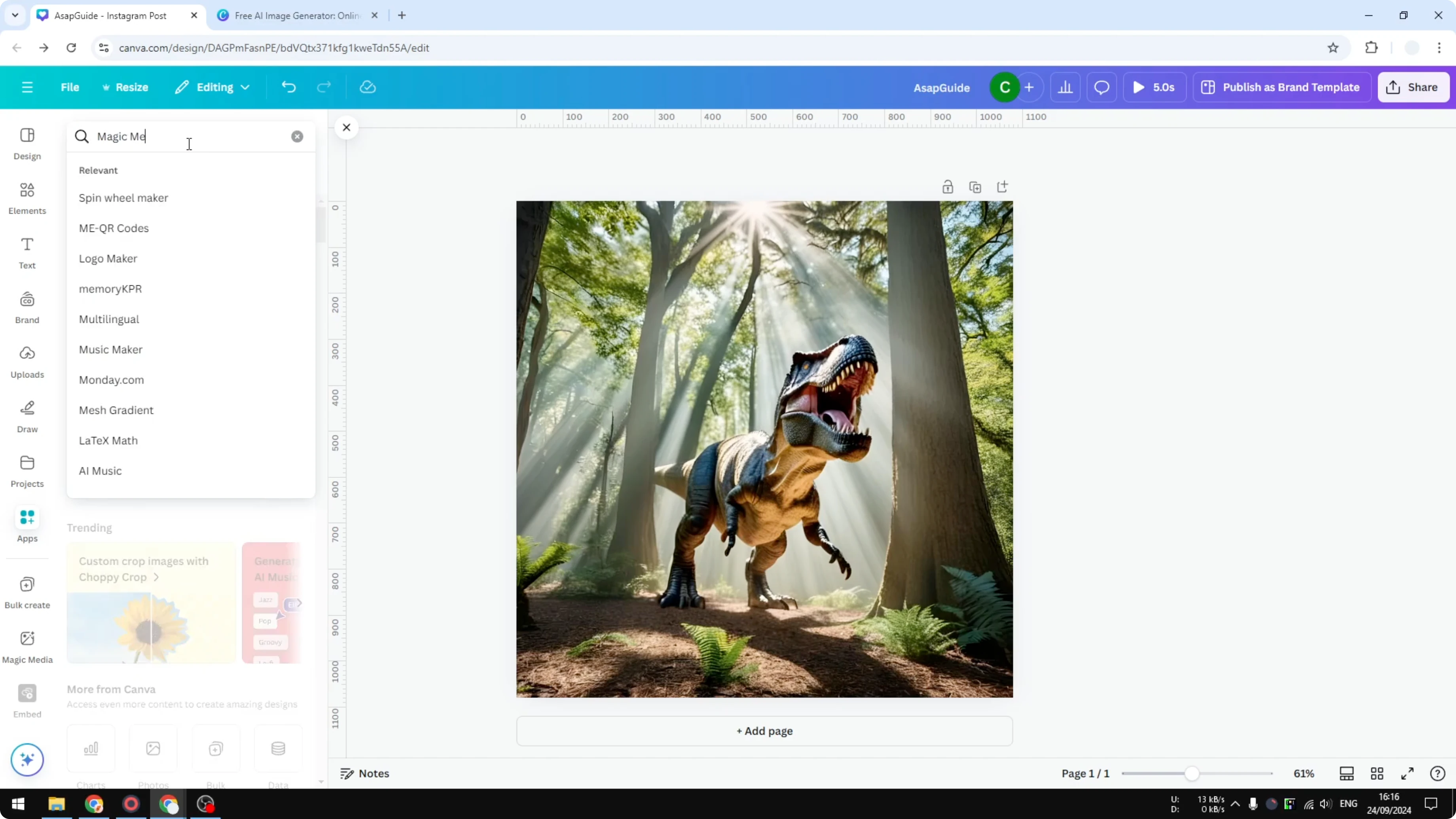
Open a design in Canva. Go to the Apps menu and search for Magic Media, then open it. There will be one app called Magic Media from Canva.
You will see a prompt field for your description. Start describing the image you want to create. If you do not want to type, you can ask for inspiration and let Canva provide a description.
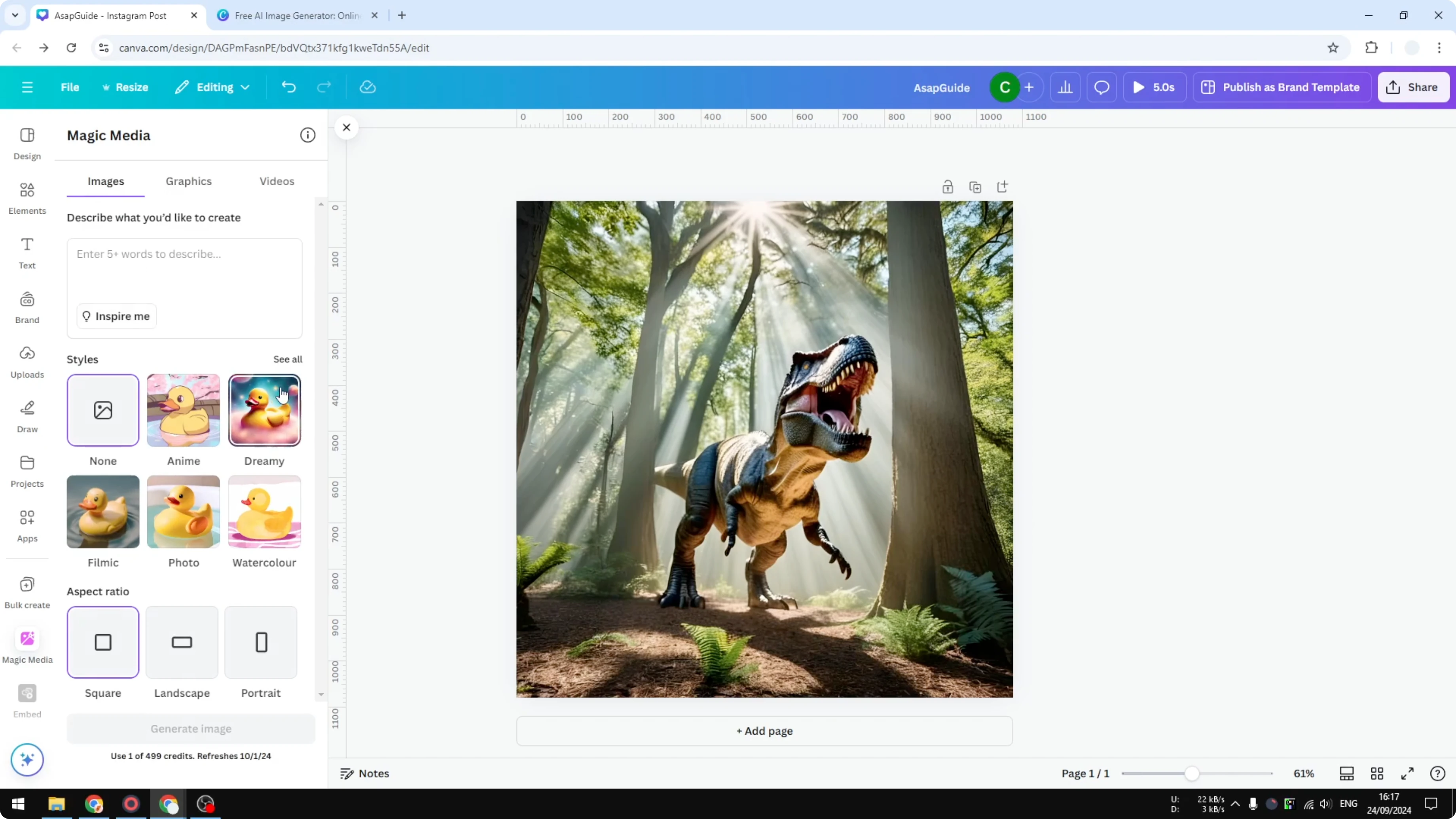
Prompt options
Images and Graphics are very similar. Images target photo outputs and Graphics are better for illustration. Choose the one that fits your goal.
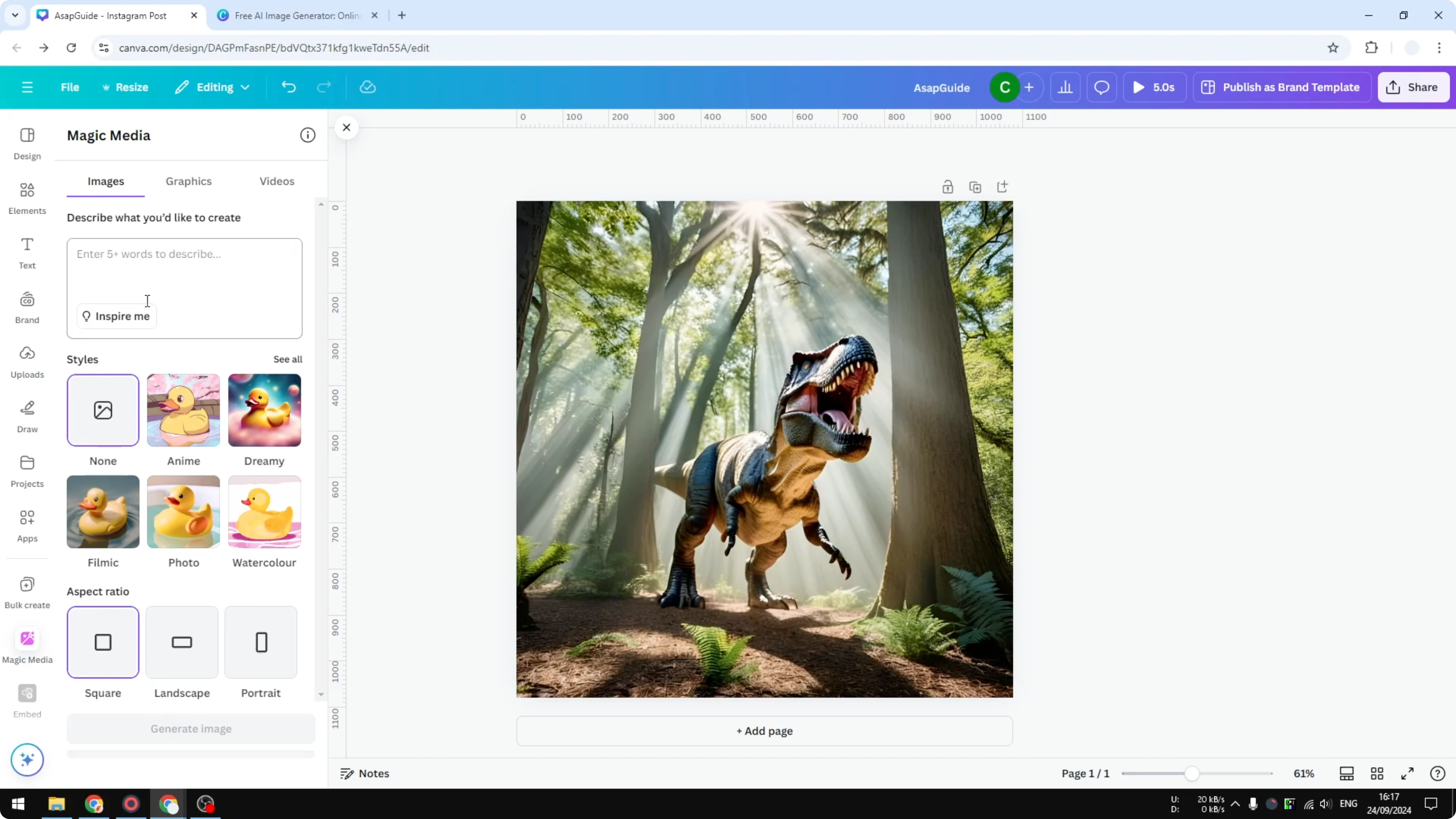
You can click See all to view every available style. Pick something like minimalist, watercolor, or anime as a starting point. If you want a stylized look after generation, you can also add a cartoon effect during editing.
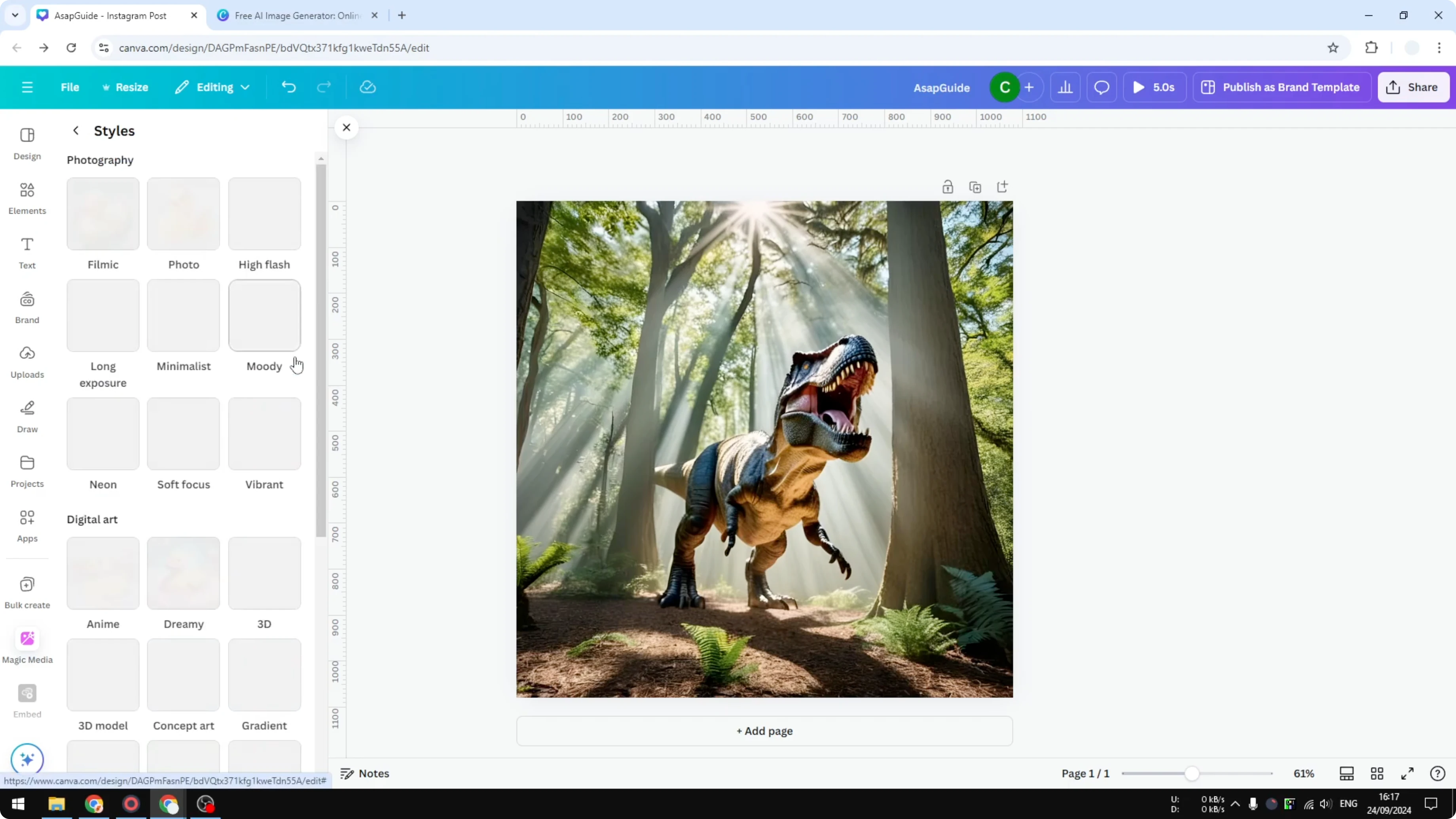
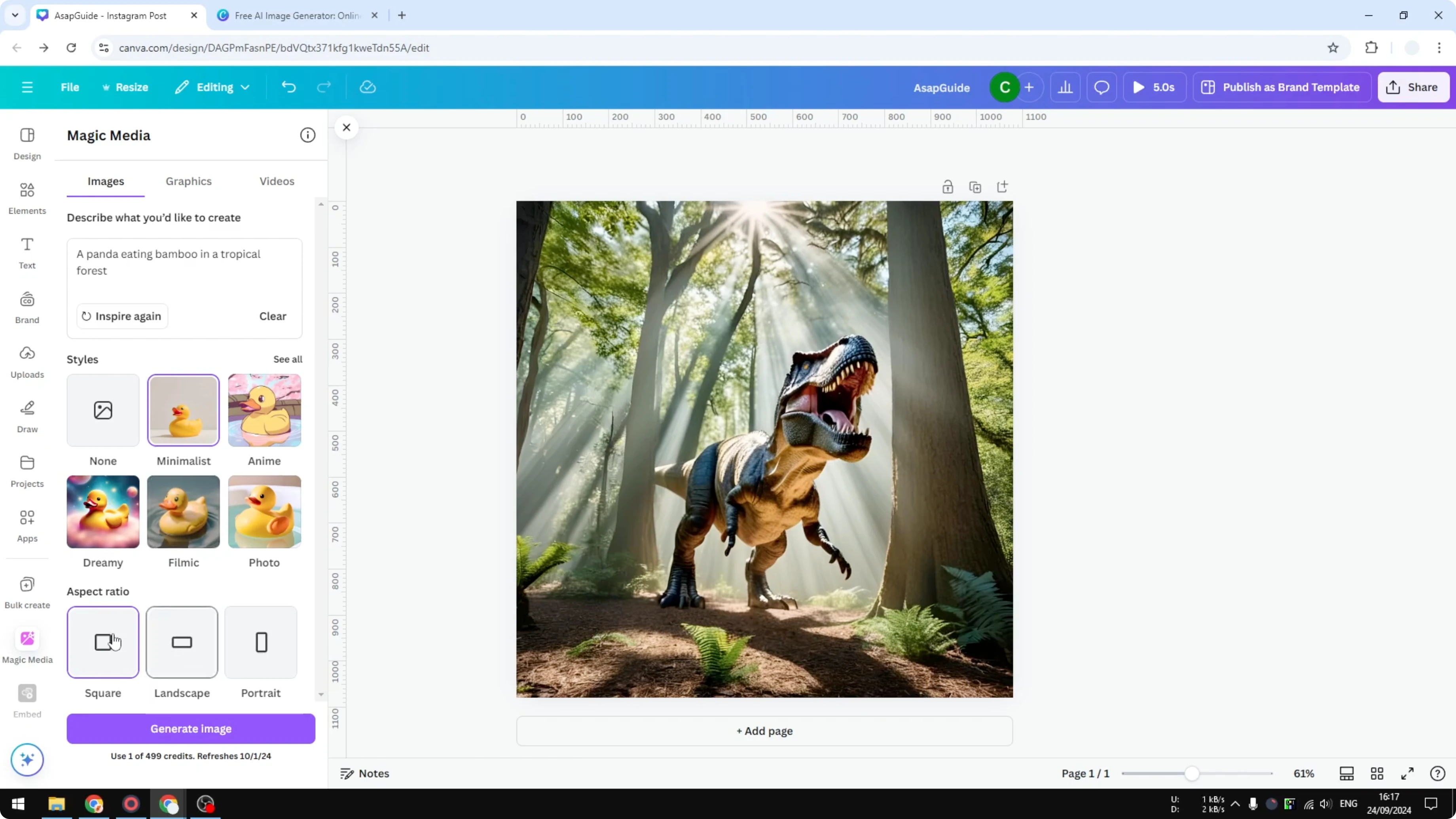
Style and ratio
Choose an aspect ratio such as Square, wide, or portrait. It does not matter if your canvas is Square or wide, you can pick any ratio. I used a Square canvas and selected Square for a consistent layout.
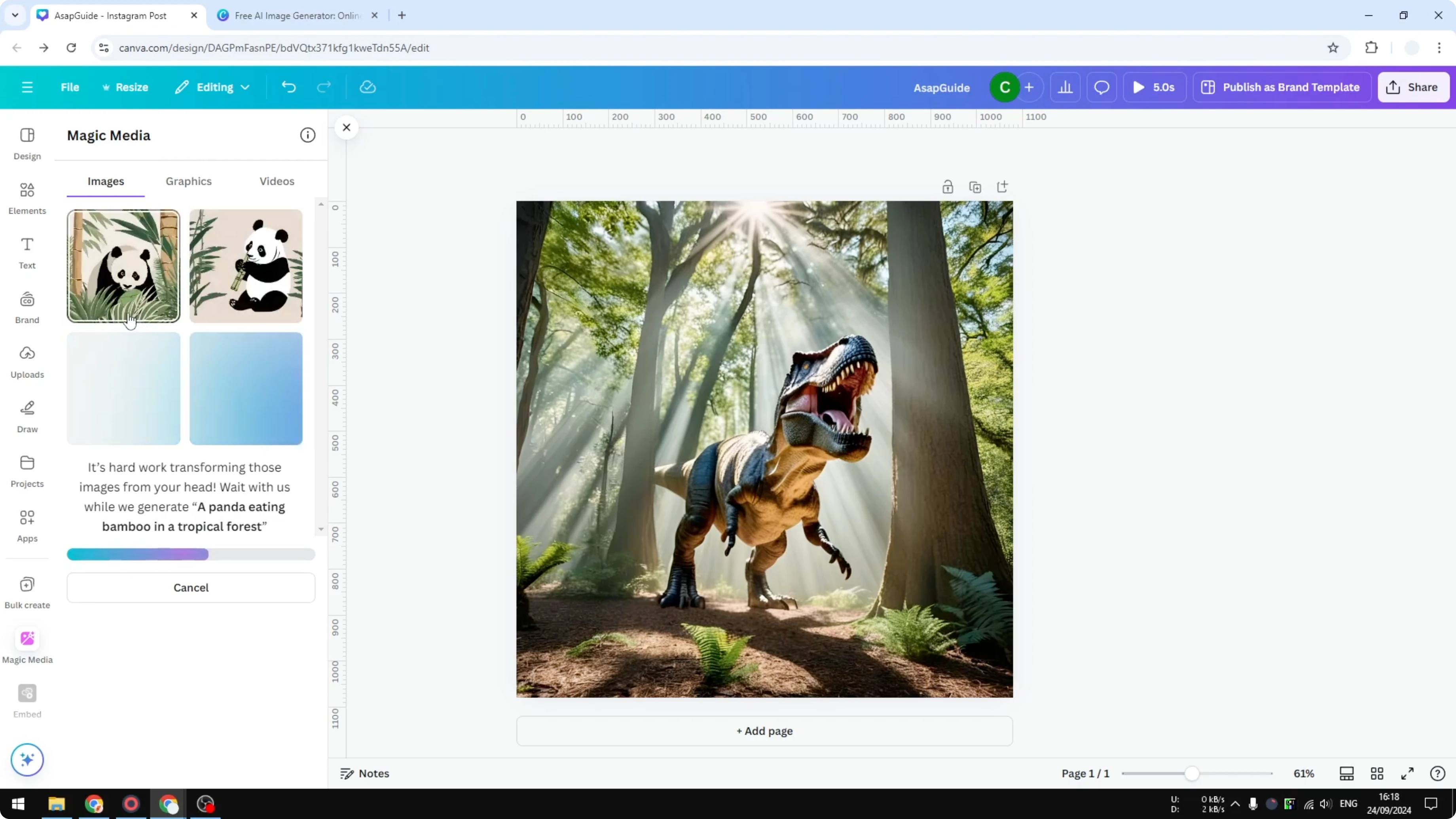
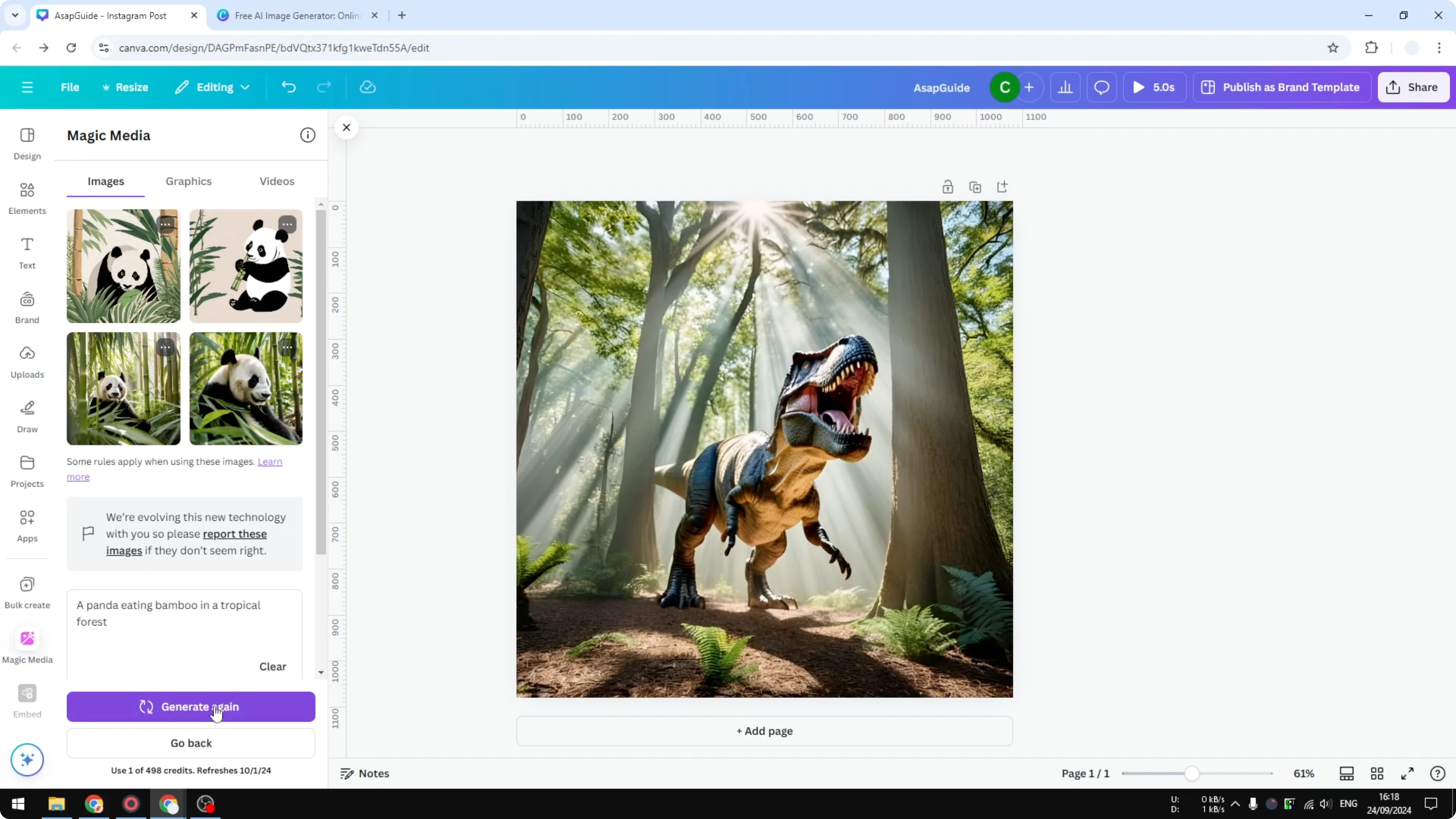
Click Generate image when your settings are ready. This process can take several seconds, usually less than a minute. Canva will generate four images for each prompt.
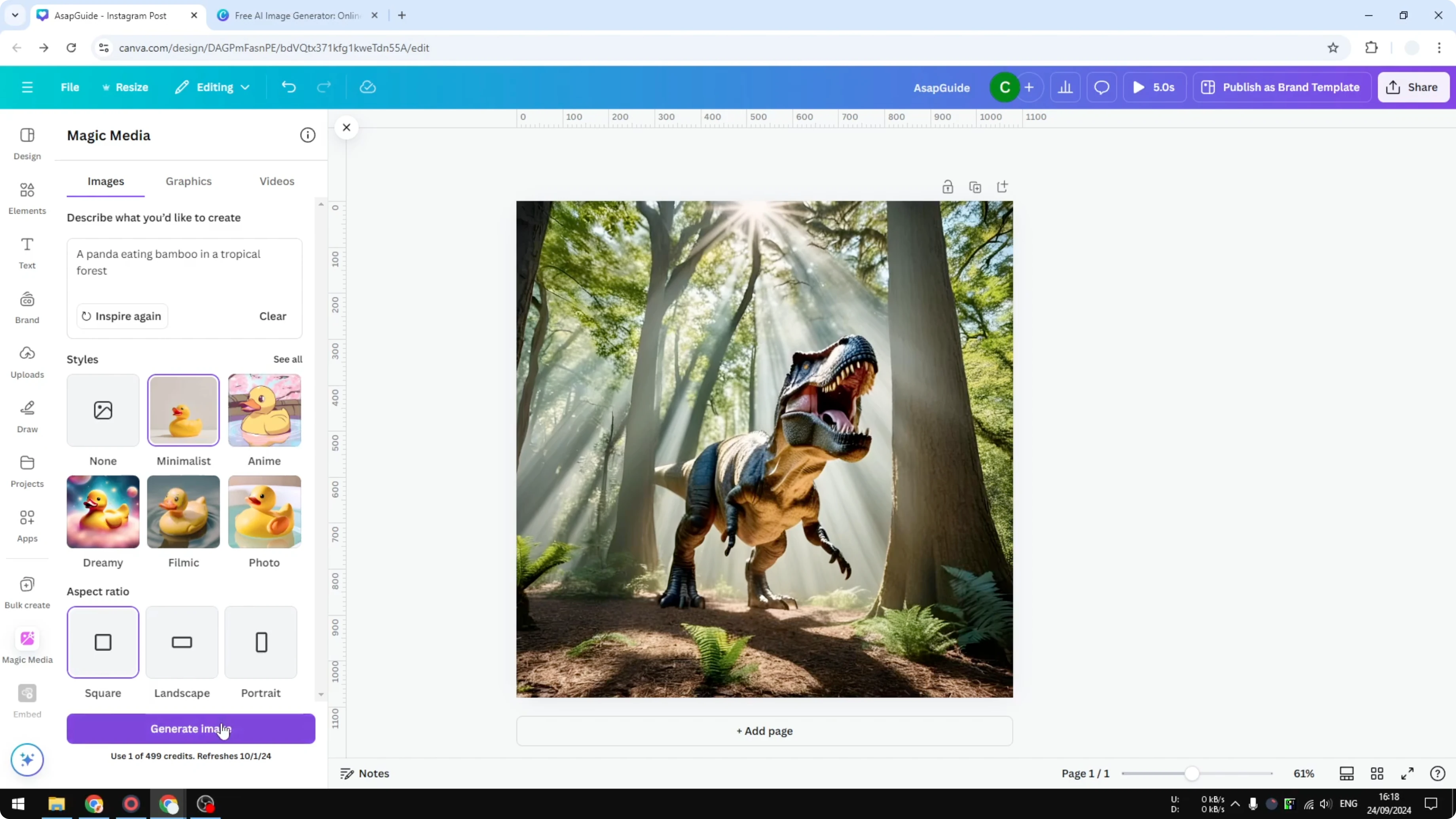
Generate and choose
After generation, review the four results and pick one to insert into your design. You might see mixed outputs such as two illustrations and two realistic photos even when you pick a style. That is a challenge with style controls, but you get multiple options and you can generate again.
If you want to mix the best parts of two results, you can blend two images for a more tailored look. This helps when one image has the composition you like and another has better details. Generate again until you get a set you like.
Insert and edit
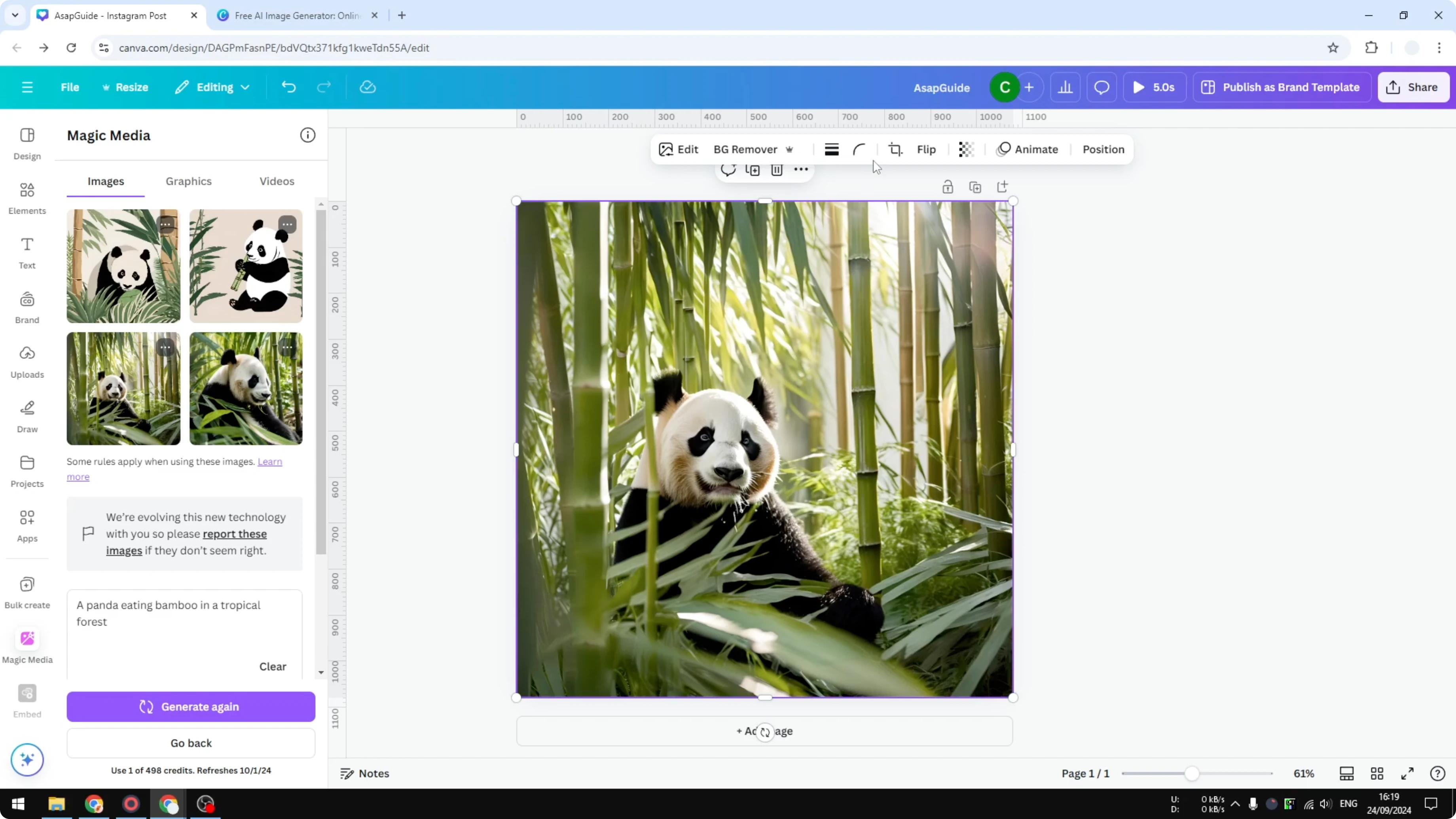
Click any image to insert it into your design. I removed the background from my selection, which gave me a clean subject. I got a picture of a panda in a bamboo forest, and it looks good.
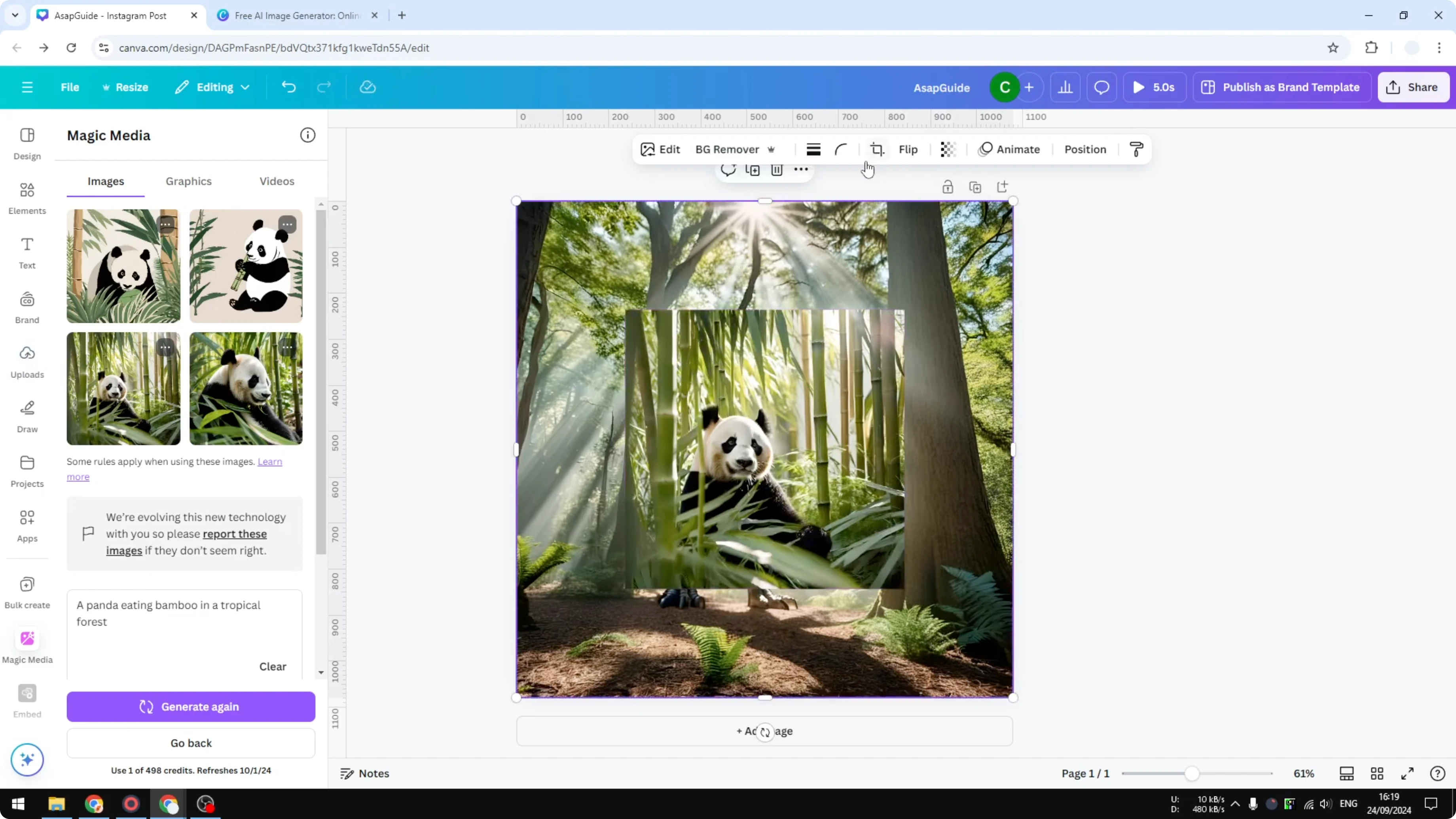
After removing the background, you can add a shadow to product images for a natural look. This makes generated subjects feel grounded on the page. You can keep refining the style and composition as needed.
Credits
Canva provides 500 credits every month that reset at the beginning of the month. If you do not like the results, generate again and try different styles. Keep prompts concise and specific to improve consistency.
Final thoughts
Magic Media makes it easy to create visuals from a simple description. Pick a style, choose a ratio, generate four options, and drop the best one into your design. Use credits wisely, iterate on prompts, and enhance results with background edits and finishing effects.
Recent Posts

How to Visualize Yourself as a Pixelized Character with AI?
How to Visualize Yourself as a Pixelized Character with AI?

How to Revive Faded Memories and Enhance Image Clarity with AI?
How to Revive Faded Memories and Enhance Image Clarity with AI?

How to Visualize Yourself as an Animal Crossing Character with AI?
How to Visualize Yourself as an Animal Crossing Character with AI?