How to Add Cartoon Effect to Photo in Canva Using AI
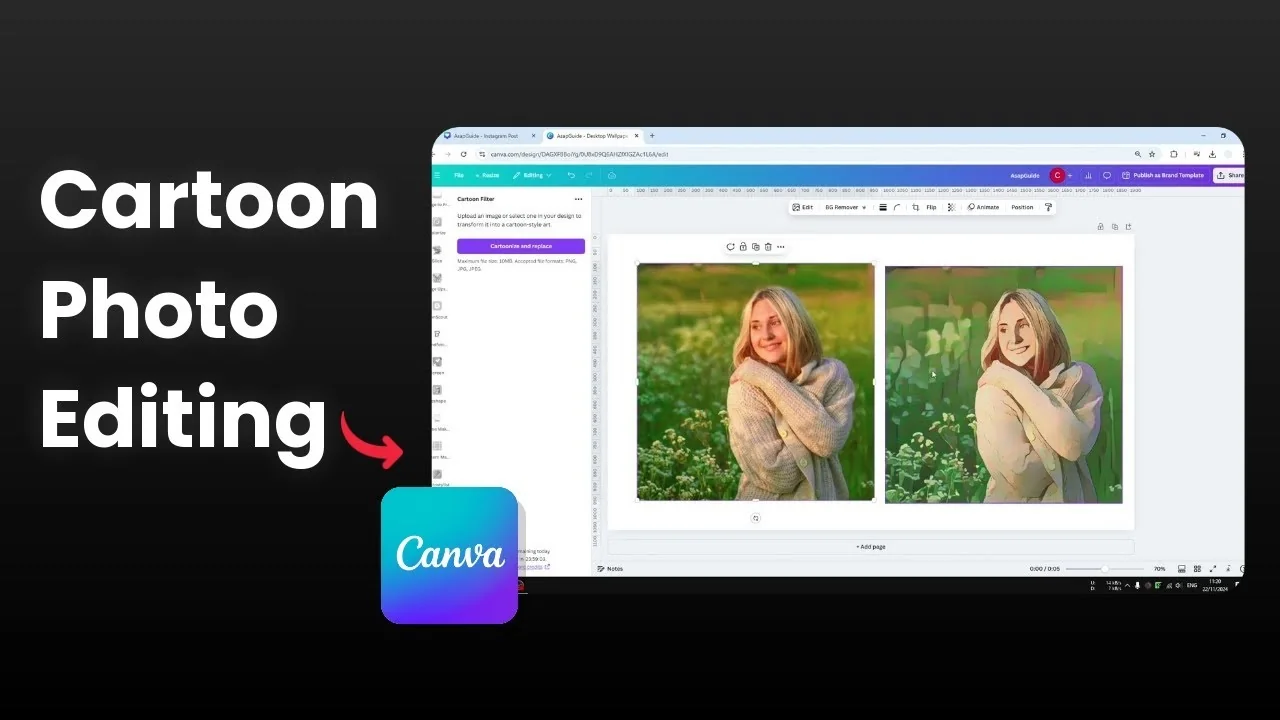
I’m going to show you how you can turn your photo into a cartoon style in Canva, and the easiest way to achieve that is by using a third-party app that is connected to Canva. It gives a better picture, and the process is a lot quicker and a lot simpler.
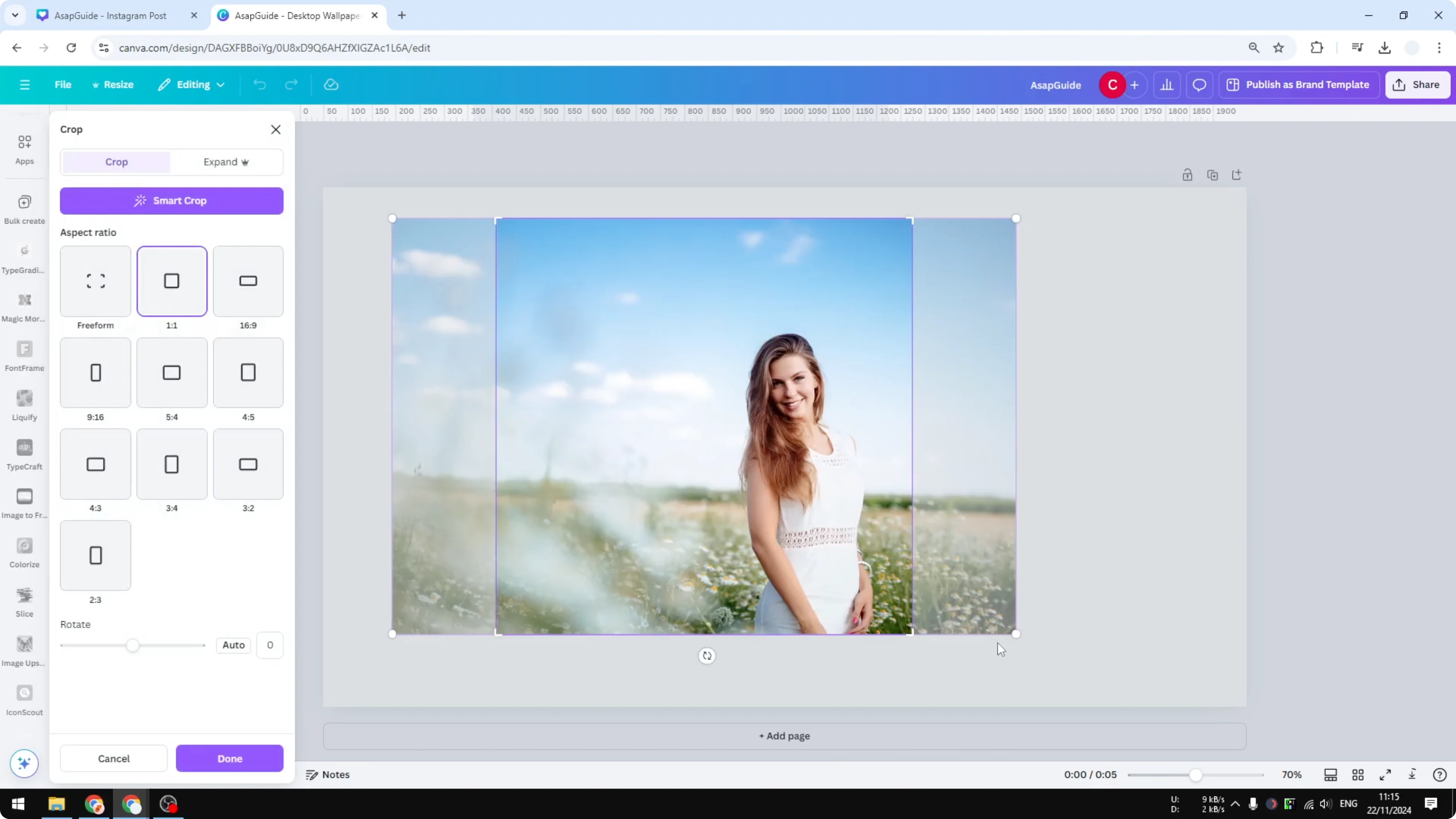
I got this photo from the Canva library, and I made it slightly bigger so you can see her face better. I focused only on her face around here.
Add Cartoon Effect to Photo in Canva Using AI: app options
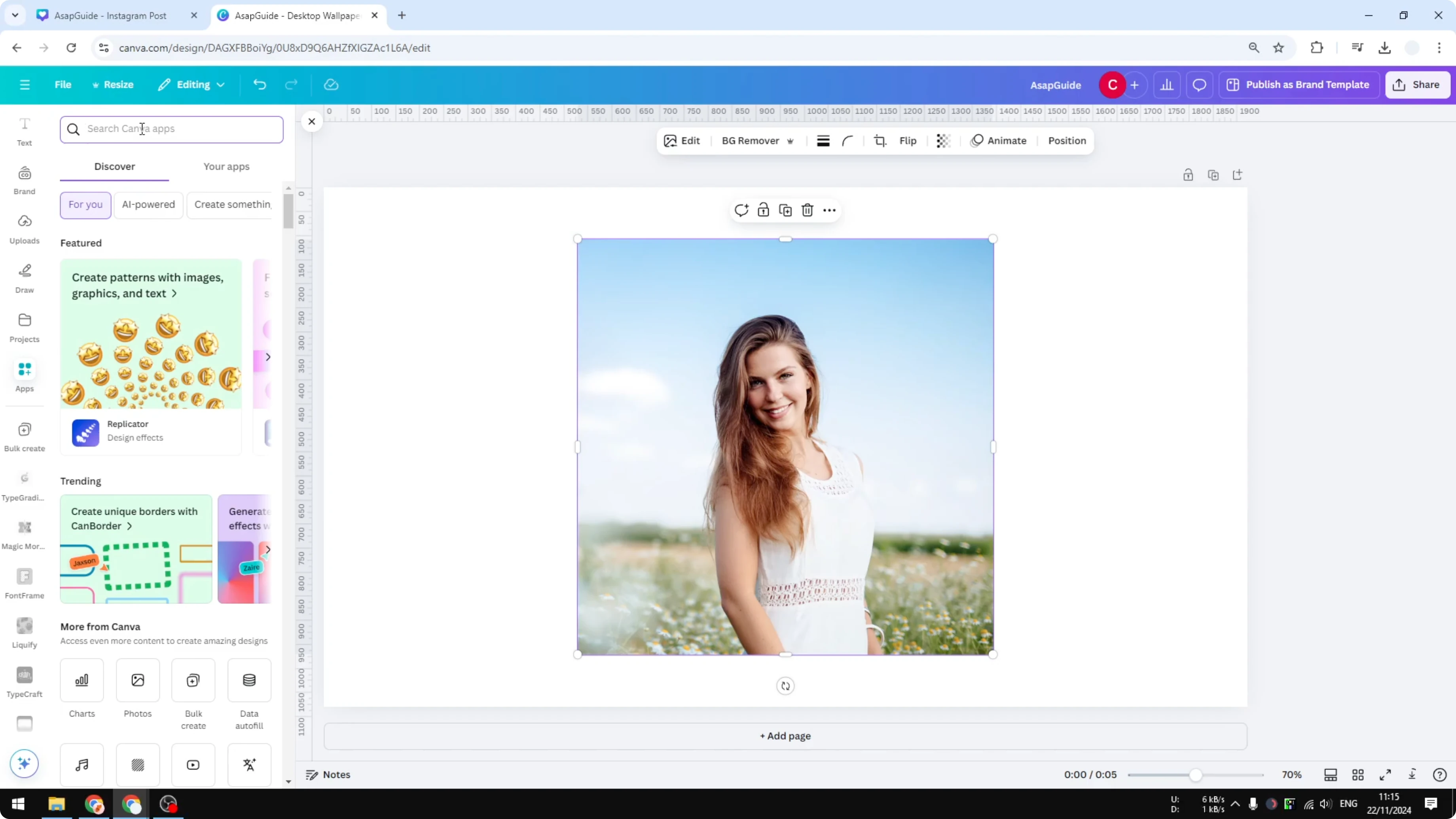
After you insert a picture into your document, navigate to Apps and search for the name of the app that you want to use.

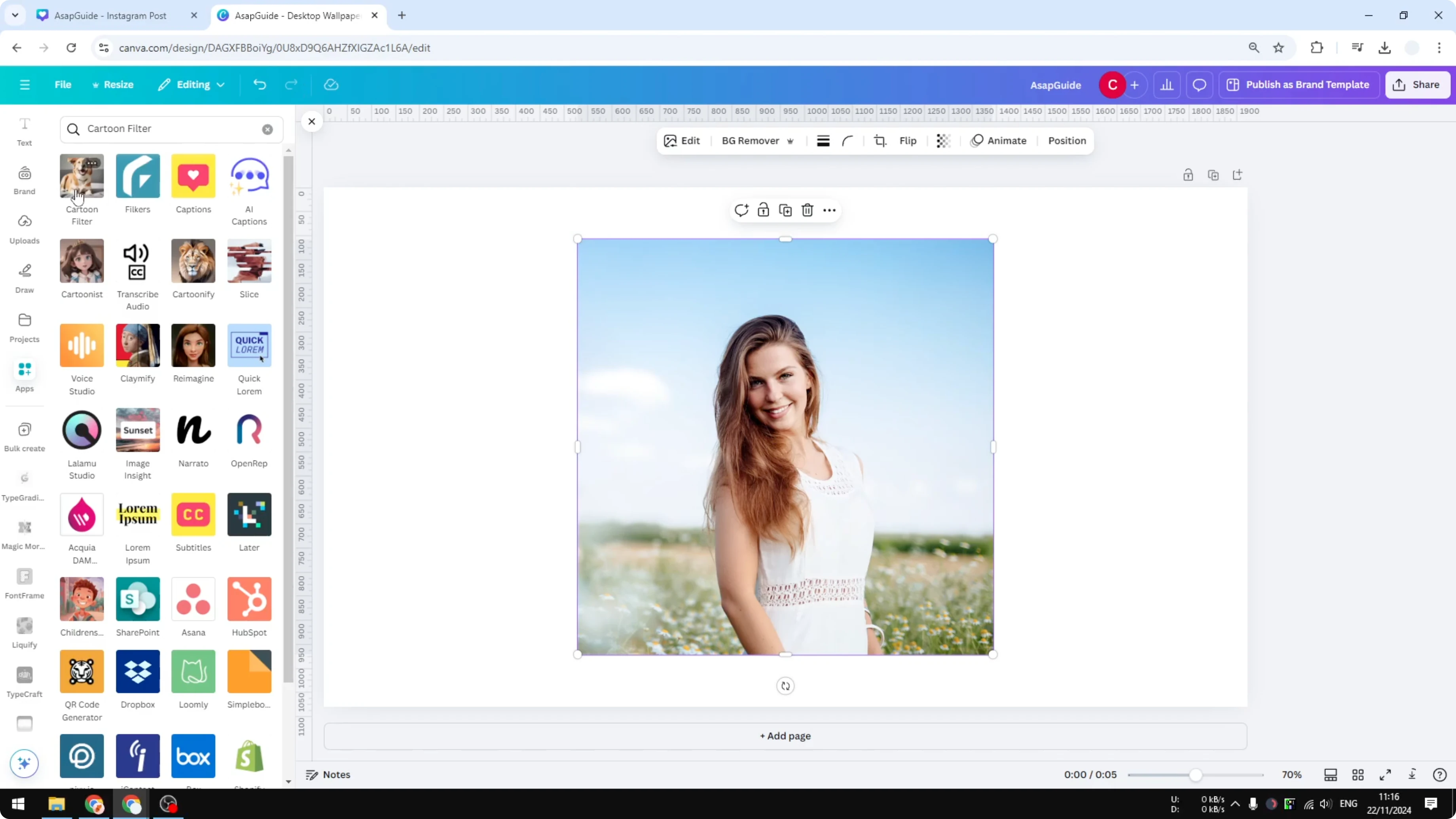
I found three different apps you can use. The first one is called Reimagine. The second option is Cartoonify.
The last option is Cartoon Filter, and this is the one I’m going to use and demonstrate here.
If you need to extract clean outlines as part of your prep, check out how to trace photos with AI in Canva.
Open Cartoon Filter
Open Cartoon Filter, the one with the dog icon. Wait until the app is loaded to your Canva account.
This process is similar to the other two apps.
Add Cartoon Effect to Photo in Canva Using AI: steps
Select the picture on your canvas.
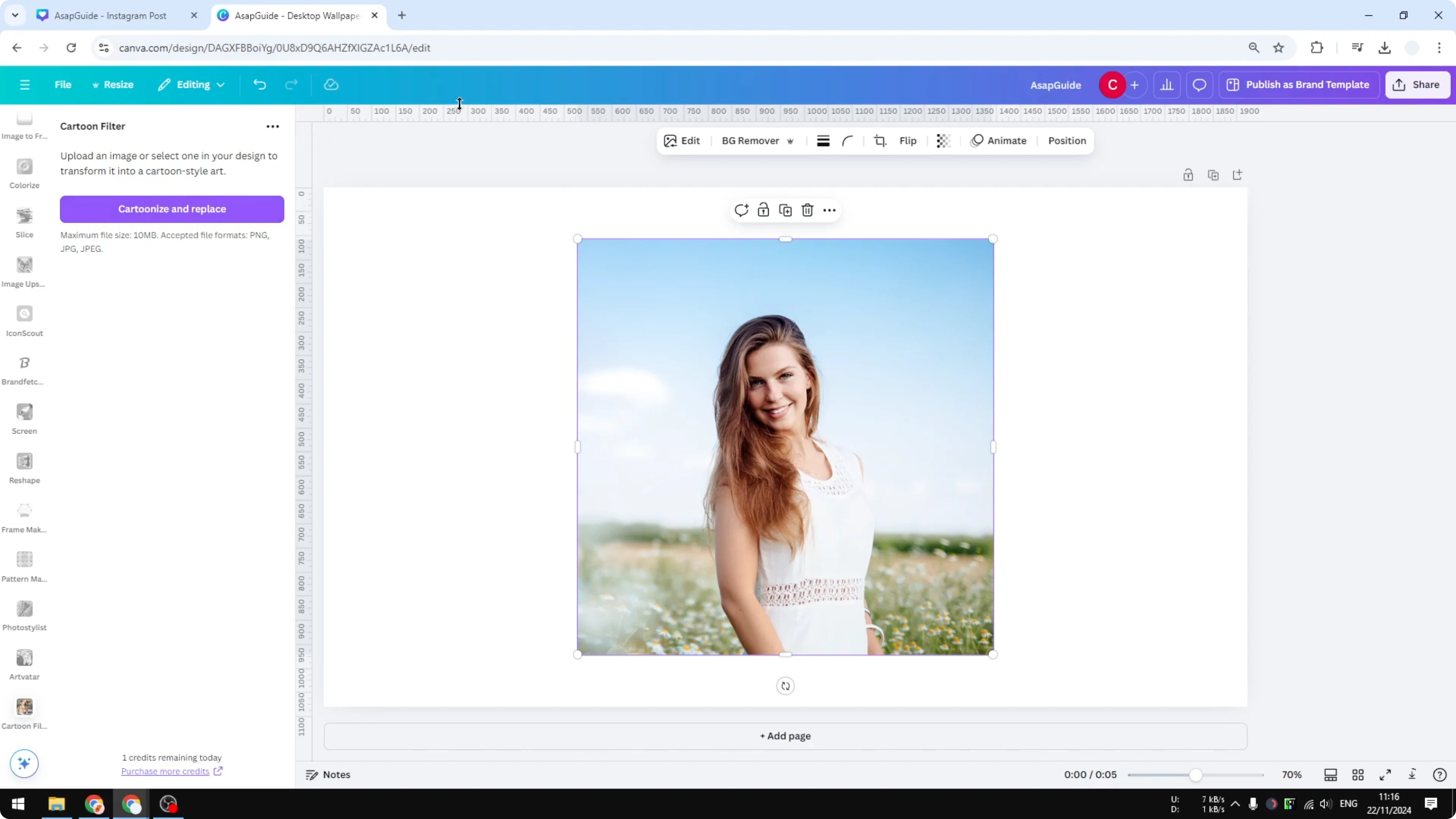
Click Generate and Replace.
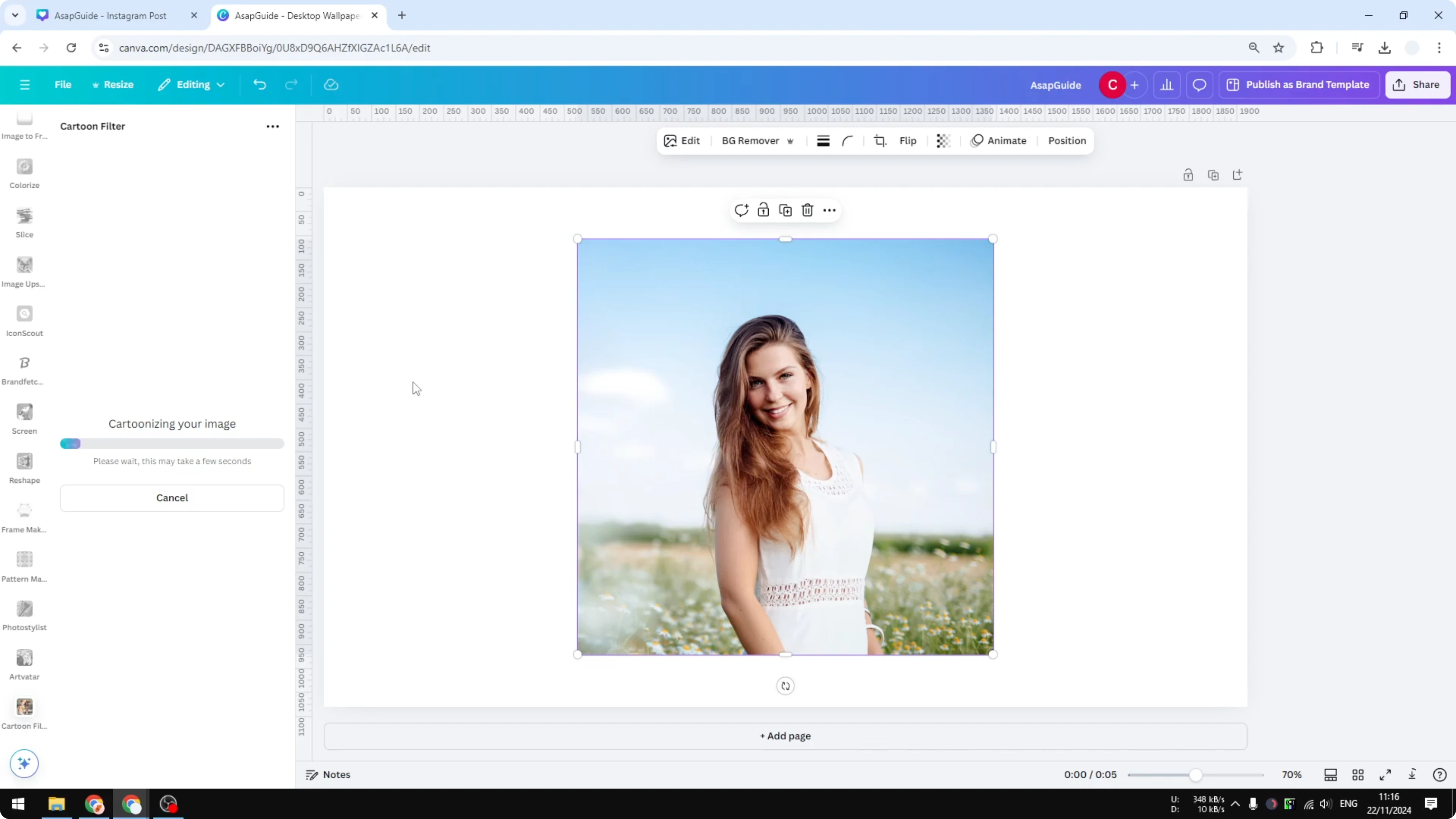
Wait for a few seconds while the app turns the photo into a cartoon style.
Expect about 20 to 30 seconds, or maybe even less.
Troubleshooting
If the first generation fails, change the photo and try again.
I compared the original photo with the result after generation, and switching the source image fixed the failure.

If you need to add another subject before applying the effect, you can add a person to a photo in Canva and then run the cartoon filter.
Improve results with contrast
From my various testing, to get the best result it is recommended to use a photo with high contrast.

Before you apply a cartoon effect, increase the saturation and the contrast of the picture.
Click Edit.
Click Adjust.
Increase Saturation so the color pops out more.
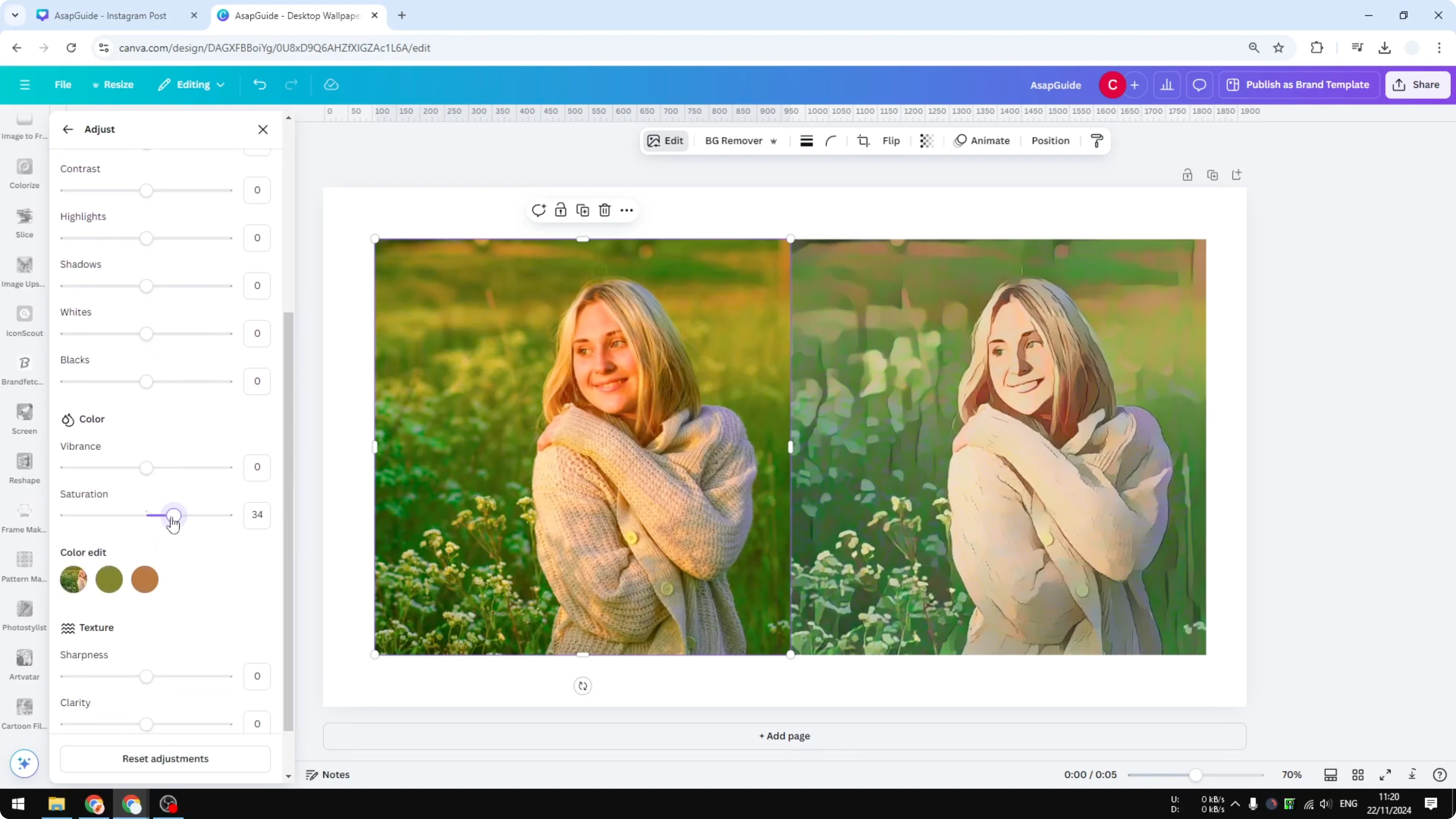
Increase Contrast so the edges are clearer.

This is very helpful for the AI to decide where it wants to draw the line, which will create a better cartoon effect.
That is one thing I forgot to mention at the beginning, but I hope you try this again with those adjustments.
If you want a softer, painterly style for another project, try a watercolor effect in Canva after you duplicate your design.
Final thoughts
Use one of Canva’s connected apps to add a cartoon effect, and Cartoon Filter is a simple option that works with a quick Generate and Replace. If a generation fails, switch to a different source photo and try again. Boost saturation and contrast first to help the AI draw cleaner lines and produce a stronger cartoon result.
Recent Posts

How to Visualize Yourself as a Pixelized Character with AI?
How to Visualize Yourself as a Pixelized Character with AI?

How to Revive Faded Memories and Enhance Image Clarity with AI?
How to Revive Faded Memories and Enhance Image Clarity with AI?

How to Visualize Yourself as an Animal Crossing Character with AI?
How to Visualize Yourself as an Animal Crossing Character with AI?