How to Trace Photo in Canva using AI
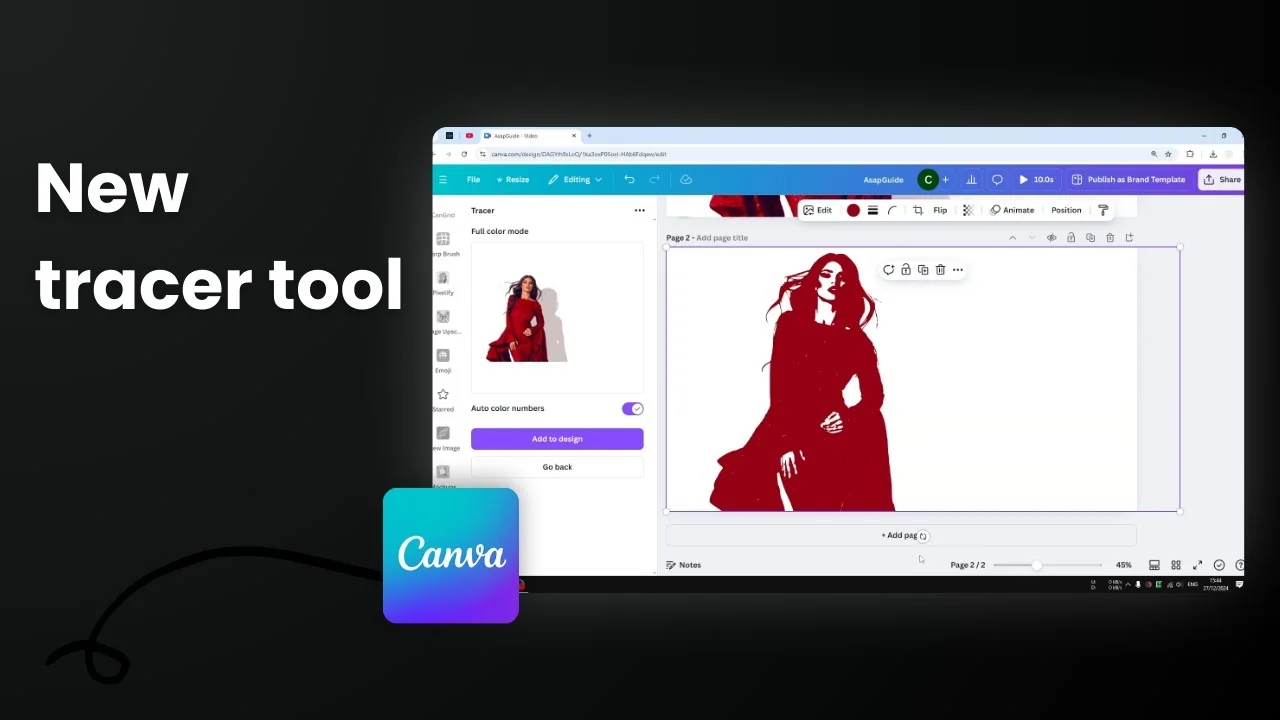
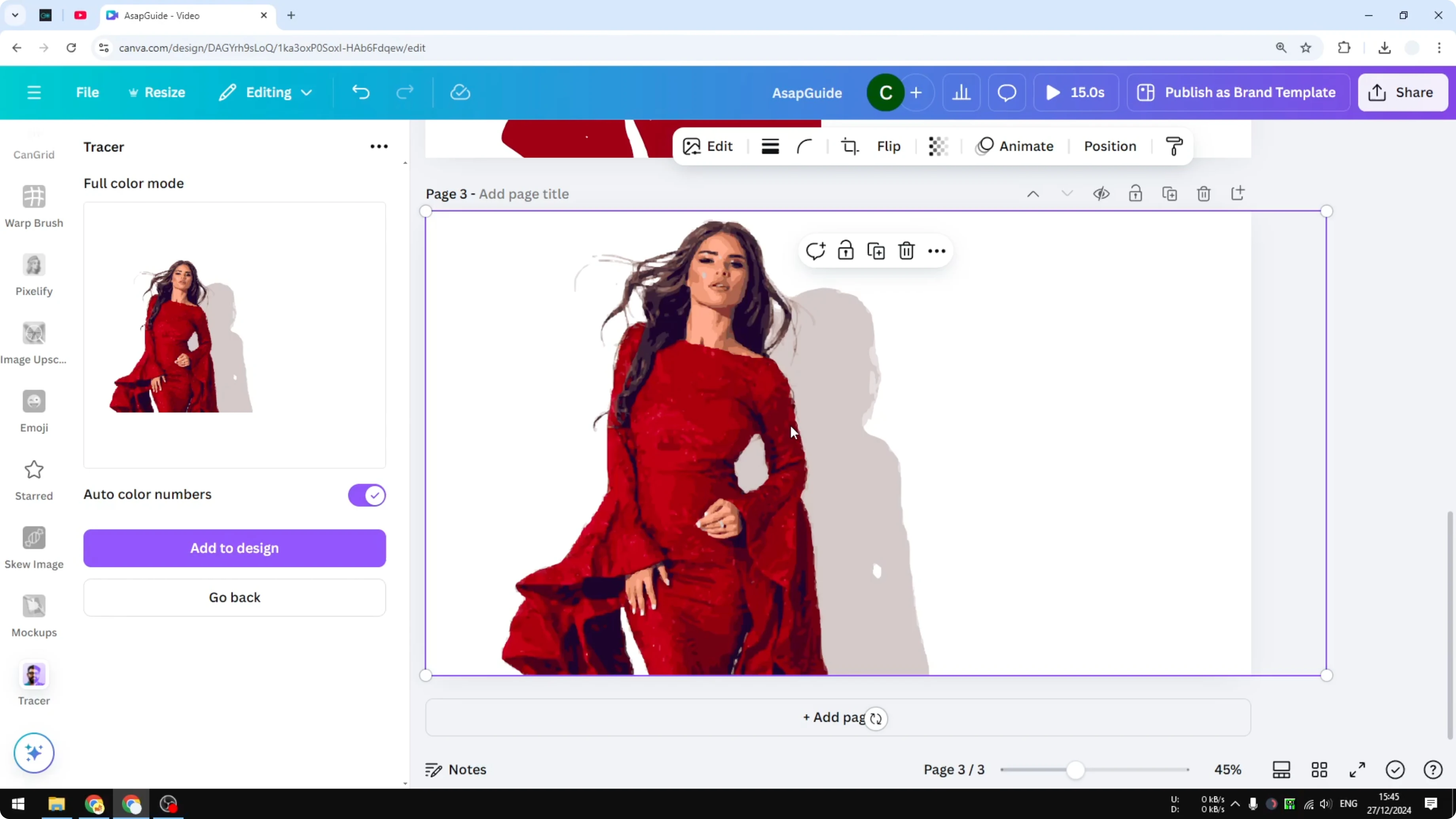
I’m going to show you how you can trace a photo right in Canva. The good news is that there is a new Tracer tool that is well integrated in the platform and the result is pretty good. For this demonstration I’m using a photo of a woman in a red dress, and I’m going to turn this photo into a vector format or SVG.
Trace Photo in Canva using AI: Set Up the Tracer App
- Insert a photo into your Canva document.
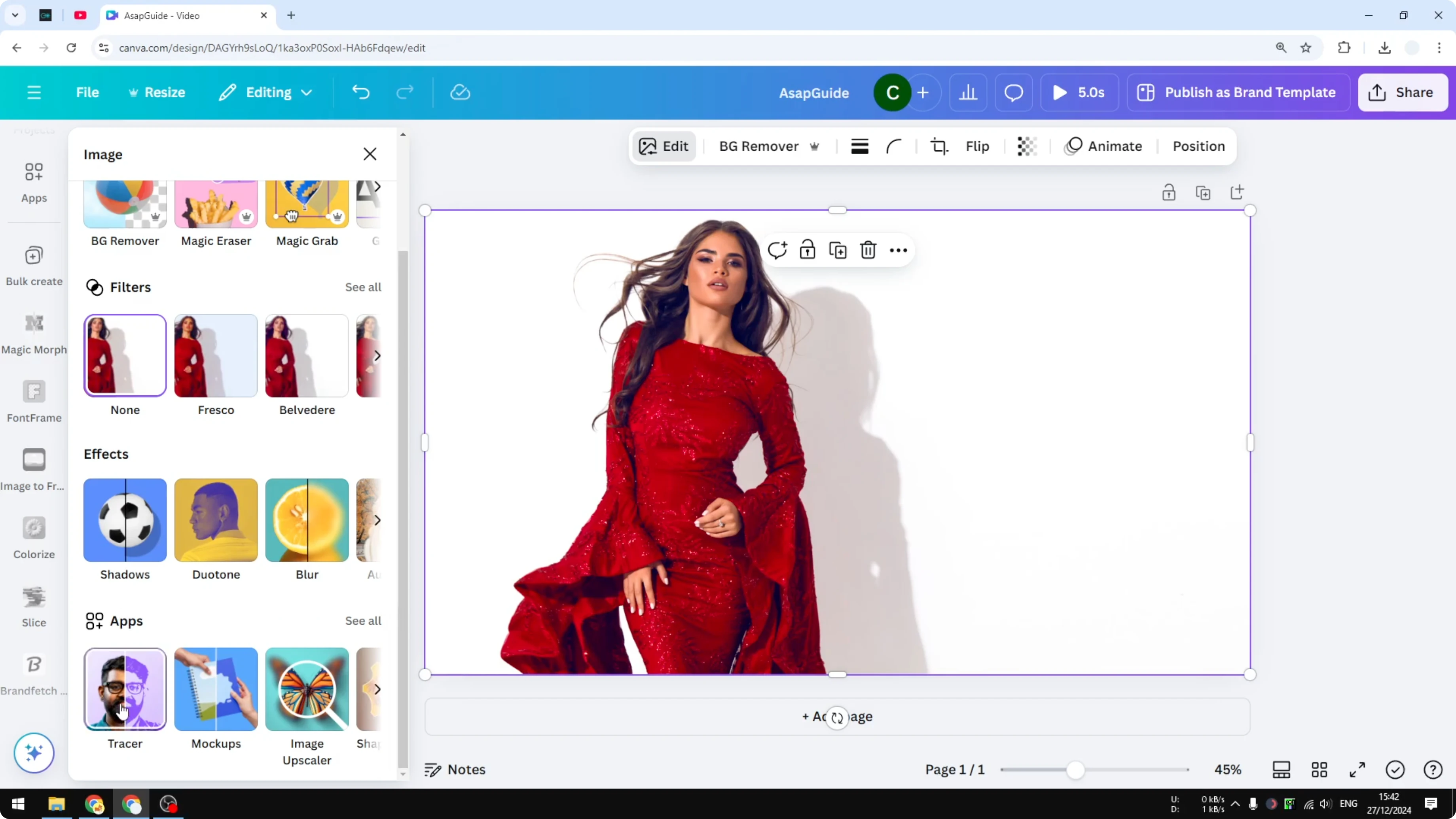
- Click the photo, go to Edit, scroll to the bottom, and select Apps. Choose Tracer.
- You can also access Tracer from the Apps menu on the left side and search for Tracer.
- This is the app recommended by Canva, so it’s going to work well most of the time.
- Click Open. If you’re asked for permission, click Accept. The app will load in your Canva document.
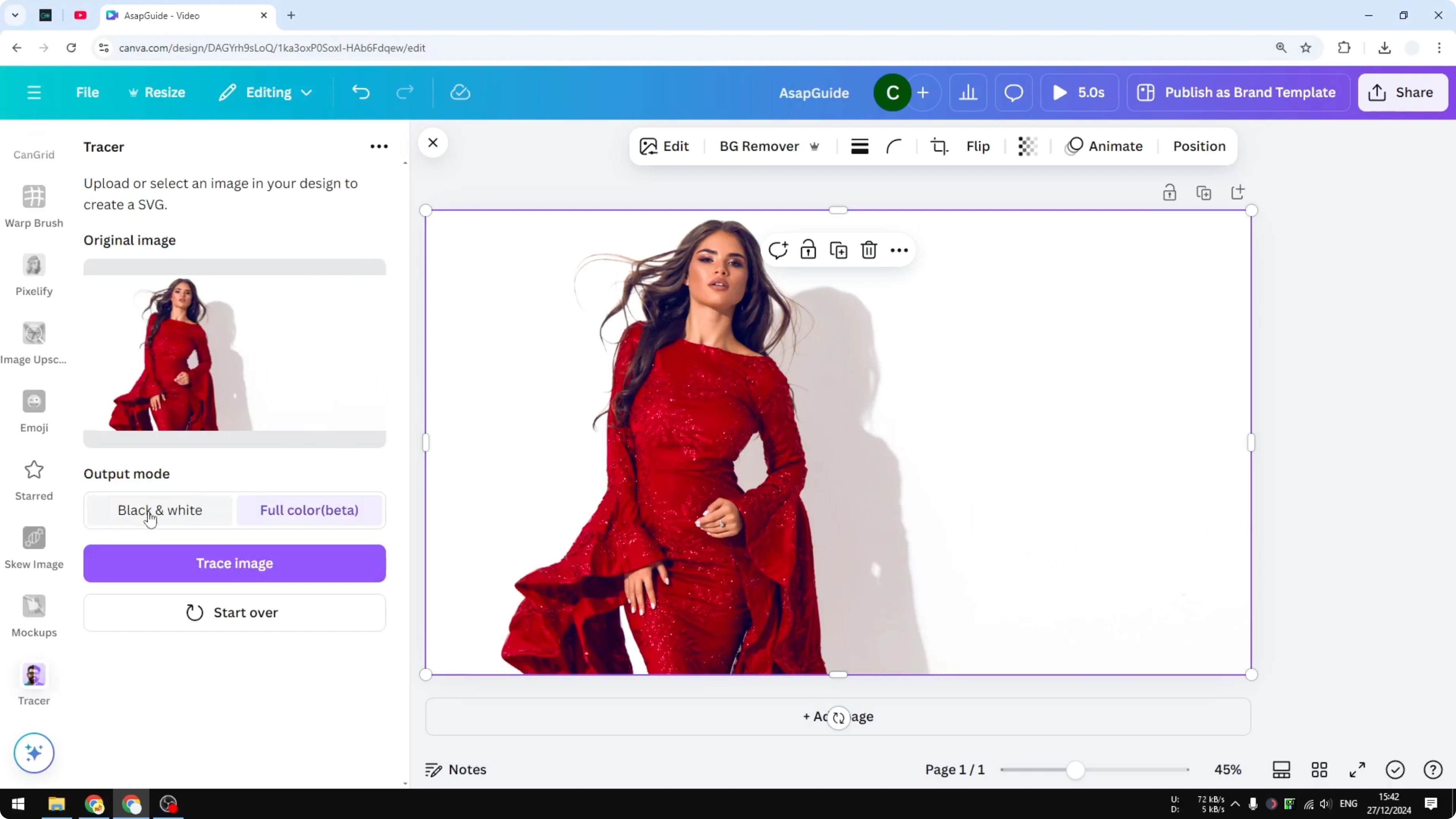
You’ll see two output settings:
- Monochrome - you can change the color to orange, red, green, blue, or any color you want, but it remains a single-color output.
- Full color - still in beta, it preserves more colors even though the result is still vectorized.
Trace Photo in Canva using AI: Monochrome Mode
- Select the Monochrome option.
- Click Trace image and wait a few seconds while it turns the photo into a vector picture.
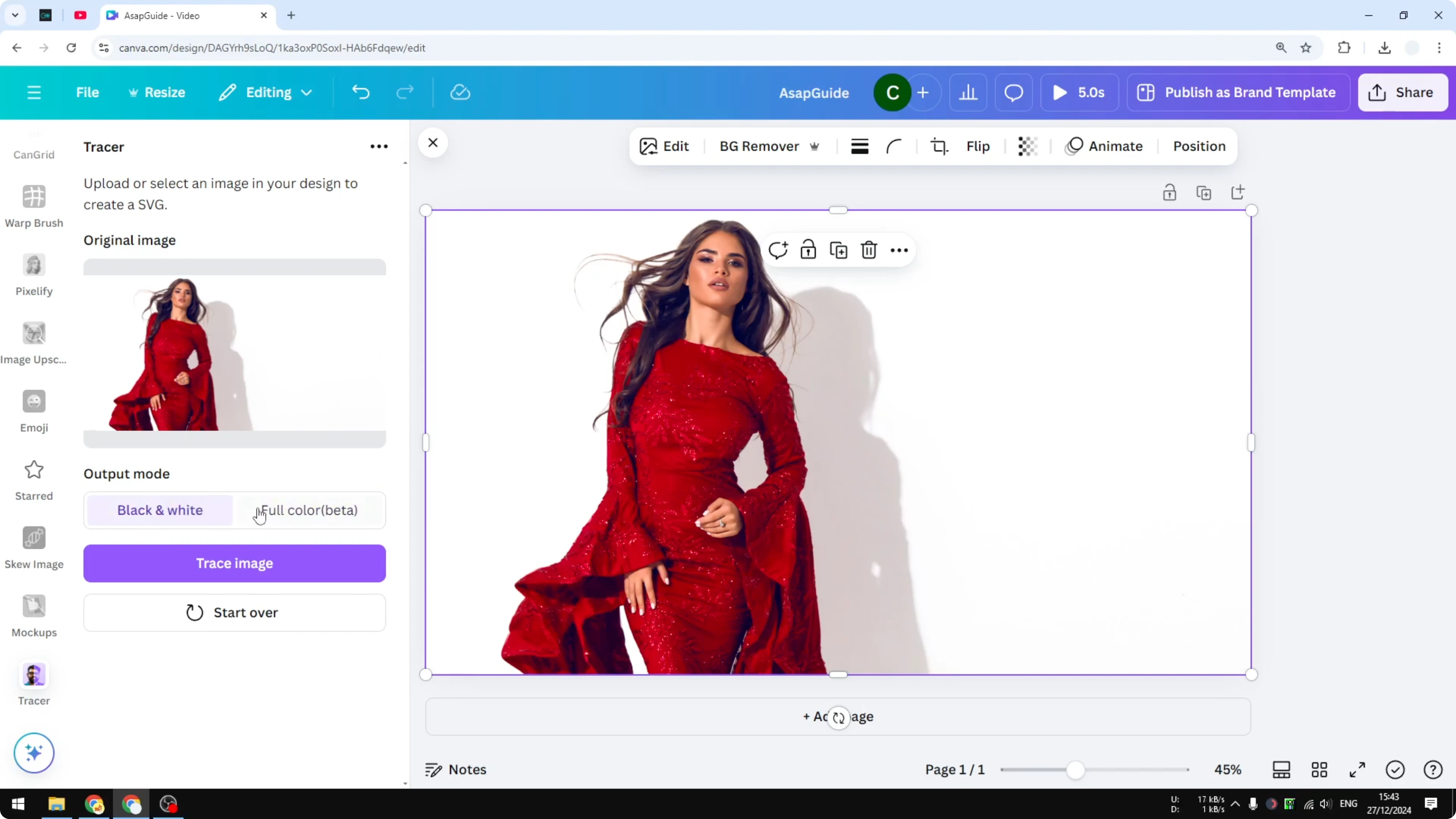
You can adjust the Threshold, which controls how much detail you want. Play around with this and see what looks better for your picture. In my case, too high a threshold showed the person and the shadow, which was too much, so I went with something more moderate like 140. Every photo will have a different setting.
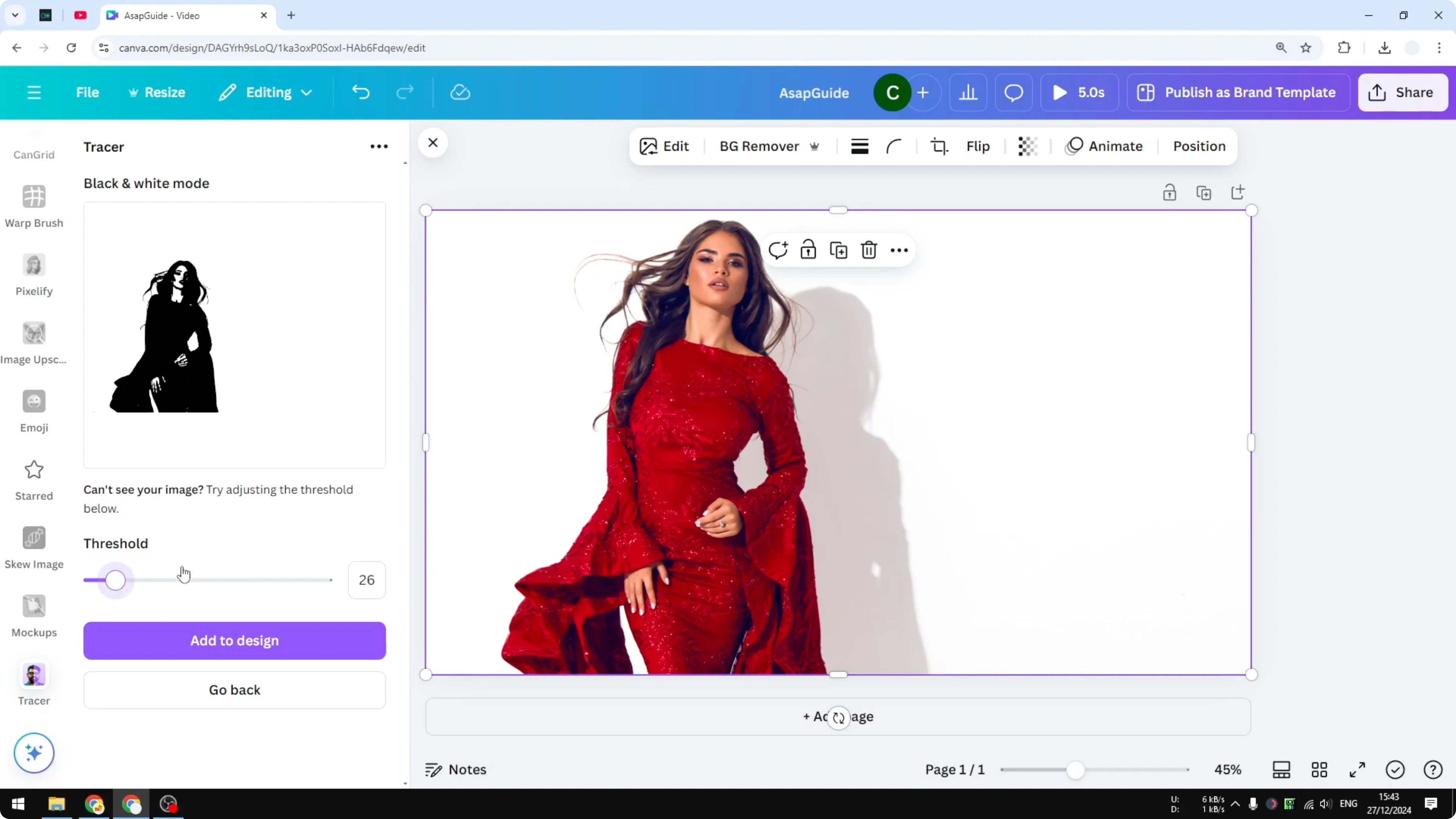
- Click Add to design to place the traced result on your canvas.
This is monochrome, but you can change the color. Click the color option and pick the color you want. I used the same red color as the original photo, and the result is pretty cool.
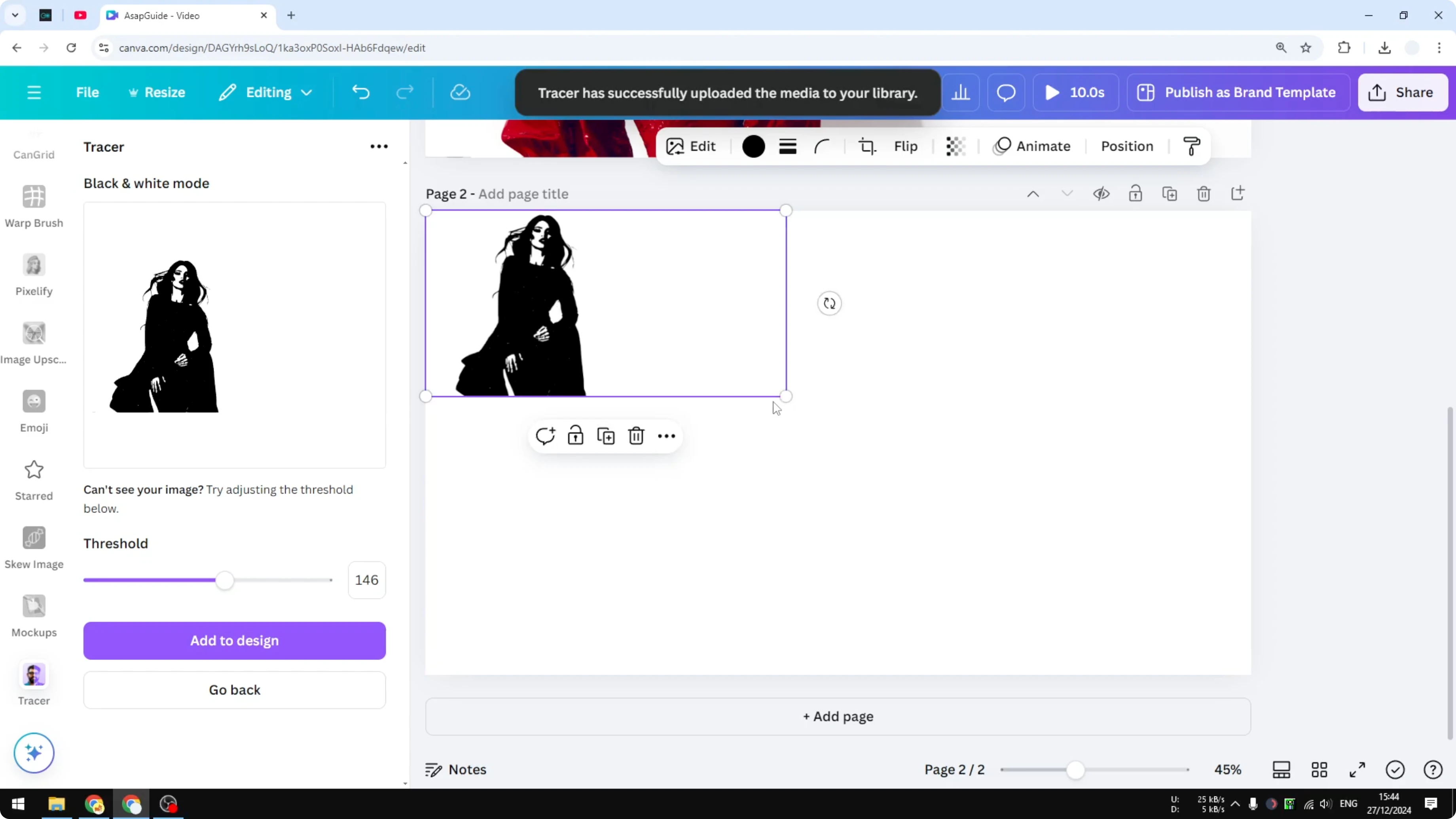
Trace Photo in Canva using AI: Full Color Mode
- Go back in the Tracer app and select Full color (still in beta).
- Click Trace image and wait for it to finish.
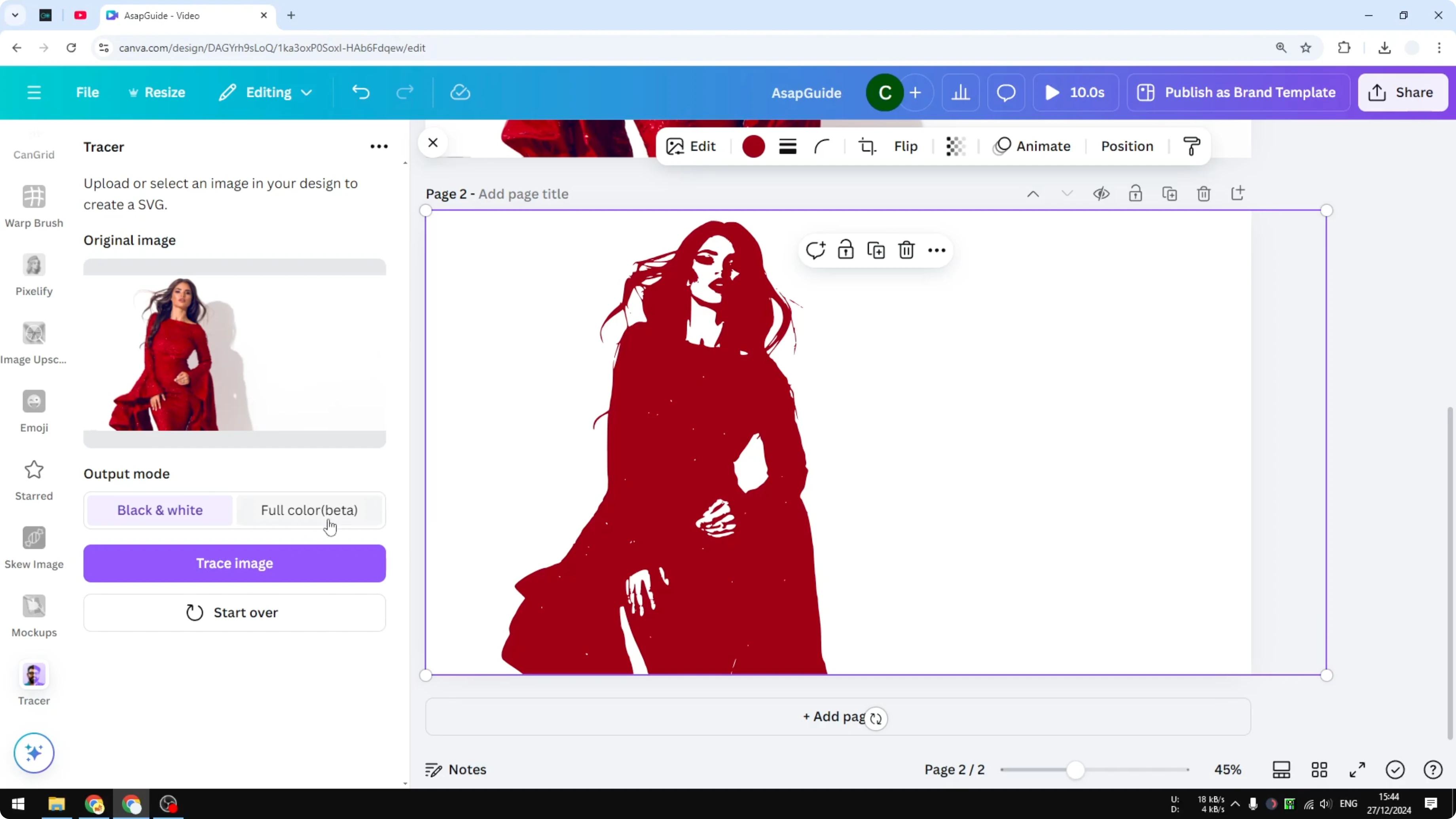
At first glance, it may look very close to the original picture, but it is actually not. Compare it with the original and you’ll see it’s almost cartoonized, with a lot of details missing. It’s reminiscent of the GIF format with limited colors. It looks similar, but this is by definition a vector image, and it’s very useful if you want to customize it later with software like Illustrator or something similar.
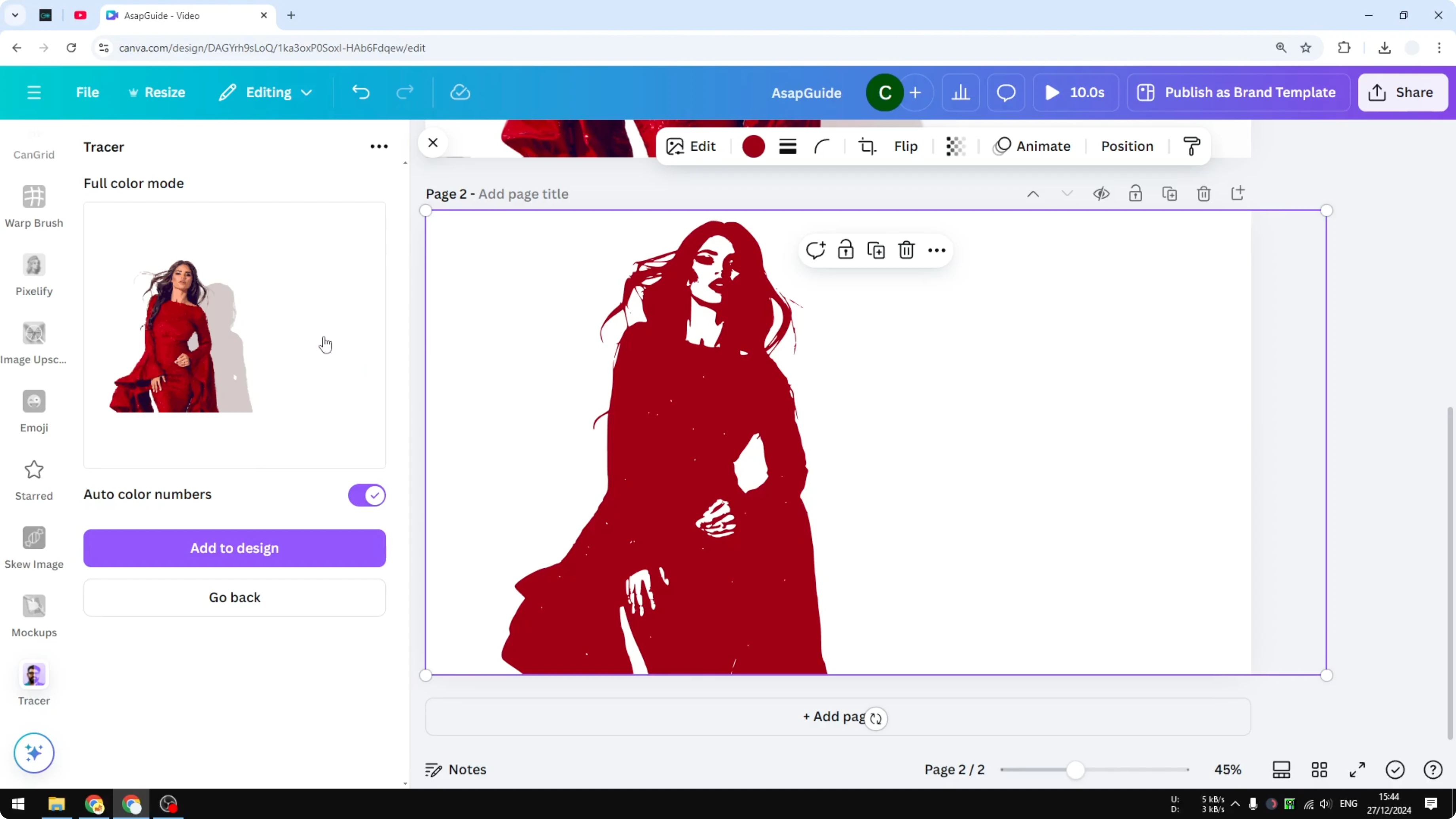
Trace Photo in Canva using AI: Export as SVG
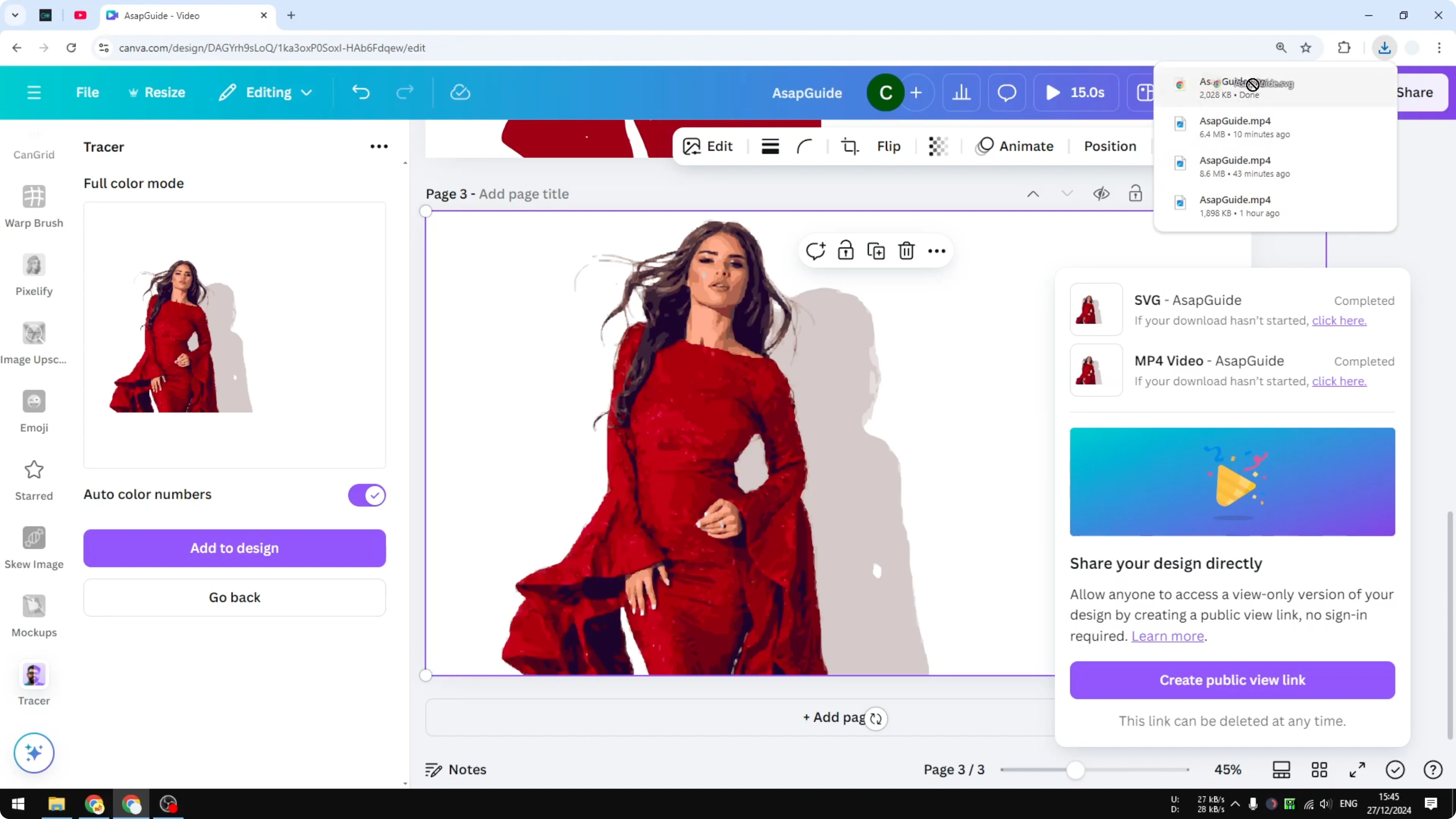
- Click Share, then Download.
- Set File type to SVG to get the vector format.
- Select the pages you want to download, click Done, then click Download.
From experience, the full color option is going to be way bigger than the monochrome version. You can open the SVG with a regular browser. The result is quite interesting. It looks very big, but that’s expected with vector output.
Final Thoughts on Trace Photo in Canva using AI
The Tracer tool in Canva makes it easy to turn photos into editable vectors. Monochrome gives clean single-color results with adjustable detail, and full color preserves more tones but simplifies details in a stylized way. Export as SVG for flexible editing and scaling.
Recent Posts

How to Visualize Yourself as a Pixelized Character with AI?
How to Visualize Yourself as a Pixelized Character with AI?

How to Revive Faded Memories and Enhance Image Clarity with AI?
How to Revive Faded Memories and Enhance Image Clarity with AI?

How to Visualize Yourself as an Animal Crossing Character with AI?
How to Visualize Yourself as an Animal Crossing Character with AI?