How to Add a Watercolor Effect Effect in Canva
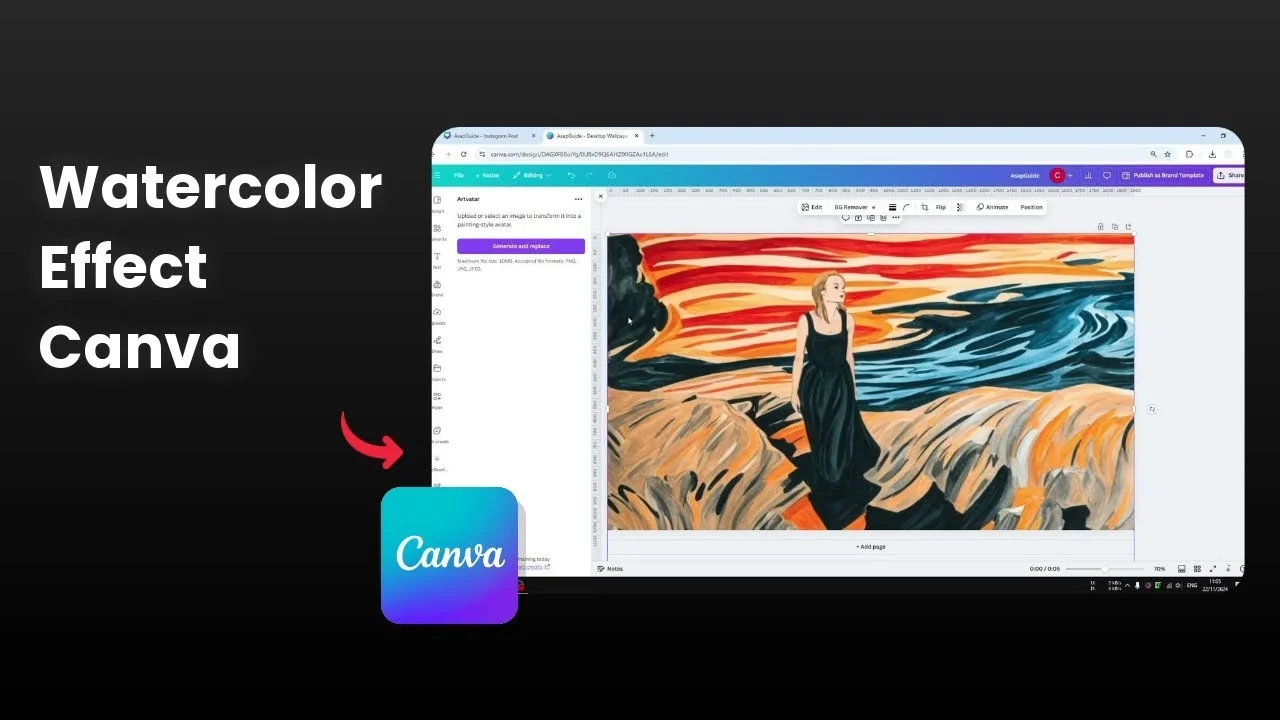
I am going to show you how to create a watercolor painting effect in Canva with the help of a third-party app. I tried many different apps and only one worked really well, and the result was quite satisfying.
I start with a picture, make it a little bit bigger, and place the woman in the middle so she is the focus. Then I use an app inside Canva called Art Fatar to turn the photo into a watercolor style.
To place a title on top of the final image without losing readability, see how to add background text in Canva.
Add a Watercolor Effect Effect in Canva
Prepare the photo
Open your photo in Canva and select the image on the canvas.
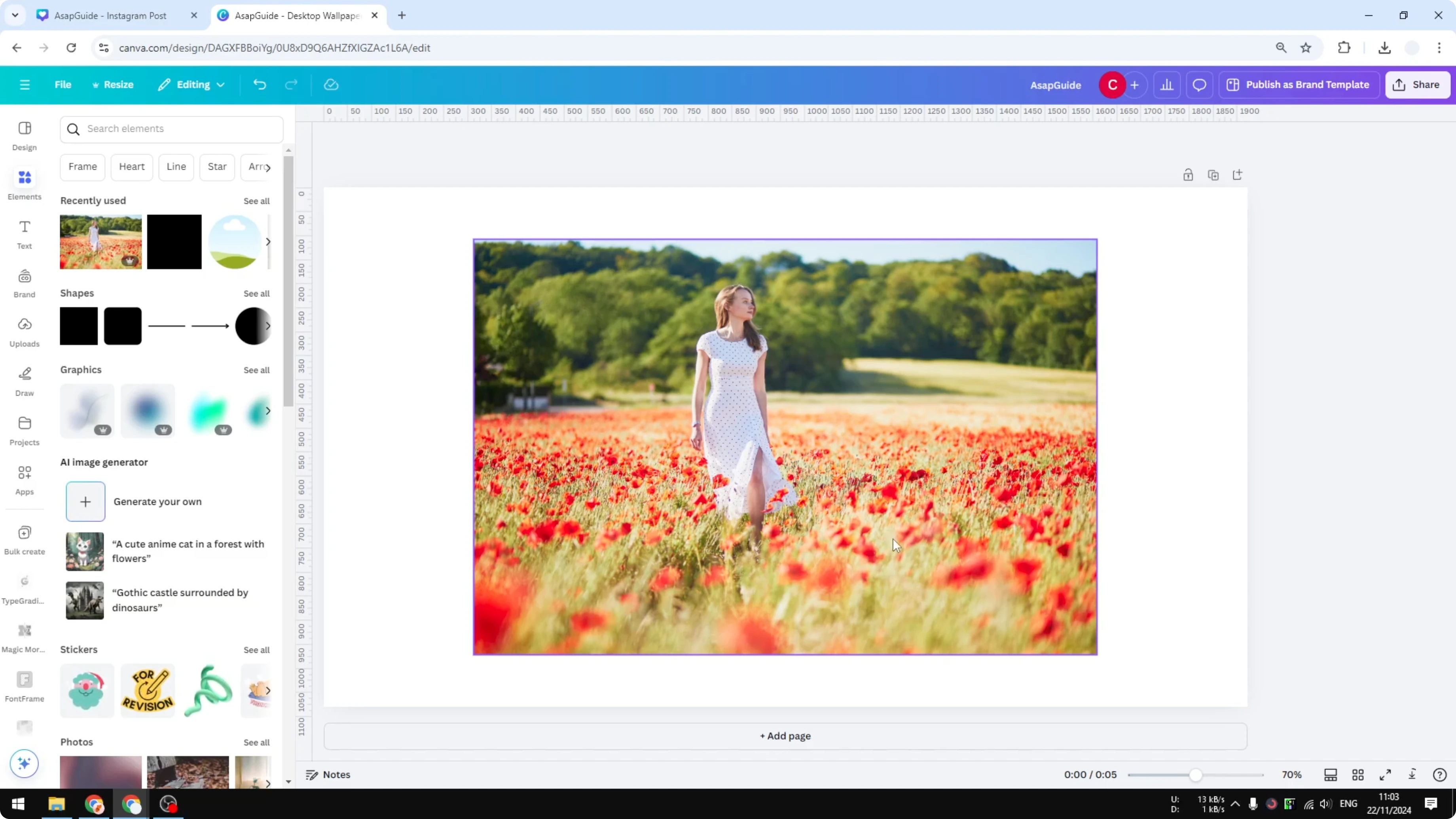
Resize the image to make the subject larger.
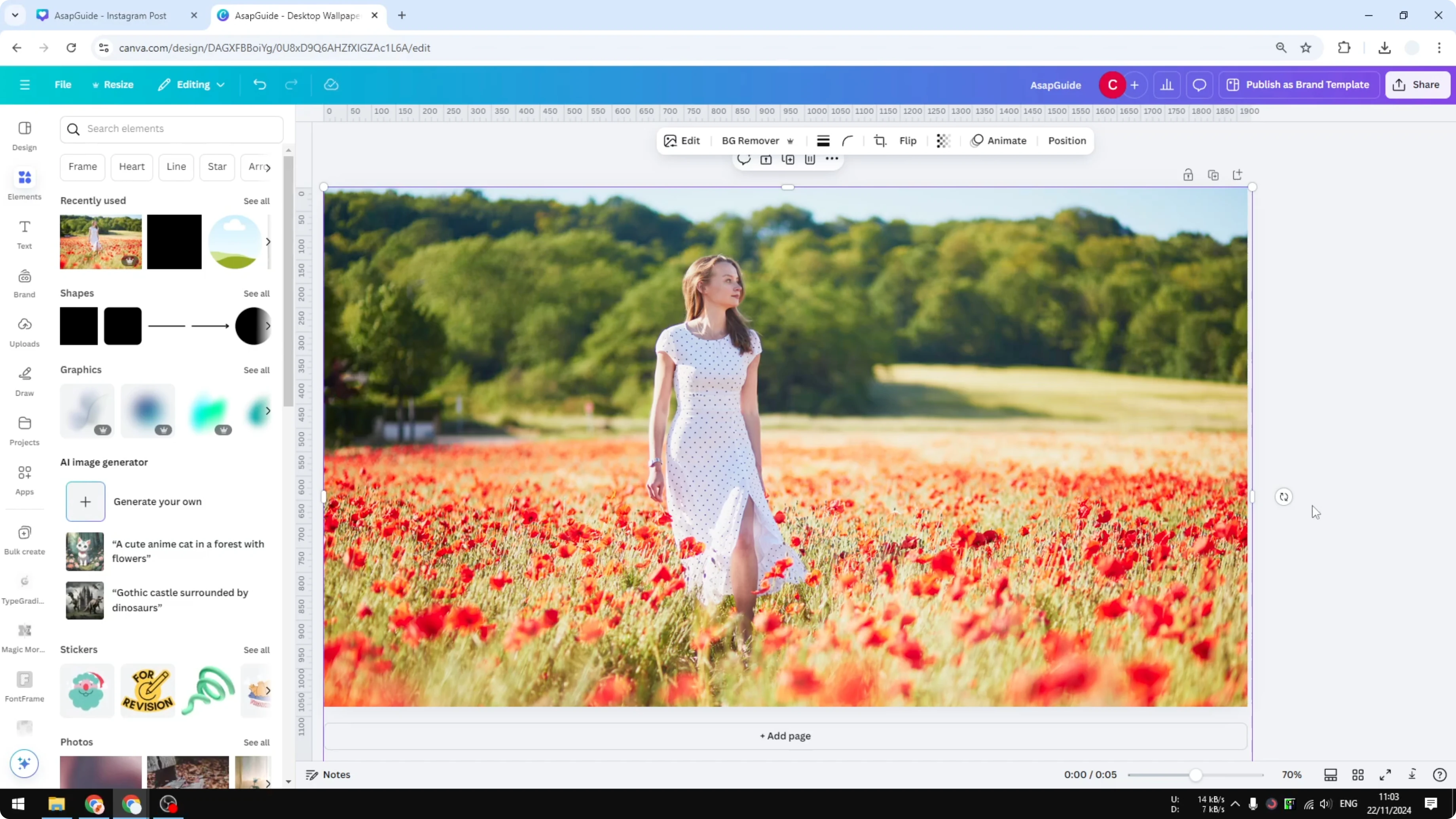
Position the subject in the middle so it becomes the focus.
Open Art Fatar in Canva
Go to the Apps section in Canva.
Search for the app named Art Fatar - not Avatar - and open it.
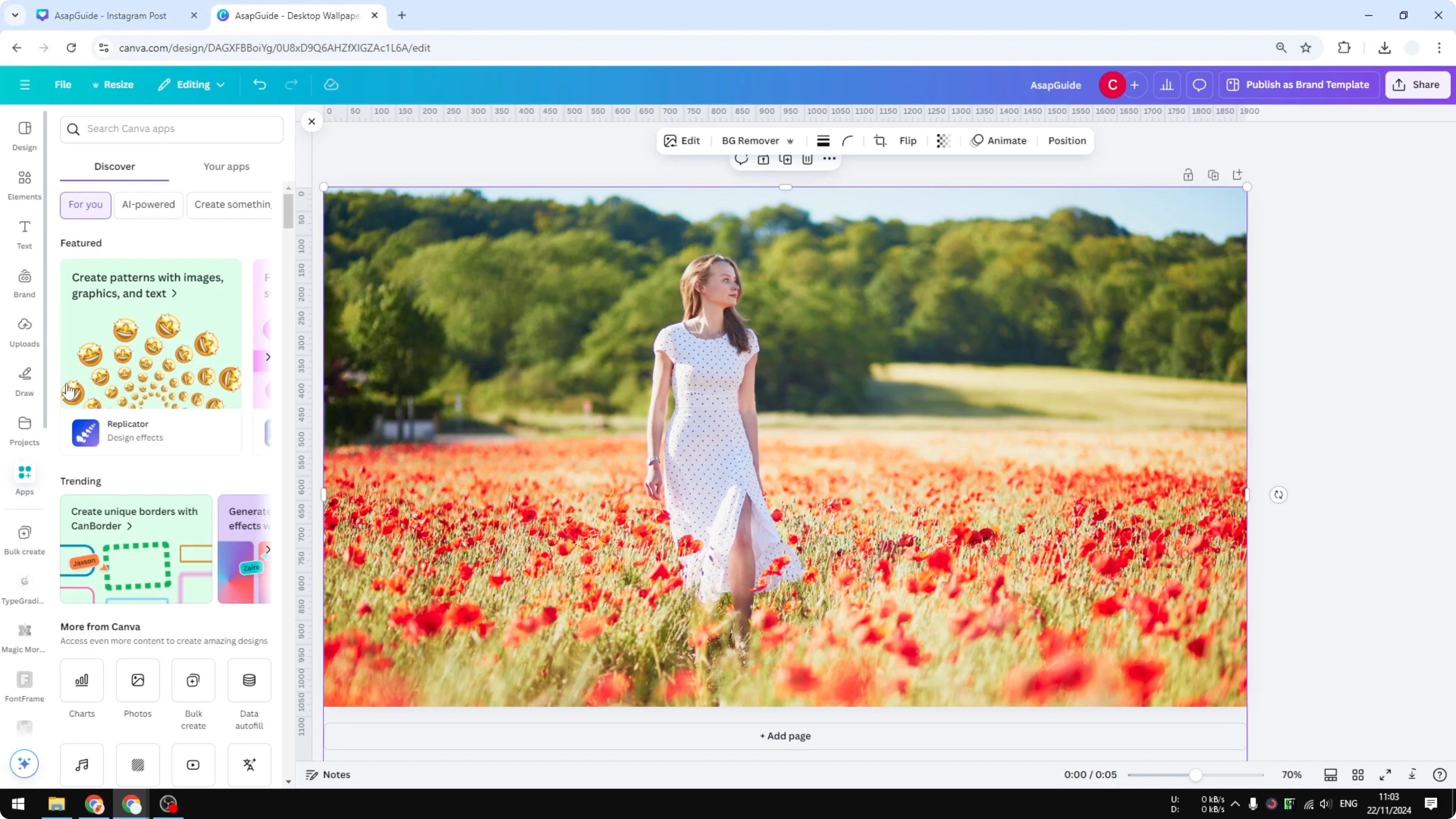
Click Open and wait for it to load.
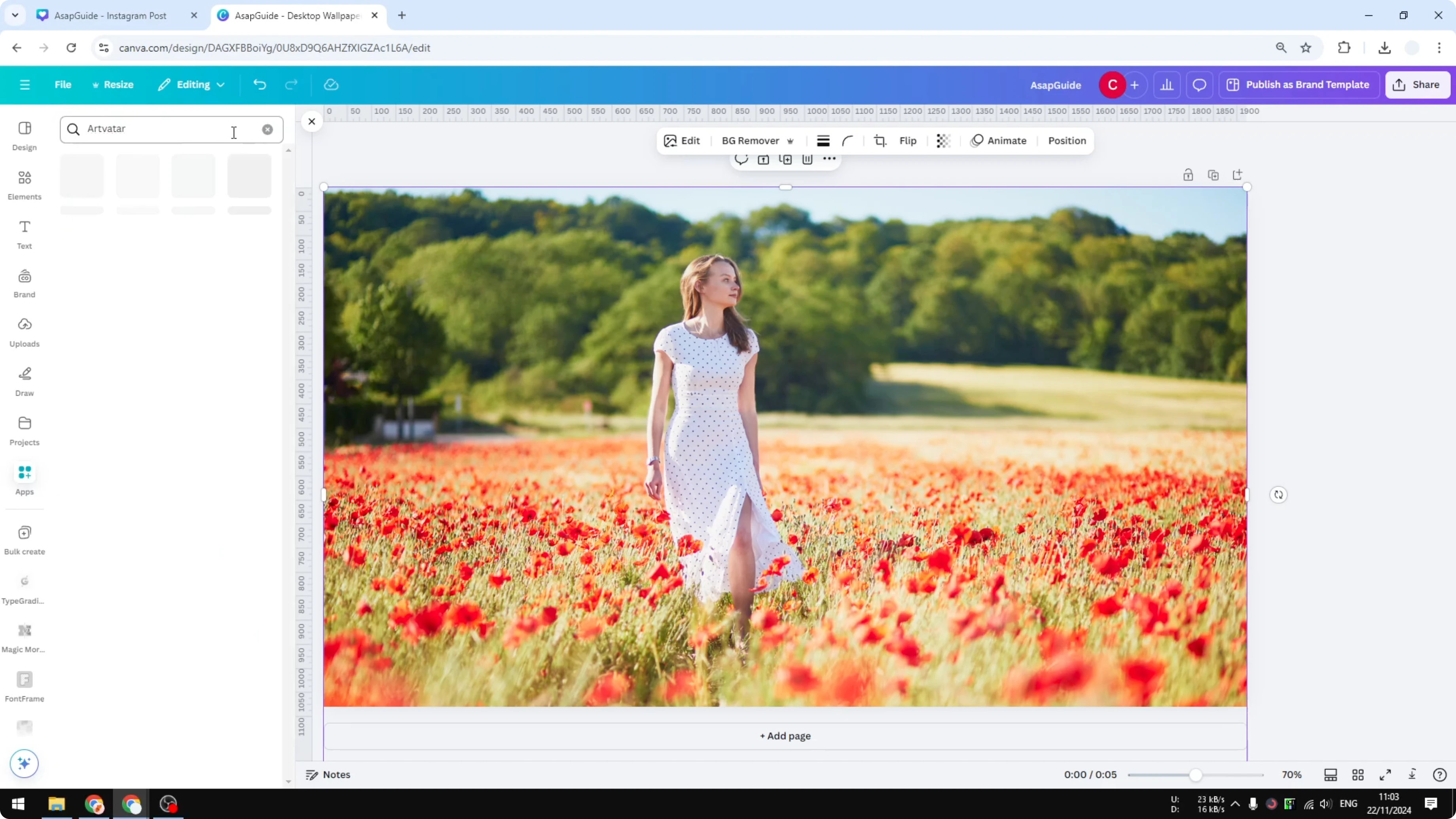
Generate the watercolor effect
Make sure the picture you want to change is selected.
Click Generate and replace.
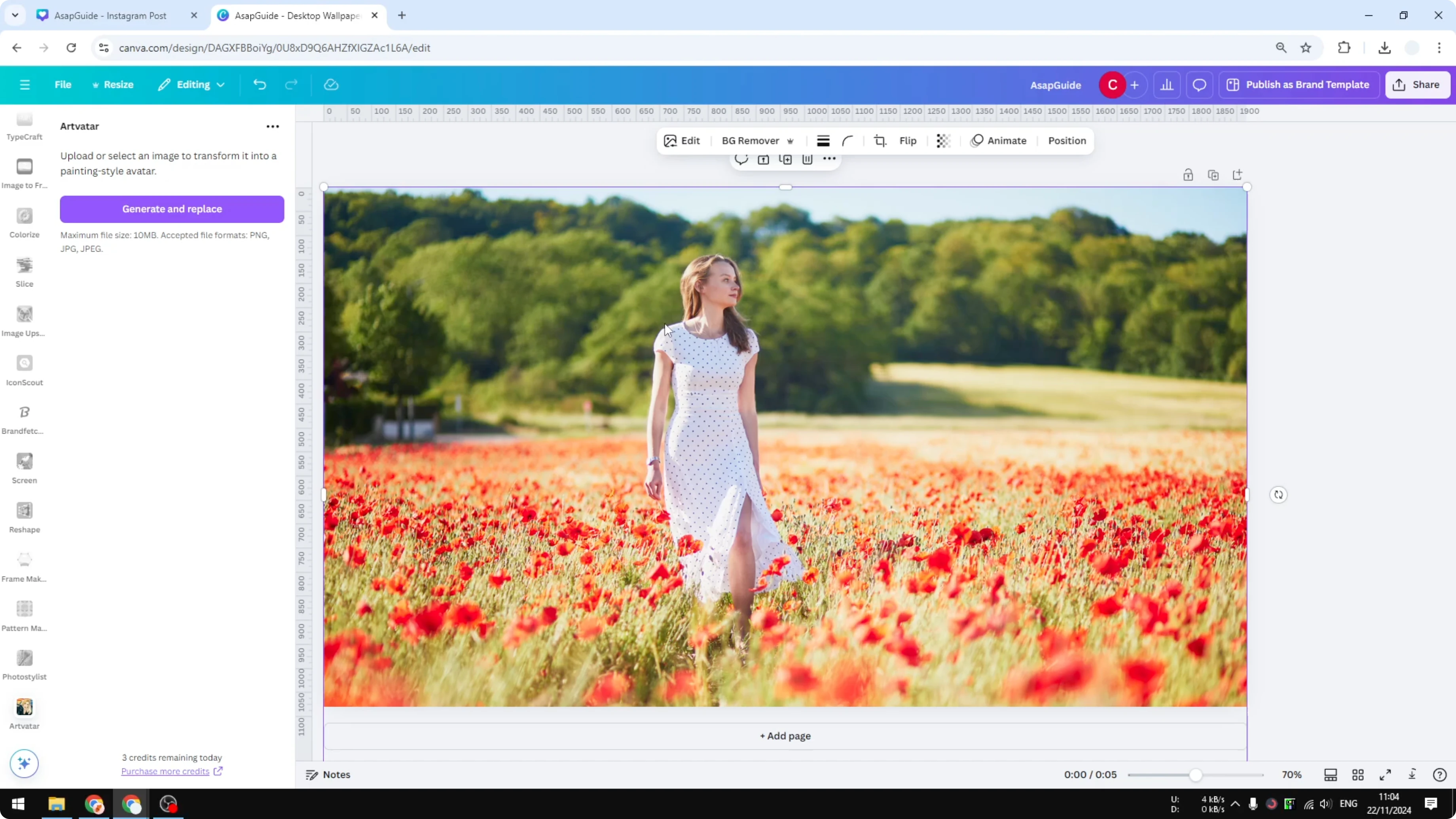
Wait a few seconds, typically less than 30 seconds, for the photo to convert into a watercolor painting style.
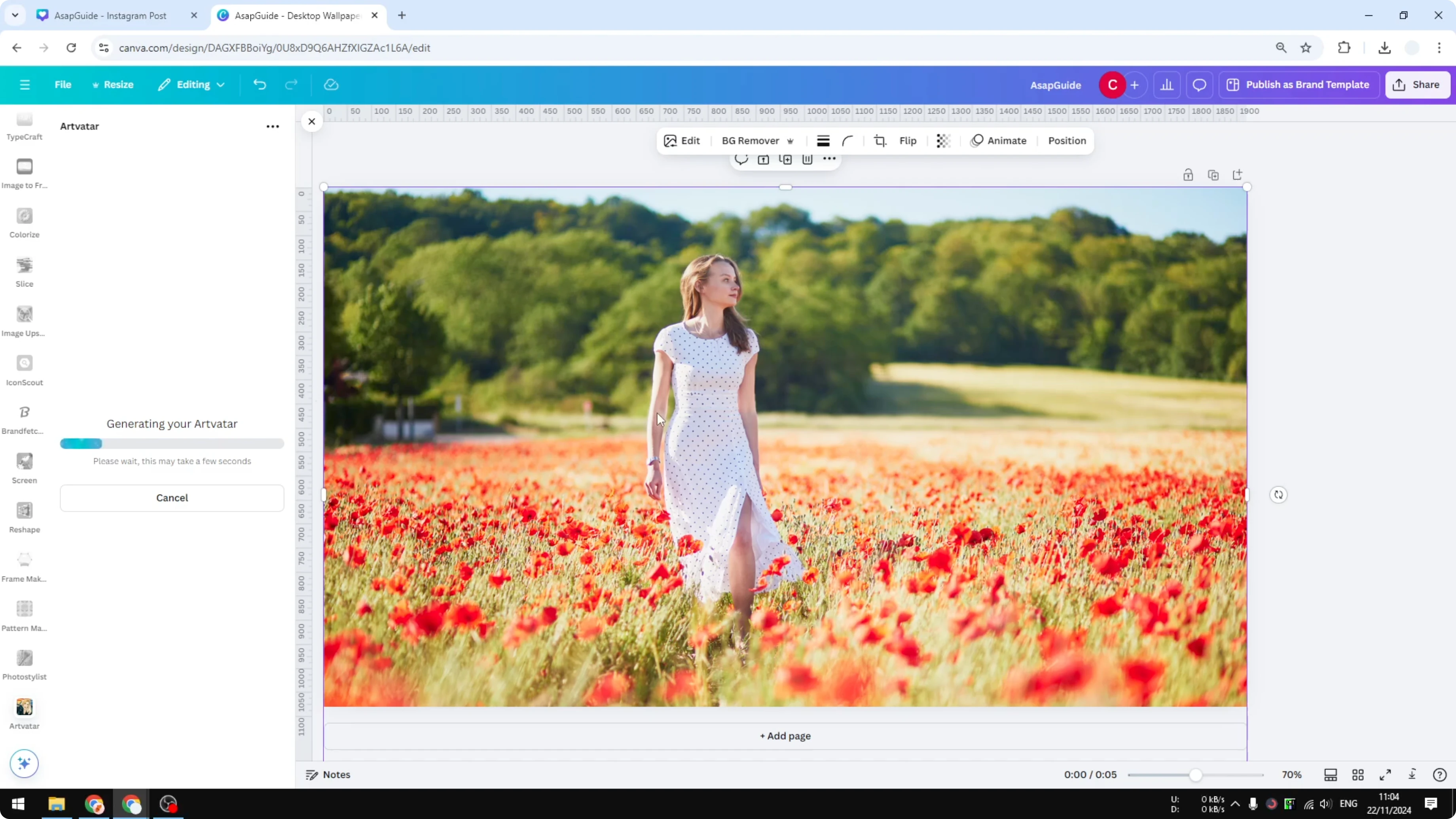
Result and style
The result looks reminiscent of old painting from the Middle Ages.

I think it is interesting, and the process is simple.
If you want a more dramatic portrait look next time, you can also add a glowing effect to a person in Canva.
Credits and limits
You get three credits every day with this app.
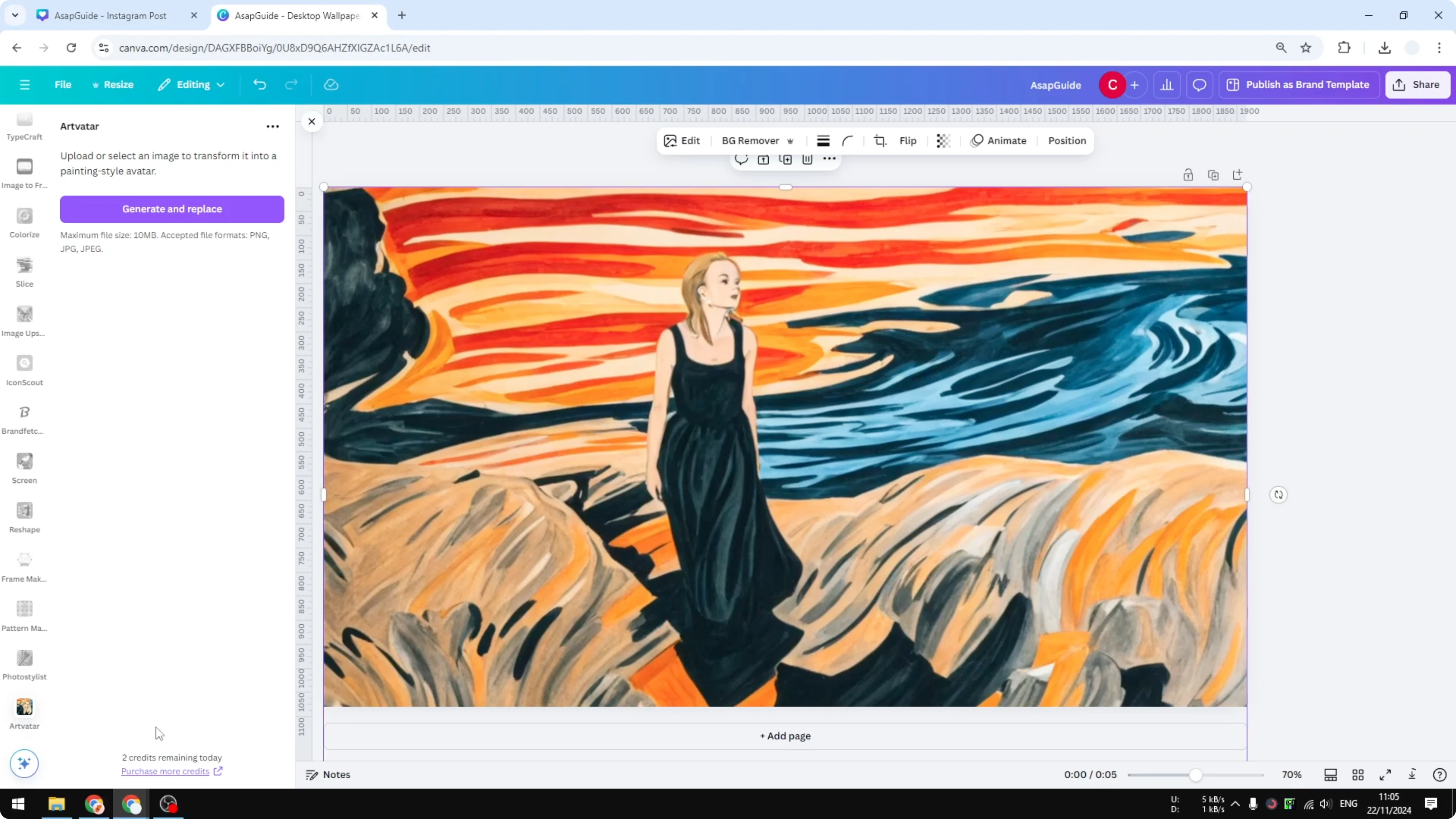
I just used one credit and now I have two remaining credits for today.
Keep that in mind when turning a photo into a watercolor painting.
Final Thoughts
Using Art Fatar inside Canva makes it quick to turn a regular photo into a watercolor painting style. Center your subject, open the app, generate and replace, and wait under 30 seconds for the result.
If you plan to caption the artwork, see how to add a border to a text box in Canva for clean, readable text.
Recent Posts

How to Visualize Yourself as a Pixelized Character with AI?
How to Visualize Yourself as a Pixelized Character with AI?

How to Revive Faded Memories and Enhance Image Clarity with AI?
How to Revive Faded Memories and Enhance Image Clarity with AI?

How to Visualize Yourself as an Animal Crossing Character with AI?
How to Visualize Yourself as an Animal Crossing Character with AI?