How to Add Glowing Effect to a Person in Canva
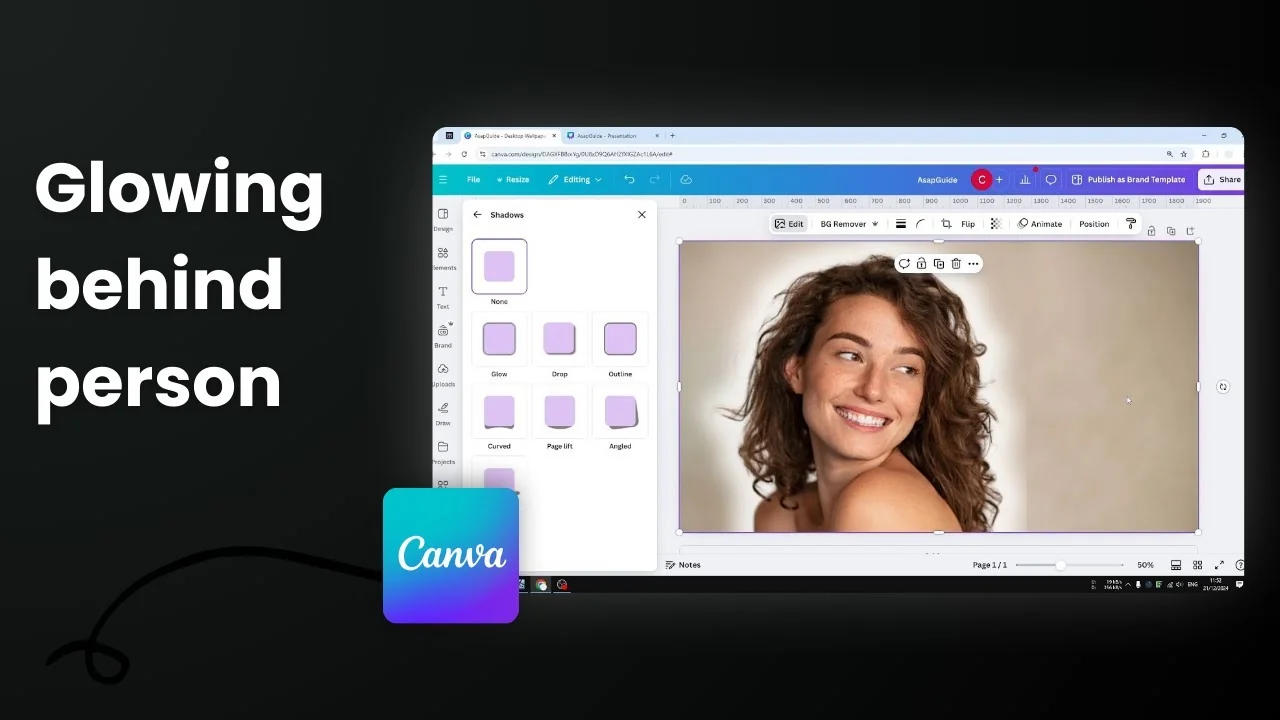
I want to add a glowing effect to a photo of a person in Canva. The idea is to place something bright behind the subject, like white or yellow, that acts like a bright shadow. It draws attention to the subject, which is one of the reasons to use this effect in a photo.
Before we start, I’m working with a photo of a woman and I want the glow behind her. Here’s how I set up the file and two methods to create the glow.
Add Glowing Effect to a Person in Canva: Preparation
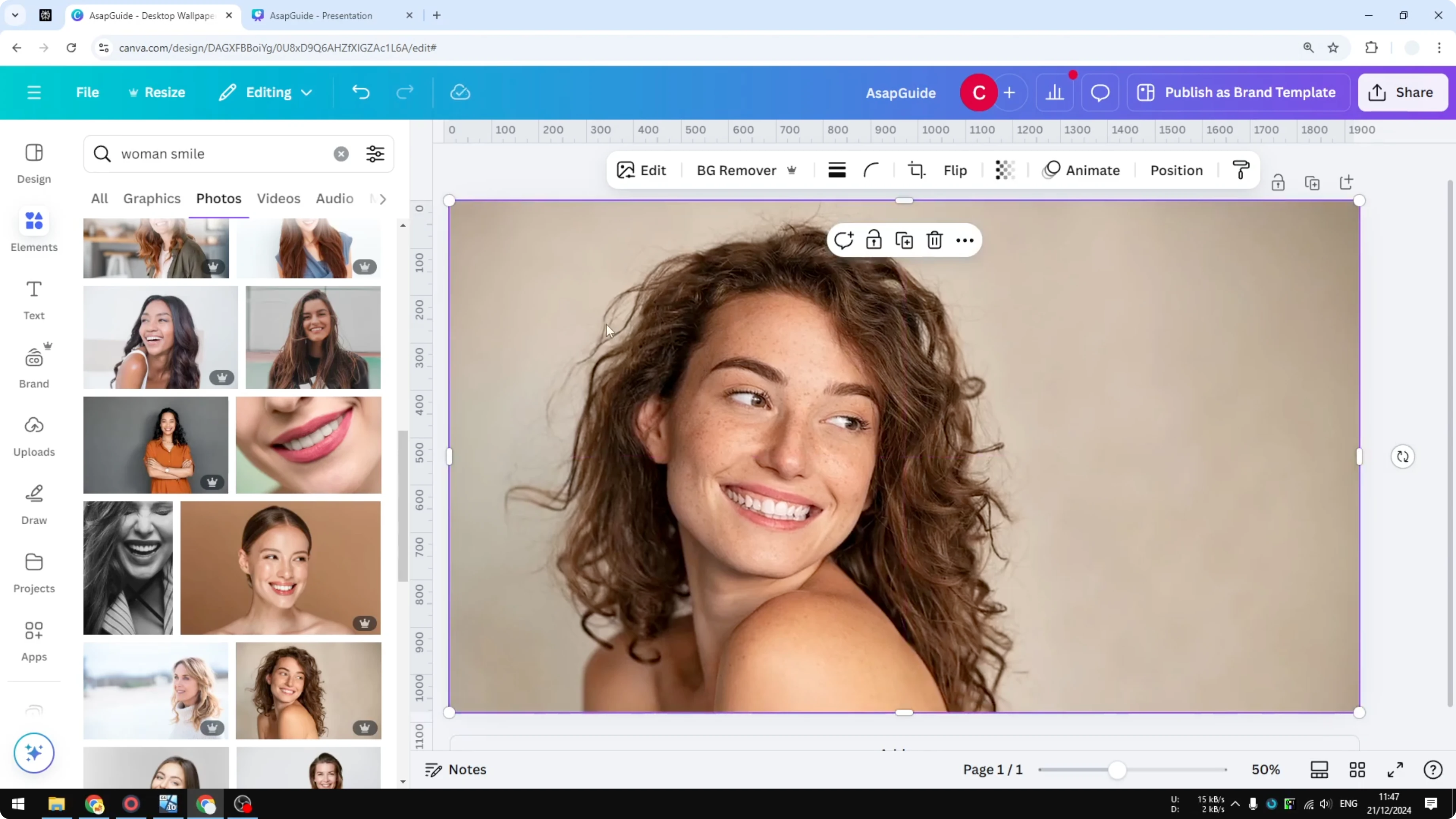
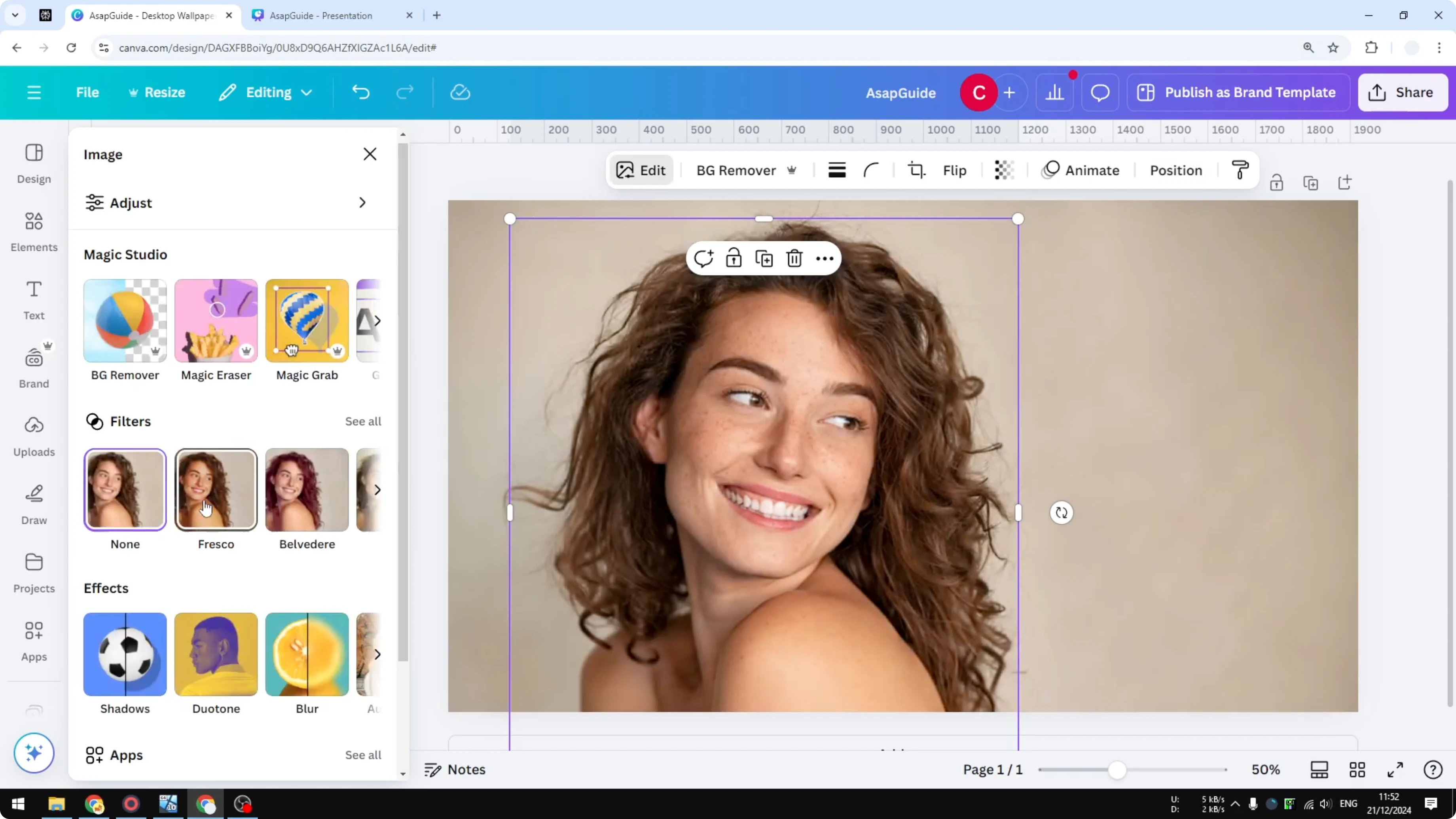
- Insert a picture into your Canva design.
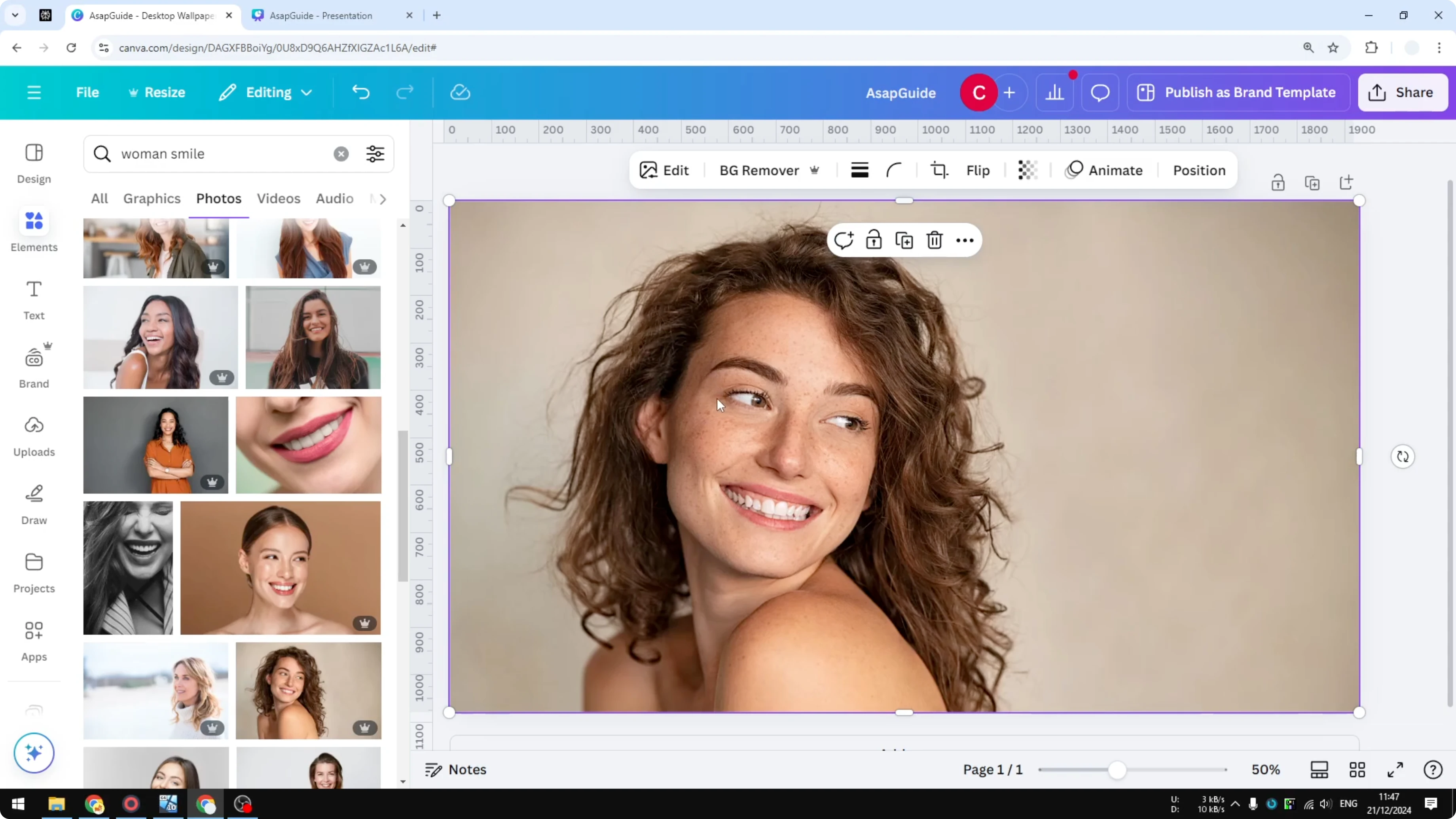
- Duplicate the picture. We’ll remove the background on the duplicate, and keeping the original makes the next steps easier.
- Place the duplicated photo exactly on top of the original.
- Remove the background on the duplicate:
- Option 1: Edit - Background Remover.
- Option 2: Magic Grab for finer control over what to include or exclude.
- You can use a brush method to manually select areas.
- Or use a click method that uses AI to isolate the subject. It’s not perfect and sometimes leaves tiny artifacts you have to manually include, and even then it’s not always perfect.
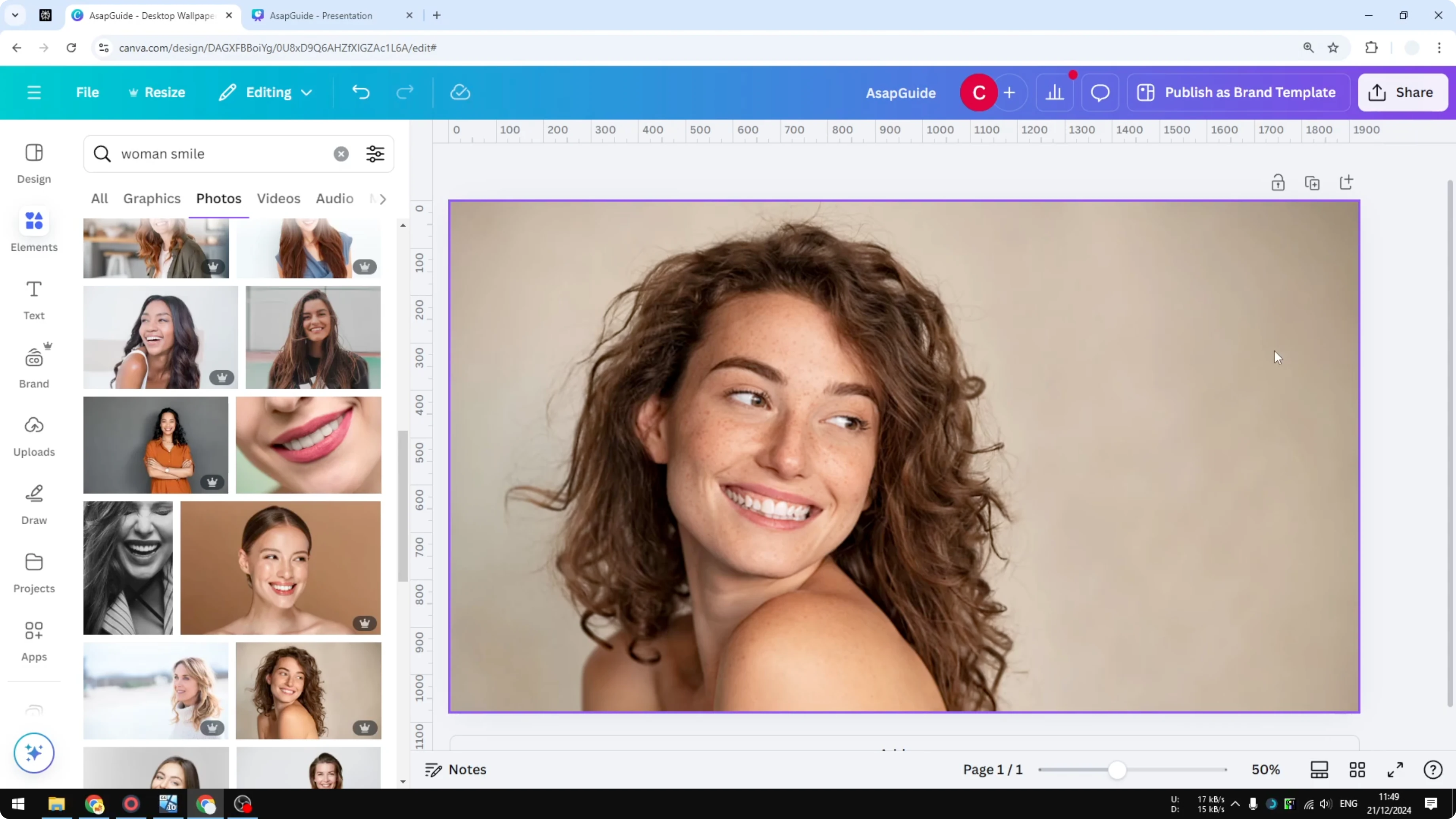
After processing, Canva isolates the subject from the background. The original photo remains behind it, which is the benefit of duplicating first.
Add Glowing Effect to a Person in Canva: Method 1 - Using Shadow or Glow Elements
This is my favorite because it’s more flexible.
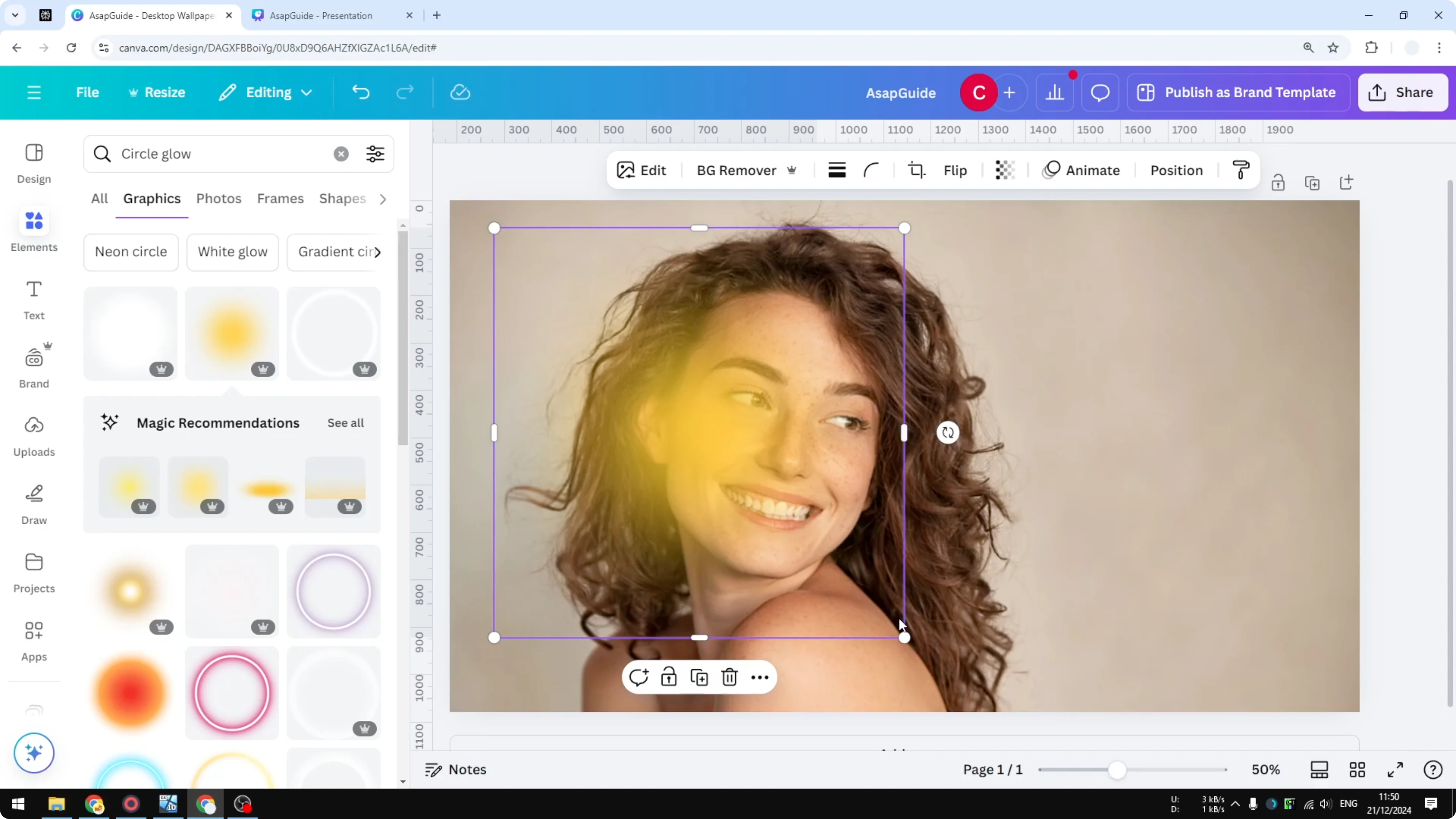
- Open Elements and search for:
- Shadow
- Circle Shadow
- Circle glow
- Go to the Graphics section. You’ll see various shadow or glowing elements. Shadow and glow are the same thing here, just different colors.
- Insert a glow element. If one is too bright, try another.
- Note: some graphics let you change colors, others don’t. That’s the challenge with this method. If the element is not customizable, you can’t change its color.
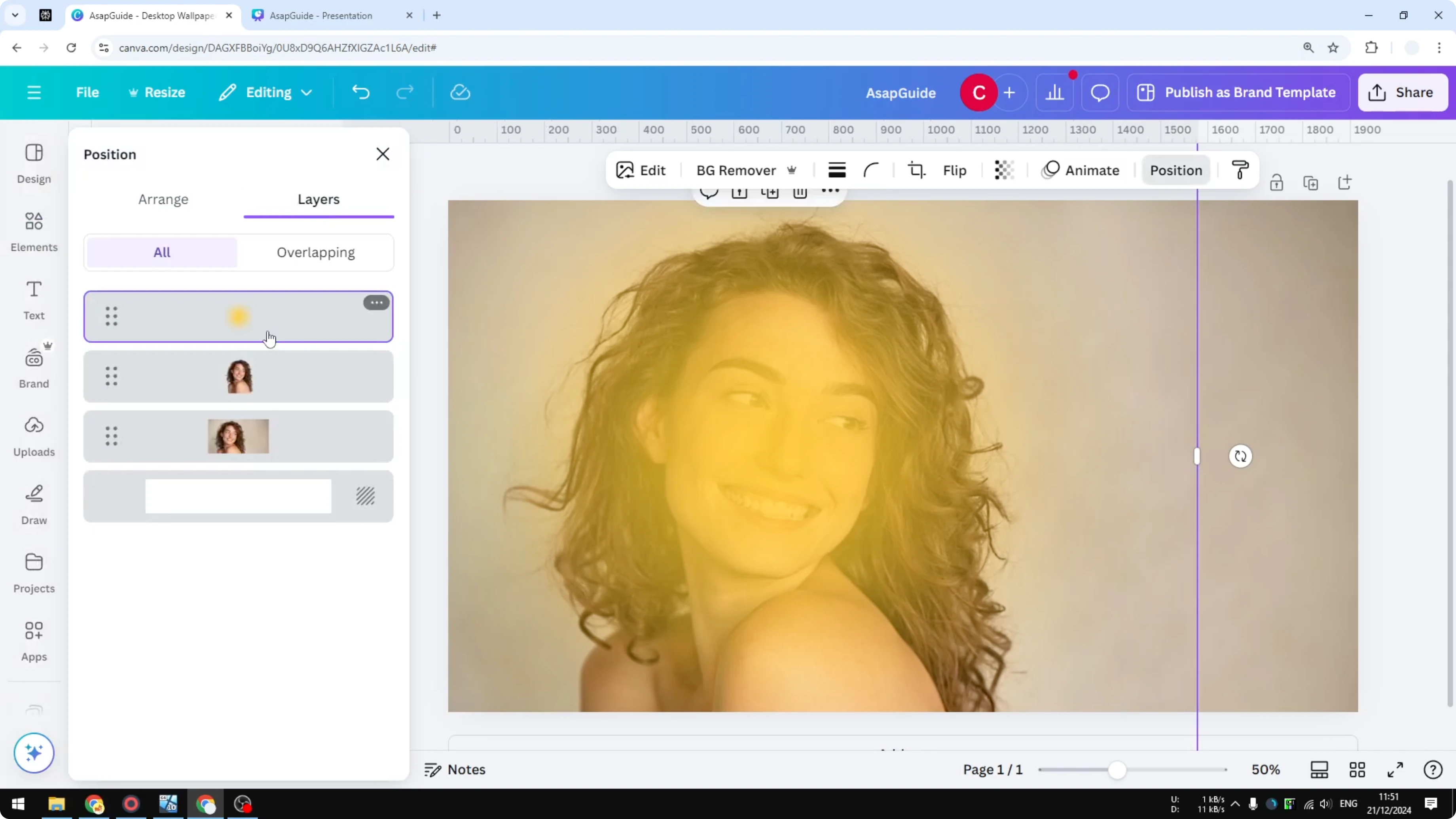
- Send the glow behind the subject:
- Position - Layers, then drag the glow element behind the photo of the person.
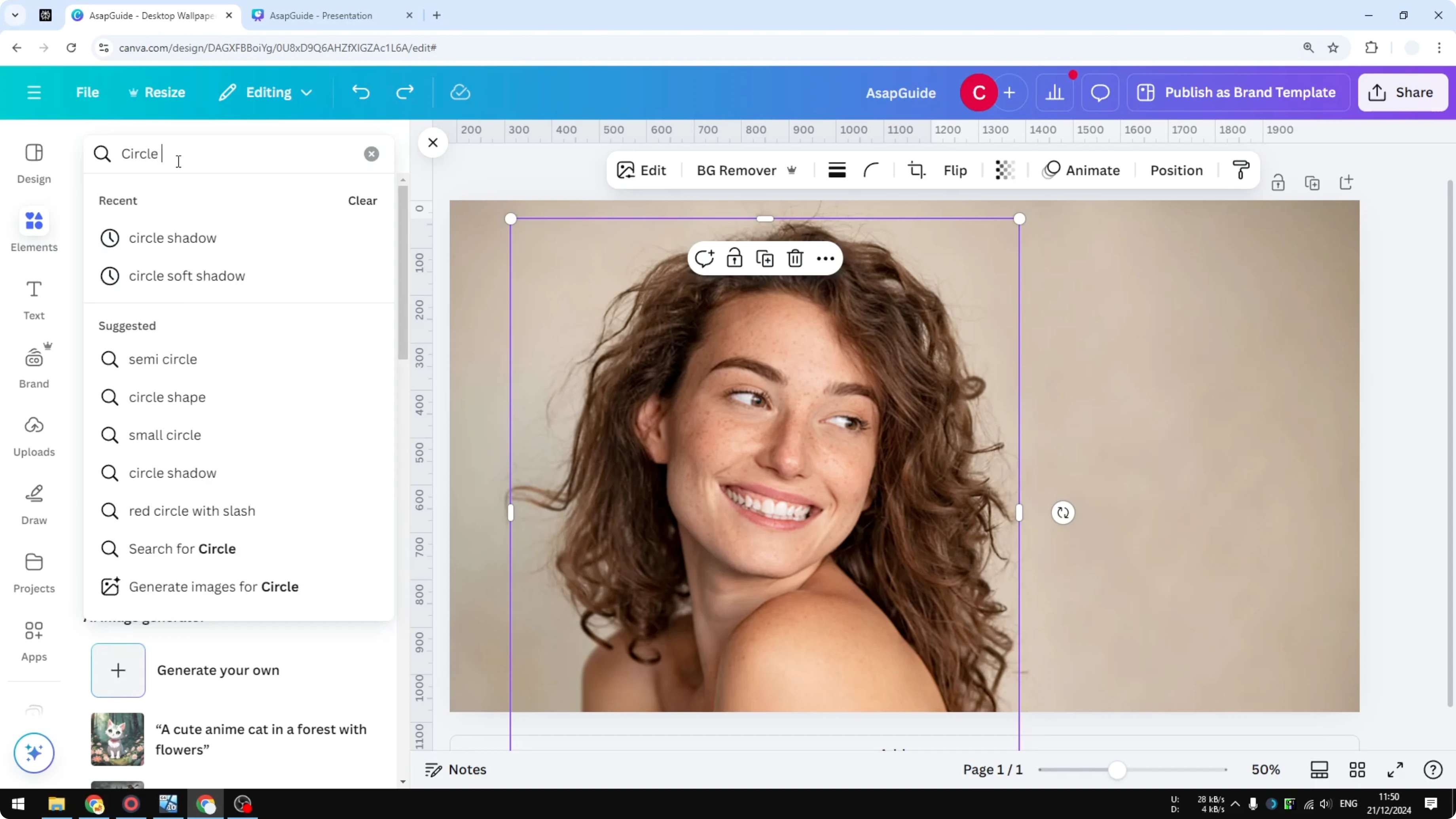
You can also use a darker shadow instead of a bright glow:
- In Elements, search Circle Shadow.
- Pick one that supports color changes. Click the color control and set any color you want.
- Position - Layers, and place it behind the subject.
Add Glowing Effect to a Person in Canva: Method 2 - Using the Glow Shadow in Edit
This one is a bit more involved, but it works well.
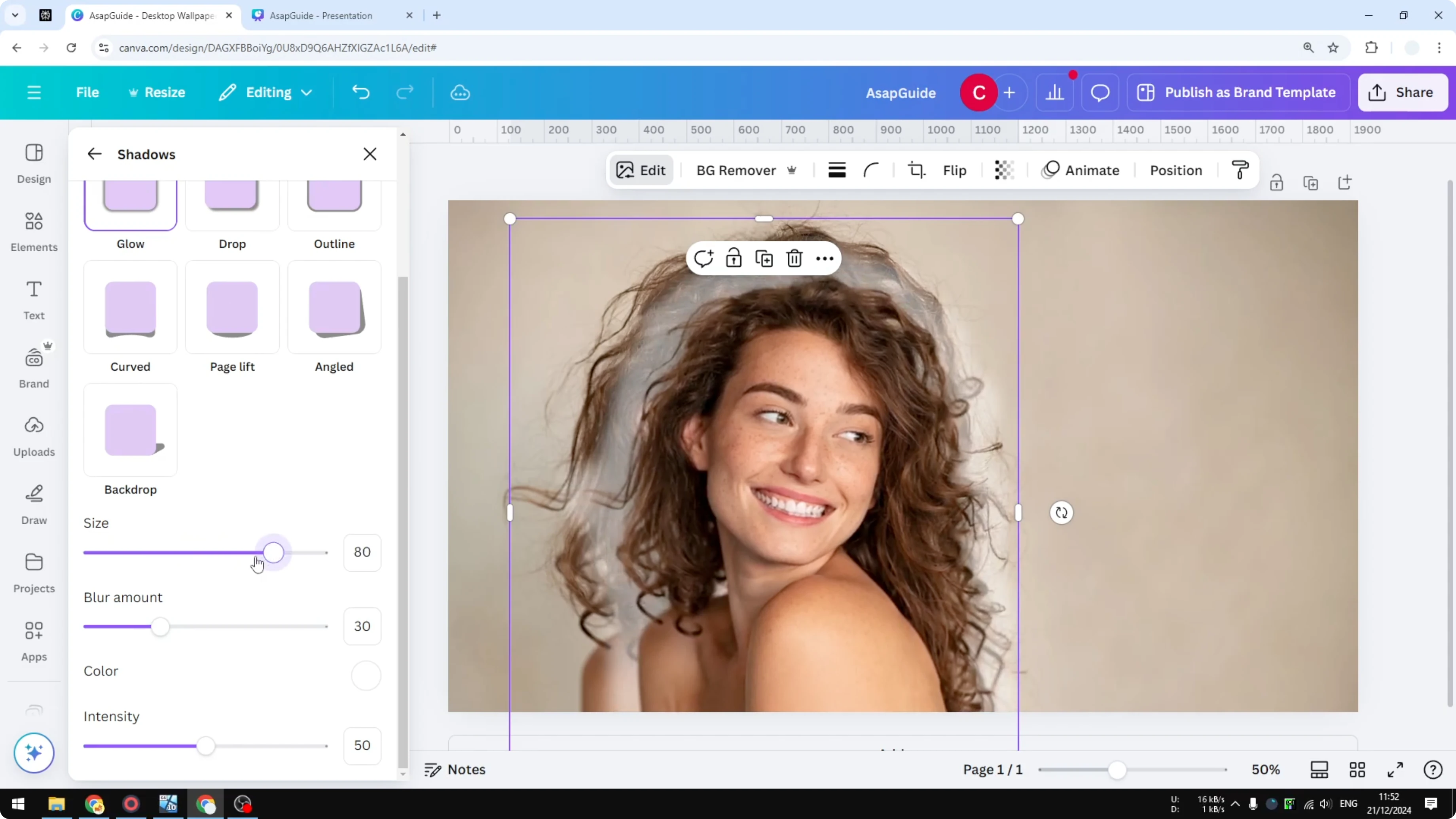
- Select the picture and click Edit.
- Open Shadows, then choose Glow.
- Change the color to white or any bright color.
- Increase the size to get a stronger glow.
- The consequence is that the subject becomes smaller as you increase the glow. Resizing it back to the exact original position is manual and can be tricky, but it works.
Final Thoughts
Duplicating the photo and removing the background on the top layer makes it easy to place a glow behind your subject. Method 1, using glow or shadow graphics from Elements, gives more flexibility, especially when the element allows color changes. Method 2, using the Glow shadow in Edit, is straightforward but can shrink the subject as you increase the effect. Both approaches create a clean glow that pulls attention to the person in your photo.
Recent Posts

How to Visualize Yourself as a Pixelized Character with AI?
How to Visualize Yourself as a Pixelized Character with AI?

How to Revive Faded Memories and Enhance Image Clarity with AI?
How to Revive Faded Memories and Enhance Image Clarity with AI?

How to Visualize Yourself as an Animal Crossing Character with AI?
How to Visualize Yourself as an Animal Crossing Character with AI?