How to Add a Border to a Text Box in Canva
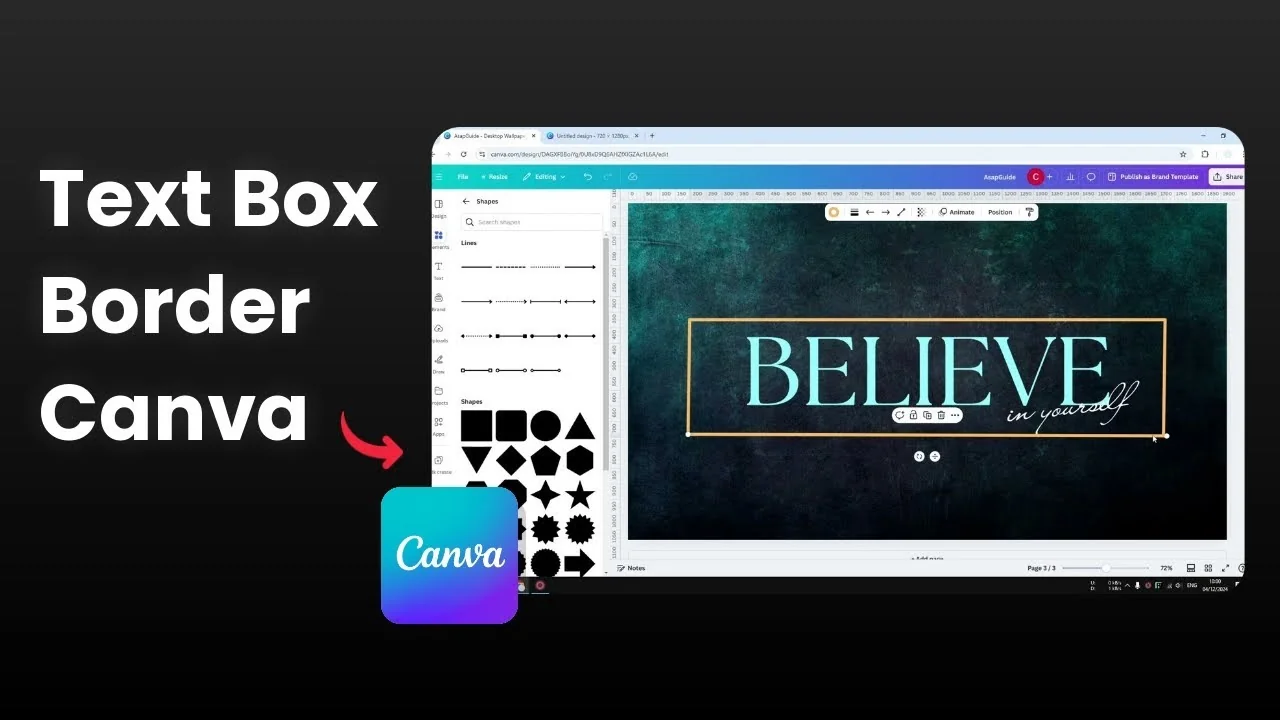
I’m going to show you how to add a border to a text box in Canva. When you hover over a text box you’ll see a purple line surrounding it, but that is not a border, it is just a selection. There is only one way to add a real border around your text.
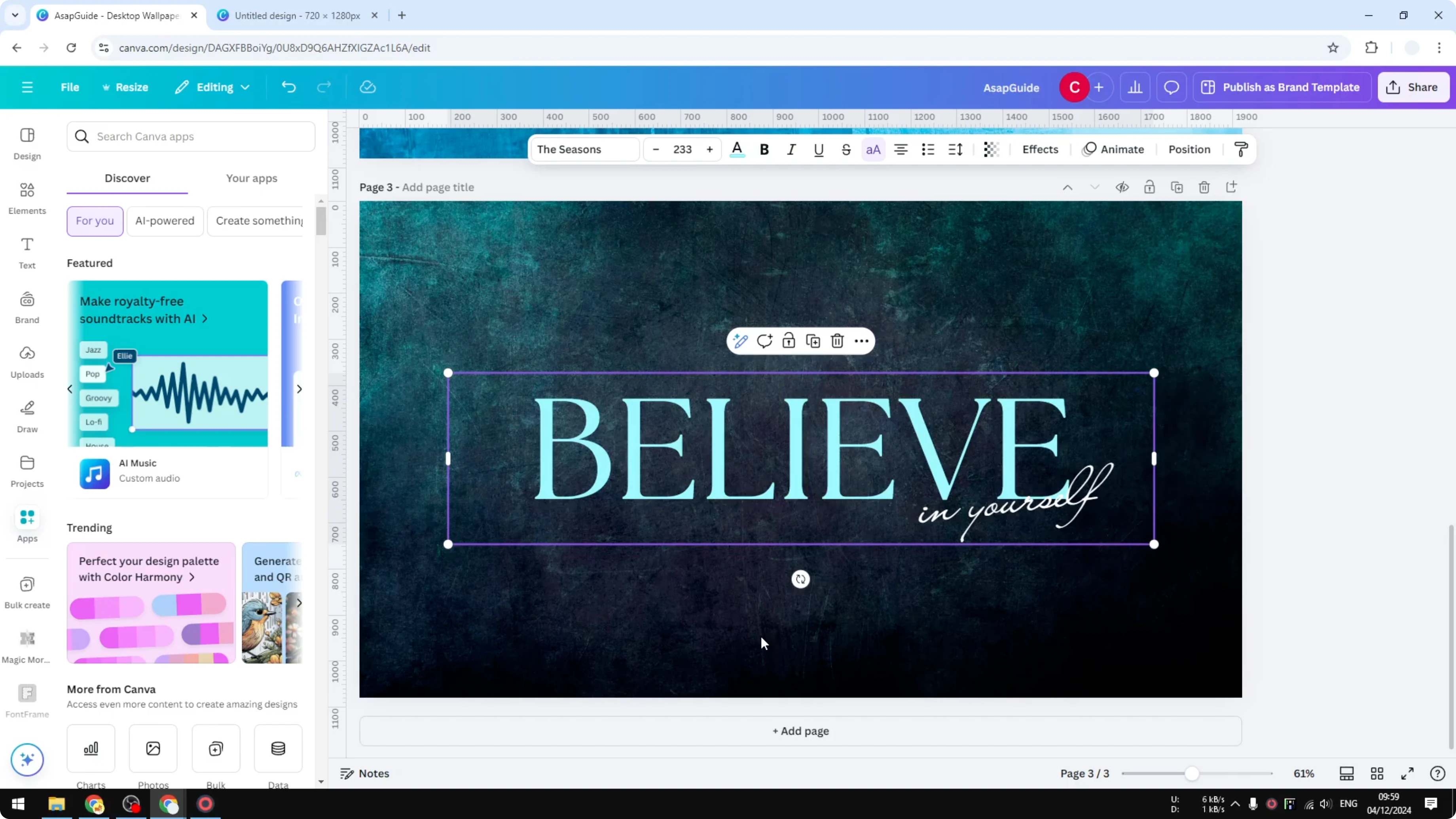
Add a Border to a Text Box in Canva
Set up the lines
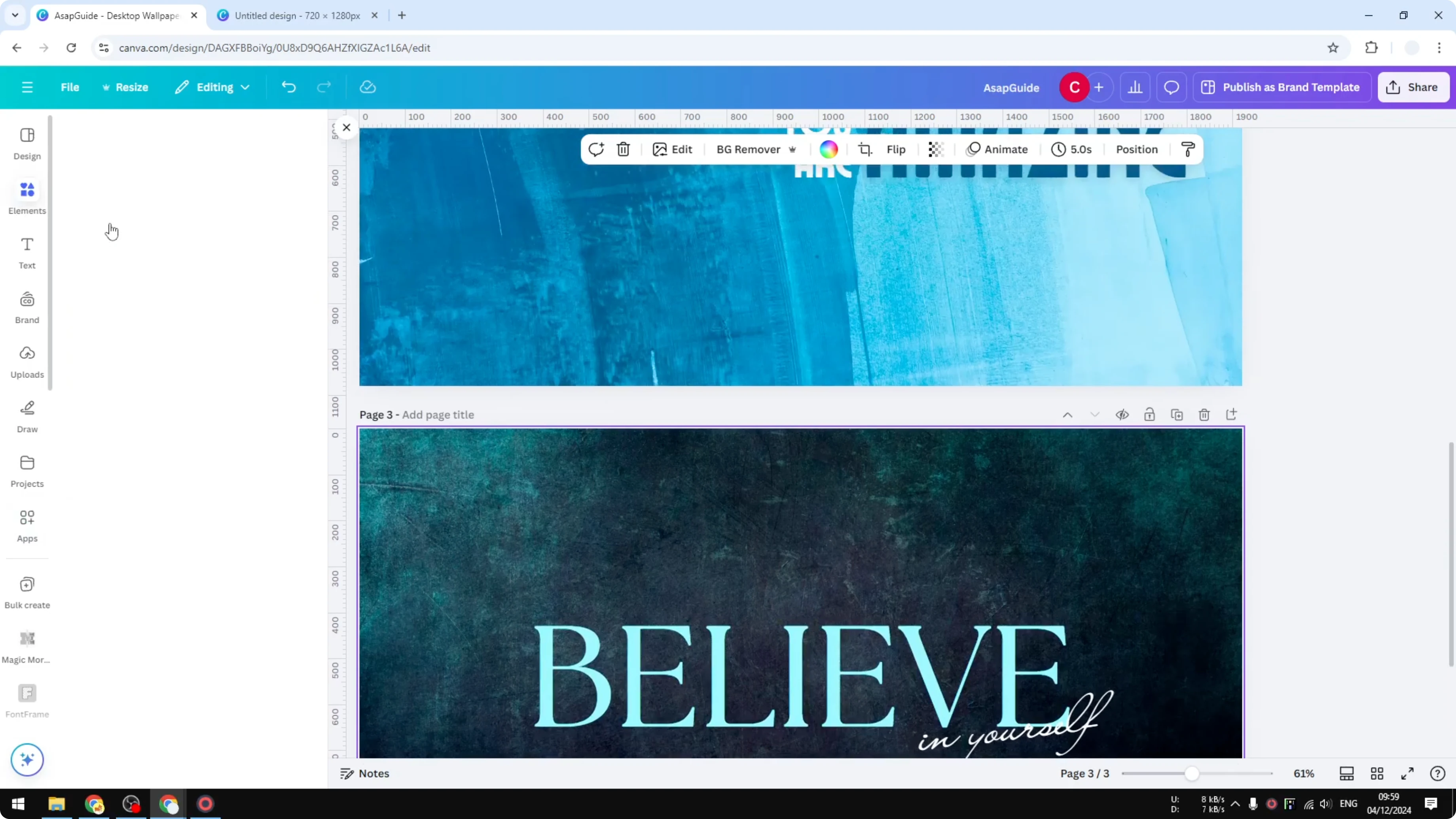
Select the text box you want to surround with a border. Open Elements, navigate to Shapes, click See all, and add a simple line.
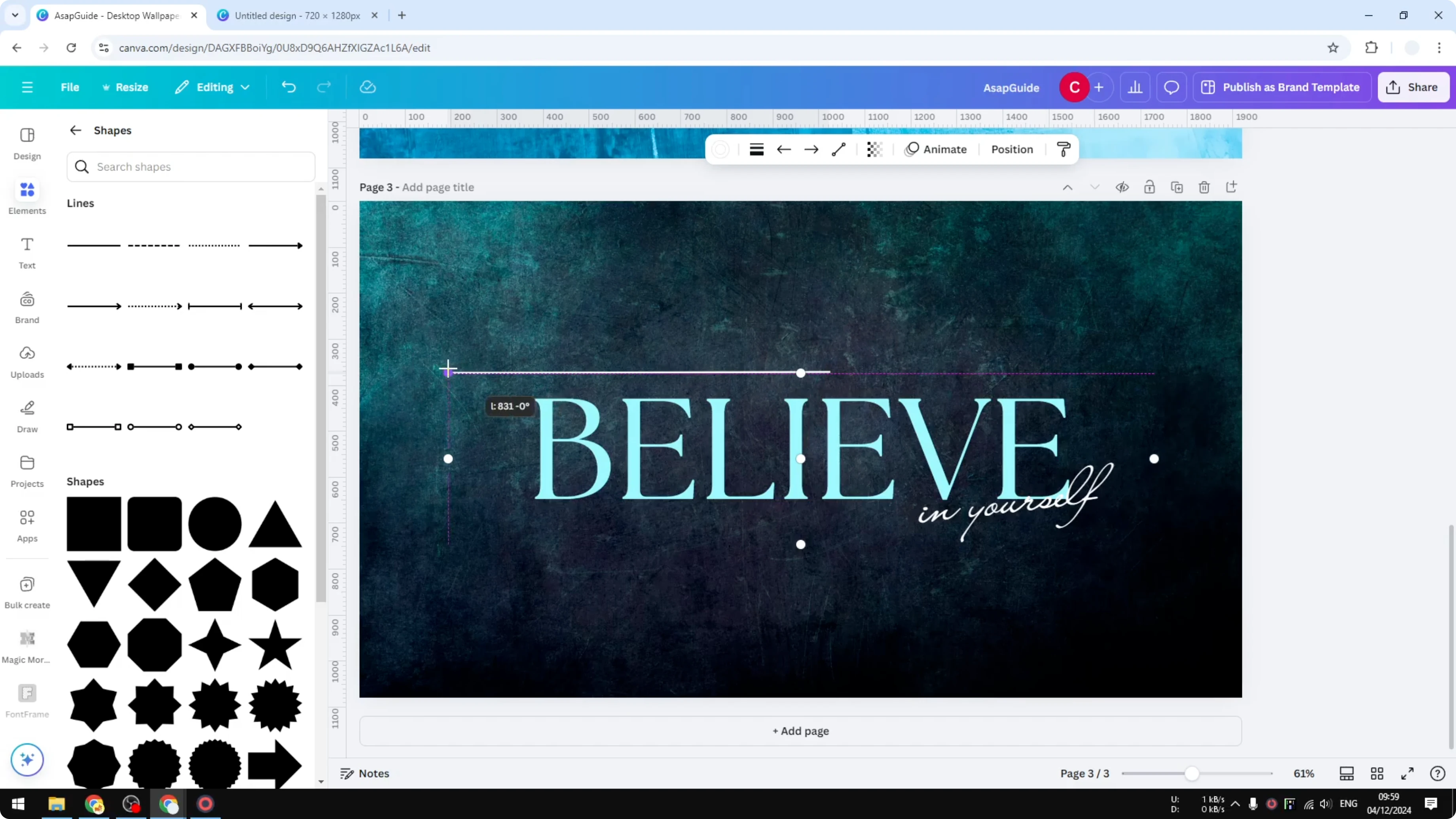
Place the line where you want the border to sit and make it longer by clicking and dragging its ends. Adjust its position so it aligns with the top edge of your text box.
Style options
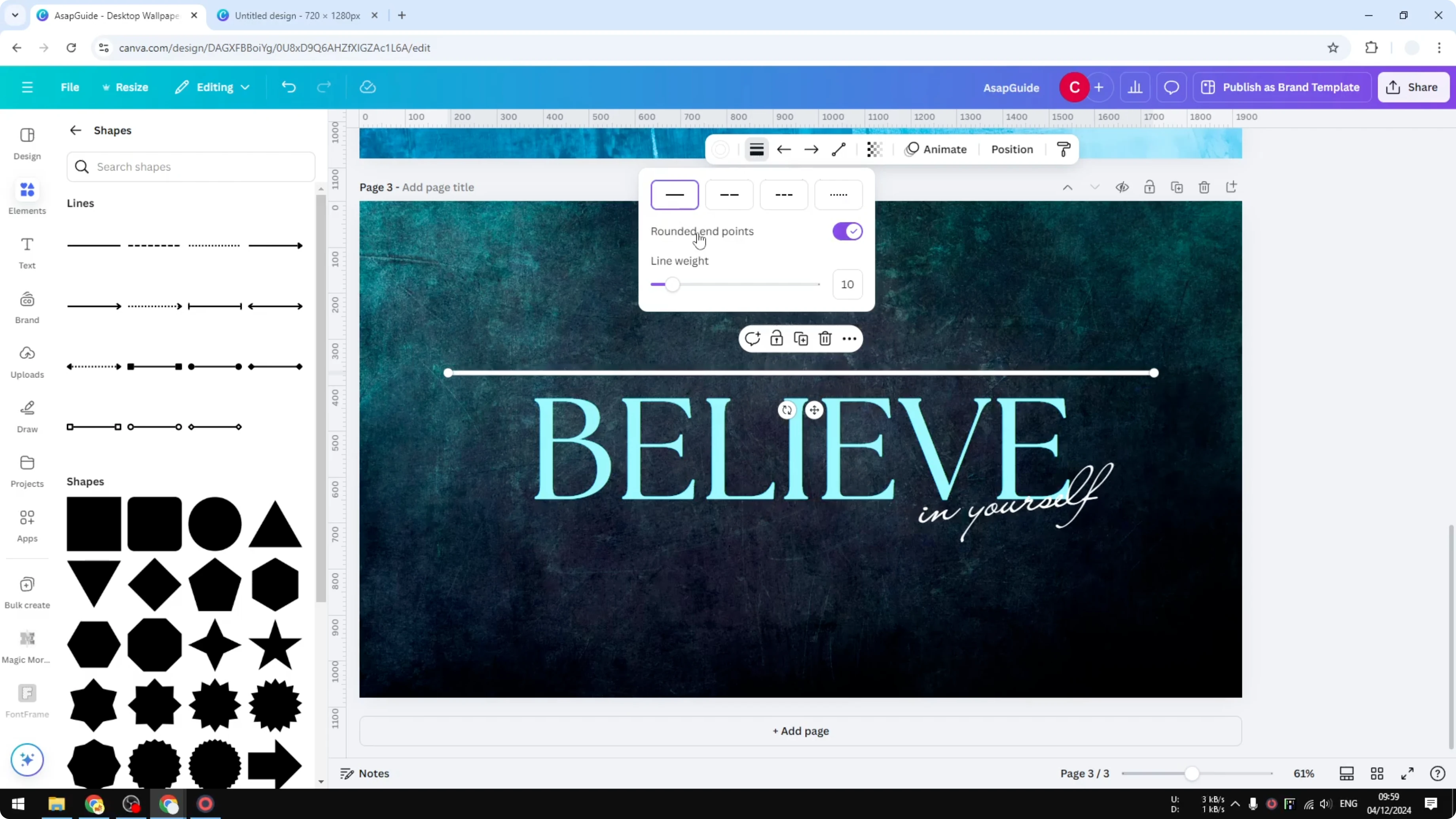
Change the color or change the thickness. I make it a bit thicker and enable round end points.
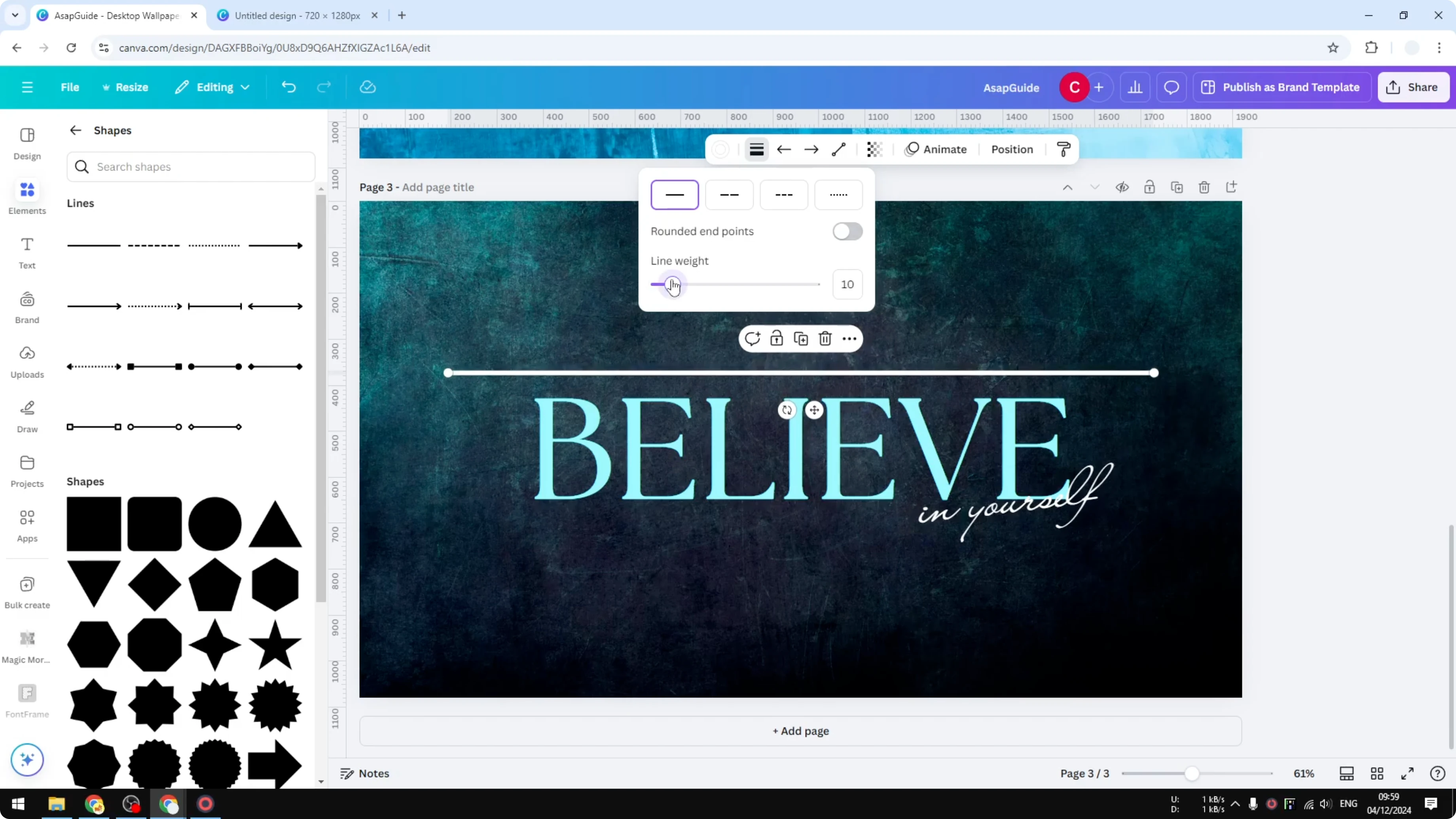
There are styles you can apply like dashed or dotted. I’m choosing a simple solid line, and I’m using orange.
Read More: Attach Text Shape Canva
Build the sides
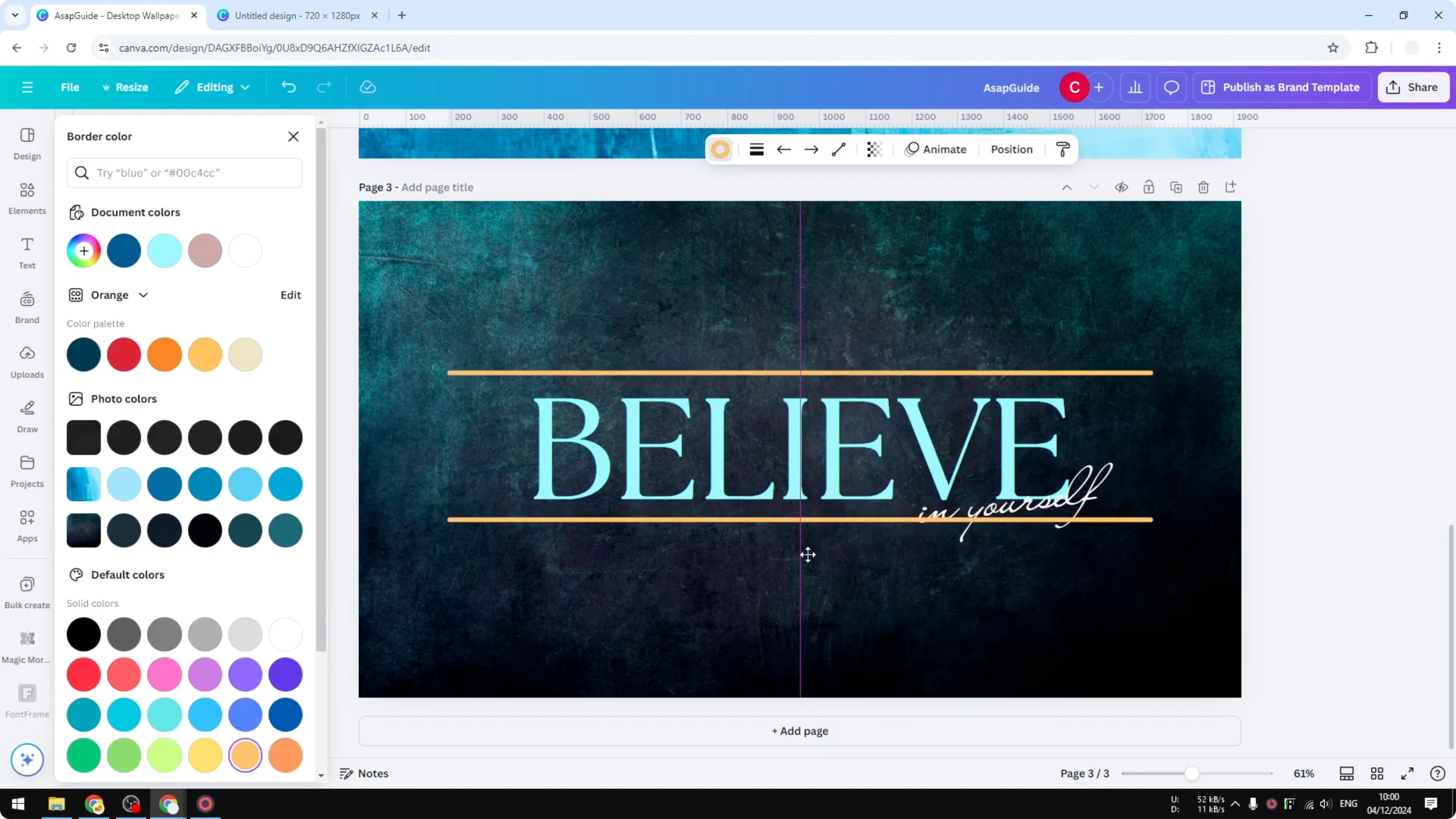
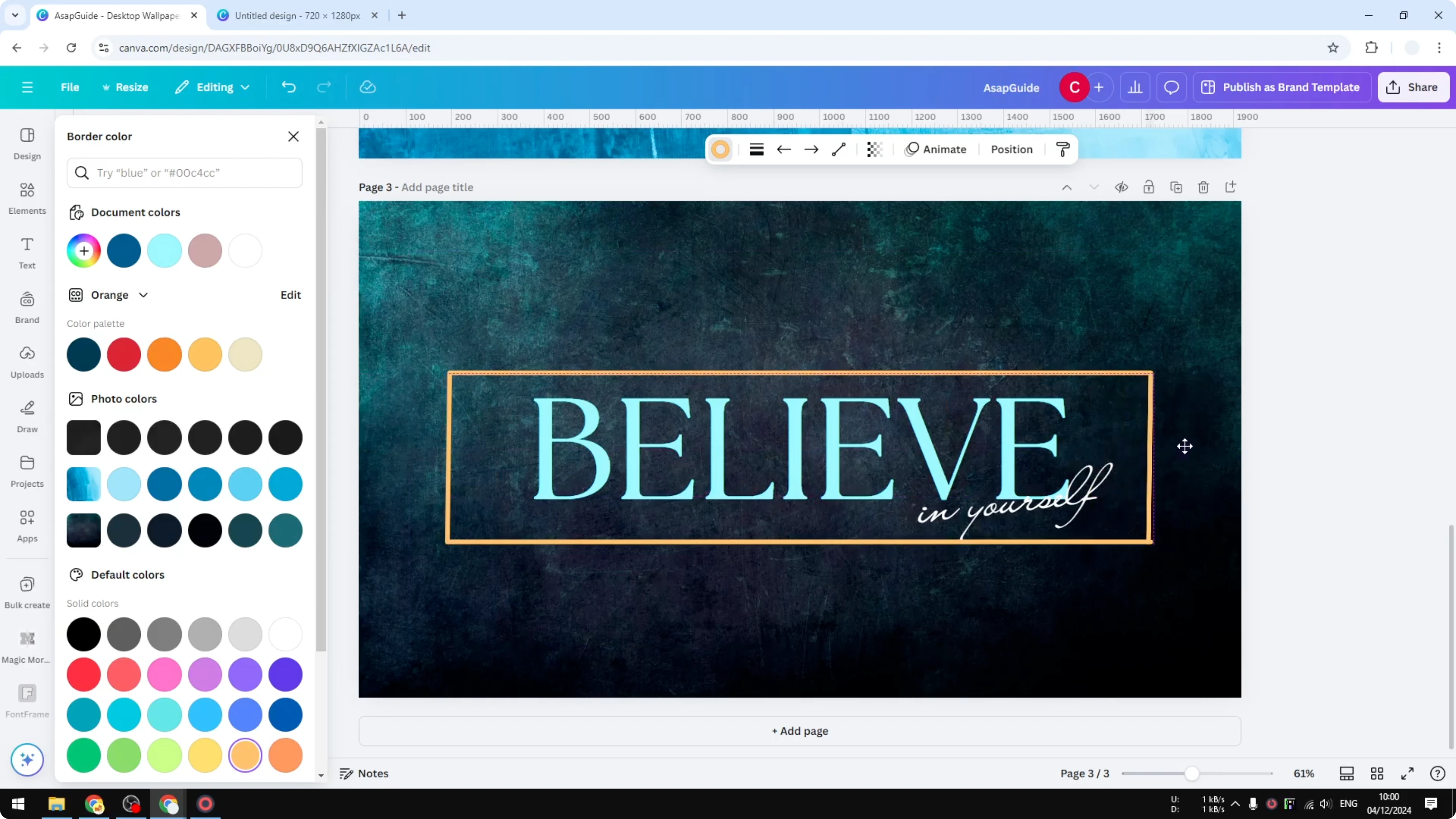
Copy this or click Duplicate to create the opposite horizontal edge, and place it on the other side. Position it so the top and bottom lines are parallel.
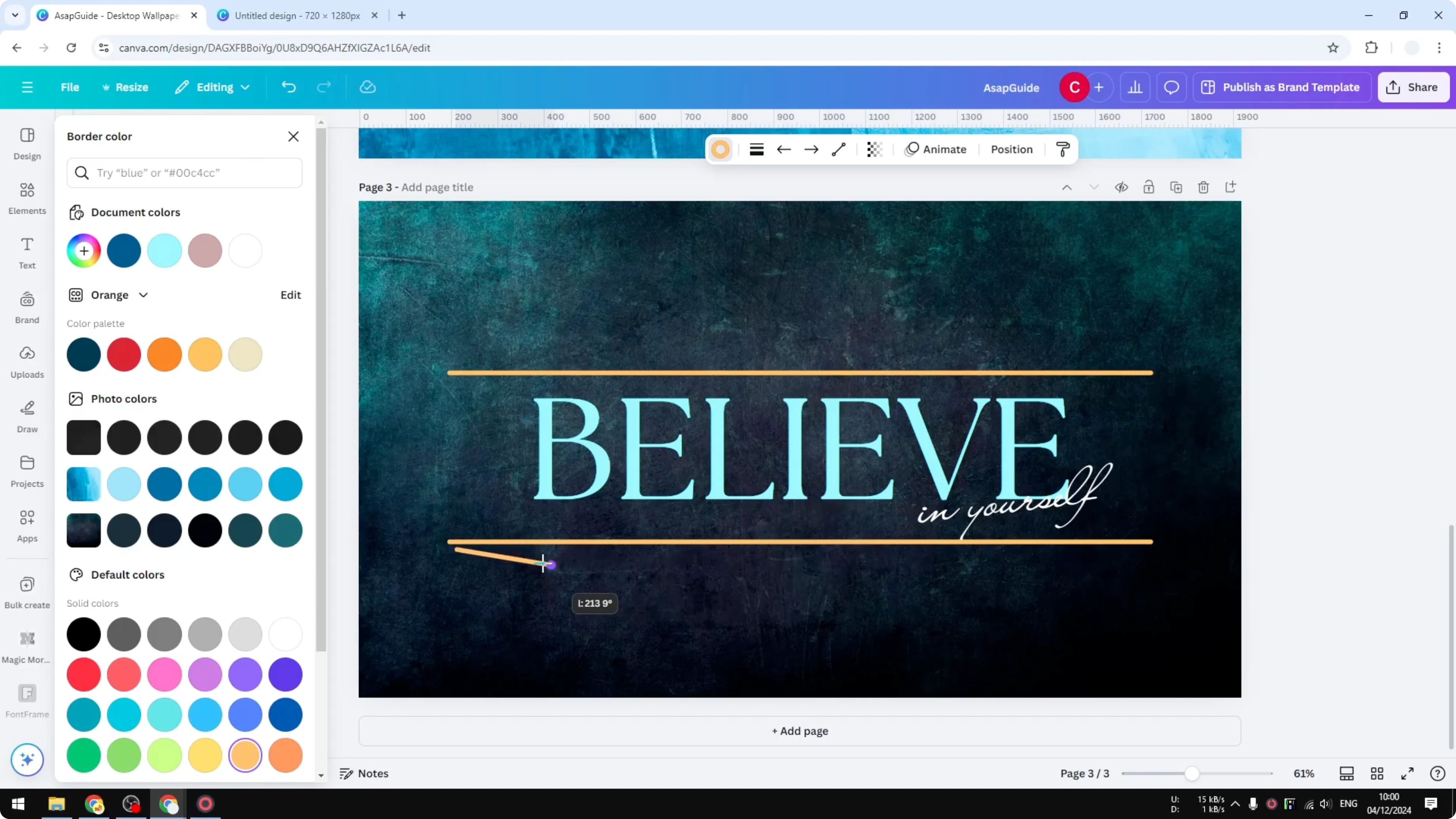
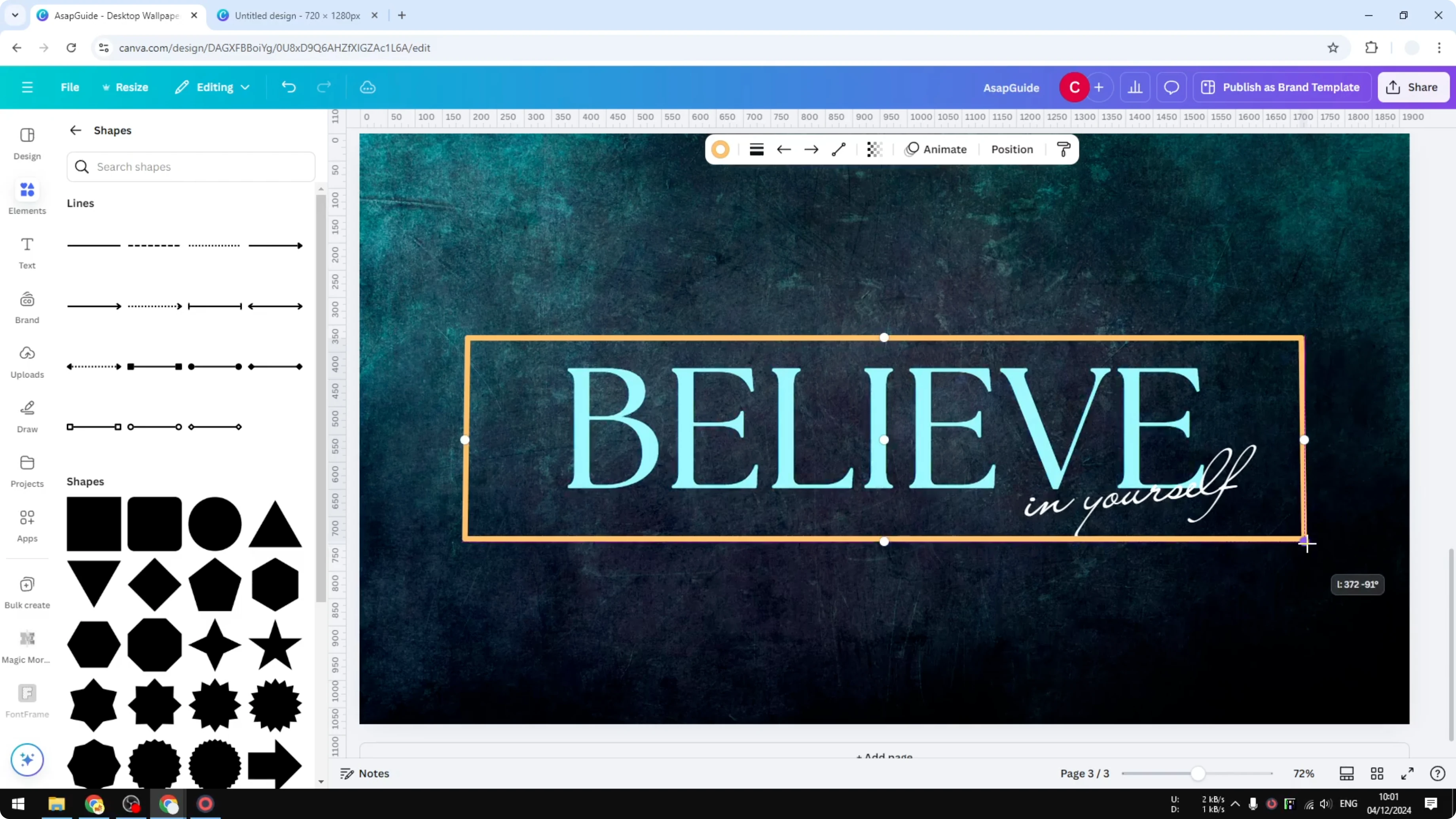
Click Duplicate again, make it shorter to create a vertical edge, rotate it to 90 degrees, and place it on one side. Duplicate once more and move this line to the other side so you have four sides.
Make sure they fit perfectly. This can be quite tedious, but if you do it carefully you’re going to get a good result.
Read More: How To Add Text Behind Image In Canva
Perfect the alignment
Press and hold the Shift key to make sure a line is perfectly straight while you drag. This is the most difficult part, but it makes the border clean.
Group with the text
Select every line of the border and group them together so the border moves as one. Click a line, hold the Shift key, click the other lines, or just drag to select all four, then click Group.
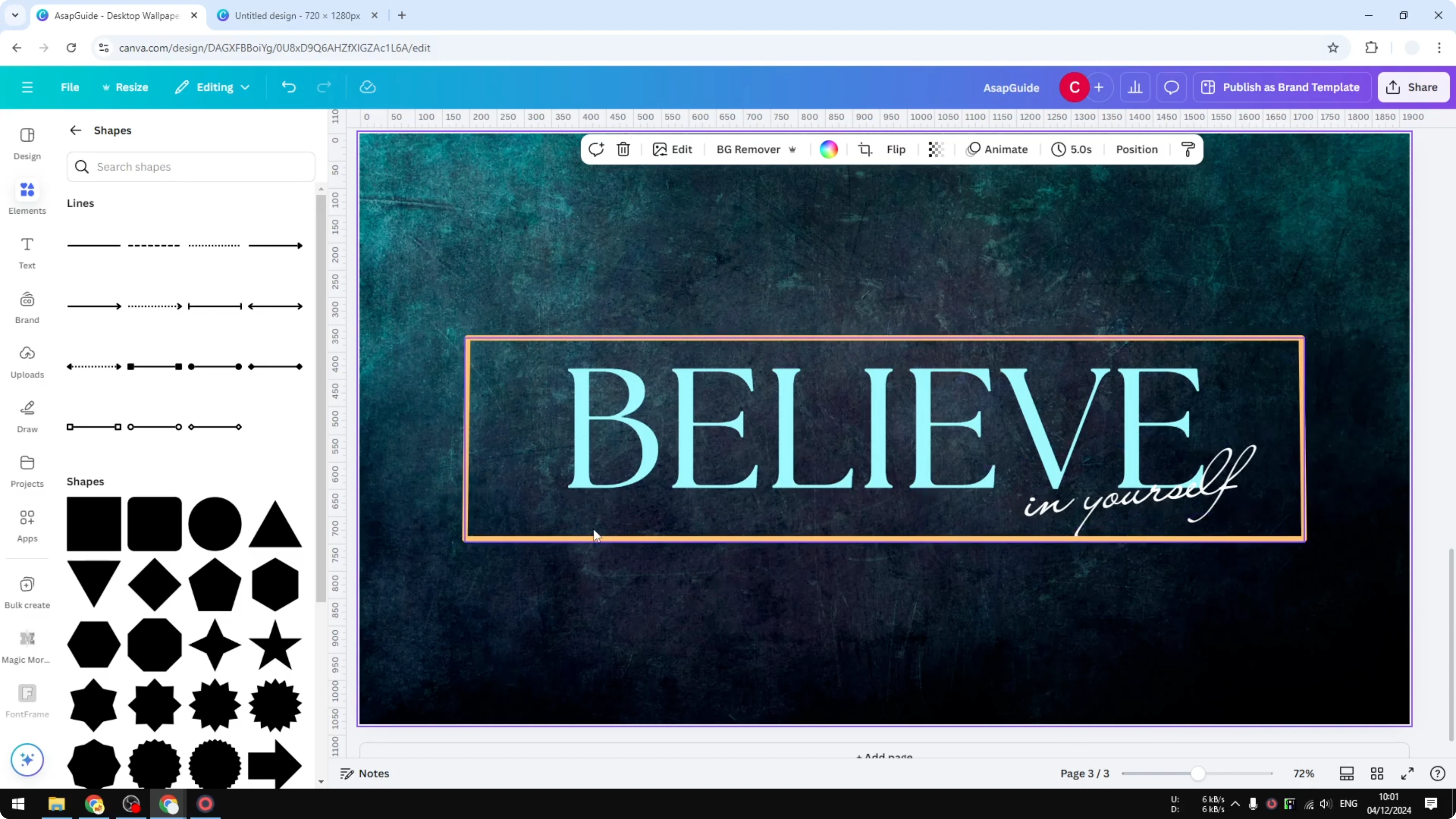
Group the border with the text as well. Now the text is moved together with the border.
Read More: Add Footnotes Canva
Final thoughts
That’s how you add a border to a text box in Canva using lines. Once you style, align, and group the lines, the border stays with your text wherever you move it.
Recent Posts

How to Visualize Yourself as a Pixelized Character with AI?
How to Visualize Yourself as a Pixelized Character with AI?

How to Revive Faded Memories and Enhance Image Clarity with AI?
How to Revive Faded Memories and Enhance Image Clarity with AI?

How to Visualize Yourself as an Animal Crossing Character with AI?
How to Visualize Yourself as an Animal Crossing Character with AI?