How to Attach Text to Shape in Canva
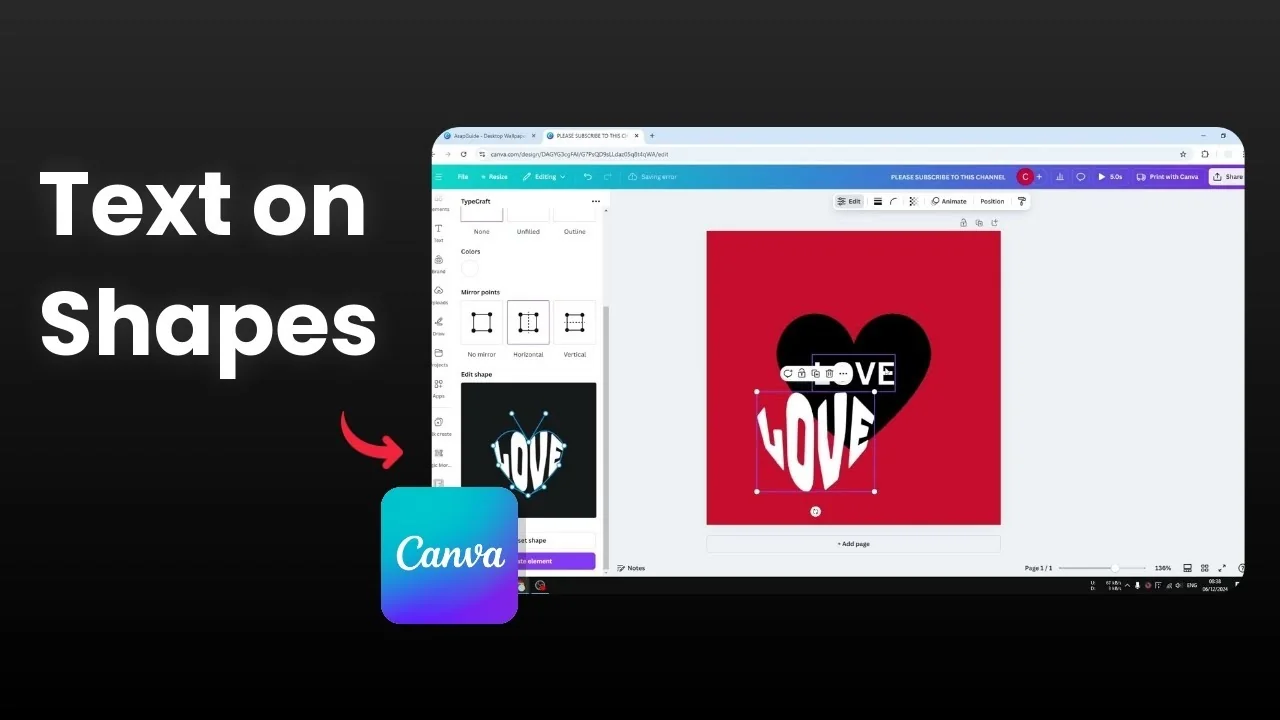
I am going to show you how you can attach text to shape in Canva. I want to shape or mold a text box into the shape of a different object. In this example I change the text box into a heart icon using a third-party app available in Canva.
For another creative text effect, see text behind.
Attach Text to Shape in Canva: setup
Go to the Apps menu, search for an app called Typecraft, and install it.
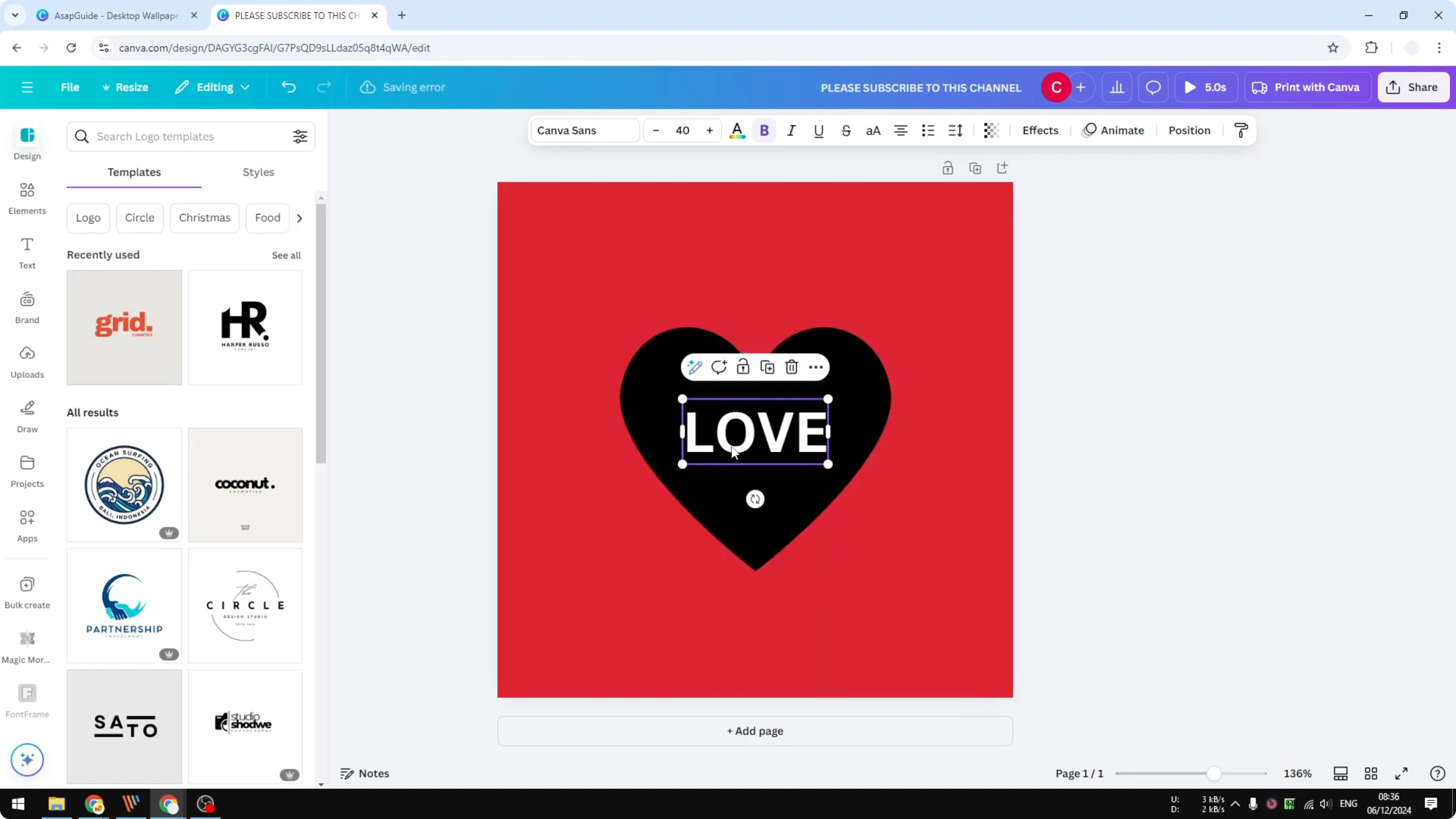
If you are doing it for the first time you will be prompted to open it. Click Open and you will see its settings.
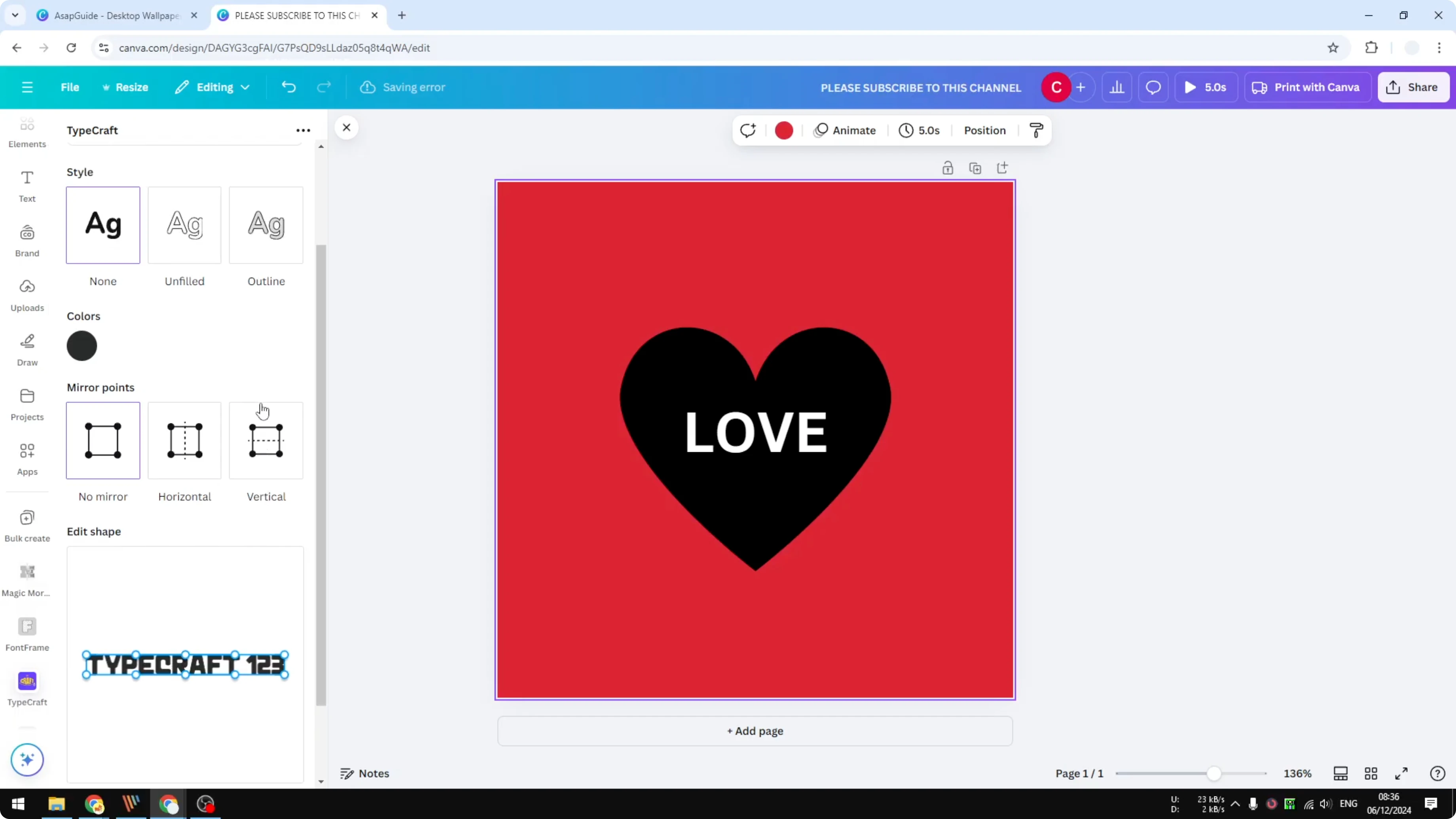
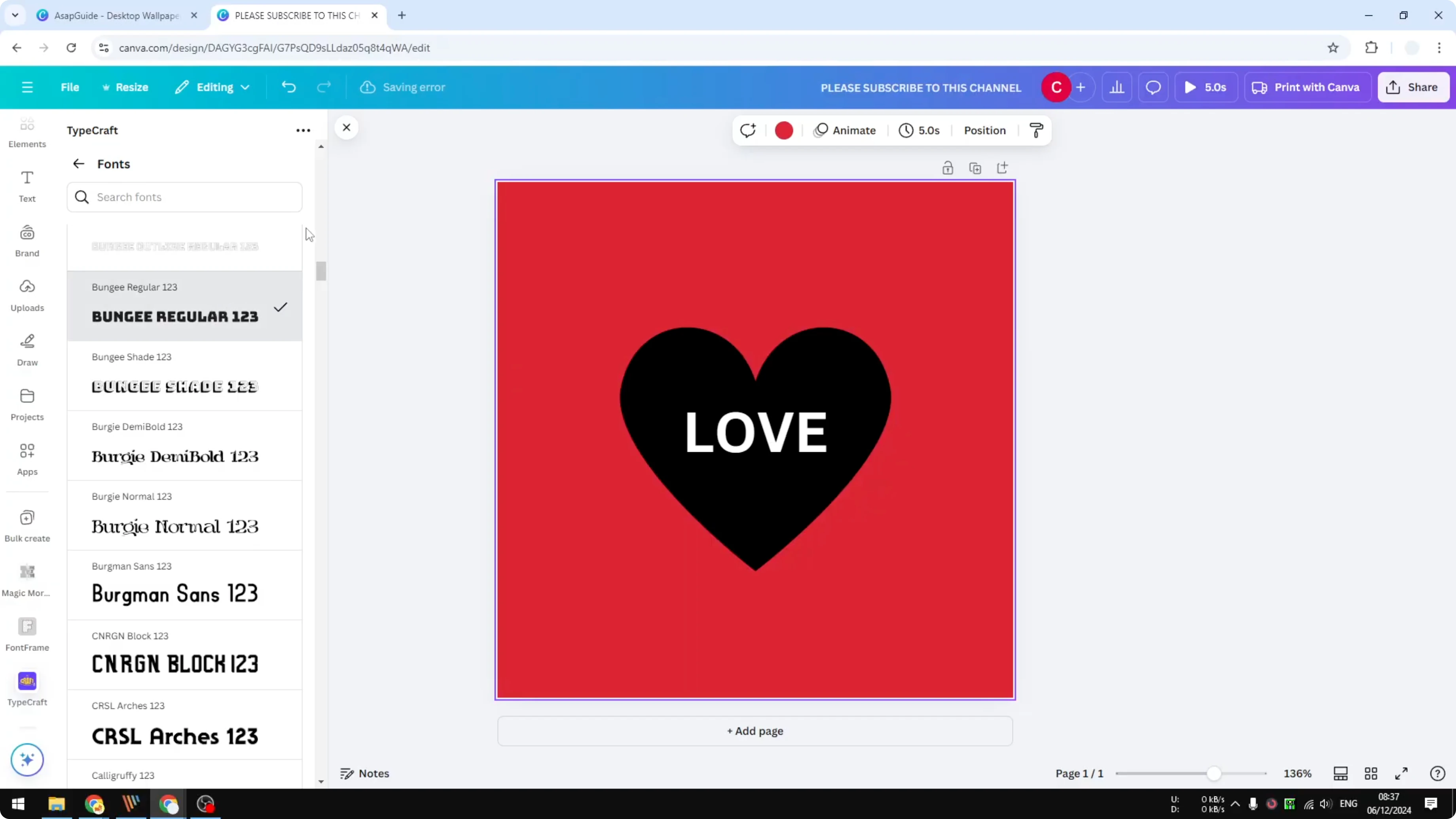
This is the text field where you can put your text. I am using the word love. The font list is fairly limited, so you have to stick with what is available, but it is good enough most of the time.
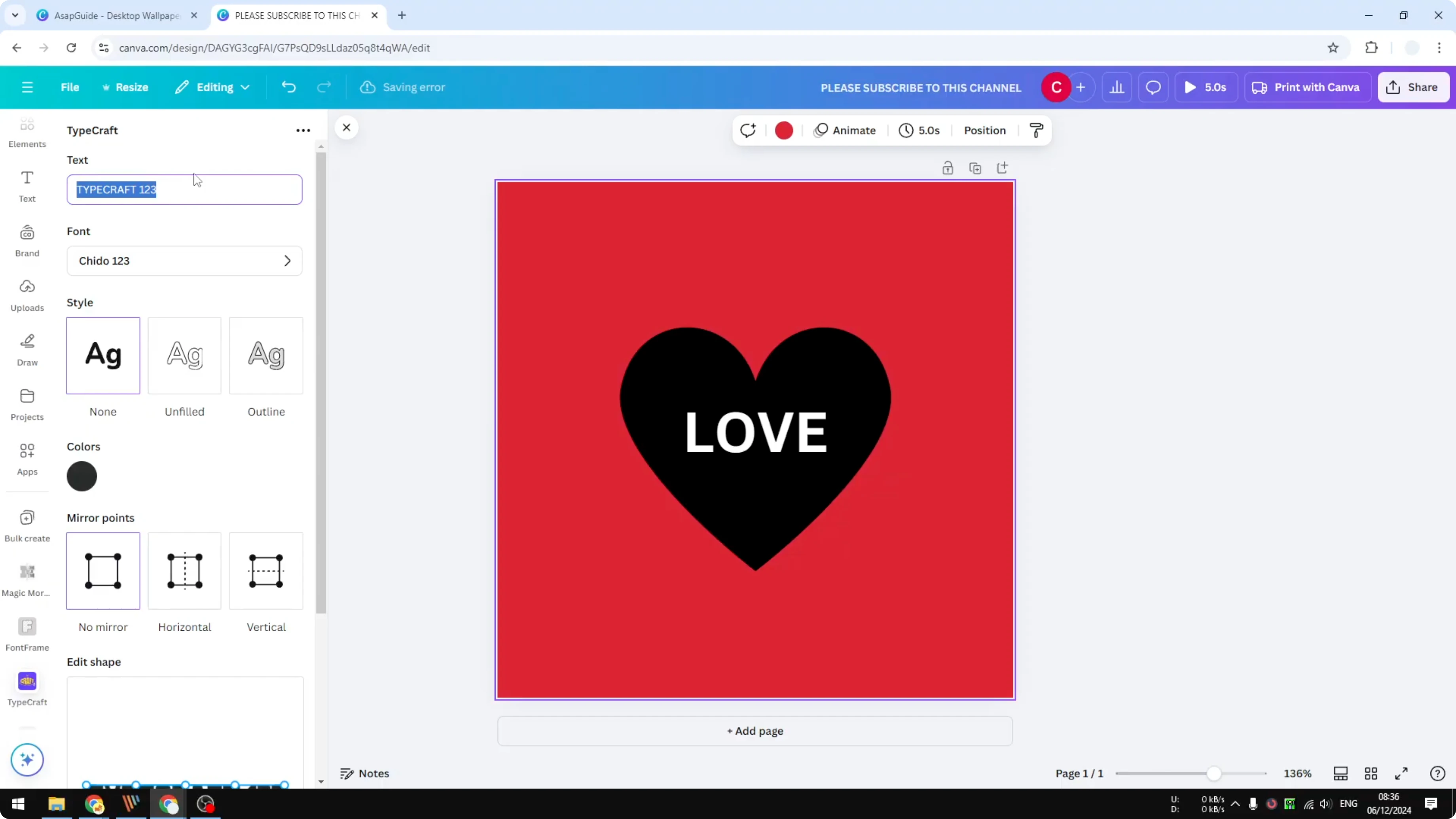
I select this font. For the color I use white because I want to place the text on top of the heart. I select the white color.
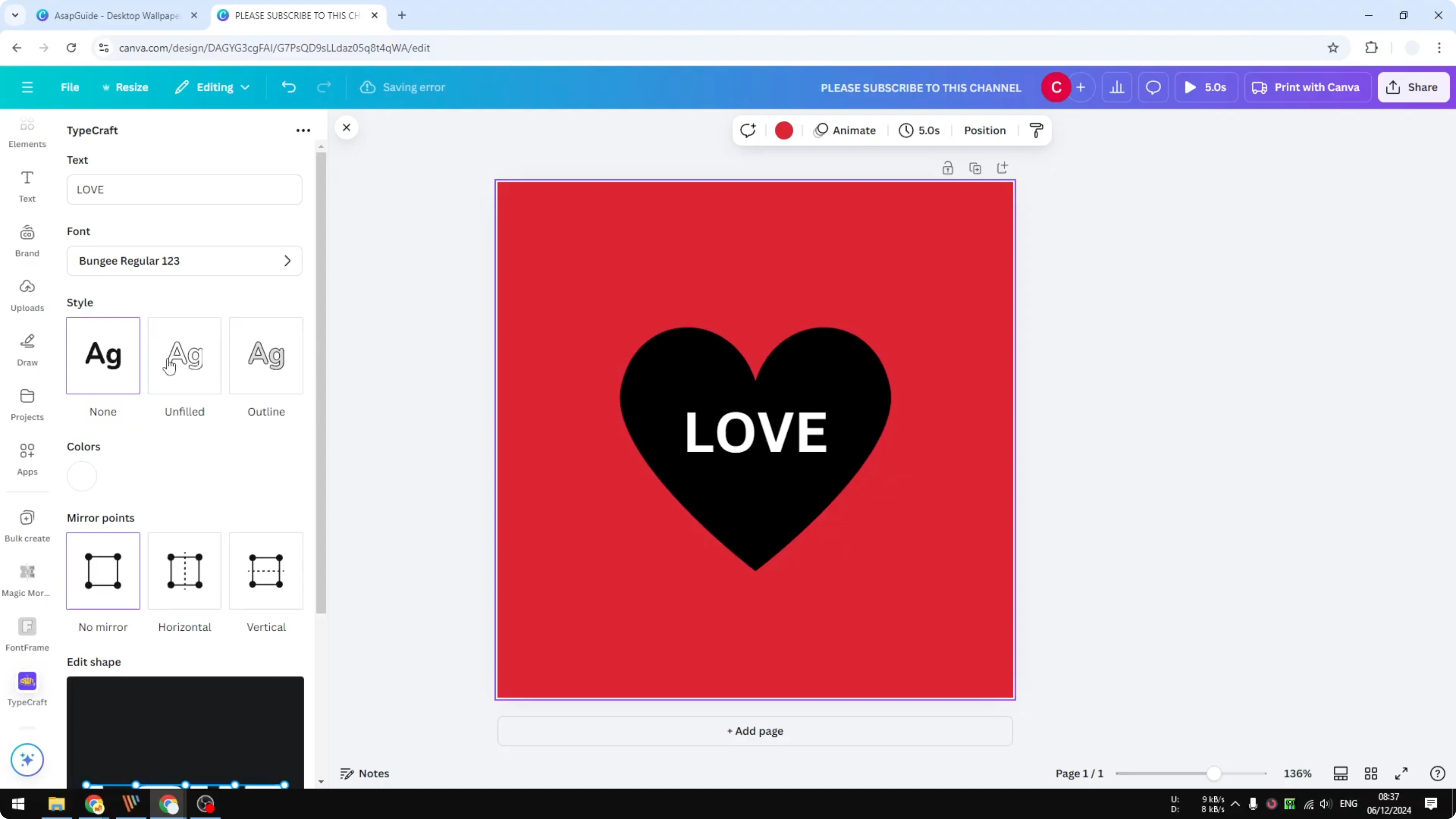
For Style there are three options: no style, unfilled, and outline. I do not choose any of that. I just use the basic style.
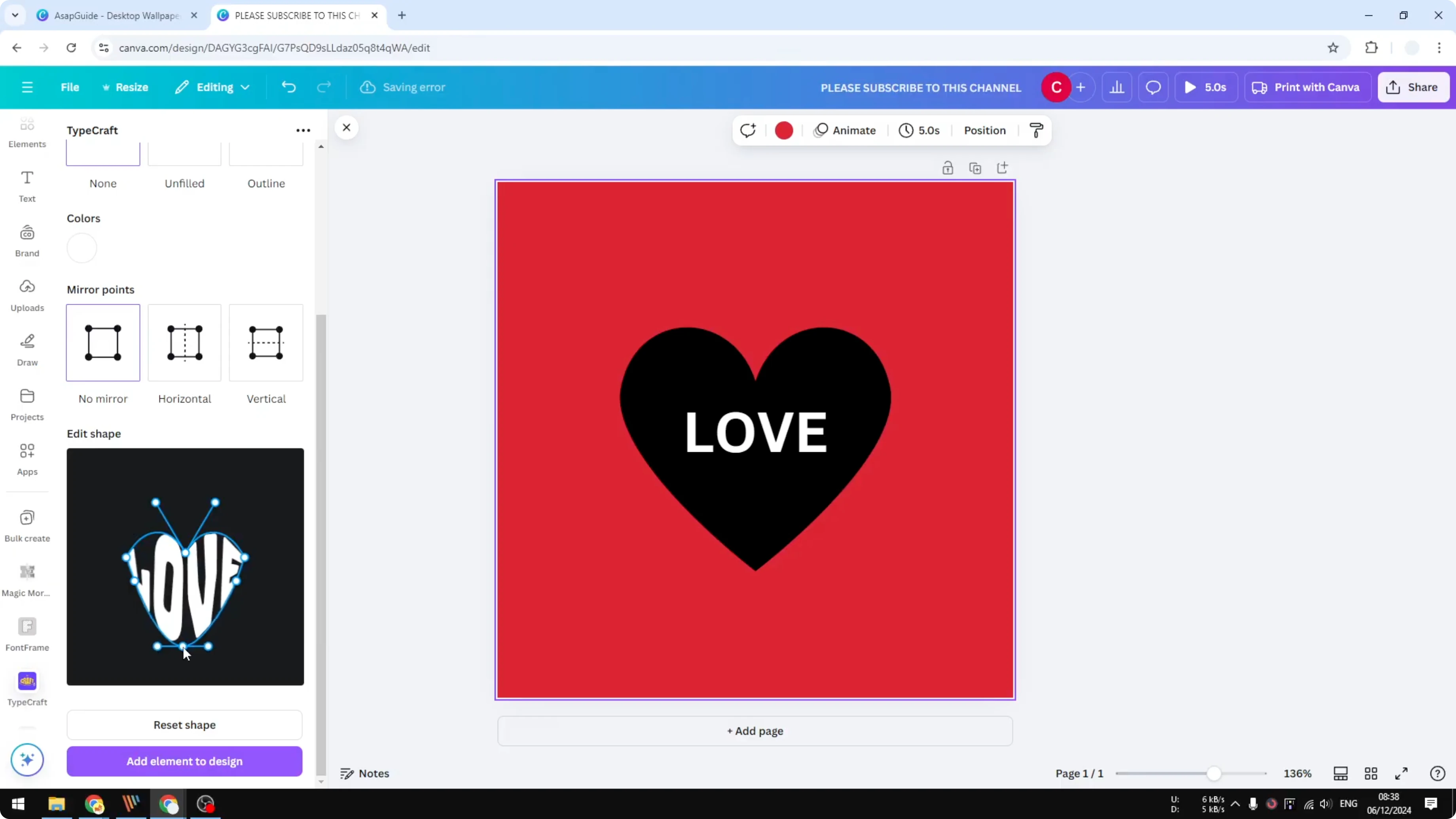
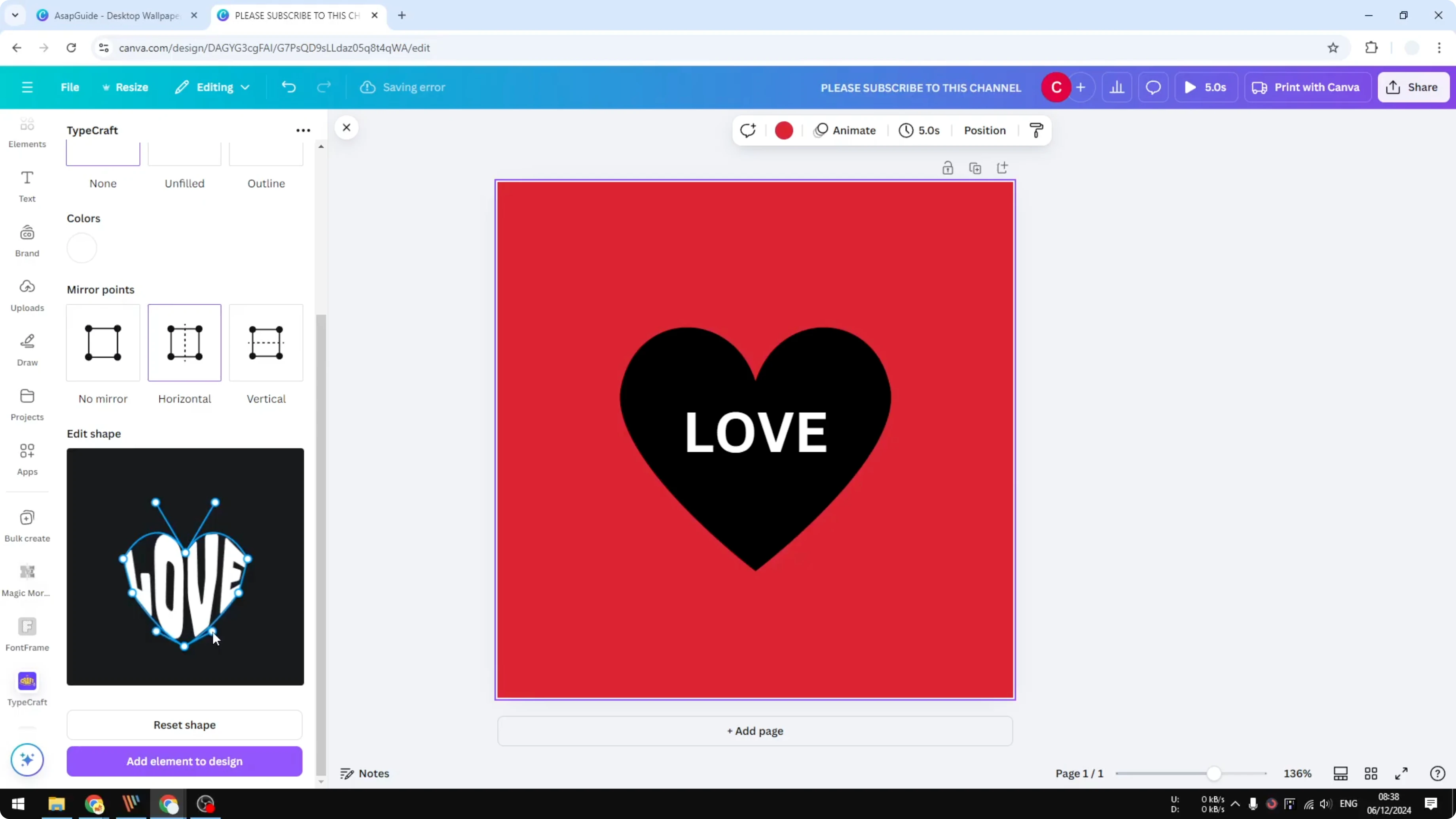
Finally there is a mirror point. This lets you automatically mirror changes you make on one side. If I make changes on the horizontal mirror, the other side will follow and mirror the action.
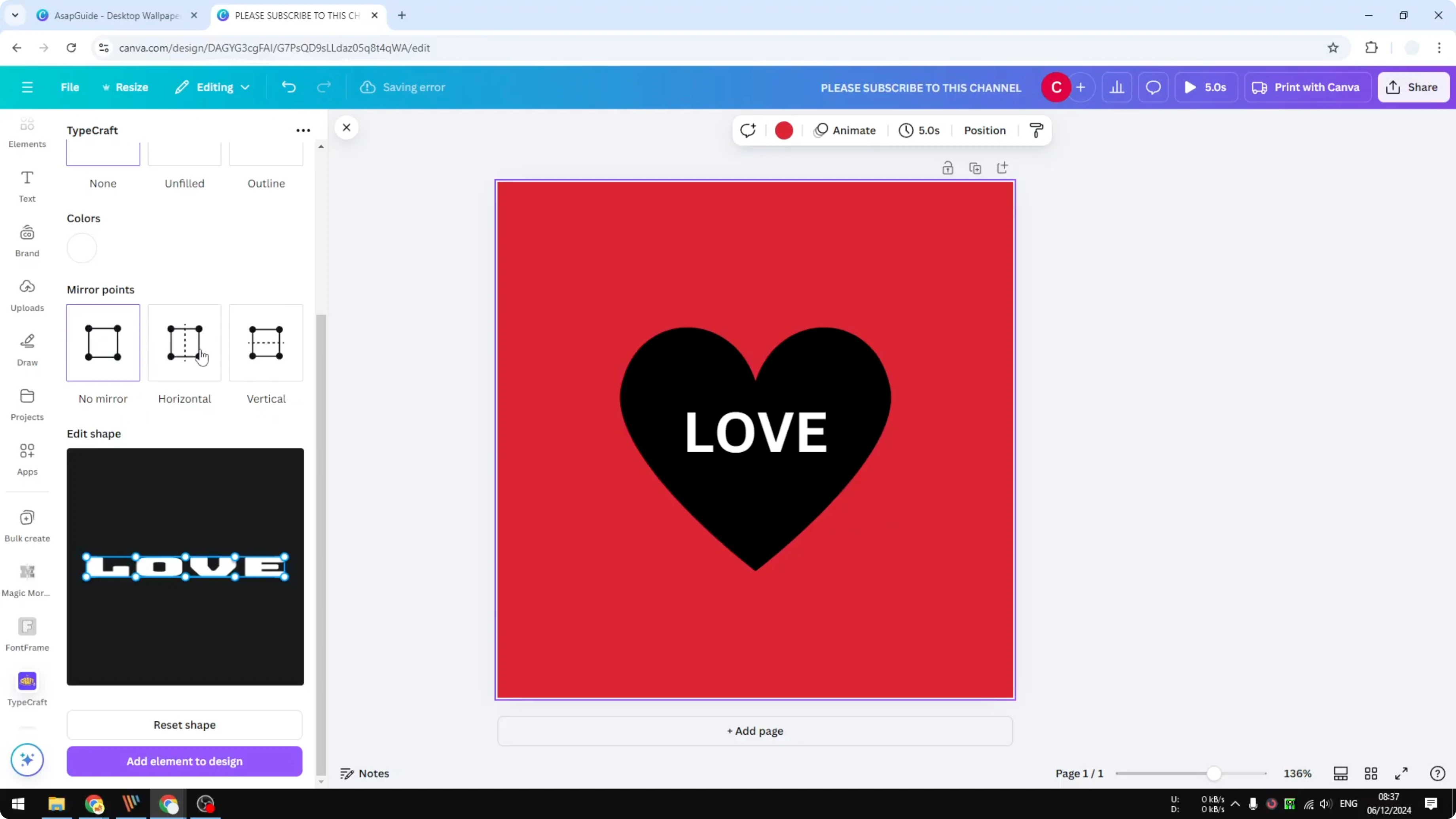
It is very useful for a symmetrical design, but otherwise I recommend using no mirror. In this case I use horizontal mirror at the beginning, and then I disable the mirror later.
Mirror and shape
Since I want a heart shape, using the mirror makes the whole thing more symmetrical and faster. Then I switch to no mirror.
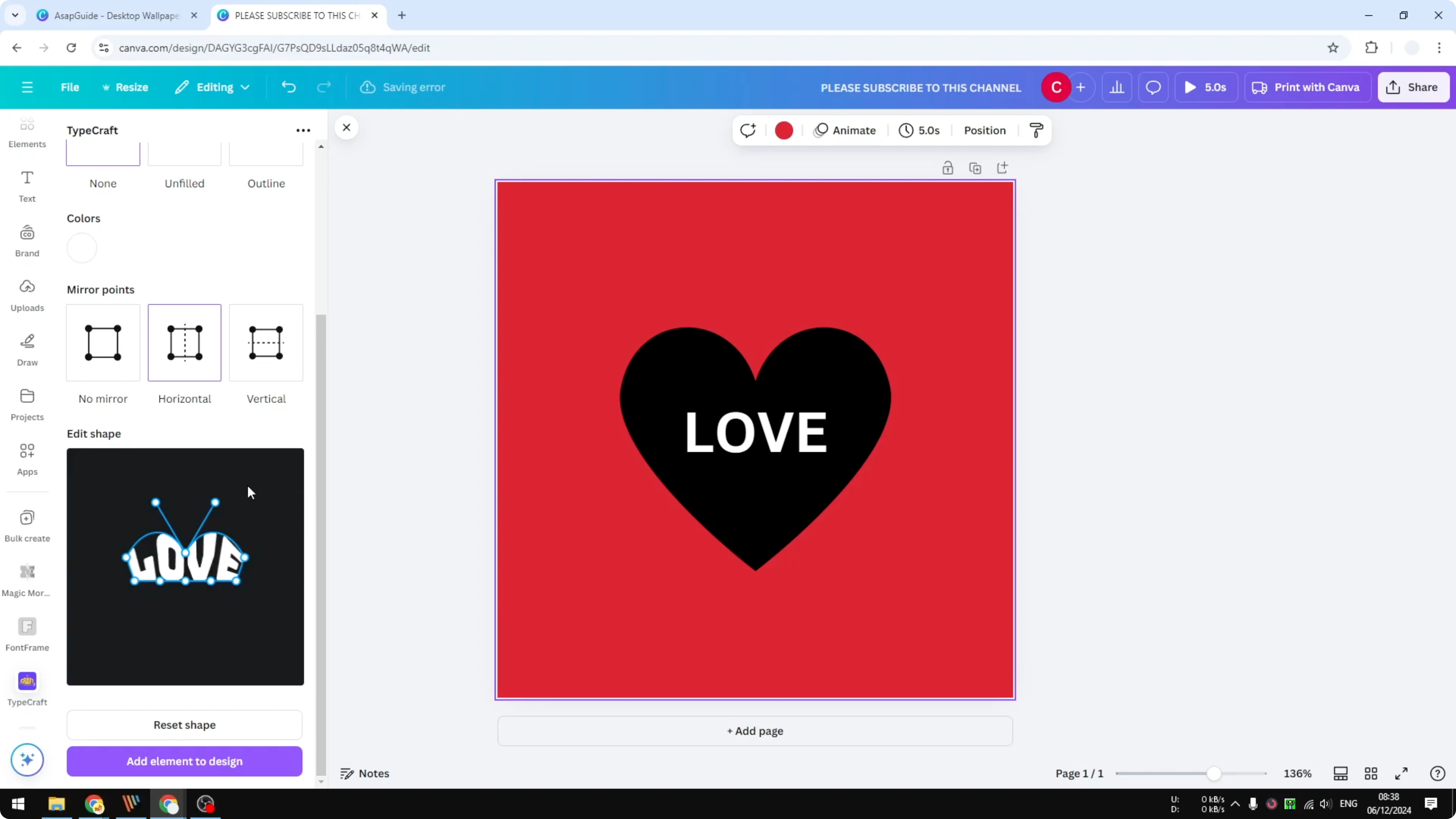
Click and drag the bottom point down. Enable horizontal mirror again to get the design as close as possible to the heart shape. It does not have to be perfect, but you want to get something that is about right.
If you also want tidy edges on body copy, see justified text.
Add and refine
I think this is good enough. When you are done, click Add element to design.
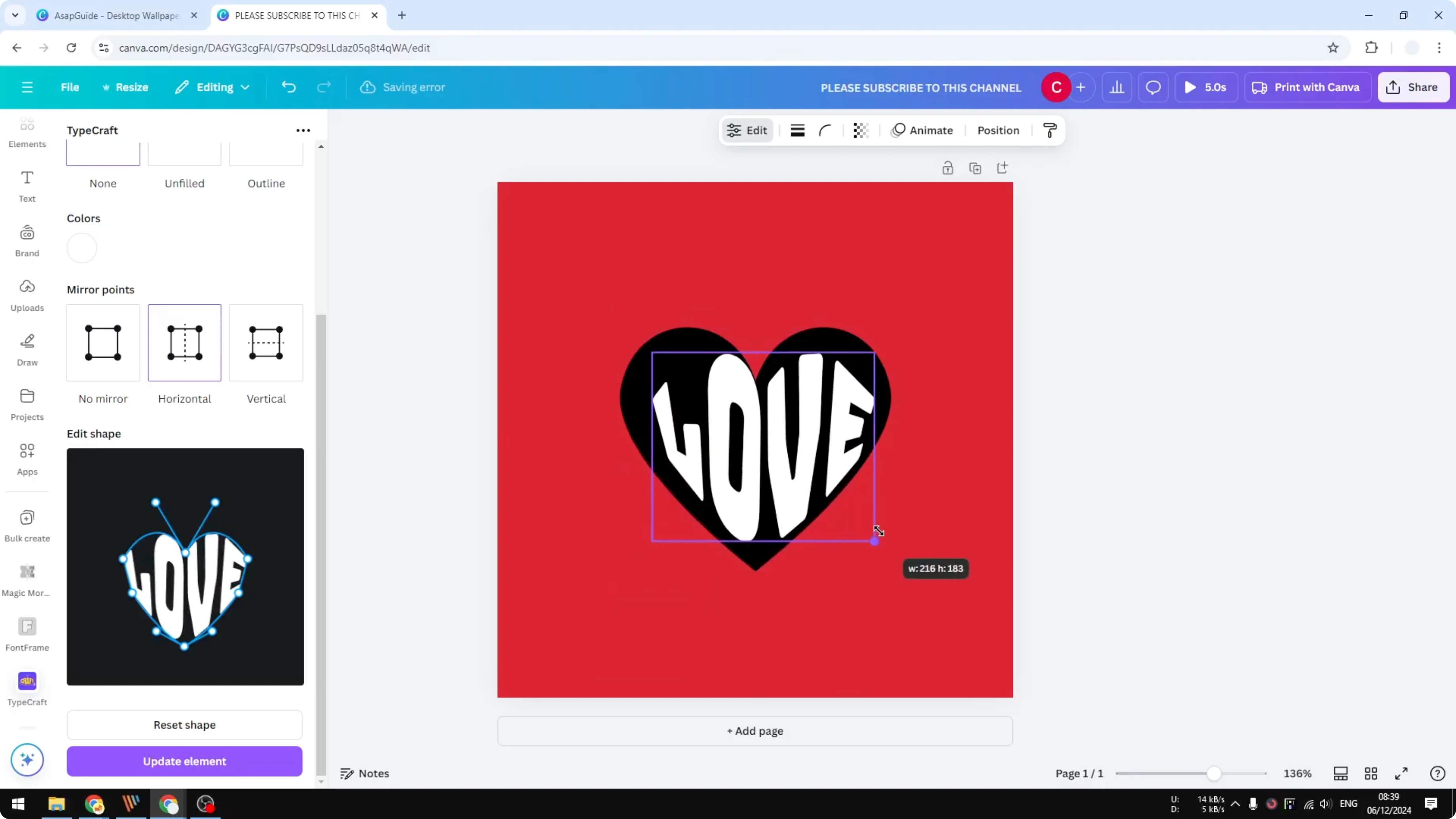
Place it where you want and make it slightly bigger. It does not have to be perfect, but I want to be as accurate as possible.
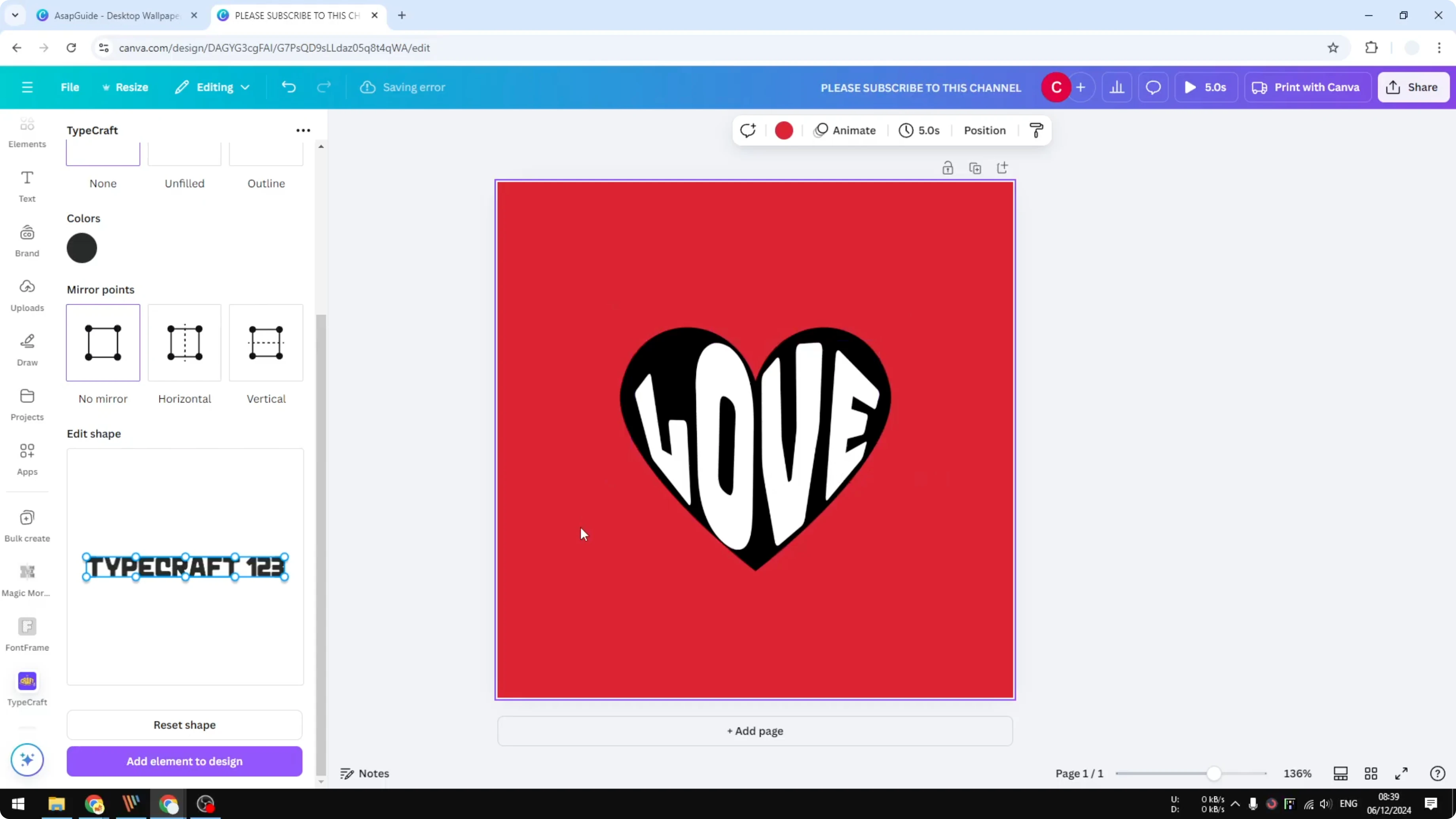
I can modify the design a bit to make it closer to the actual shape of the icon, but this is good enough. That is how you can mold or change the text box shape into whatever shape you want.
If you are working with video assets in Canva and need the opposite result, see remove text.
Final thoughts
You can attach text to shape in Canva by installing Typecraft, setting your text and style, and using mirror controls to match the target shape. Start with horizontal mirror for symmetry, fine-tune without mirror, and add the result to your design. It does not have to be perfect to read well.
Recent Posts

How to Visualize Yourself as a Pixelized Character with AI?
How to Visualize Yourself as a Pixelized Character with AI?

How to Revive Faded Memories and Enhance Image Clarity with AI?
How to Revive Faded Memories and Enhance Image Clarity with AI?

How to Visualize Yourself as an Animal Crossing Character with AI?
How to Visualize Yourself as an Animal Crossing Character with AI?