How to Add Text Behind Image in Canva
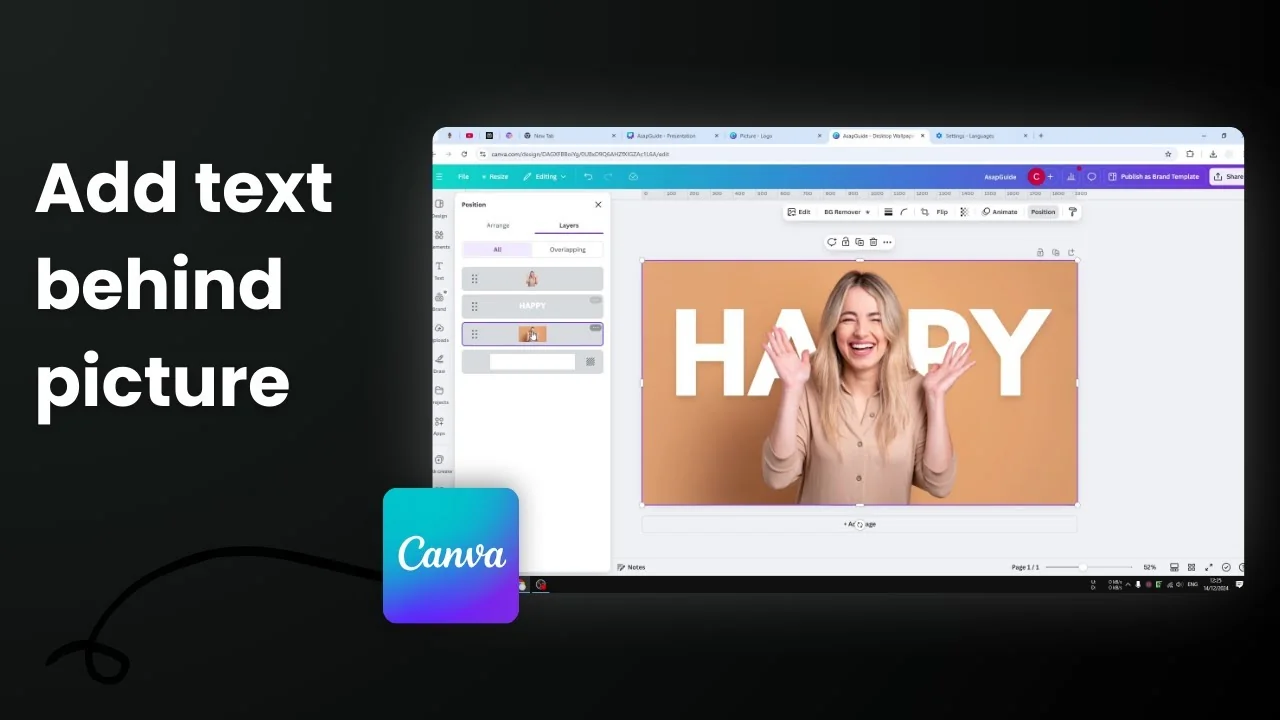
I’m going to show you how to add text behind a picture in Canva so part of the text is blocked by the subject but still visible and readable. The idea is to duplicate the photo, isolate the subject on the duplicate, then layer your text between the background photo and the subject cutout.
Add Text Behind Image in Canva
Prepare the photo
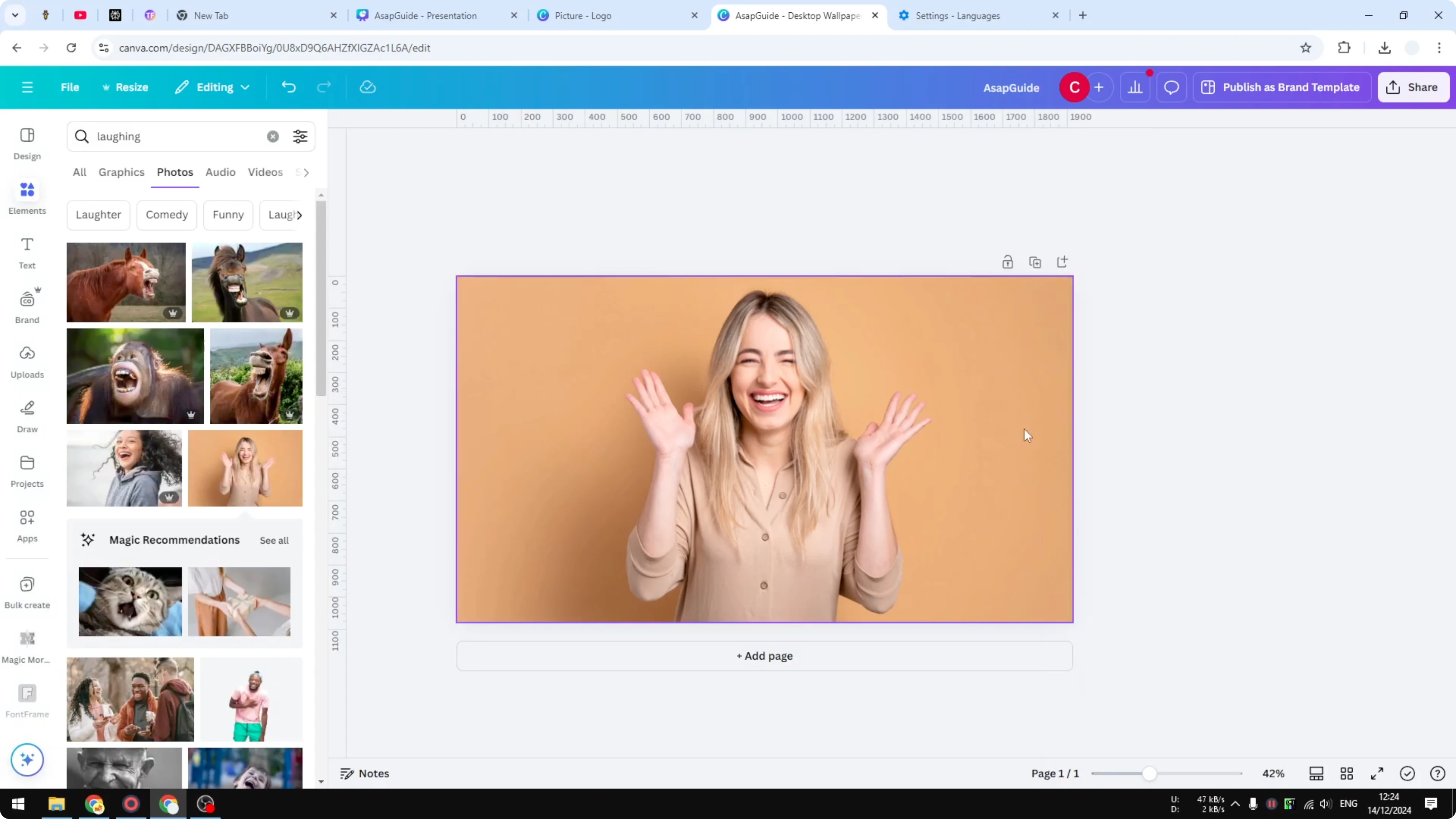
- Put your picture into the canvas.
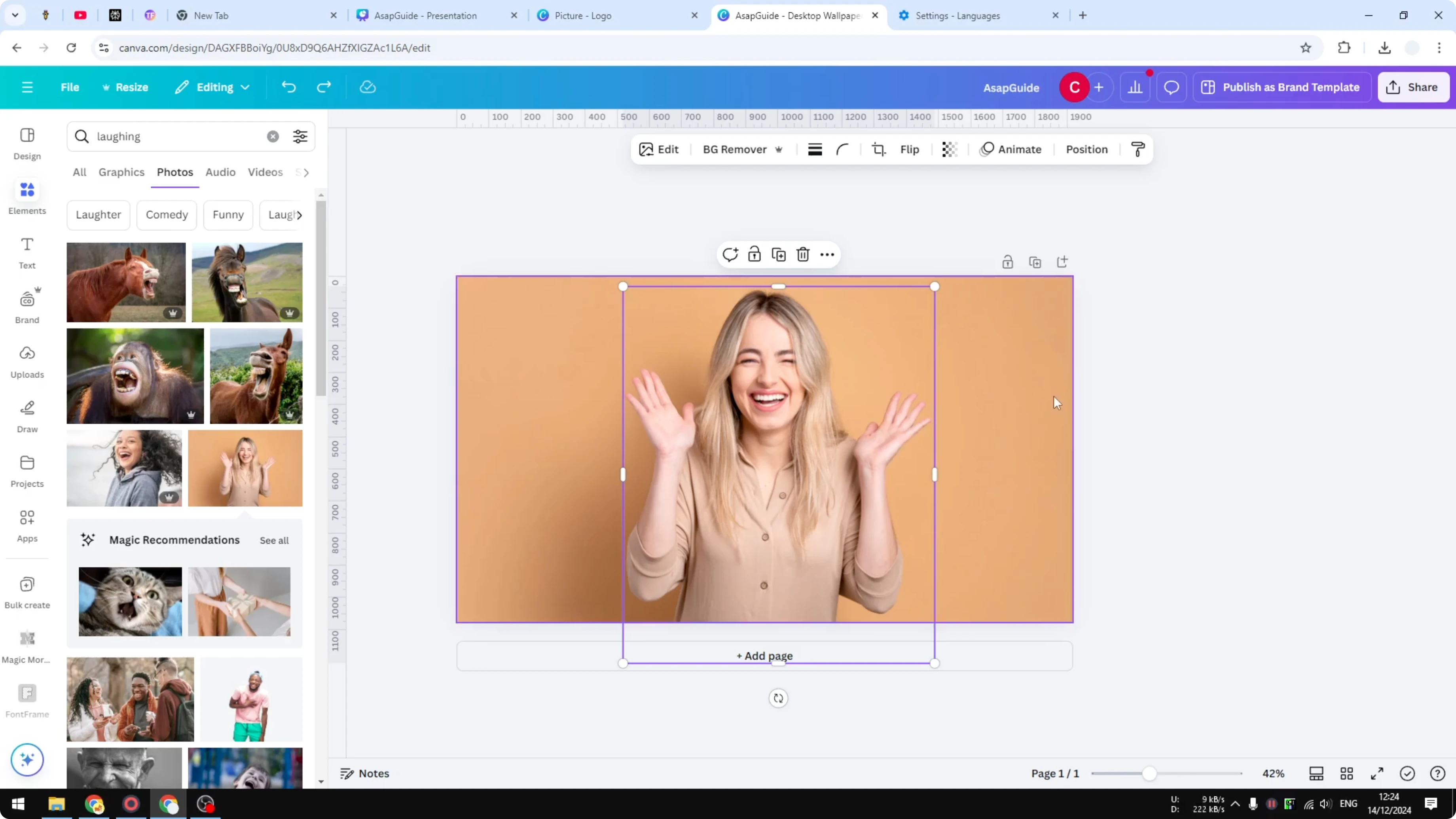
- Make the picture a little bigger. My goal here is to add text behind the woman in the photo.
Duplicate and isolate the subject
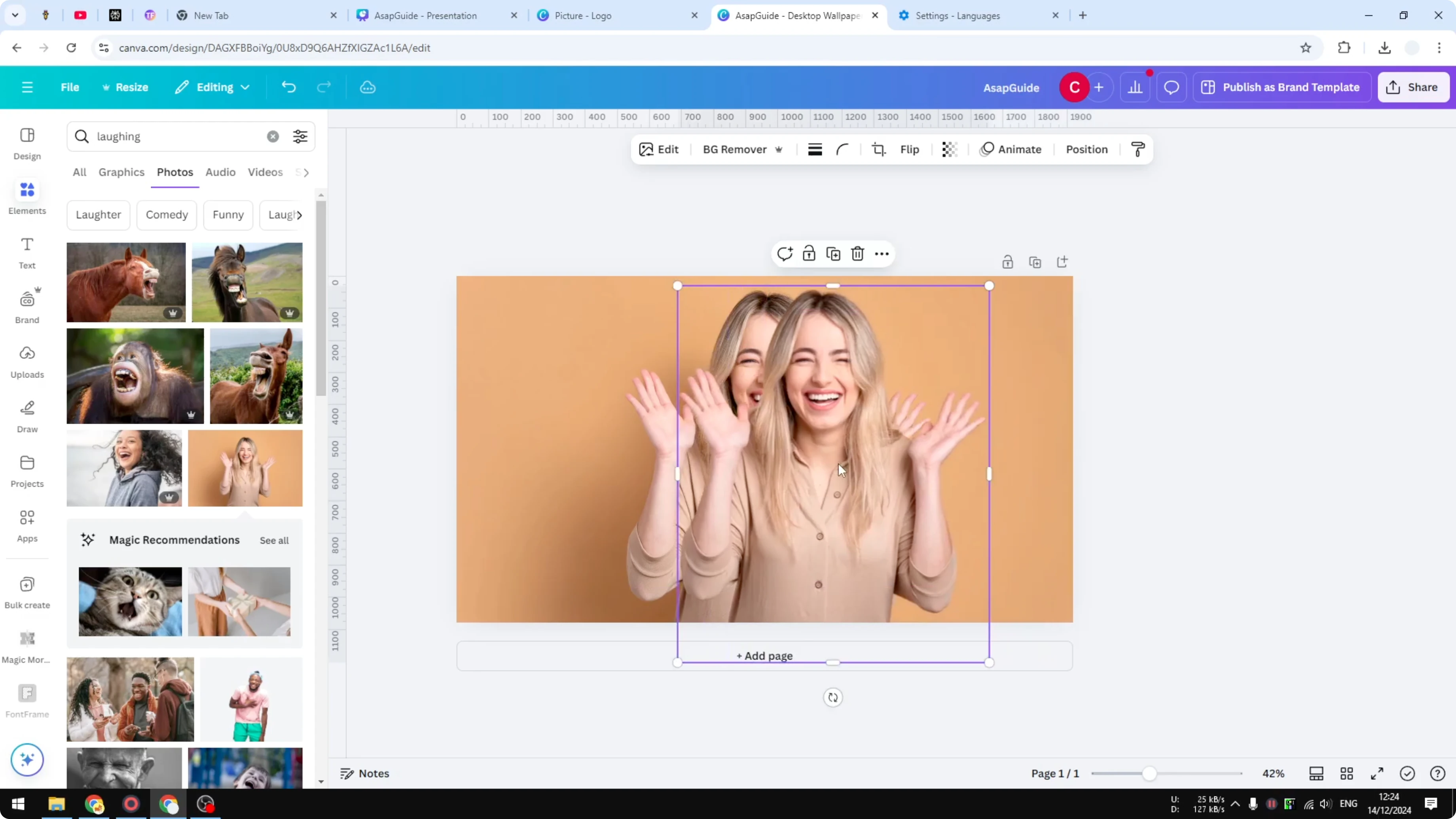
- Right-click the picture and click Duplicate.
- Place the duplicate exactly on top of the original in the same position.
- Click Edit.
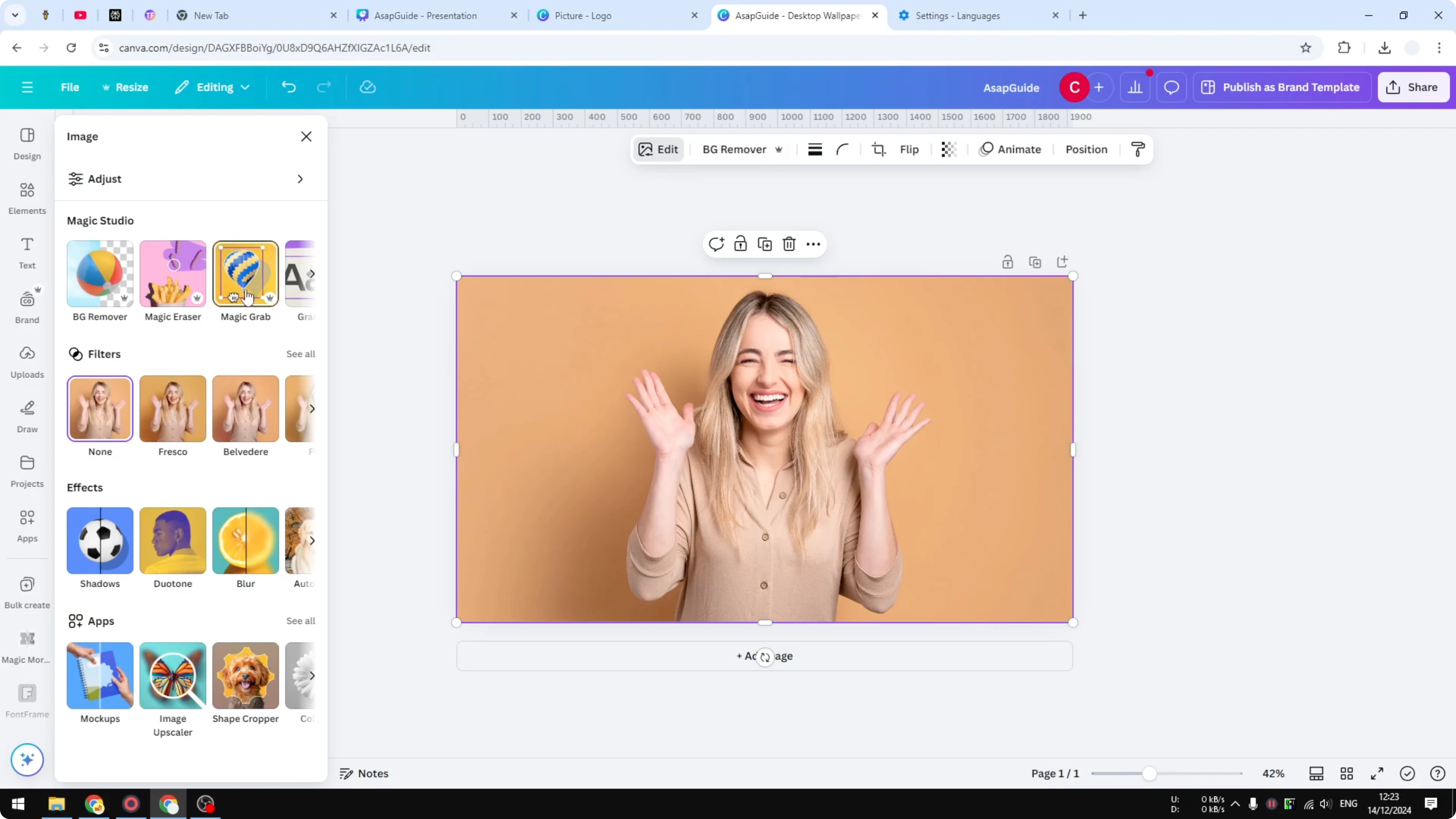
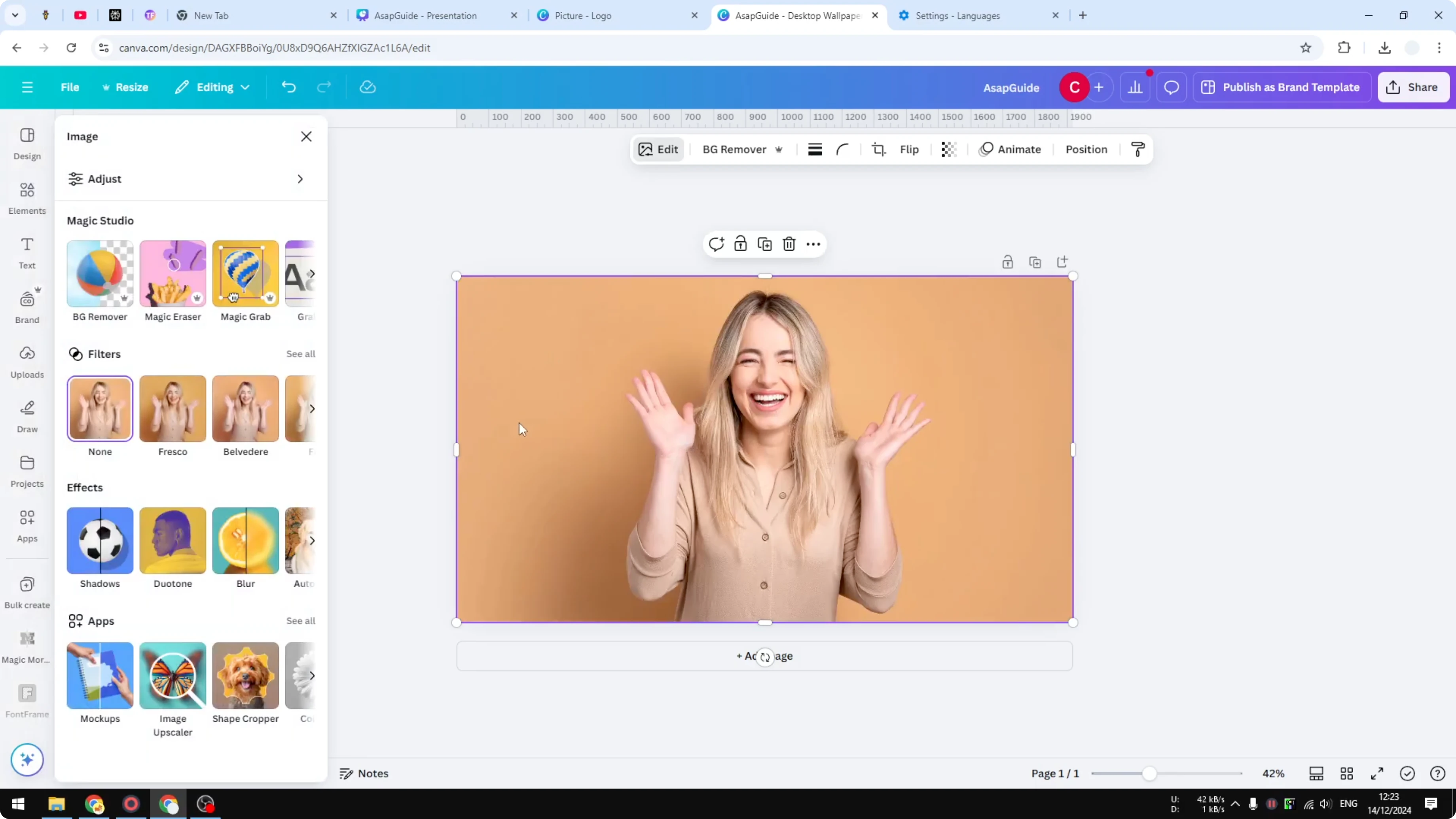
- Remove the background of the duplicated picture. You can select Remove Background, or you can use the Magic Grab feature, which will isolate the woman from the background. I prefer this feature.
- Canva will try to figure out the content of the picture and offer areas or objects to isolate. Click on the woman and click Grab, then wait for the isolation to finish.
- You can apply this to the original picture, but I’d rather work on a duplicate because Magic Grab can alter the original a little bit.
Clean up the layers
- After the subject is isolated, delete the extra duplicated photo you don’t need anymore. Keep the original background photo and the isolated cutout of the woman.
- Position the cutout exactly on the same spot as before so it aligns perfectly.
Add and style the text
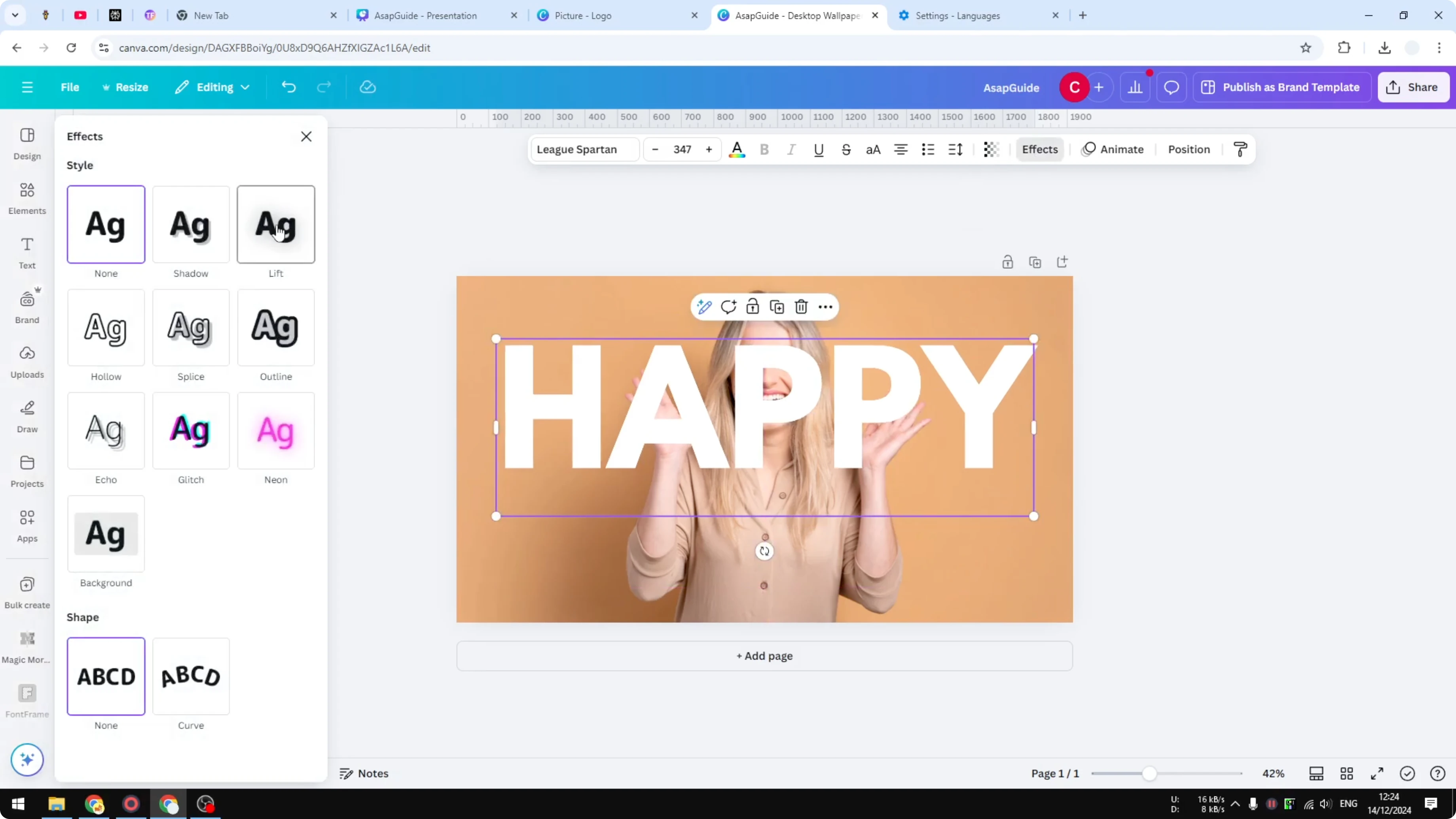
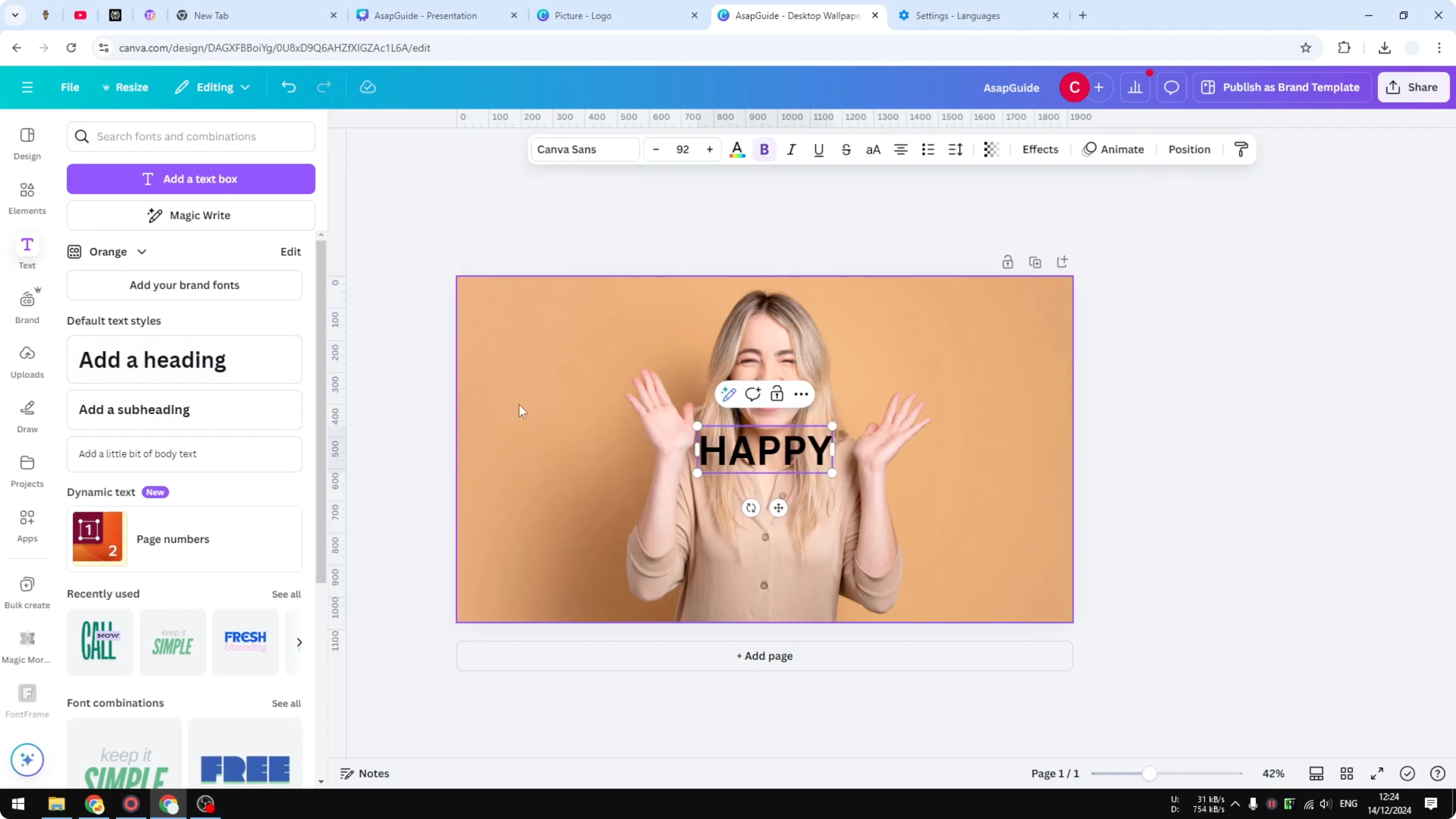
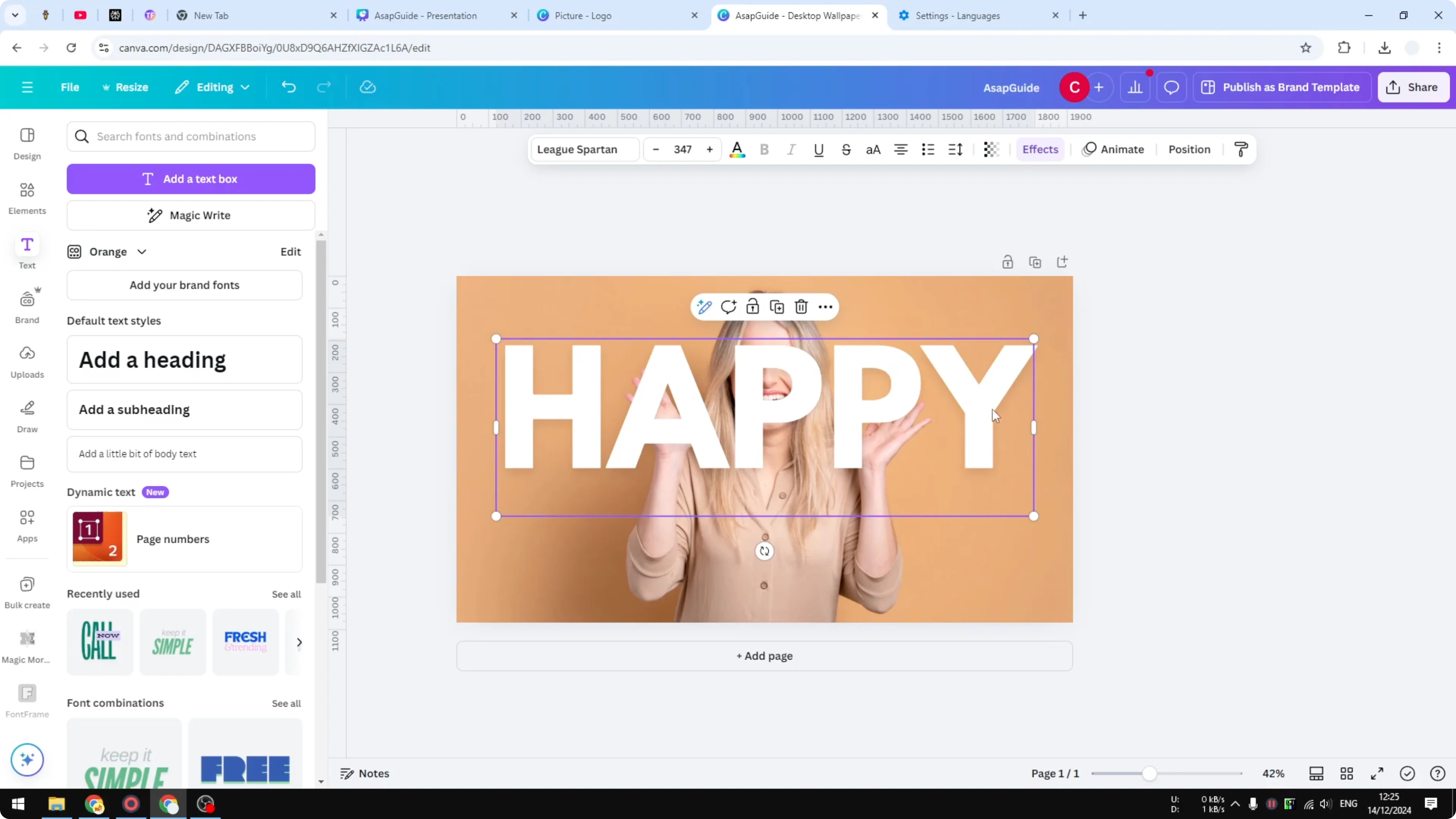
- Go to Text and add your word. I’ll type “Happy.”
- Make the text a lot bigger.
- Change the color to white.
- Change the font to something bold and visible.
- Add Effects. I’m adding Lift to around 10%.
Place the text behind the subject
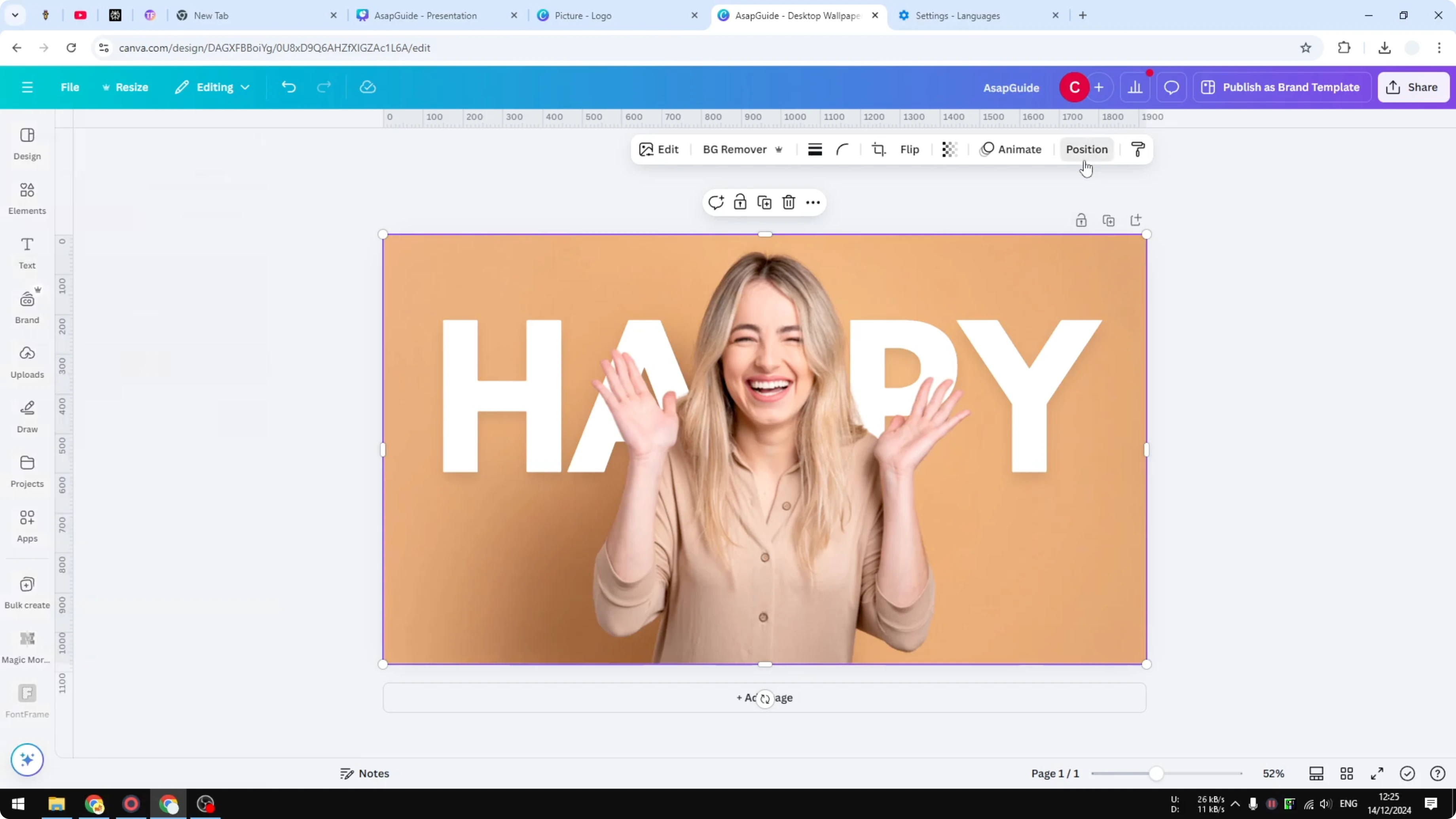
- Right-click the text, click Layer, and choose Send backward. Now the text sits behind the woman.
Fine-tune positioning
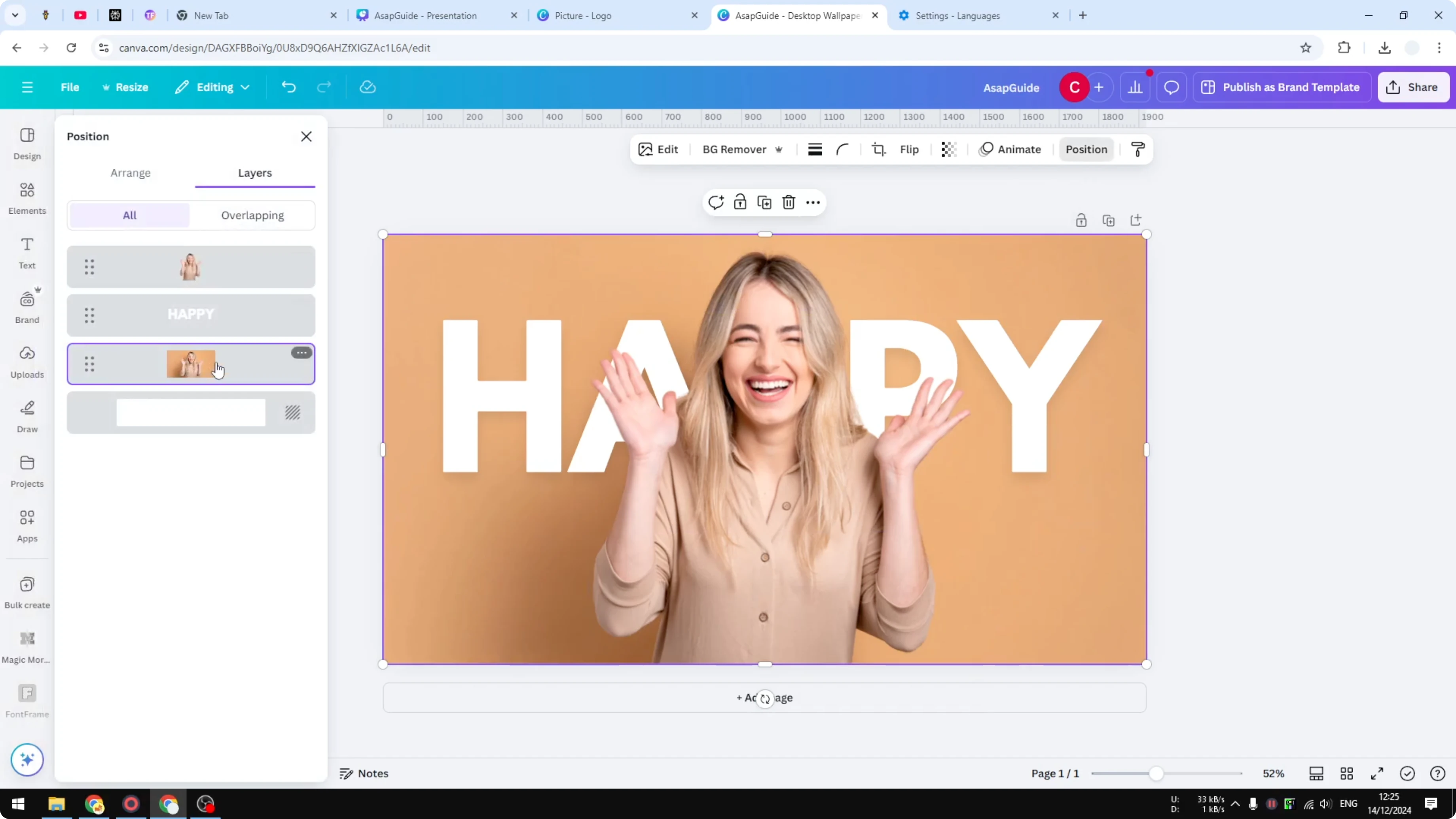
- Open Position for finer control. You’ll see the background, then the text, and the woman on top blocking the text. Adjust as needed until it looks right.
Final Thoughts
Duplicating the image, isolating the subject, and sending the text backward creates a clean text-behind-subject effect in Canva. Use the Position panel to confirm the layer order and fine-tune the alignment for a clear, readable result.
Recent Posts

How to Visualize Yourself as a Pixelized Character with AI?
How to Visualize Yourself as a Pixelized Character with AI?

How to Revive Faded Memories and Enhance Image Clarity with AI?
How to Revive Faded Memories and Enhance Image Clarity with AI?

How to Visualize Yourself as an Animal Crossing Character with AI?
How to Visualize Yourself as an Animal Crossing Character with AI?