Can You Remove Text from a Video in Canva
You asked a simple question: can you remove a piece of text from a video using Canva? As of the end of 2026, there is no feature in Canva that lets you remove or isolate text from a video.
It is not like a picture, where you can edit the image and access Magic Studio to grab the text and even change it. That process is very convenient and quick for photos, but it is not available for video.
You are not going to be able to remove the text, but you can make it invisible from the frame of the video. Here are two workarounds that conceal on-screen text, such as captions at the bottom.
Can You Remove Text from a Video in Canva
What you can do with photos in Canva
- On photos, you can isolate text with Magic Studio and edit or replace it.
- That is fast and convenient for images.
Current limitation for videos
- This feature does not exist for video.
- The best you can do is hide the text so it is not visible in the frame.
Workarounds to Hide Text in a Video in Canva
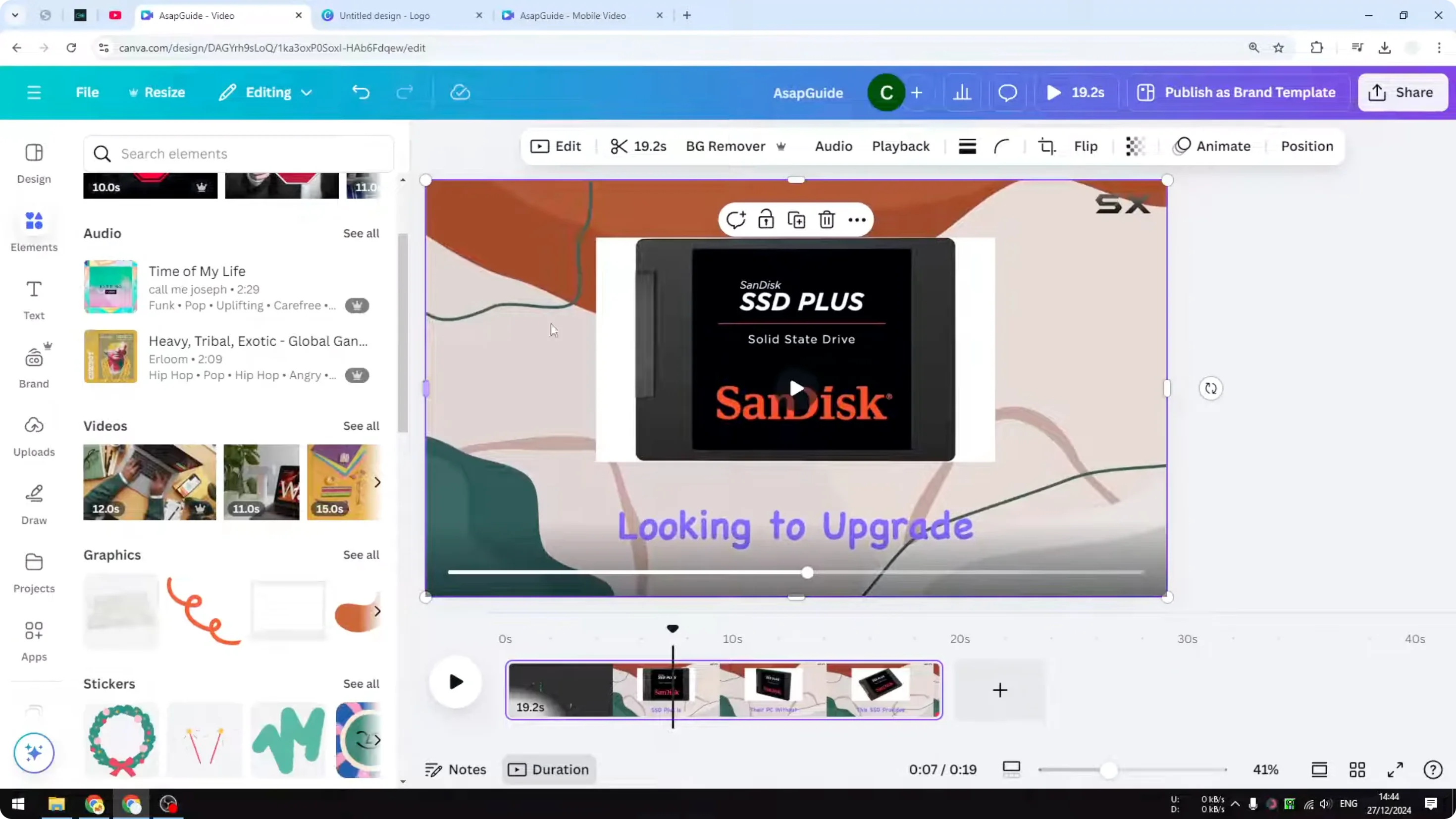
Method 1 - Zoom the video so the text falls outside the frame
This is basically making the video bigger than the frame so the text area sits outside the canvas.
Step-by-step:
- Add your video to a 16:9 canvas or your preferred aspect ratio.
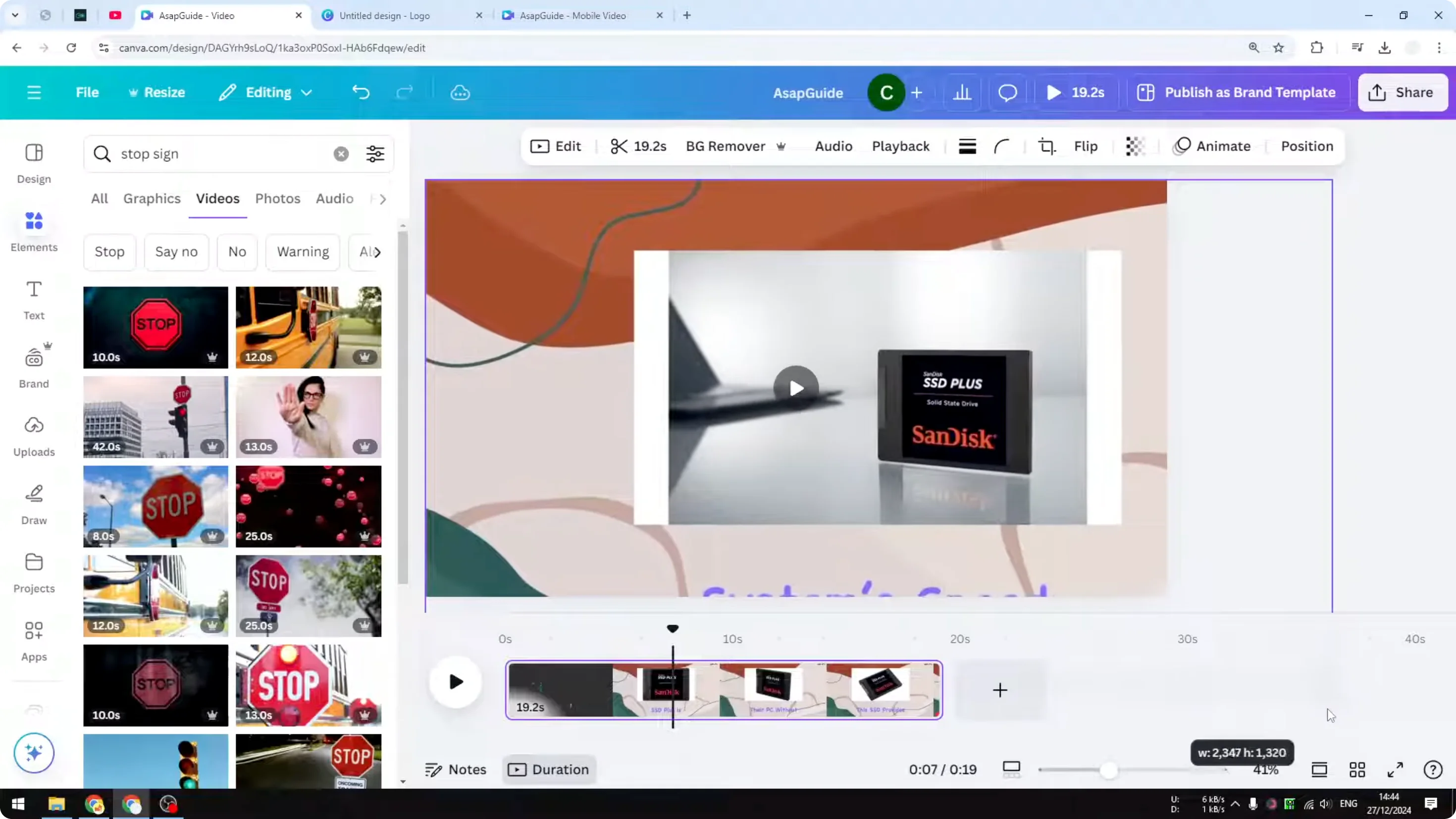
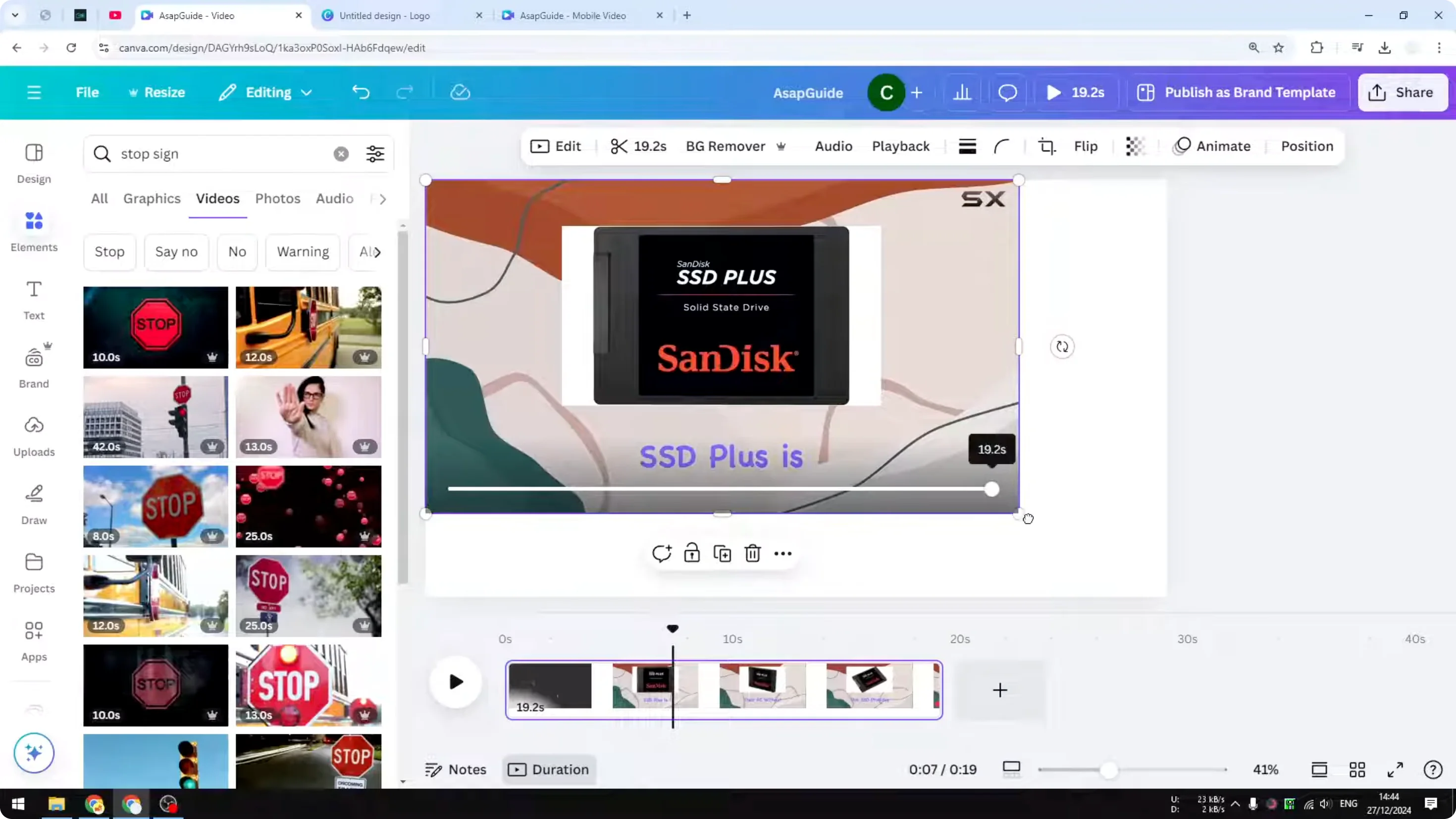
- Select the video and drag the corners to increase the size beyond the canvas boundaries.
- Reposition the video so the on-screen text area is pushed out of the visible frame.
- Play back to confirm the text is no longer visible, then export.
Notes:
- This is not perfect, since you are cropping the video and might lose parts of the edges.
- It works well when the text is near the bottom or top and the subject stays centered.
Method 2 - Cover the text with elements
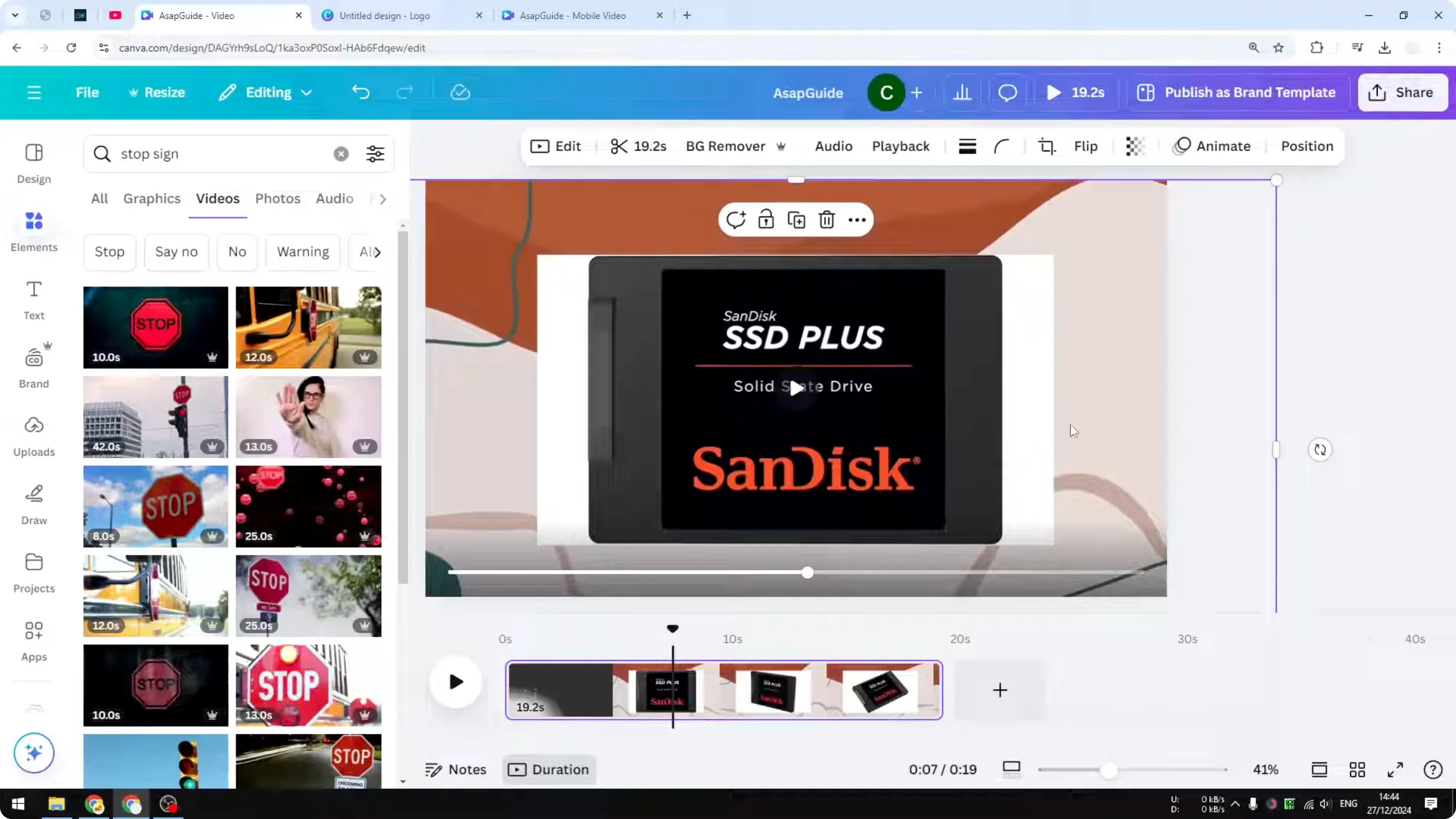
This is a more elegant approach for many cases. You add an element on top of the text to block it.
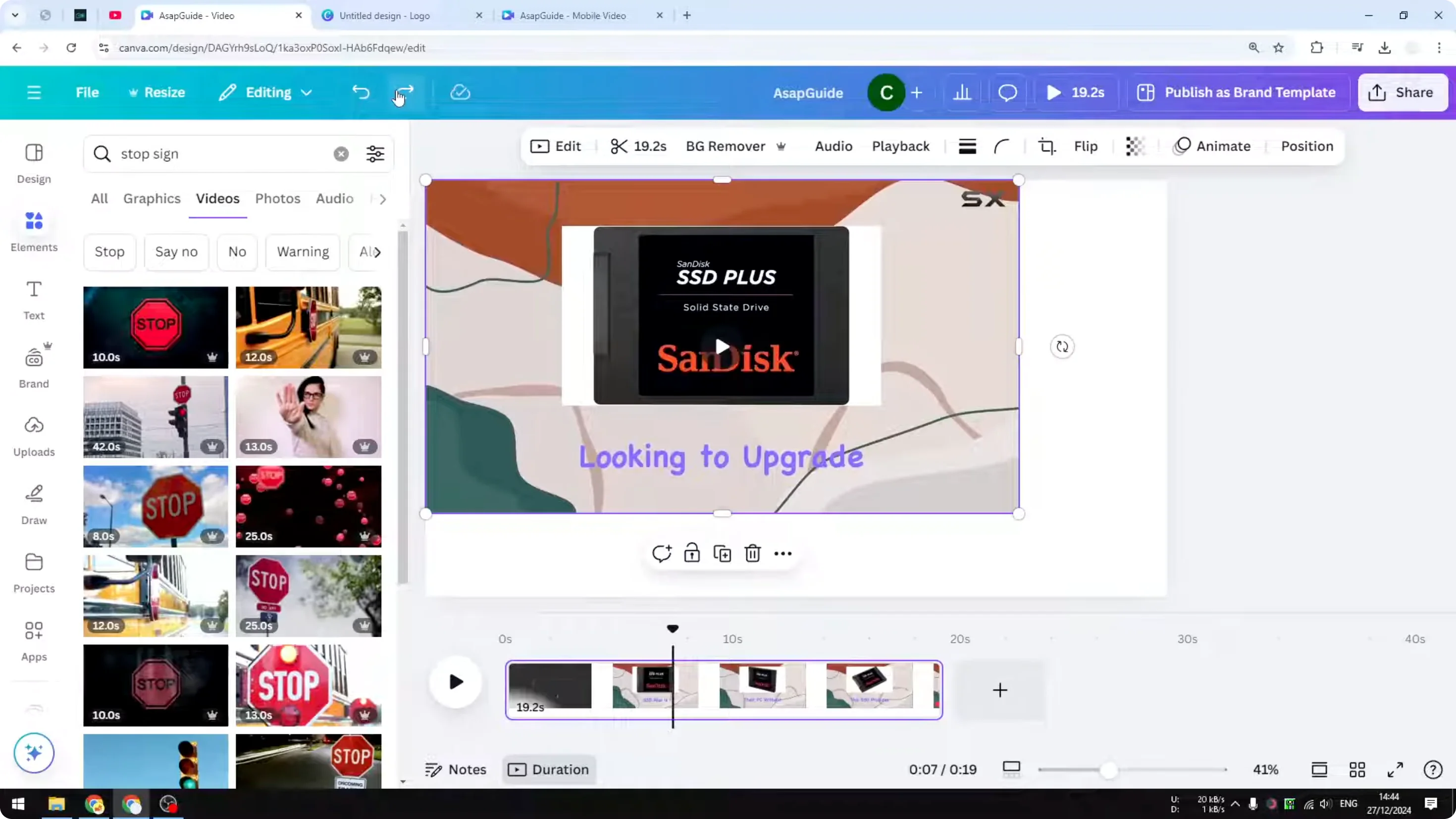
Step-by-step:
- Open Elements.
- Add a shape, such as a square or rectangle.
- Resize and position the shape over the text you want to hide.
- Match the shape color to the background, or style it as a bar that fits your design.
- Extend the element’s duration to cover the entire timeline where the text appears.
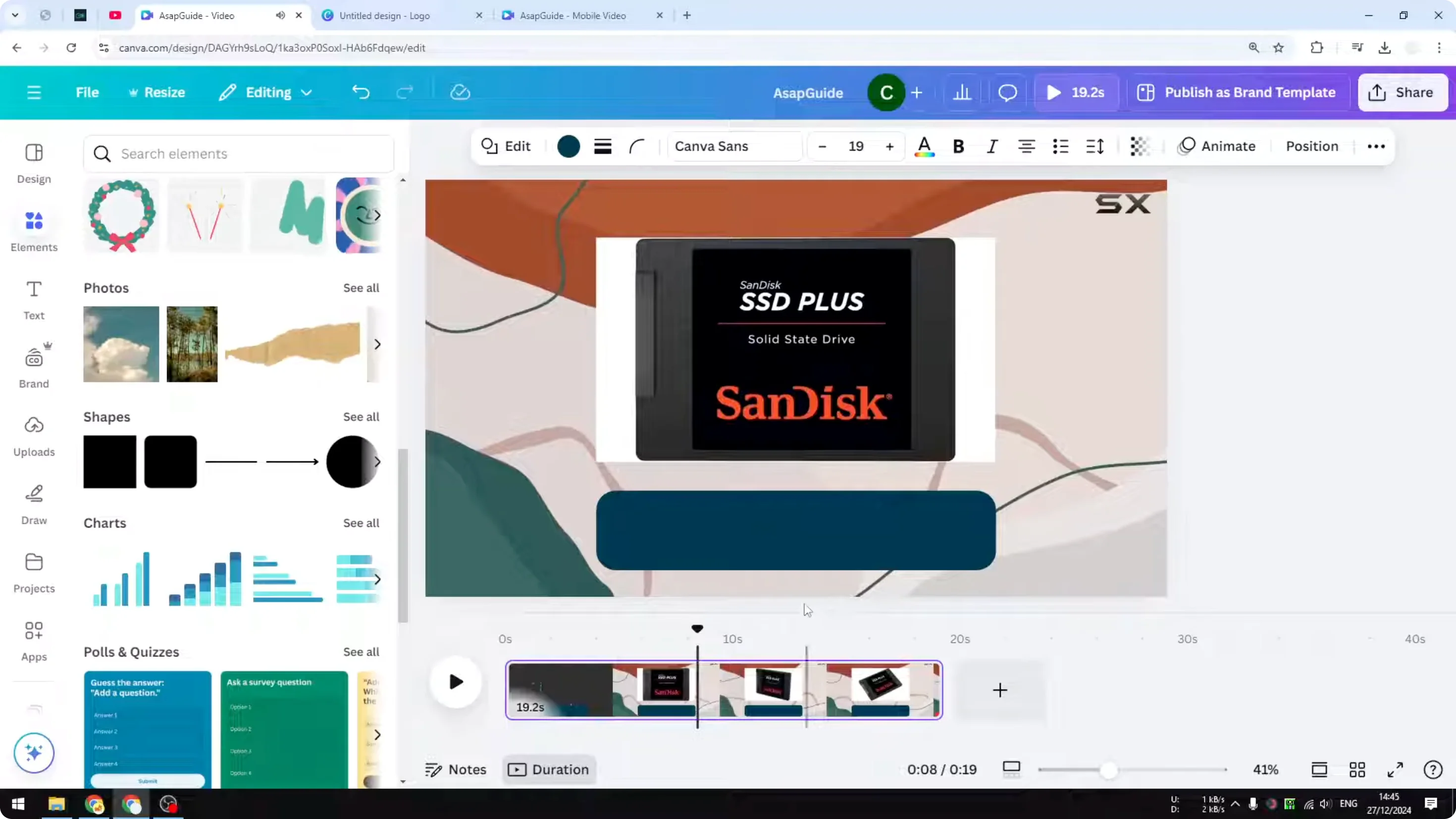
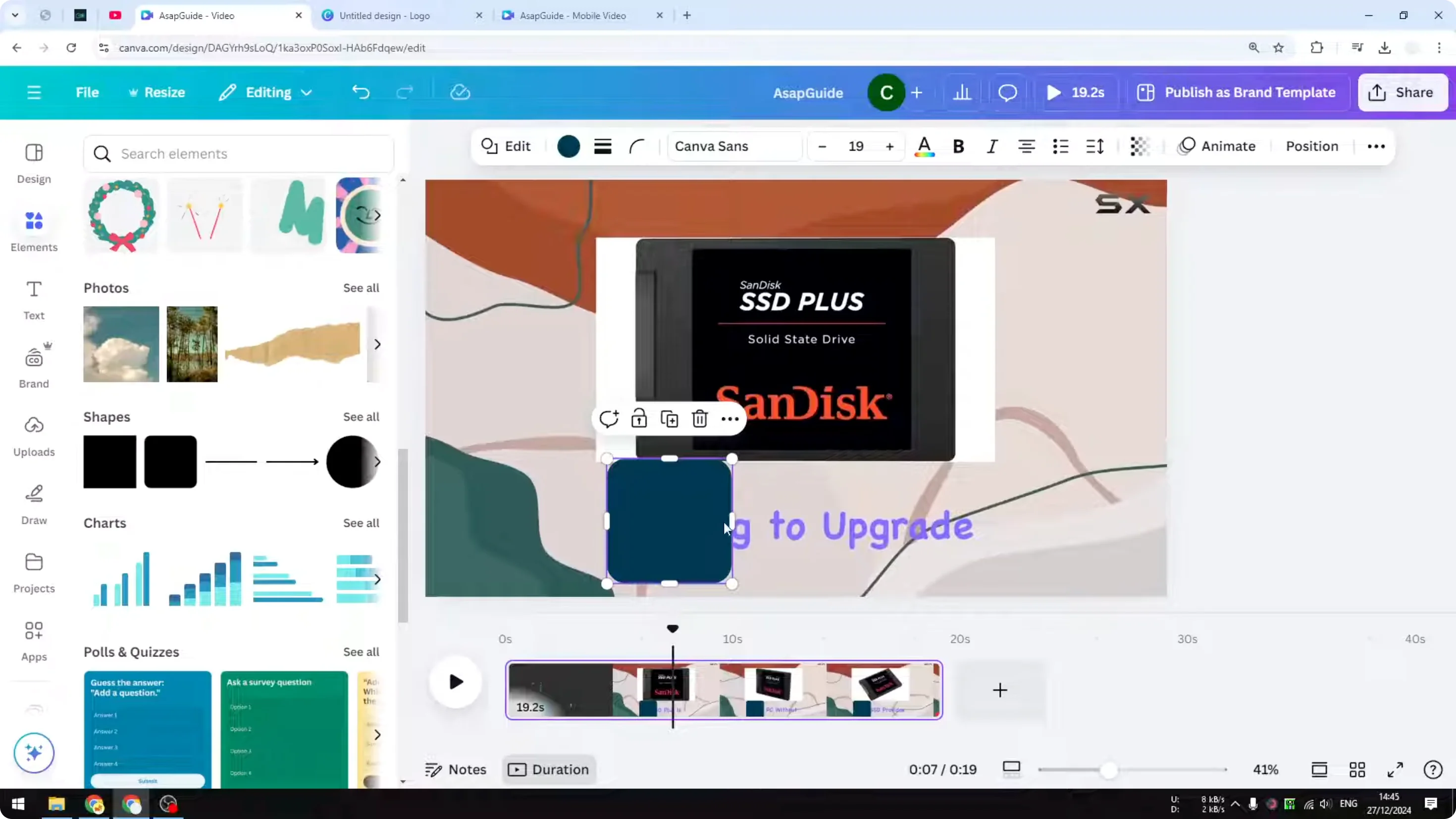
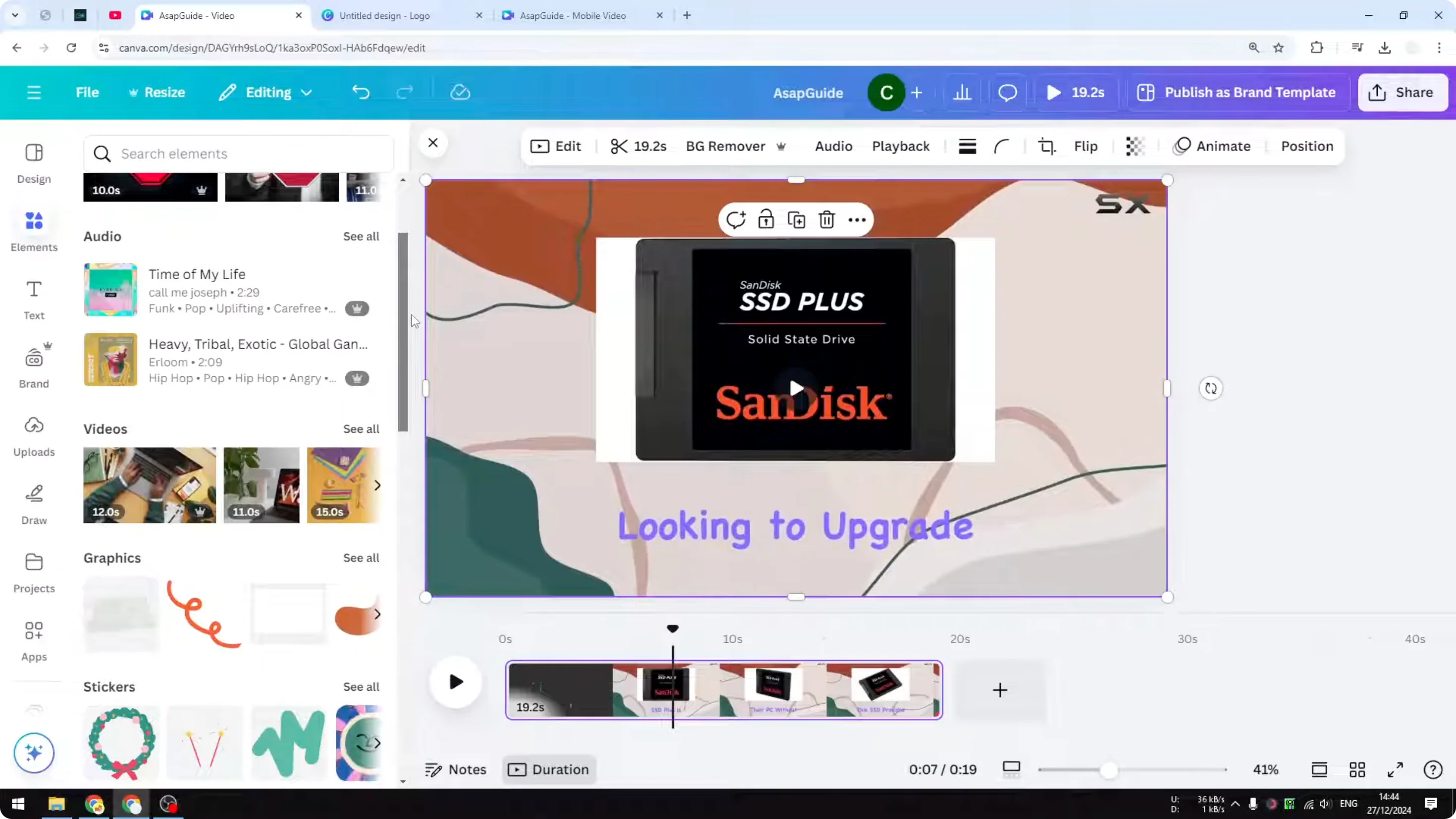
Variations:
- Add an accessory or design element that fits your layout instead of a plain shape.
- Add your own caption in a different language or style to replace the original text area.
Final Thoughts
- Canva cannot remove or isolate text from a video as of the end of 2026.
- You can hide text by zooming the video so the text falls outside the frame or by covering the text with shapes or other elements.
- If Canva releases an AI feature that detects and removes text in a video, that would be ideal, but there is no guarantee. I hope these workarounds are useful.
Recent Posts

How to Visualize Yourself as a Pixelized Character with AI?
How to Visualize Yourself as a Pixelized Character with AI?

How to Revive Faded Memories and Enhance Image Clarity with AI?
How to Revive Faded Memories and Enhance Image Clarity with AI?

How to Visualize Yourself as an Animal Crossing Character with AI?
How to Visualize Yourself as an Animal Crossing Character with AI?