How to Add Footnotes in Canva

Footnotes help create a sense of authority and trust in a document. You can provide references or sources for where your content comes from, and that practice makes your work more believable. Canva does not have a native footnote feature like Google Docs or Microsoft Word, but there is a simple workaround that gets you a similar result.
Canva is designed primarily for visual design, but you can still add clear references. The key is to place bracketed numbers in your text and list the sources at the bottom of the page. This works for both design templates and regular documents.
Why Add Footnotes in Canva
Adding footnotes signals that your content is backed by references. Readers can quickly see where claims or quotes came from. It looks professional and keeps your layout clean.
If you are editing photos in the same project, you may also like this quick tip on how to add a person.
Add Footnotes in Canva on Design Templates
Open your design and go to Text.
Add a simple text box.
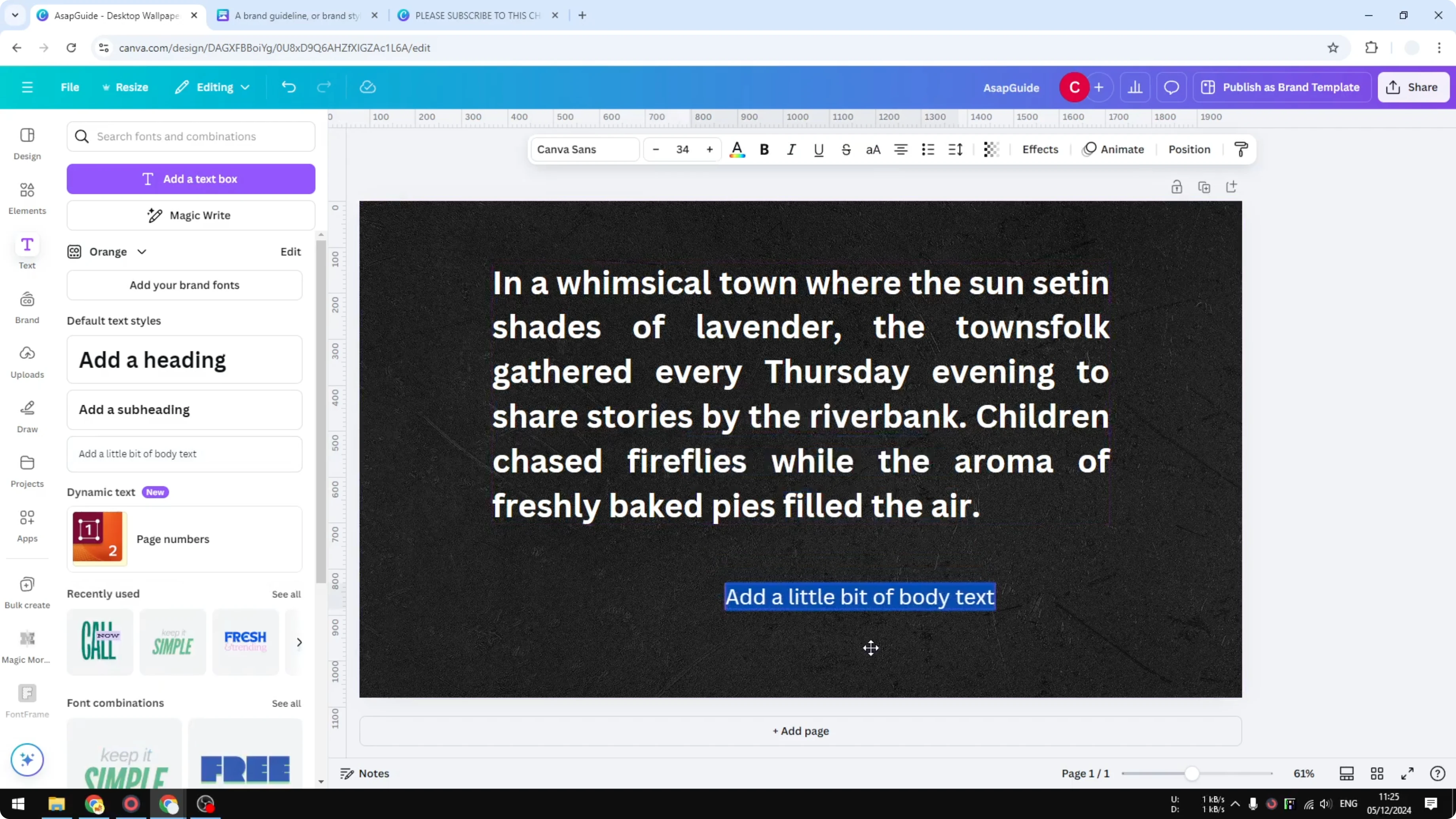
Type [1] using the square brackets.
Place it where you want the reference to appear near your sentence.
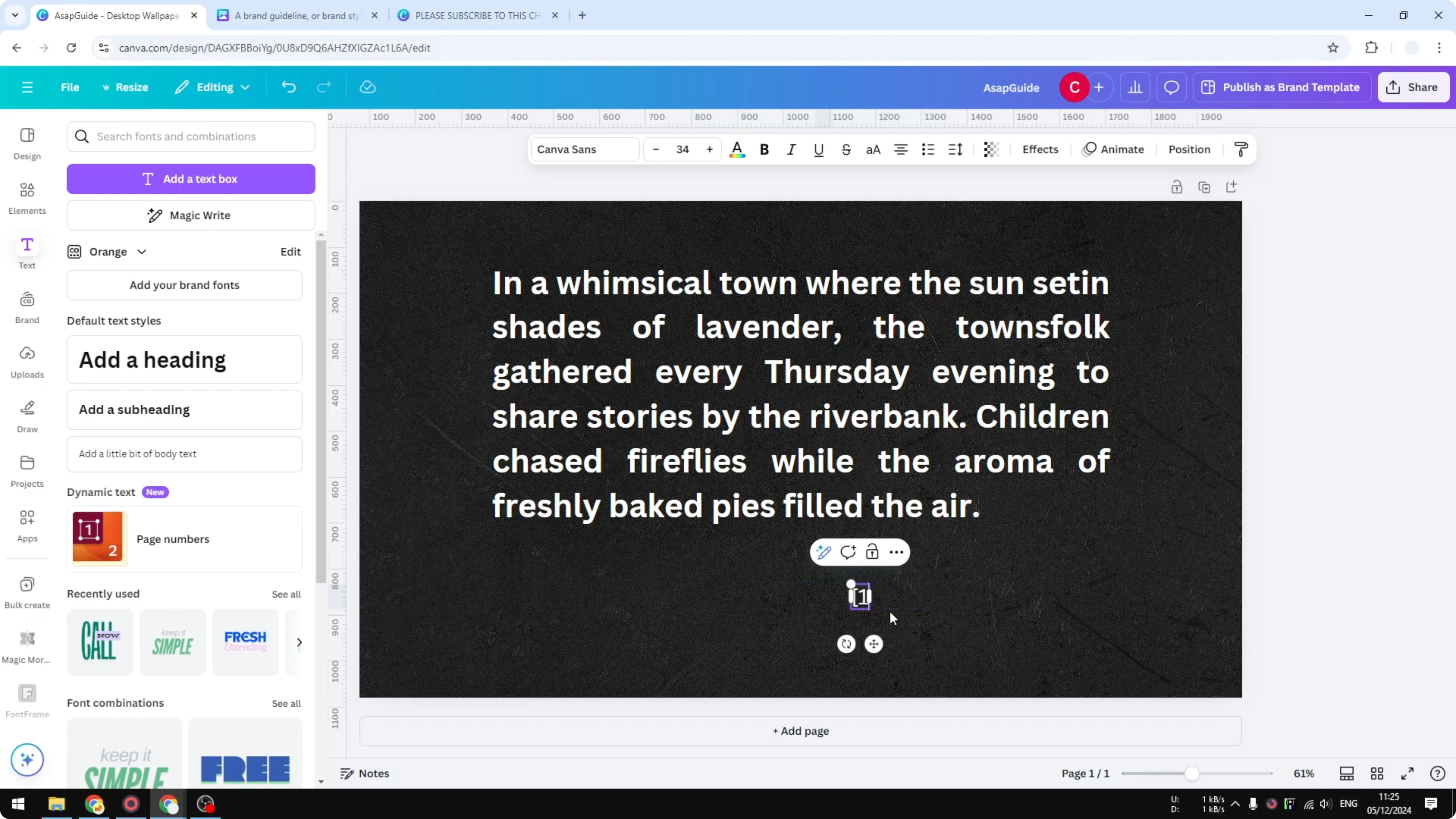
Select the bracketed number and make the font smaller.
This matches how many documents, including Wikipedia, present their sources.
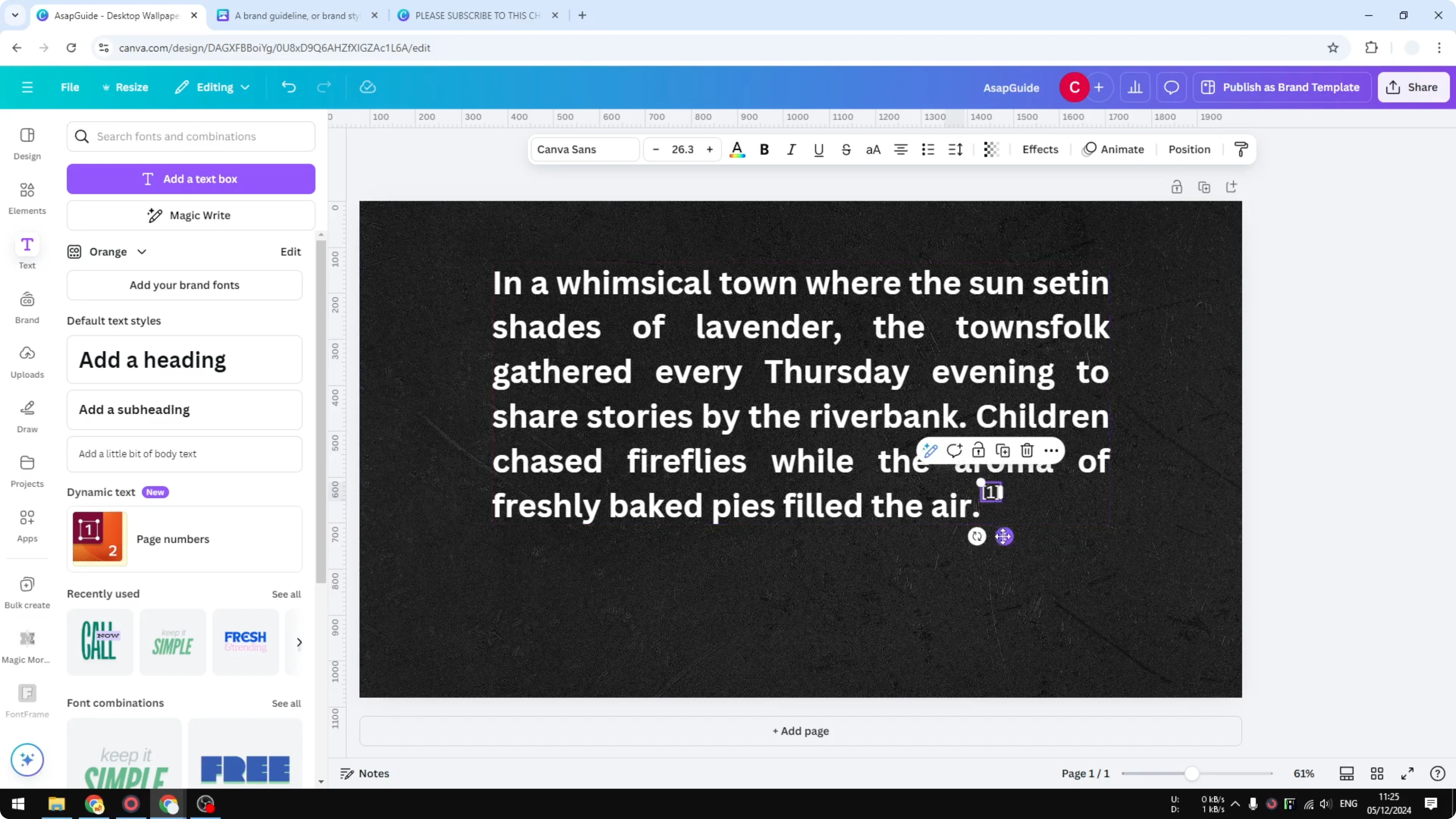
Duplicate the [1] if you need [2], [3], and so on.
Place each next to the relevant sentence.
Add a new text box at the bottom of the page for your references.
List each number followed by the reference or link.
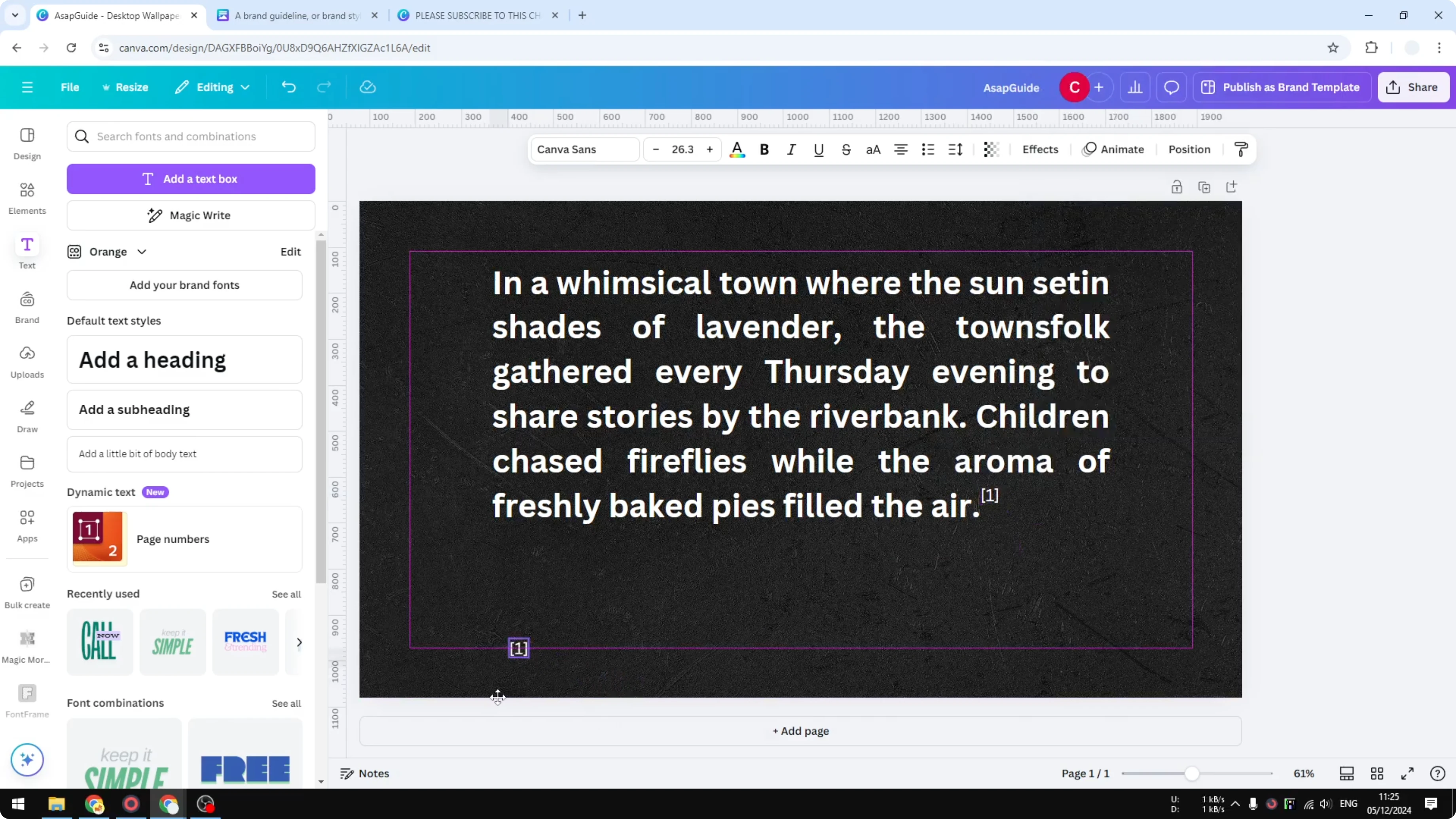
Make the footnote text about 30% smaller than your body text.
Change the color to a dimmer gray if you want it less prominent on a dark background.
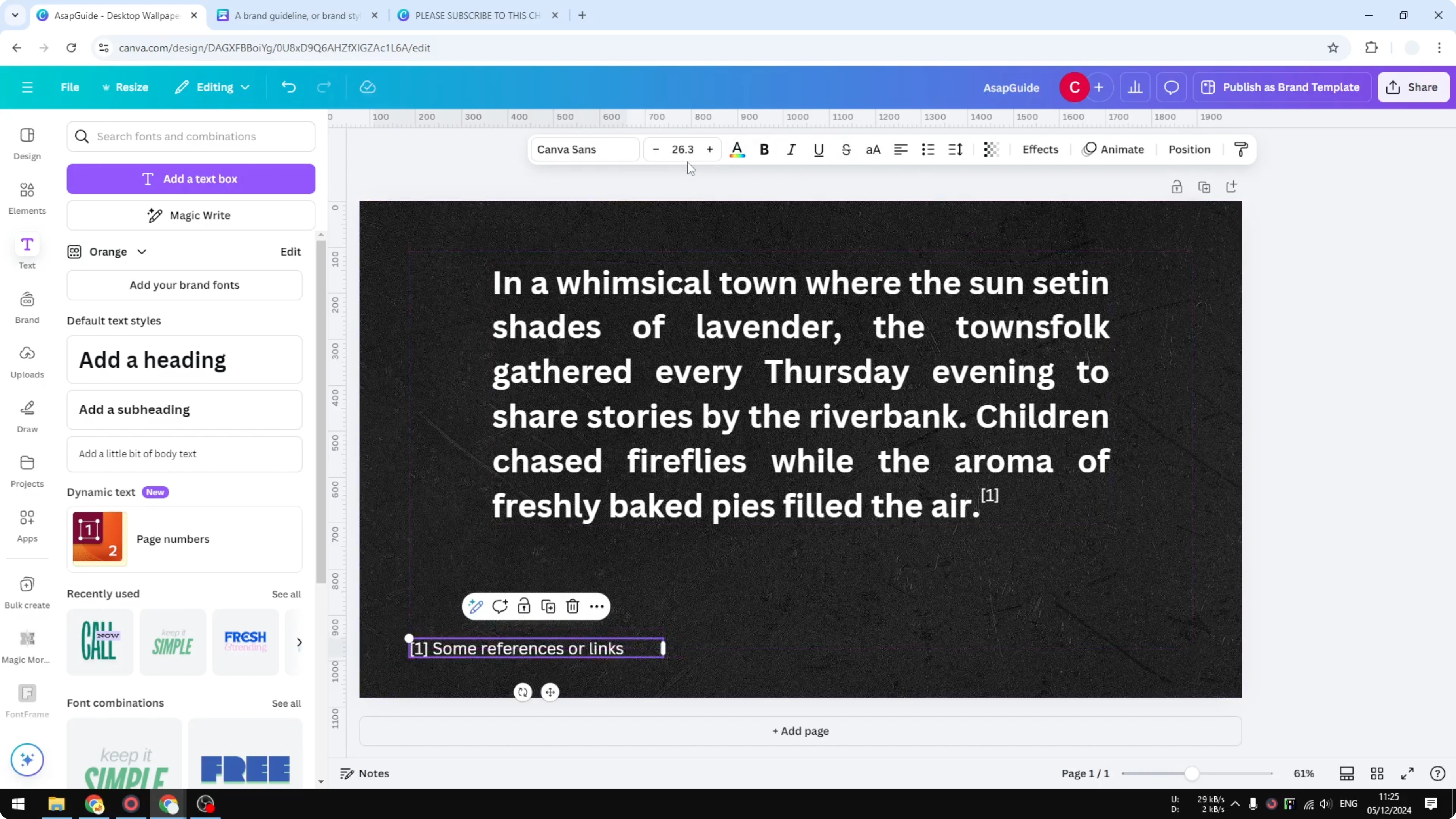
Example in-body marker:
...supported by recent research [1].
Example reference block at the bottom:
[1] Author Name - Source Title - URL
[2] Organization - Report Title - URL
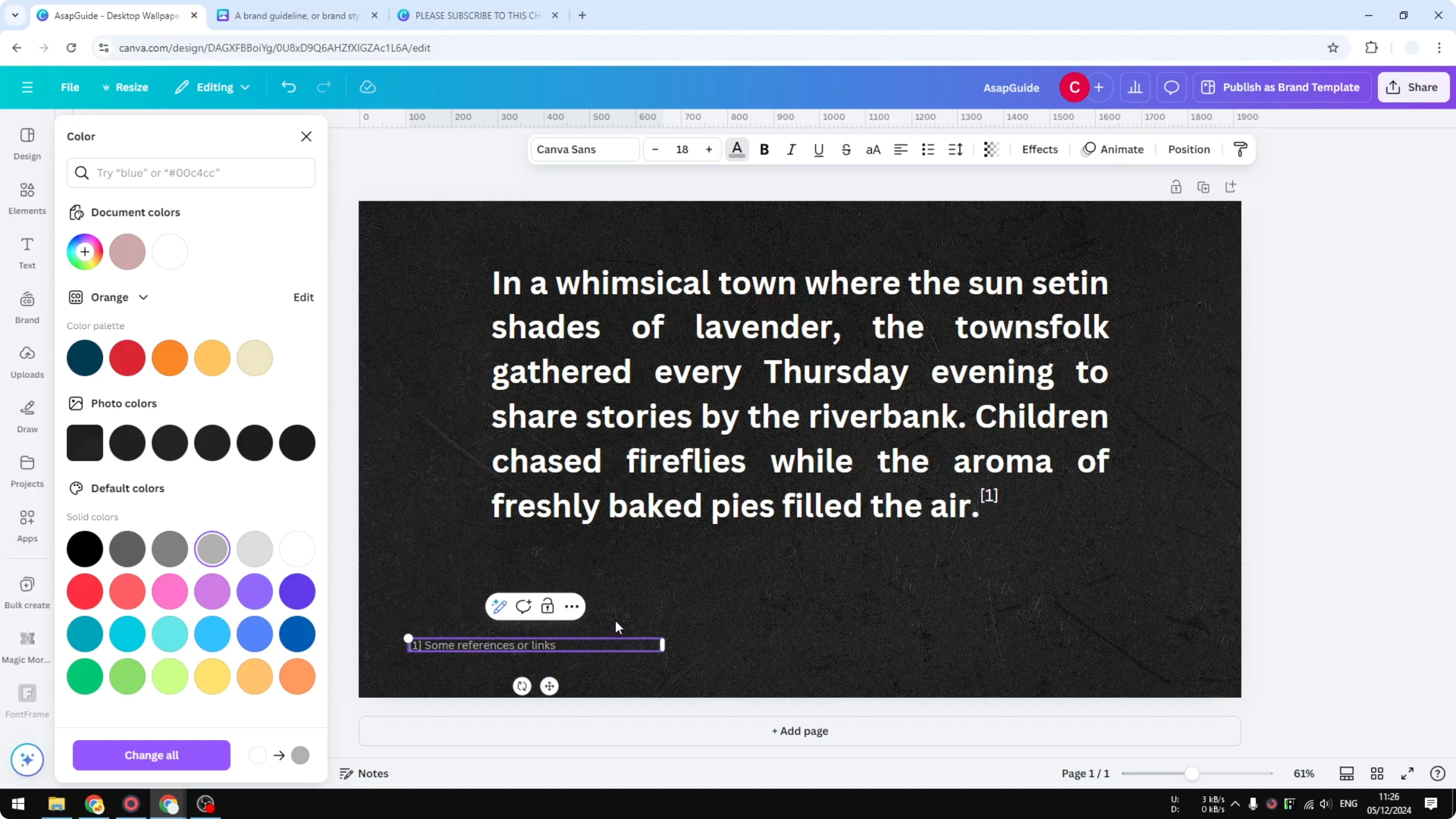
If you are working on motion graphics in the same layout, you can also add a quick video transition.
Add Footnotes in Canva in Documents
Open your Canva document and type the bracketed number directly in your sentence, like [1].
Select only the [1] and make it smaller.
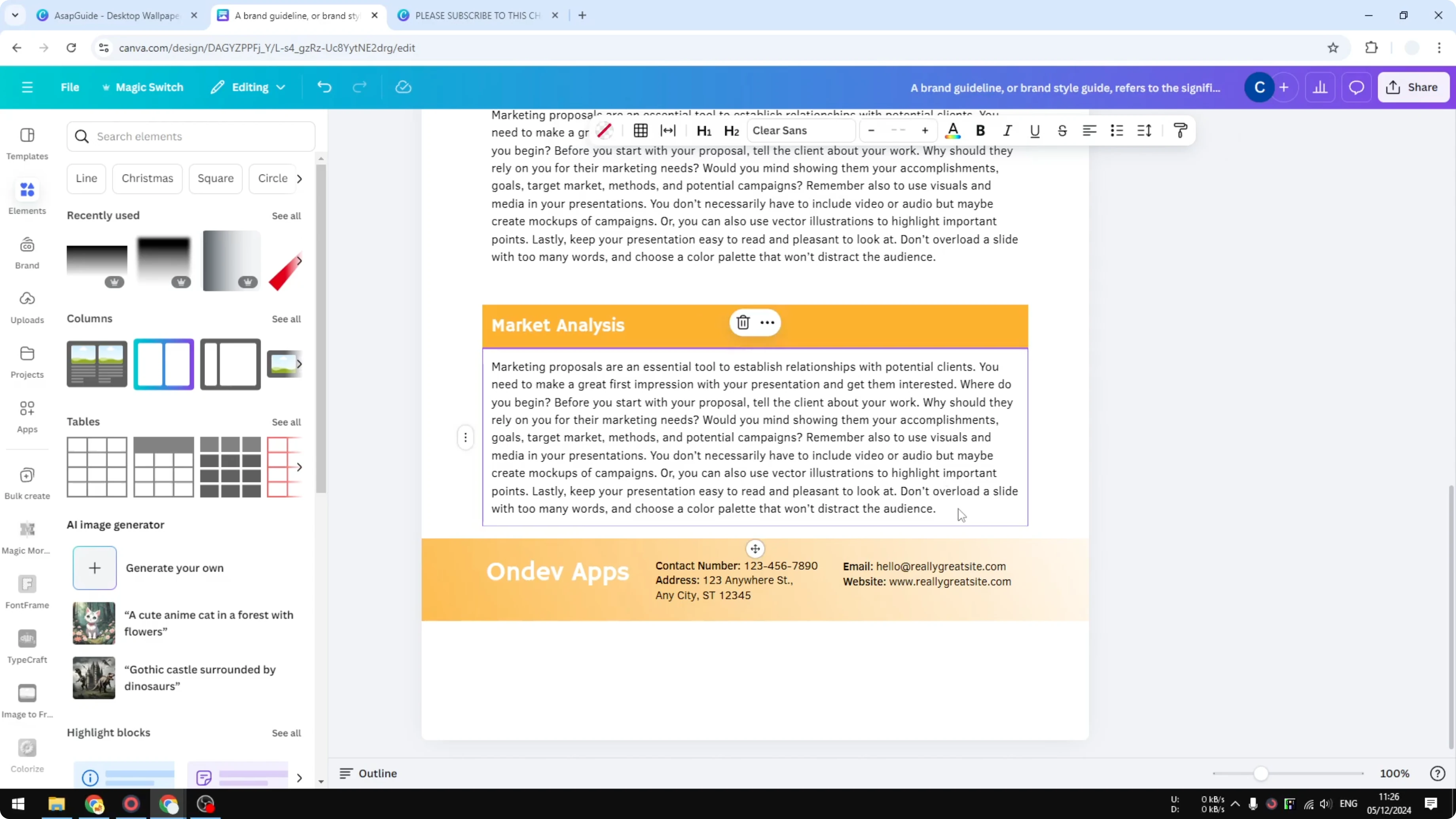
Positioning the number as a superscript is not available in Canva Docs.
Third-party tools might help, but inside Canva Docs you cannot set true superscript.
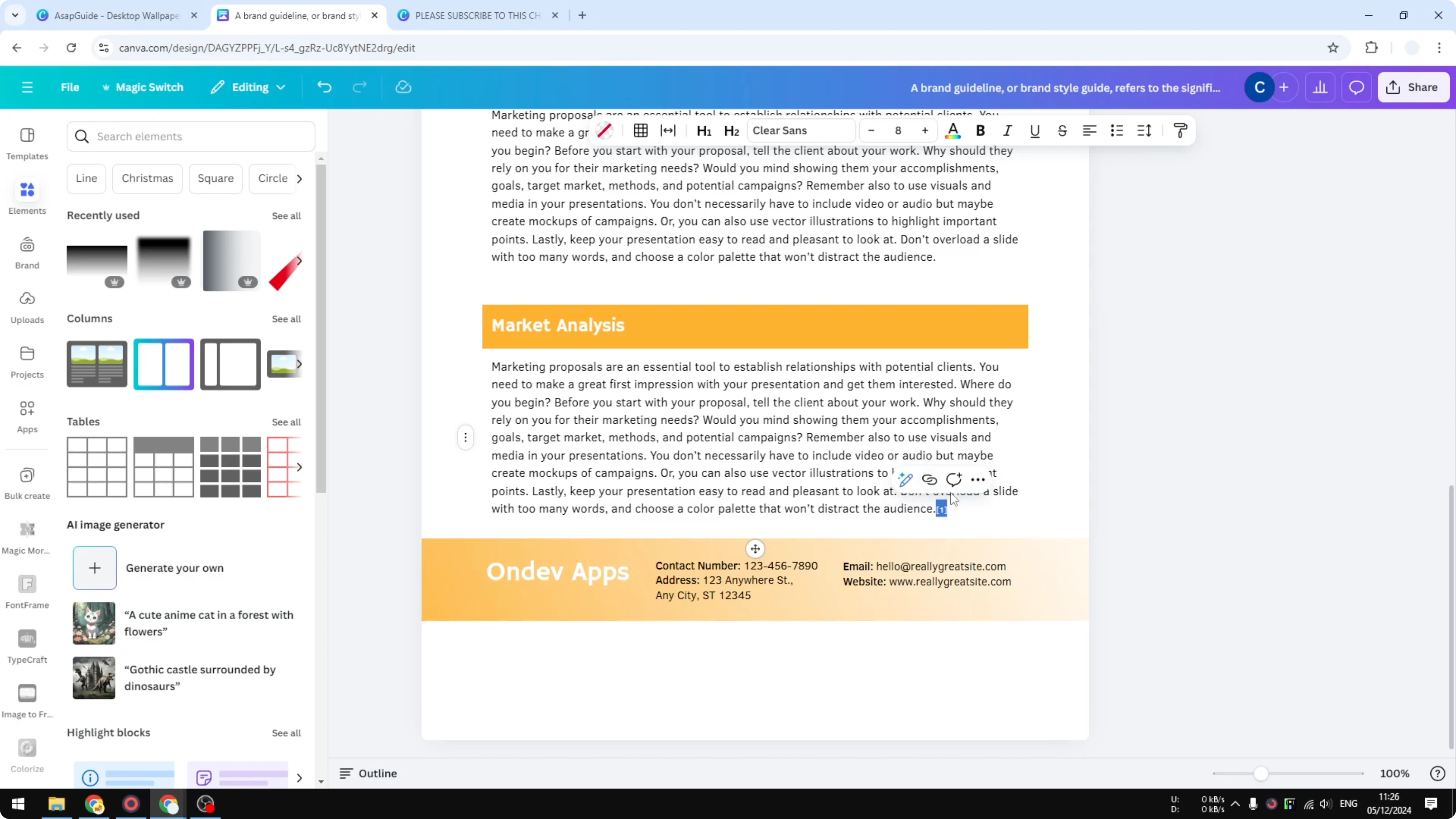
Scroll to the bottom of the page and add a new line for references.
Write the number and the full citation or link.
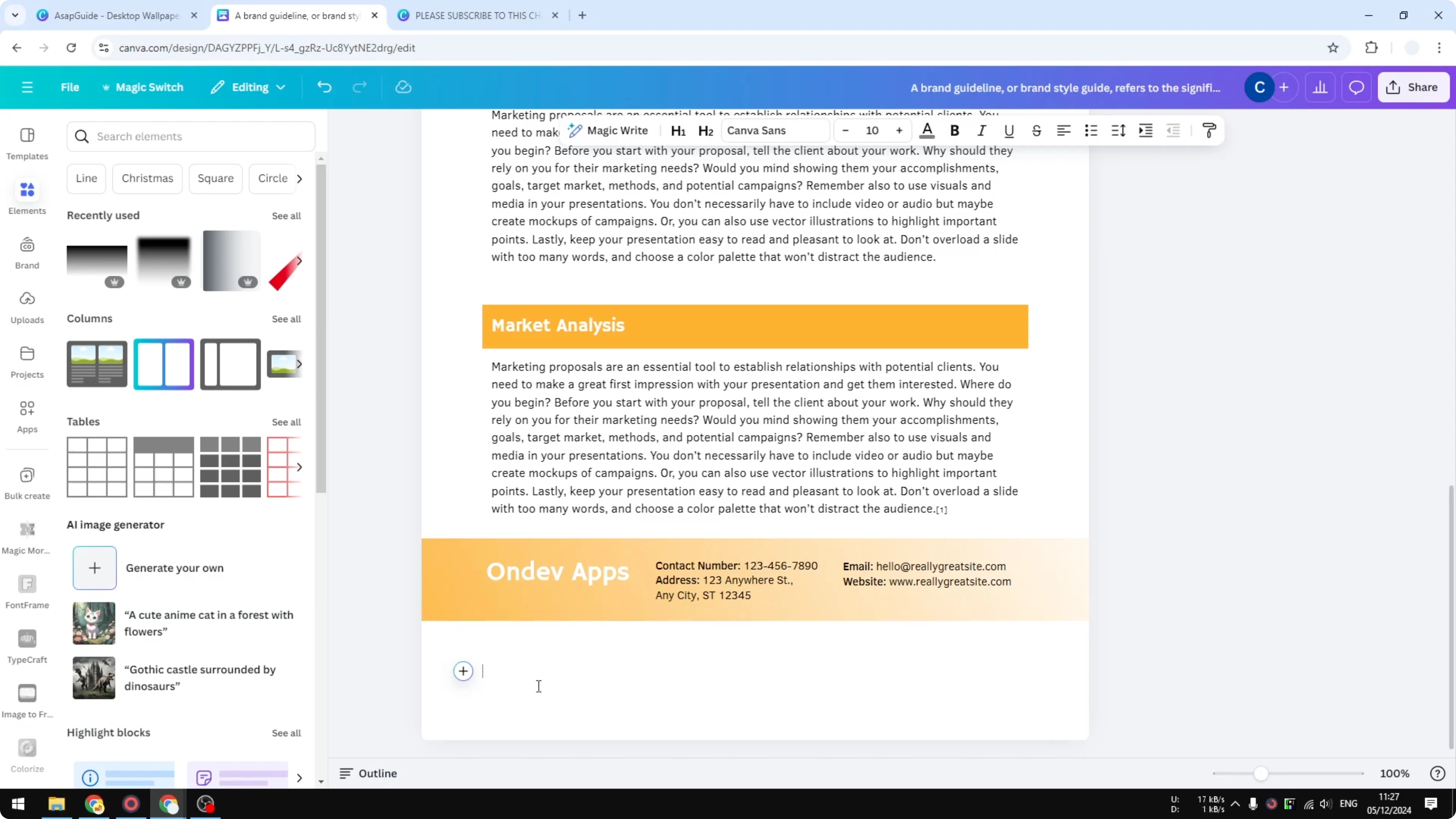
Press Shift+Enter to add another line within the same text box.
Repeat for [2], [3], and as many entries as you need.
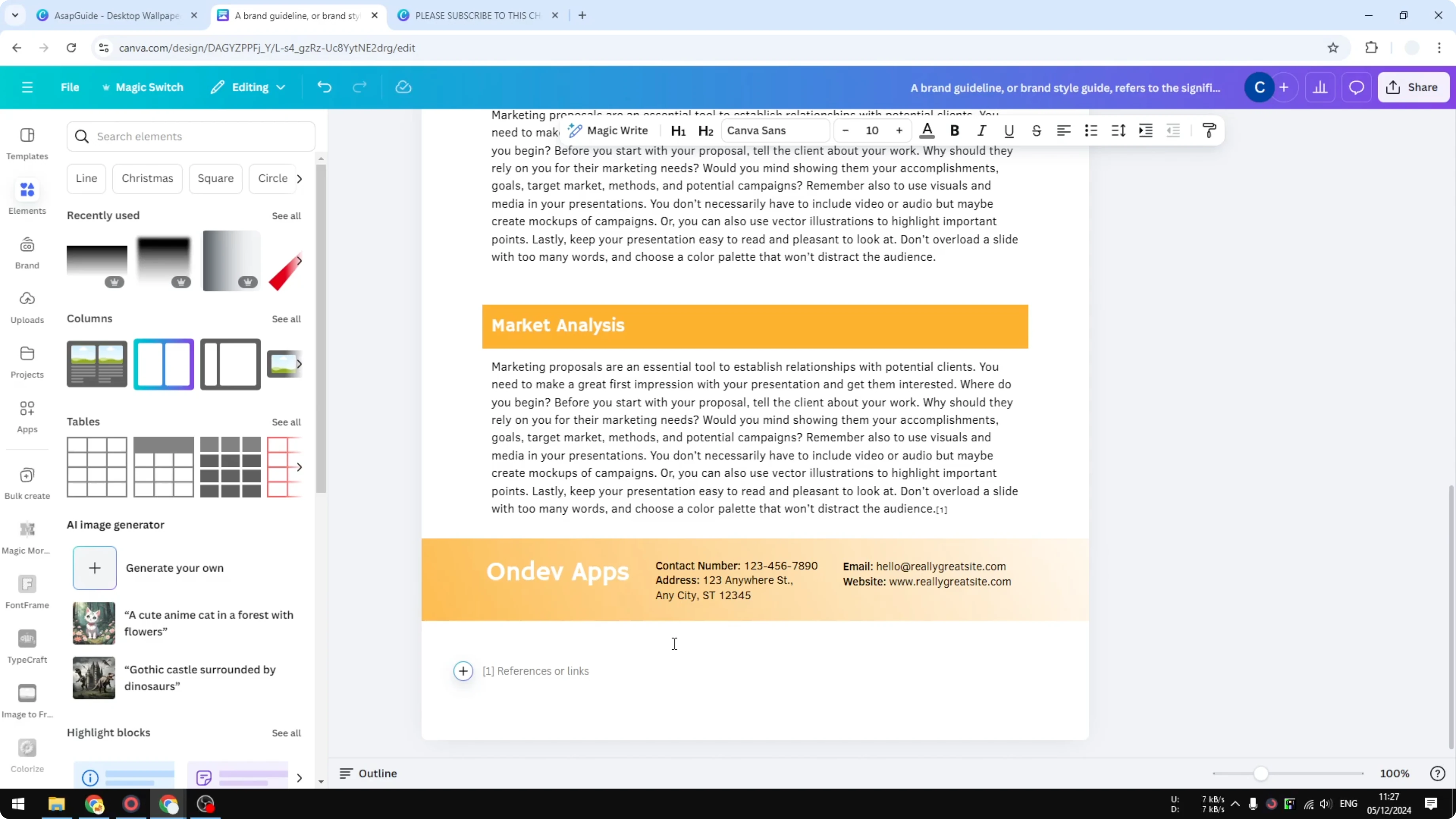
In-text example:
This claim is based on published data [1] and an additional summary [2].
Reference block example:
[1] Publisher - Article Title - URL
[2] Journal - Study Title - URL
For video-led documents, you might also stack effects with a simple video overlay.
Formatting Tips for Add Footnotes in Canva
Keep each bracketed number smaller than your body text so it looks like a reference marker.
Align your reference list at the bottom and keep spacing tight for a clean look.
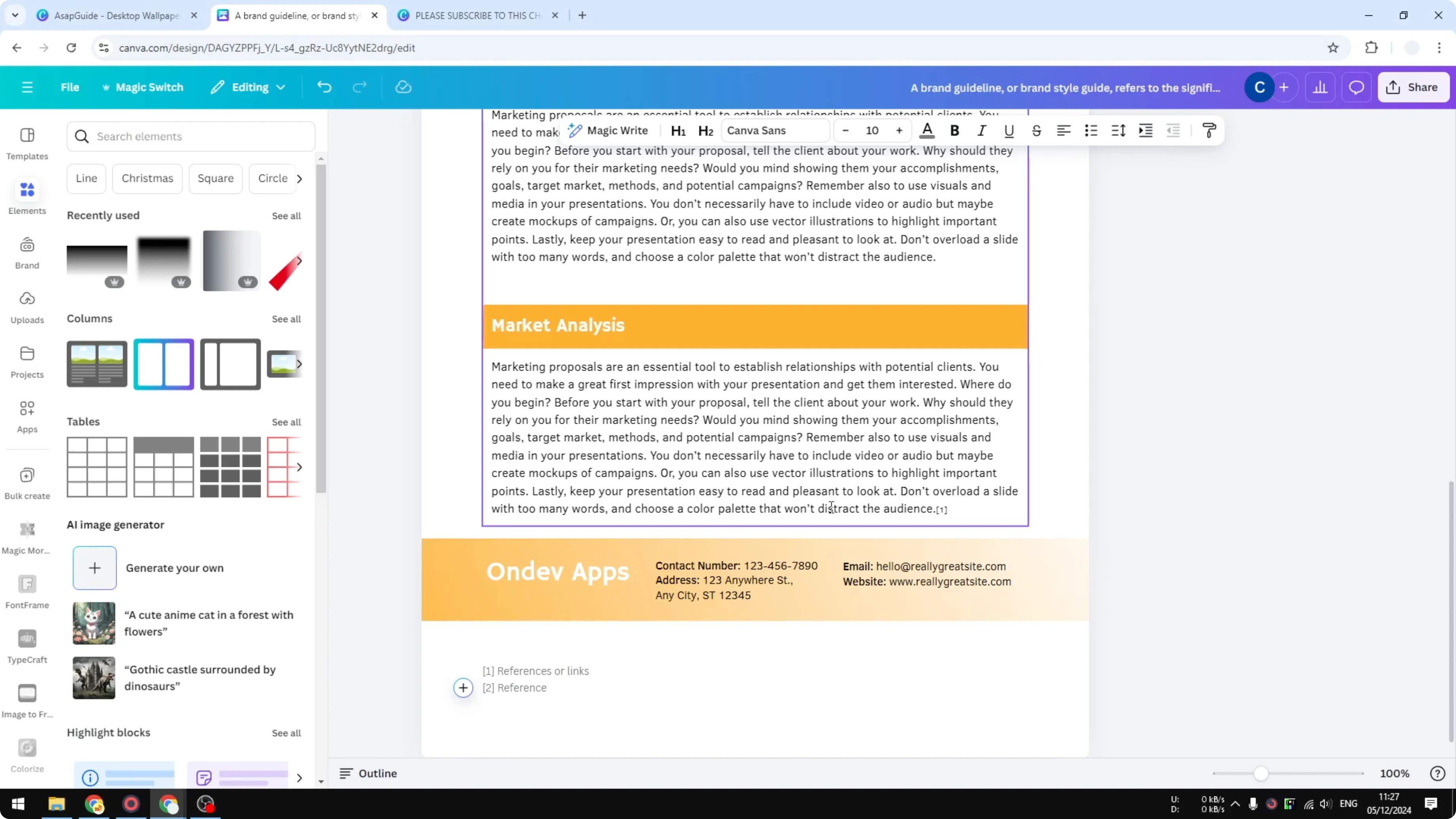
Use consistent numbering across the page.
If you add or remove a source, update the bracketed numbers in the body to match.
Final Thoughts on Add Footnotes in Canva
Footnotes in Canva are not a built-in feature, but you can recreate them with bracketed numbers and a reference list at the bottom. Keep the markers small, make the reference text slightly smaller or gray, and add as many entries as you need. This simple method keeps your design clean while giving readers clear sources.
Recent Posts

How to Visualize Yourself as a Pixelized Character with AI?
How to Visualize Yourself as a Pixelized Character with AI?

How to Revive Faded Memories and Enhance Image Clarity with AI?
How to Revive Faded Memories and Enhance Image Clarity with AI?

How to Visualize Yourself as an Animal Crossing Character with AI?
How to Visualize Yourself as an Animal Crossing Character with AI?