How to Add a Video Overlay in Canva
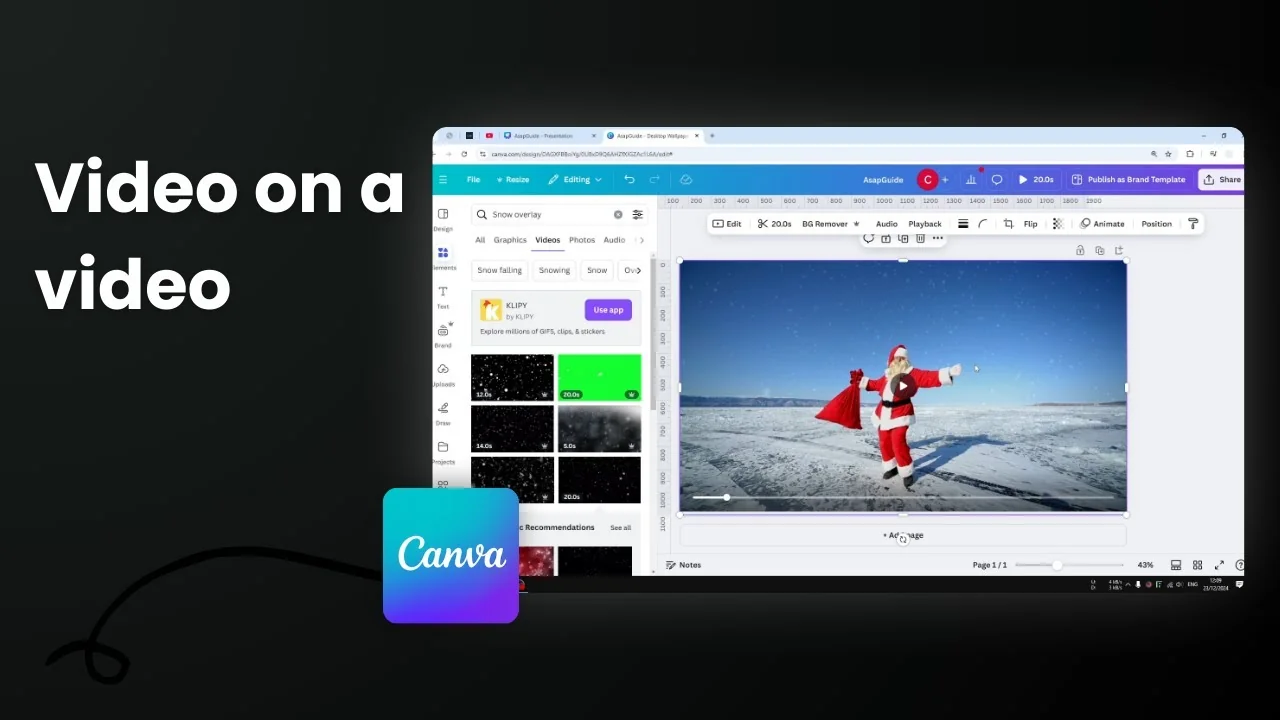
I'm going to show you how you can add a video overlay on your video project in Canva. Basically, a video overlay is just a video positioned on top of another video, but it's actually not always video. You could also put a video on top of a picture or on top of a shape or whatever design that you want to overlap with a video.
Add a Video Overlay in Canva: Step-by-step
- Insert your base video
- First, insert a video into Canva.
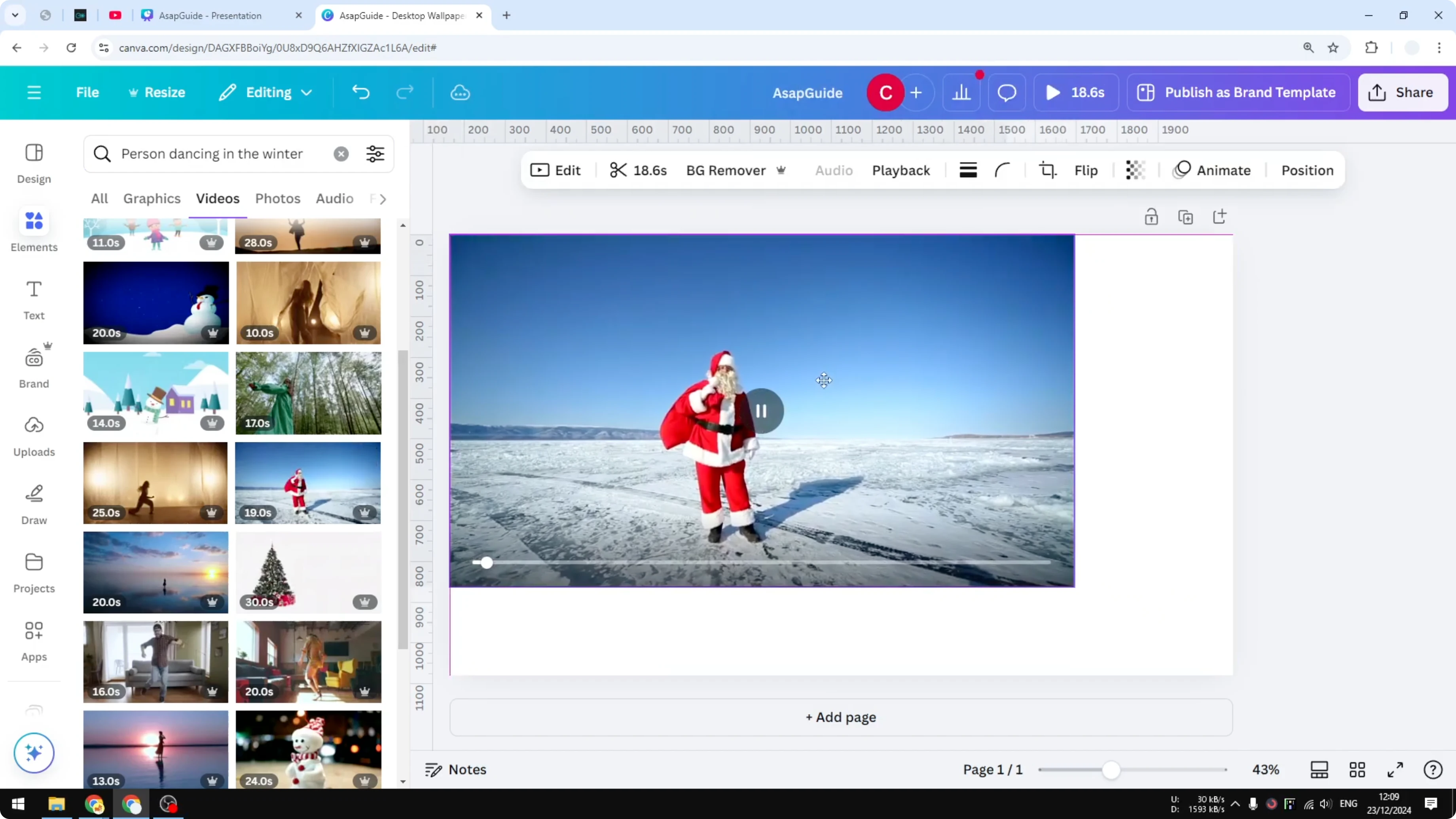
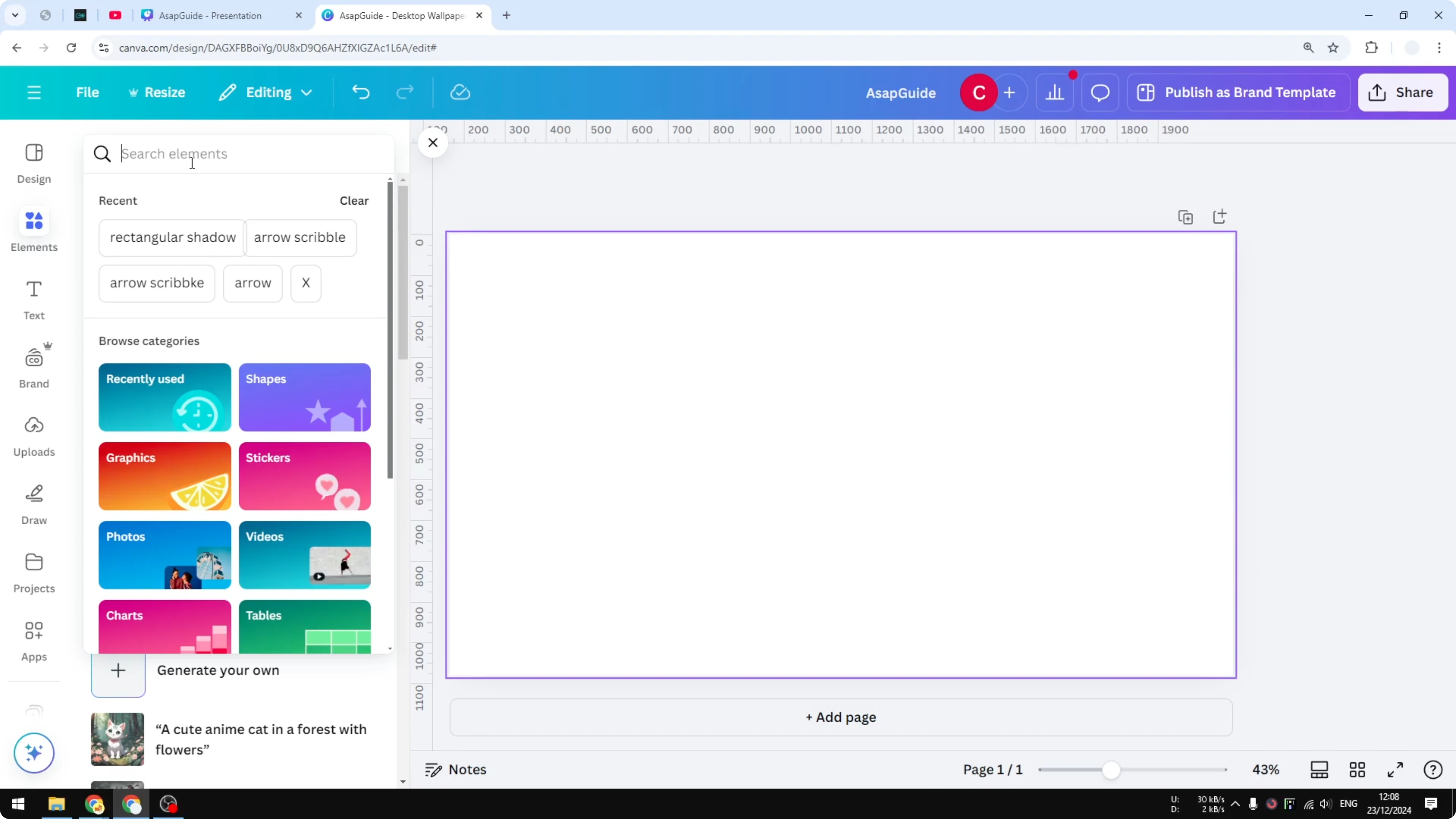
- I'm going to search for a person dancing in the winter. I thought using a winter theme would be a great choice.
- We have plenty of videos here. Let's try this person that seems to be a Santa standing and dancing on the snow, and let's make it bigger.
- Add the overlay
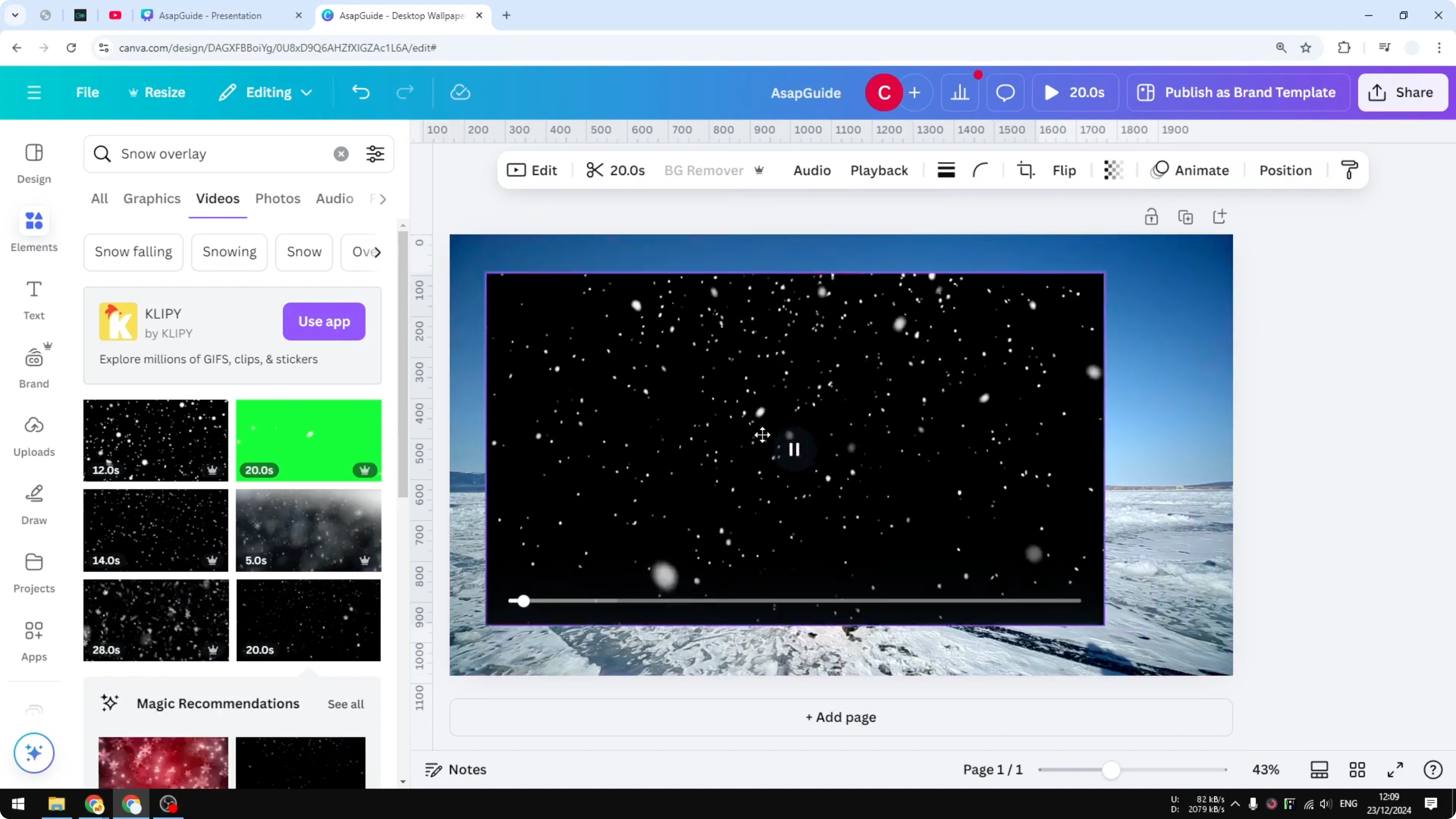
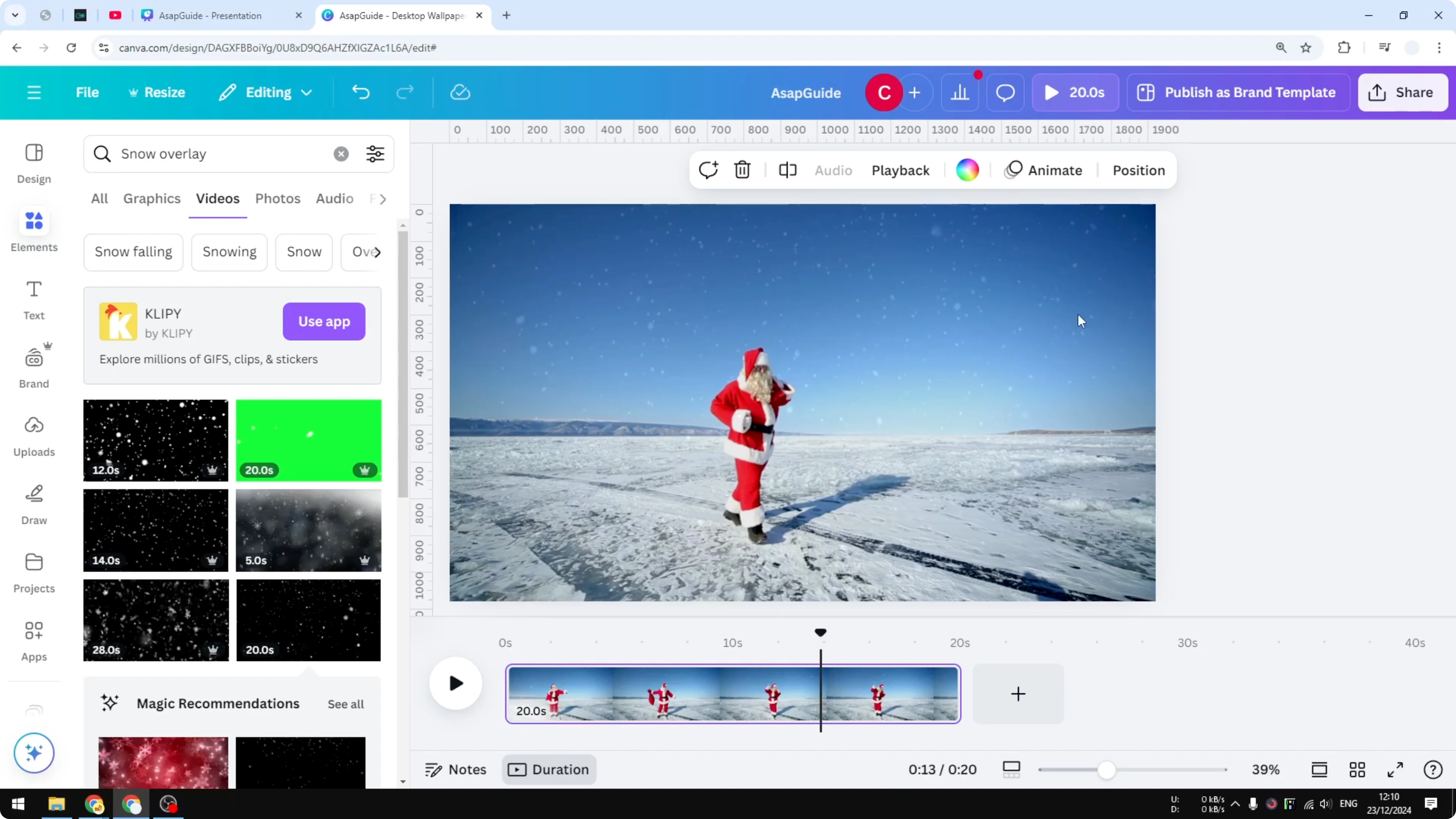
- I'm going to add some overlay on top of this video. Let's try snow overlay.
- I'm trying to get something that is appropriate for this picture. Let's try this one, and I'm going to put it exactly on top of this video.

- Adjust transparency
- I want to reduce the transparency so we can see this - maybe around 10 - and that's pretty good.

- Preview both layers together
- I want to play both videos at the same time, so I'm going to open thumbnail view, open duration, and play the video back.
- You can see the person dancing and you can also still see the snow falling into the scene. I think it looks pretty.


Add a Video Overlay in Canva: Layer and Position Control
That's essentially the idea of overlaying a video on top of another element in Canva. If you want to get finer control, I highly recommend opening the Position menu and then go to Layers. Here you can control where you want to position the video relative to another element in your design. This is very important to make sure that the overlay video is positioned exactly in the right position.
Final Thoughts
That's basically it. That's how you can do it.
Recent Posts

How to Visualize Yourself as a Pixelized Character with AI?
How to Visualize Yourself as a Pixelized Character with AI?

How to Revive Faded Memories and Enhance Image Clarity with AI?
How to Revive Faded Memories and Enhance Image Clarity with AI?

How to Visualize Yourself as an Animal Crossing Character with AI?
How to Visualize Yourself as an Animal Crossing Character with AI?