How to Add a Person in a Photo in Canva
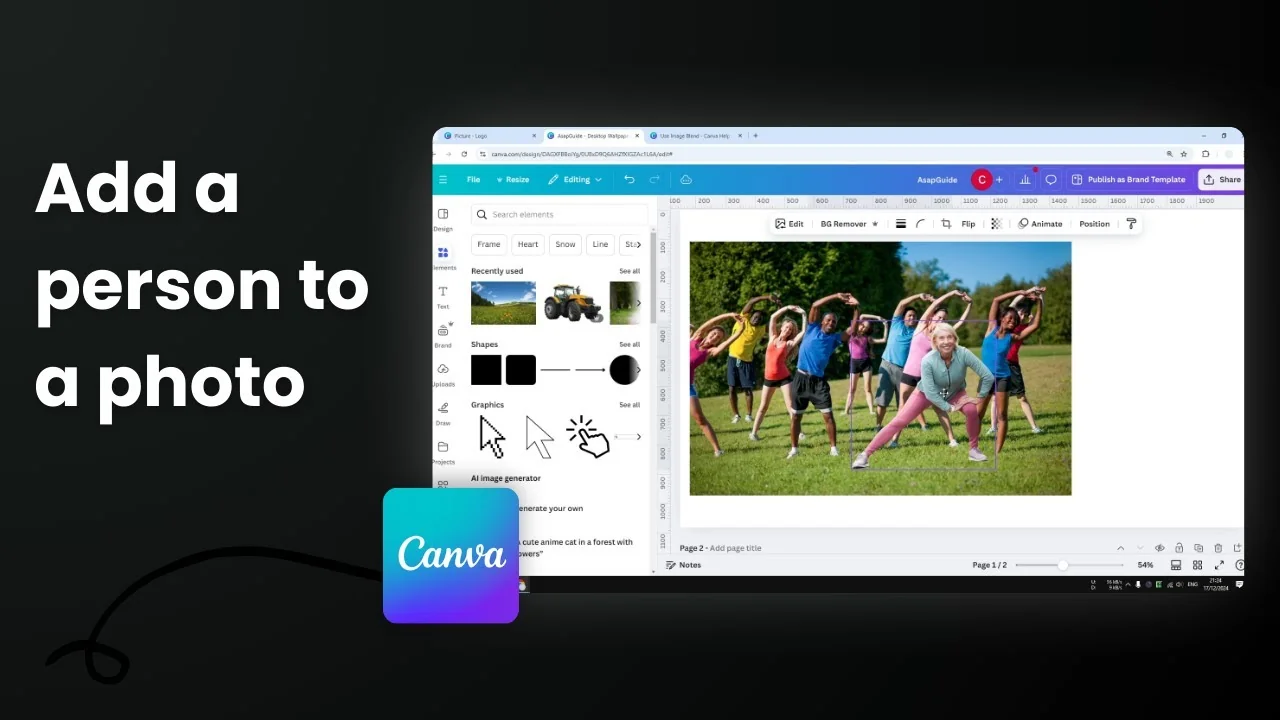
I’m going to show you how to put one person from one photo into another different photo in Canva. As a demonstration, I’m putting a woman from one picture into another that was taken in a different location, with different lighting and a different camera. The goal is to get a realistic implementation.
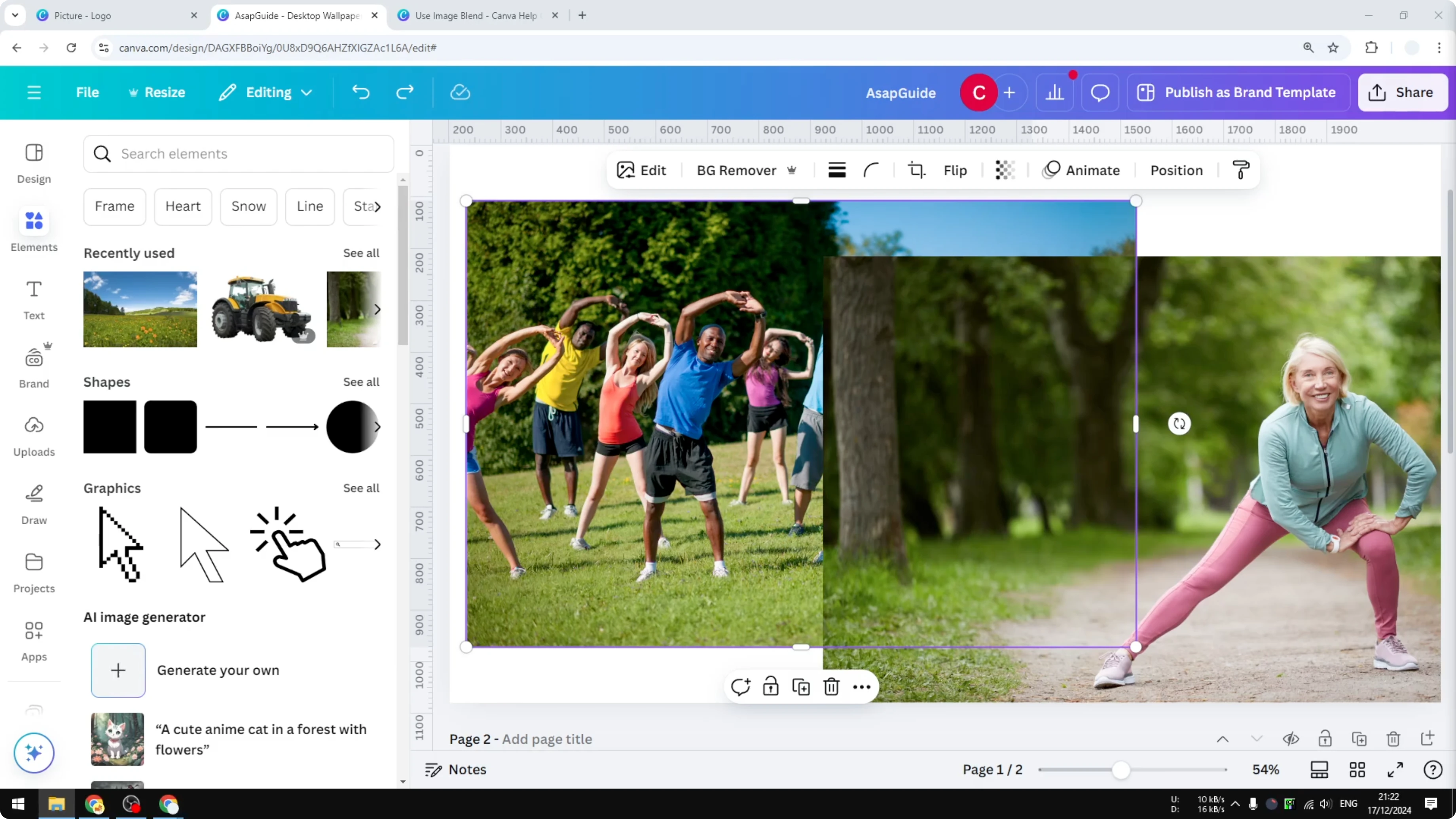
There are a few tools and features in Canva that allow this. I’ll isolate the woman from the background, place her into the new photo, and then blend the person with the scene so it looks natural.
Add a Person in a Photo in Canva
Isolate the person from the original photo
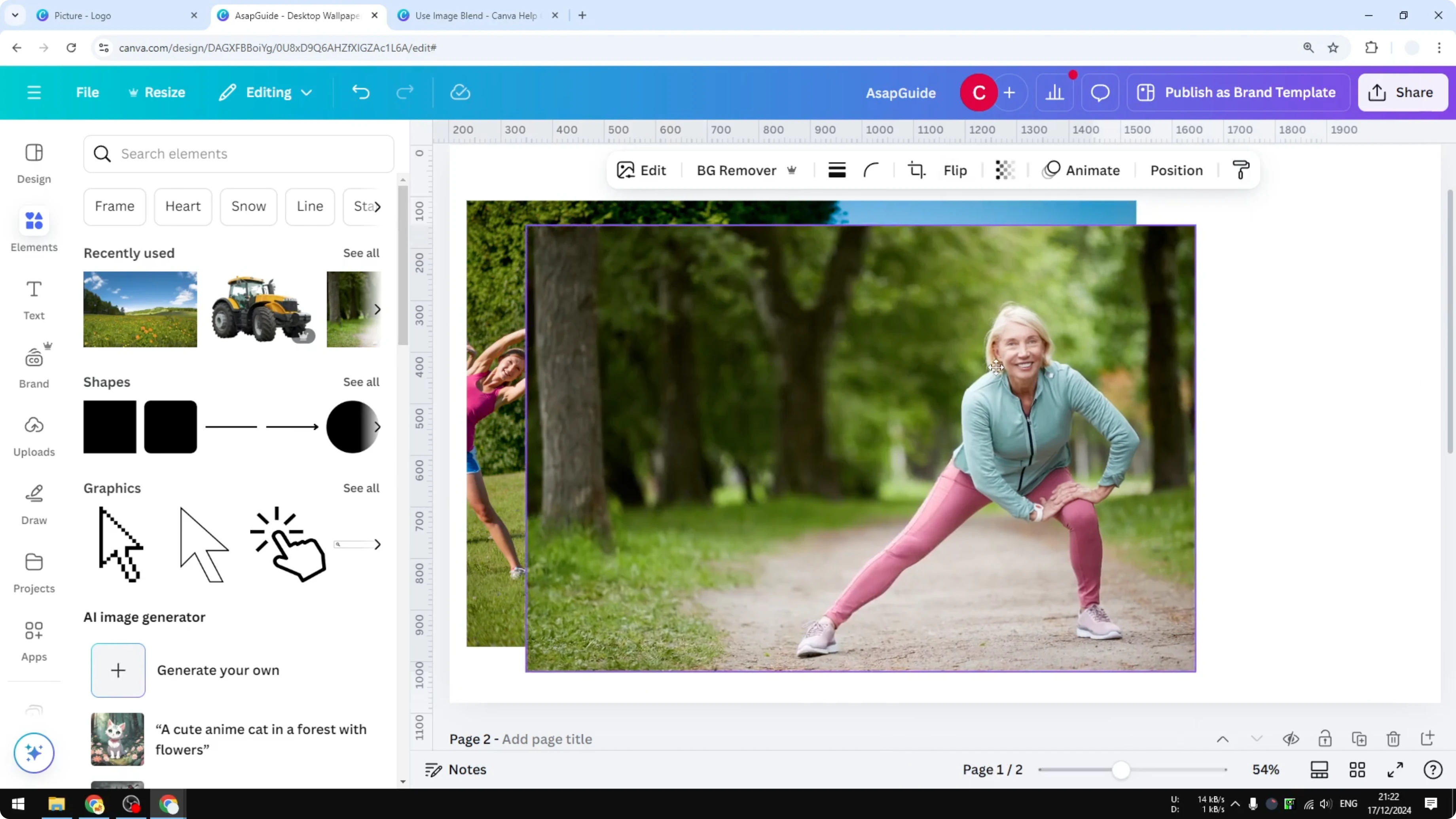
There are two ways to separate a person from the background. You can use the Background Remover feature, or you can use the Magic Grab feature, which I highly recommend because it usually produces a much cleaner result.
Step-by-step:
- Open the first photo and click Edit.
- Choose Magic Grab.
- In click mode, select the person. If there are multiple people in the photo, use the brush method to select the object manually.
- Click the Grab button. Canva’s AI will isolate the person from the background. This usually finishes in a few seconds, but it depends on the picture.
- Once the person is separated, remove the no-longer-needed background by clicking the trash icon.
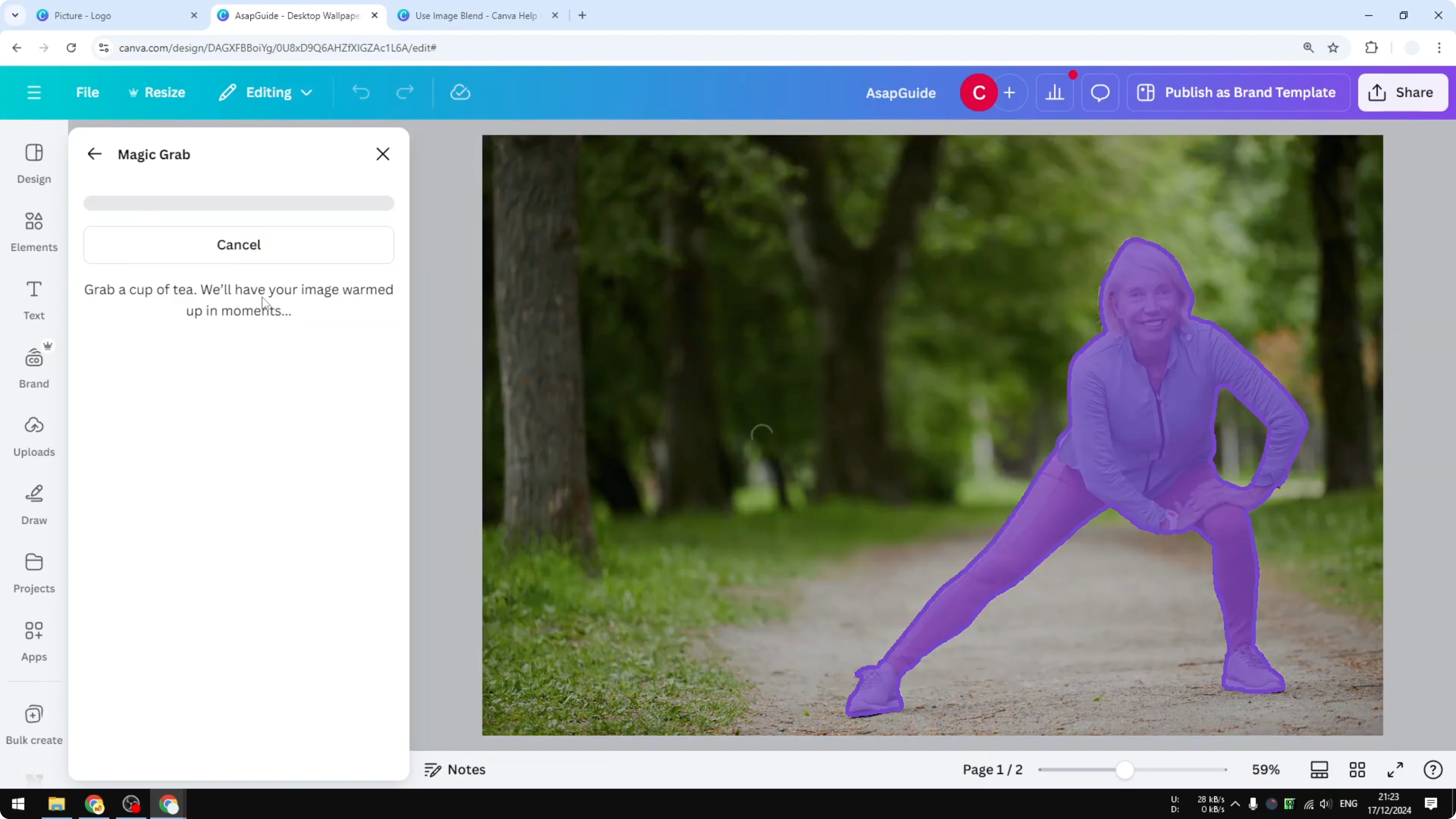
Place the person into the new photo
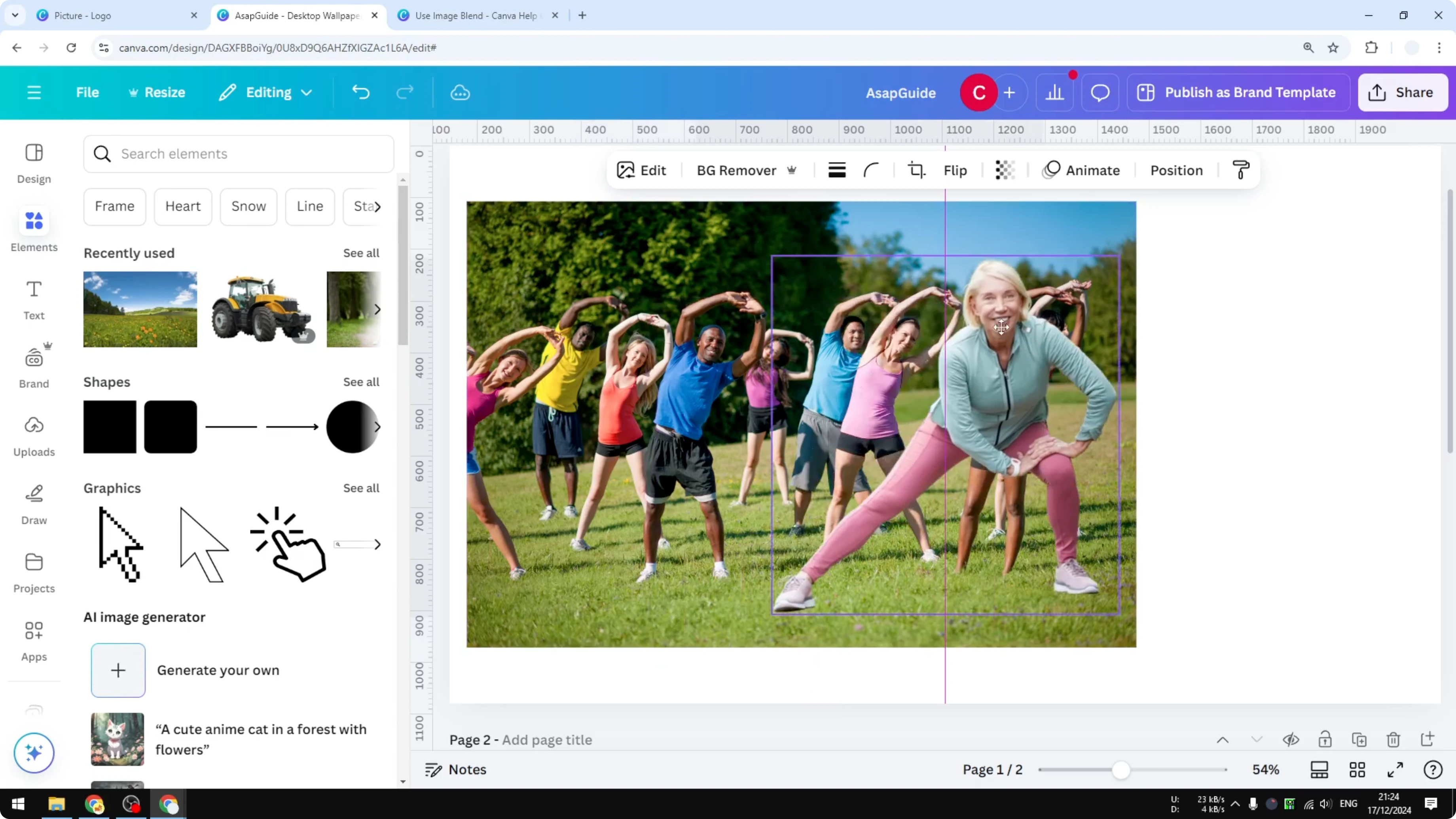
- Add or drag the isolated person into the target photo.
- Place it in an appropriate location.
- Keep the proportions consistent with the rest of the scene. Do not make the person too small or too big, and make sure the position looks correct.
- If people do not pay close attention, this can look very close to natural.
Blend naturally with lighting and color
Lighting is the part that is kind of difficult to control because it depends on how the picture was taken. You can adjust the color to help the person blend with the new photo.
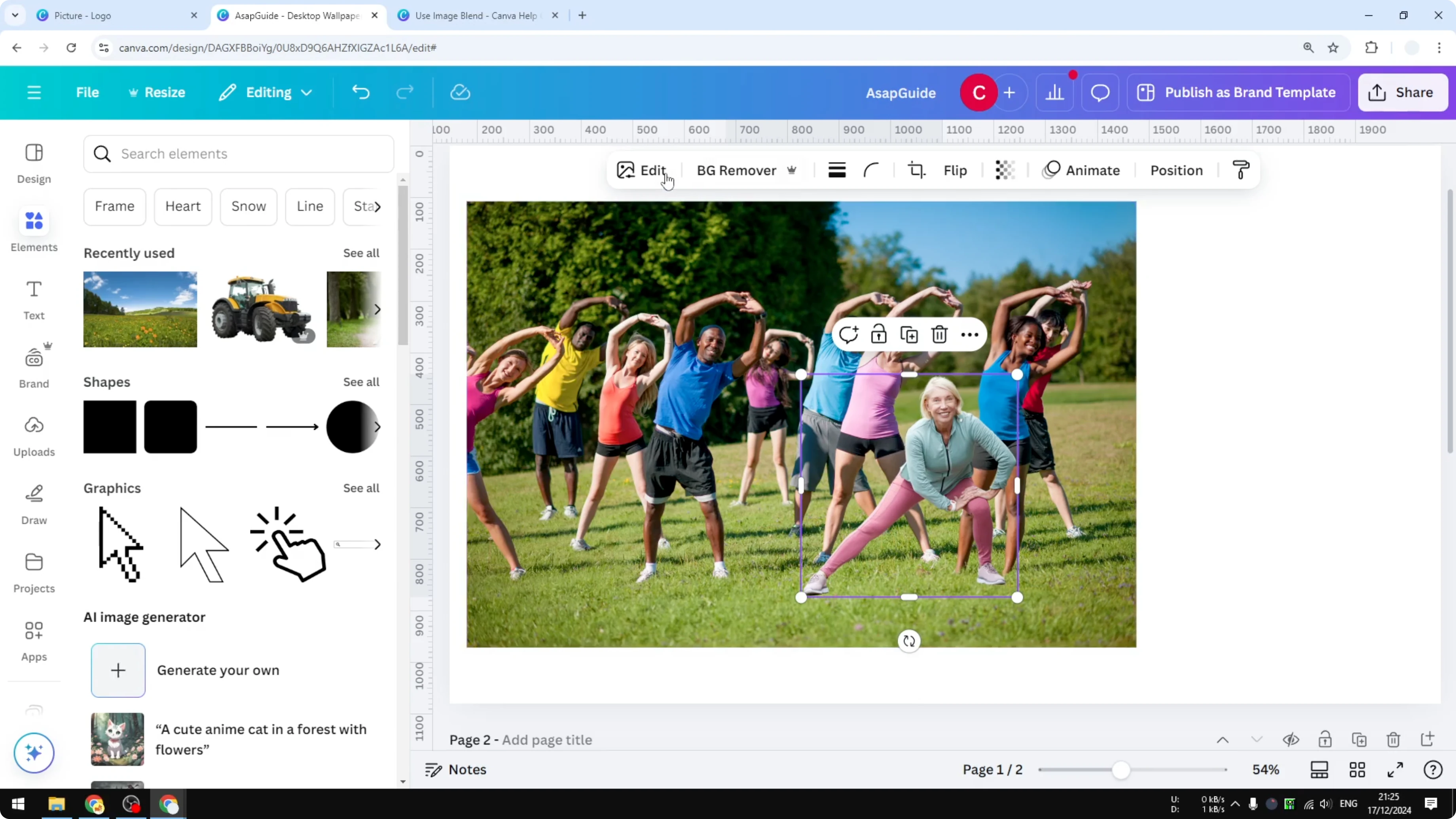
- Select the placed person and click Edit.
- Play around with the color sliders to match tones. This is the most difficult part because you need to understand how color relationships work in a photo.
- You can also try Auto Adjust, which sometimes produces a decent result. This is subjective, so experiment to see what looks best.
Experimental image blending in Canva
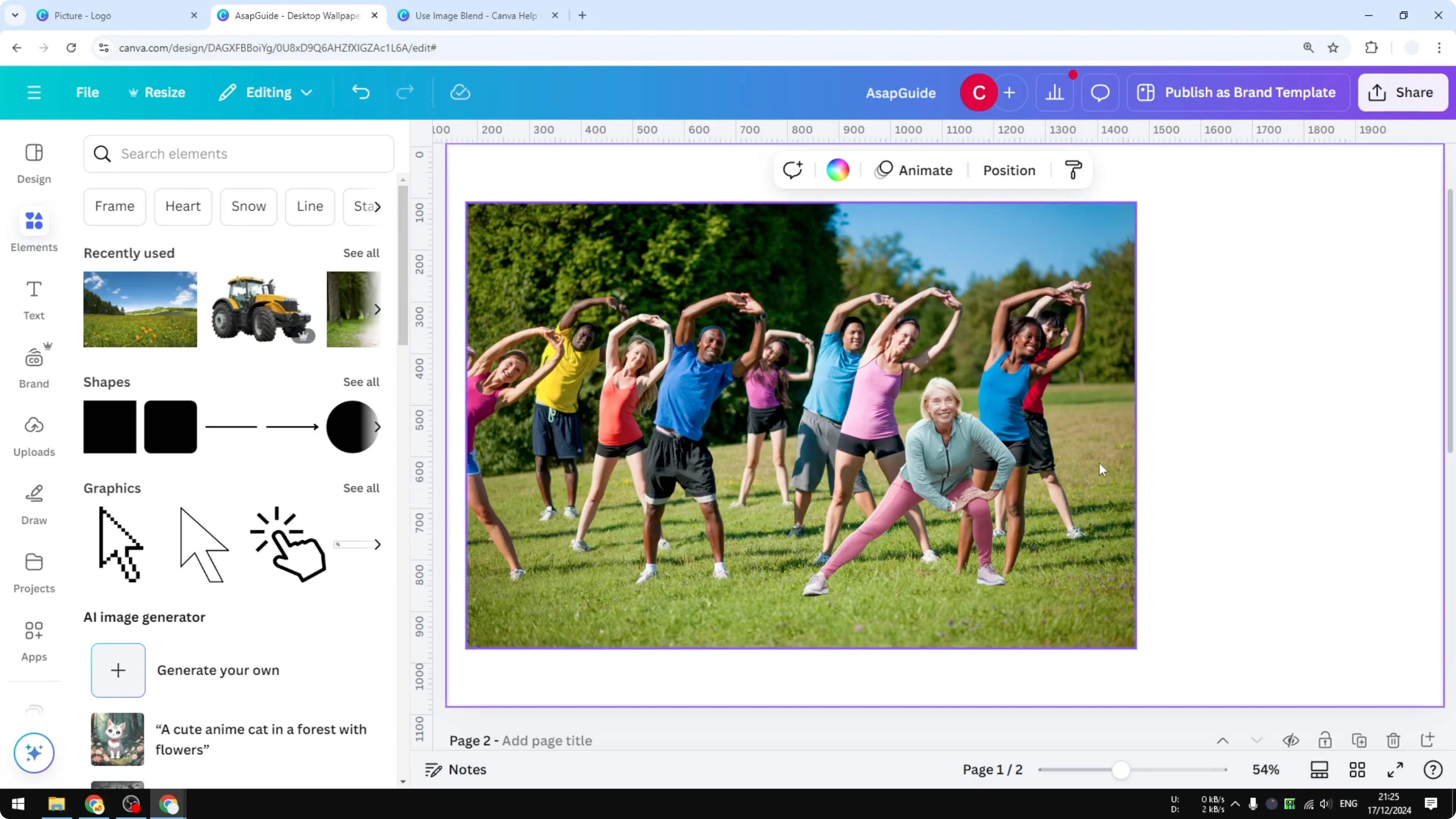
There is a new Blend Images feature in Canva that allows you to merge two pictures together. For example, you might notice that the woman’s feet do not look like they are standing in the grass. If you blend the two images, it can produce a more realistic result.
How to try it:
- Select both the person layer and the background photo. You can hold Shift and click each layer.
- Click Edit to open the Blend app.
- Choose the option to blend the two images.
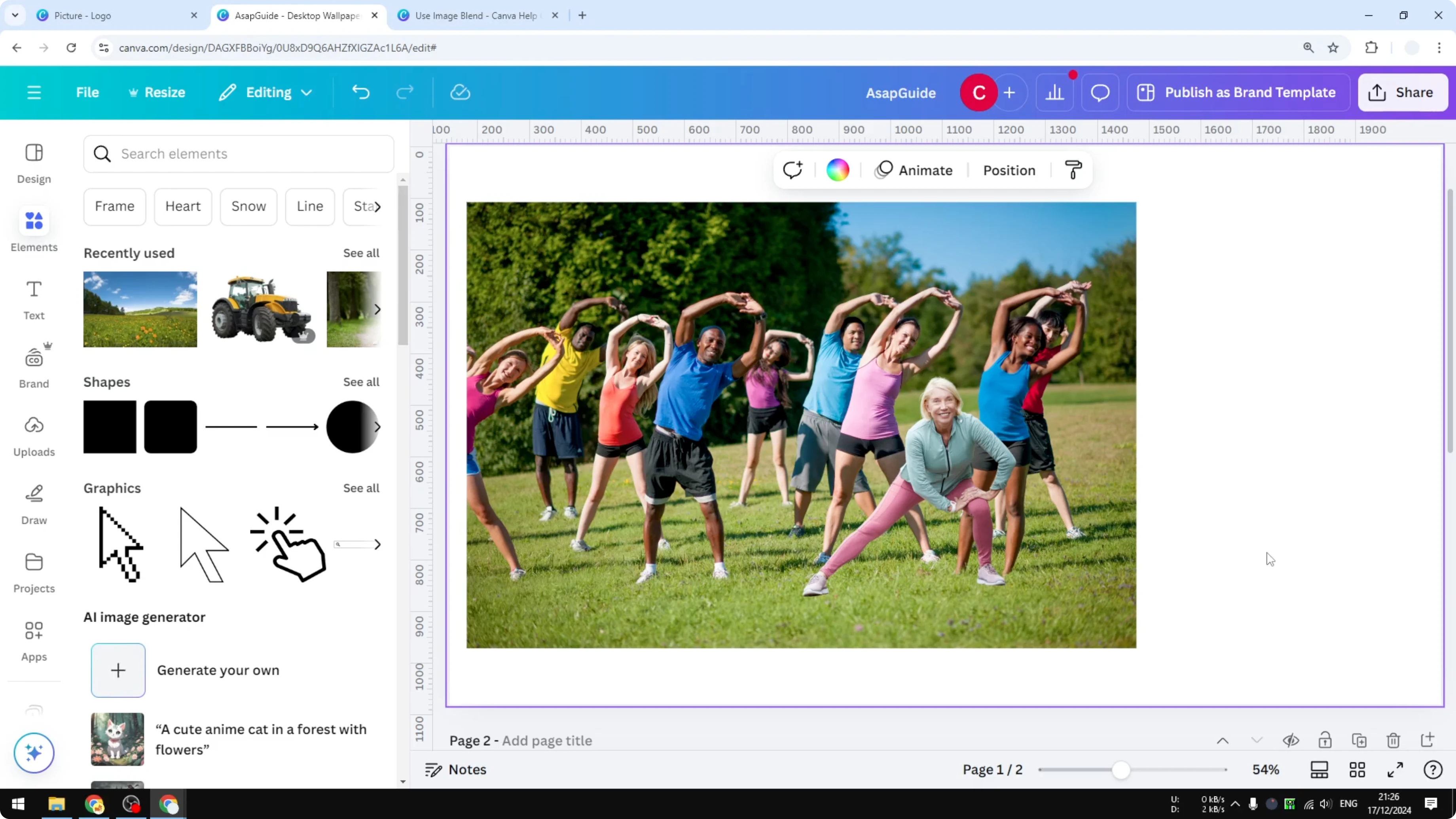
This feature is still in beta and might not be perfect every time. The biggest limitation right now is that Blend does not work if the picture contains faces or people, which is unfortunate because this tool is amazing for merging edges and elements. I believe this will change in the future. My guess is the restriction exists because AI image handling for human body parts is not perfect yet, but hopefully it will improve.
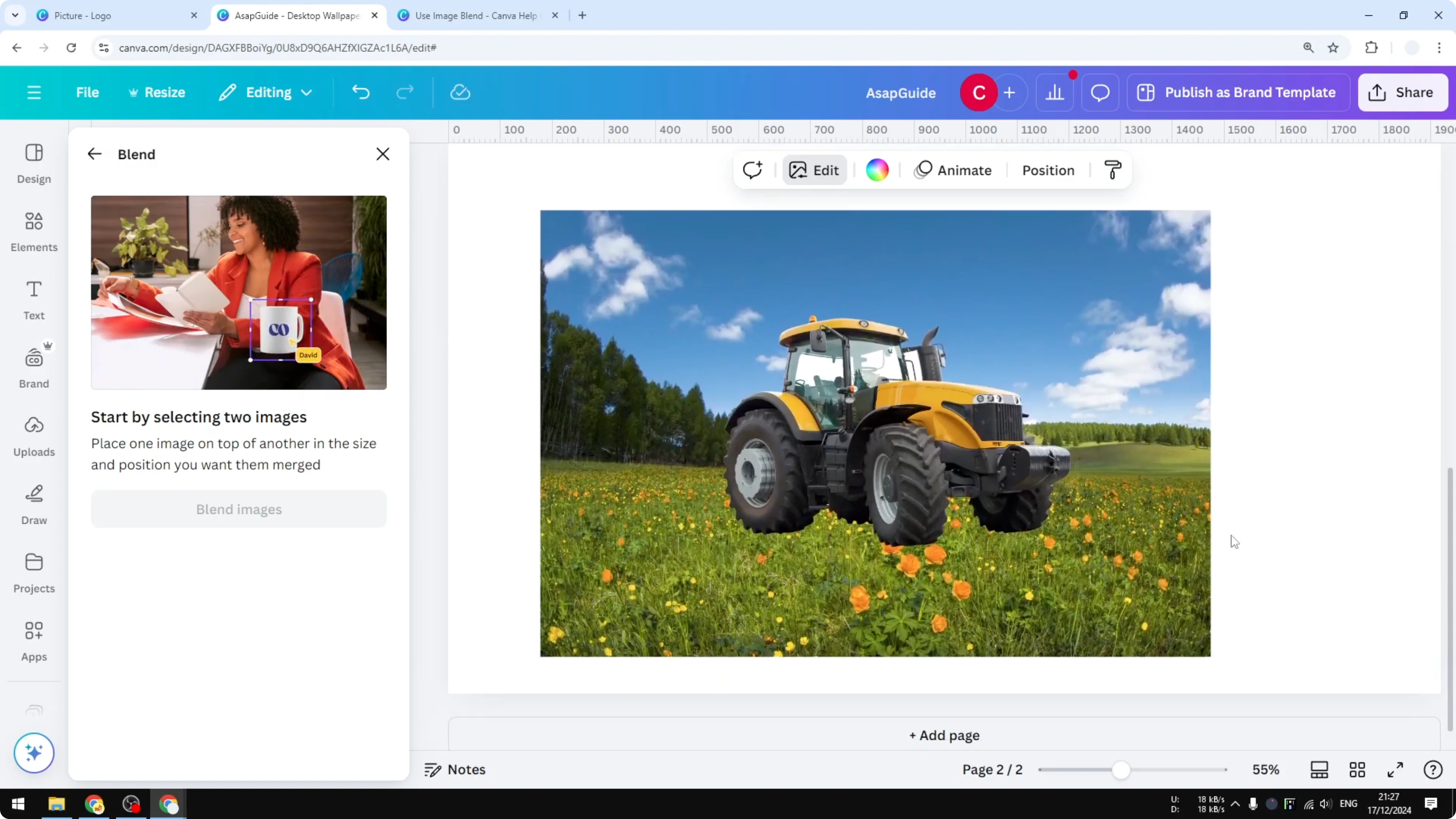
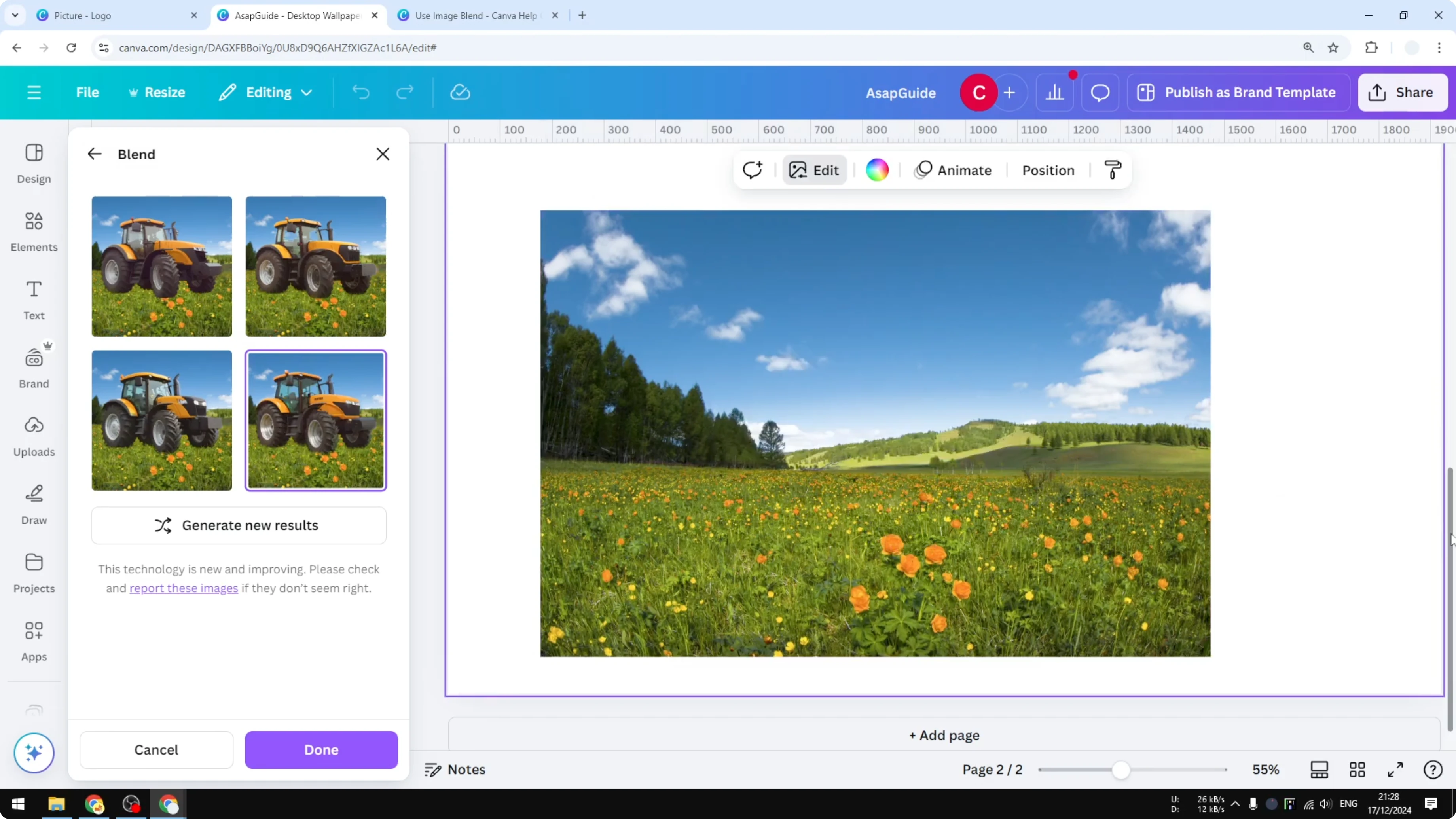
Non-human example: blending a tractor into a field
To show how Blend works, here is a quick example. I put a picture of a tractor into a different photo of a field and used Blend Images. The result is very good. It is not the best if you look closely, but it almost looks like the tractor belongs to the field. You can see that the grass slightly blocks the wheel, which makes the whole picture more realistic. That is the benefit of this method, but it is not working for humans and faces at the moment.
Final Thoughts on Add a Person in a Photo in Canva
- Use Magic Grab to cleanly isolate a person from a photo.
- Place and size the person carefully so proportions and position look natural.
- Adjust color and lighting to match the new scene, and try Auto Adjust if you want a quick start.
- Canva’s Blend Images feature can merge edges realistically, but it currently does not work with faces or people. It works well on objects like a tractor in a field and helps elements interact with the environment, such as grass overlapping wheels.
That’s how you can blend two photos together and put one person into another photo using Canva.
Recent Posts

How to Visualize Yourself as a Pixelized Character with AI?
How to Visualize Yourself as a Pixelized Character with AI?

How to Revive Faded Memories and Enhance Image Clarity with AI?
How to Revive Faded Memories and Enhance Image Clarity with AI?

How to Visualize Yourself as an Animal Crossing Character with AI?
How to Visualize Yourself as an Animal Crossing Character with AI?