How to Add Background to Text in Canva
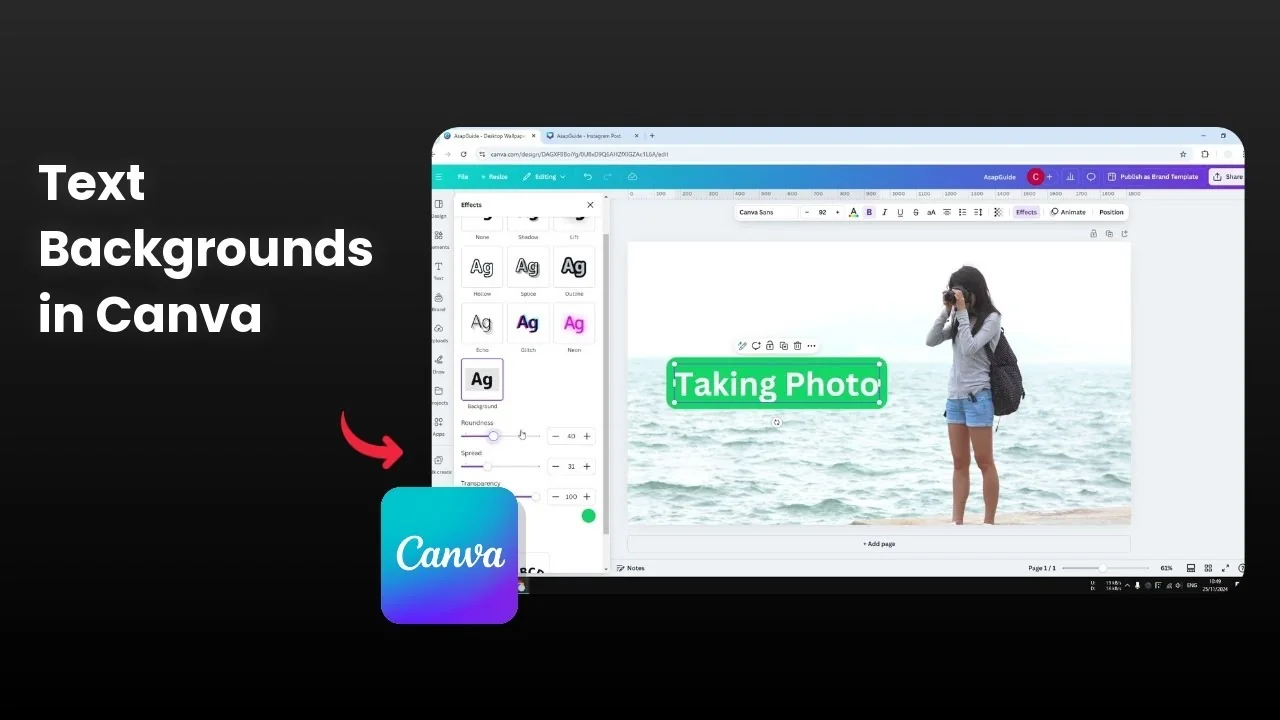
Adding a background to text in Canva makes it readable on top of busy photos or areas that share a similar color with the text. If your text looks barely visible unless someone cranks up their screen brightness, this simple edit fixes it. I use two methods depending on the design.
Why Add Background to Text in Canva
The goal is to keep your message clear without changing the photo too much. A subtle background behind the text gives contrast and makes it pop. You can do this quickly with Effects or build it with a shape.
Effects method for Add Background to Text in Canva
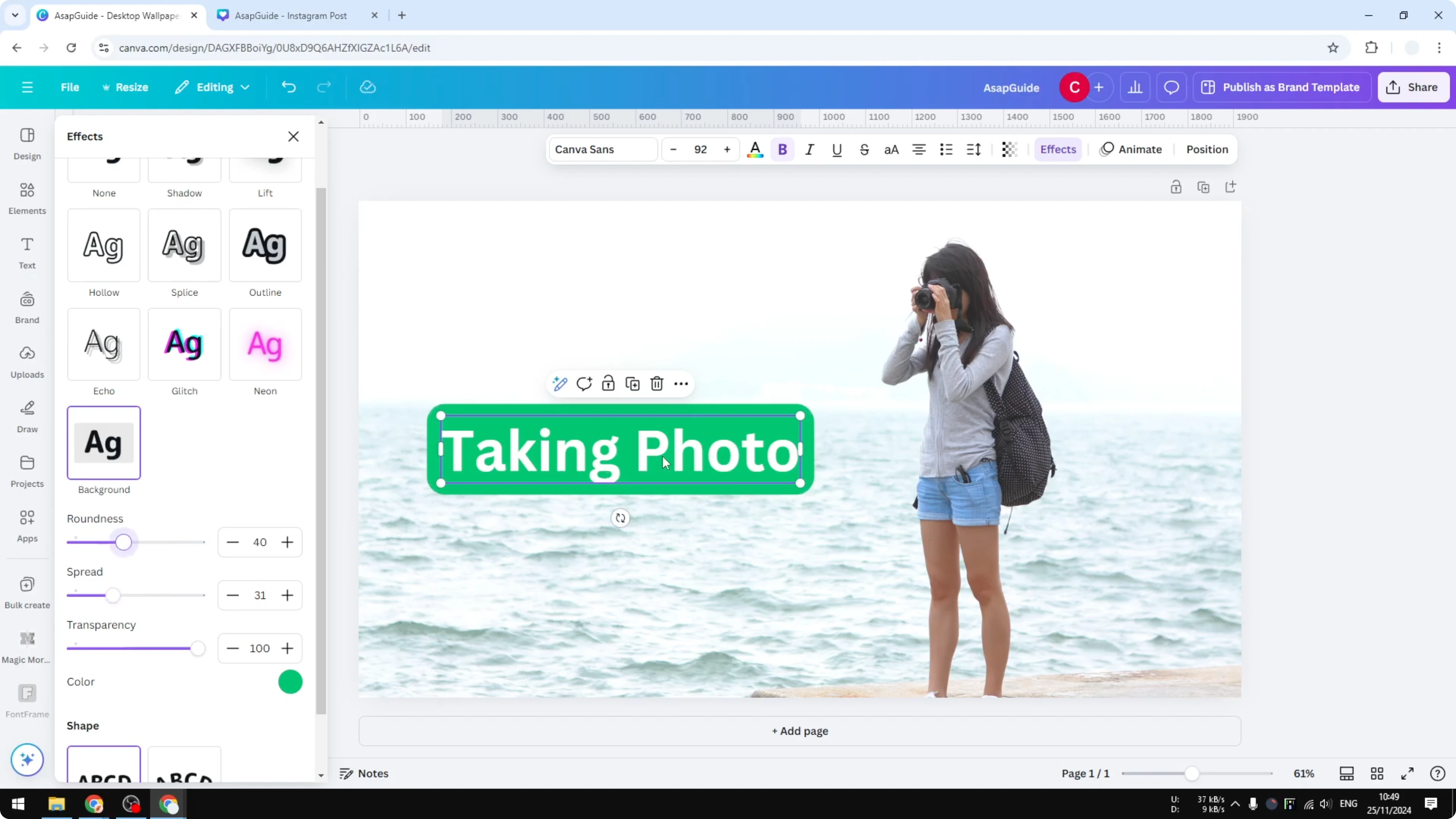
Click the text box. Click Effects. Click Background.
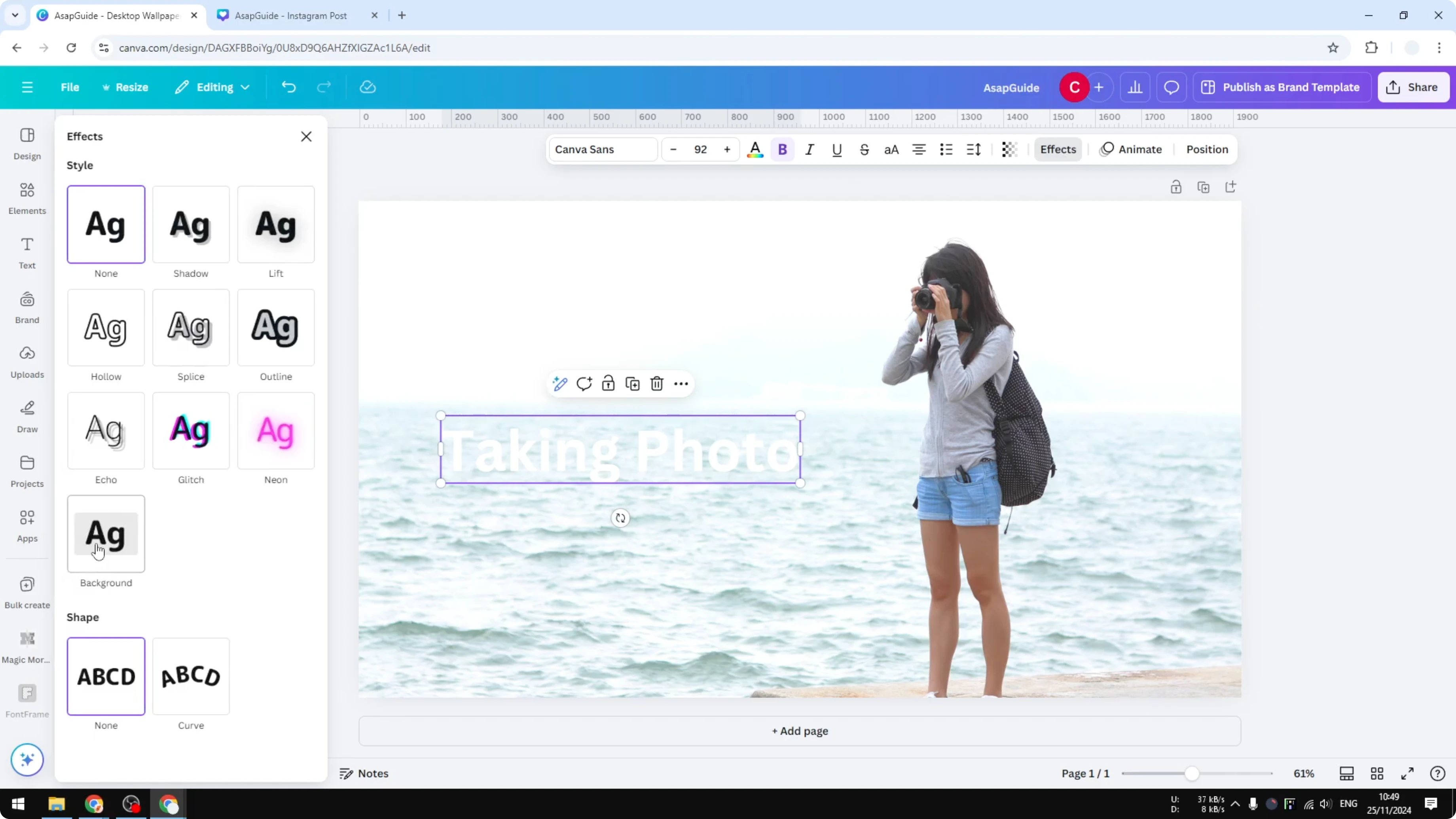
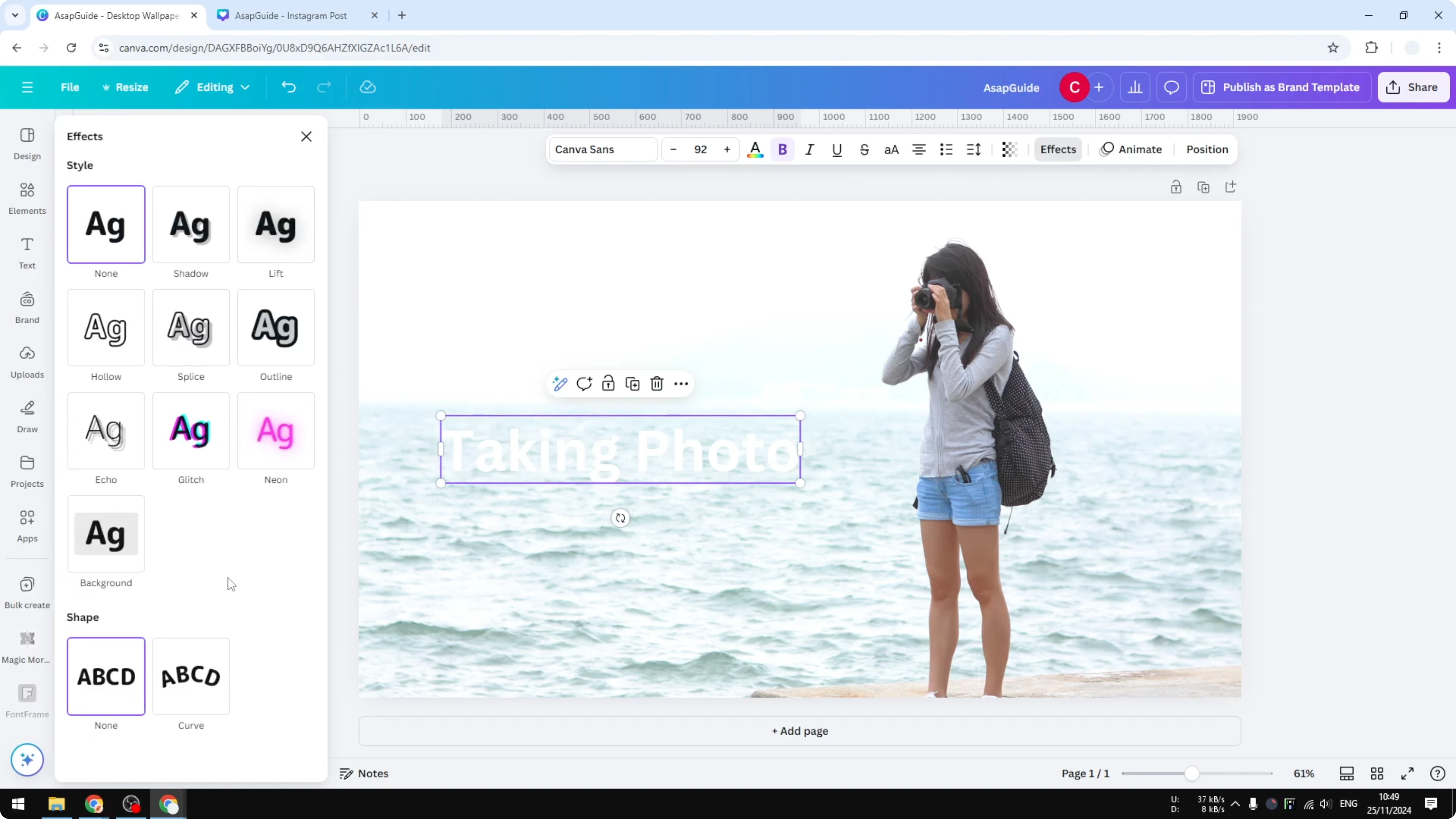
Pick a color. I like using green here, and it looks great. Adjust Spread to control how far the background extends from the text. Adjust Roundness to soften the edges of the background.
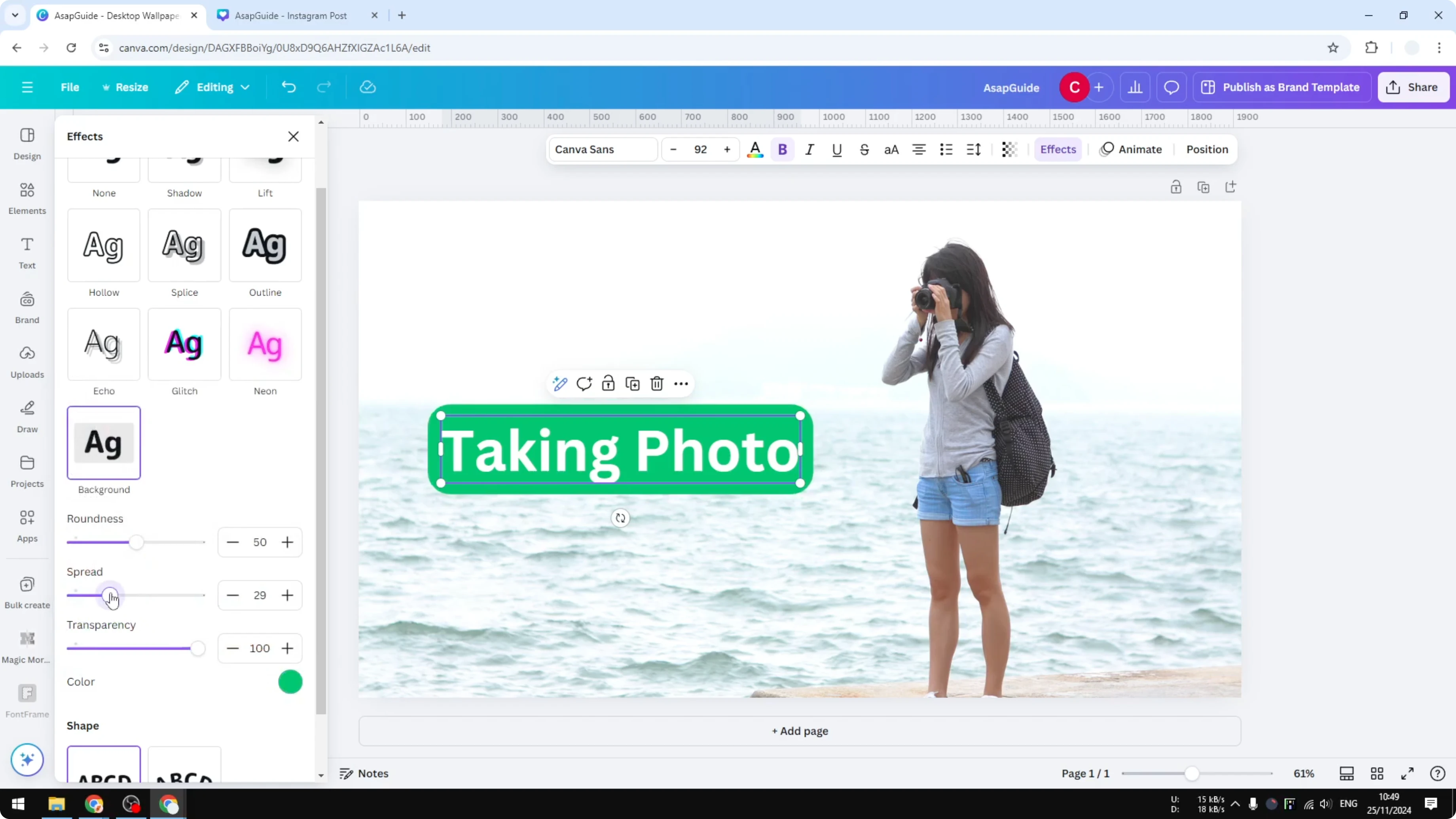
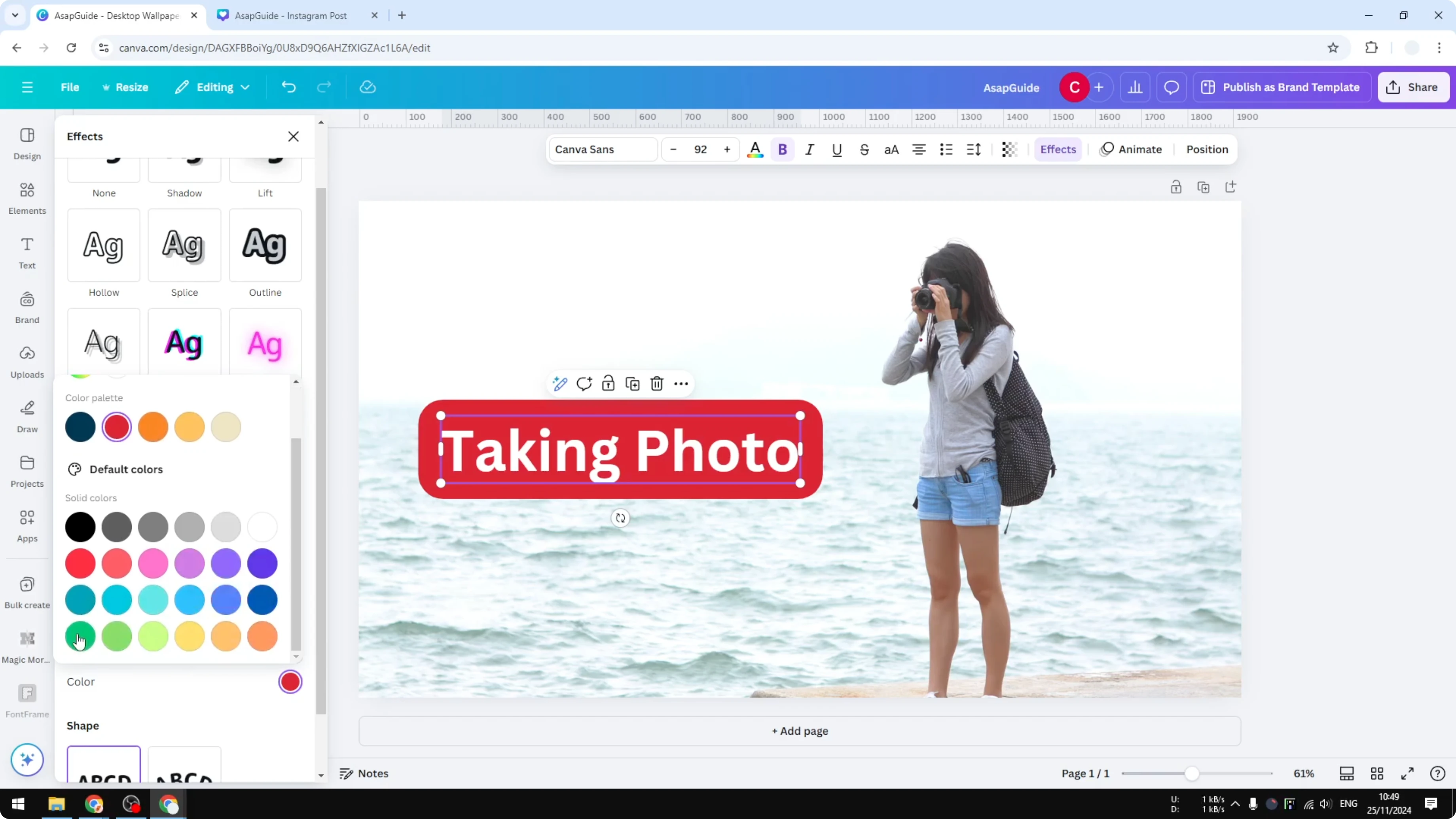
This method adapts to your text automatically. If you add more words, it grows with the text, which is really cool and fast. If you want to do the opposite and place your text behind a photo, check out text behind image.
Shape method for Add Background to Text in Canva
I use this when the first method is not applicable. You add a shape behind the text and style it the way you want. It gives you more control.
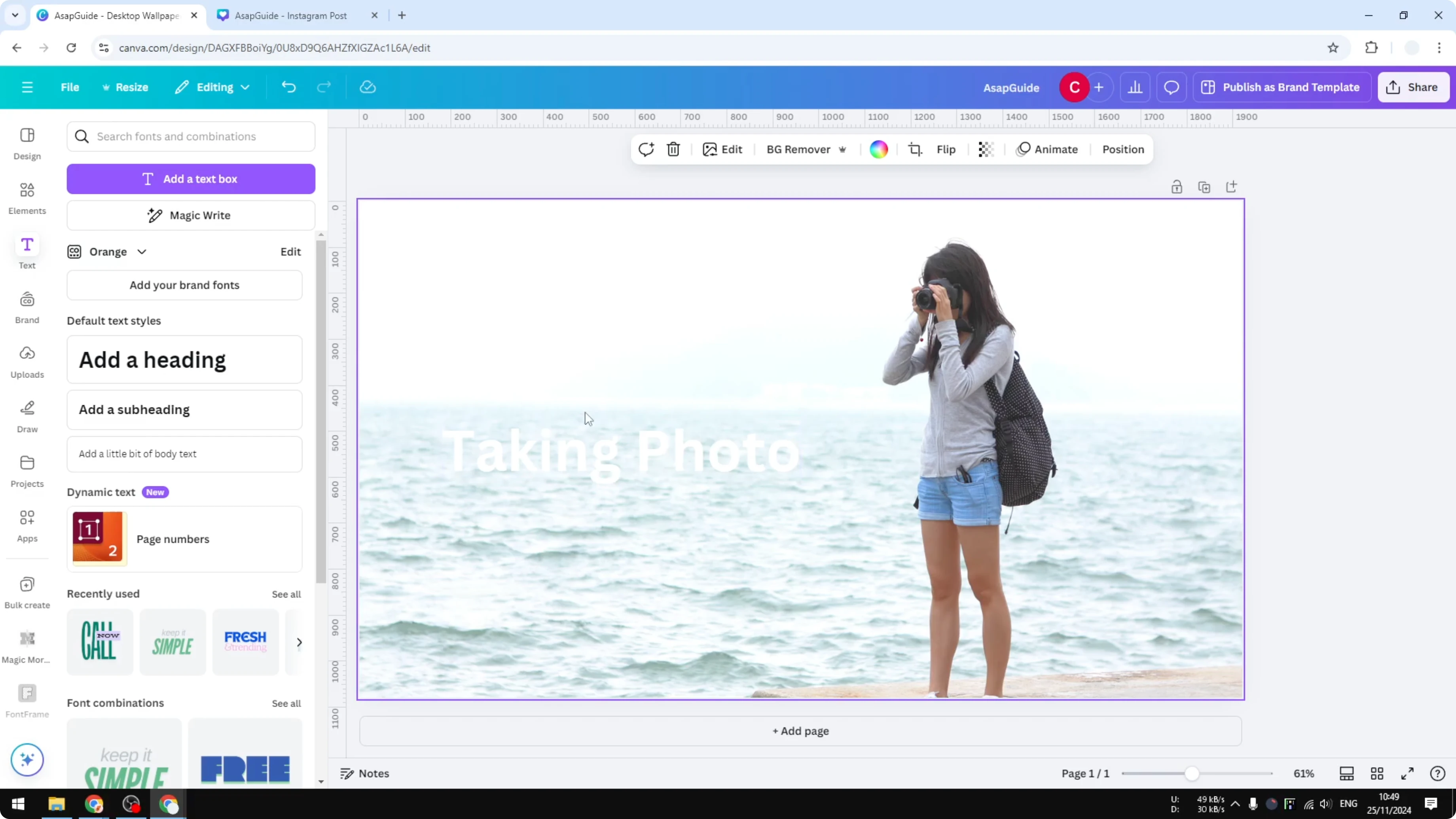
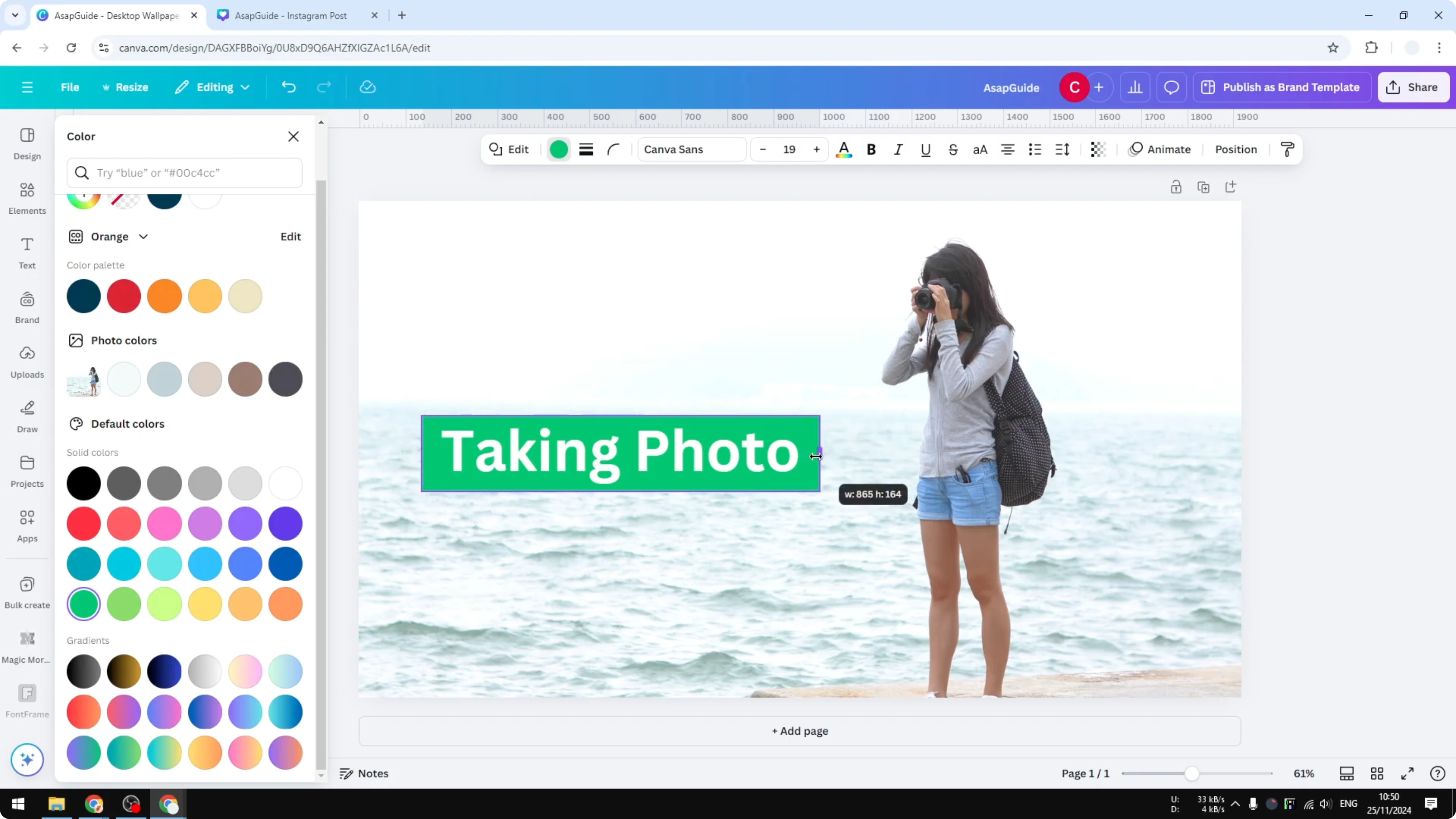
Go to Elements. Add a square or a rounded square. Change the color, for example green again.
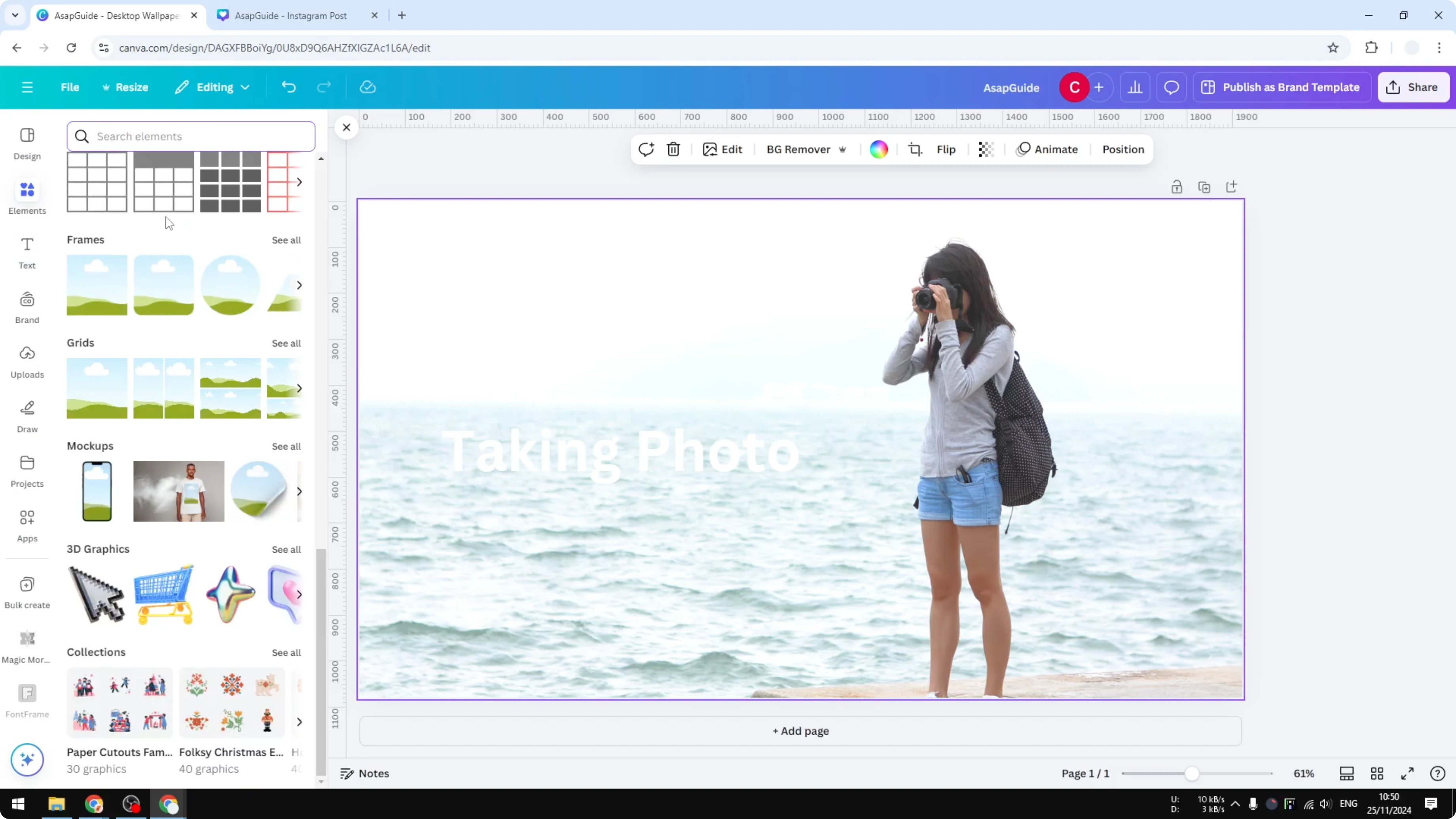
Resize and position it behind your text. If the shape is blocking the text, right click the layer and click Send backward. It will immediately move behind the text, which is exactly what we want.
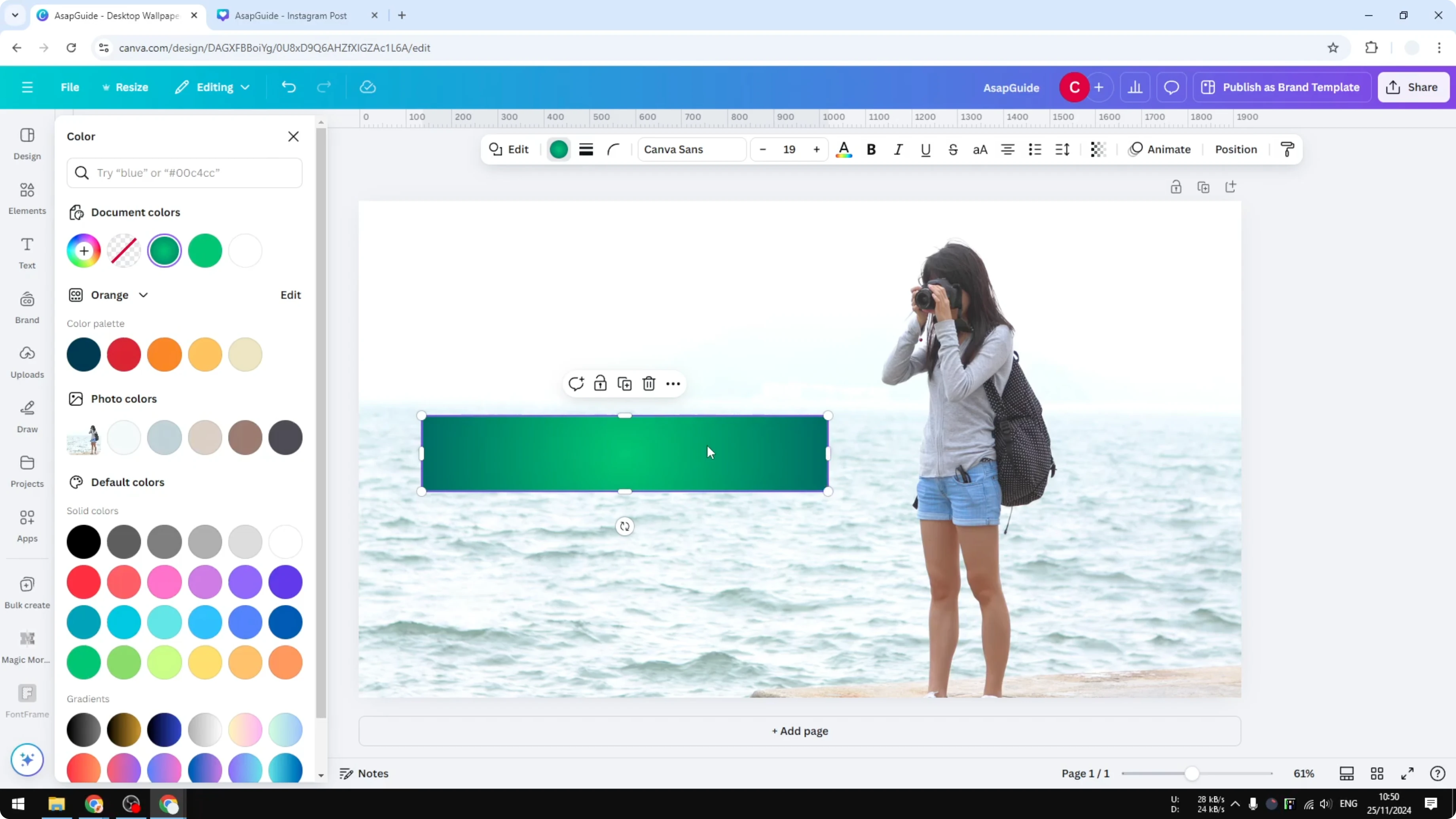
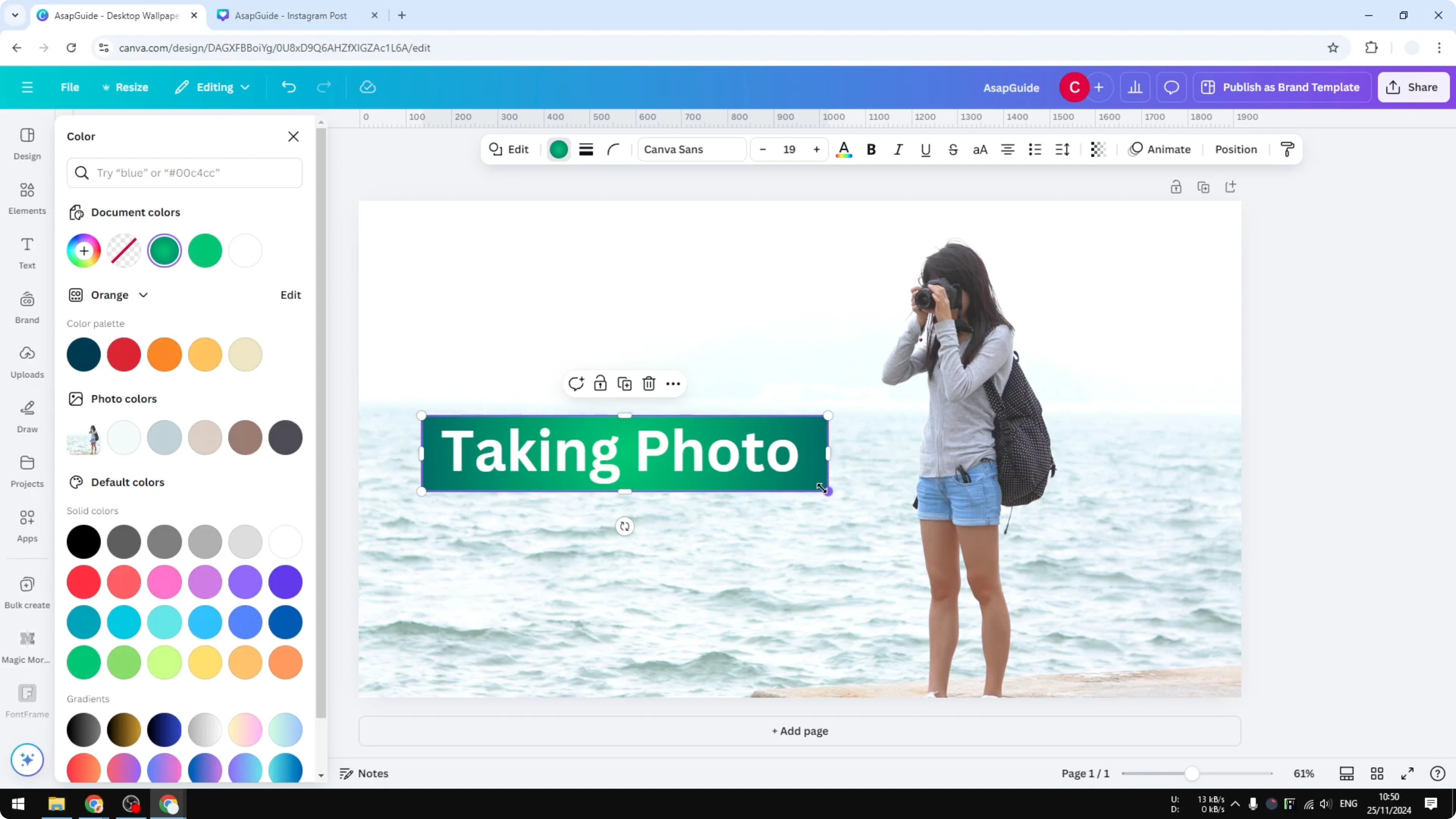
You can also change the color to a gradient. It looks really cool with gradients when you want more depth. If you also want a visible outline around your text area, see border text box.
Final thoughts on Add Background to Text in Canva
Use the Effects method for quick, adaptive backgrounds. Use the Shape method when you need custom sizing, gradients, or more precise control. If your design needs references or citations, you can also add footnotes in Canva.
Recent Posts

How to Visualize Yourself as a Pixelized Character with AI?
How to Visualize Yourself as a Pixelized Character with AI?

How to Revive Faded Memories and Enhance Image Clarity with AI?
How to Revive Faded Memories and Enhance Image Clarity with AI?

How to Visualize Yourself as an Animal Crossing Character with AI?
How to Visualize Yourself as an Animal Crossing Character with AI?