How to Blend Two Images Together Using Canva AI
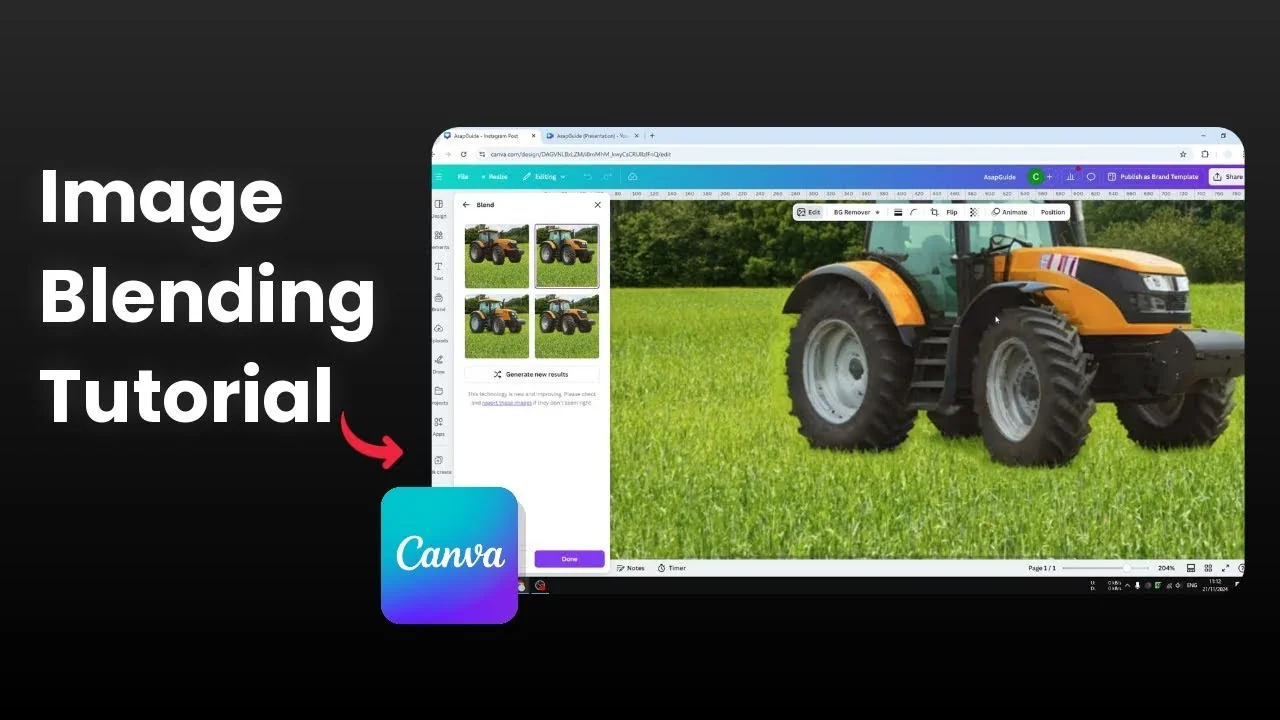
Here is how to merge or blend two images together using AI in Canva. There is a new feature in Canva that lets you put one object or picture on top of another and blend them so it looks like that picture belongs to the other picture.

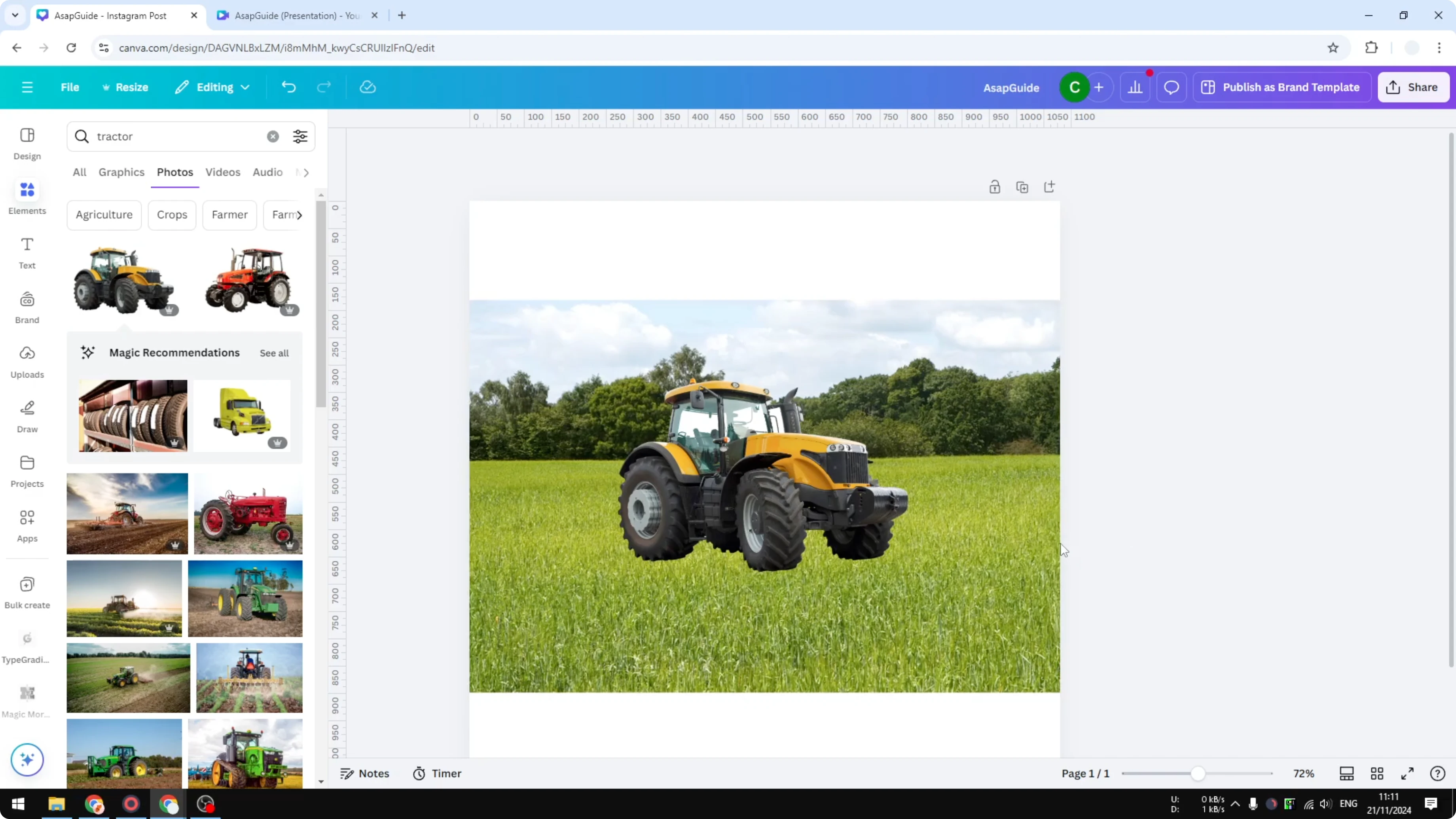
In my example, I have a picture of a field and a separate tractor image. If you zoom in, the wheels are not touching, there is no shadow, and there is no grass covering the tires, so it is easy to tell it is not part of the picture. With AI, we can make it appear like it is part of the picture and looks natural.

If you are working with video projects too, see how to change a video background in Canva using AI.
Blend Two Images Together Using Canva AI - Steps
Select the images
Select the two images you want to merge. Press and hold the Shift key on your keyboard, click the object image first, then click the background image.
Run the blend
Click Edit. Click Blend.

You will see a demo of what the feature does, which is putting an object into a different picture and blending it. Click Blend images.

Wait for the results to generate. This usually takes 20 to 60 seconds.
Review and choose
You will get four different options to choose from. Pick the one that looks better for your design.

Look for details like grass touching the wheel and more natural colors. If none of the options look right, click Generate new result.
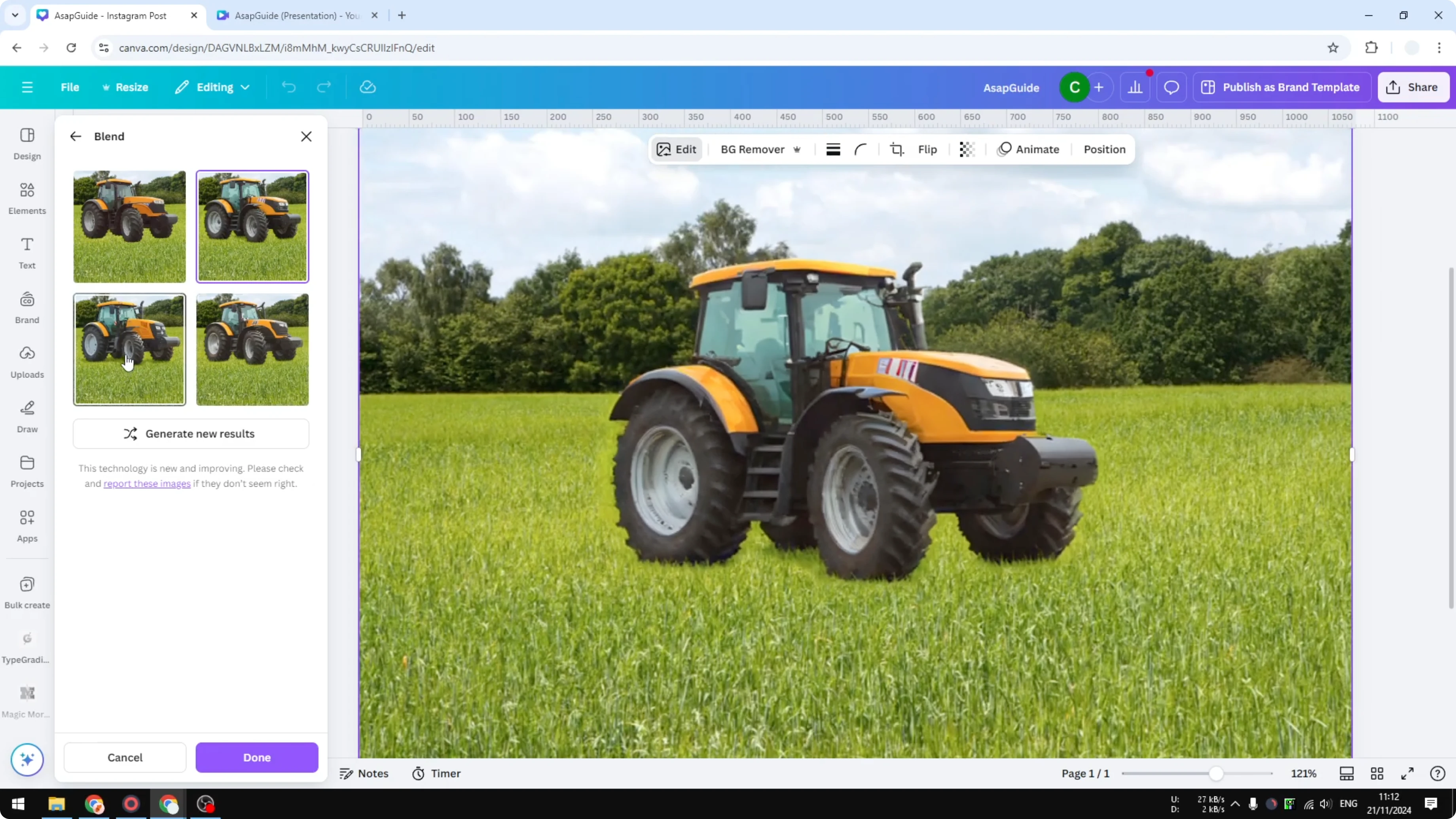
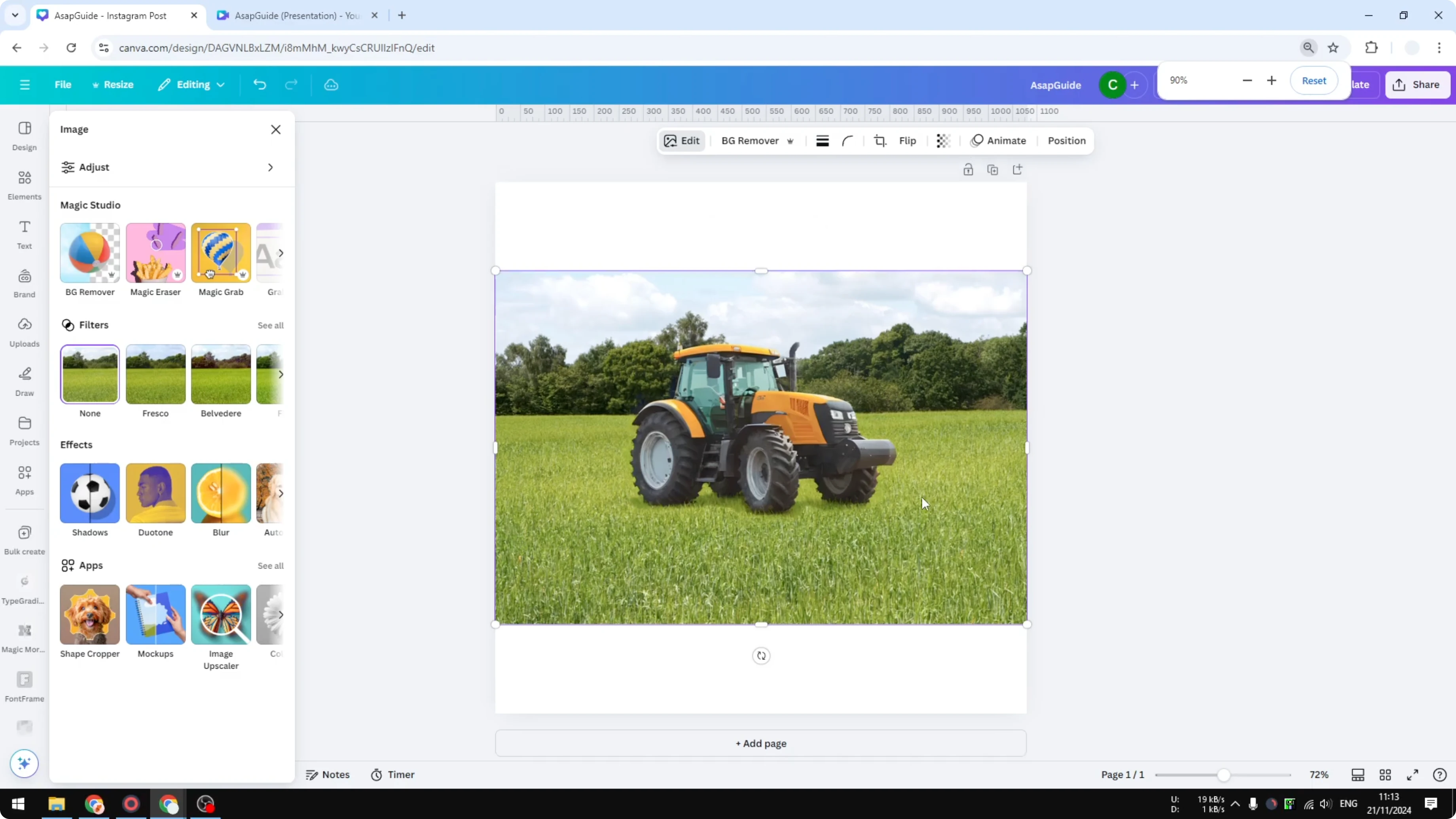
When you are happy with the result, click Done. Your two pictures are now merged into one, and the object looks like it belongs to the background.
For more AI-assisted editing, you might also want to trace a photo in Canva using AI to create clean outlines before blending.
Final Thoughts on Blend Two Images Together Using Canva AI
This feature makes a separate object look like it naturally belongs to your background with just a few clicks. Select both images, run the blend, review the four options, and apply the one that looks best.
If you plan to print your merged image, make sure you export correctly. Learn how to create 300 DPI images in Canva for sharp, high-quality results.
Recent Posts

How to Visualize Yourself as a Pixelized Character with AI?
How to Visualize Yourself as a Pixelized Character with AI?

How to Revive Faded Memories and Enhance Image Clarity with AI?
How to Revive Faded Memories and Enhance Image Clarity with AI?

How to Visualize Yourself as an Animal Crossing Character with AI?
How to Visualize Yourself as an Animal Crossing Character with AI?