How to Change Video Background in Canva Using AI
I'm going to show you how you can change a video background in Canva using AI. Canva now has an AI feature for removing a video background.
Change Video Background in Canva Using AI: Choose and Prepare Your Source Video
- Find a video that you want to remove the background from.
- You can upload a video, or you can use a video from the Canva stock library.
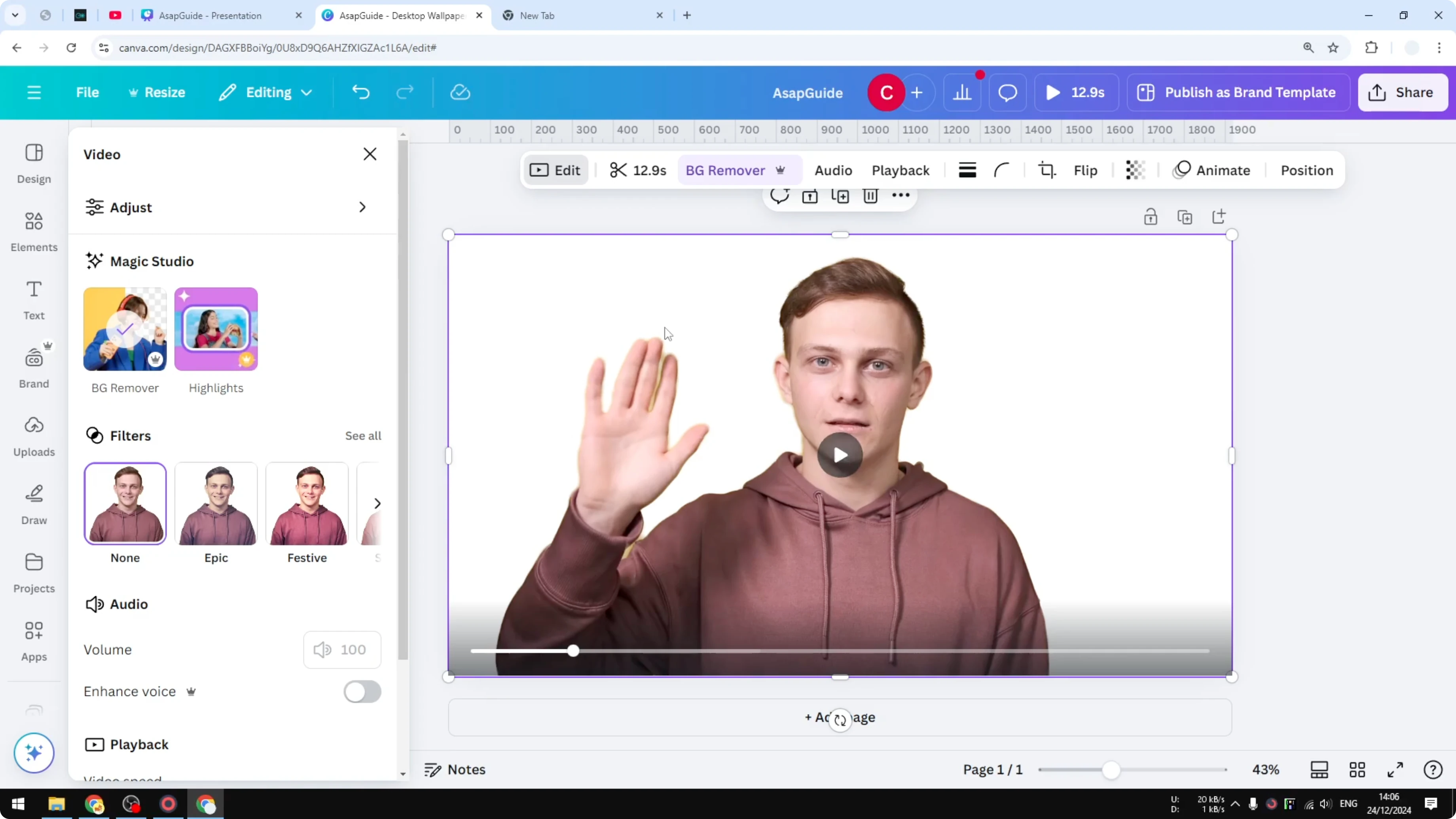
- Navigate to the Video section. I'm going to find a video of someone waving a hand.
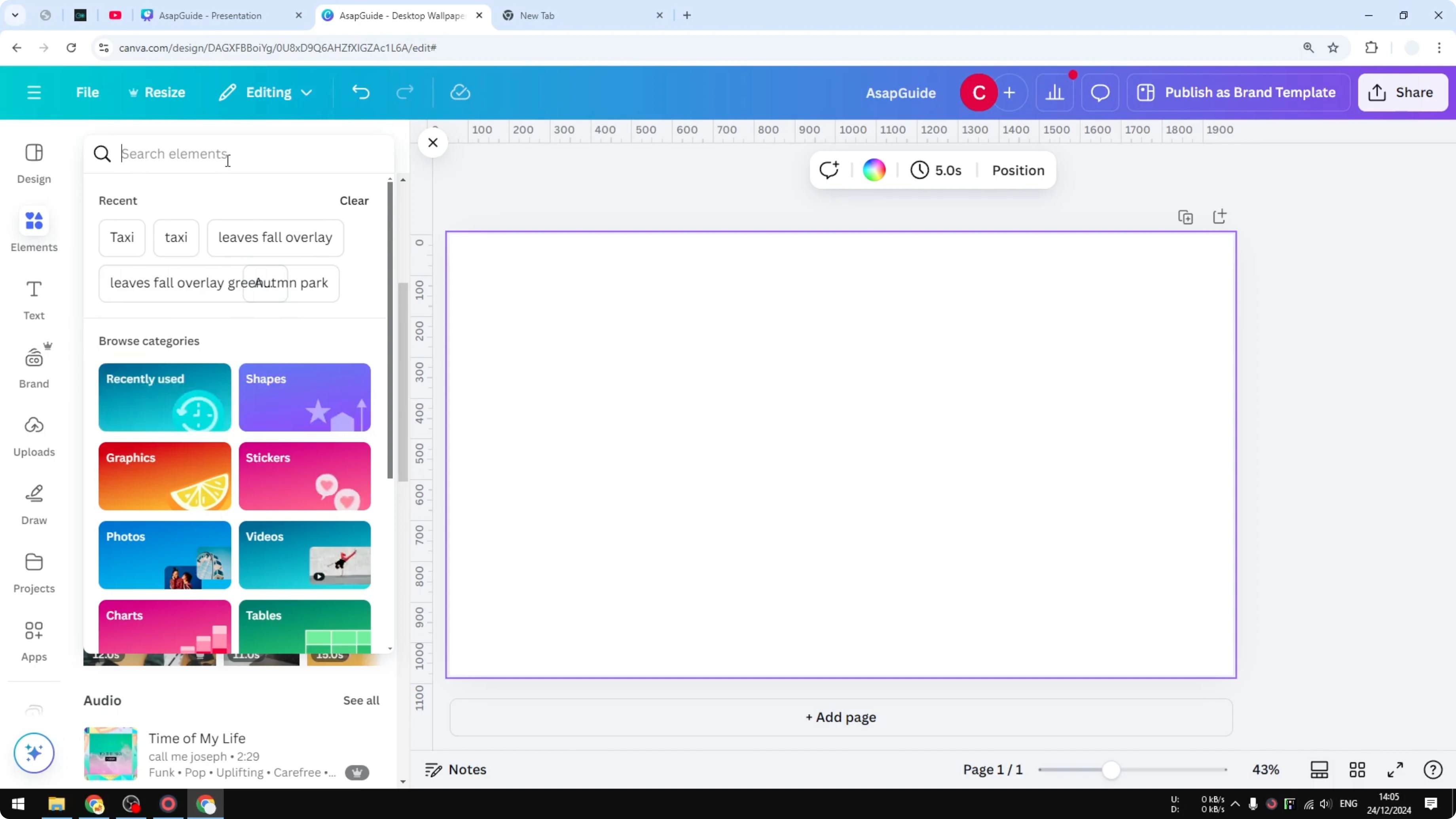
It’s recommended to have a video with a simple background. Make sure the subject is not moving too much and there’s not much ornament in the video. This video is simple, so removing the background is going to be easier and the result is going to be much cleaner.
Change Video Background in Canva Using AI: Remove the Background
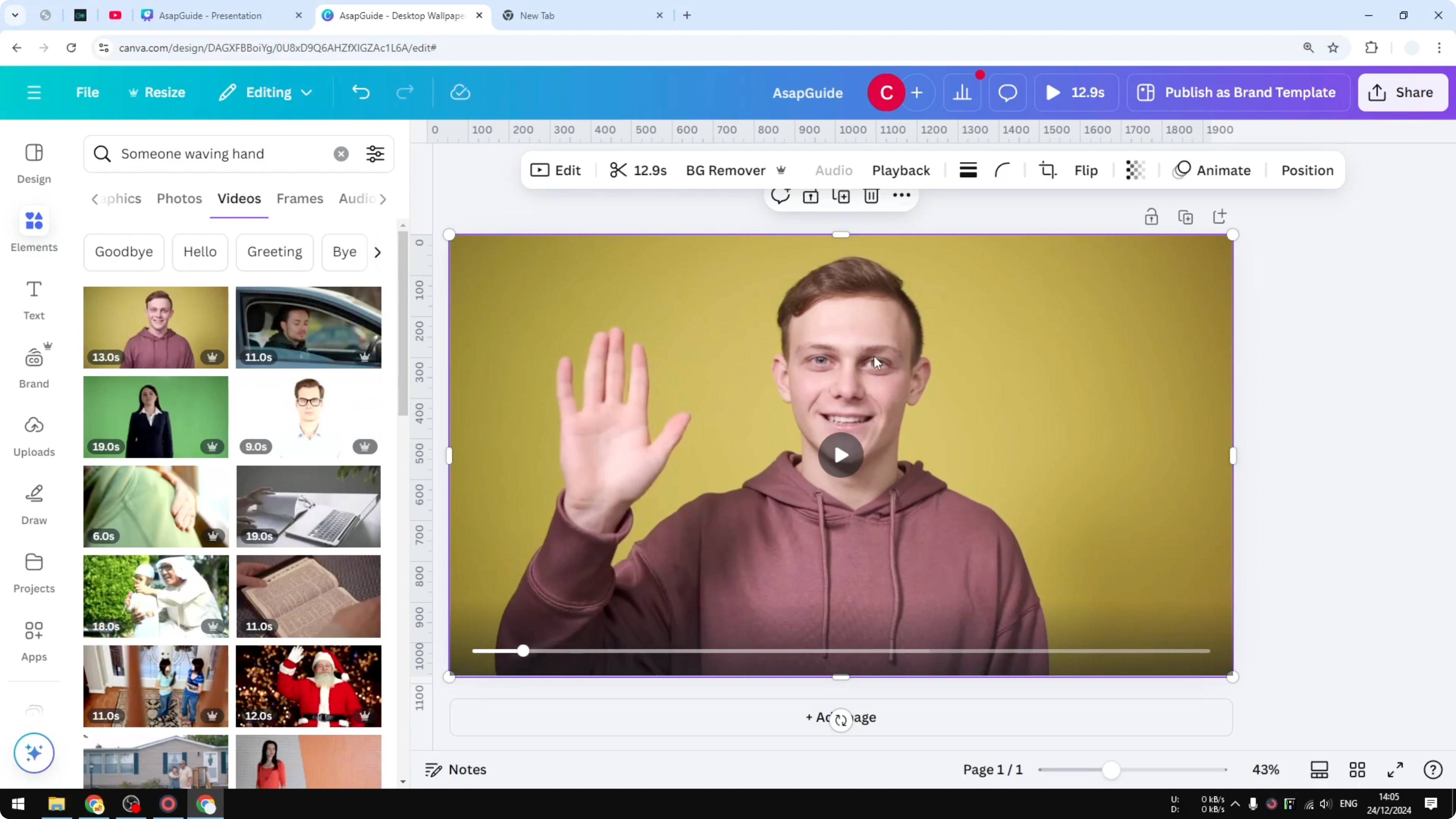
- Click the video.
- Click Edit.
- Click the Background Remover option under the Magic section.
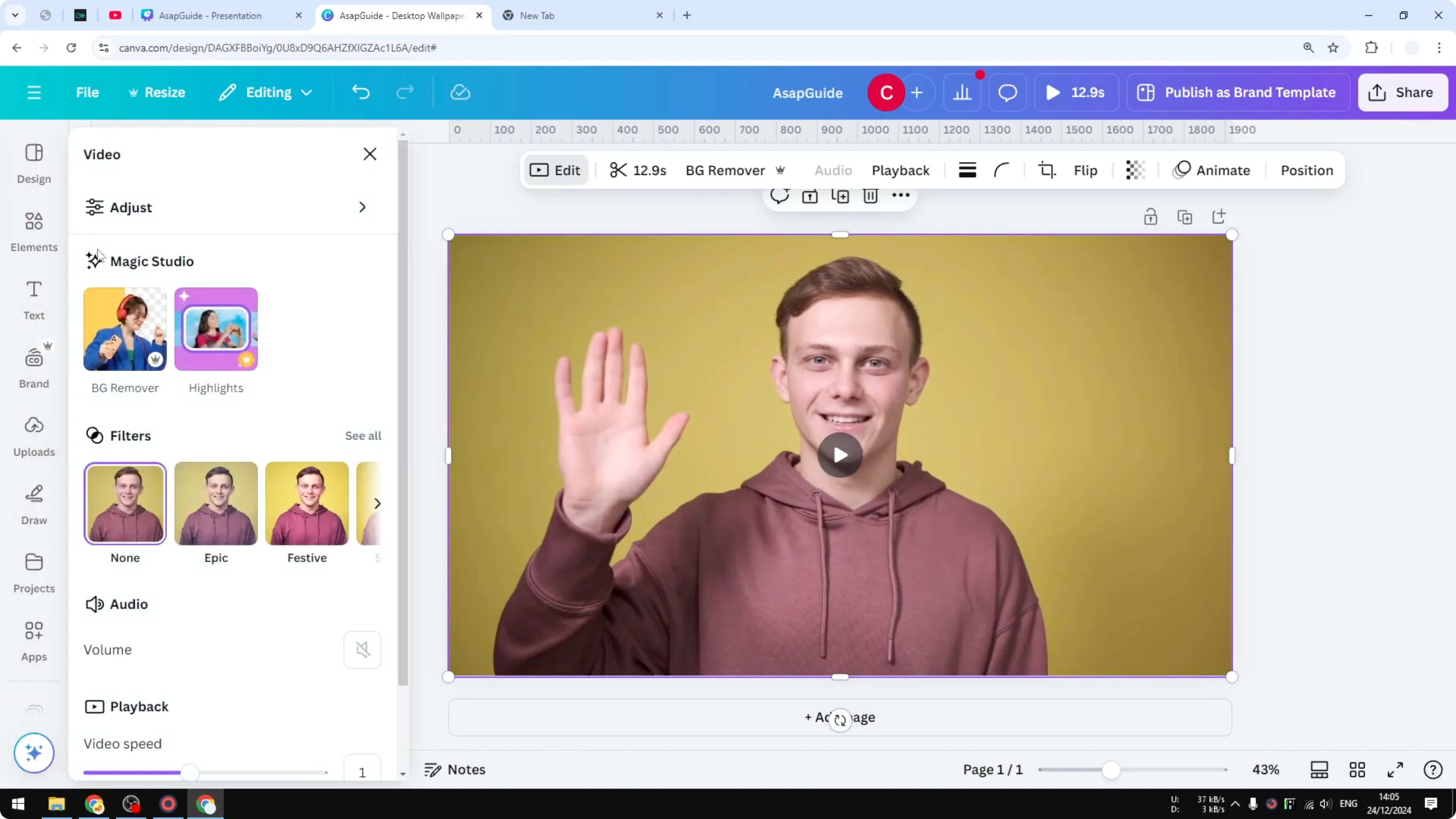
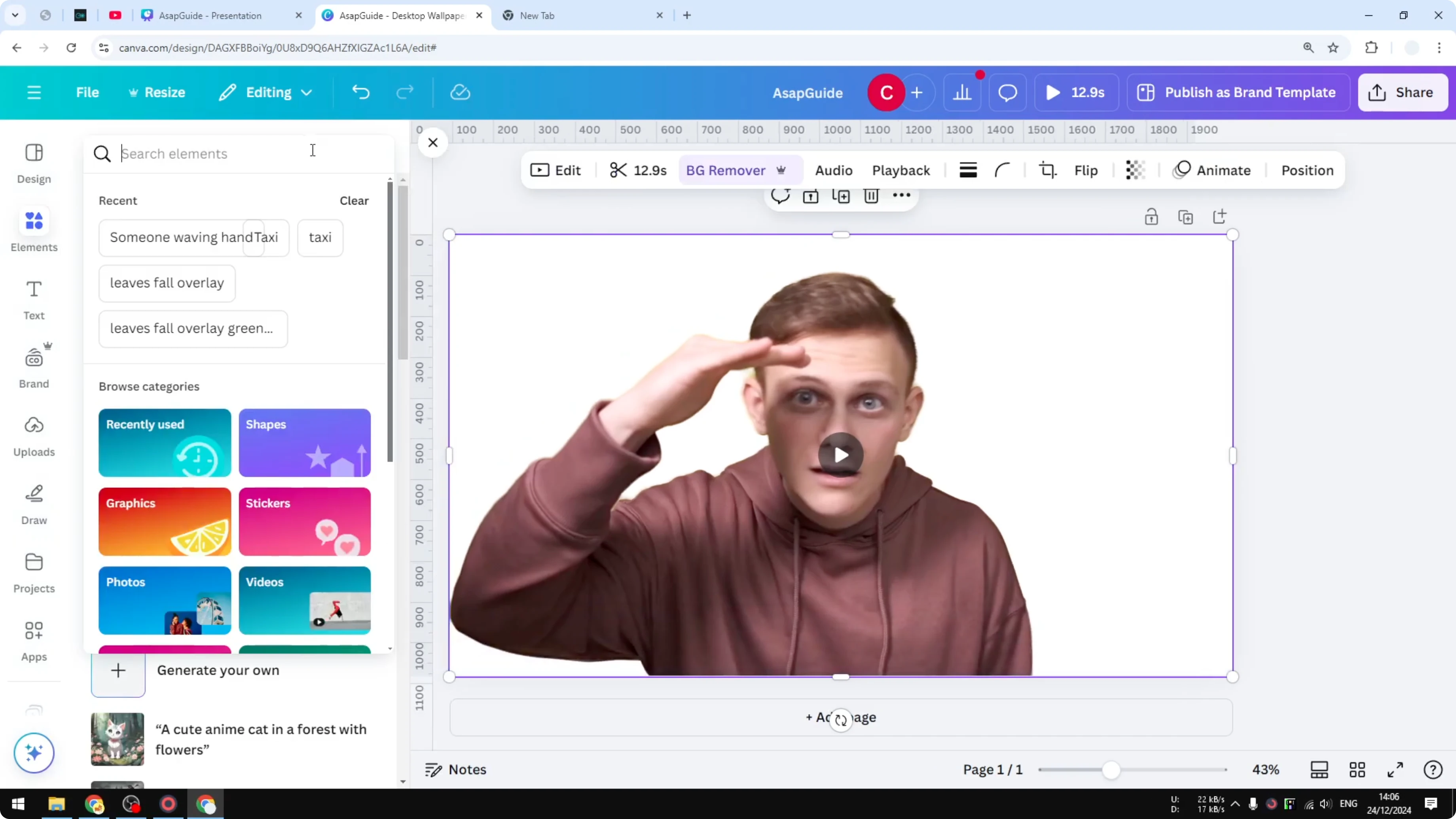
AI will remove the background. A lot of times the process is very quick. Play the video to see the result. It’s not perfect. If you look at the hand, there is some background artifact still appearing, but that’s okay. Most of the time people don’t even see that very close, and this is pretty good.
Change Video Background in Canva Using AI: Add and Arrange a New Background
- Click Elements.
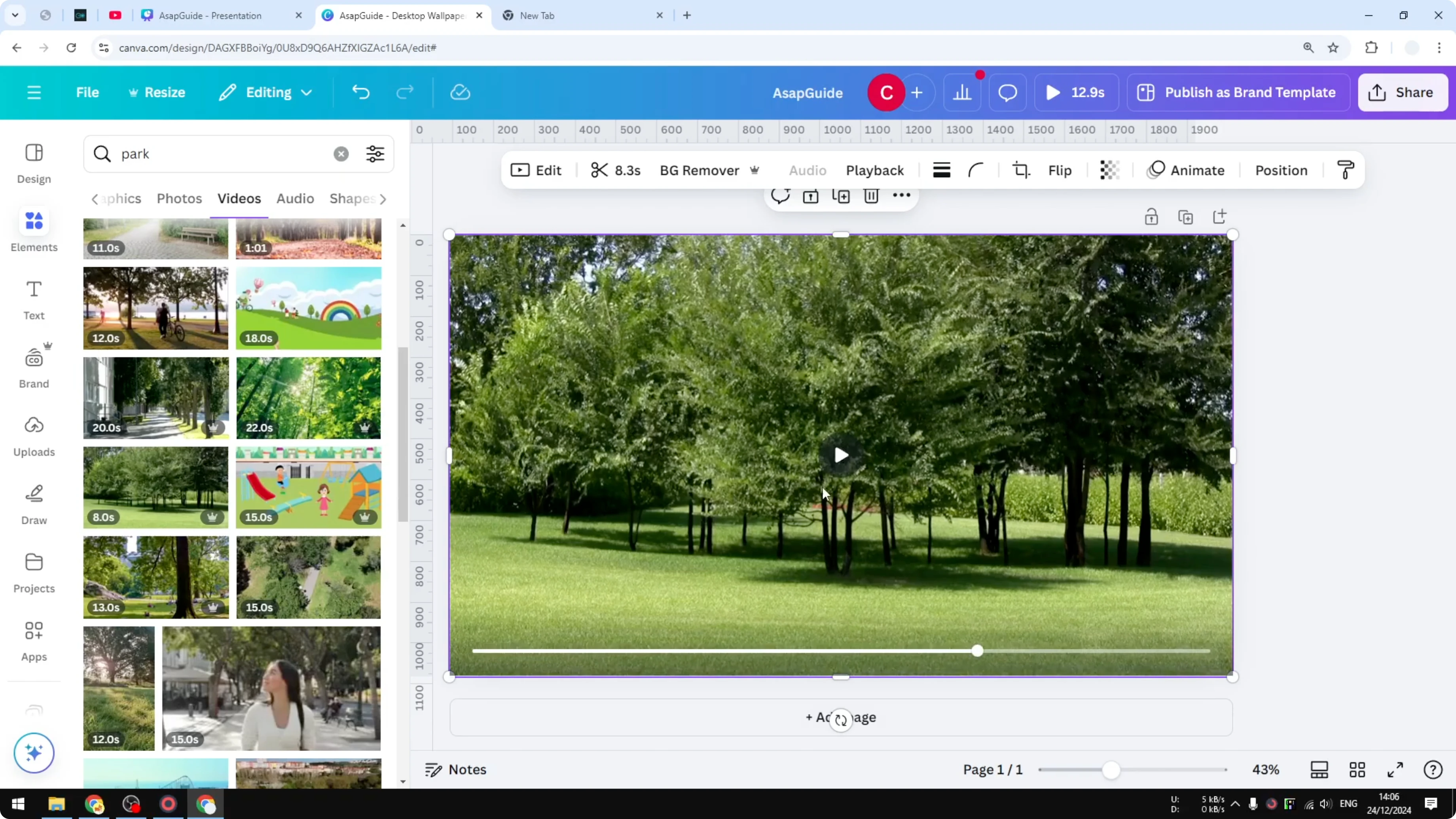
- Search for a video background, for example a park video.
- Try a background that is appropriate and put it on the canvas.
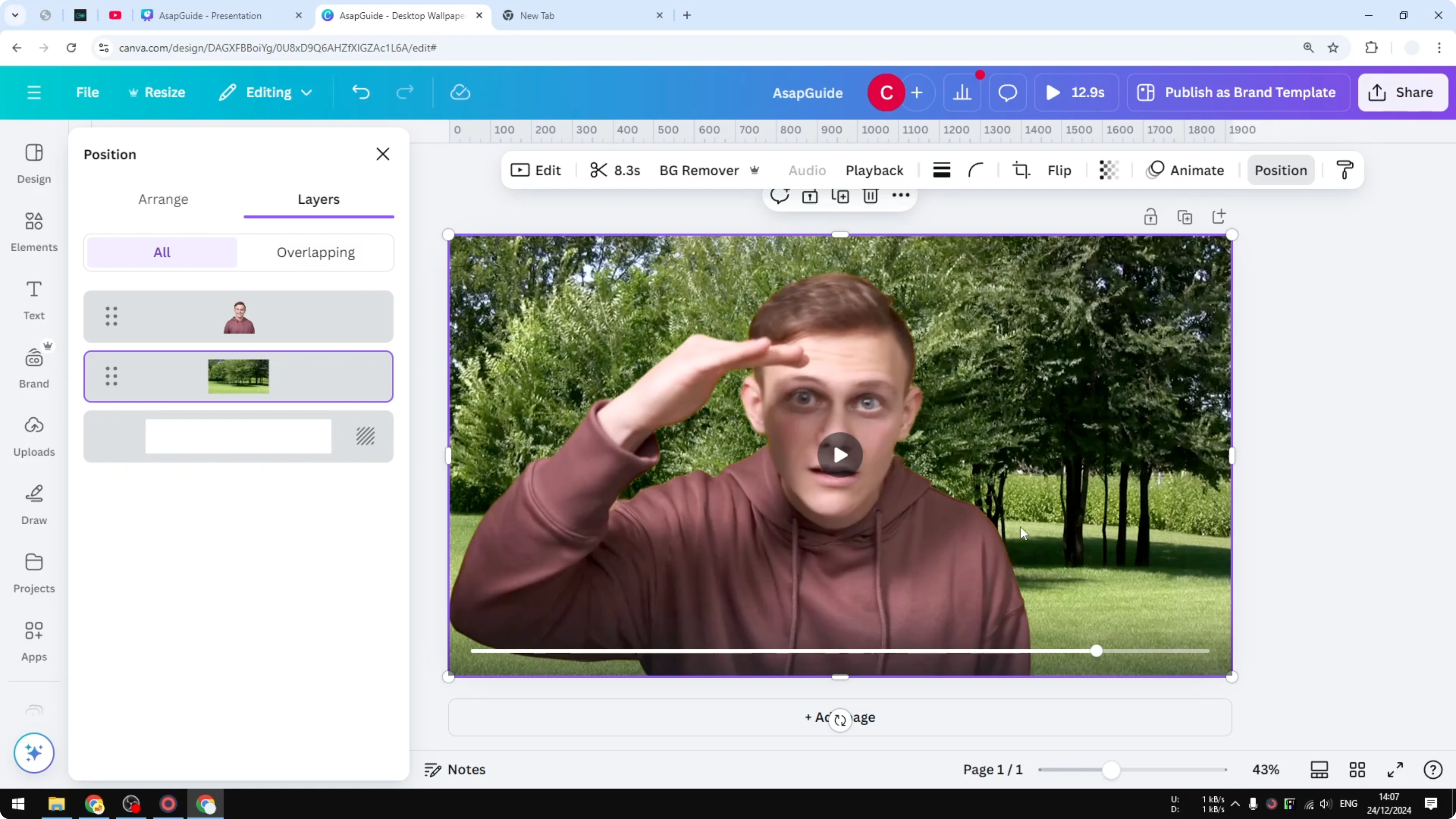
Put this background at the very back:
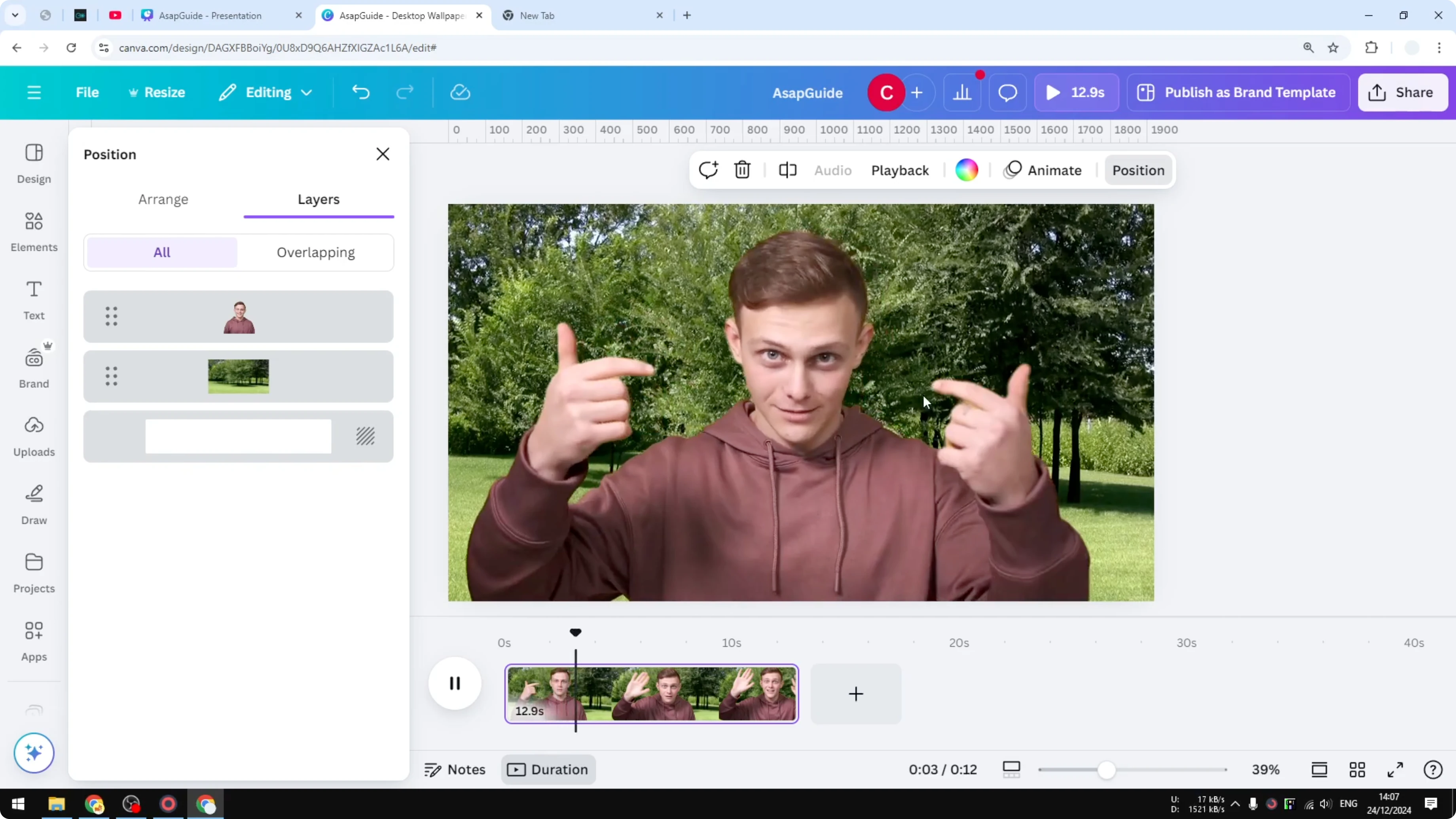
- Click Position.
- Click Layers.
- Drag the background behind the person, behind the original video.
This is the result that we got.
Change Video Background in Canva Using AI: Sync Durations and Preview
- Make sure two videos are playing at the same time.
- Click the thumbnail, view Duration, and play the whole video.
Two videos are playing, the background is visible, the person is still there, and it looks pretty cool.
Change Video Background in Canva Using AI: Color and Visibility Adjustments
One final thing you can do is adjust the color to make sure the subject stays visible. Right now we cannot really blur a video background, but I highly recommend turning down the color a little bit.
- Click Adjust.
- Reduce the saturation just a little bit so the focus will be on the main subject.
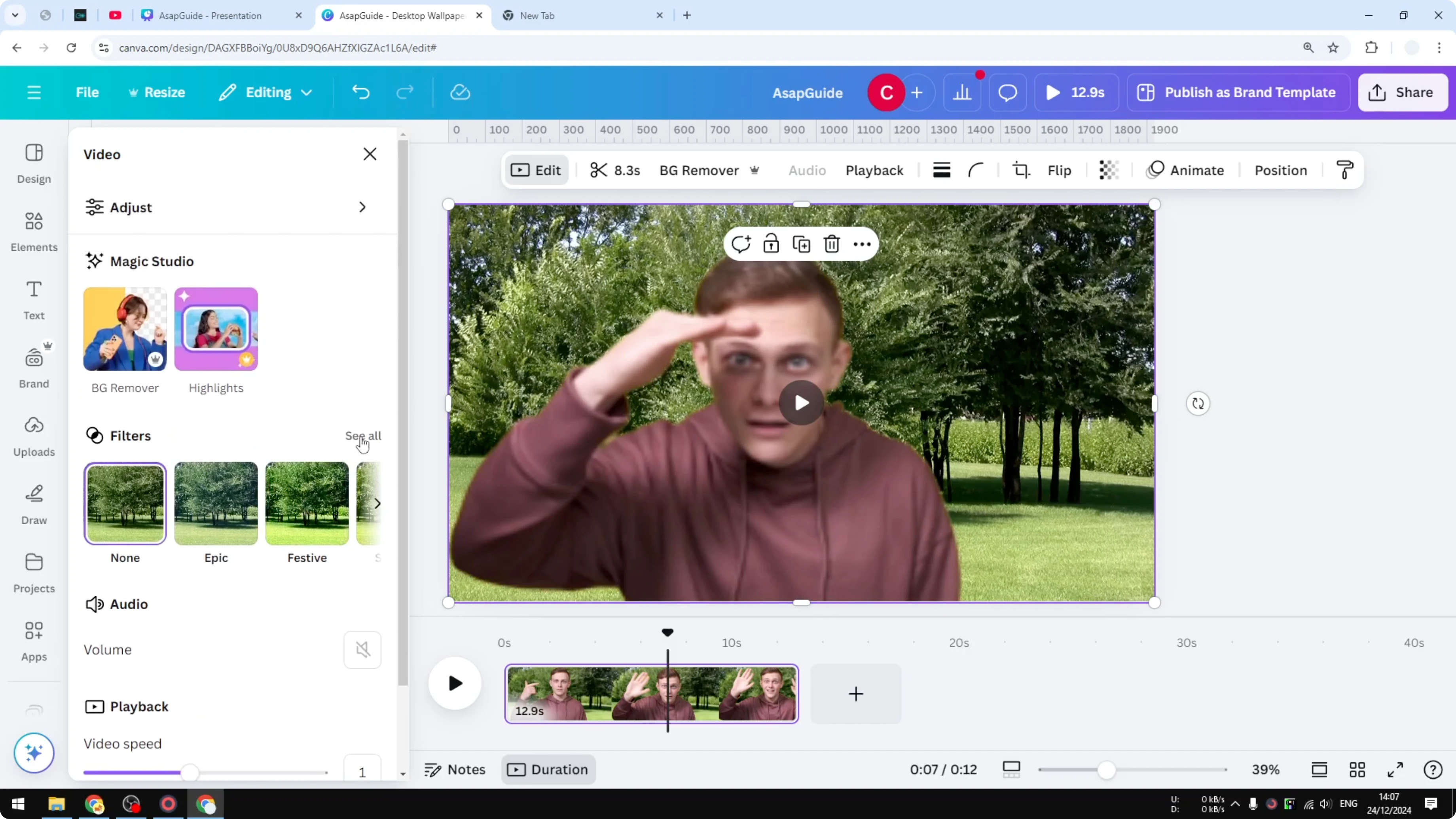
That’s the only thing you can do because there is no blur option for a video, which is very unfortunate. But this is something that you can do in Canva.
Final Thoughts on Change Video Background in Canva Using AI
- Choose a clip with a simple background and limited movement for cleaner results.
- Use Canva’s Background Remover under the Magic section and review the result.
- Add a suitable background video, send it to the back with Position and Layers, and preview with matching durations.
- If needed, reduce the background’s saturation to keep attention on the main subject.
Recent Posts

How to Visualize Yourself as a Pixelized Character with AI?
How to Visualize Yourself as a Pixelized Character with AI?

How to Revive Faded Memories and Enhance Image Clarity with AI?
How to Revive Faded Memories and Enhance Image Clarity with AI?

How to Visualize Yourself as an Animal Crossing Character with AI?
How to Visualize Yourself as an Animal Crossing Character with AI?