How to Create 300 DPI Images Using Canva
I'm going to show you how you can download a design from Canva and make sure you're getting the maximum 300 DPI resolution from the Canva document that you are working on. In Canva there is no such thing as changing or selecting the DPI level of your document - it is just not available. But there is a way to make sure that you're always getting 300 DPI when you're downloading the file.
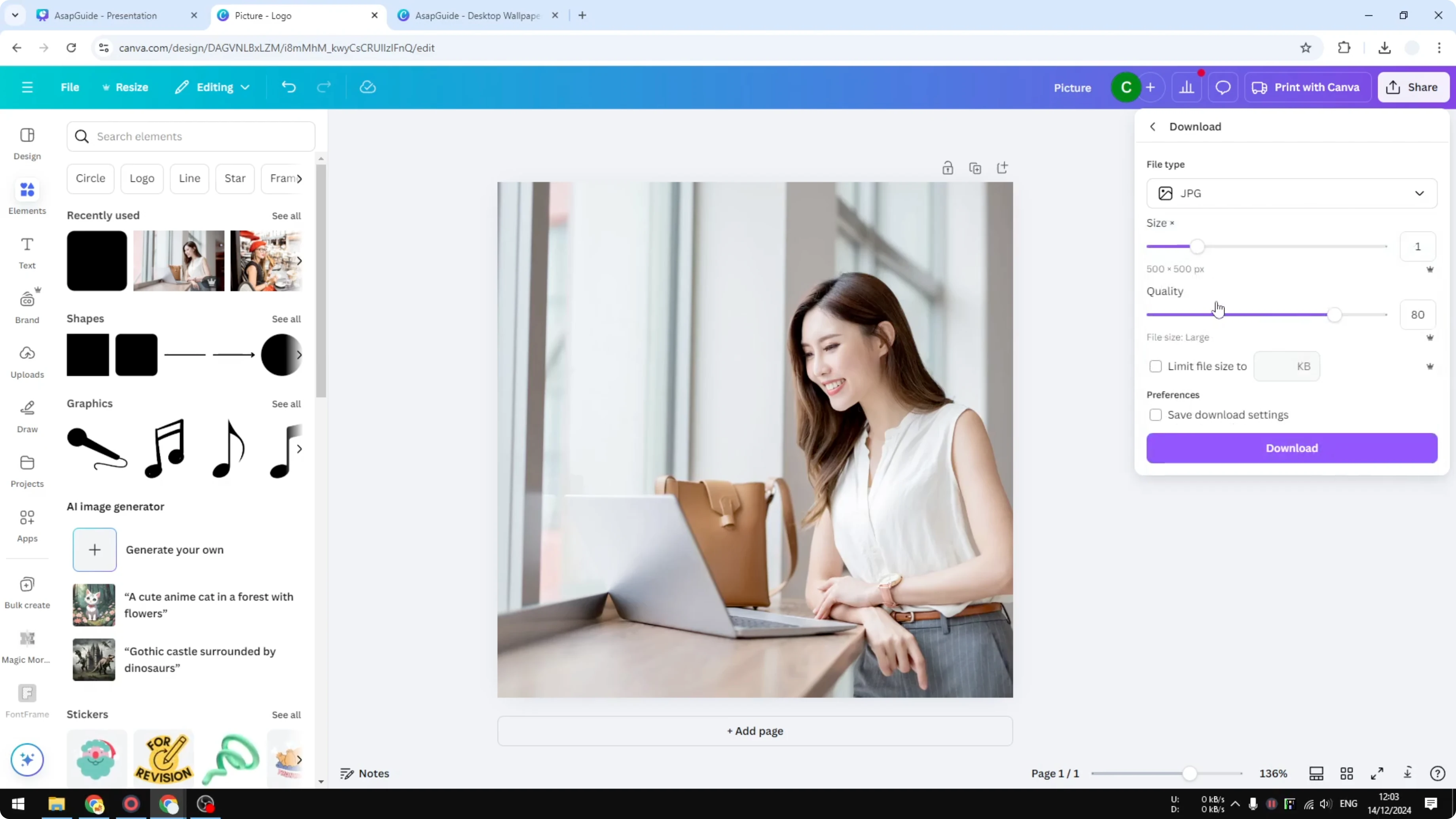
By default, your Canva document will give you 96 DPI. If you want to get DPI, select JPG, because there is no DPI for PNG.
Create 300 DPI Images Using Canva
What happens with the default download
When you download a regular stock photo from Canva using the default settings and select JPG, you will get only 96 DPI. That is the default.
The setting that actually controls DPI
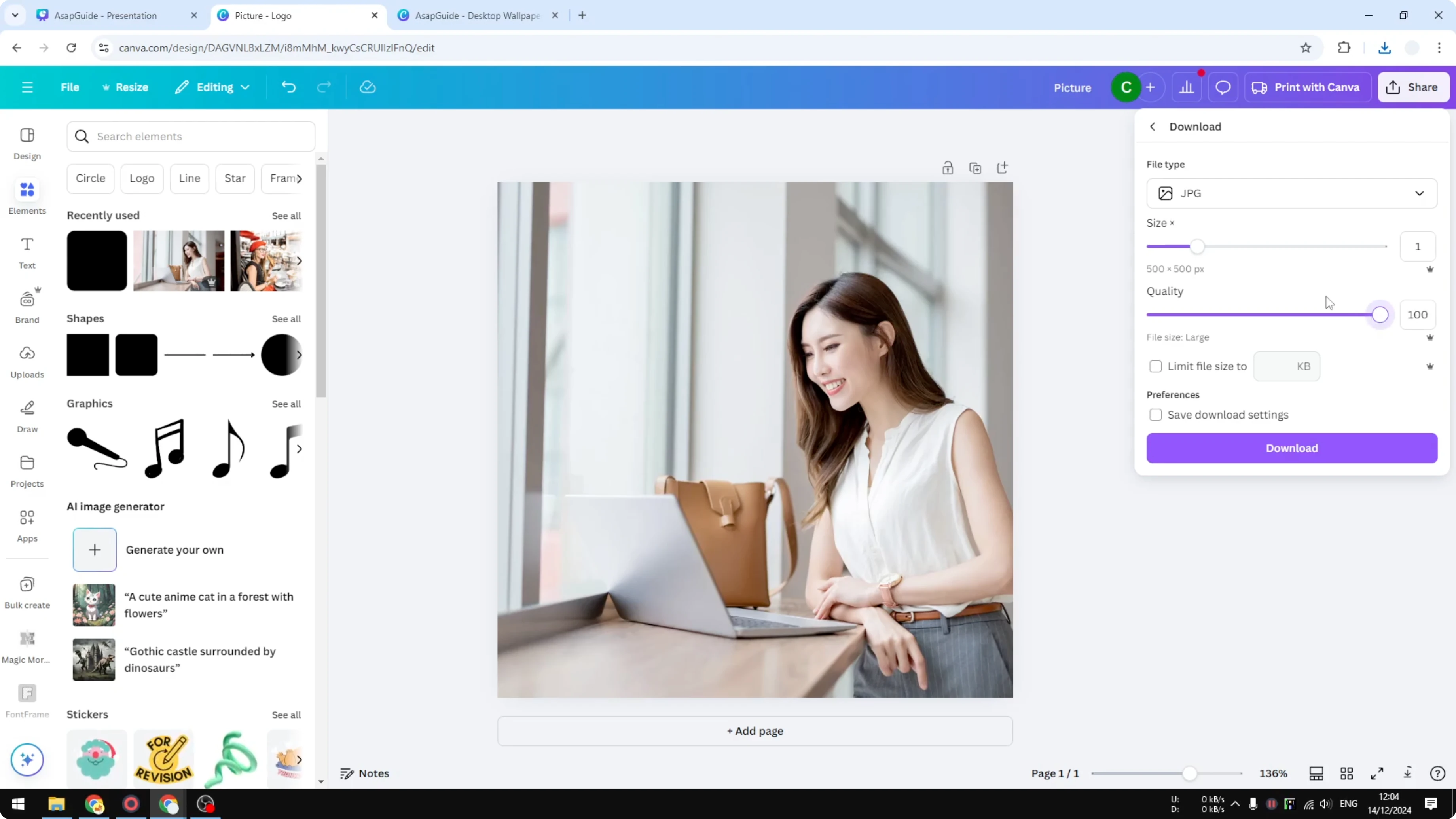
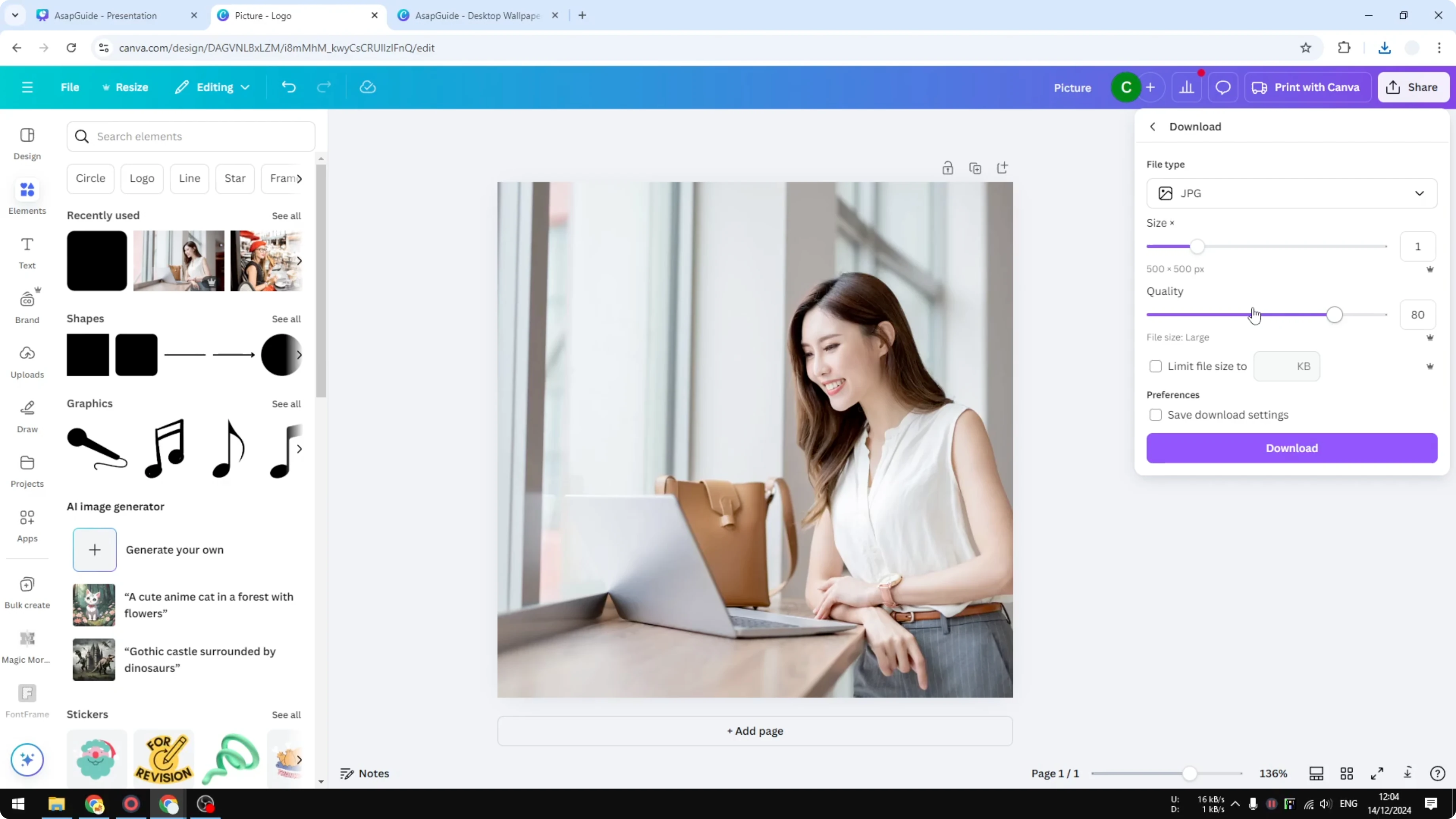
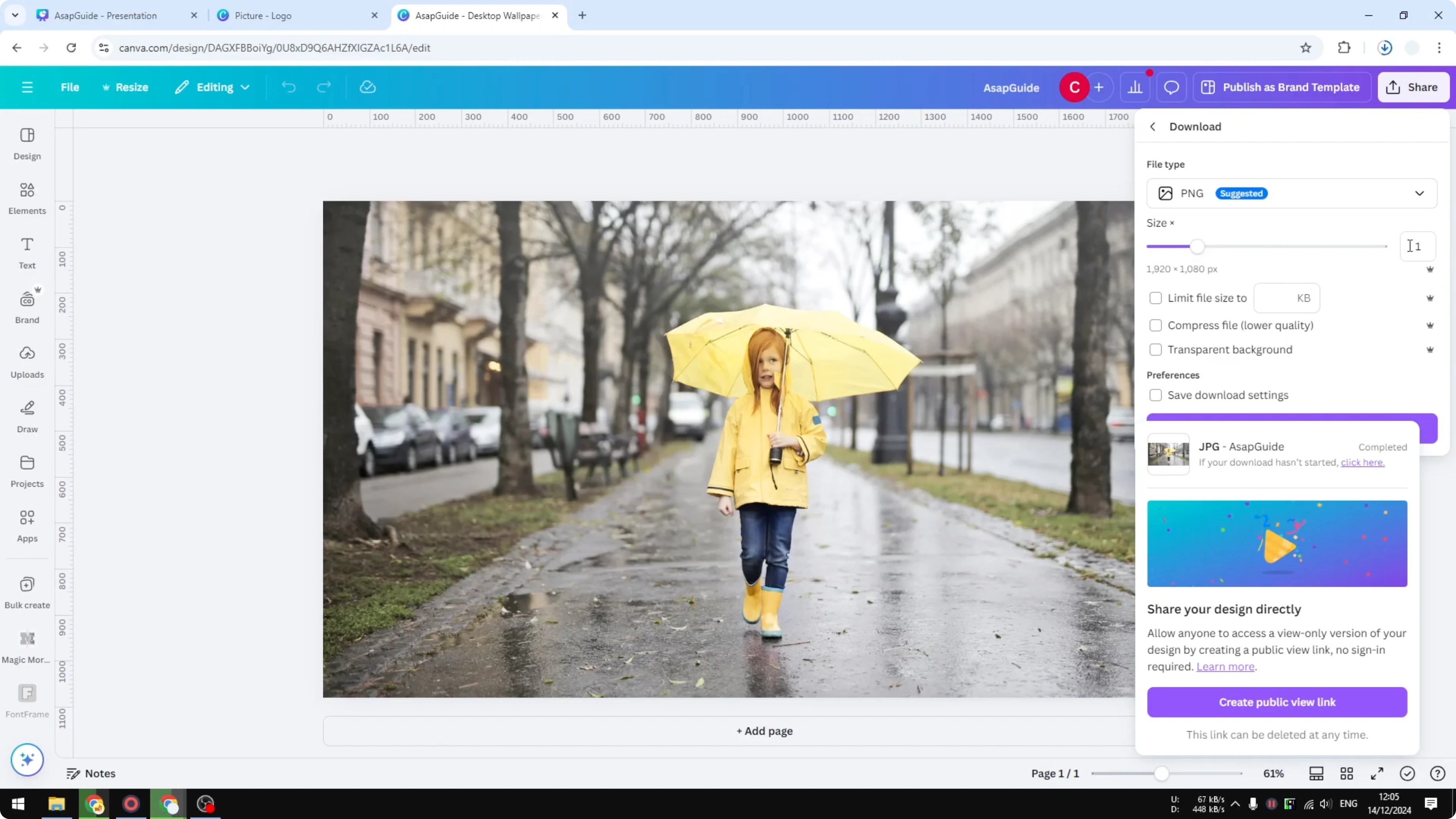
Here's how you can maximize the number and set it to 300. The quality is not really important - you can set it to zero or one and you still get 300 DPI, or you can set it to maximum. The thing you need to change is the Size. That's the one responsible for the DPI that you're getting.
Step-by-step: Create 300 DPI Images Using Canva
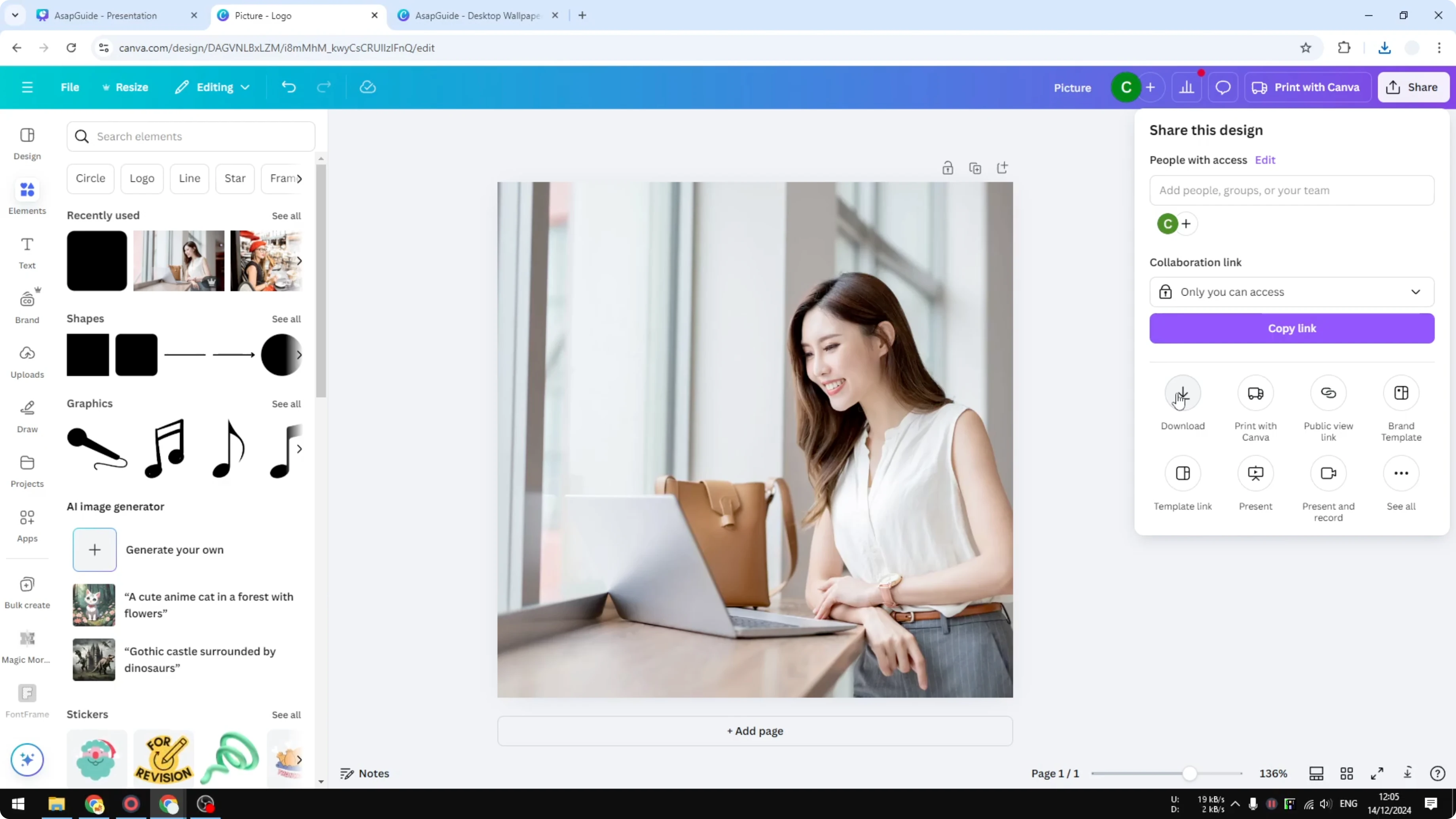
- Click Share.
- Click Download.
- Select JPG.
- Ignore Quality for DPI purposes - set it low or high, it does not affect reaching 300 DPI.
- Change Size and set it to Maximum.
- Download.
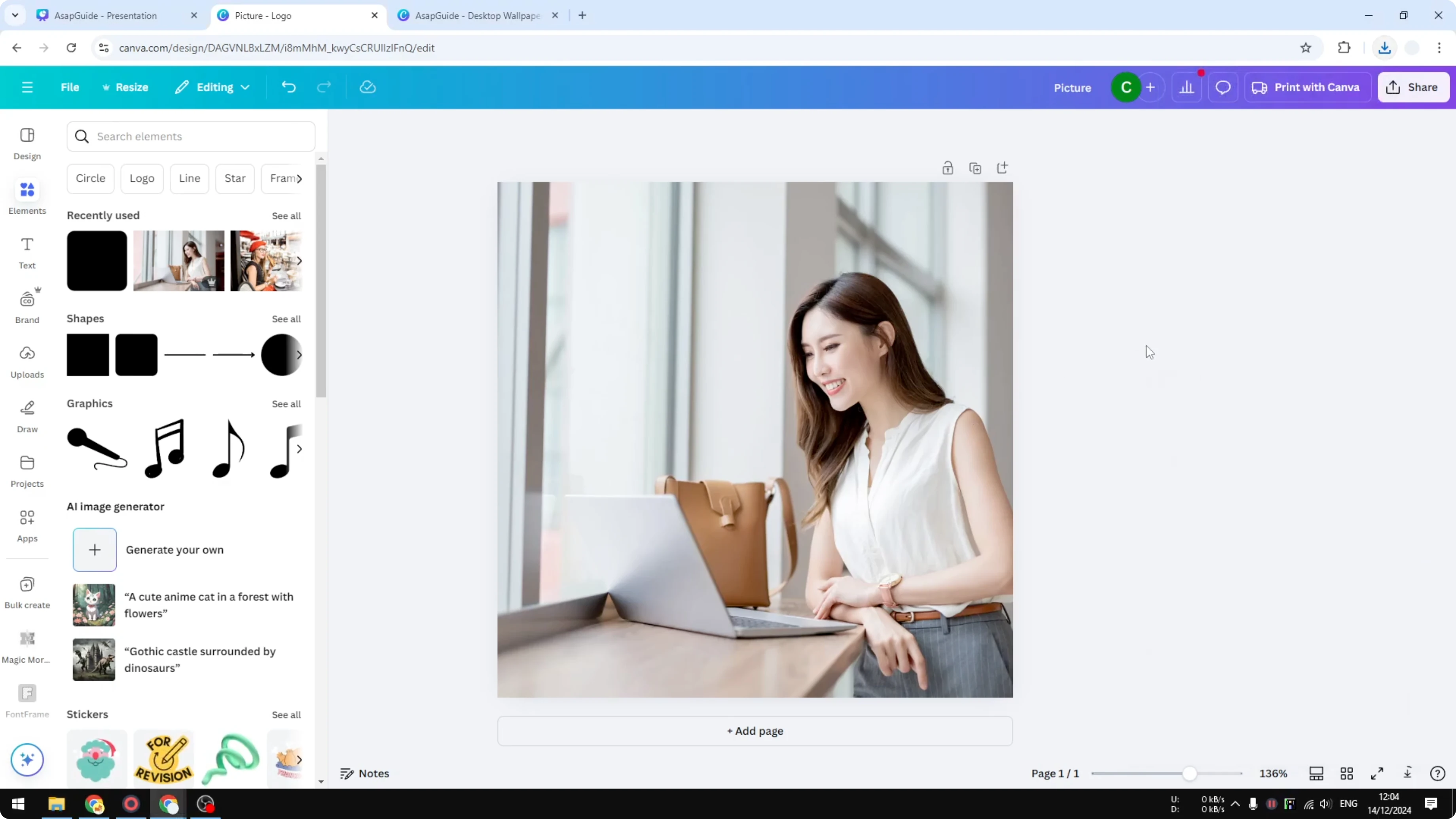
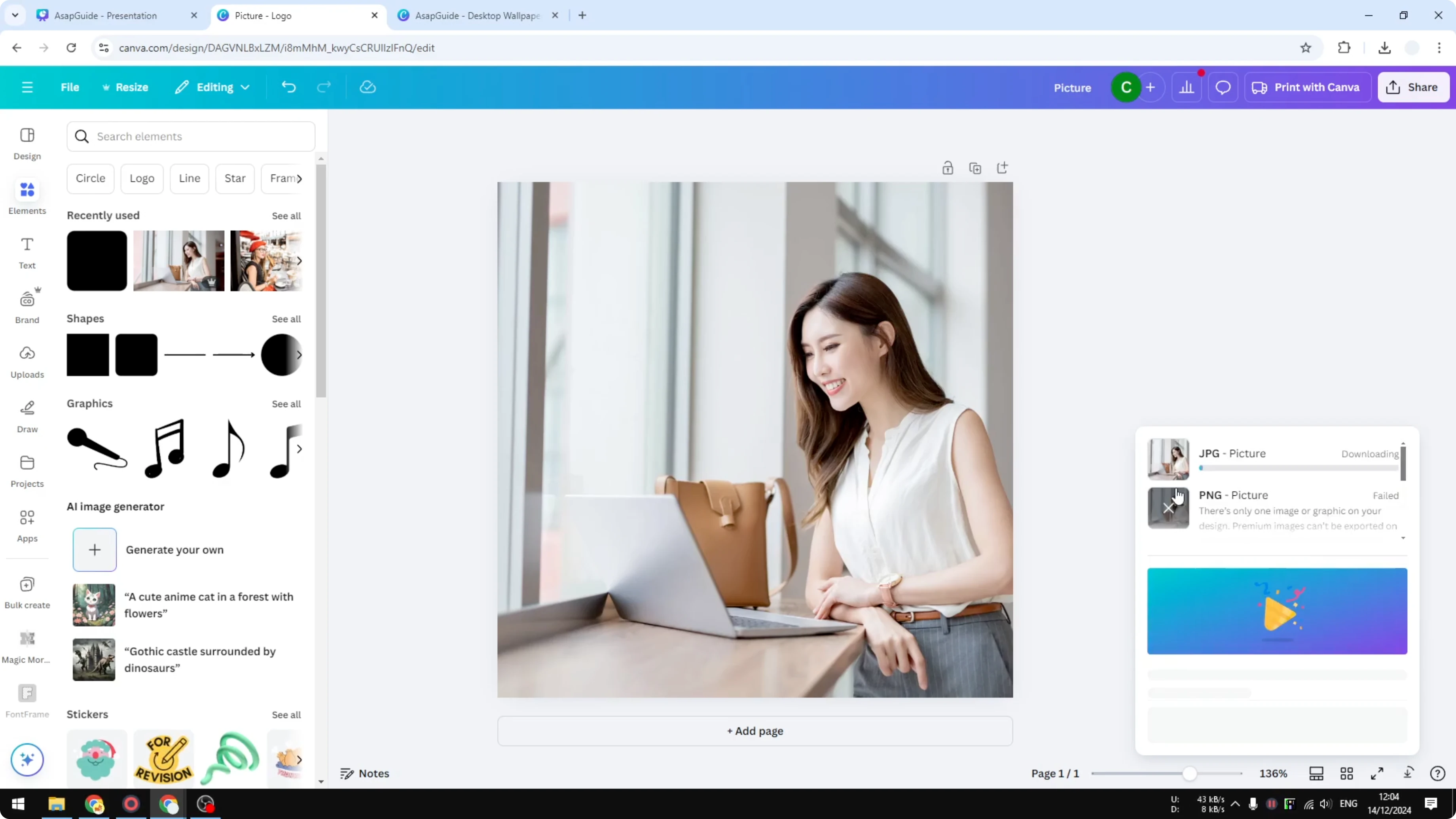
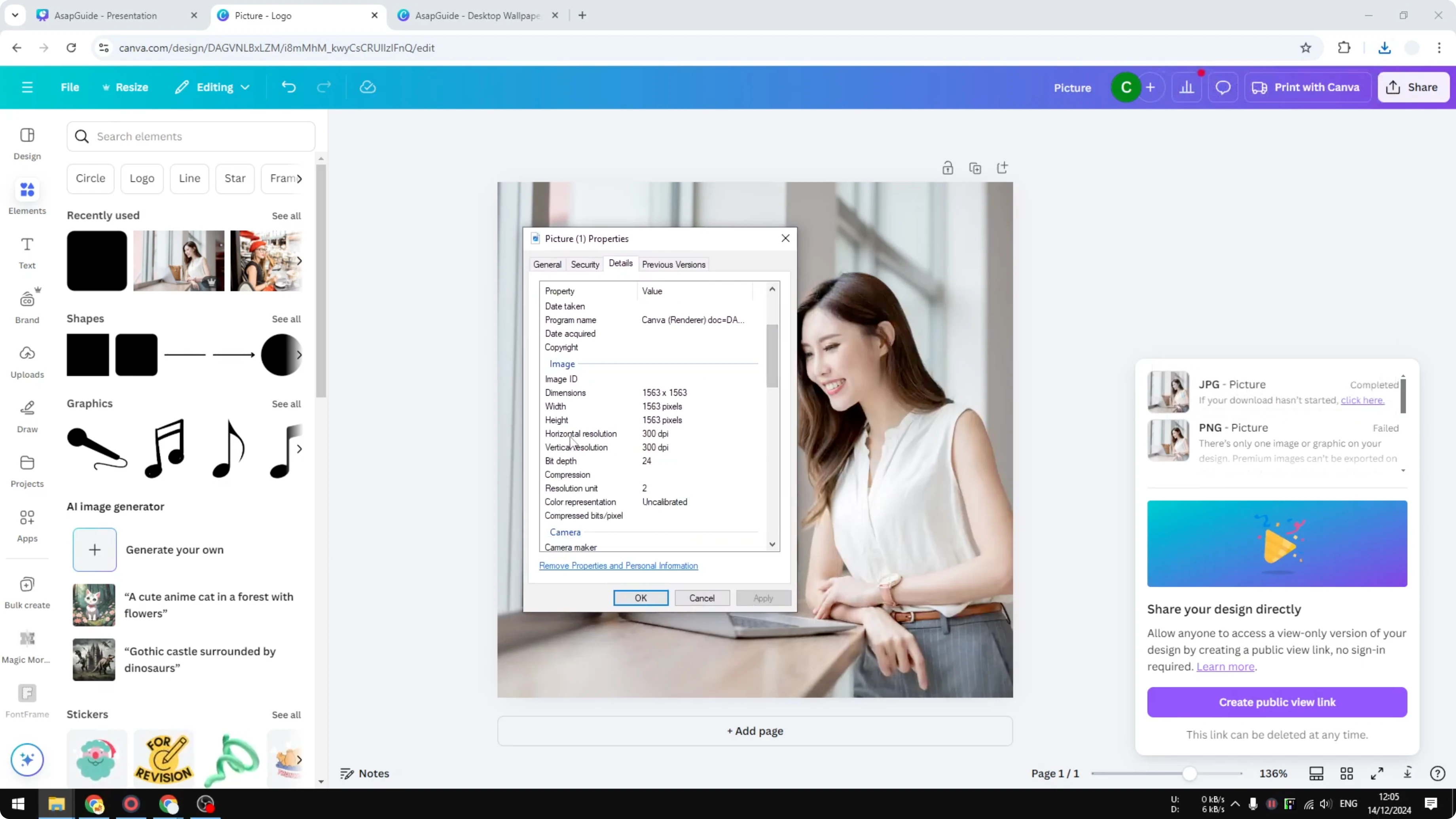
The maximum size of this template is 1500 pixels. When I download that, it becomes 300 DPI, which is exactly the number that we are looking for.
Works for any template size or aspect ratio
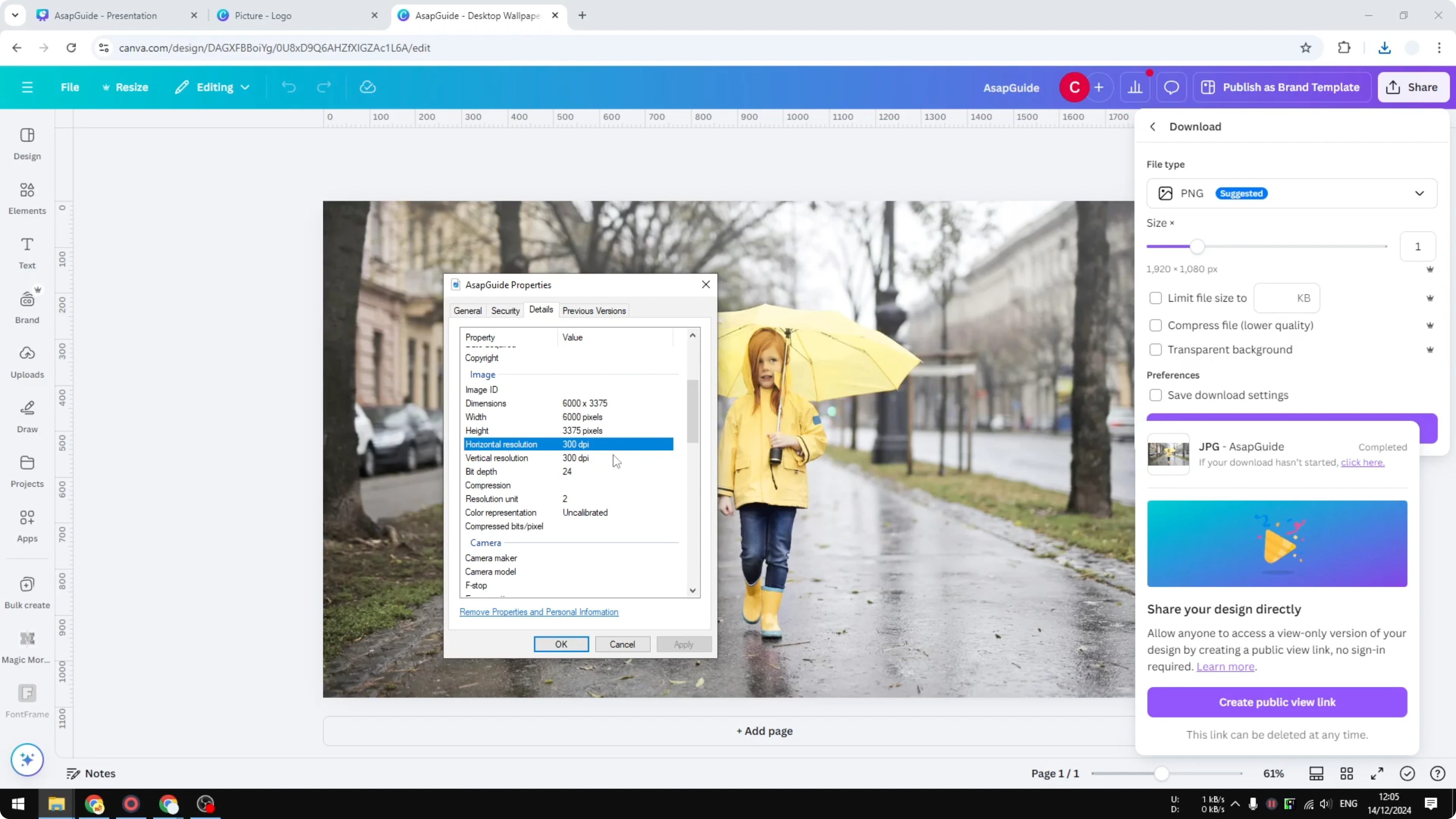
This setting can be applied to pretty much any template size. This template is only 500 by 500 pixels by default, but if I set it to maximum I will get 300 DPI. The same is true for a document with a different aspect ratio and different dimensions. If I set the size to maximum, I will be getting 300 DPI regardless, even though initially the document size was 1920 by 1080.
Proof of result
Here is the proof - this picture is 300 DPI.
Final Thoughts
There is no DPI selector in Canva, but you can still get 300 DPI by exporting as JPG and setting Size to maximum. Quality does not affect hitting 300 DPI. Set JPG, push Size to maximum, and download. That's the only thing you need to do to get 300 DPI from your Canva design.
Recent Posts

How to Visualize Yourself as a Pixelized Character with AI?
How to Visualize Yourself as a Pixelized Character with AI?

How to Revive Faded Memories and Enhance Image Clarity with AI?
How to Revive Faded Memories and Enhance Image Clarity with AI?

How to Visualize Yourself as an Animal Crossing Character with AI?
How to Visualize Yourself as an Animal Crossing Character with AI?