How to Turn Your Pop Art Ideas Into Reality with AI?
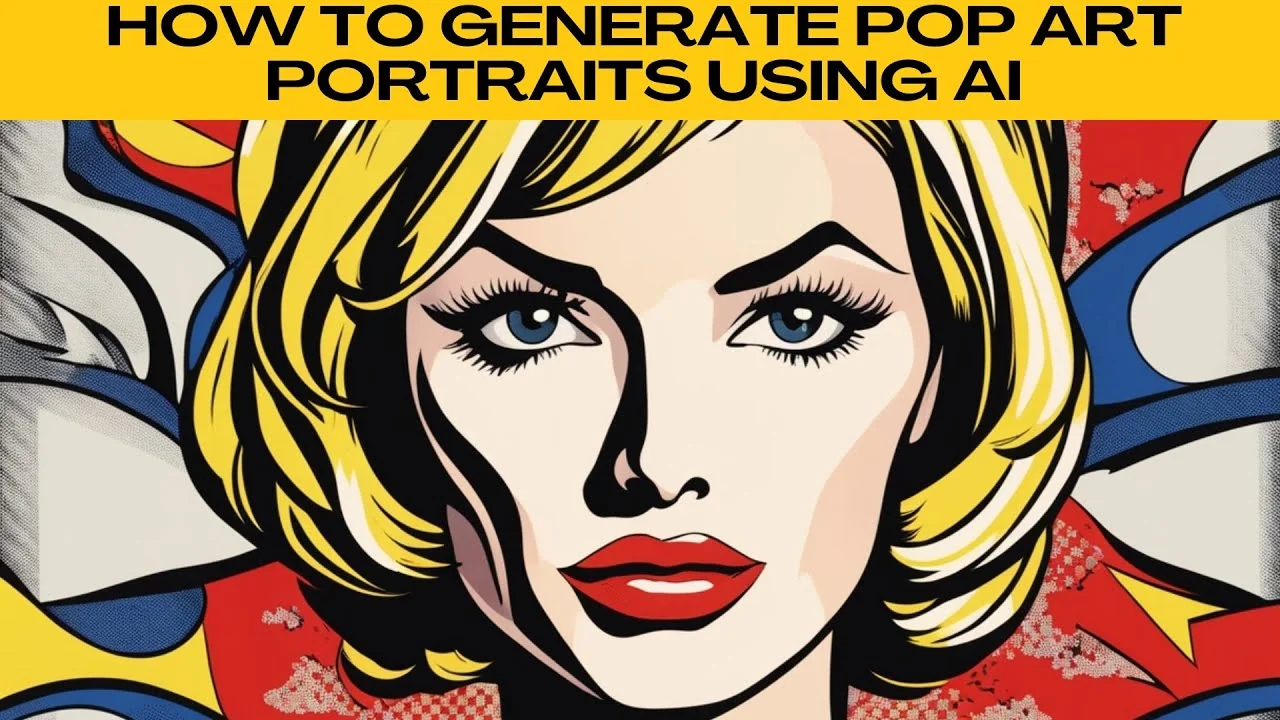
I will teach you how to generate pop art portraits using AI. Follow these simple steps and you will get a bold, colorful portrait in minutes.
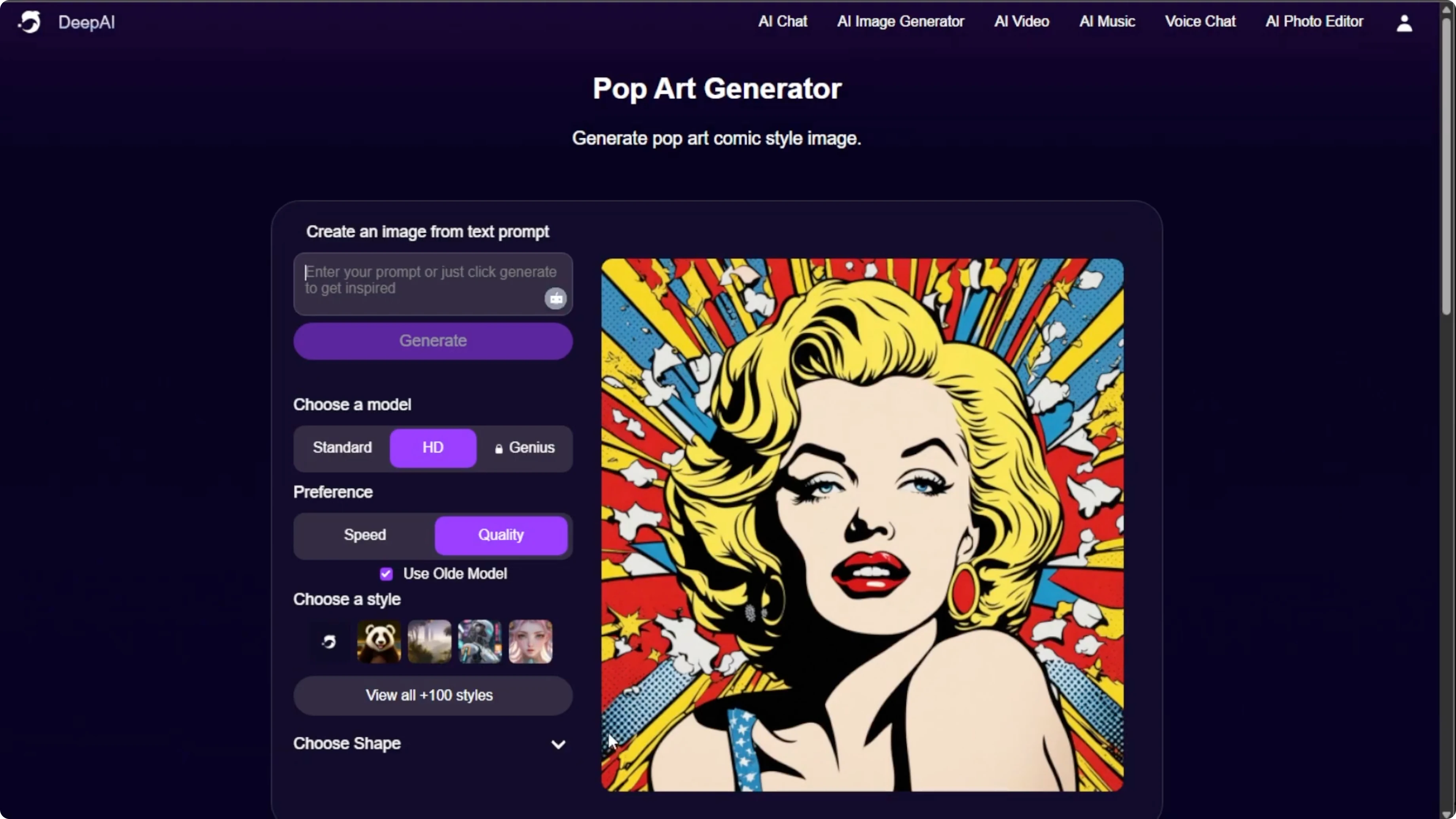
Visit the Deep AI Pop Art Generator in your browser. On the left panel, you will see various customization options.
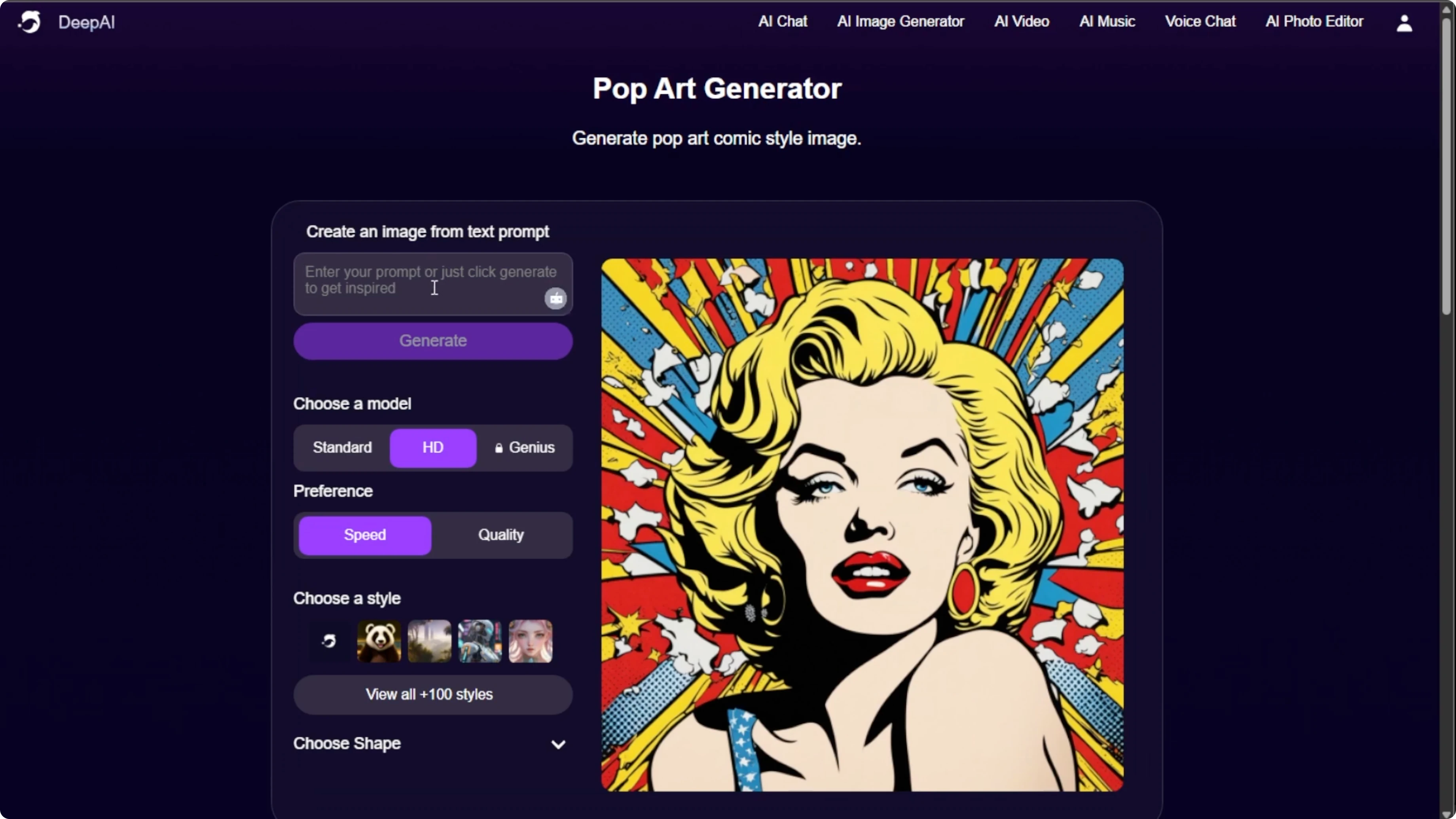
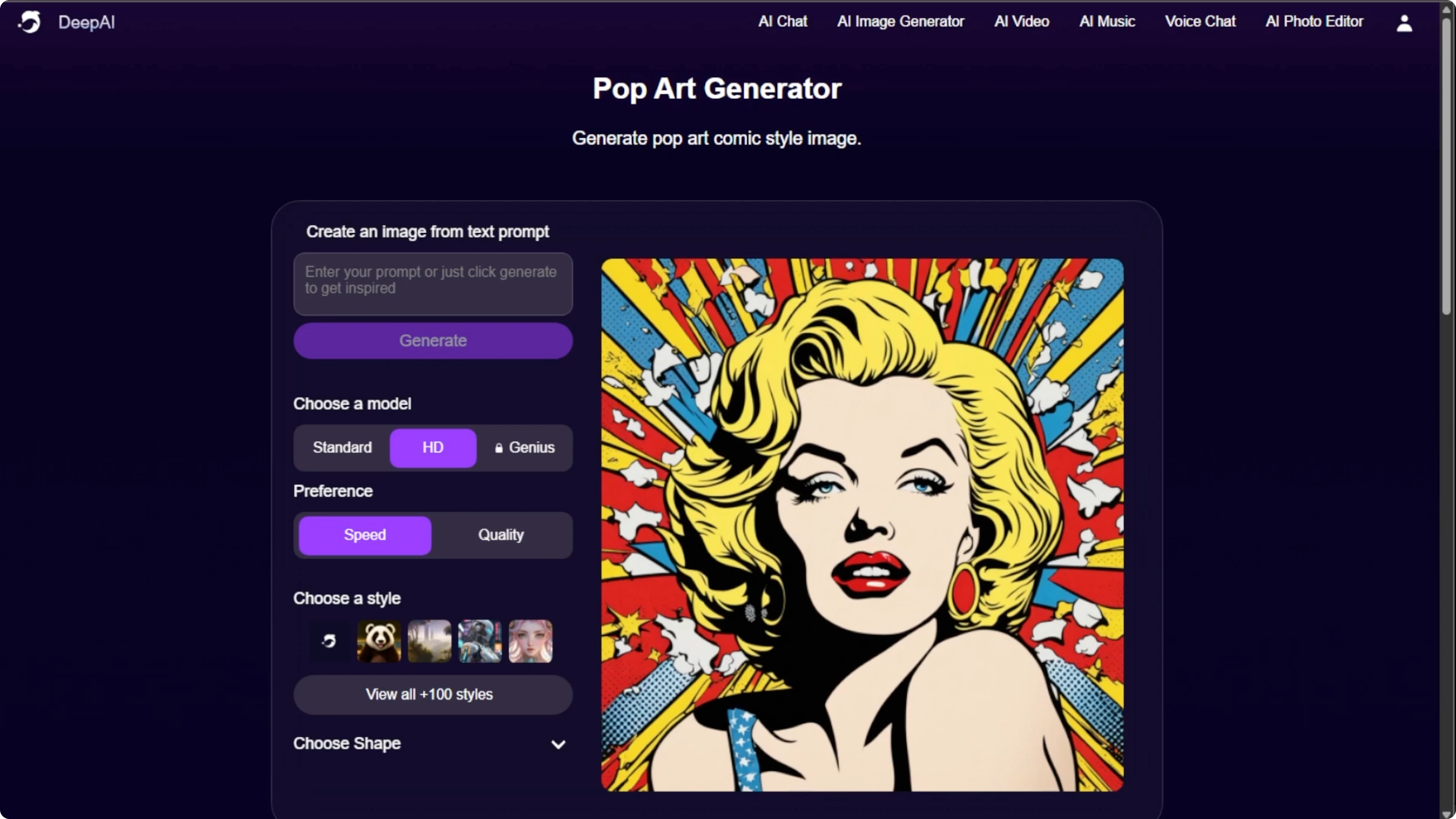
Before generating your image, take a moment to tweak your settings for better results. In the text box, describe exactly what you want the AI to generate and be specific and creative with details like pose, hairstyle or color, background style, accessories, and emotions or themes.
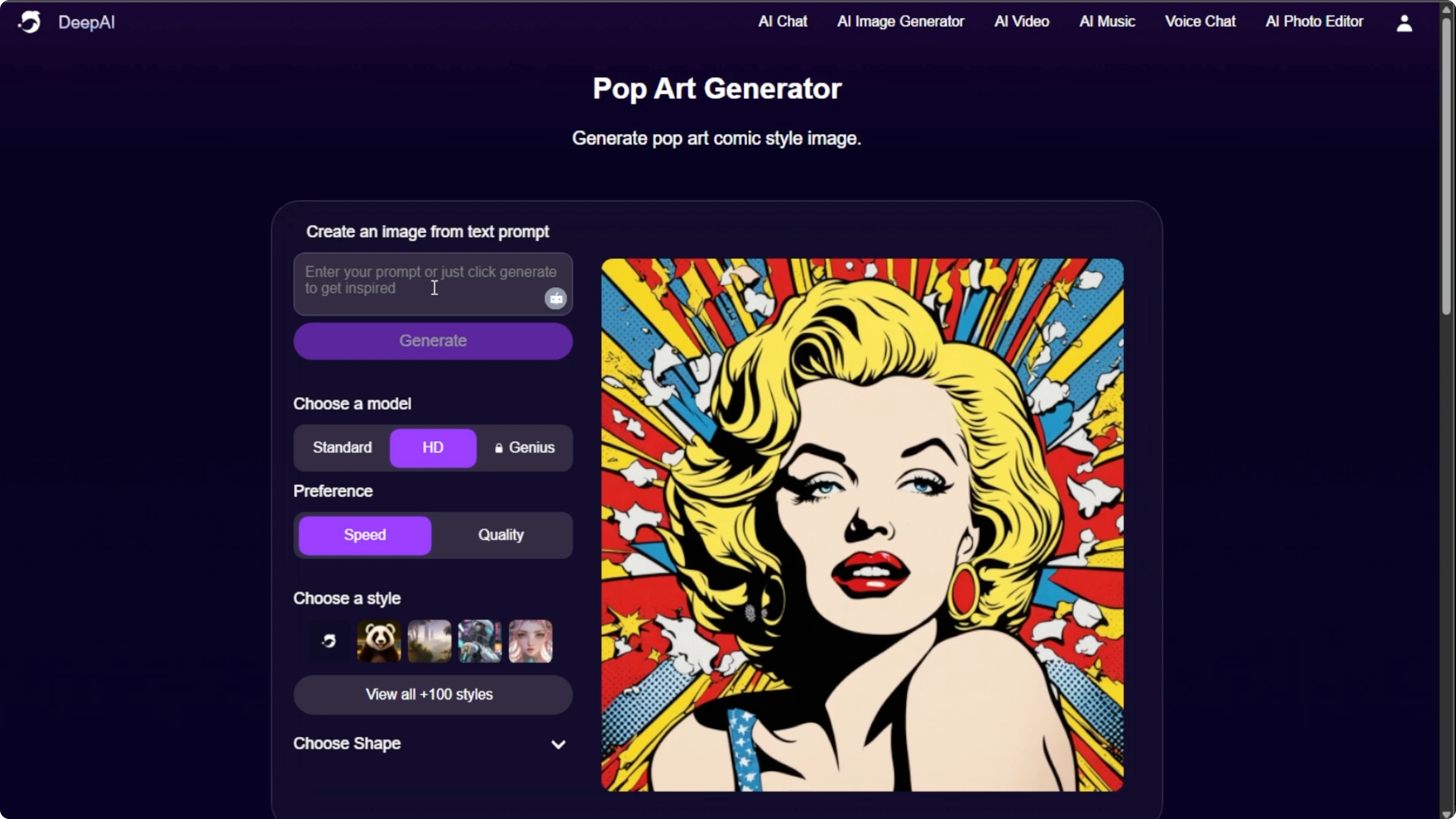
If you want a different artistic format for your photos, you can also try a quick cartoon avatar tutorial for a playful look.
Getting started
Type your description in the prompt box with clear details about the subject and mood. Be specific with pose, hairstyle or color, background style, accessories, and emotions or themes. Clarity here improves the result.
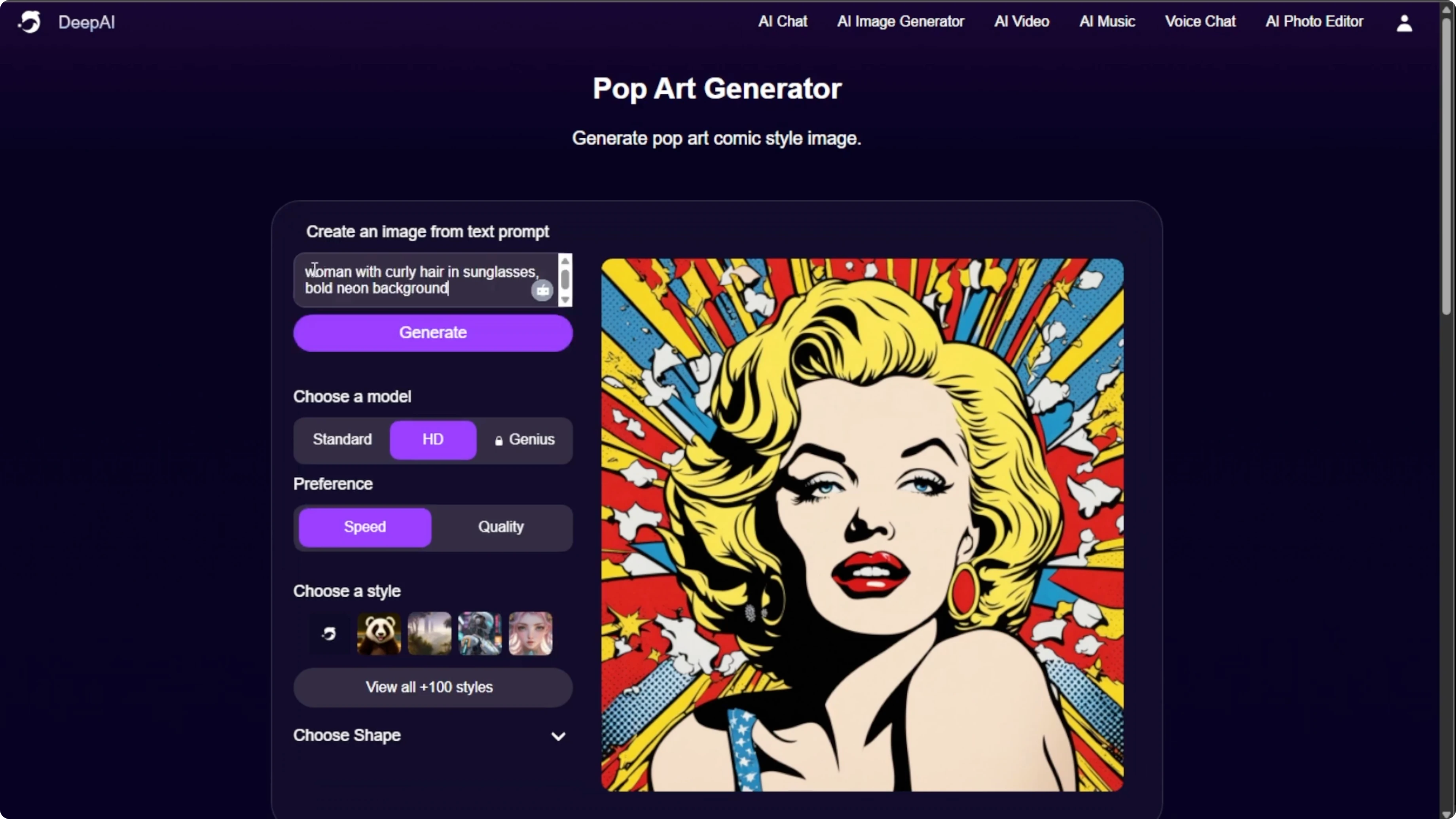
Prompt template
Use this simple structure to plan your prompt. It keeps your idea focused and avoids missed details.
Subject: [who or what the portrait is about]
Pose: [front, 3-4 view, profile, action]
Hairstyle or color: [short blue hair, long black hair, etc.]
Background style: [solid, comic burst, halftone dots, geometric]
Accessories: [sunglasses, earrings, hat, etc.]
Emotion or theme: [joyful, dramatic, retro, bold]
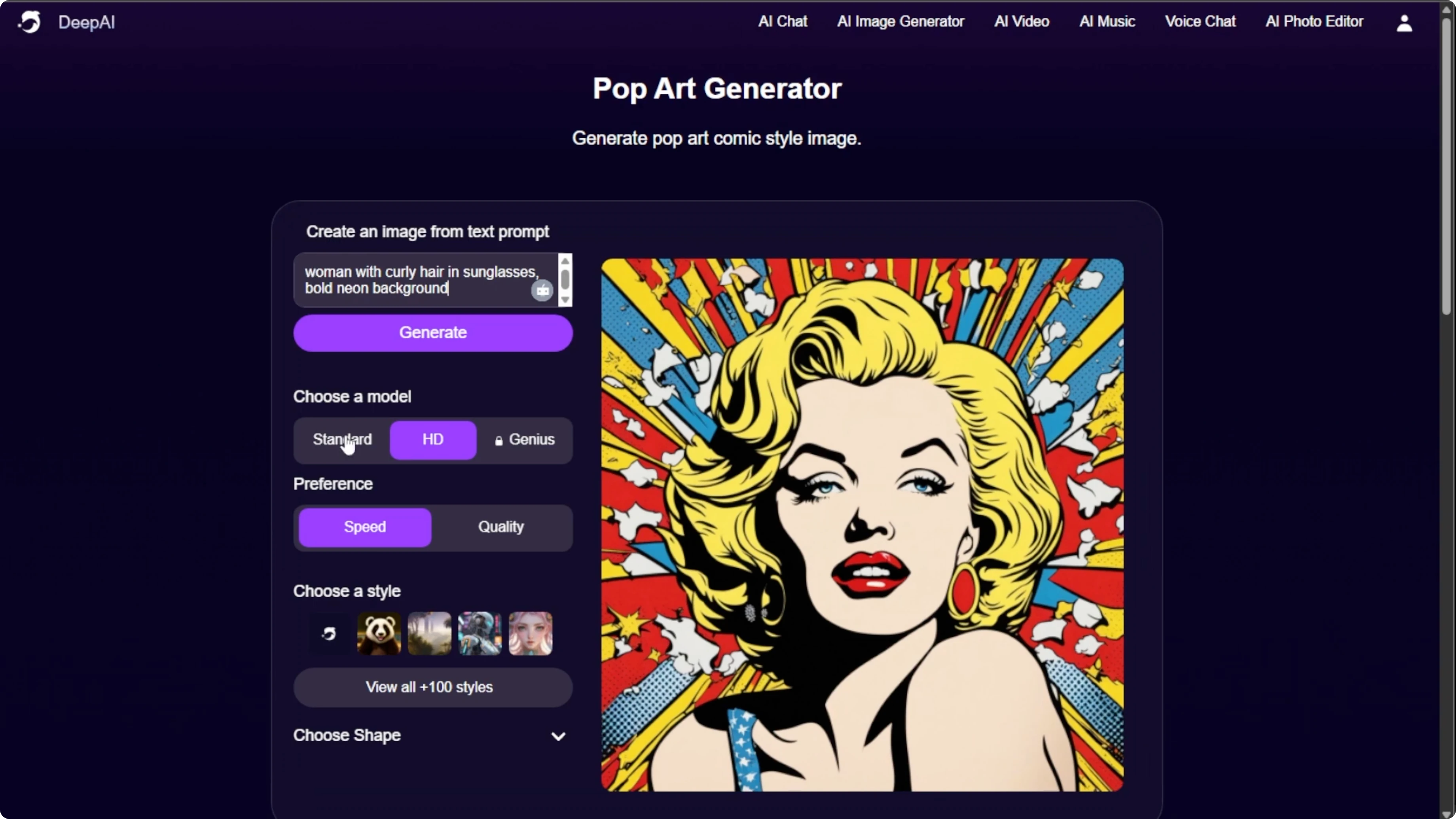
Model options
Choose a model that fits your needs. You will see standard and HD, which are free options with decent quality, and genius, which is only available to Deep AI Pro members and offers a more refined result.
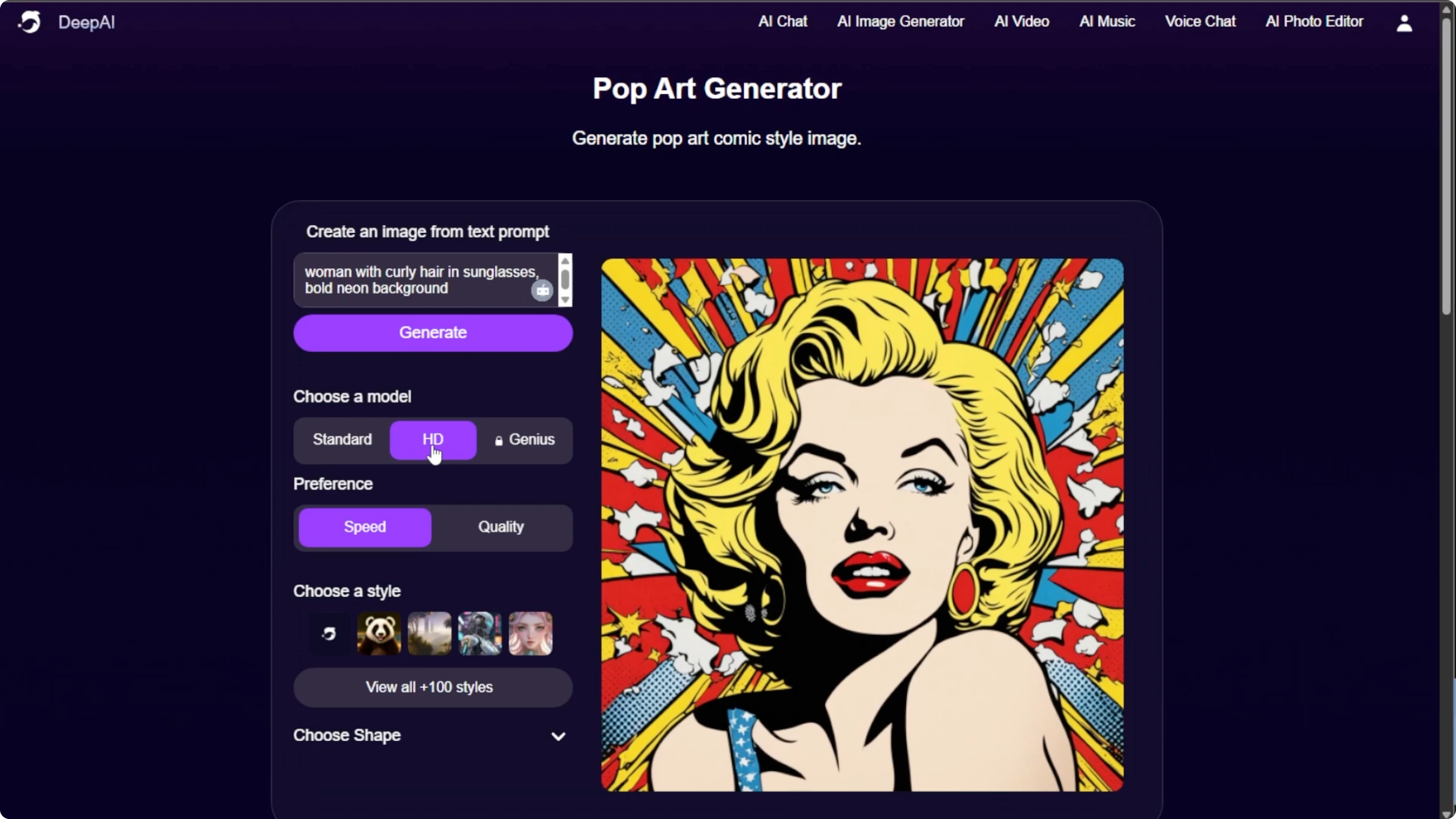
Performance
Choose your performance preference. Select speed for faster results or quality for better details. If you use quality, you can activate the old model, which may add a retro style feel.
For emoji styled portraits or playful expressions, see this focused emoji portraits walkthrough.
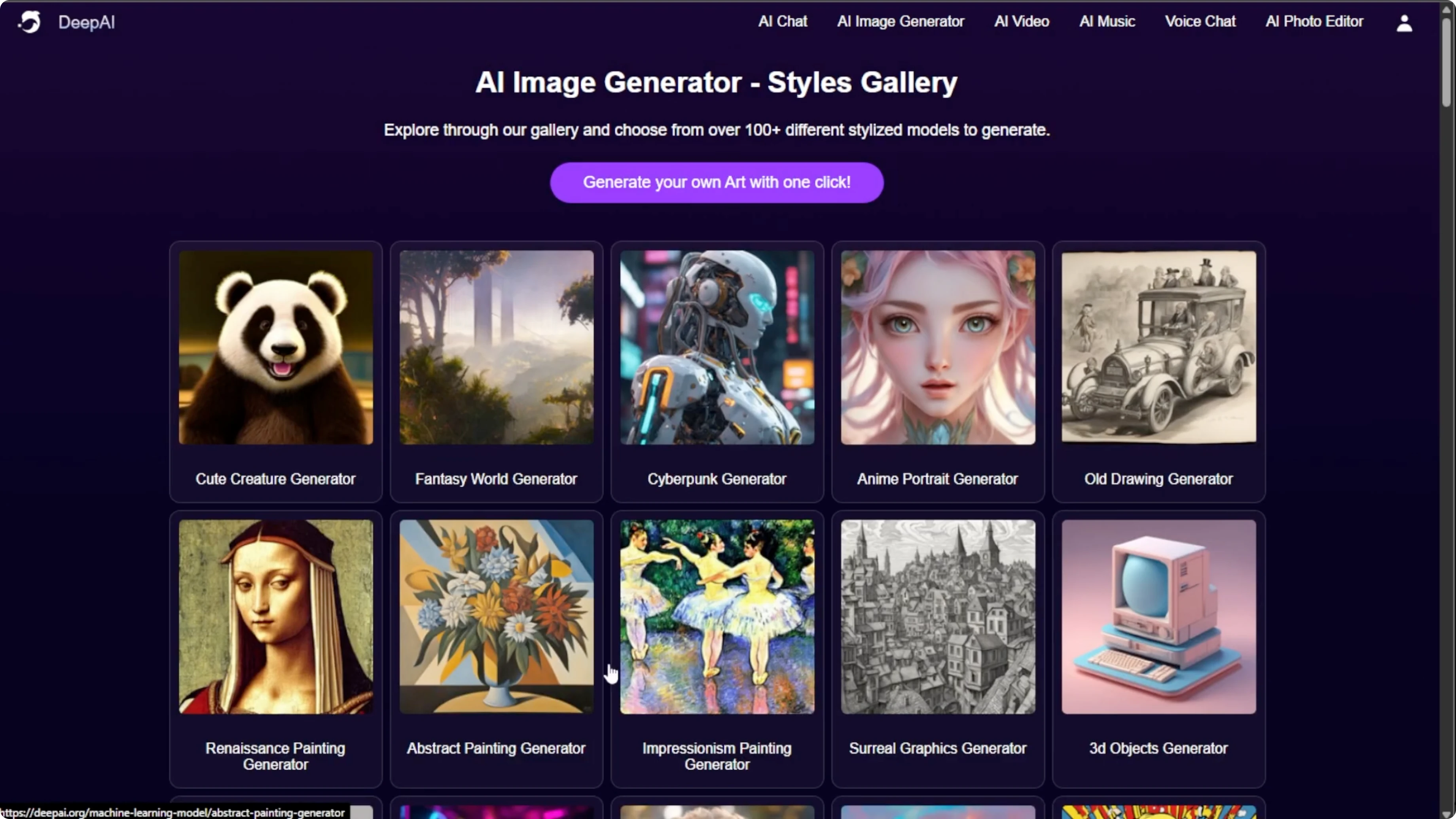
Style picker
Select the pop art style. Since this is the pop art generator, the pop art style will be pre-selected. If you want to experiment, explore other styles as well.
Size and shape
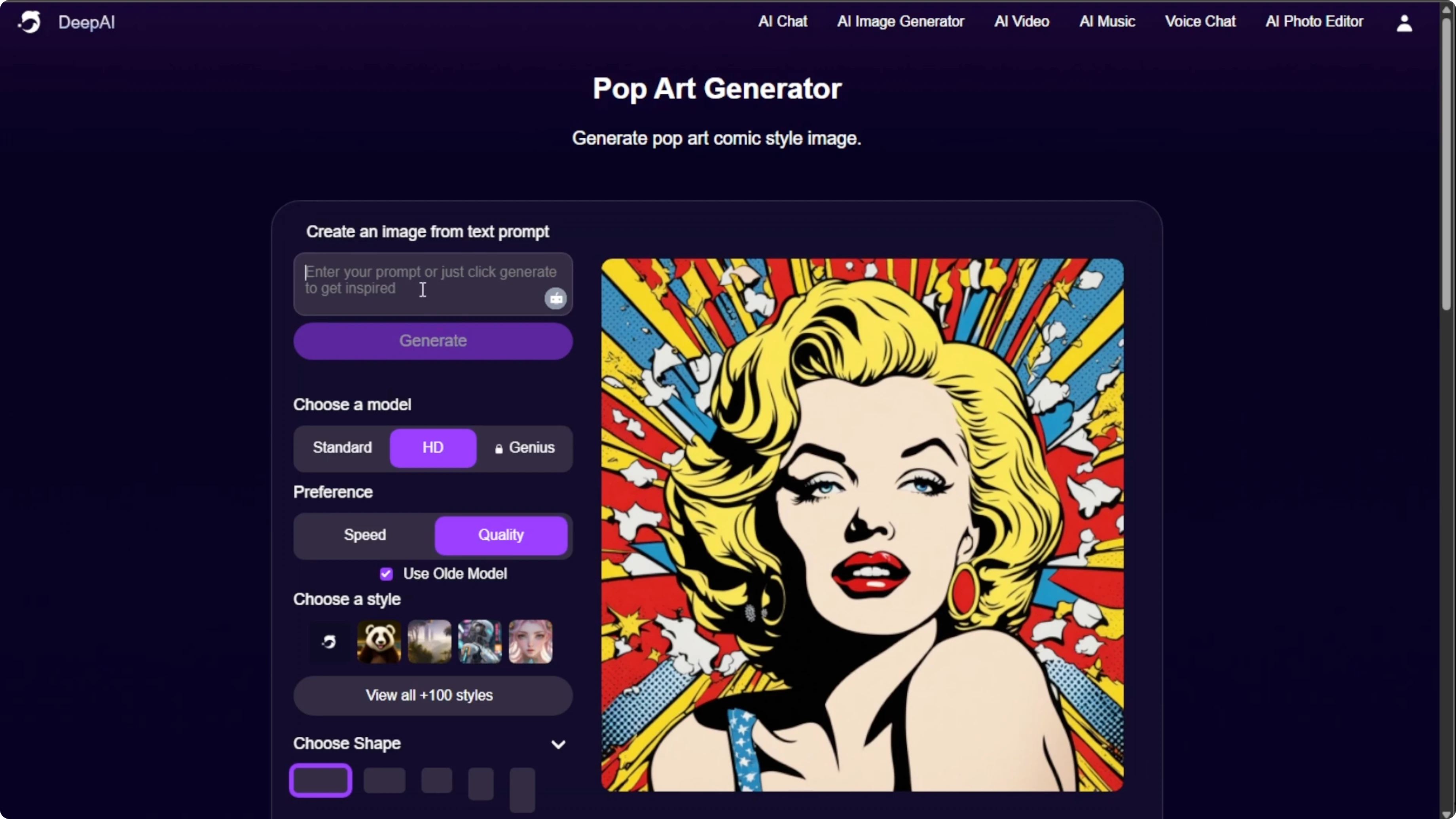
Choose a shape for your portrait like wide, square, or portrait depending on your intended use. Match the shape to your platform or print needs to avoid cropping.
Generate
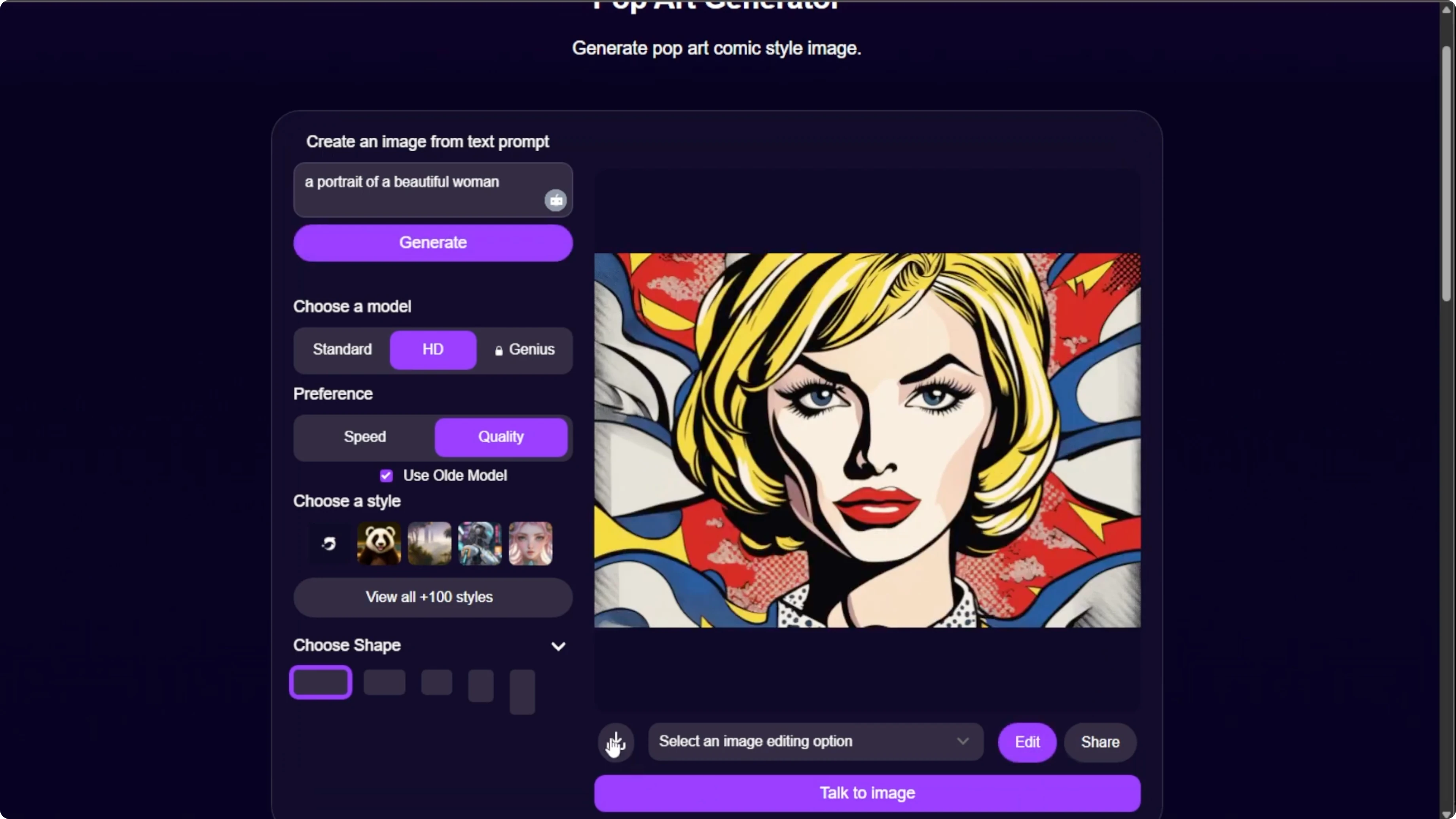
When everything looks good, click Generate. It may take 10 seconds to 1 minute to complete depending on your prompt and settings.
If you are not happy with the result, tweak your prompt or change the settings. Then click Generate again and iterate until it matches your vision.
If you like toy figure vibes for your portraits, explore this fun method to create pop figure styled edits in our Funko Pop guide.
Save
When you are satisfied, click the Download button to save your creation. Your pop art portrait is ready to share or print.
Final thoughts
Be specific in your prompt and choose quality for detailed output. Switch models and styles to match the mood you want and iterate until it feels right. With a clear prompt and a few tweaks, you can create bold pop art portraits quickly.
Recent Posts

How to Visualize Yourself as a Pixelized Character with AI?
How to Visualize Yourself as a Pixelized Character with AI?

How to Revive Faded Memories and Enhance Image Clarity with AI?
How to Revive Faded Memories and Enhance Image Clarity with AI?

How to Visualize Yourself as an Animal Crossing Character with AI?
How to Visualize Yourself as an Animal Crossing Character with AI?