How to Add Video Transitions in Canva
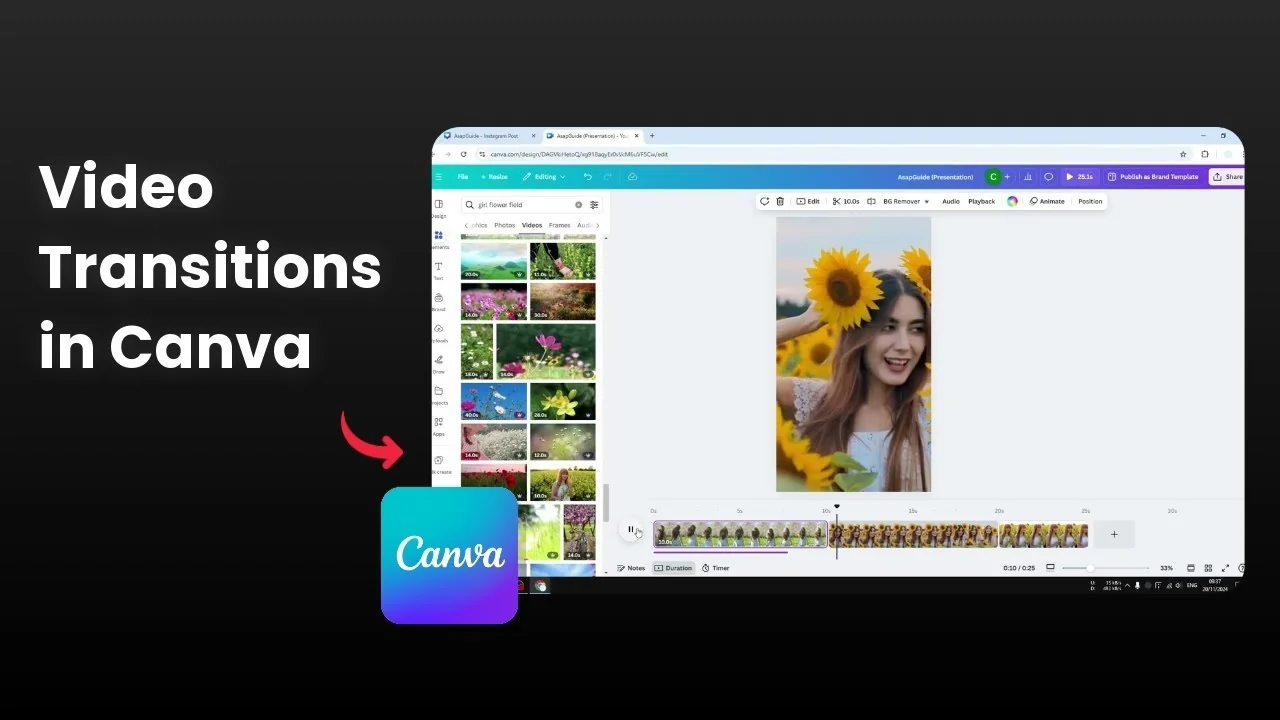
I’m going to show you how you can add animation transitions to your Canva video clips. By default when you add one or multiple clips and play the video, it will jump from one scene to another like a normal cut. There is no animation at all and it feels sudden, so adding transition animations can make your video more engaging.
For more ideas on styles you can try once you learn the basics here, check out these cool transition ideas.
Add Video Transitions in Canva - timeline setup
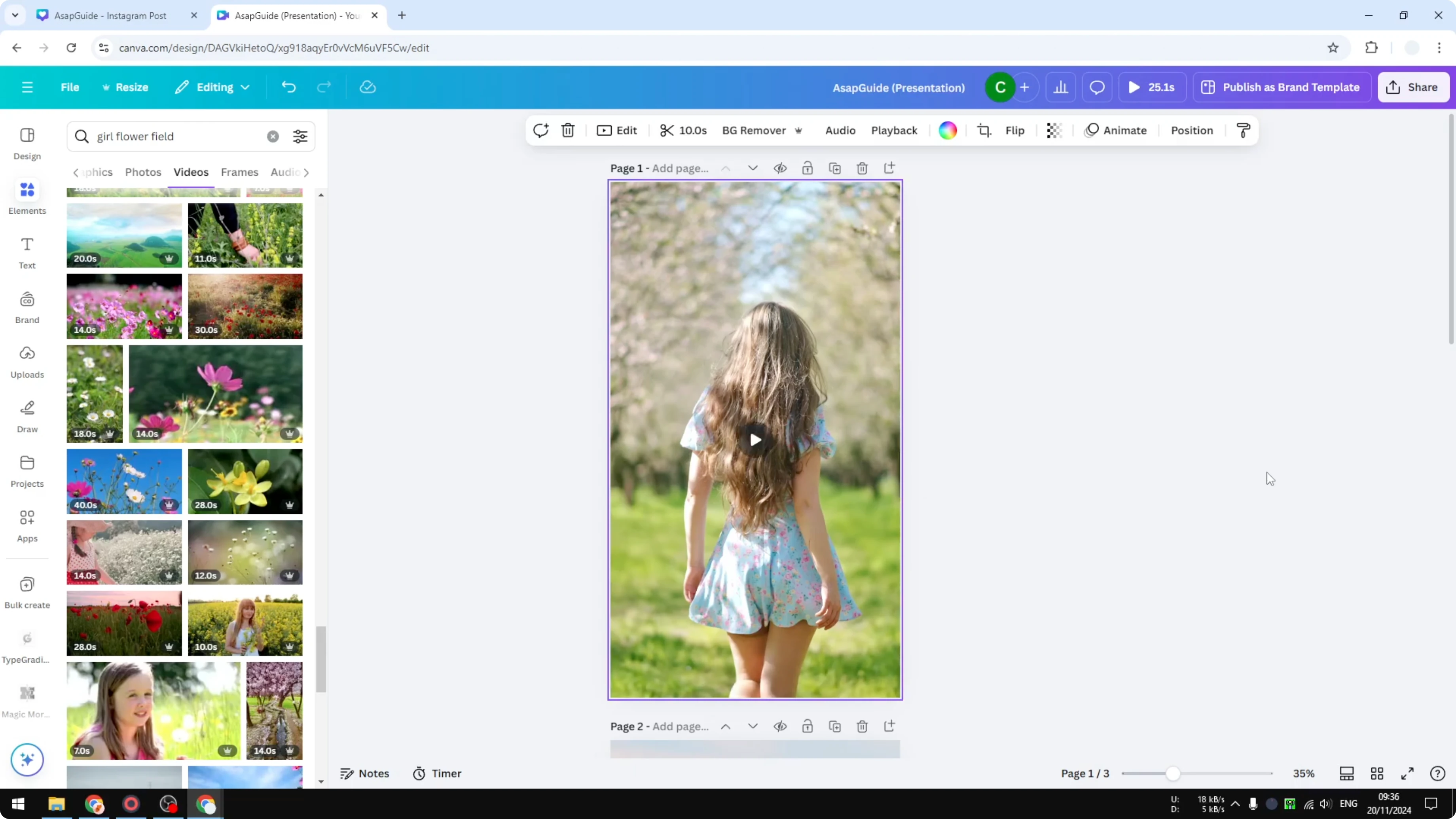
Open your Canva video project. I do recommend enabling the video timeline.
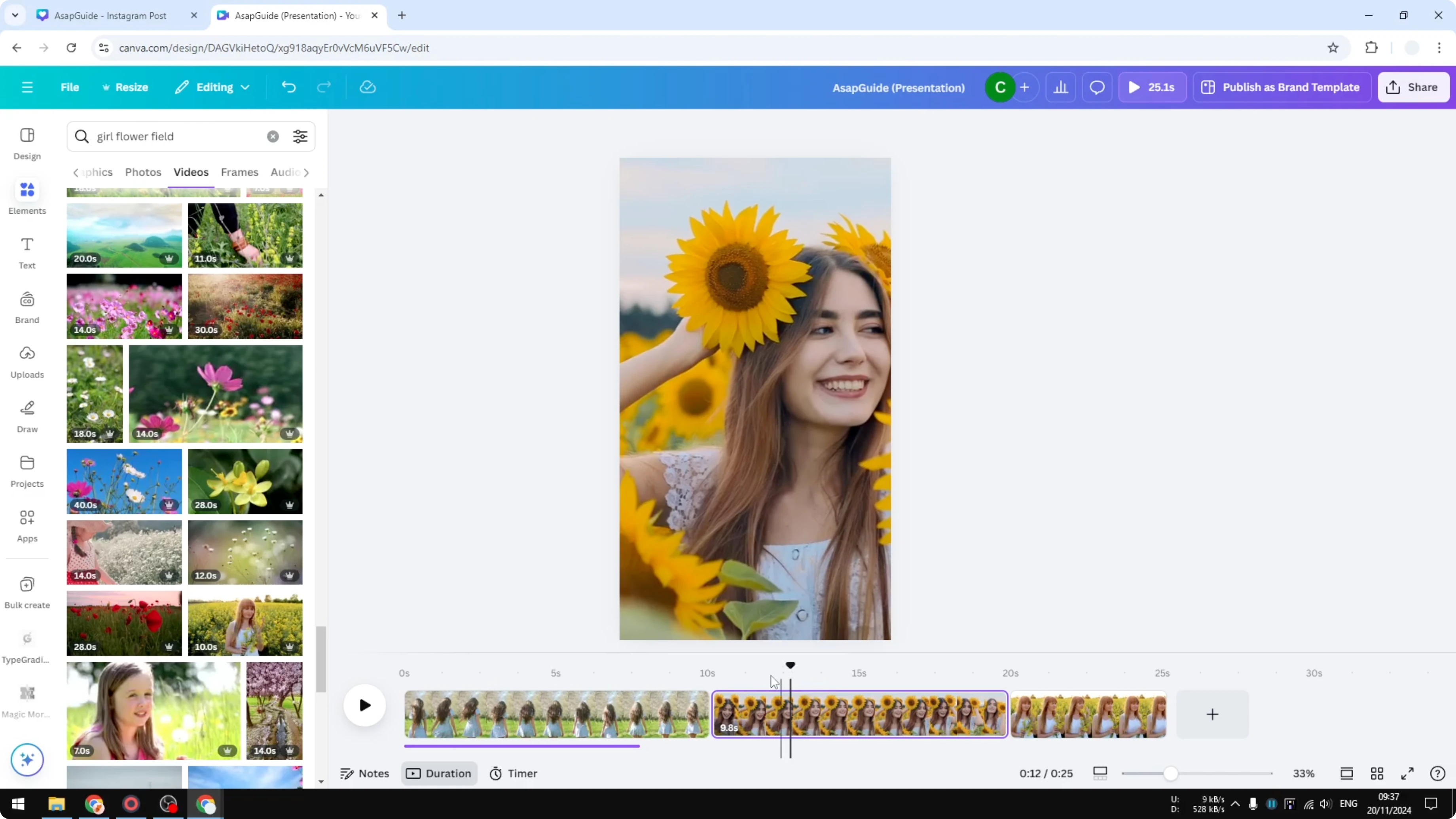
If you don’t see the timeline, click the view option and then click Duration to reveal the timeline. This timeline is very useful for editing a video.
Add Video Transitions in Canva - insert a transition
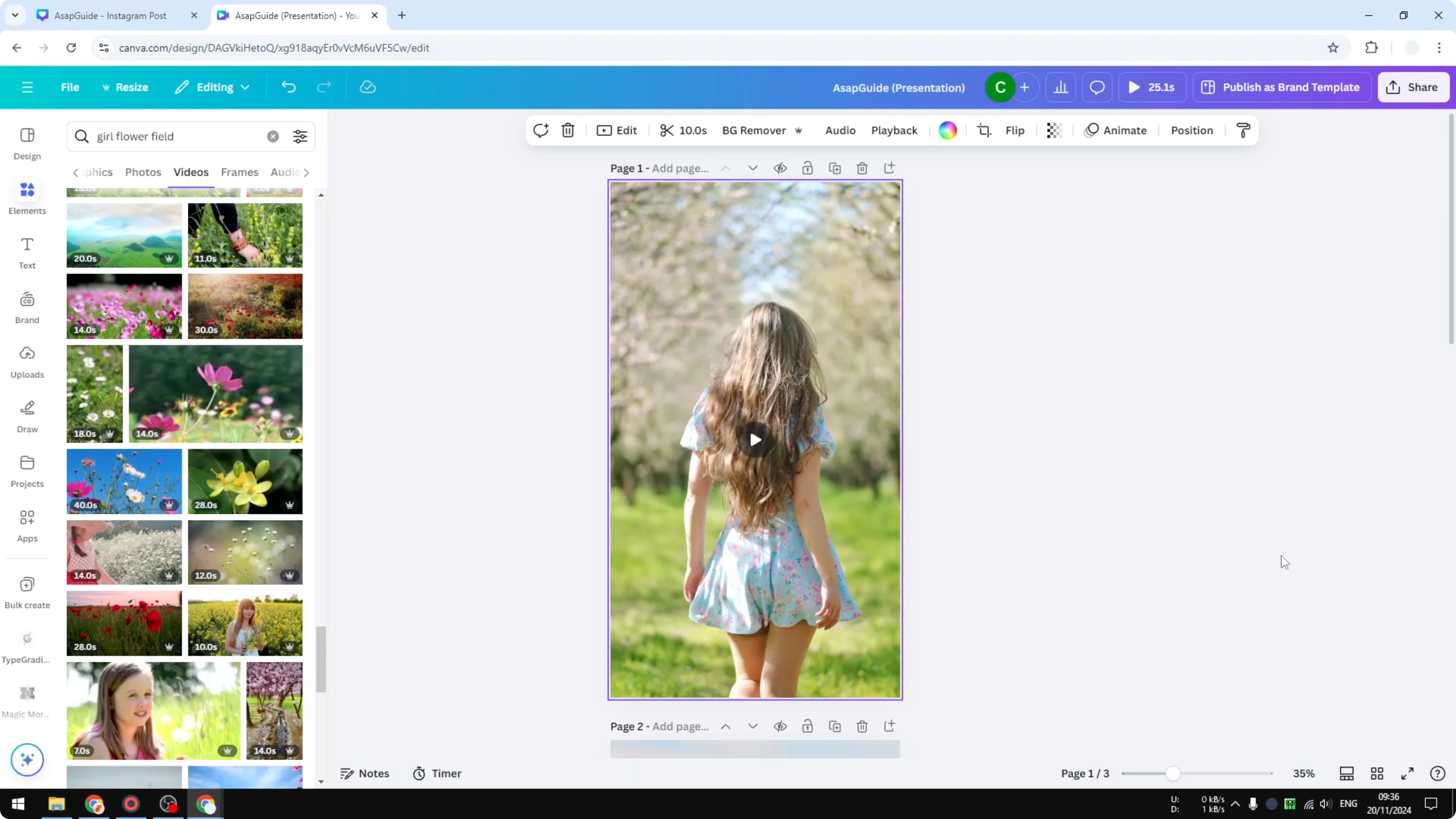
Play your video and you will notice there is no transition animation. It just jumps quickly from one clip to another, and it’s not very pretty in my opinion.
Hover the cursor above the edge where two clips meet. You will see a button that says Add transition.
Click Add transition and you will see several animations you can apply to that section. For example, apply Chop.
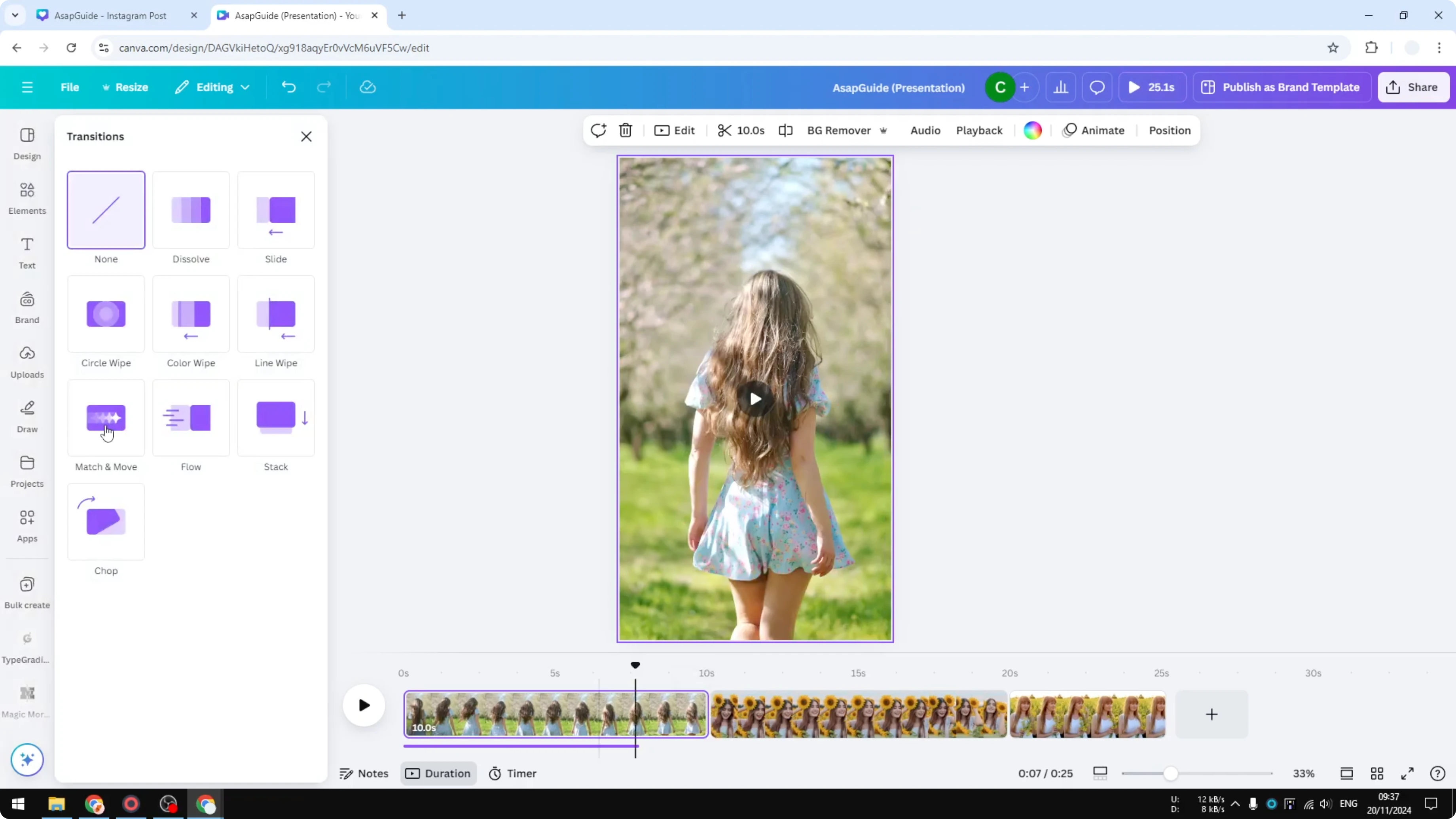
Add Video Transitions in Canva - adjust settings
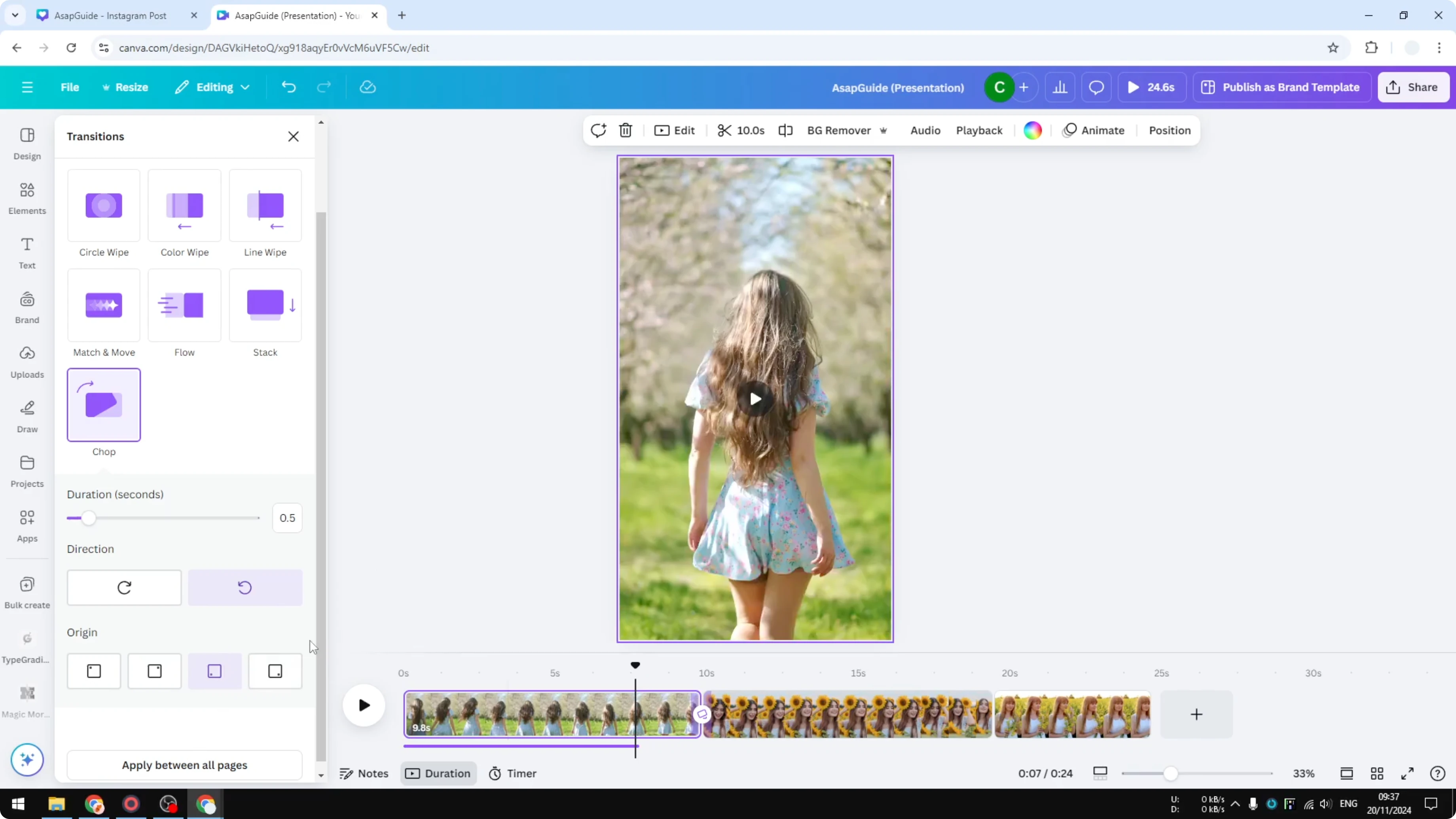
After choosing a transition, you can set Duration and Direction. There may be some other settings you can change.
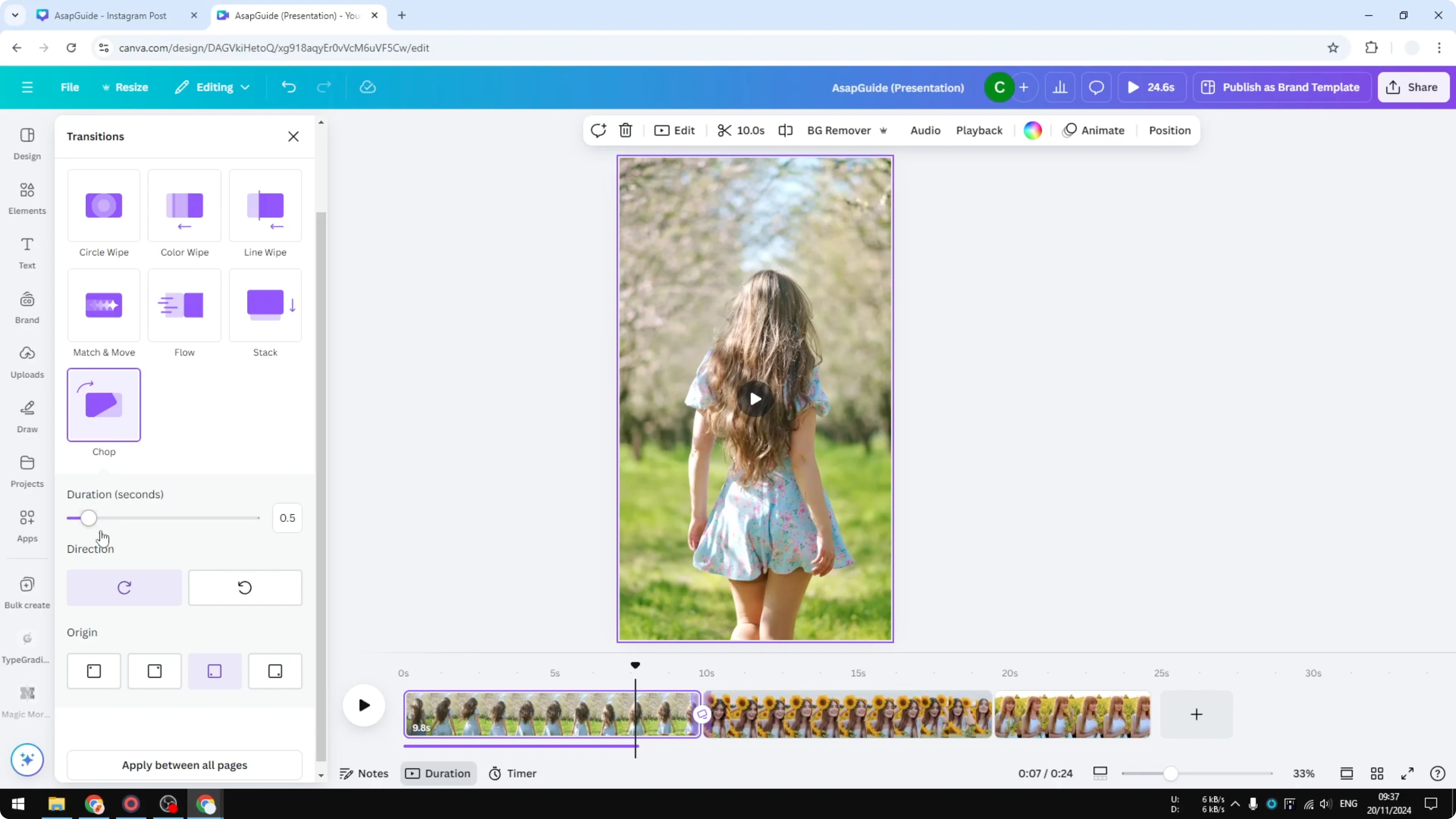
It depends on the animation, since not all animations will have the same settings. You can preview the setting after you apply it, then play and you should be able to see that animation.
If you are also enhancing visuals, you can layer effects with an overlay. Here’s a simple walkthrough on adding a video overlay in Canva.
Add Video Transitions in Canva - apply to all
If you want to apply the same transition to all the clips in your video, click Apply between all pages. This will add the chosen animation between every cut.
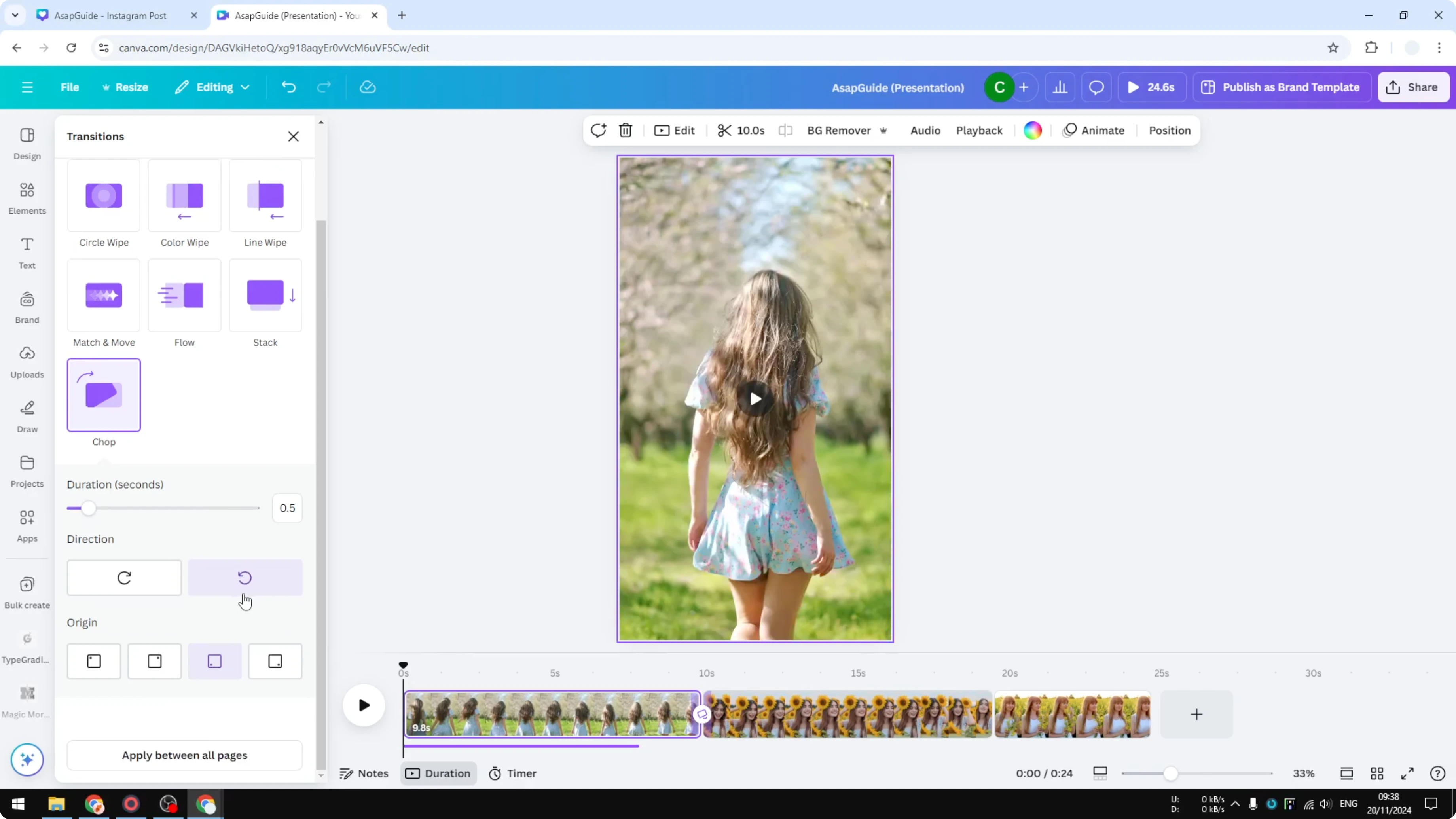
If a cut currently has no animation, clicking will add this animation to the other side. That’s how you can add transitions to your video clips in Canva.
Final thoughts
Enable the timeline, add a transition between clips, and adjust settings like duration and direction. Apply the effect across all pages if you want consistent transitions. If you also need narration for your project, here’s how to add a natural-sounding track with AI voice in Canva.
Recent Posts

How to Visualize Yourself as a Pixelized Character with AI?
How to Visualize Yourself as a Pixelized Character with AI?

How to Revive Faded Memories and Enhance Image Clarity with AI?
How to Revive Faded Memories and Enhance Image Clarity with AI?

How to Visualize Yourself as an Animal Crossing Character with AI?
How to Visualize Yourself as an Animal Crossing Character with AI?