How to Create a Watermark in Canva
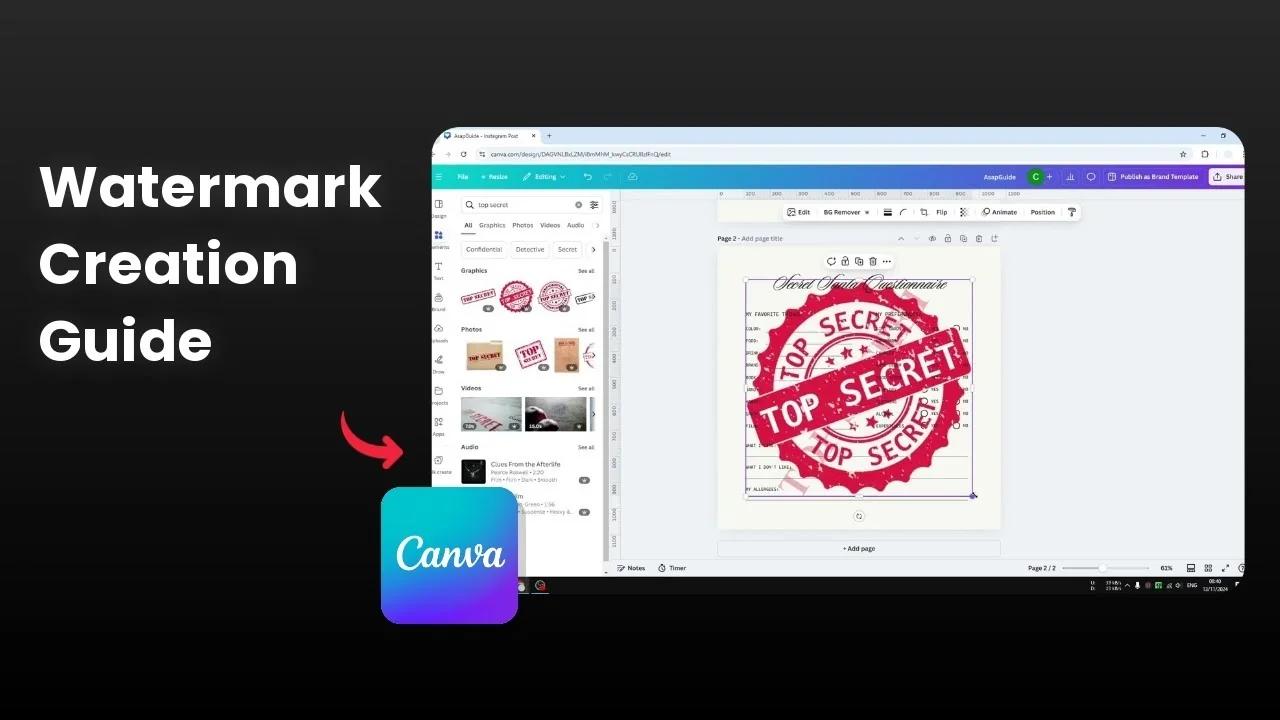
There is one question: can you add a watermark to your Canva design? The answer is yes. Although Canva does not have a native built-in feature to add a watermark, you can still create your own watermark in Canva.
It could be a text, an image, or a logo for your company, and you can place that into your design. I am going to show a simple text watermark, and this method applies to an image or logo as well. If you need to work with moving content, you can add a watermark to a Canva video too.
Create a Watermark in Canva
Text watermark
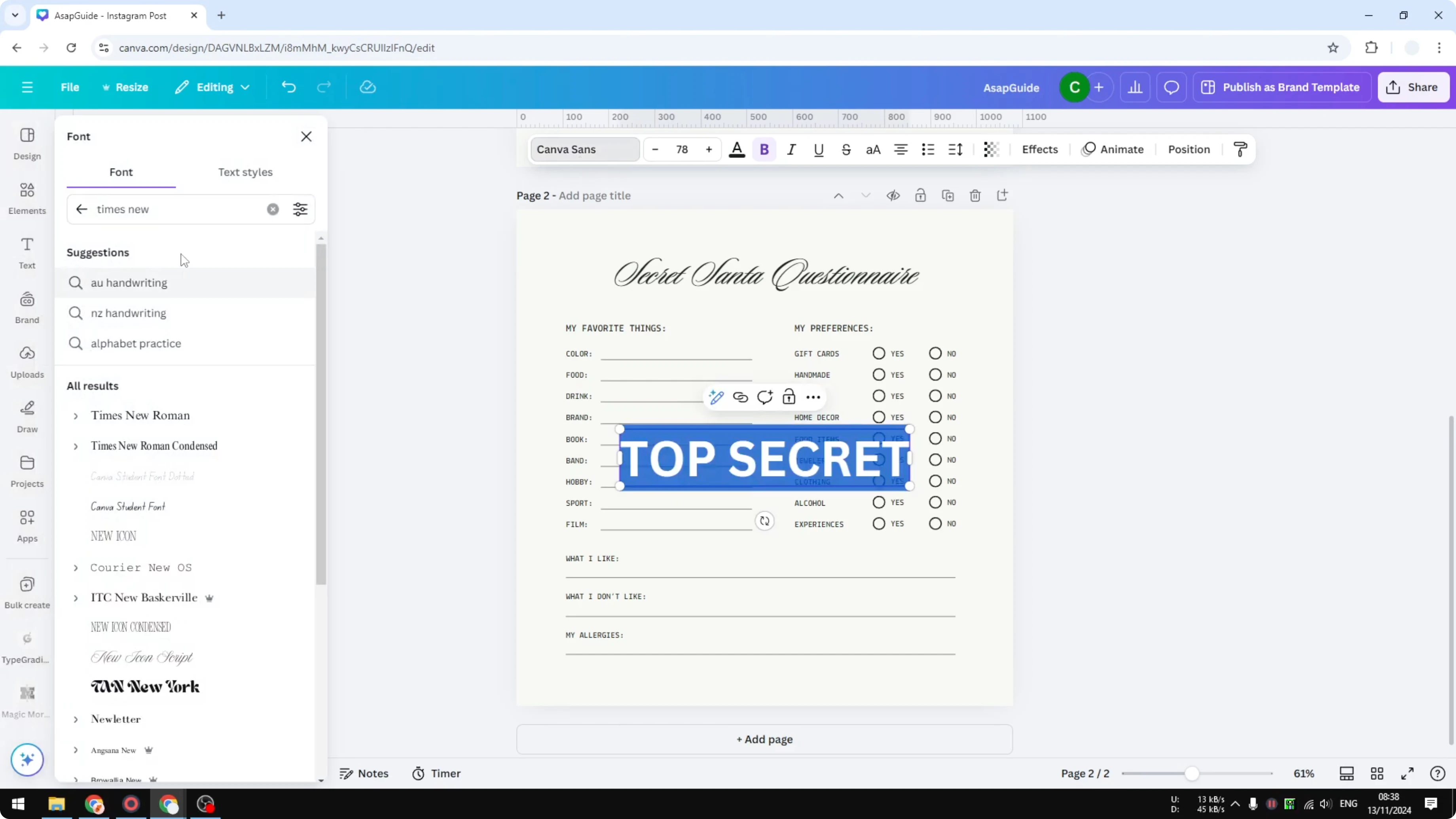
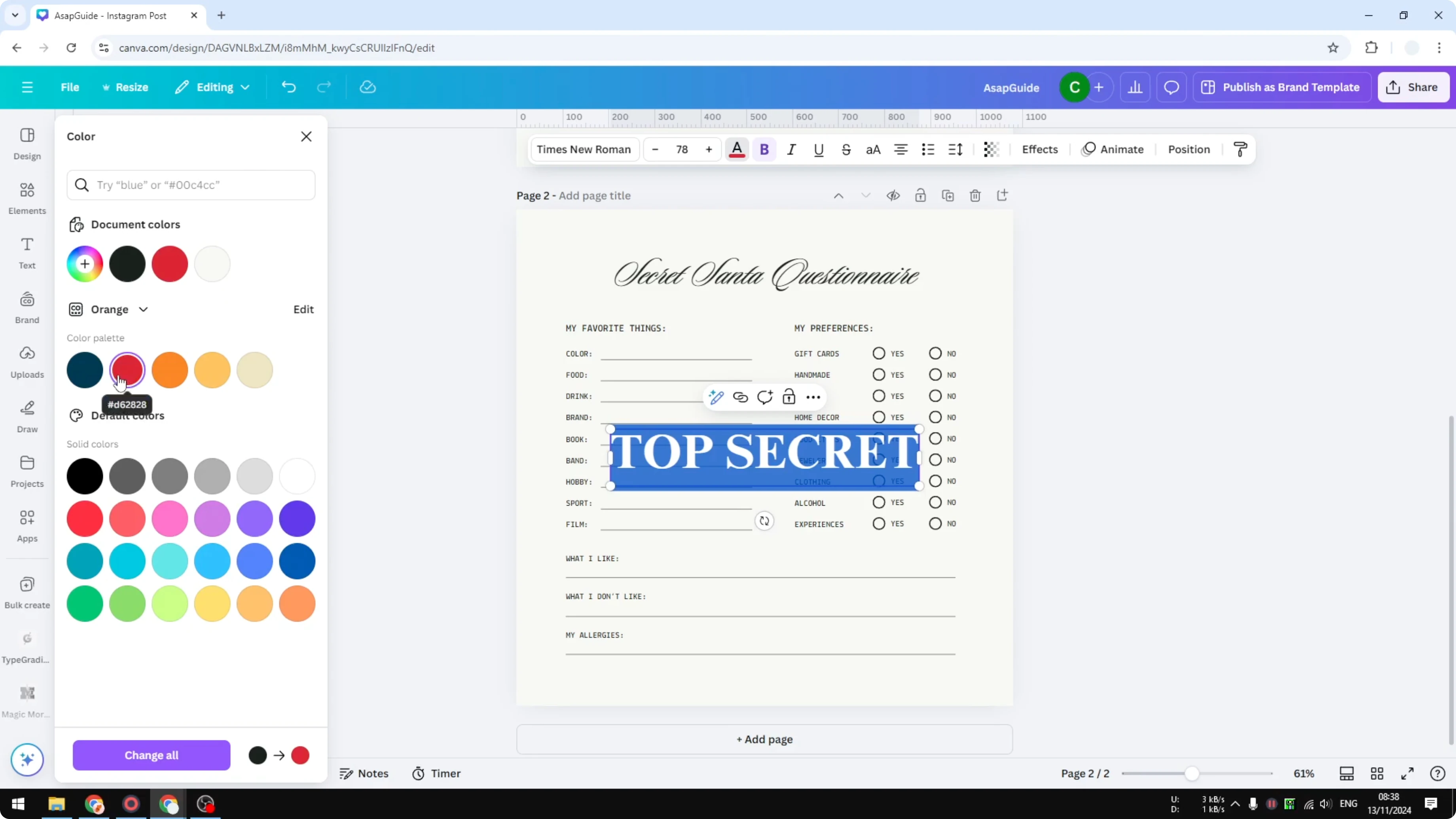
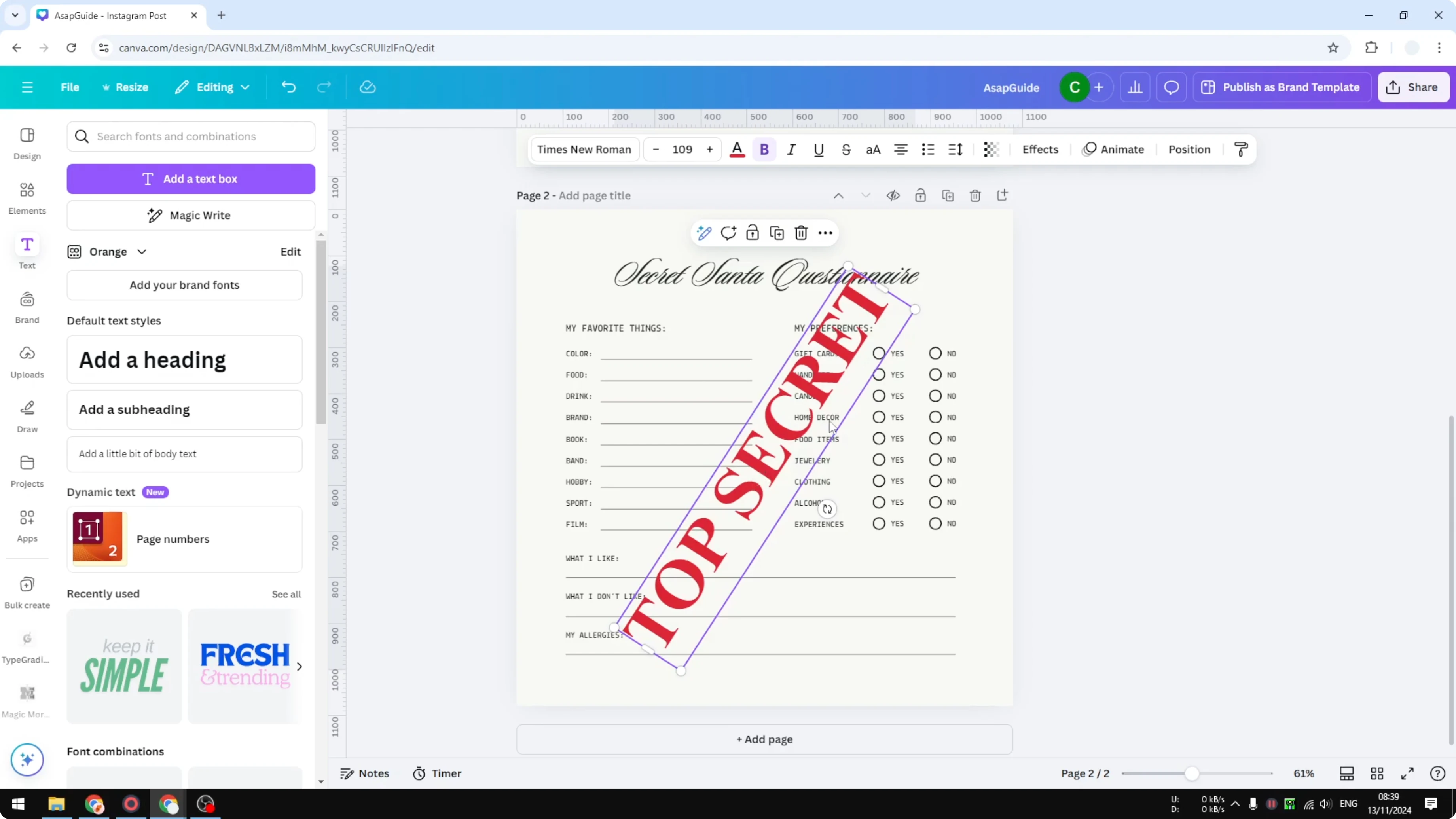
Visit Text and add simple text. Set it to something like Top Secret, then change the font to Times New Roman. After that, change the color to red.
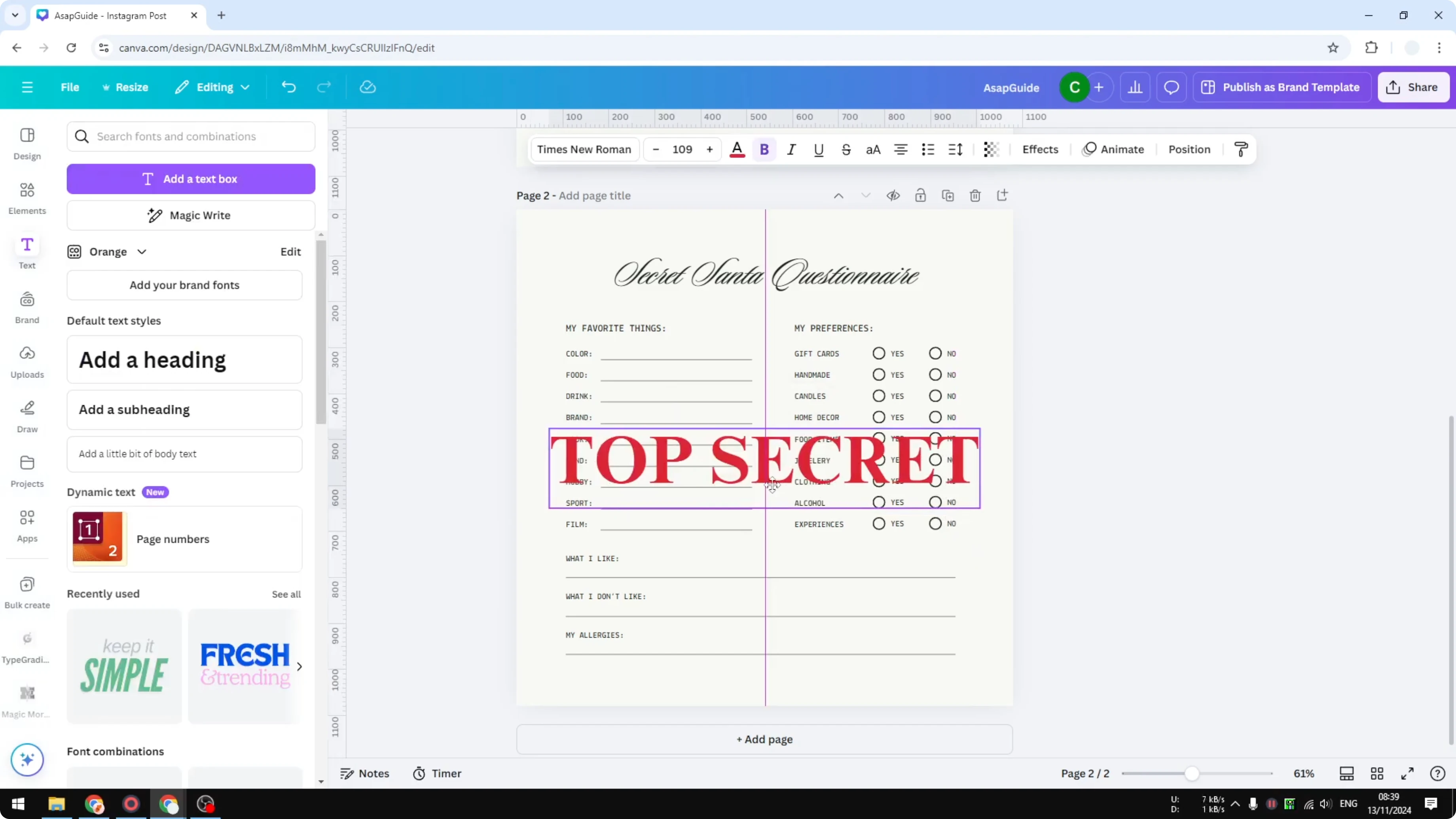
I recommend using a solid color like black, white, red, or blue. Consider the background of the document to make sure the watermark is visible. Make the text a little bigger.
You have the option to rotate the watermark. This diagonal style is often used for watermarking.
Transparency and style
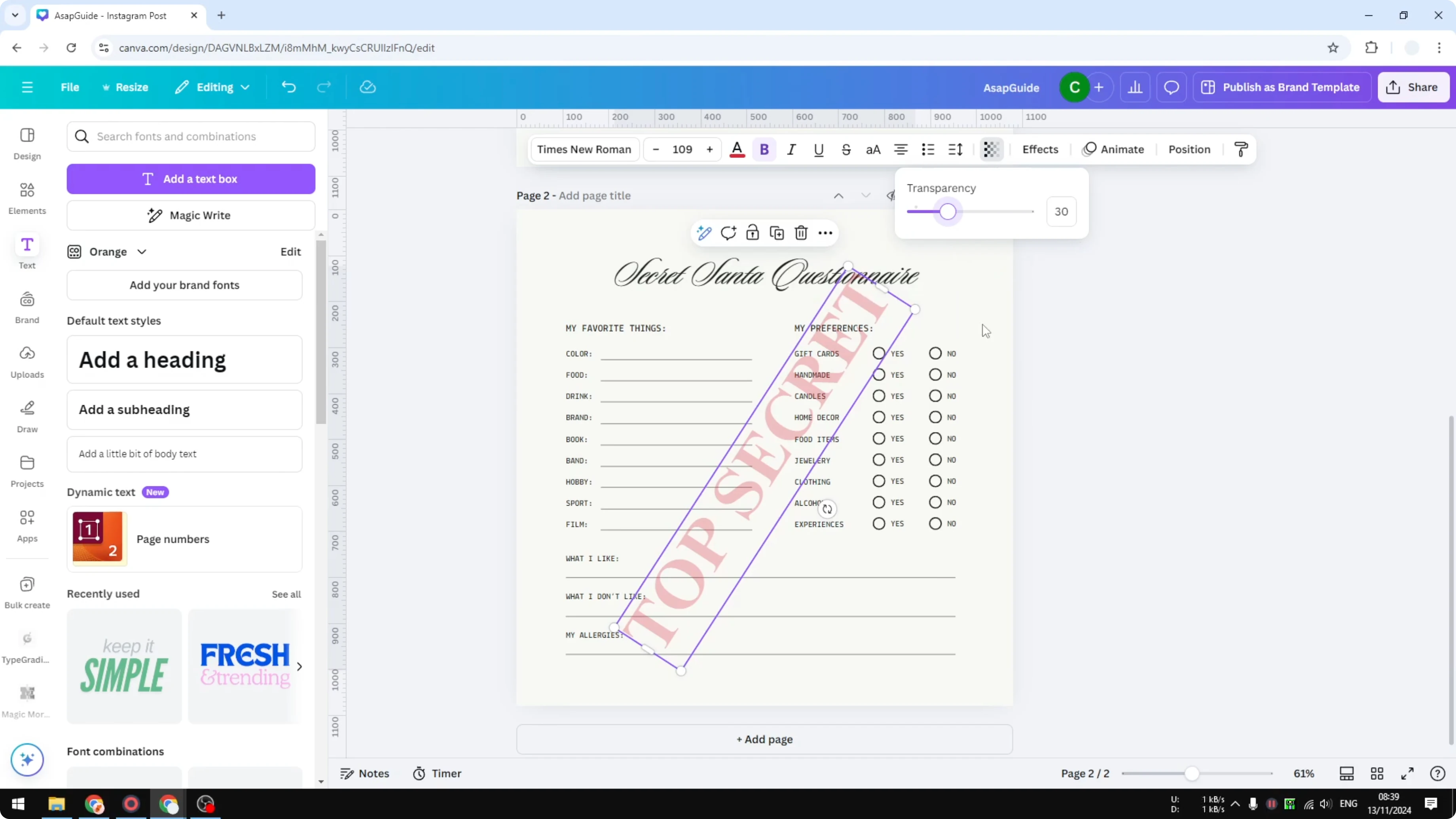
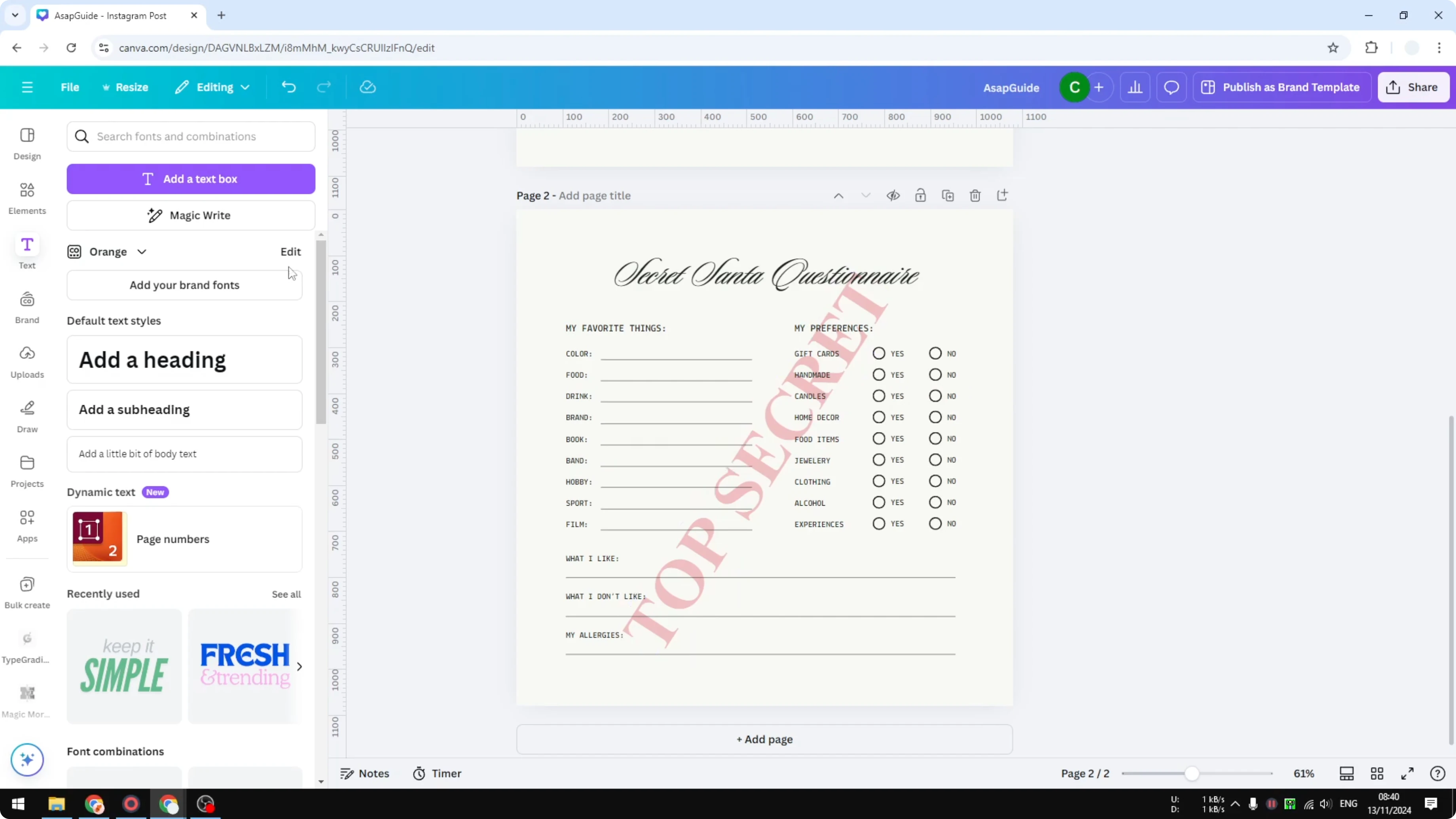
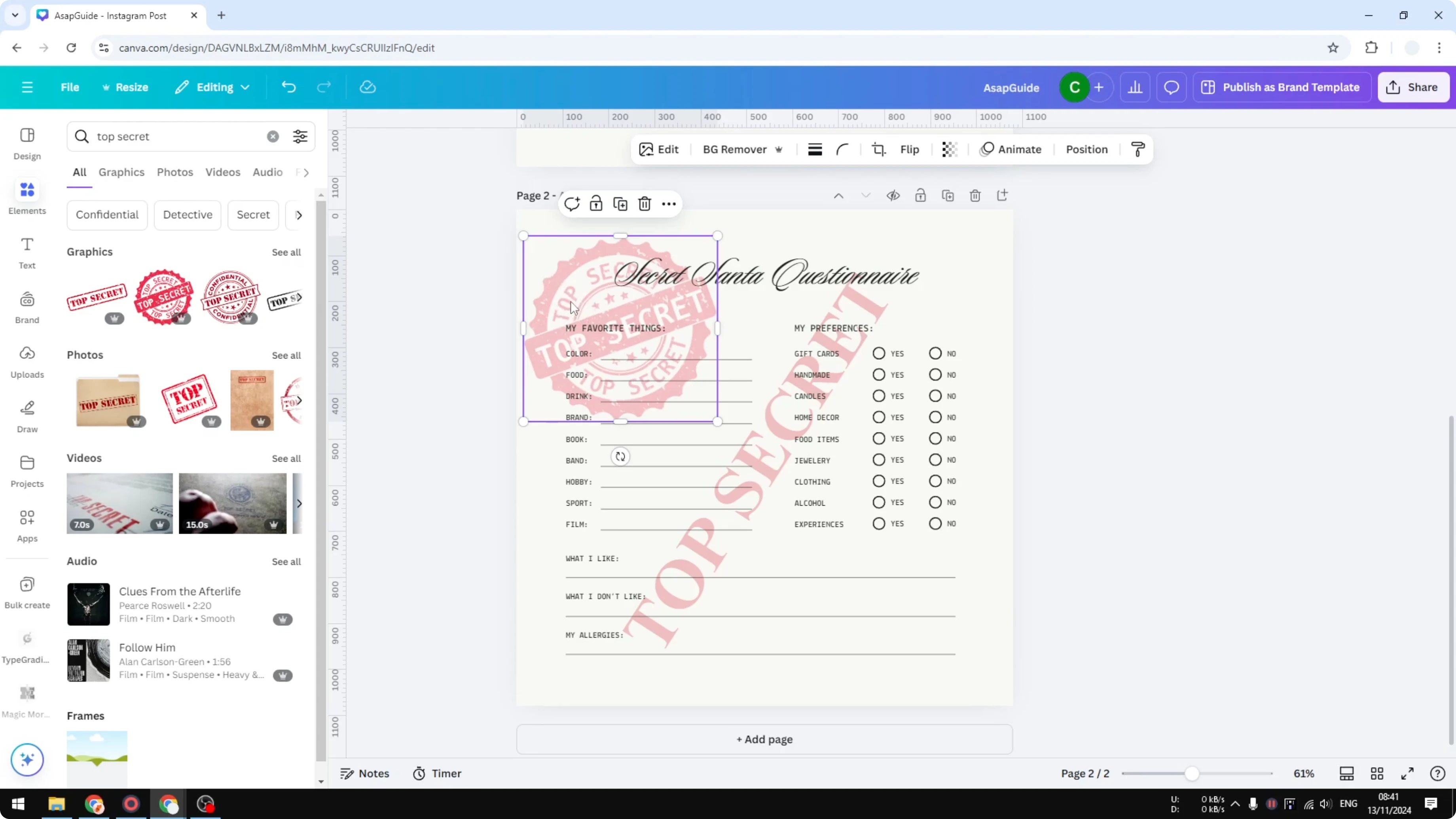
Adjust the transparency because a watermark is not 100 percent visible. Open the Transparency menu and reduce it to around 30 to 40 percent, which is the sweet spot in my opinion. You can select any level you want.
If the background is busy, you can create a bokeh effect in Canva to soften it and improve readability.
Layer order
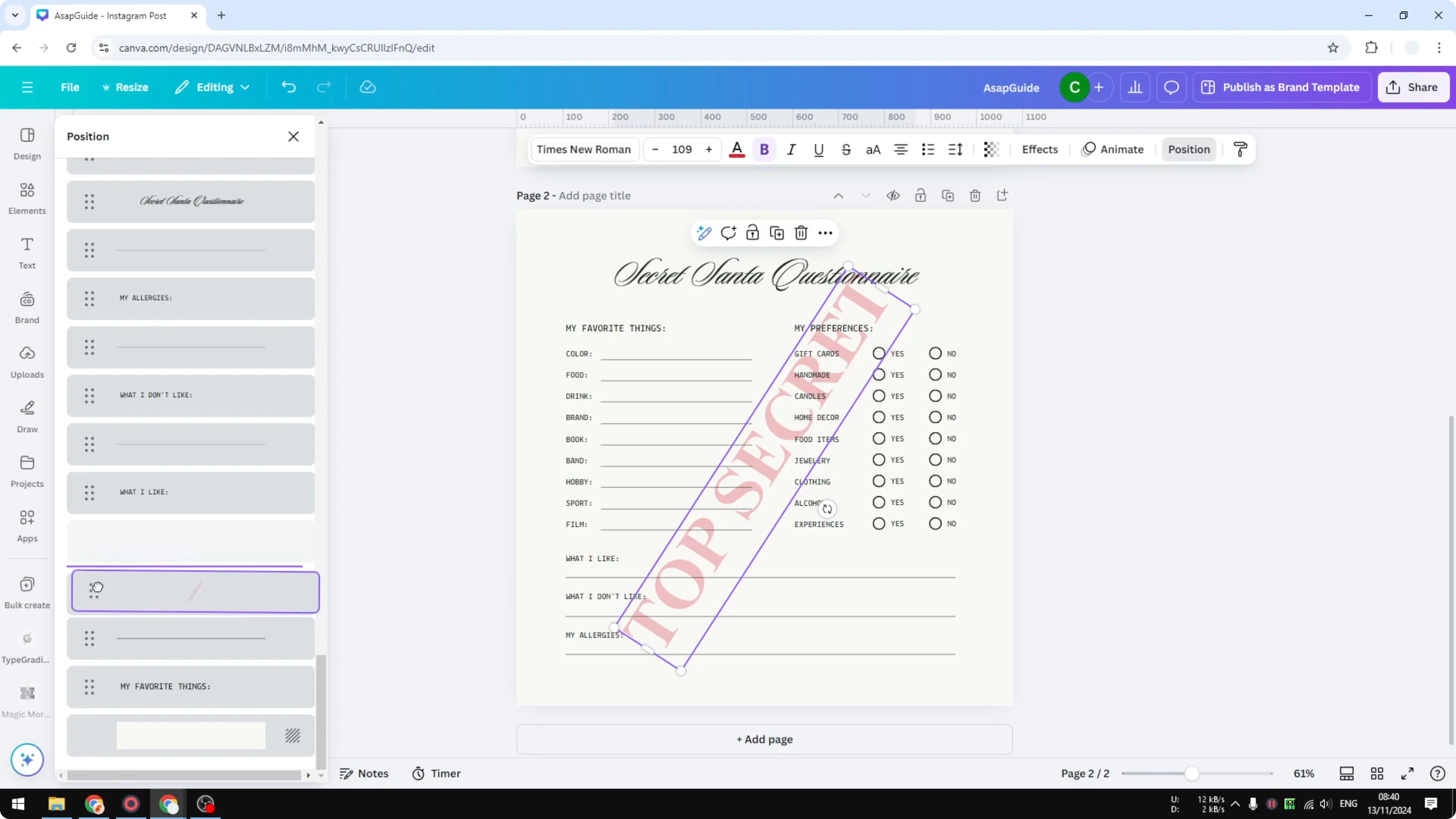
Visit Position and navigate Layers to see every element in the document. Generally, a watermark is located at the very back, though you can also put it at the top. Click Send to back for the watermark layer.
If it still does not sit at the very back, adjust the position manually so it is precisely on top of the background and behind everything else. This keeps the watermark present without blocking important elements.
Using a logo or image
This method applies to a logo or image as well. For example, you can drop in a Top Secret stamp image, set its transparency to around 30 percent, and place it where you want. Adjust the position, right-click, open Layer, and Send to back.
For unobtrusive callouts around your design, you can create a custom arrow in Canva and point to areas without interfering with the watermark.
Lock the watermark
I recommend locking the design so you do not accidentally mess with the watermark while working on the document. Select the watermark, click Lock position only, then click Lock again. After that, no matter what you do, the watermark will not move or change until you unlock that element.
Final thoughts
You can create a watermark in Canva with text, a logo, or an image, set the right transparency, and place it behind your content. Make sure it is visible against the background and lock it to avoid accidental changes. This simple workflow keeps your branding or status mark consistent across your designs.
Recent Posts

How to Visualize Yourself as a Pixelized Character with AI?
How to Visualize Yourself as a Pixelized Character with AI?

How to Revive Faded Memories and Enhance Image Clarity with AI?
How to Revive Faded Memories and Enhance Image Clarity with AI?

How to Visualize Yourself as an Animal Crossing Character with AI?
How to Visualize Yourself as an Animal Crossing Character with AI?