How to Use the Draw Tool in Canva
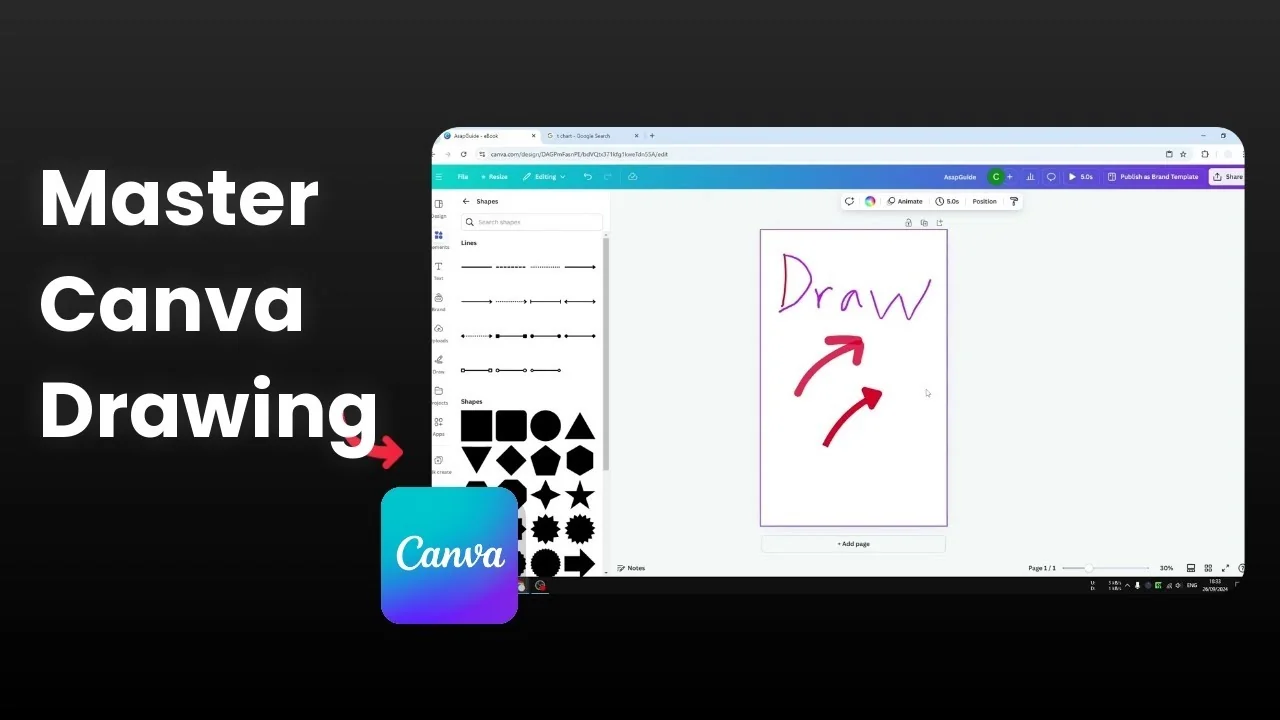
I will show you how you can use the draw tool in Canva. The Draw tool lets you use your stylus or your cursor to create a custom drawing on the canvas.
It is simple to find and easy to learn, and you can edit the results like any other object. Use a stylus for better accuracy.
Use the Draw Tool in Canva
Get started
Open a document in Canva.
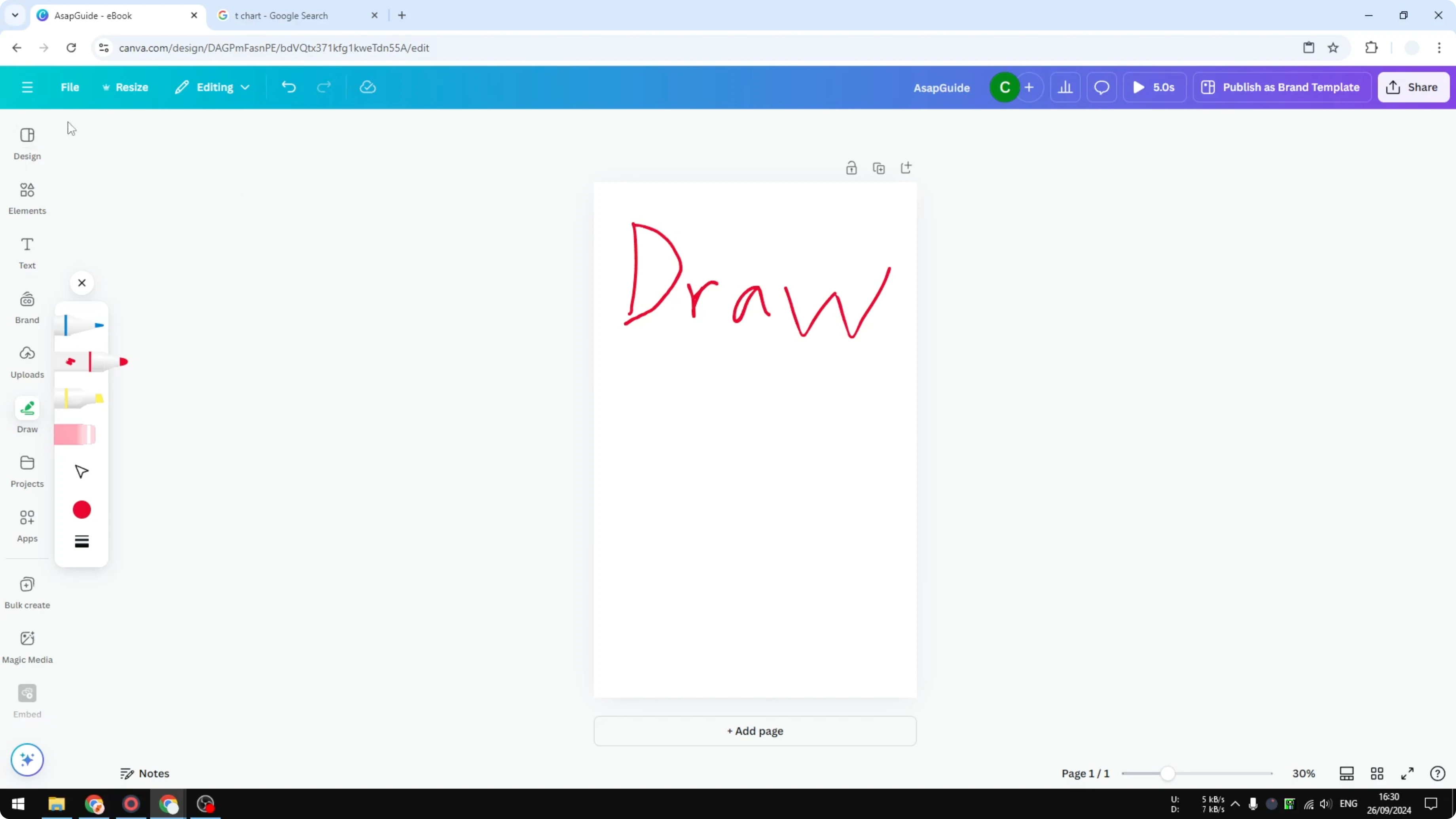
Click Draw on the left panel.
Pick a tool. You can choose the Brush or the Highlighter.
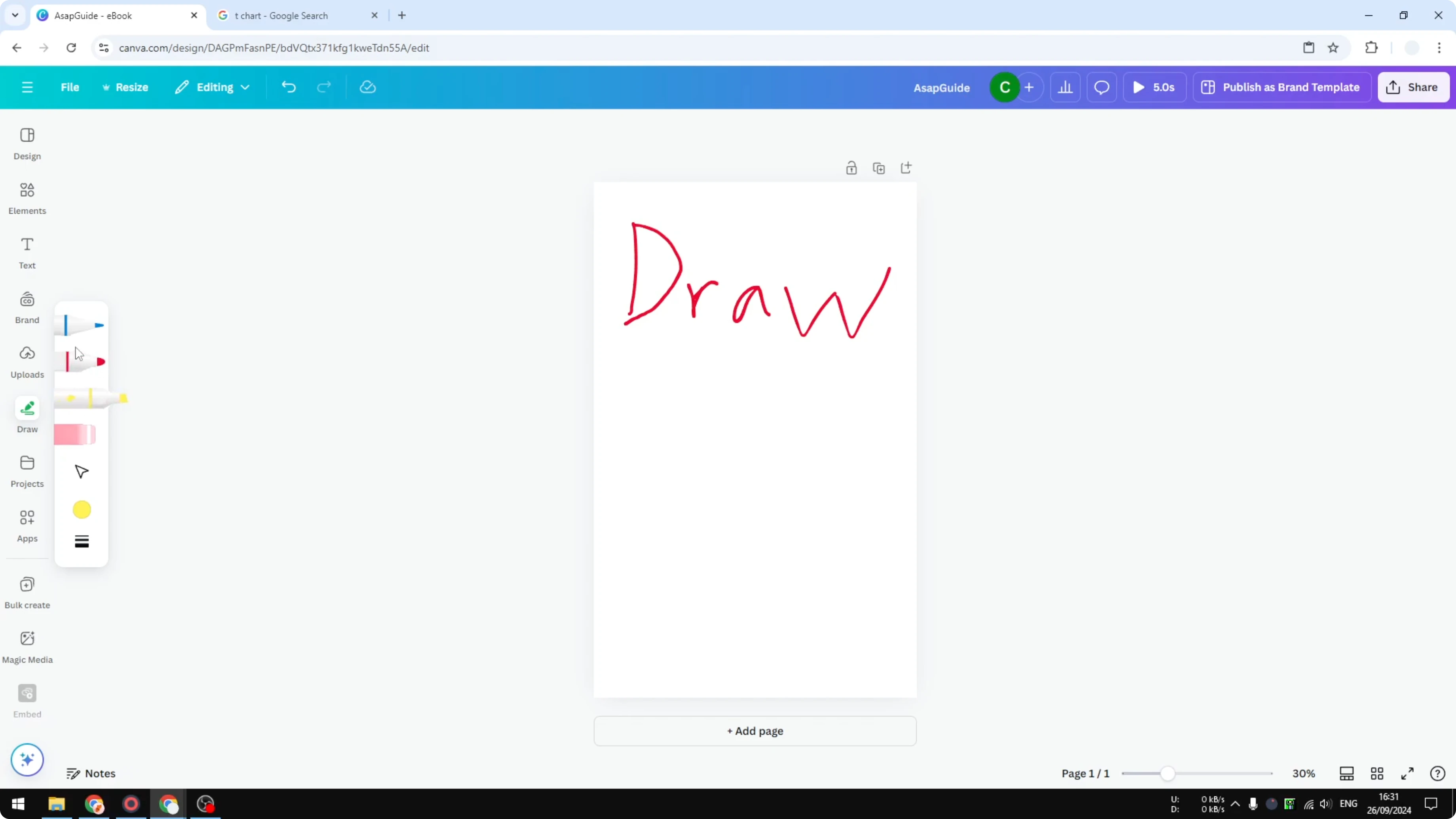
Choose a color. You can also adjust the weight and transparency of the tool you select.
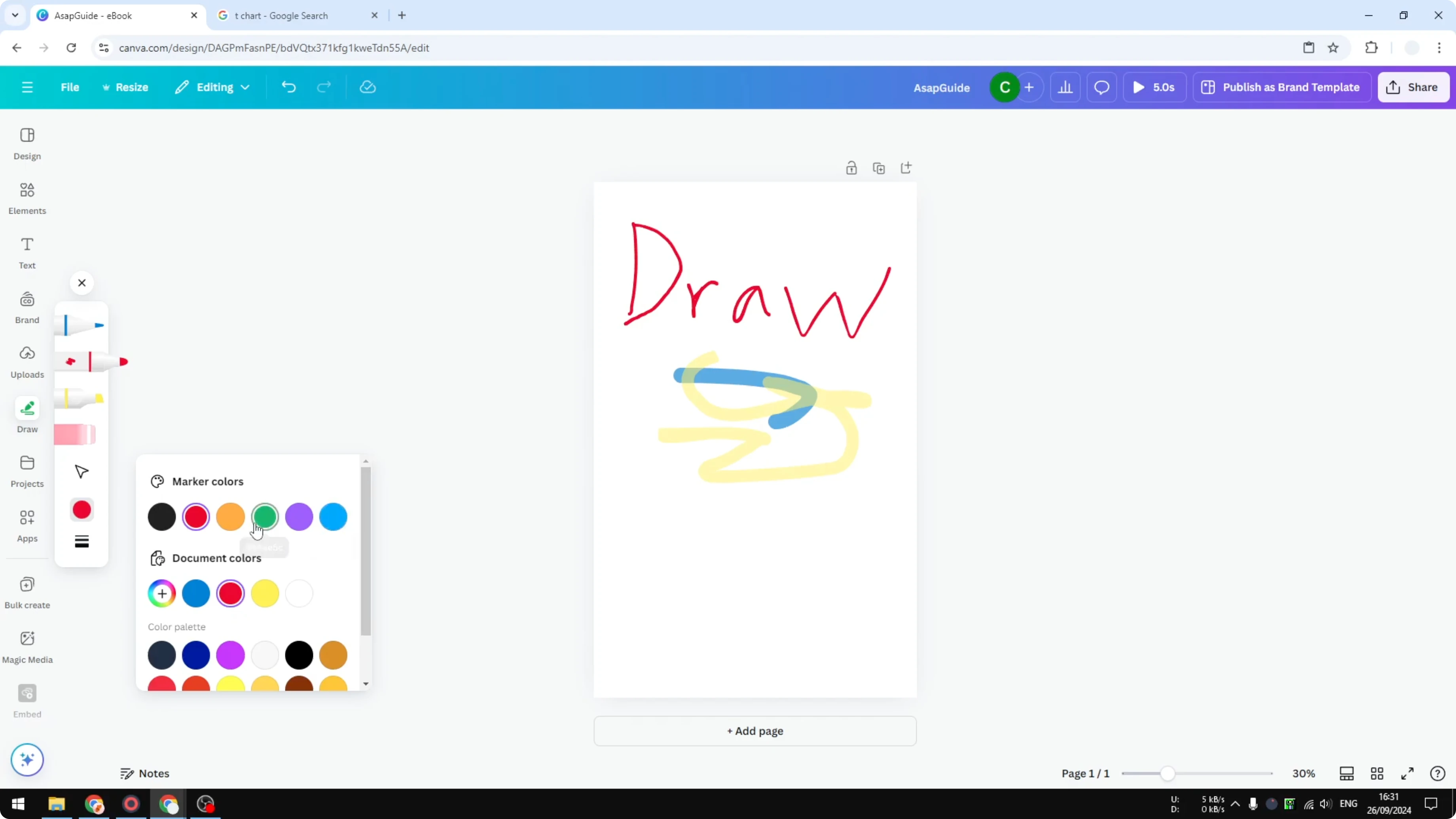
Set your preferences. For example, make it orange and 90 percent transparent.
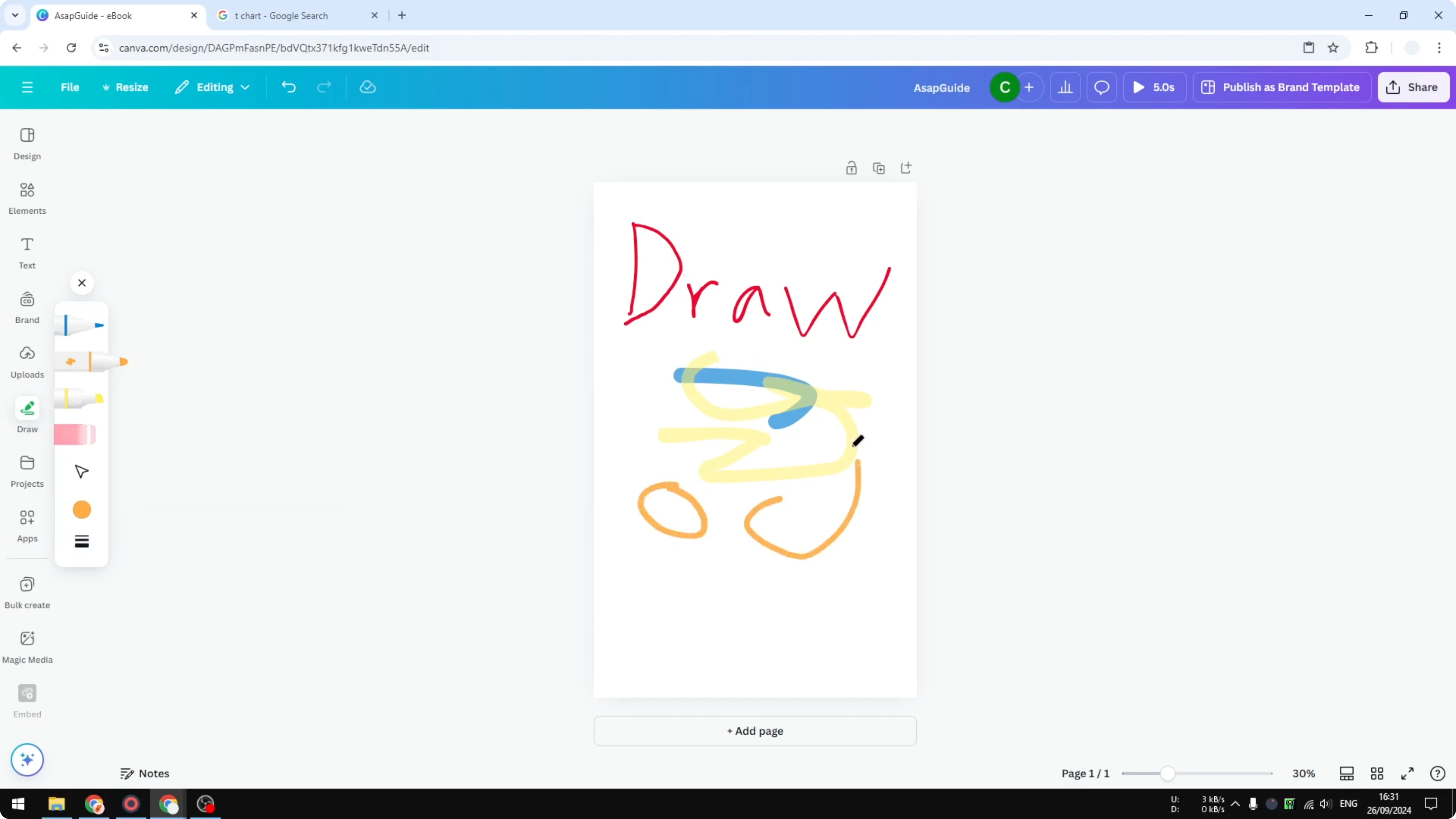
Tools and options
The Brush creates solid strokes for sketching and writing. The Highlighter is usually transparent and great for emphasis.
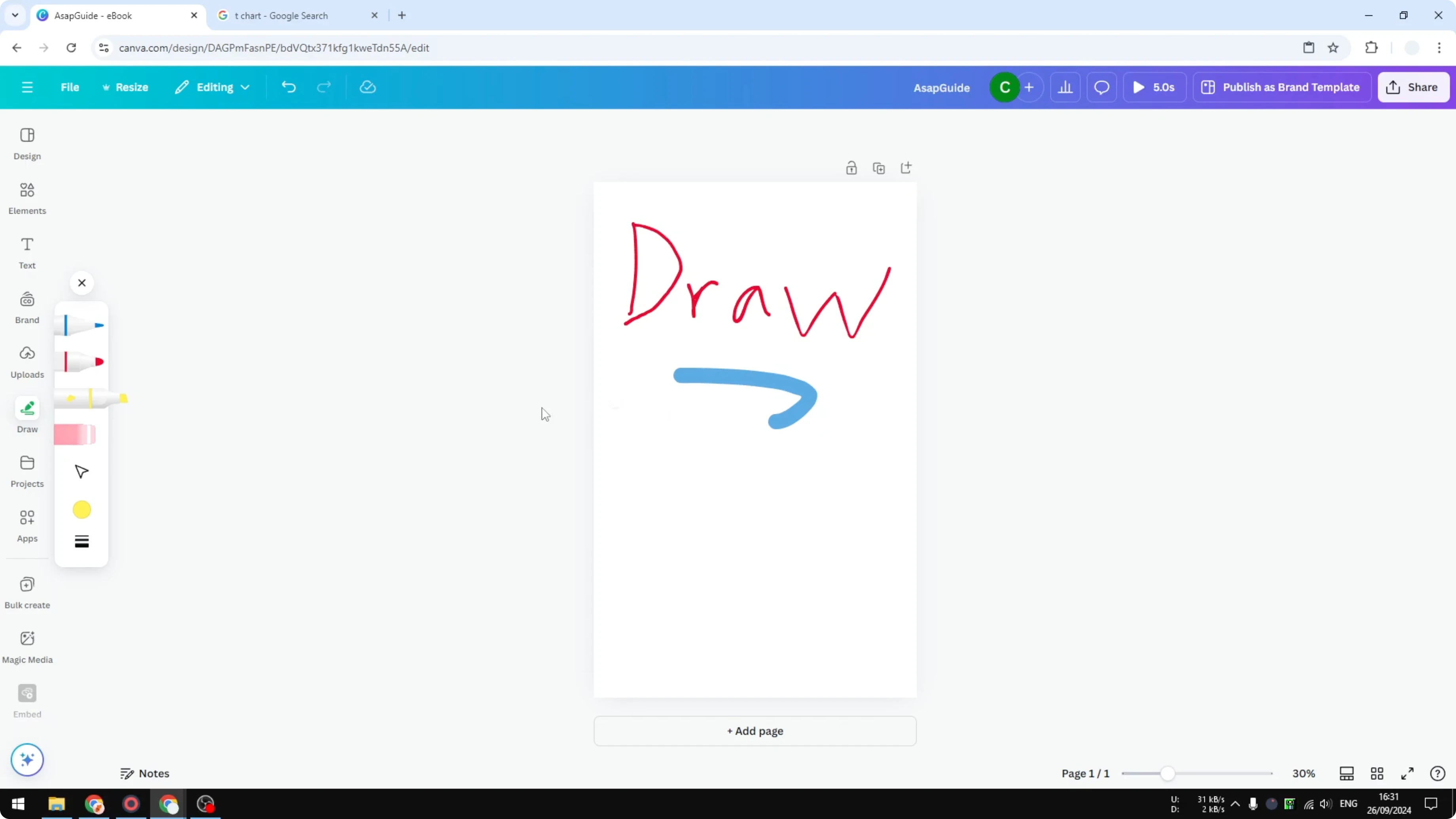
You can switch colors at any time. You can also change the thickness and transparency to fine tune every stroke.
Read More: Canva Video Timeline Use
Move, edit, and erase
When you finish a stroke, click it to move it like a regular object.
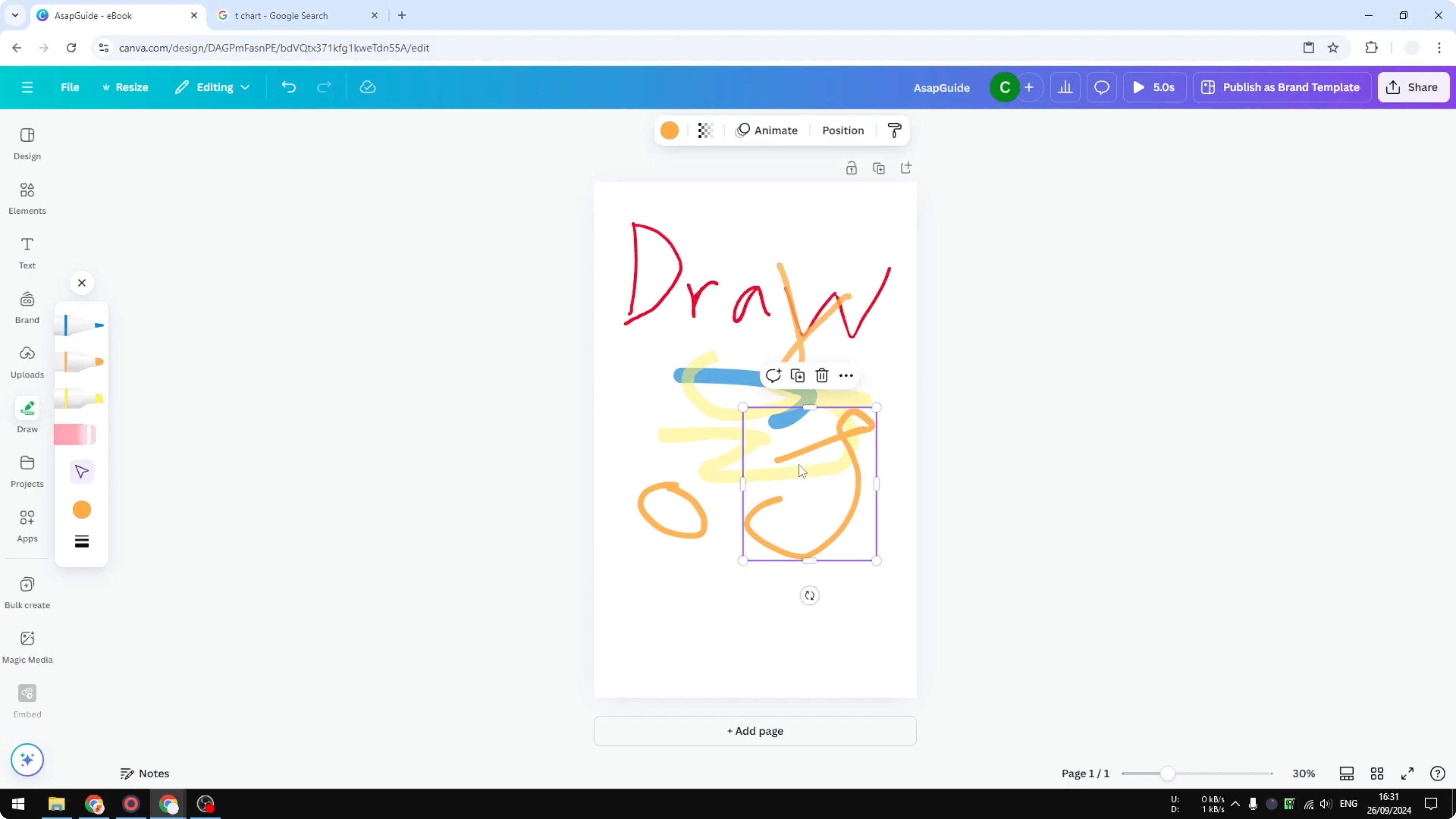
To remove parts of a drawing, select the Eraser and click on any scribble you want to delete.
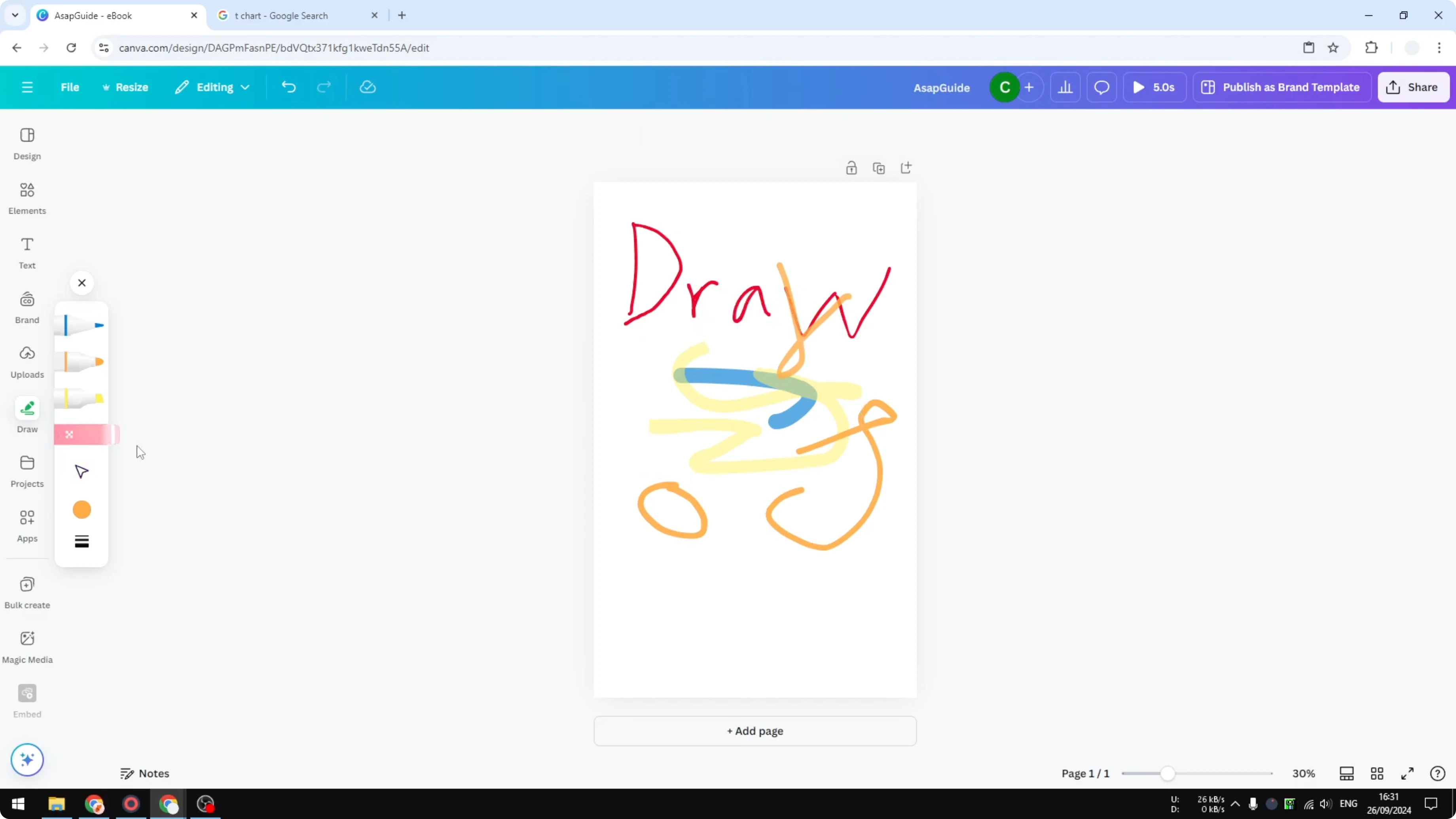
Click Close to exit drawing mode. You can then treat the drawing as a separate object and change the color or resize it if you want to.
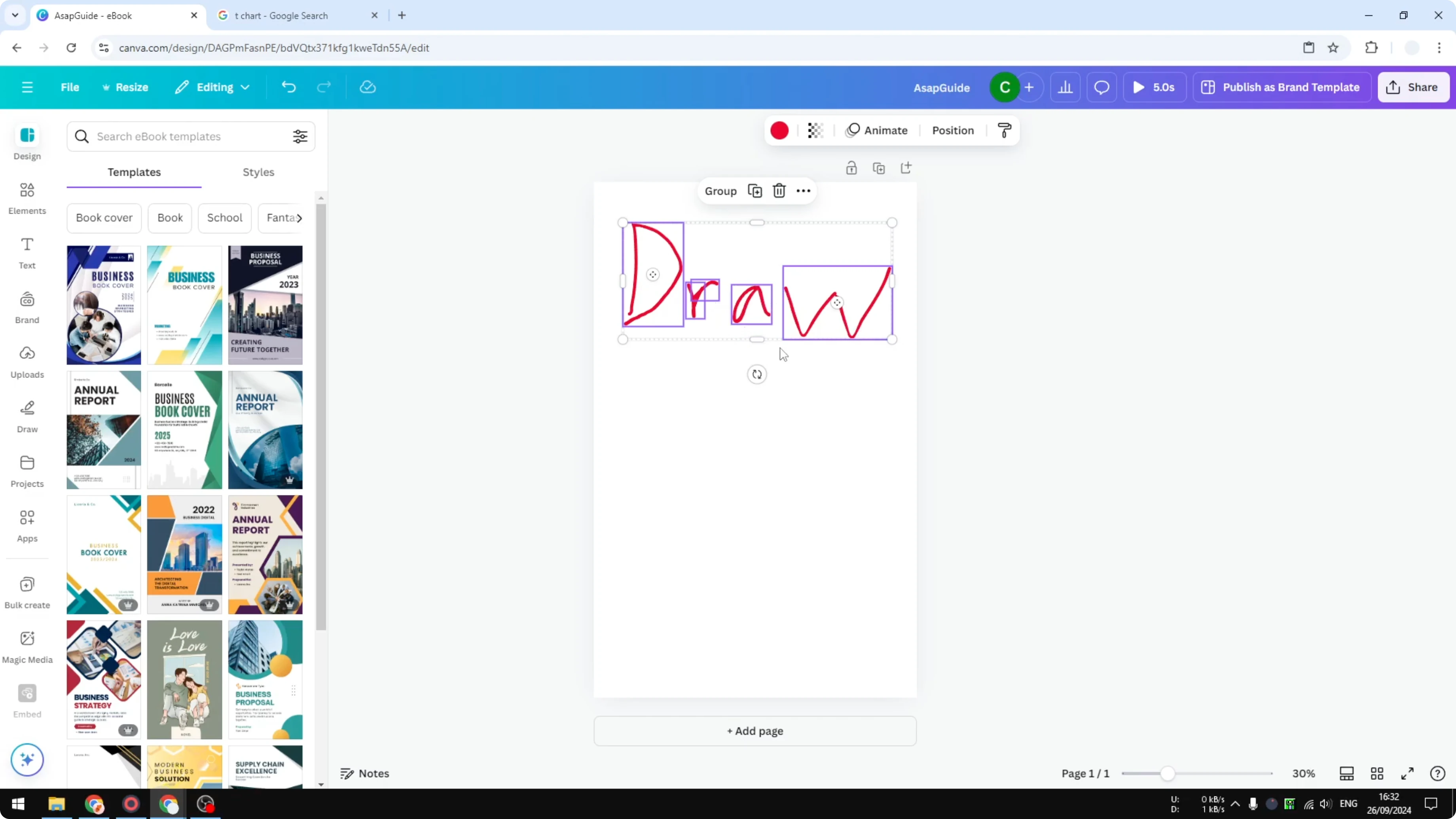
It is much more useful with a stylus because the drawing will be more accurate. For live markup during slides, see how to draw and annotate while presenting.
Better arrows with Elements
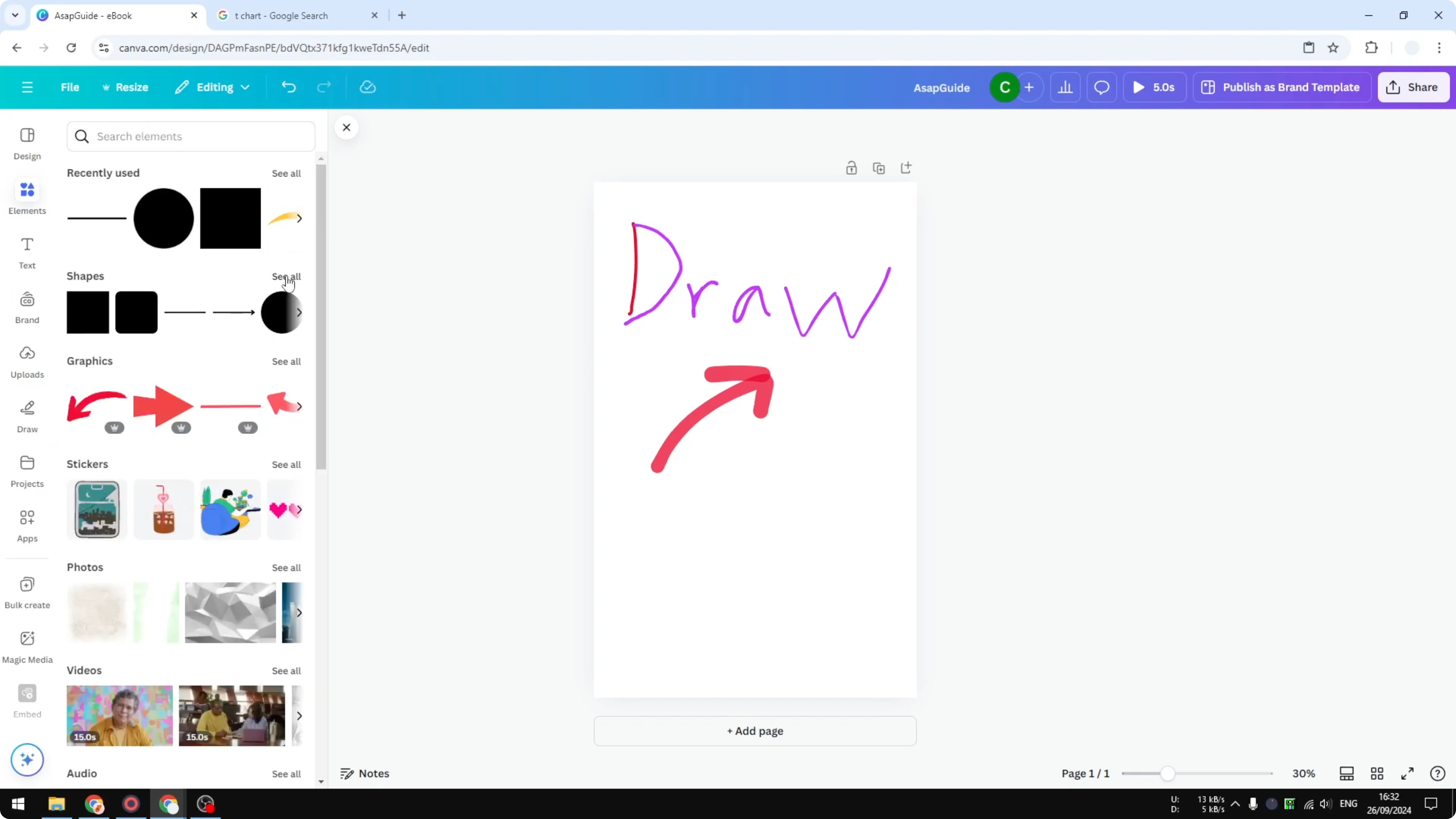
I have seen people use the Draw feature to create a custom arrow, but it is not the best idea if you do not have a stylus.
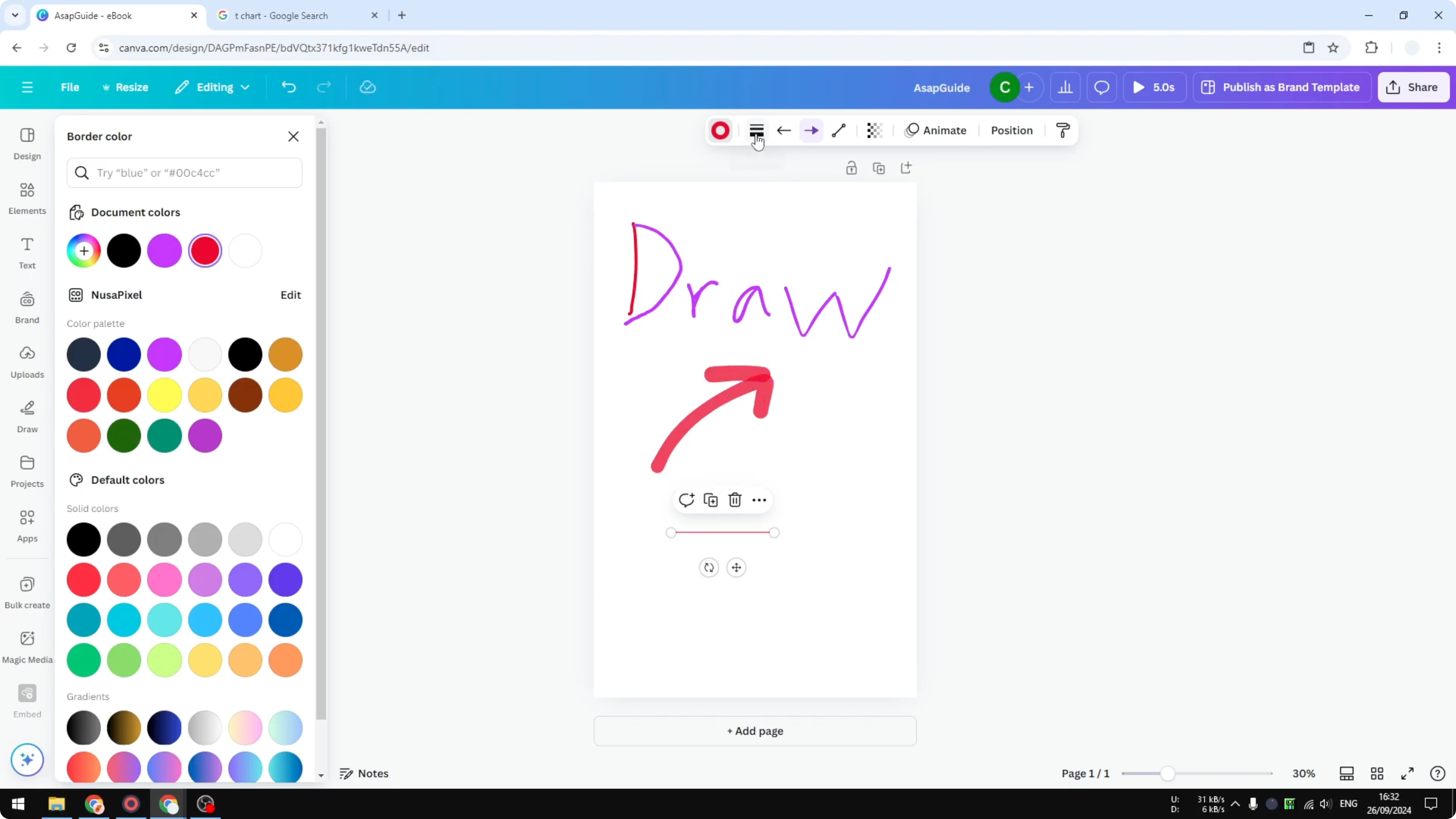
I recommend opening Elements, going to Shapes, selecting All, and choosing an arrow design. This is more accurate and looks better than a hand drawn arrow.
You can adjust the style, the end point, the start point, and the line type, like curved or elbowed. If you want more control over paths, see how to draw your own lines in Canva.
Final thoughts
That is the basic of the draw feature in Canva. It works well for quick notes and sketches, and it is best with a stylus.
For precise arrows and lines, the Elements options produce cleaner results.
Recent Posts

How to Visualize Yourself as a Pixelized Character with AI?
How to Visualize Yourself as a Pixelized Character with AI?

How to Revive Faded Memories and Enhance Image Clarity with AI?
How to Revive Faded Memories and Enhance Image Clarity with AI?

How to Visualize Yourself as an Animal Crossing Character with AI?
How to Visualize Yourself as an Animal Crossing Character with AI?