How to Use Chroma Key in Canva
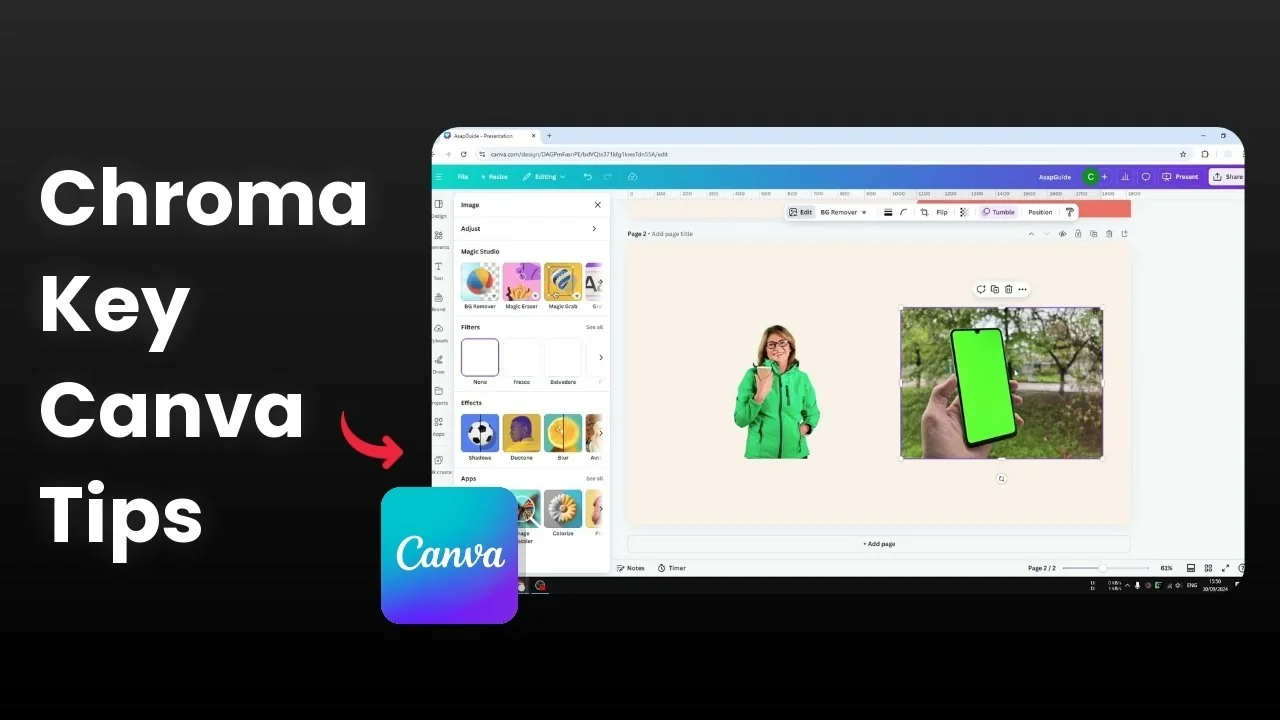
Canva does not have a native chroma key feature. It does offer built-in tools that can act like chroma key in common situations, especially for simple green screen replacements.
These tools let you replace a green background with the background you want. You can get very close to a classic chroma key workflow for many images.
Use Chroma Key in Canva: Background Remover
I have a picture of a woman who is wearing green, and the background is also green. That is hard in a traditional setup, but Canva can differentiate the object and the background.
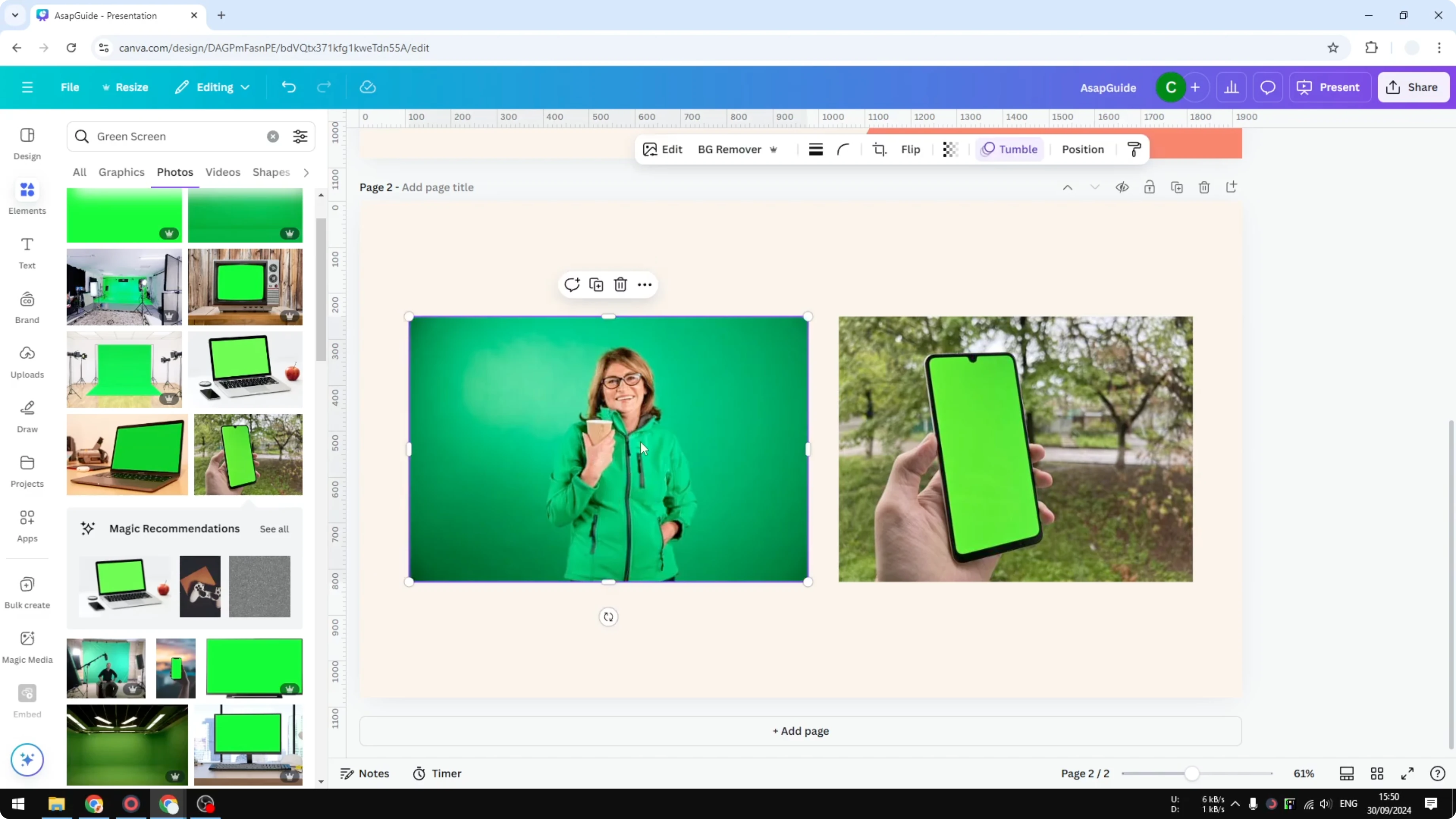
The Background Remover is smart enough to separate the subject even if the subject contains green. It removes the background color or a background image you do not want, and it keeps the actual object.
Click on the image.
Click Edit.
In Magic Studio, select Background Remover.
Wait a moment, and the background is gone while the subject remains.
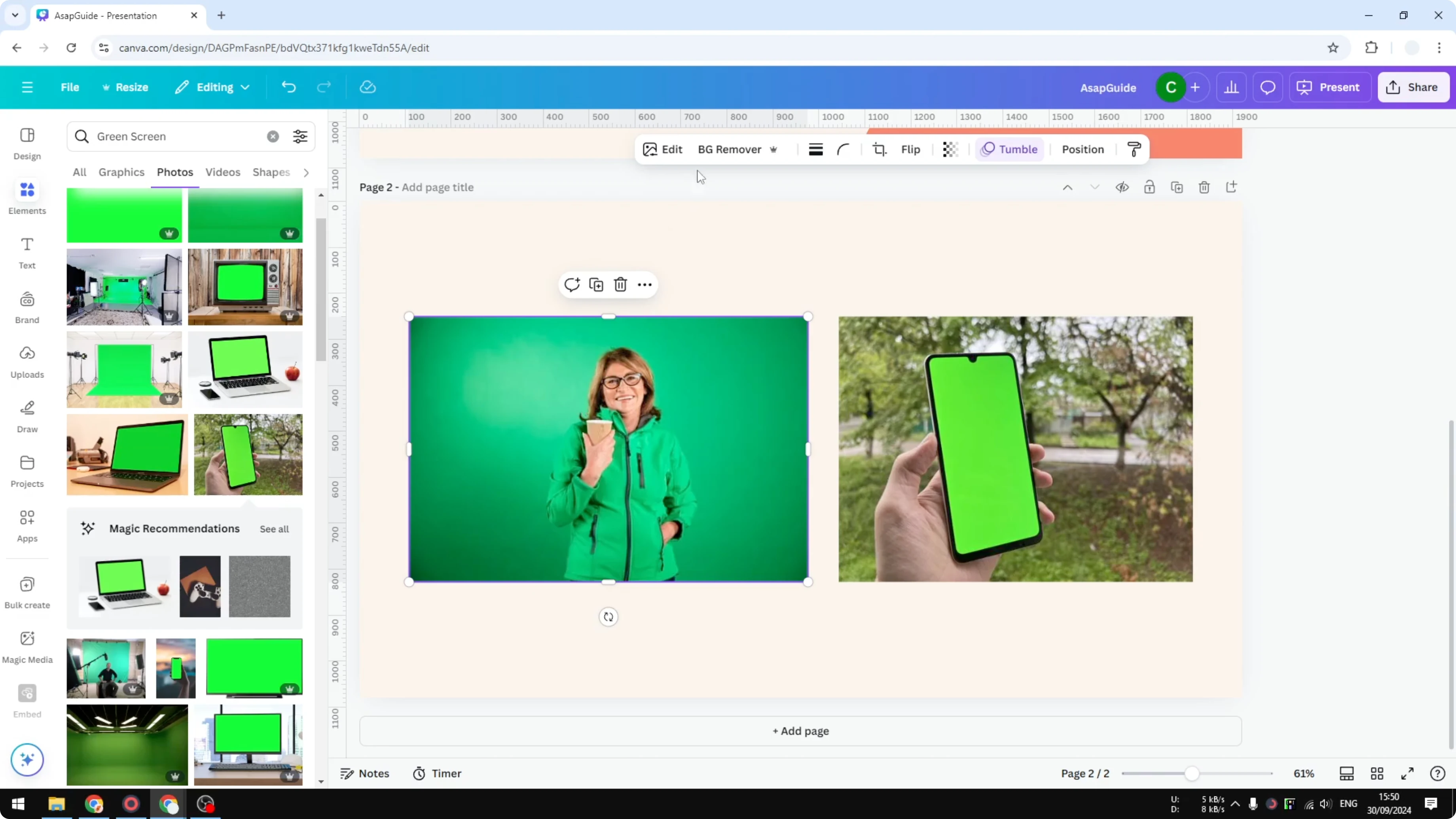
It is very fast and very useful. You get a clean cutout without having to do manual masking.
Read More: Canva Video Timeline Use
Use Chroma Key in Canva: When Background Remover is not what you need
This feature does not help if you only want to remove a specific area inside an object. For example, with a smartphone photo, you might want to remove just the screen area and replace it with an app screenshot.
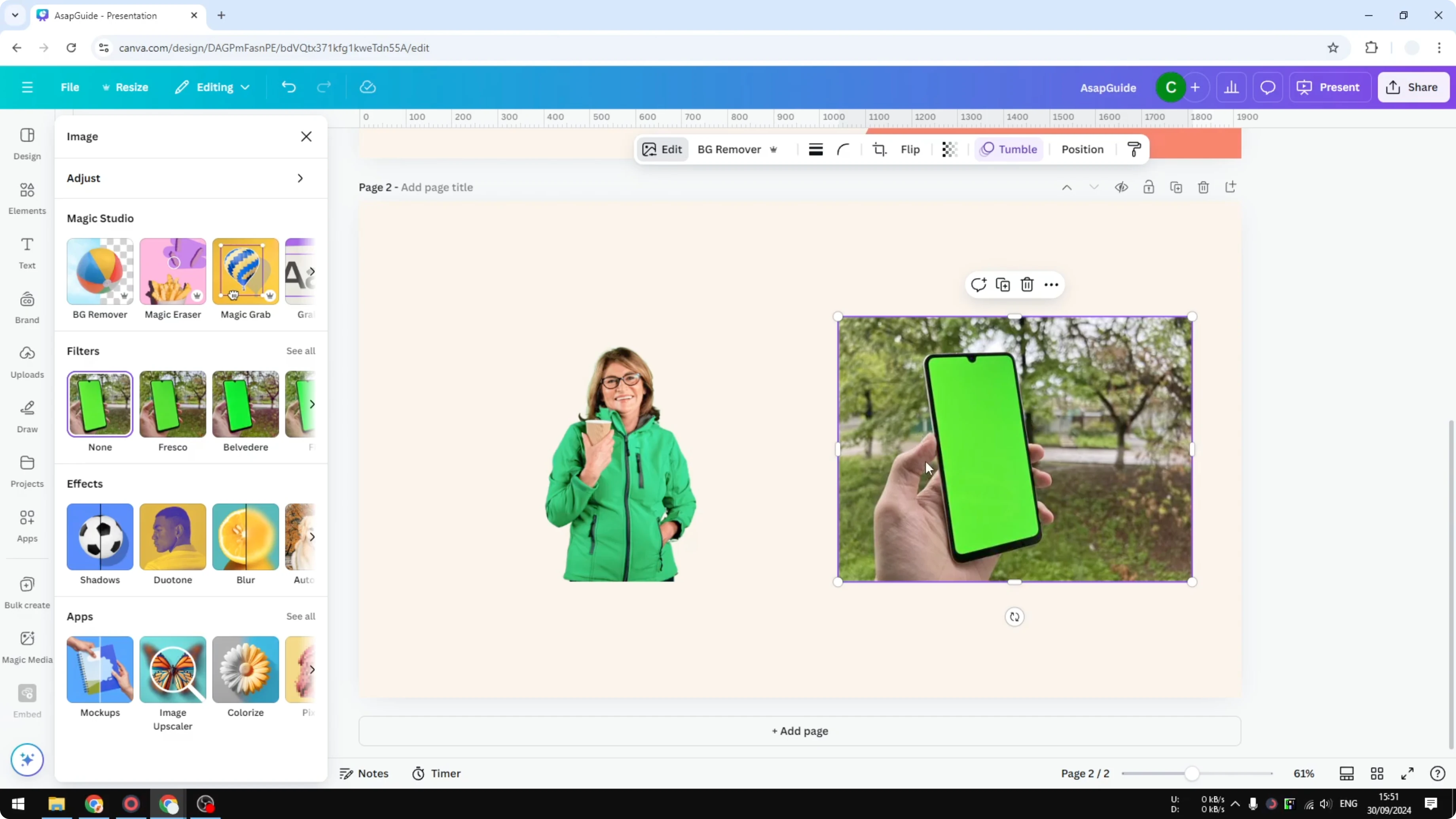
If you use Background Remover on that image, it will remove the background and keep the phone. That is not what we want if the goal is to replace only the display area.
You also cannot rely on Magic Eraser for this because it tries to replace the erased area with new content. It does not leave the space empty for you to insert another image cleanly. See how Magic Eraser in Canva behaves in different edits.
Use Chroma Key in Canva: Frames and mockups for screens
If you want to place a screenshot into a phone cleanly, use frames and mockups in Elements. This is the proper way to create a phone screen replacement in Canva.
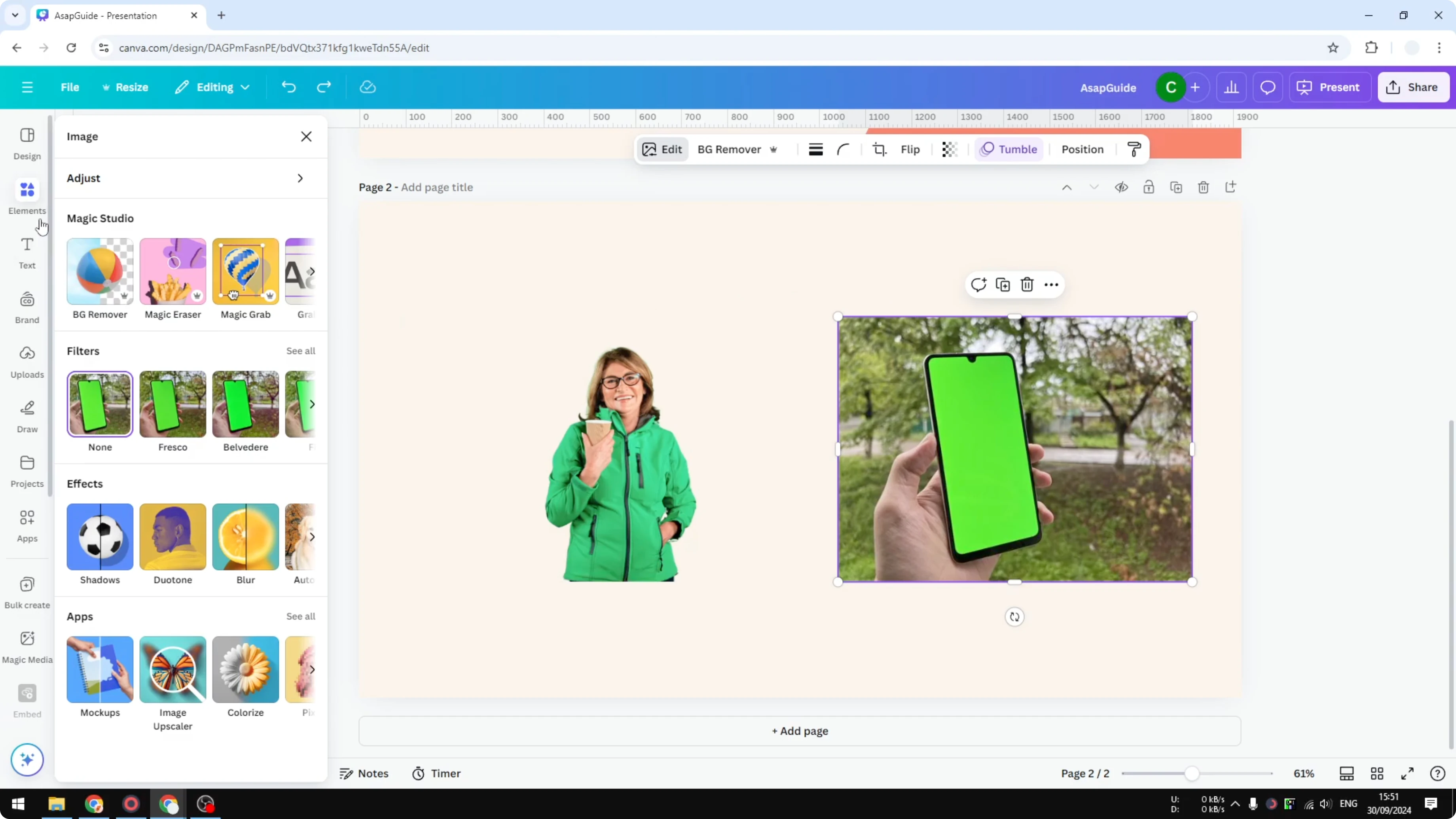
Go to the Elements section.
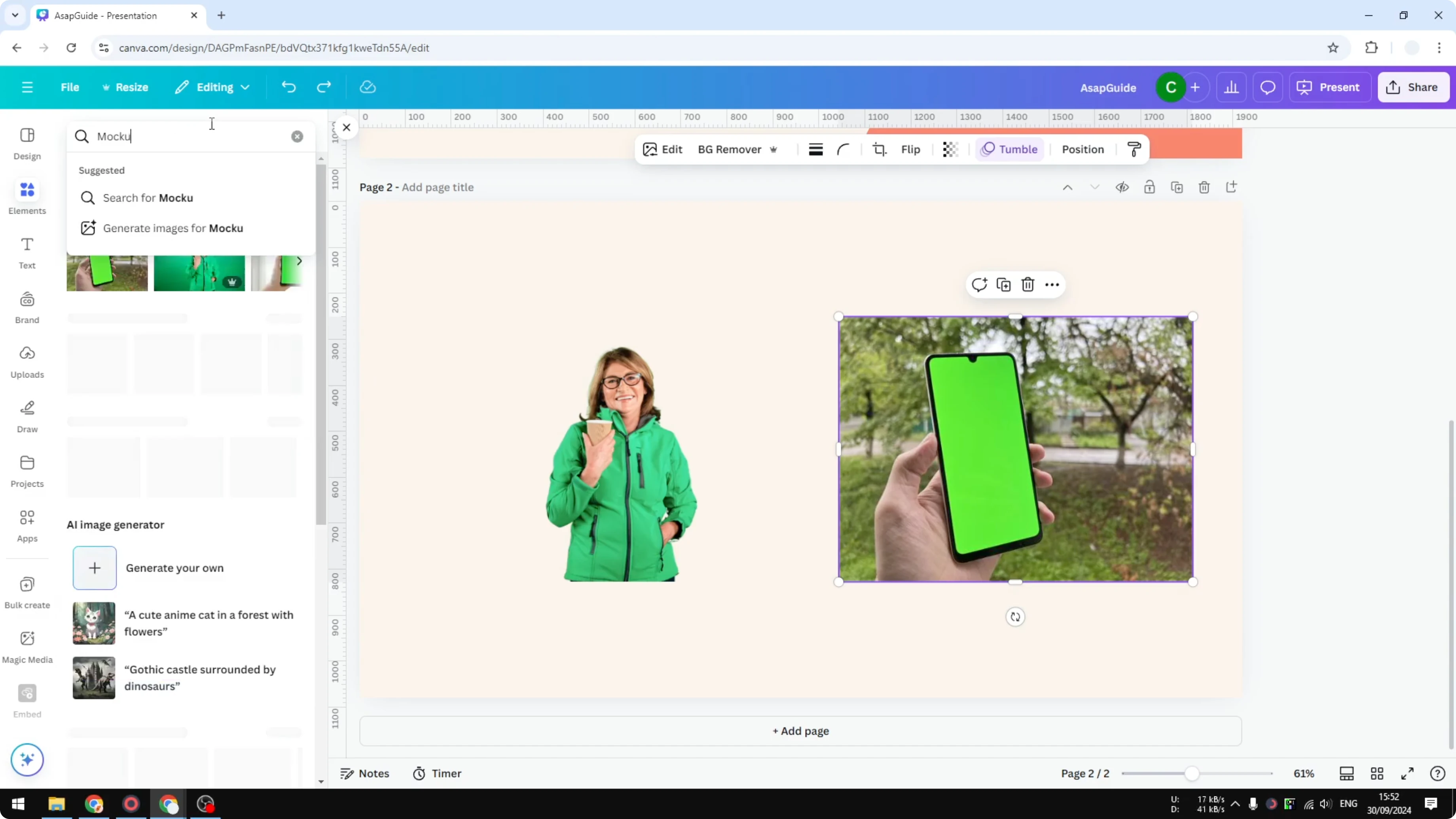
Search for mockup or frames.
Choose a phone frame you like from the Frames category.
Find or upload your screenshot.
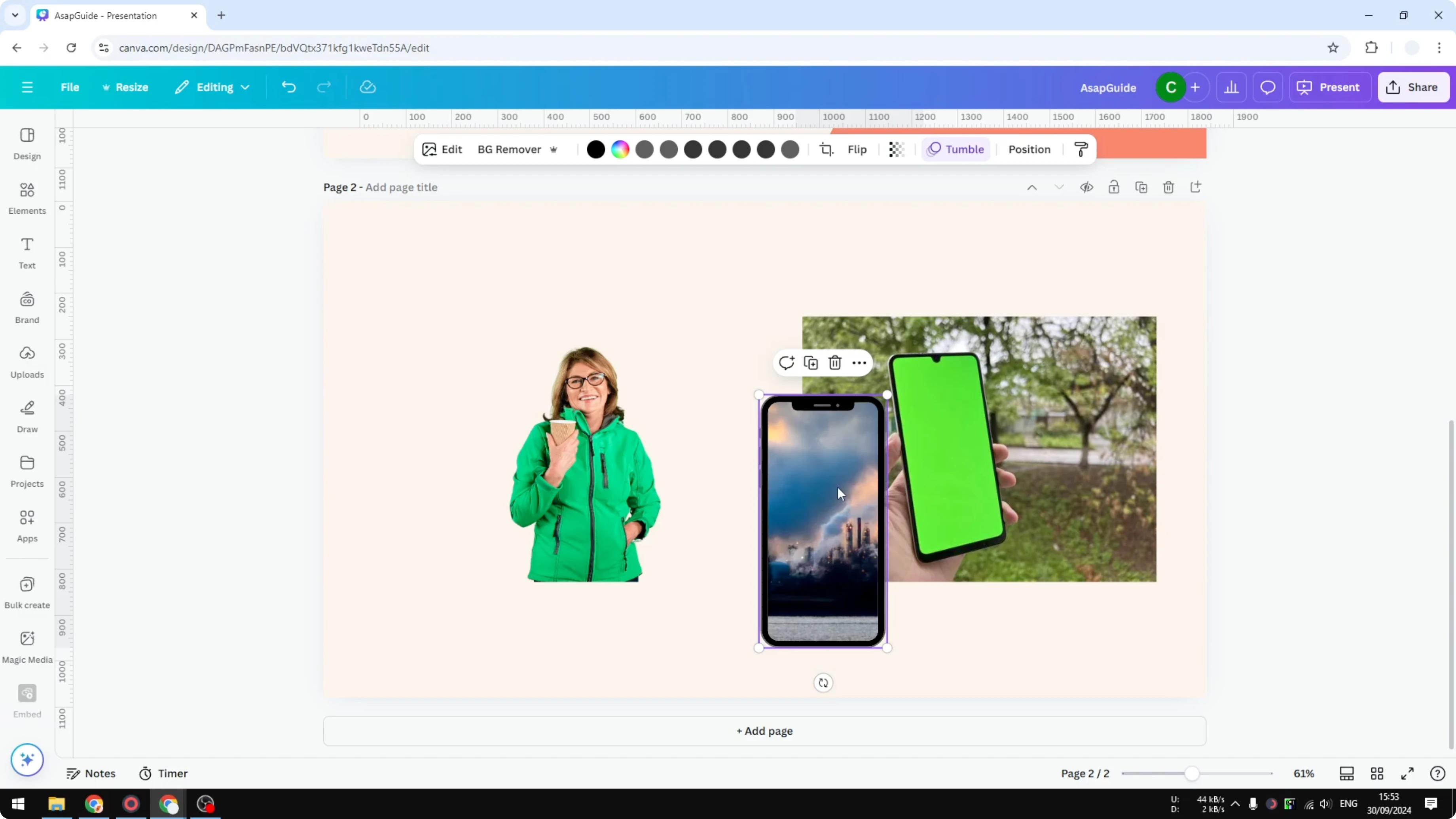
Drag the screenshot onto the frame to place it inside the phone.
The screenshot snaps into the display area and you can adjust it as needed. This gives you a clean smartphone mockup without manual masking.
For other product visuals, such as book covers, you can build realistic looks with frames and 3D effects. If you are working on product imagery, see this guide to a 3D book cover in Canva.
Use Chroma Key in Canva: Final thoughts
Canva does not ship a classic chroma key tool, but Background Remover covers many green screen needs by separating subject from background quickly. For targeted cutouts like a phone screen, switch to frames and mockups to place your image precisely.
Pick the method that matches your image. Background removal is great for full cutouts, while frames are the reliable path for clean in-object replacements.
Recent Posts

How to Visualize Yourself as a Pixelized Character with AI?
How to Visualize Yourself as a Pixelized Character with AI?

How to Revive Faded Memories and Enhance Image Clarity with AI?
How to Revive Faded Memories and Enhance Image Clarity with AI?

How to Visualize Yourself as an Animal Crossing Character with AI?
How to Visualize Yourself as an Animal Crossing Character with AI?