How to Use the Magic Eraser in Canva
Magic Eraser in Canva isolates an object so you can remove it from a photo. It makes photo editing quicker because we no longer have to manually select the object, which often gave mediocre results. Erasing an element from a photo is a lot quicker and easier with this tool.
If you are building visual assets around books or mockups, you may also want to see 3D book cover ideas you can create in Canva.
Use the Magic Eraser in Canva
Click your image to select it.
Click Edit.
Open Magic Studio, then click Magic Eraser.
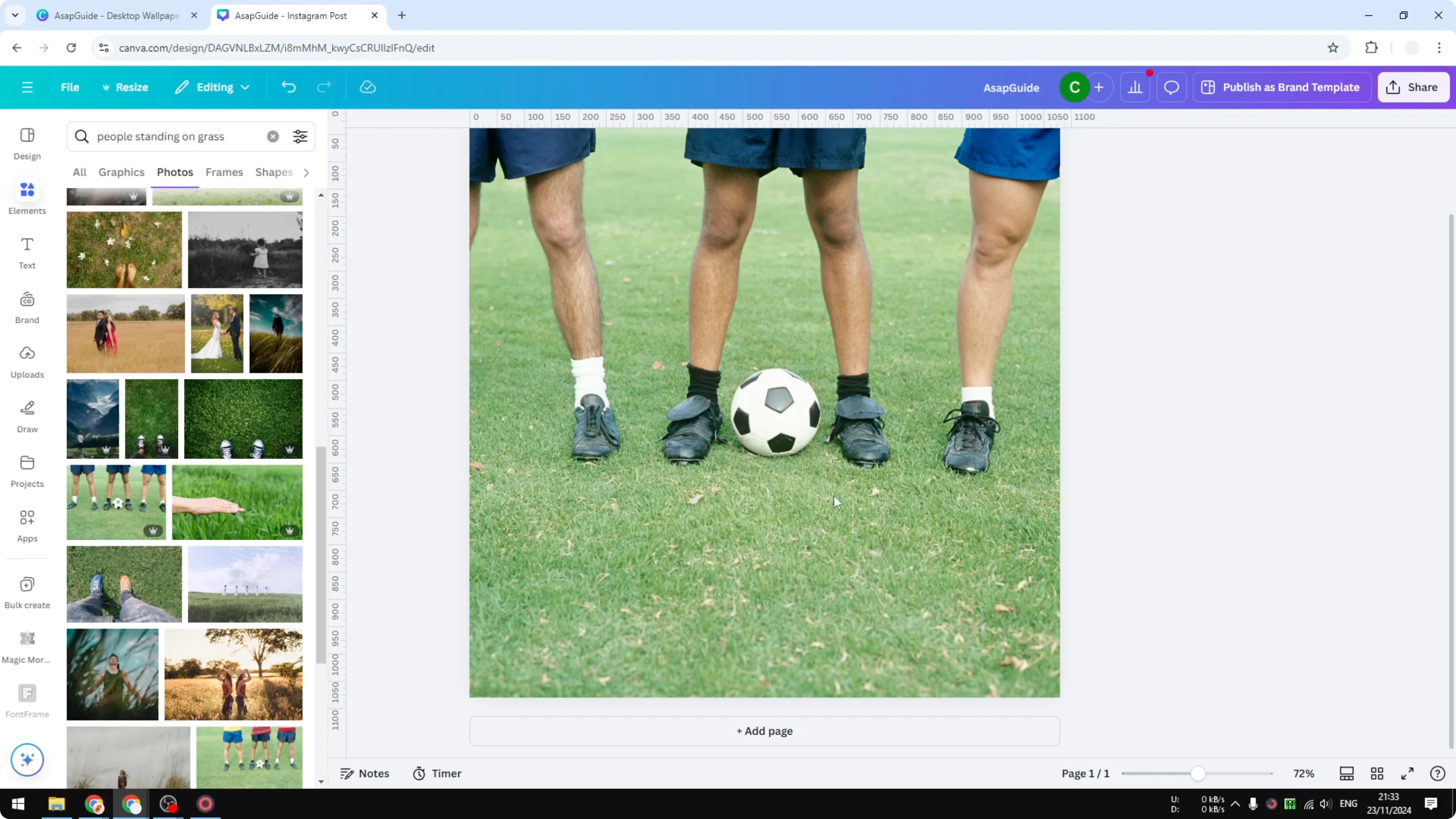
Brush mode
Select the Brush mode.
Roughly paint over the object you want to remove - it does not have to be perfect.
The AI understands the object you are trying to remove and processes it.
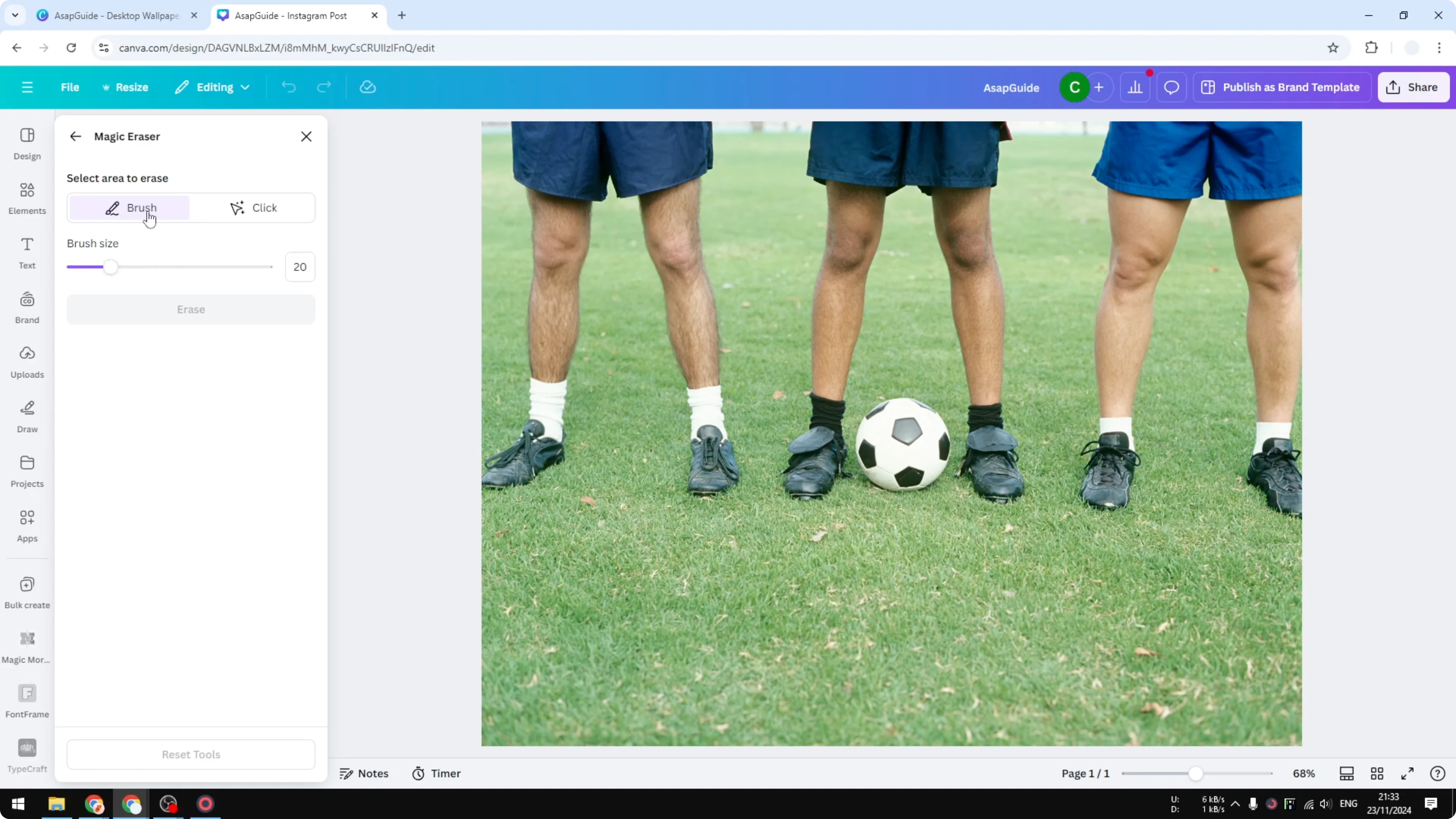
This is quicker than manual selection, but I don’t like the result in my example. It removes the object, yet the cleanup around the edges is not great.
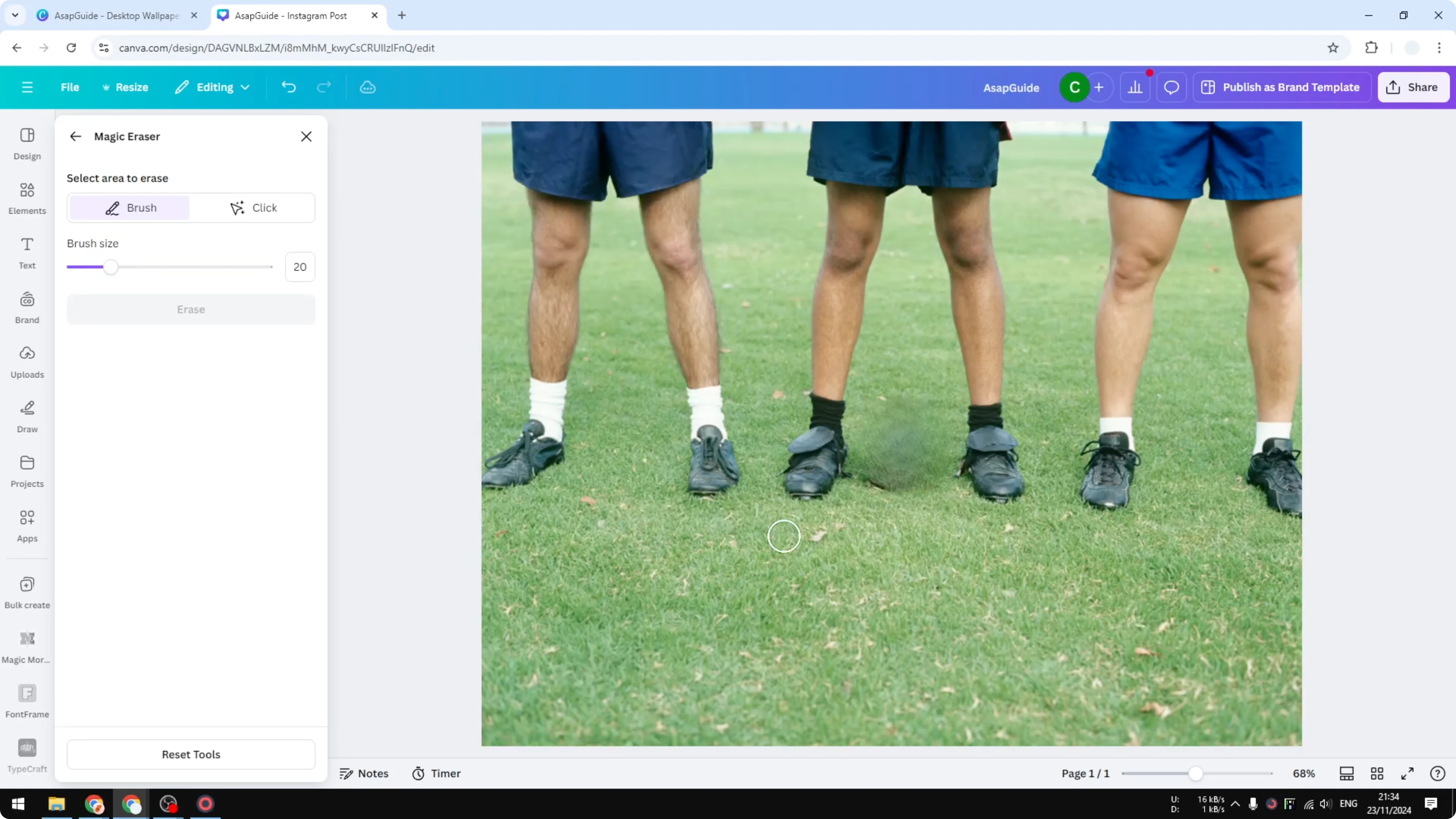
Click mode
Click Reset to clear the previous selection.
Switch to the Click mode.
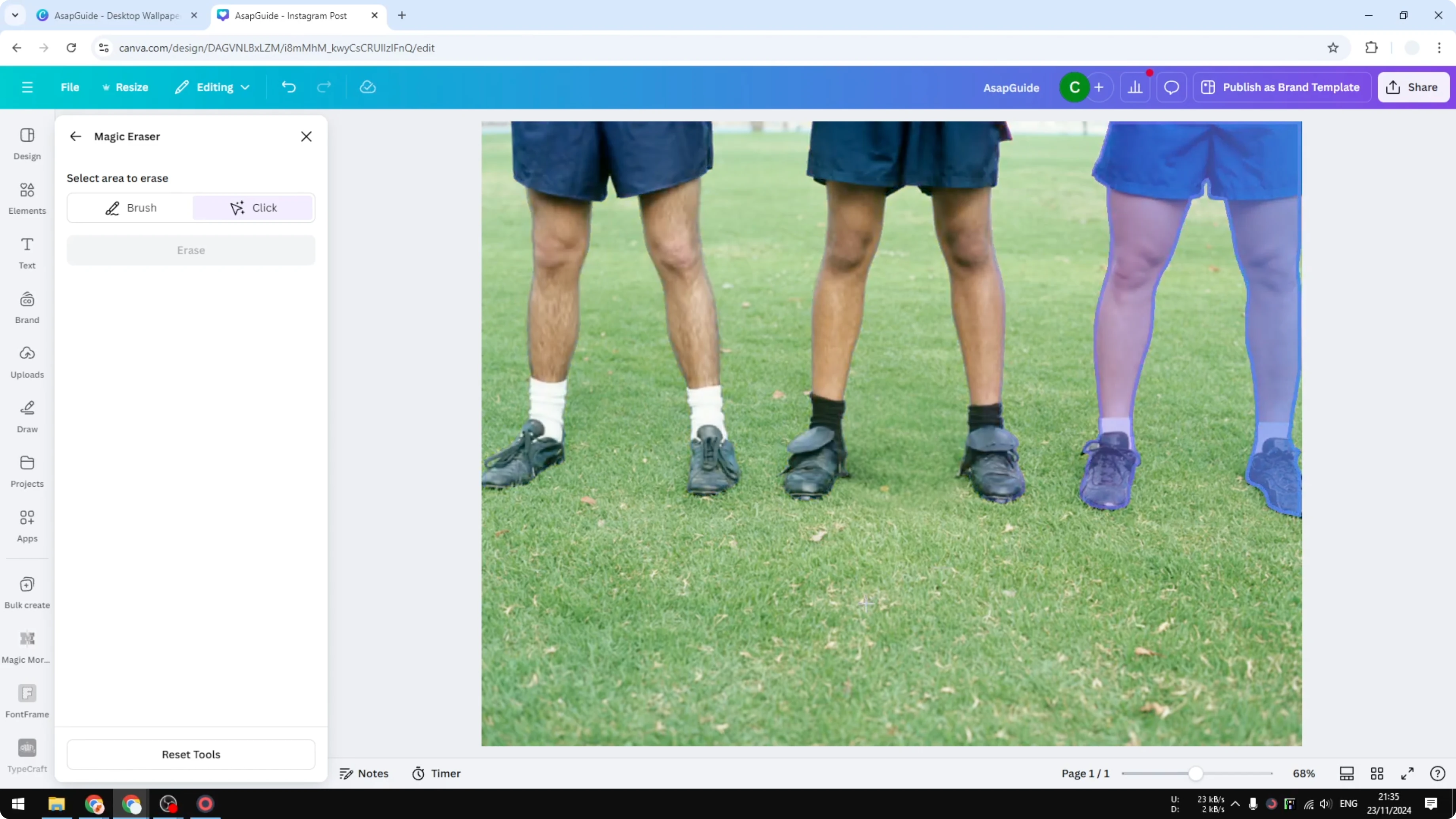
Wait a moment while the AI scans the picture and highlights clickable objects.

Click the object you want to remove, like the ball or the person.
Click Erase.
Wait for it to finish - it usually takes less than 20 seconds.
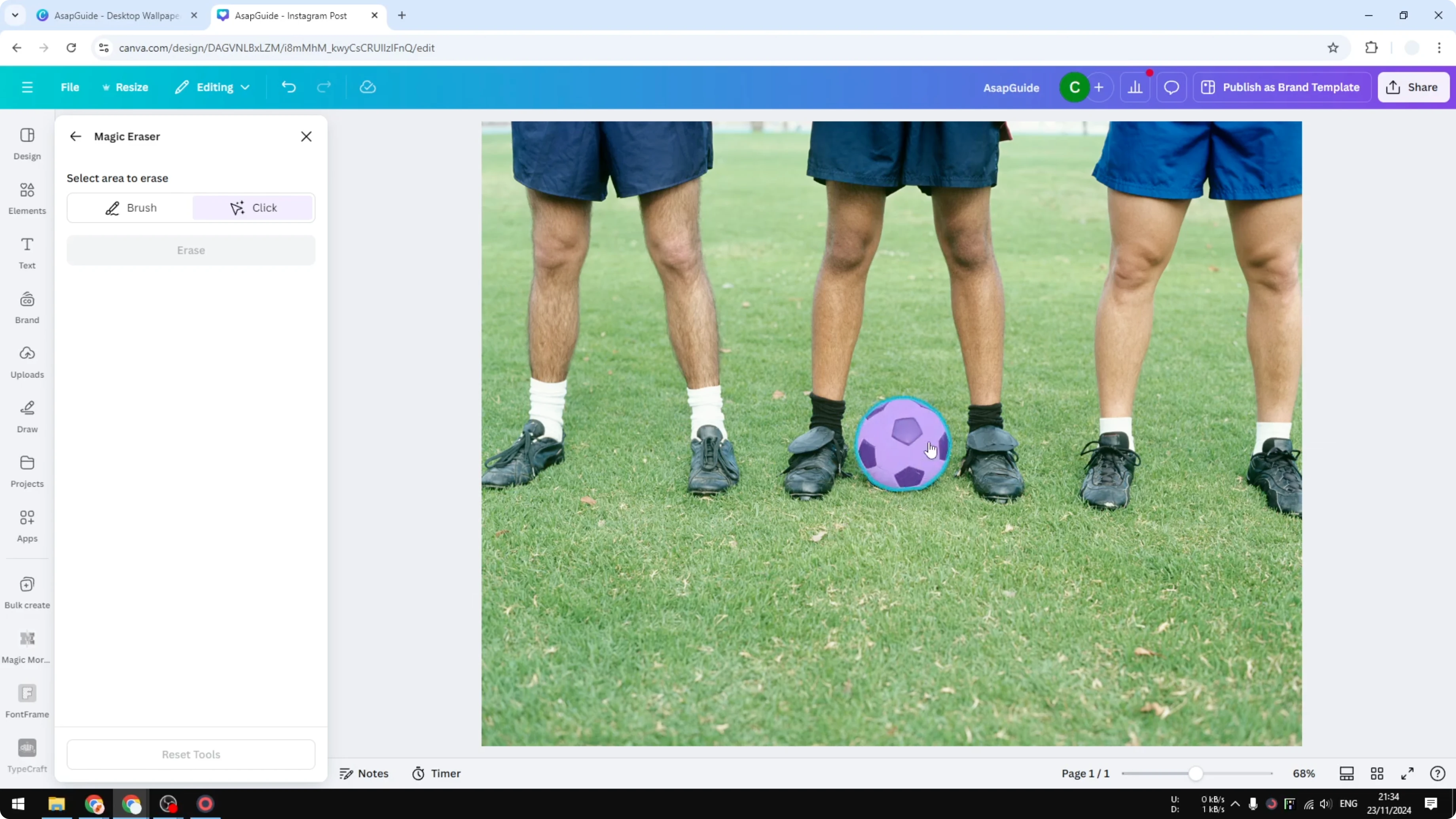
The result is slightly better compared to the brush method, although it is still not perfect. If you want a cleaner approach, try the next feature.
Move objects with Magic Grab
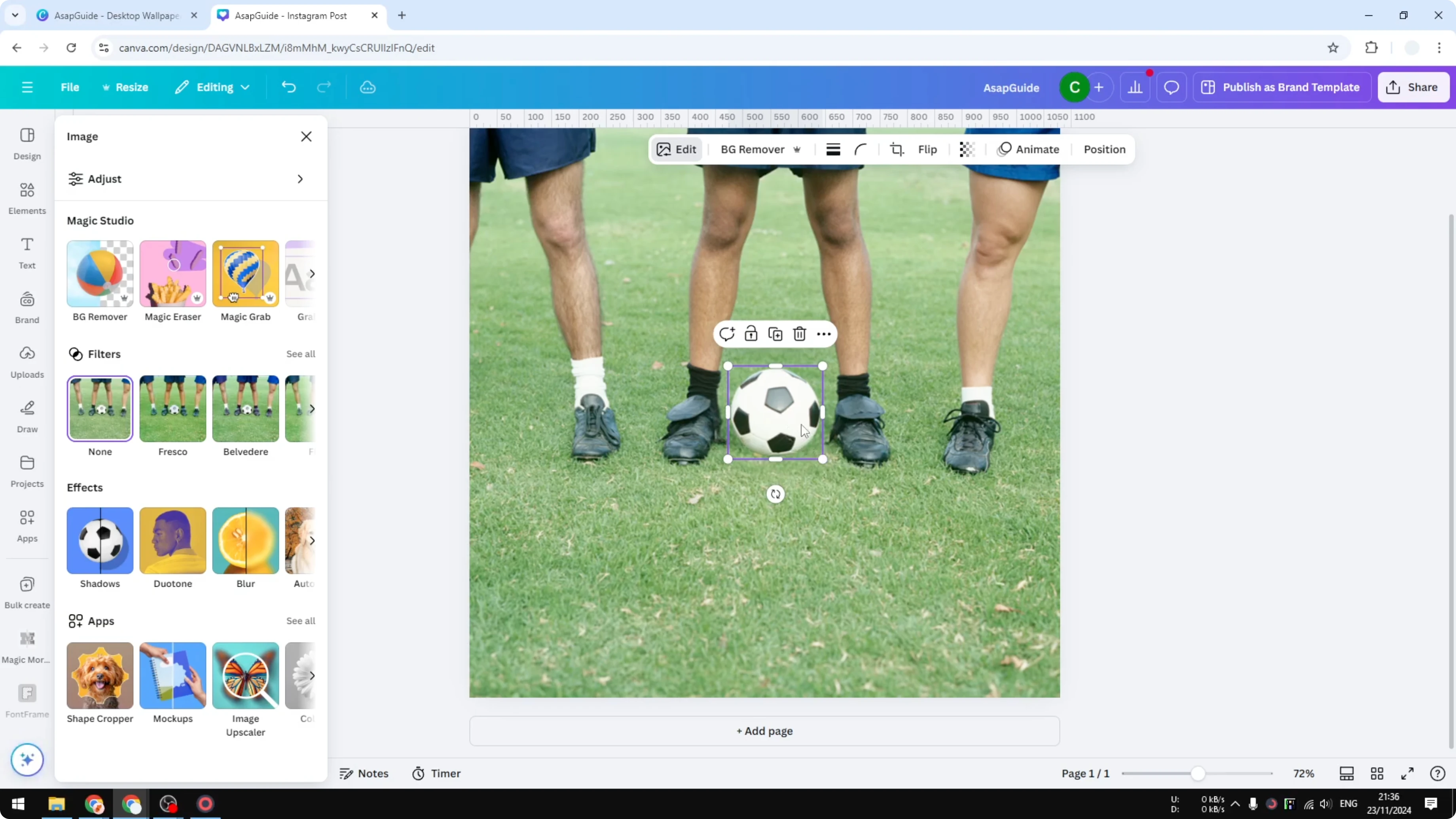
Click your image again.
Open the Edit menu.
Click Magic Grab.
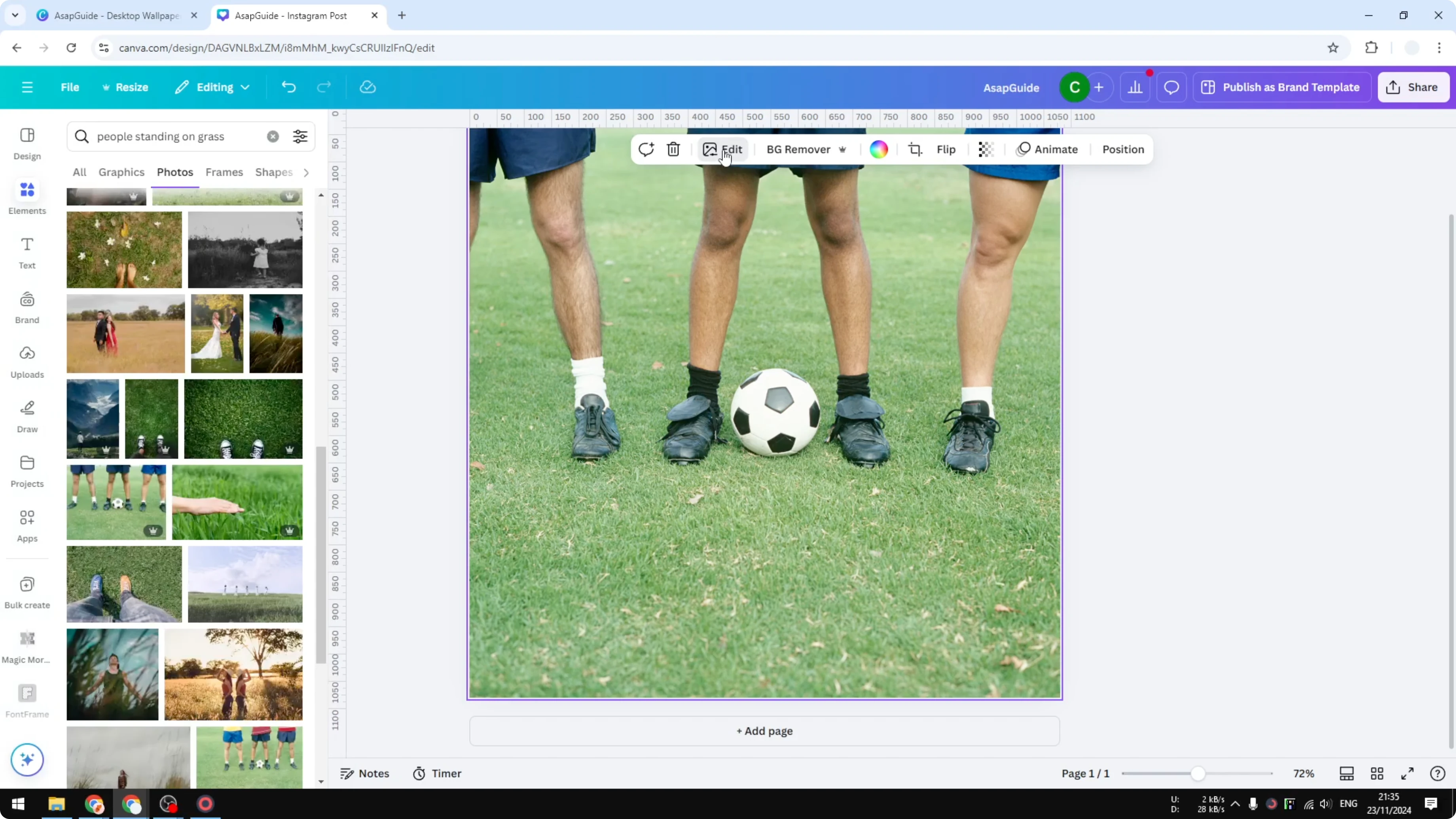
I recommend using the click method here because it is quicker and cleaner.
Click the object you want, then click Grab.
The AI takes the object from the rest of the image and turns it into an independent picture.
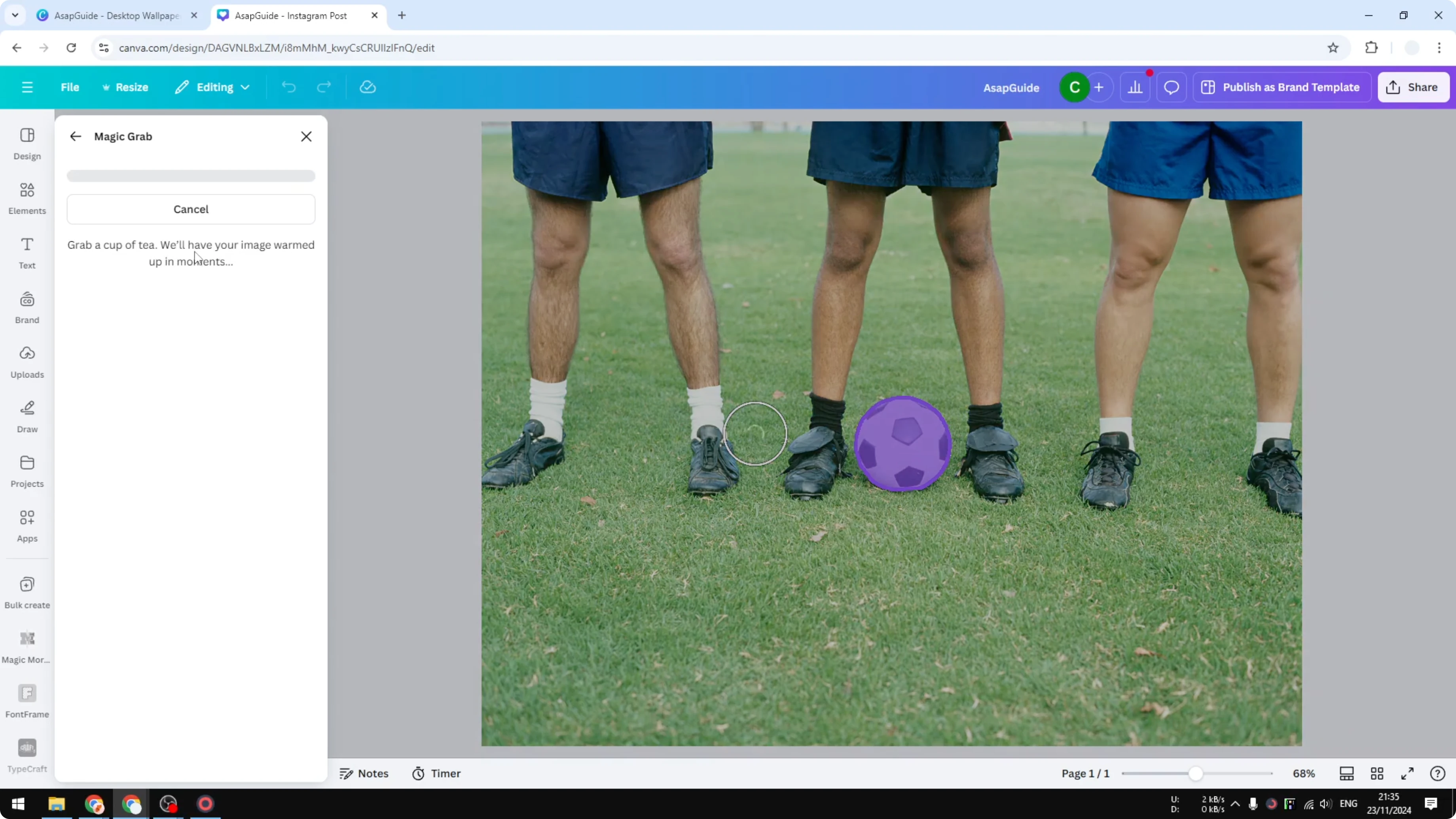
You can move it anywhere because it is no longer part of the original image. I could put the ball here, here, or here, and it stays crisp. I use this method a lot more compared to just removing with Magic Eraser.
If you plan to add bold typography behind elements after repositioning, learn how to add background text in Canva for added depth.
Why I prefer Magic Grab
Magic Grab gives you flexibility after extraction. You are not just erasing an object - you are turning it into a movable piece you can modify or place anywhere. That is often a cleaner workflow than trying to perfect an erase.
Final thoughts
Magic Eraser works fast and can remove objects with brush or click mode, but results vary by image. Magic Grab often gives a cleaner, more flexible outcome by pulling the object out so you can move it. If you need styled captions or labels on top of edits, add a border text box for clear contrast.
Recent Posts

How to Visualize Yourself as a Pixelized Character with AI?
How to Visualize Yourself as a Pixelized Character with AI?

How to Revive Faded Memories and Enhance Image Clarity with AI?
How to Revive Faded Memories and Enhance Image Clarity with AI?

How to Visualize Yourself as an Animal Crossing Character with AI?
How to Visualize Yourself as an Animal Crossing Character with AI?