How to Make a 3D Book Cover in Canva
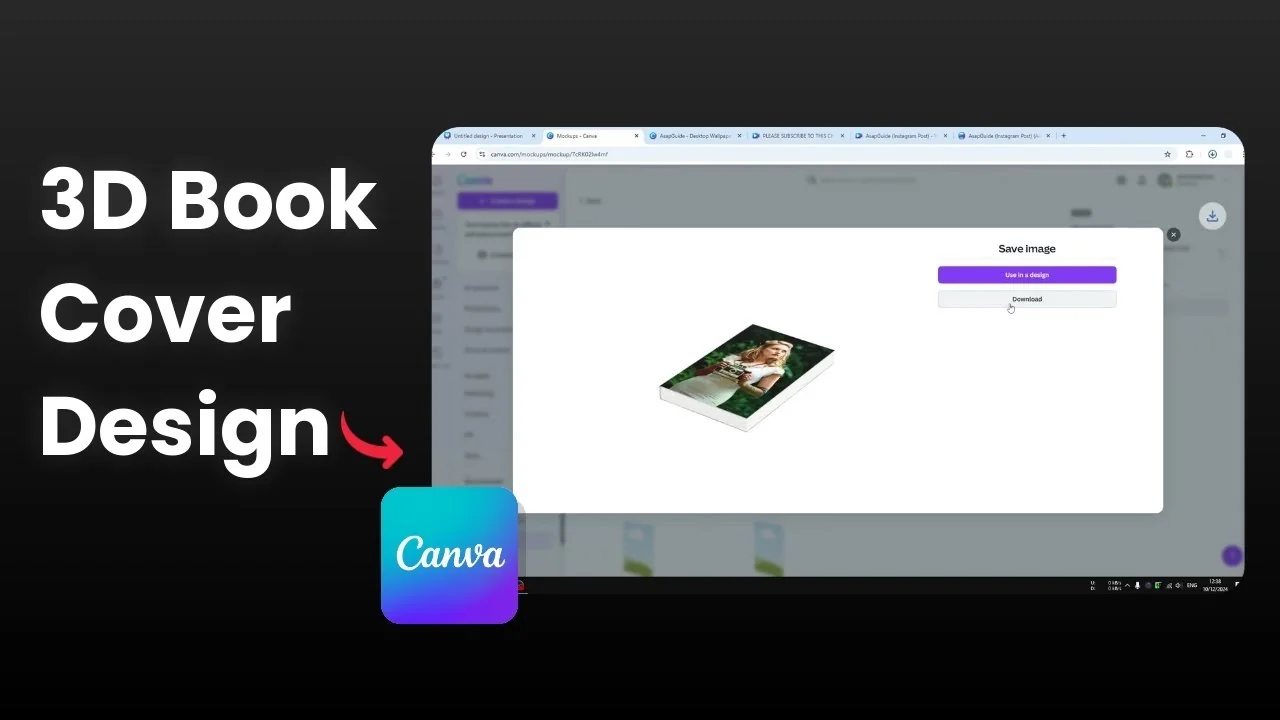
Here’s how I make a 3D book cover in Canva using the Mockups app.
There are plenty of great looking mockups you can use for your project.
Make a 3D Book Cover in Canva
Open the Mockups app
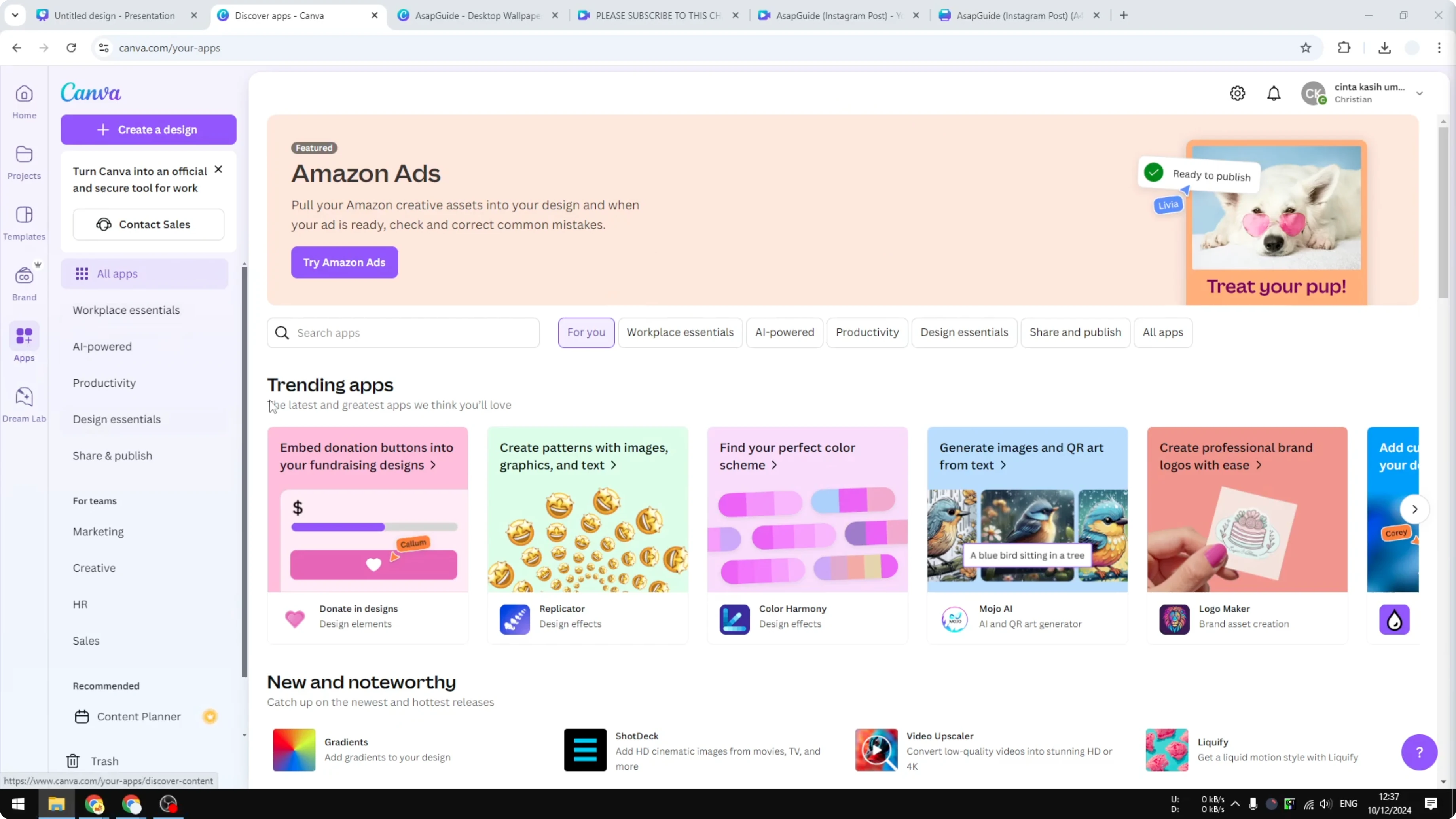
Open Canva.
Go to Apps.
Scroll and click Mockups, which is the tool we will use to create the 3D book cover mockup.
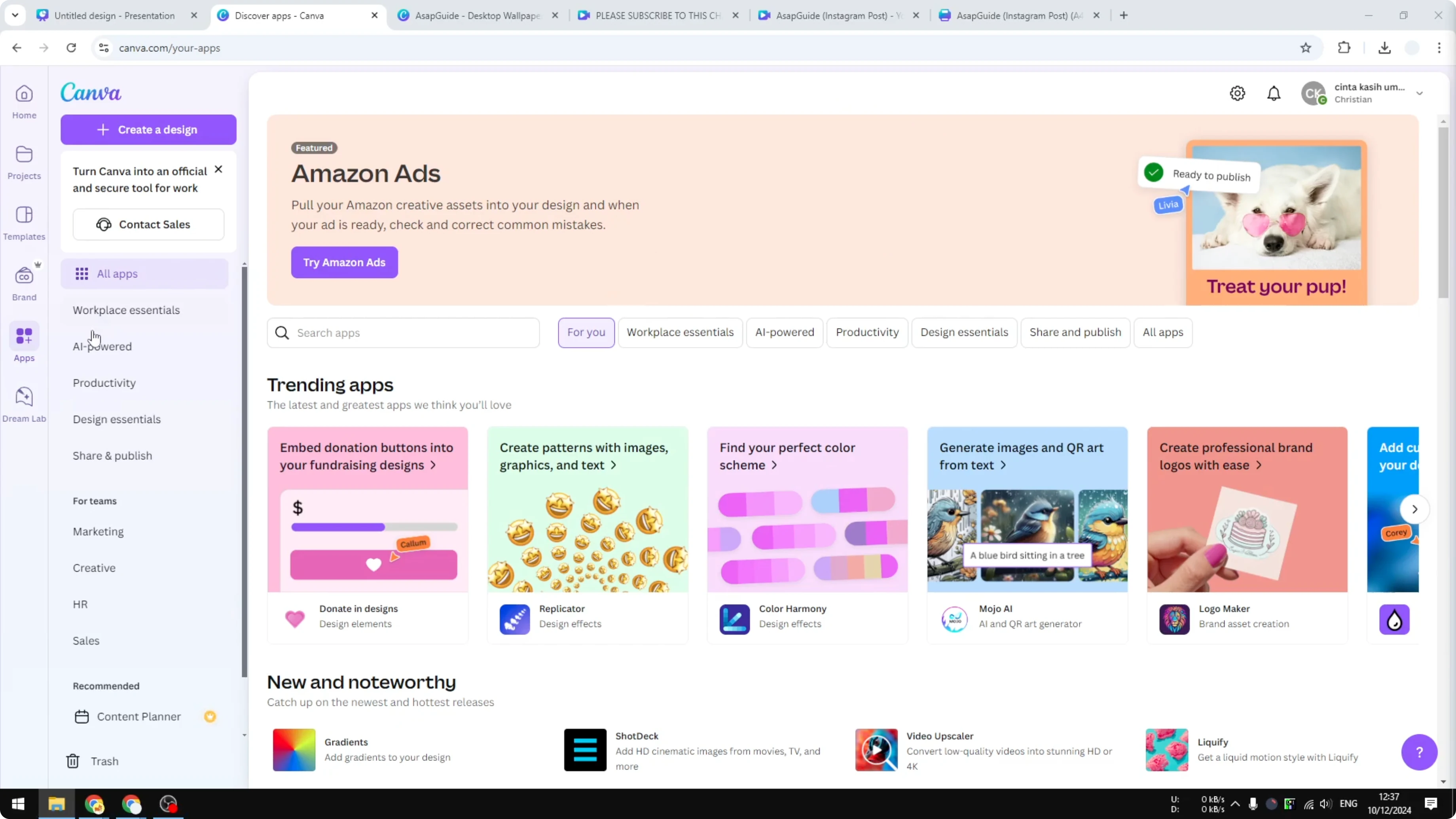
Find a 3D book cover mockup
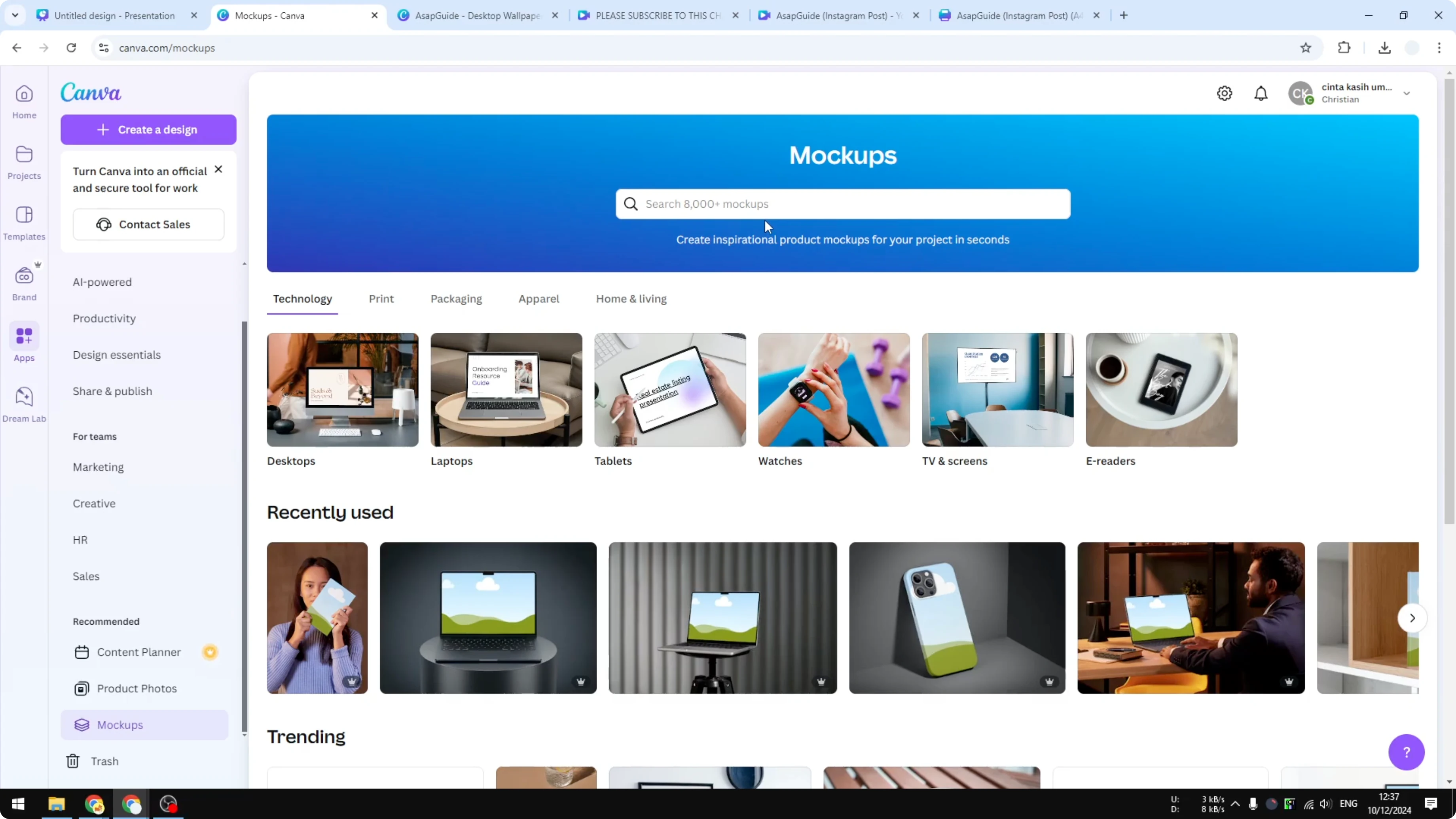
Use the search feature and type book to see different options.
Scroll through the designs and pick one that looks perfect for you.
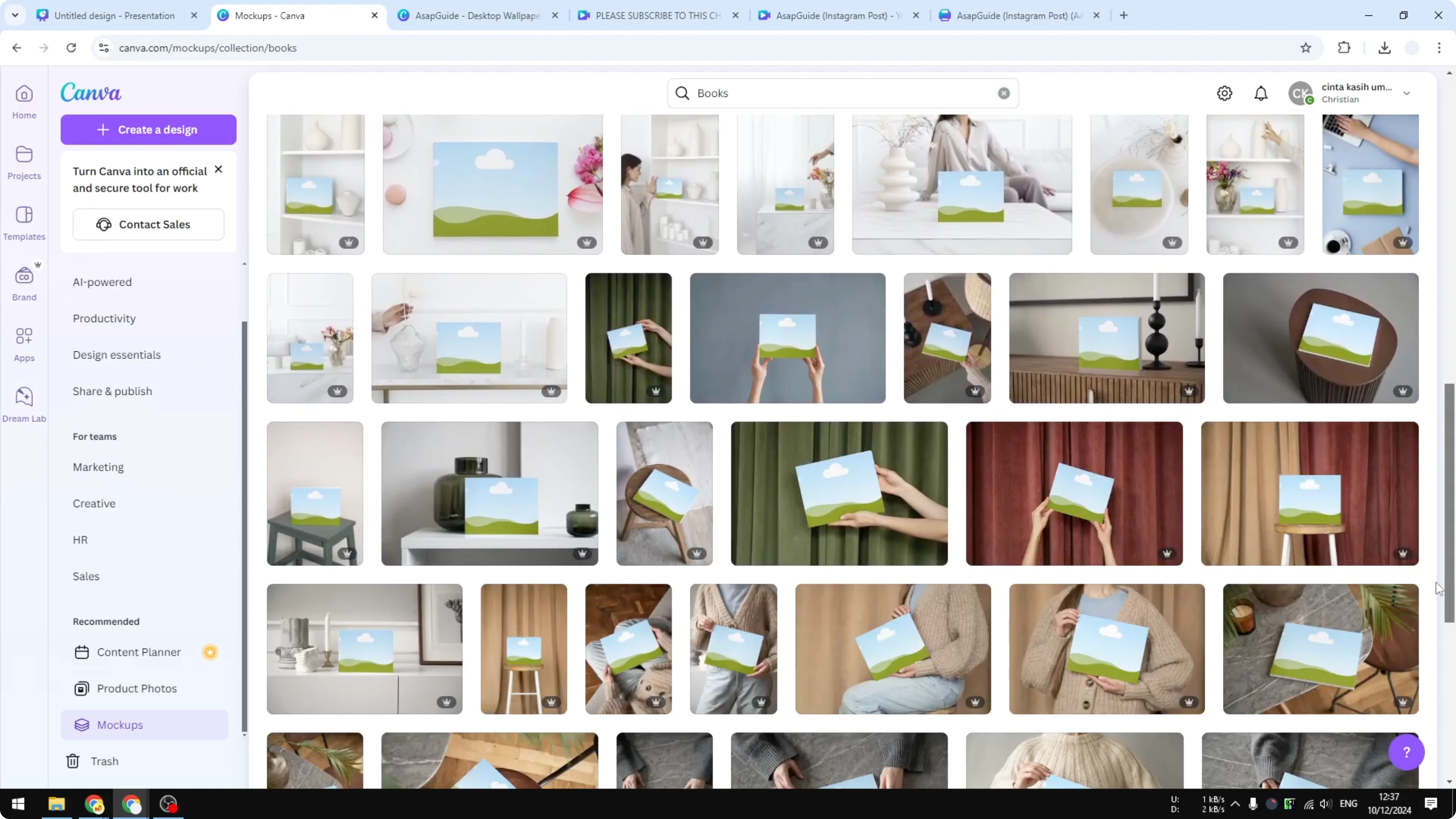
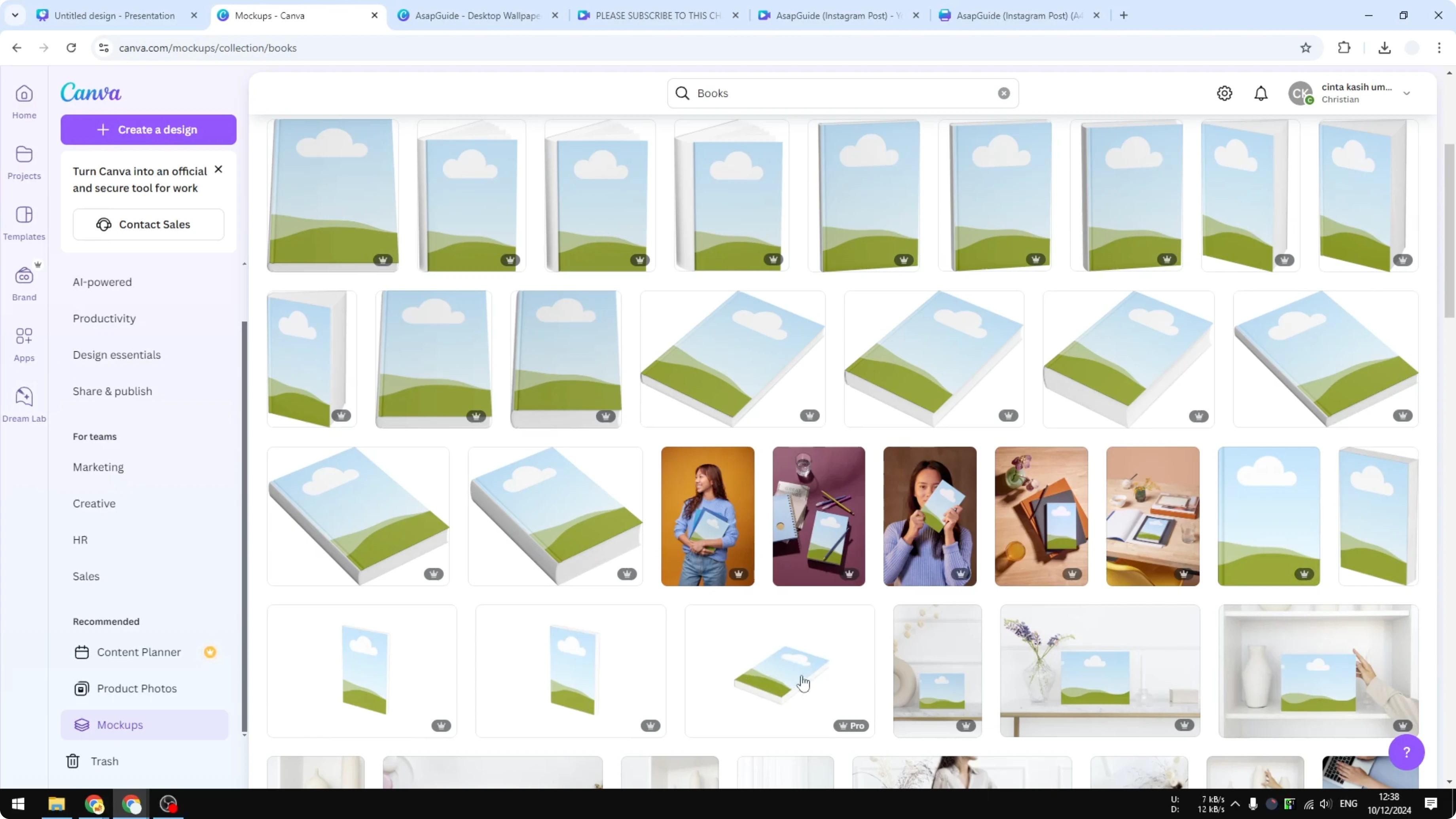
I’m going to try a simple 3D book mockup that looks really cool and click it.
Apply your cover image
Click Select to reveal the content you have uploaded before.
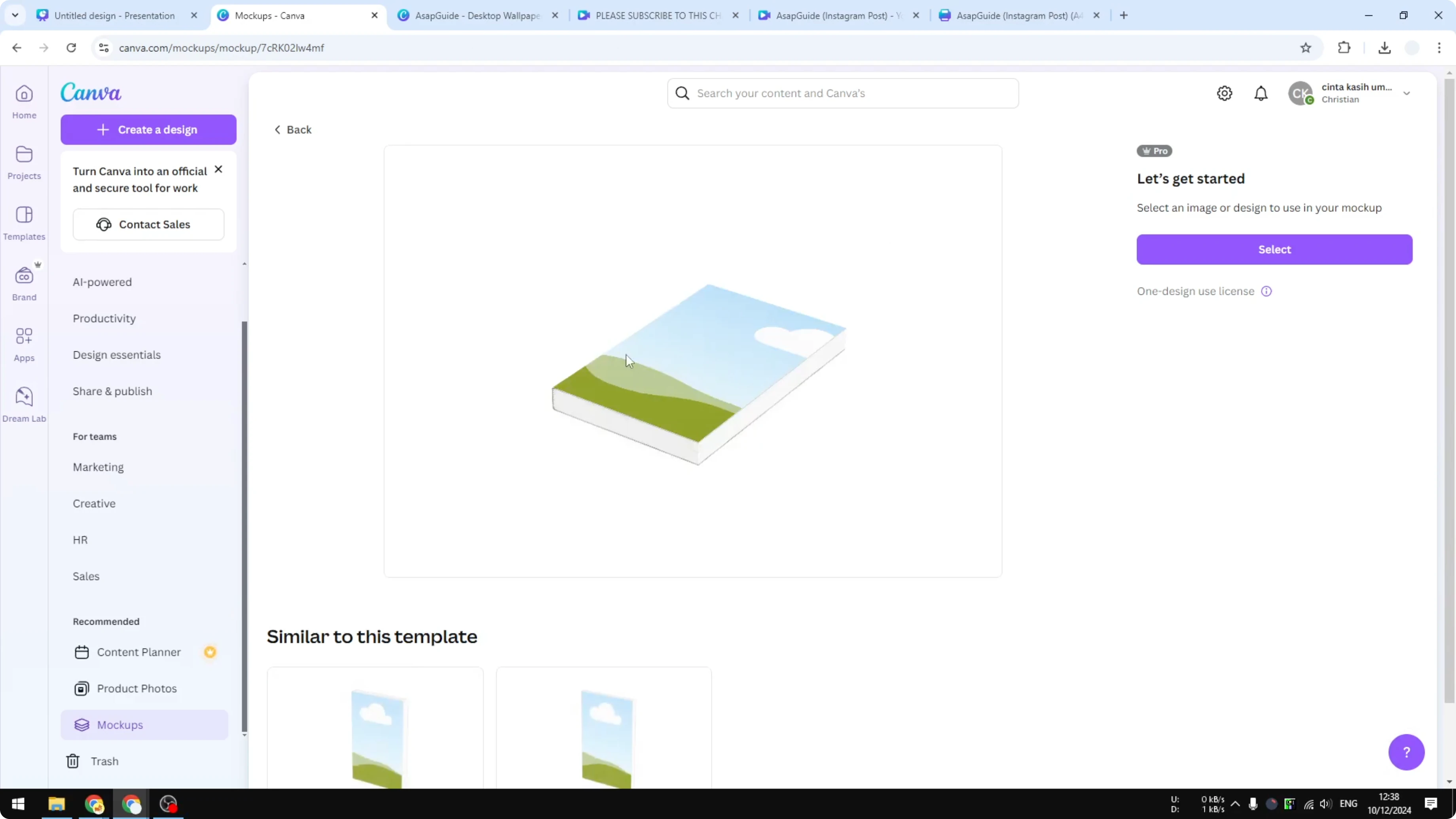
Choose the picture you want to use and click Next.
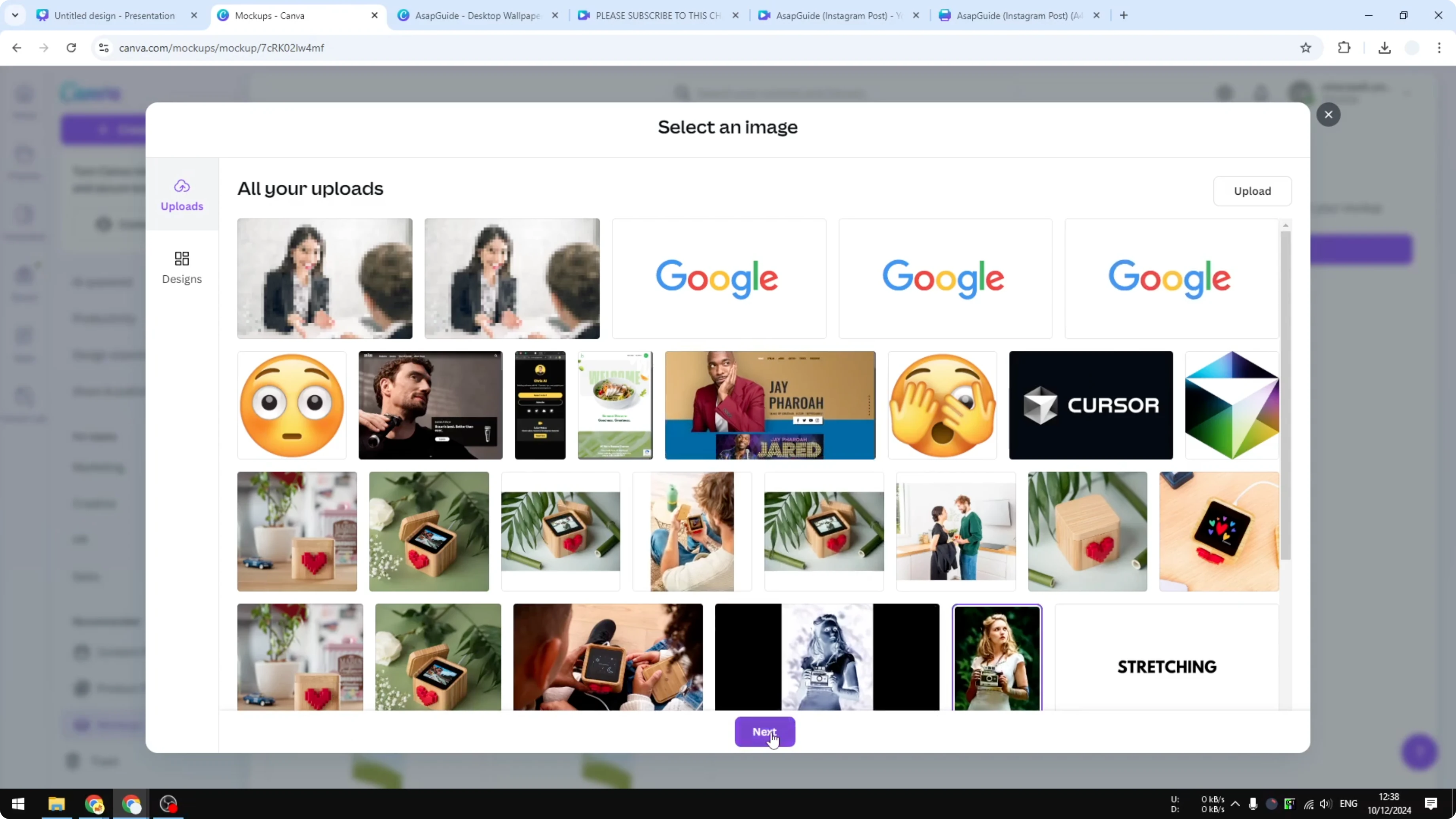
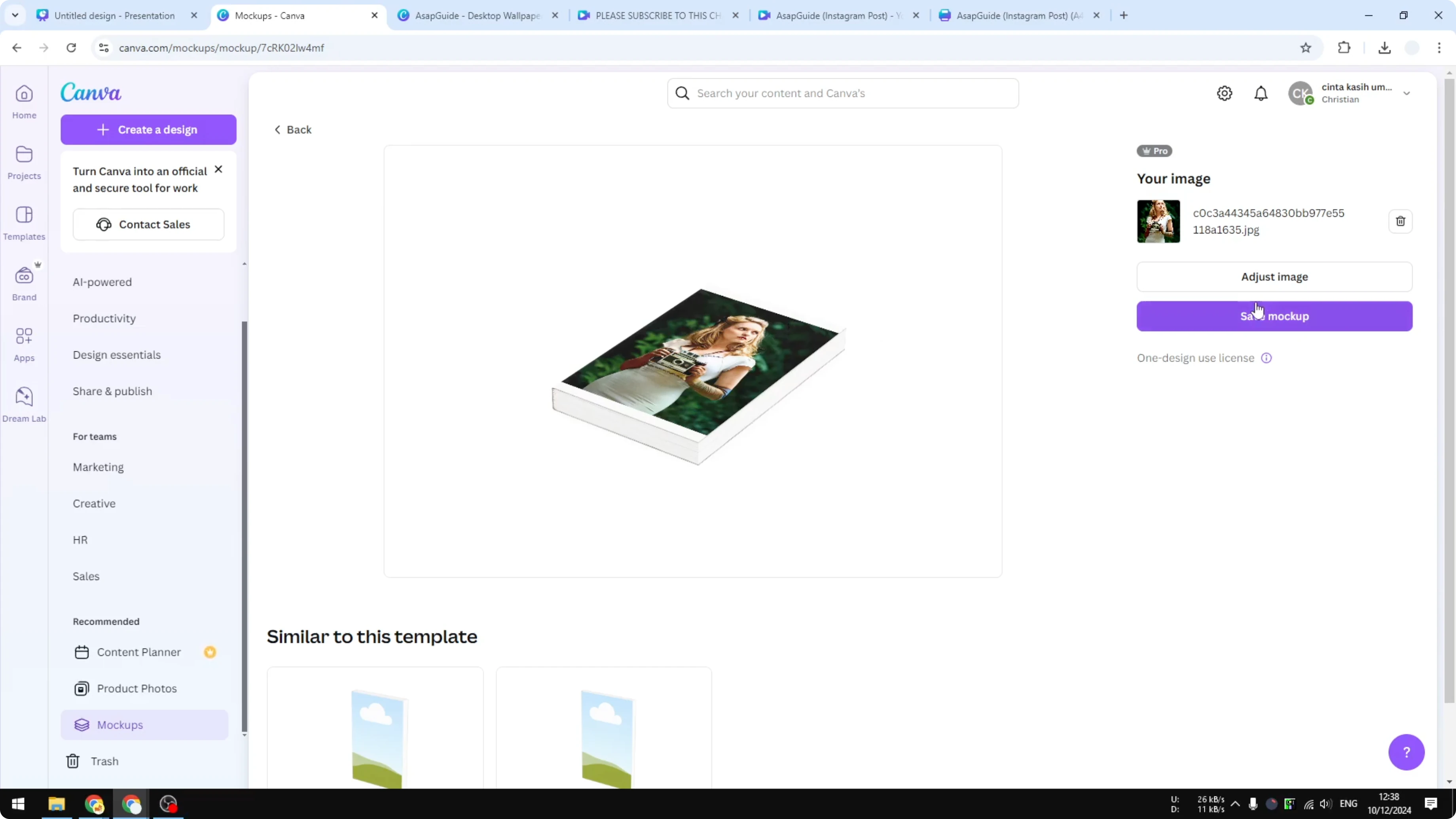
The picture will be applied to the cover.
If you see a gap, adjust the image size so it covers the entire area.
Save and download
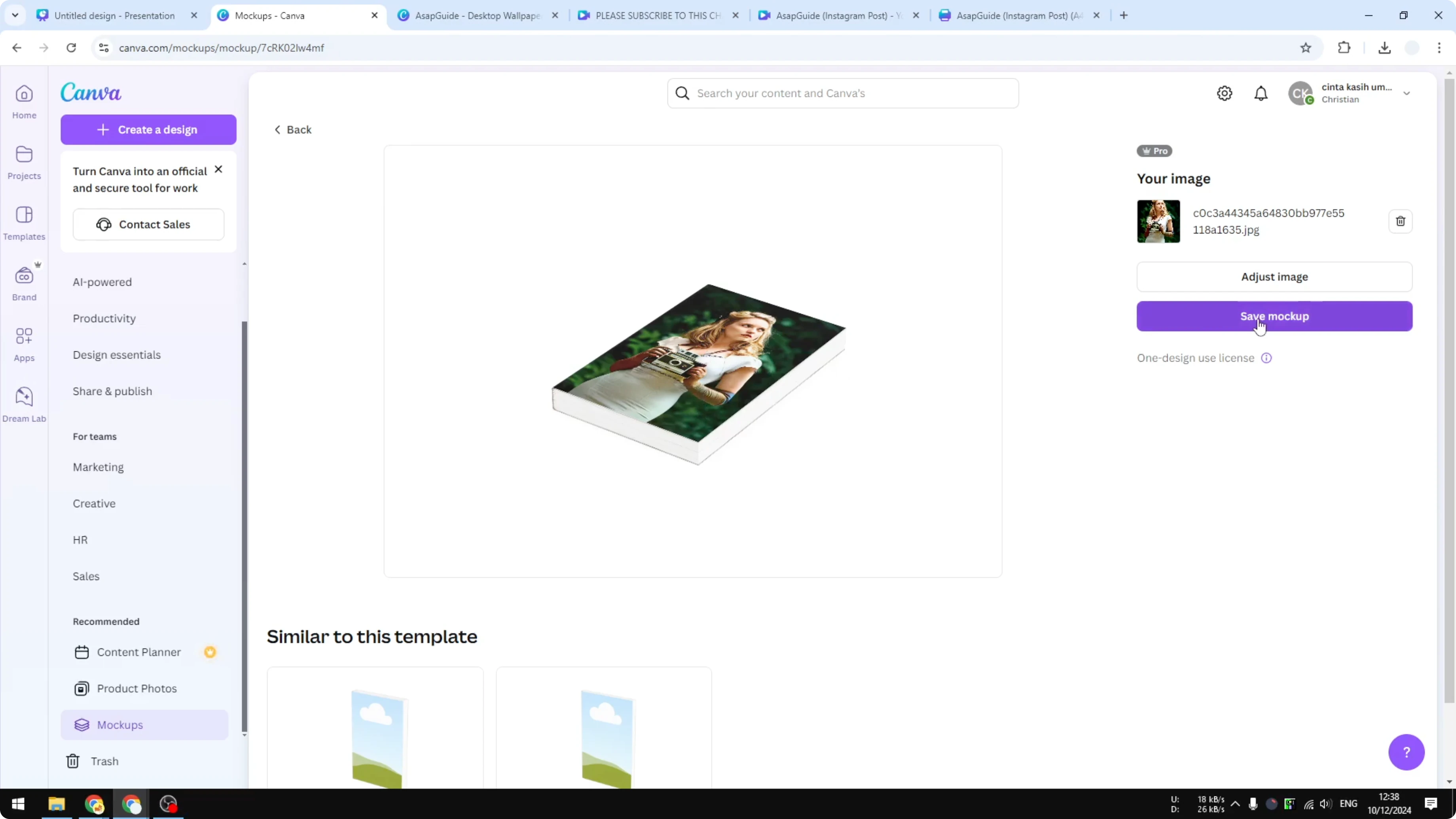
Click Save.
Click Save mockup.
Download the picture.
Final Thoughts
You can create a clean 3D book cover in Canva by picking a mockup, applying your image, adjusting the fit, and saving the result.
It is quick once you know where to find the Mockups app and how to place your cover art.
Recent Posts

How to Visualize Yourself as a Pixelized Character with AI?
How to Visualize Yourself as a Pixelized Character with AI?

How to Revive Faded Memories and Enhance Image Clarity with AI?
How to Revive Faded Memories and Enhance Image Clarity with AI?

How to Visualize Yourself as an Animal Crossing Character with AI?
How to Visualize Yourself as an Animal Crossing Character with AI?