How to Unpublish Your Canva Website
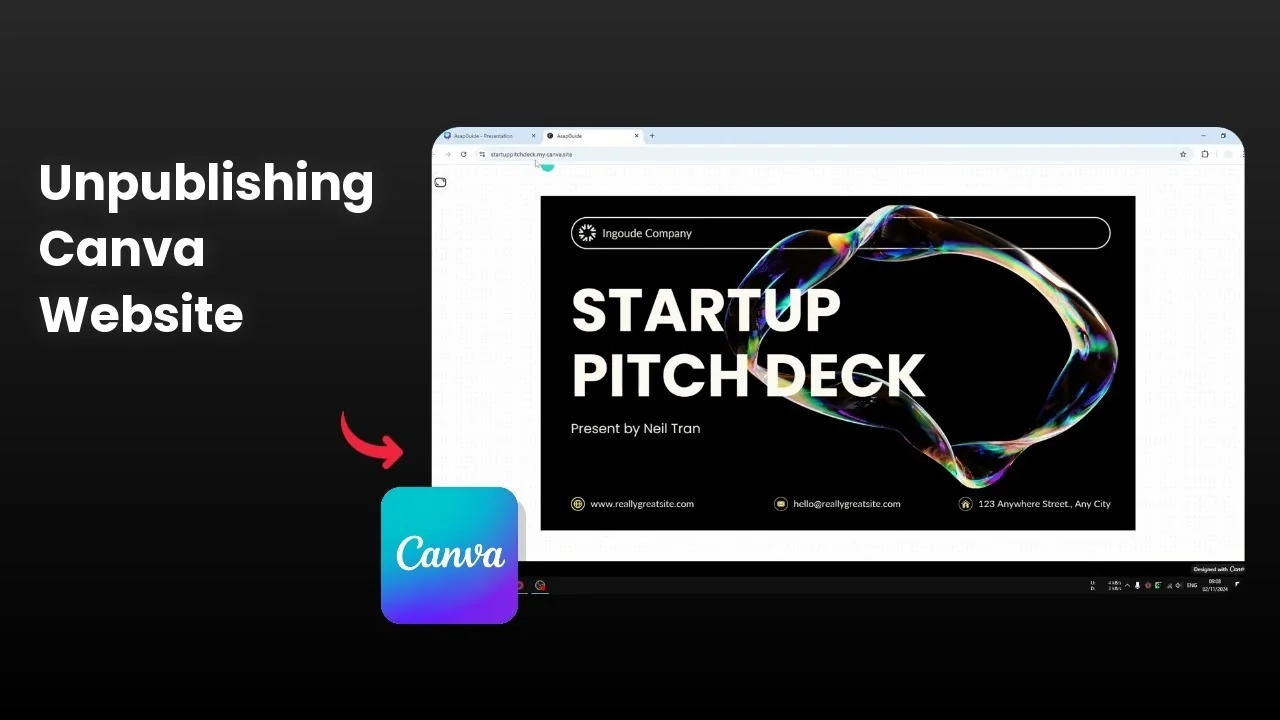
If you have a design that you published as a website using Canva, anyone that knows the URL can visit the website and see the design. If you want to unpublish the website, here's how you can do it.
If you need a refresher on creating one, see how to build a website using Canva.
Why Unpublish Your Canva Website
Unpublishing removes access to the live URL, so visitors can no longer view the design. This is useful when a design is no longer current or you want to make updates privately.
Steps to Unpublish Your Canva Website
Go to Share.
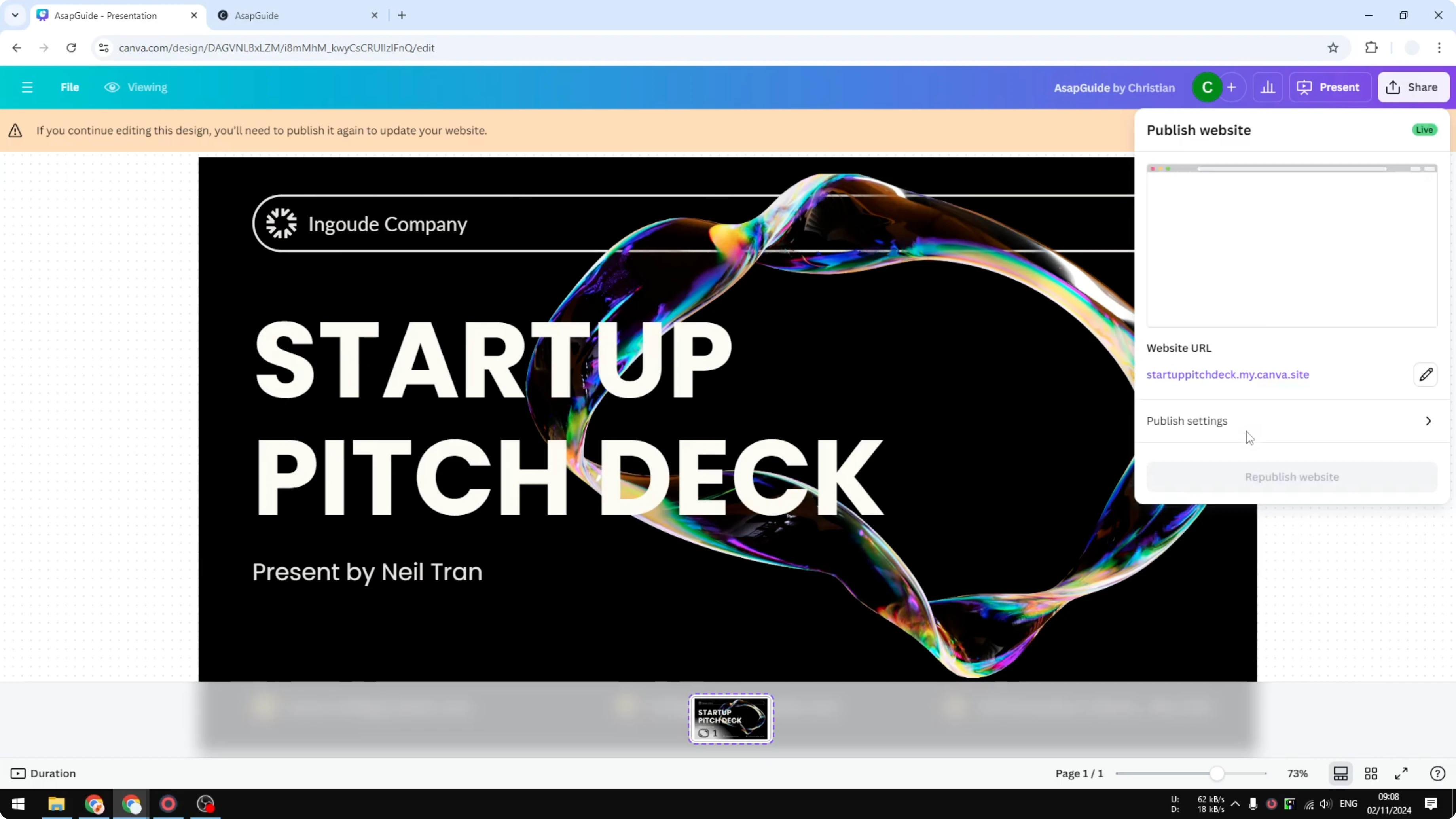
Click Website.
Click Publish settings.
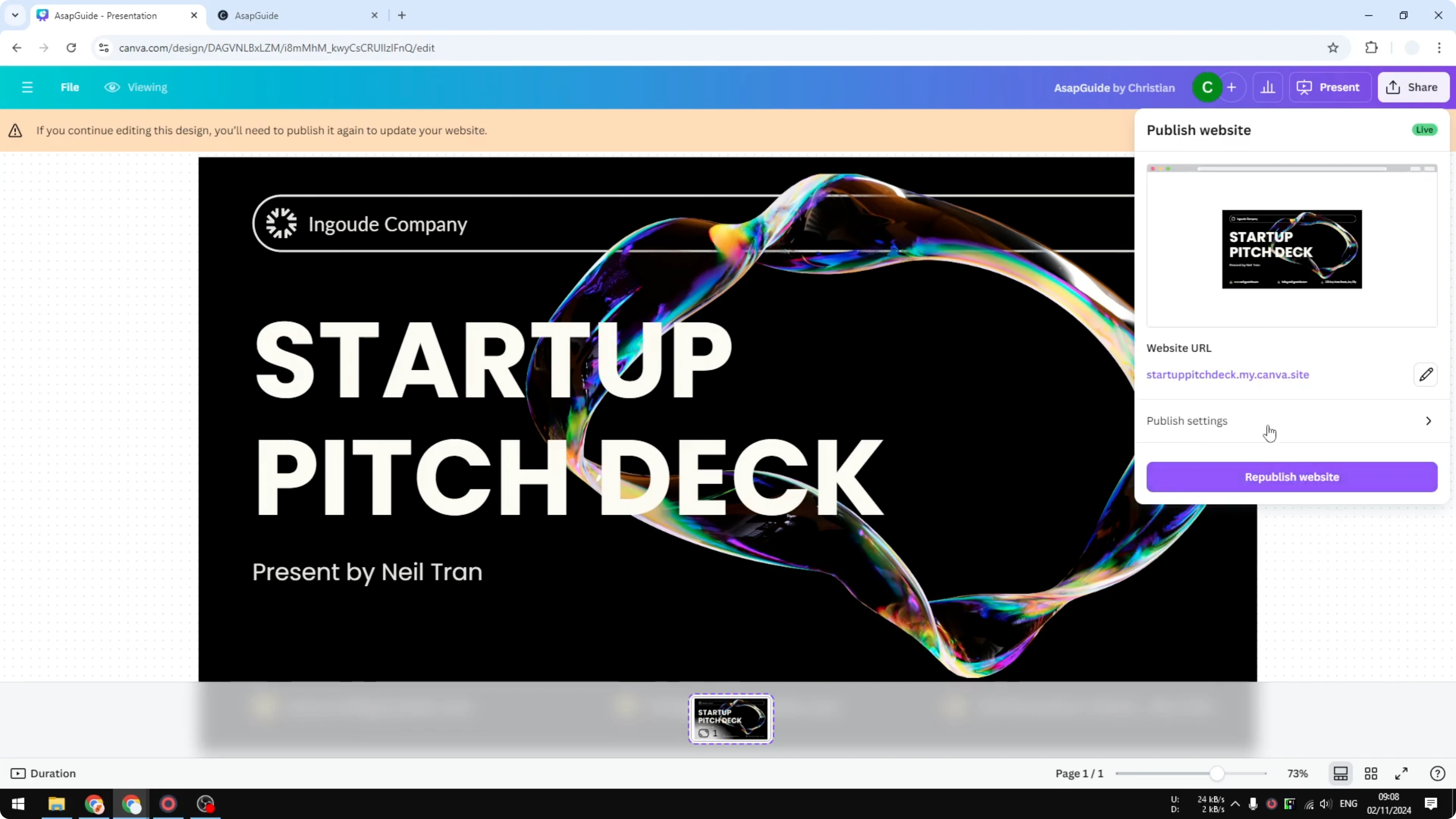
Click Unpublish website.
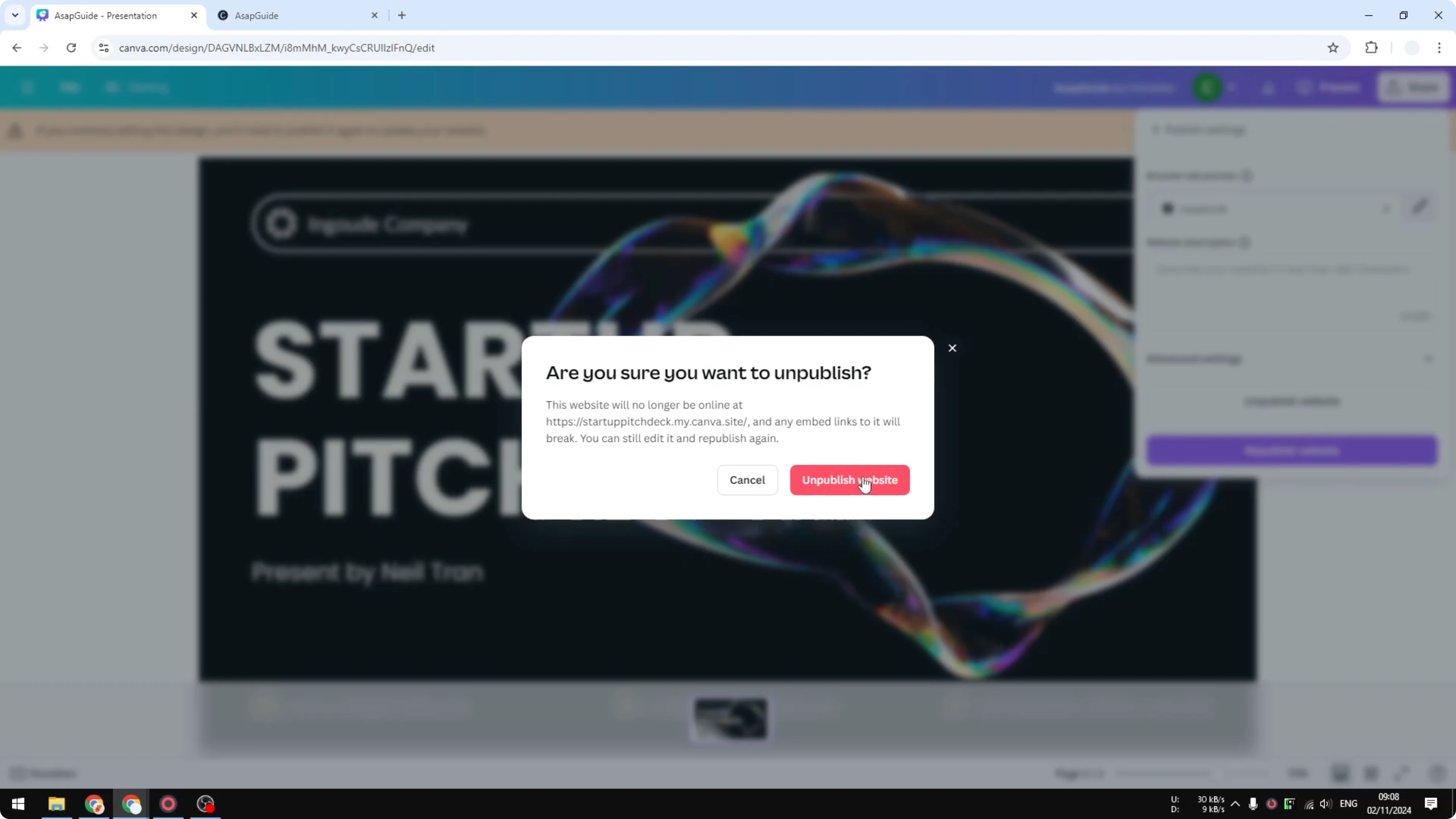
Click Unpublish website again to confirm.
Wait until the process is finished.
If you are updating your design assets during this process, you can upload your own font to Canva for consistent branding.
After You Unpublish Your Canva Website
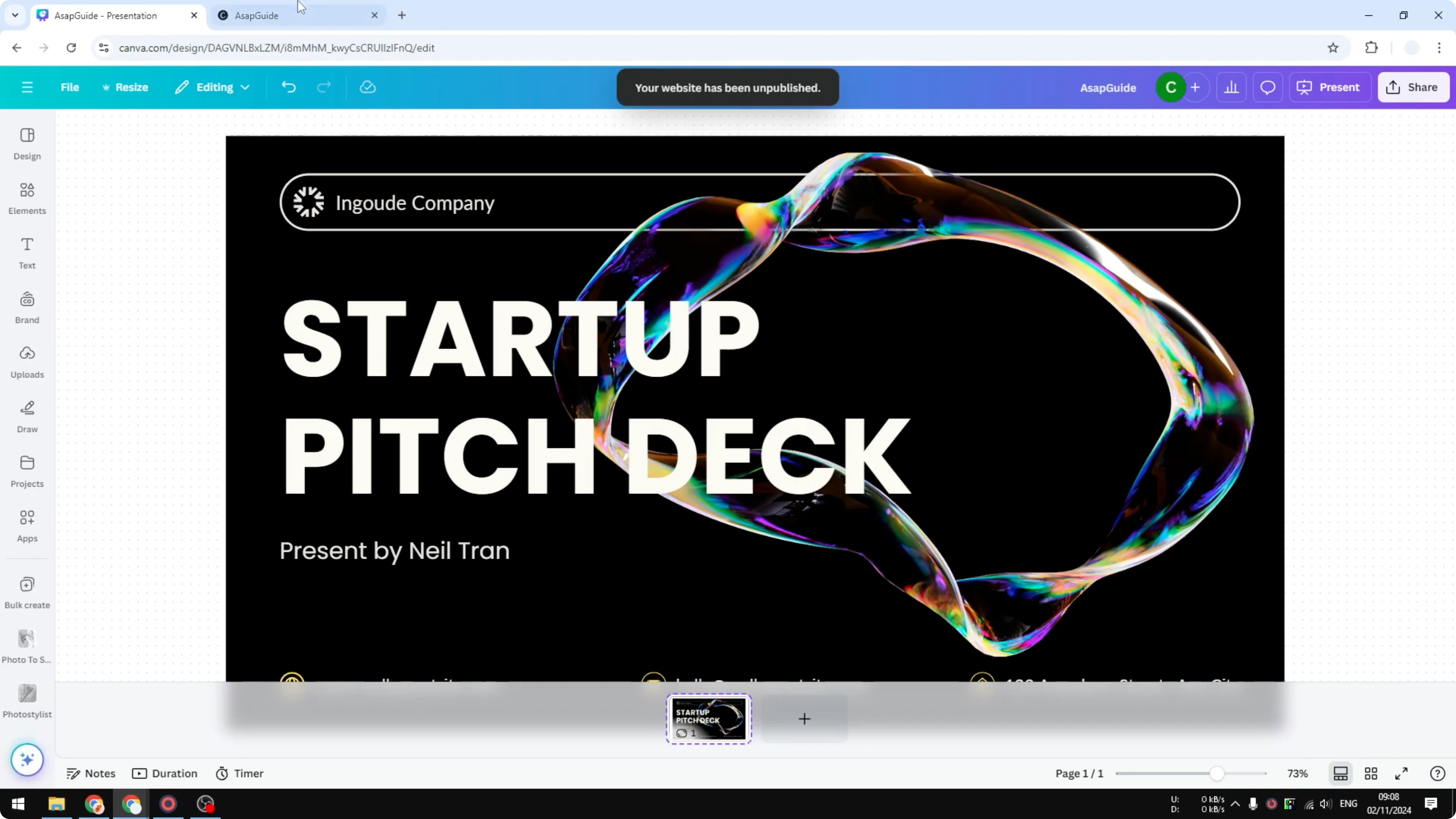
Your website has been unpublished.
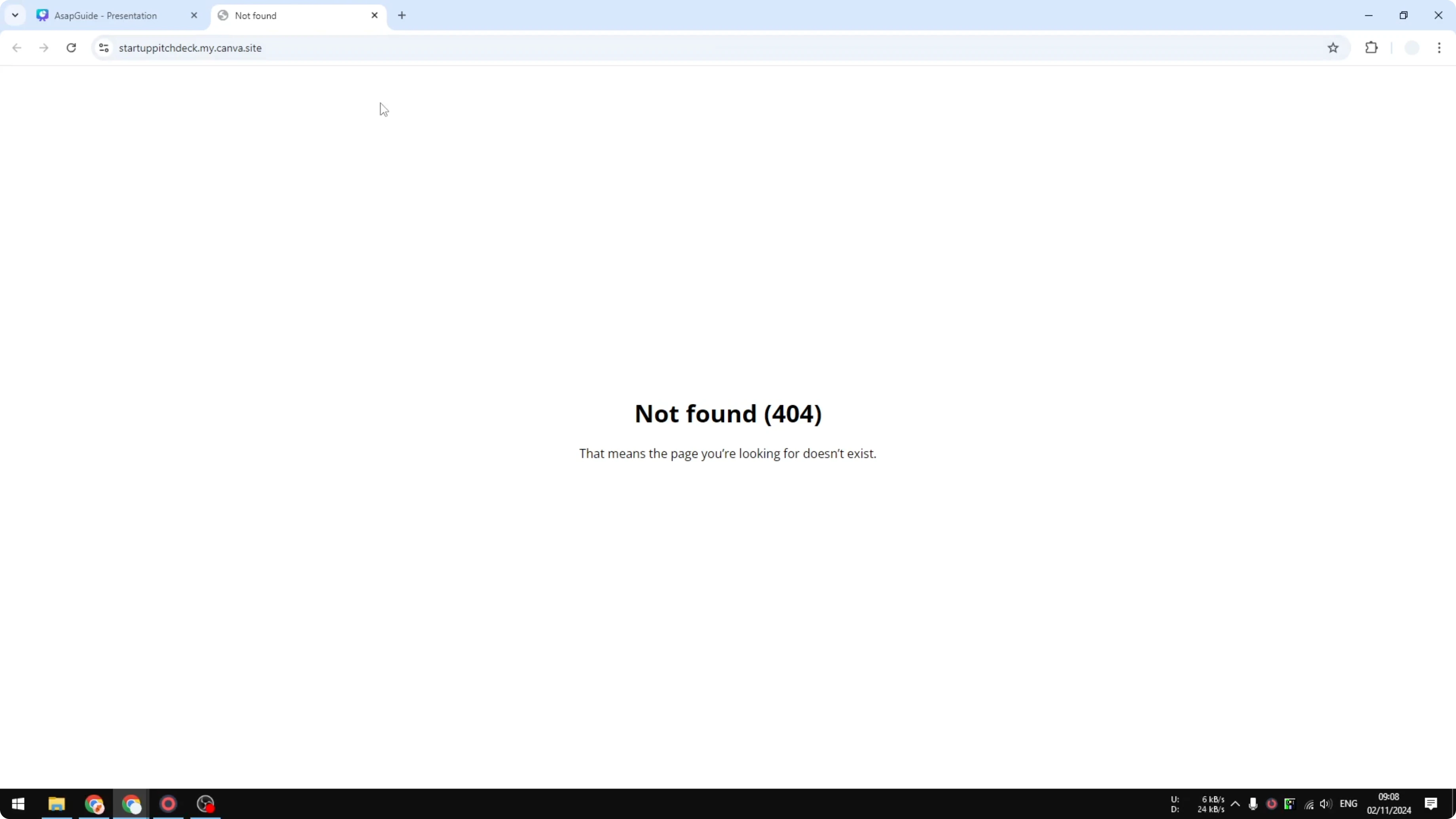
If you refresh the previous URL, it will show an error message, meaning the website is no longer available.
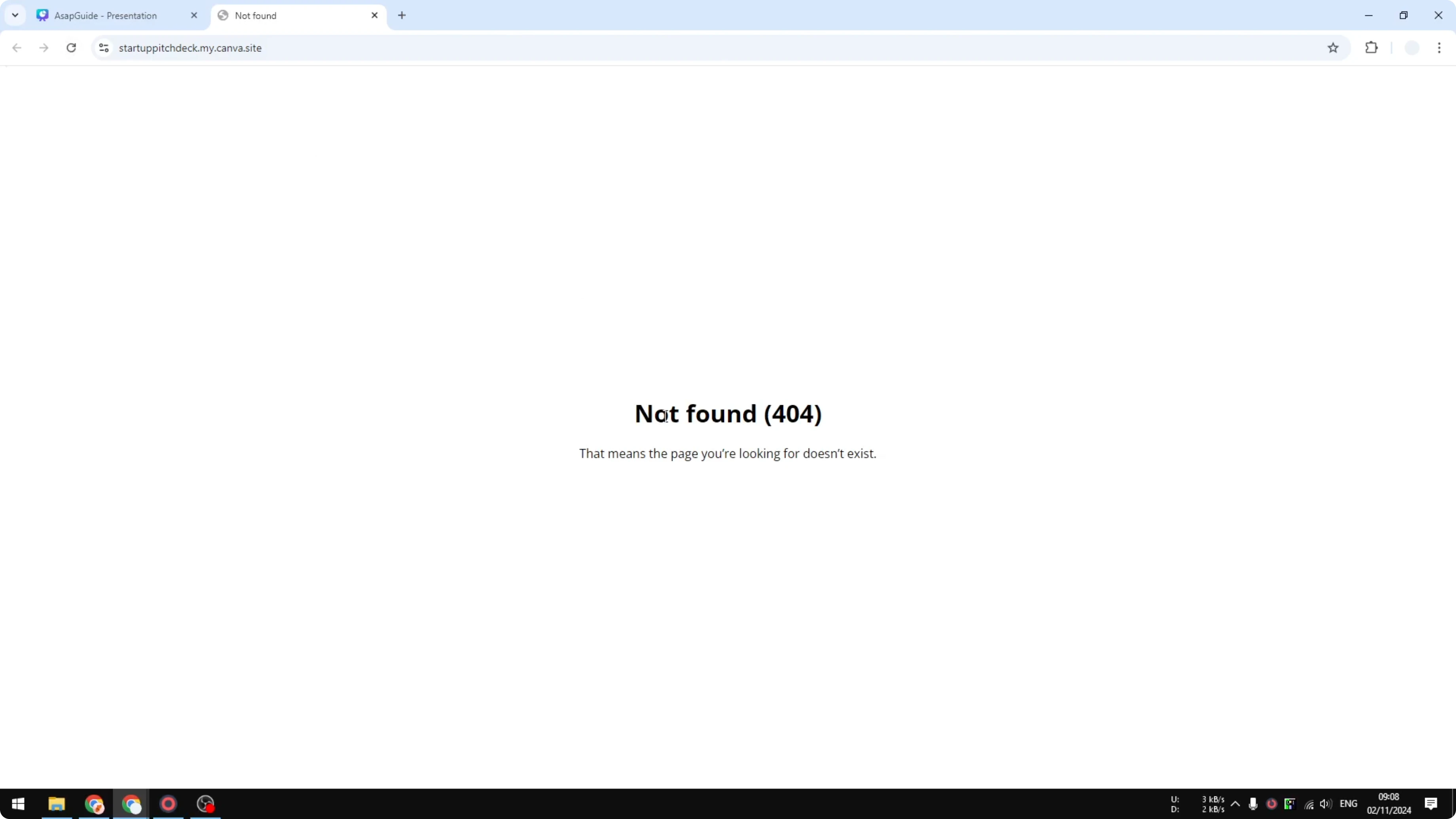
Anyone who previously had access to the website is no longer able to see the document or the design.
If your site promotes an ebook or downloadable, you can polish your visuals and create a 3D book cover in Canva before bringing it back online.
Final Thoughts on Unpublish Your Canva Website
These steps let you take a Canva website offline instantly. Once unpublished, the URL is inaccessible and the design is not viewable to others. Use this process any time you need to remove public access to a Canva site.
Recent Posts

How to Visualize Yourself as a Pixelized Character with AI?
How to Visualize Yourself as a Pixelized Character with AI?

How to Revive Faded Memories and Enhance Image Clarity with AI?
How to Revive Faded Memories and Enhance Image Clarity with AI?

How to Visualize Yourself as an Animal Crossing Character with AI?
How to Visualize Yourself as an Animal Crossing Character with AI?