How to Build a Website Using Canva

You can build a website using Canva. On top of creating designs and videos, you can put together a clean website with the same editor you already use for slides or social posts. The process feels familiar from the start.
If you need high quality for print work in Canva, see 300 DPI images.
Build a Website Using Canva basics
Open Canva and start from a website template. If you do not start from a template, click Resize, search for Website, pick the website size, then click Copy and resize. This creates a new document tailored for a website.
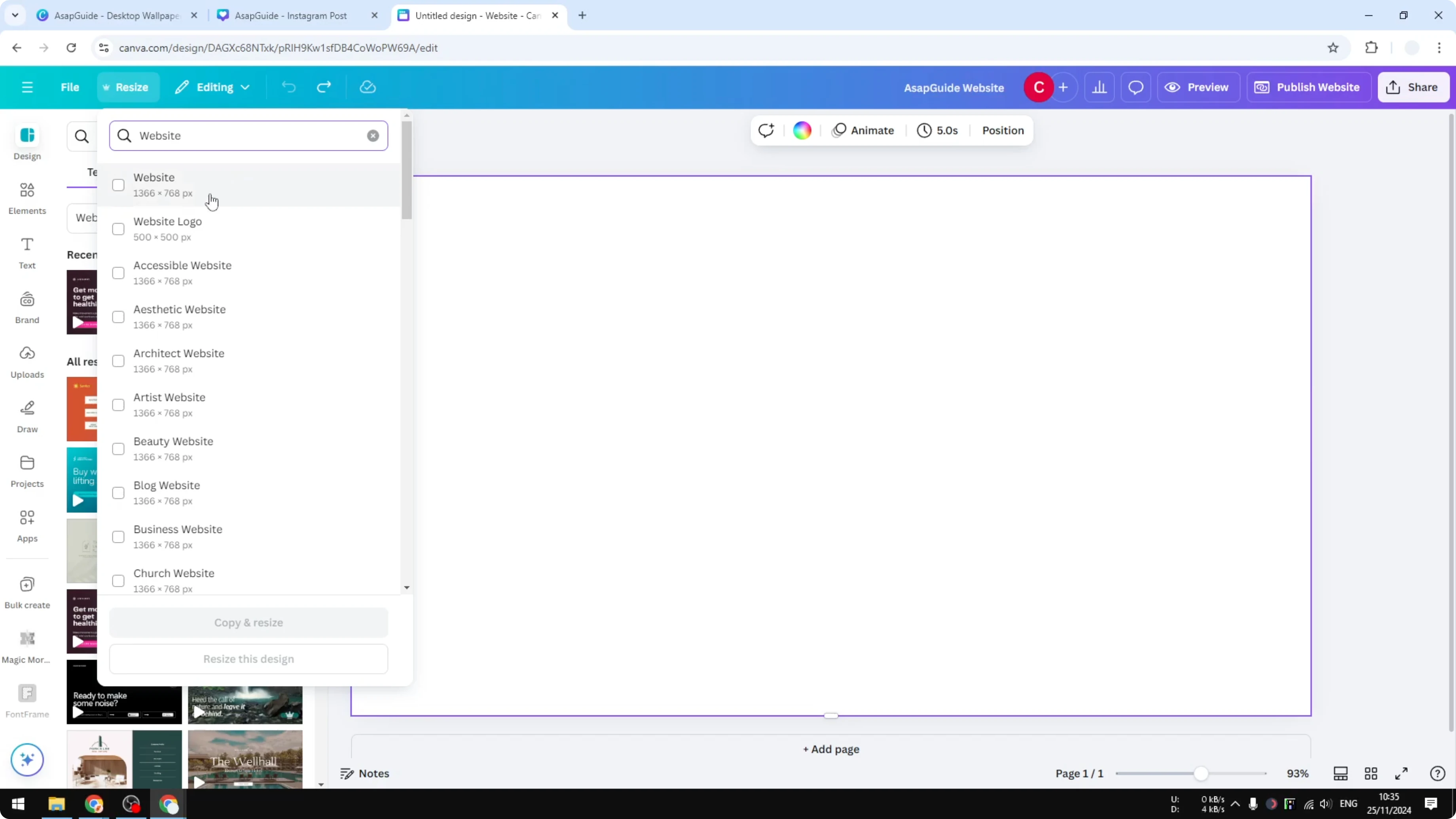
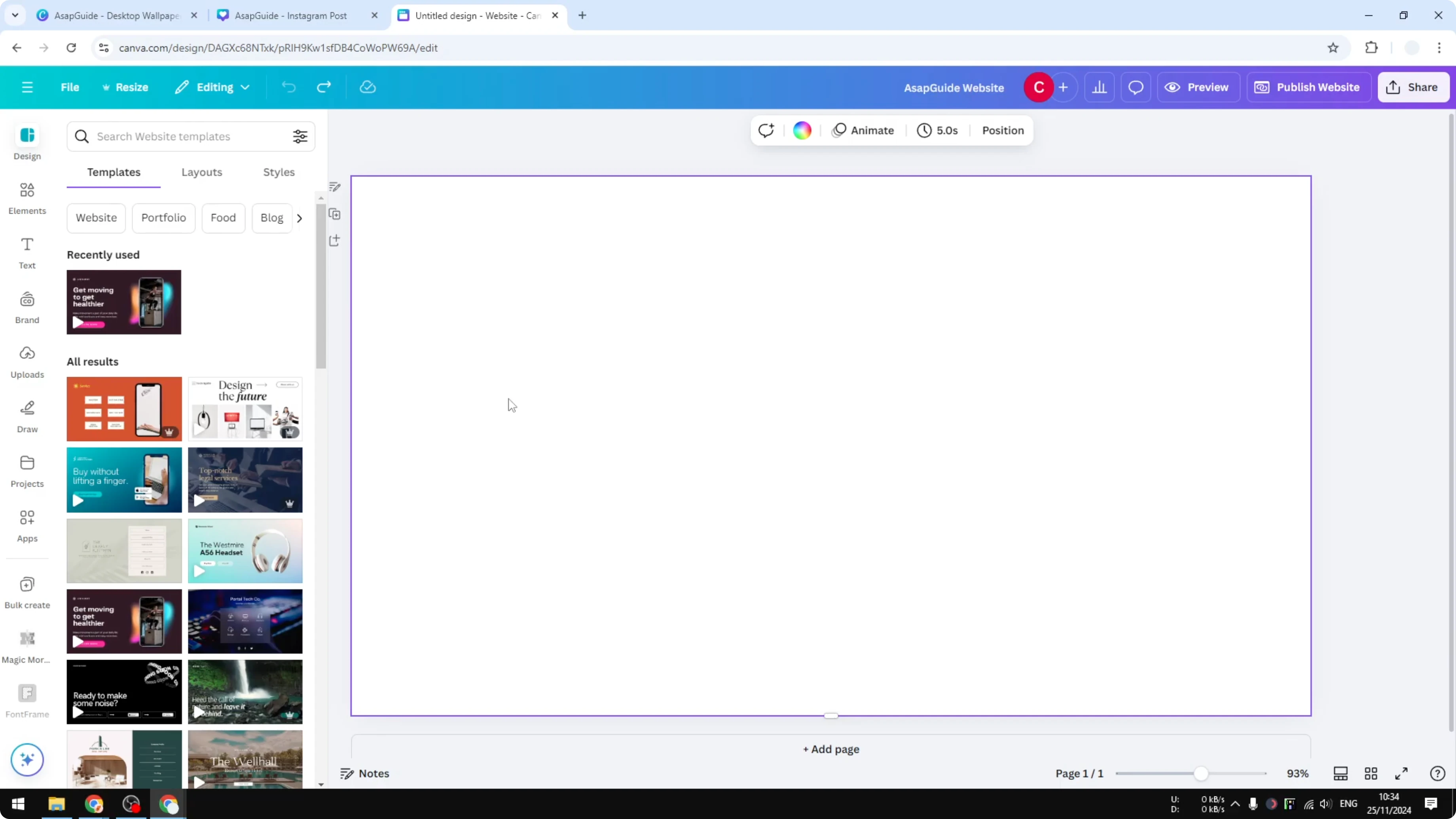
More or less the features are the same as any Canva design, with one key distinction. You can publish it as a website, and anyone can visit it. That is the part that makes this workflow practical.
Build a Website Using Canva templates and resizing
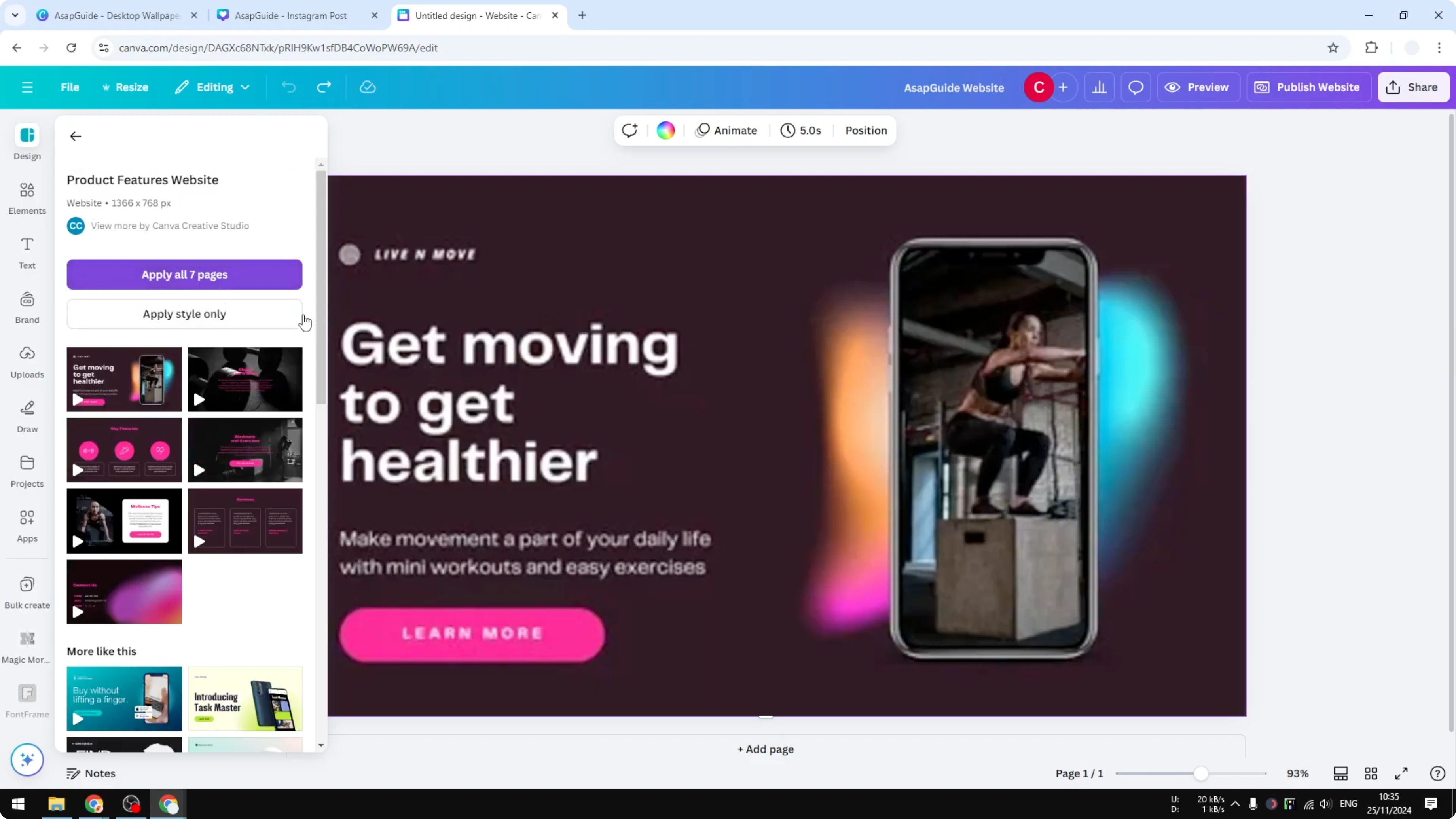
Click Design and go to Templates. Pick a template you want to insert into your website. Apply all pages if you want a complete multi-section layout.
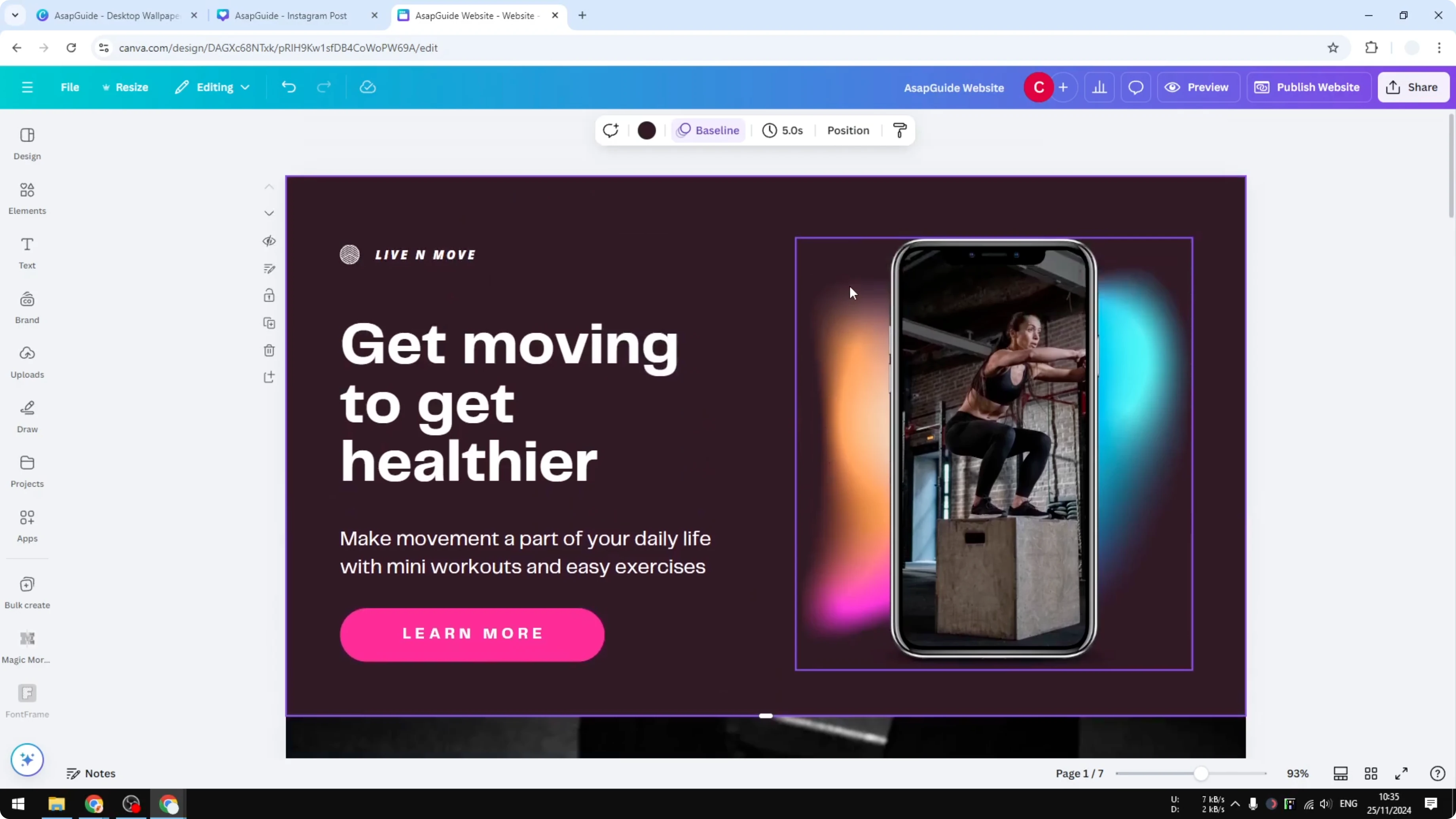
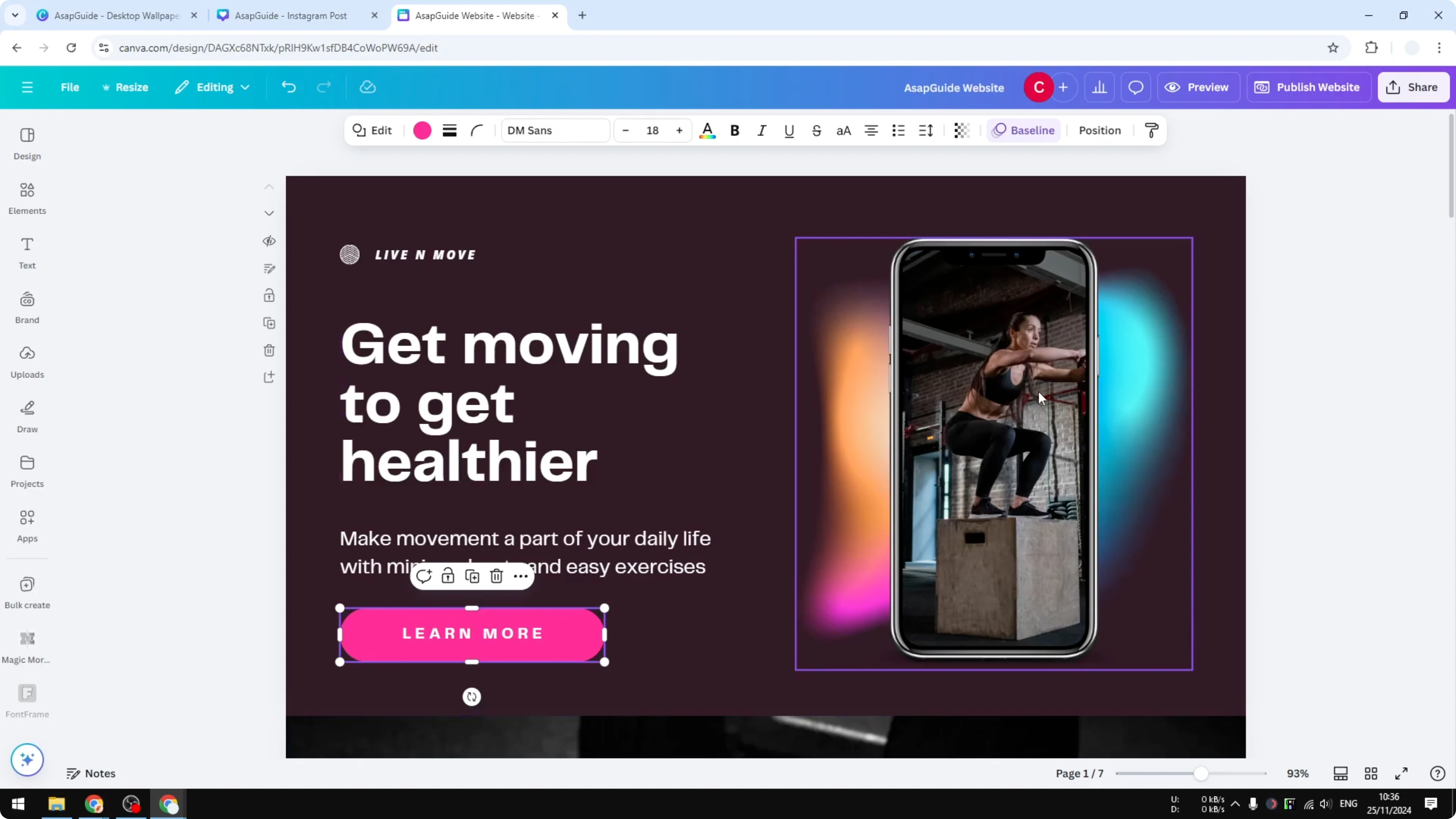
When you scroll the site in the editor, you will see how the pages stack. This is a working website layout that looks modern. It is the kind of site you may have seen on the internet.
Build a Website Using Canva editing
Editing works the same as any Canva design. Change the text, add new text boxes, and adjust colors. The process is identical to what you already know.
If your project includes video, you can enhance it with an AI background before publishing your site. That keeps visuals consistent across your pages. It also keeps your hero sections on brand.
Build a Website Using Canva publishing
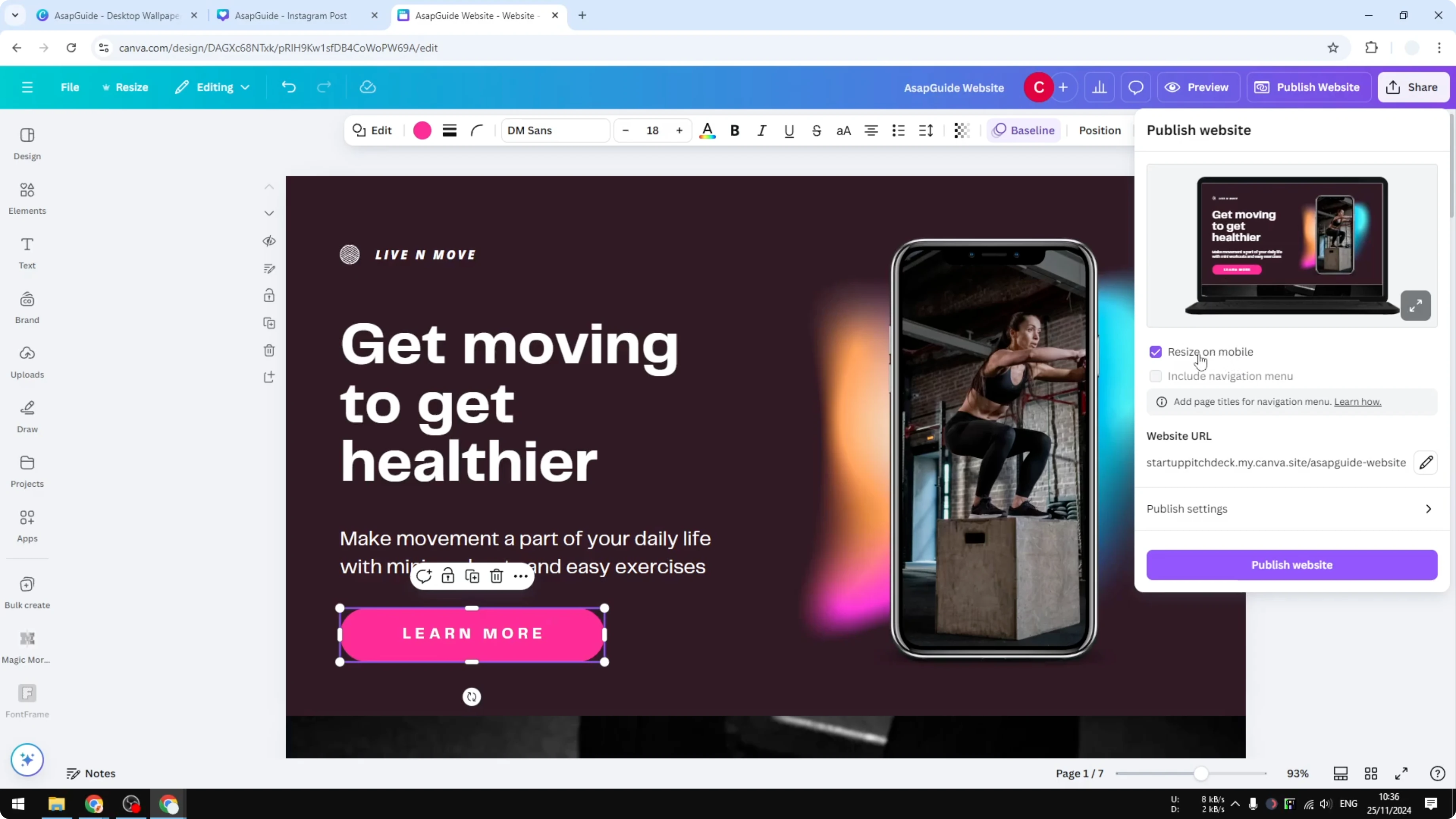
Click Publish website when your design is ready. Enable Resize on mobile so people on phones can view it comfortably. Customize the URL to make it easy to share.
Build a Website Using Canva SEO and privacy
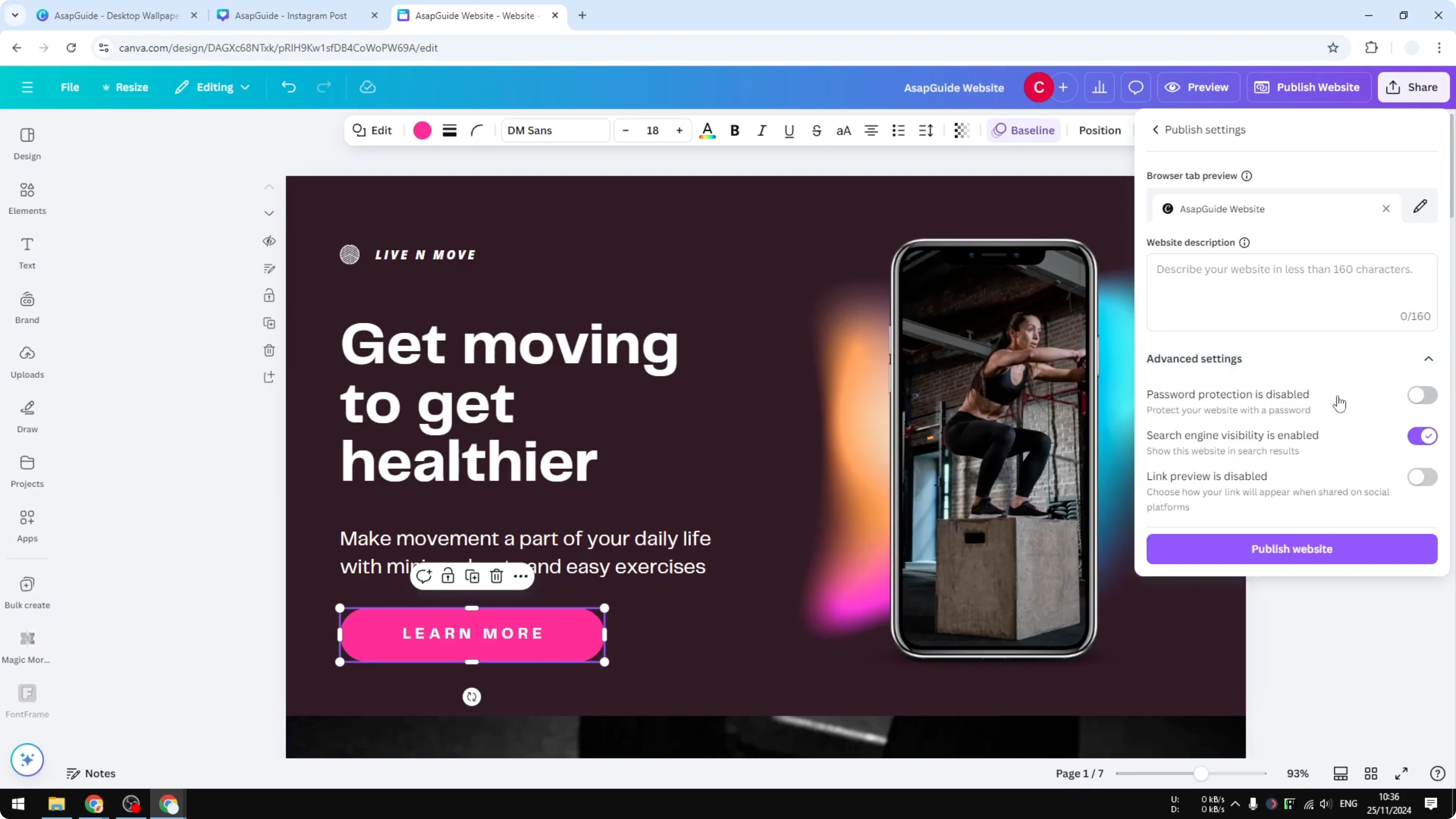
Add a description to help with basic SEO. Enable search engine visibility to let Google and Bing find your site. You can also set it to private and enable password protection.
When the settings are done, click Publish website. Wait for Canva to process your design. Then click View website to open the live page you just created.
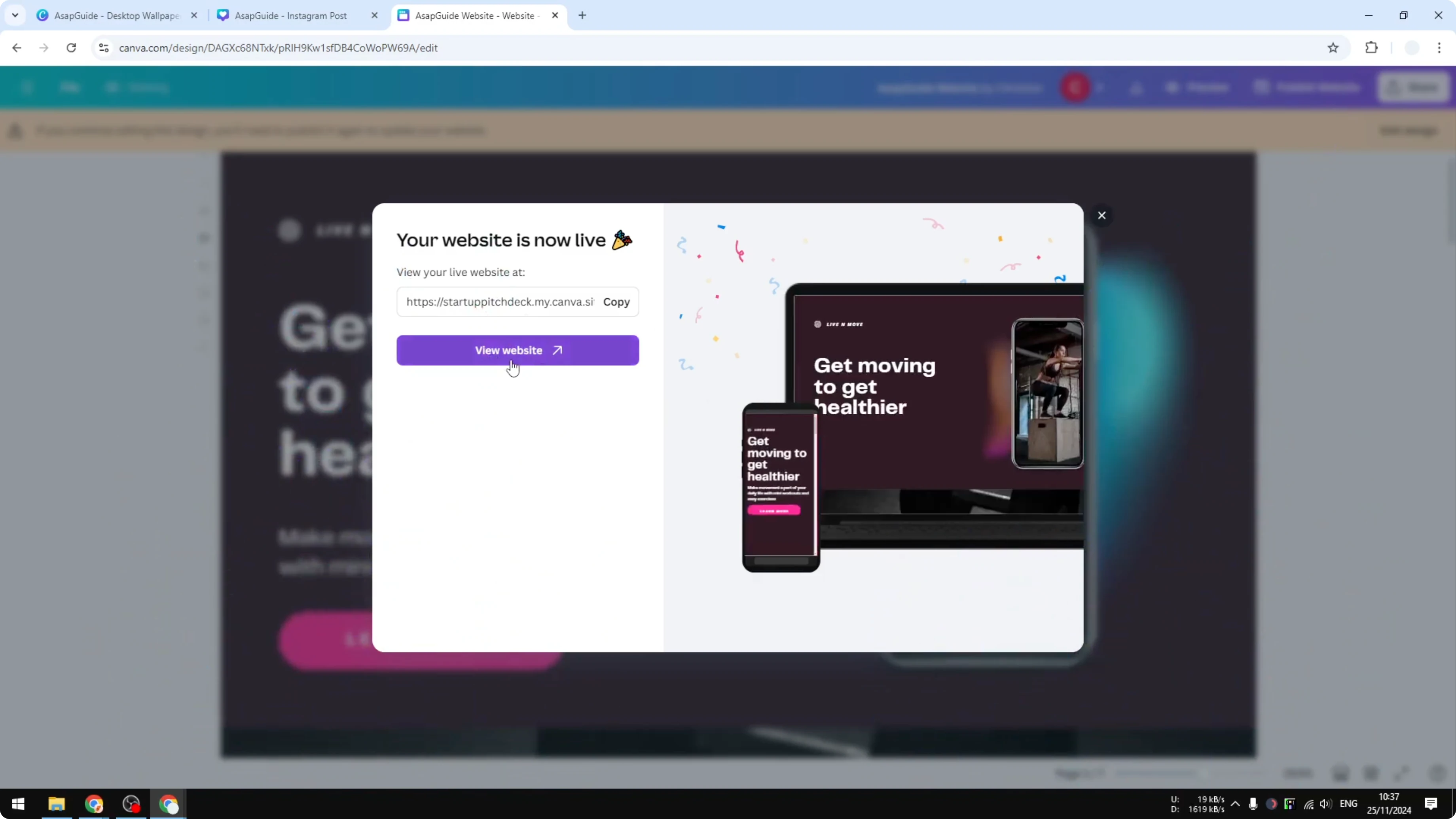
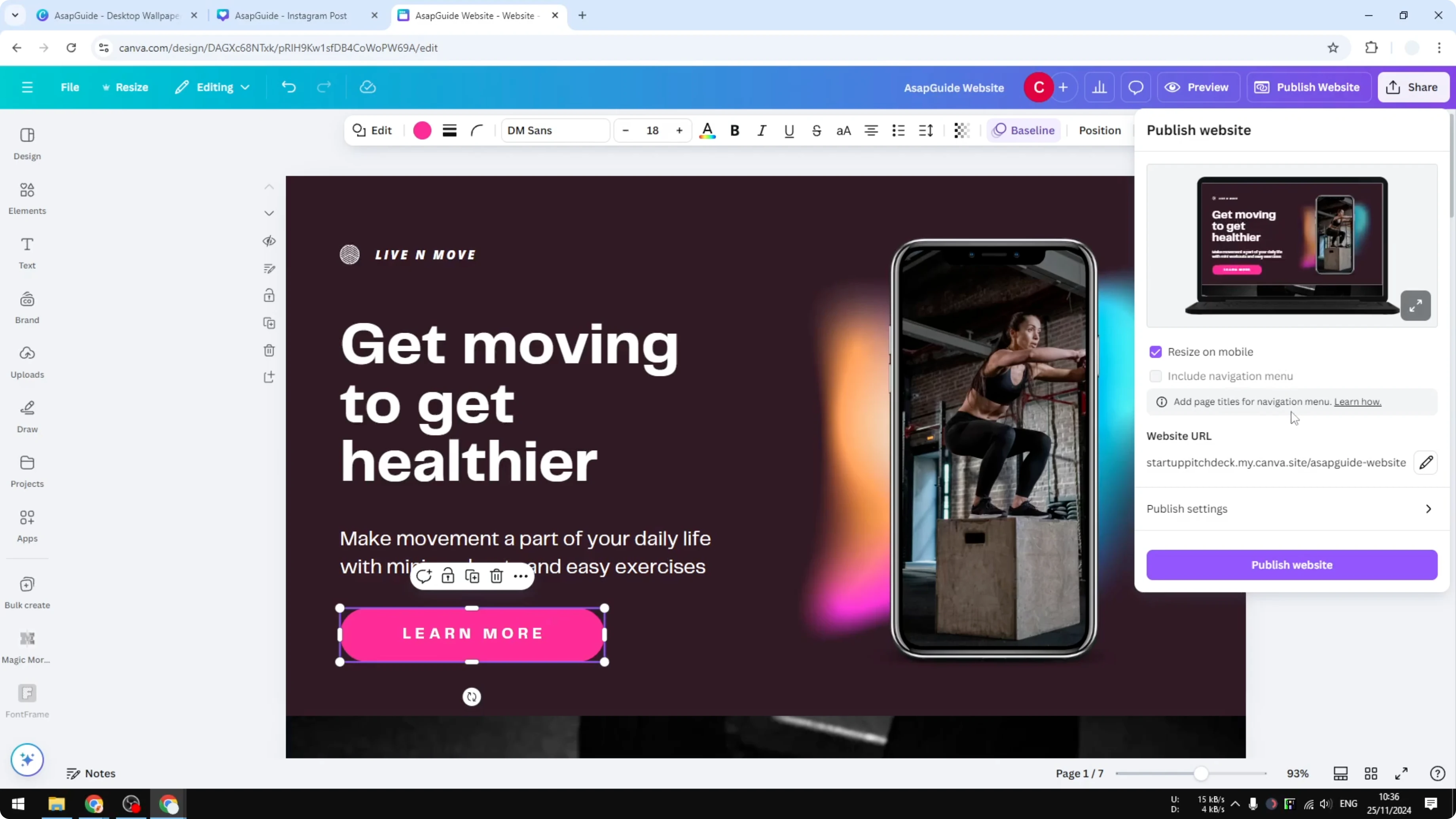
This looks professional and clean. It can resemble what you might create using WordPress or other popular CMS tools like Squarespace. It is a solid option for a landing page or a portfolio site.
For related design ideas you can repurpose on a website header or hero video, try an animated background.
Build a Website Using Canva steps
Open Canva.
Start from a Website template, or click Resize, search for Website, then click Copy and resize.
Click Design, open Templates, and choose a template you like.
Apply all pages if you want a complete multi-section layout.
Edit text, colors, and elements as you would in any Canva design.
Click Publish website.
Enable Resize on mobile.
Customize the URL.
Add a description and enable search engine visibility, or set the site to private with password protection.
Click Publish website and wait for processing.
Click View website to see the live site.
Final thoughts
Building a website using Canva feels like editing any other Canva design. You can start from templates, customize the look, and publish in a few clicks. It works well for landing pages and portfolio sites.
Recent Posts

How to Visualize Yourself as a Pixelized Character with AI?
How to Visualize Yourself as a Pixelized Character with AI?

How to Revive Faded Memories and Enhance Image Clarity with AI?
How to Revive Faded Memories and Enhance Image Clarity with AI?

How to Visualize Yourself as an Animal Crossing Character with AI?
How to Visualize Yourself as an Animal Crossing Character with AI?