How to Create an Animated Background in Zoom Using Canva
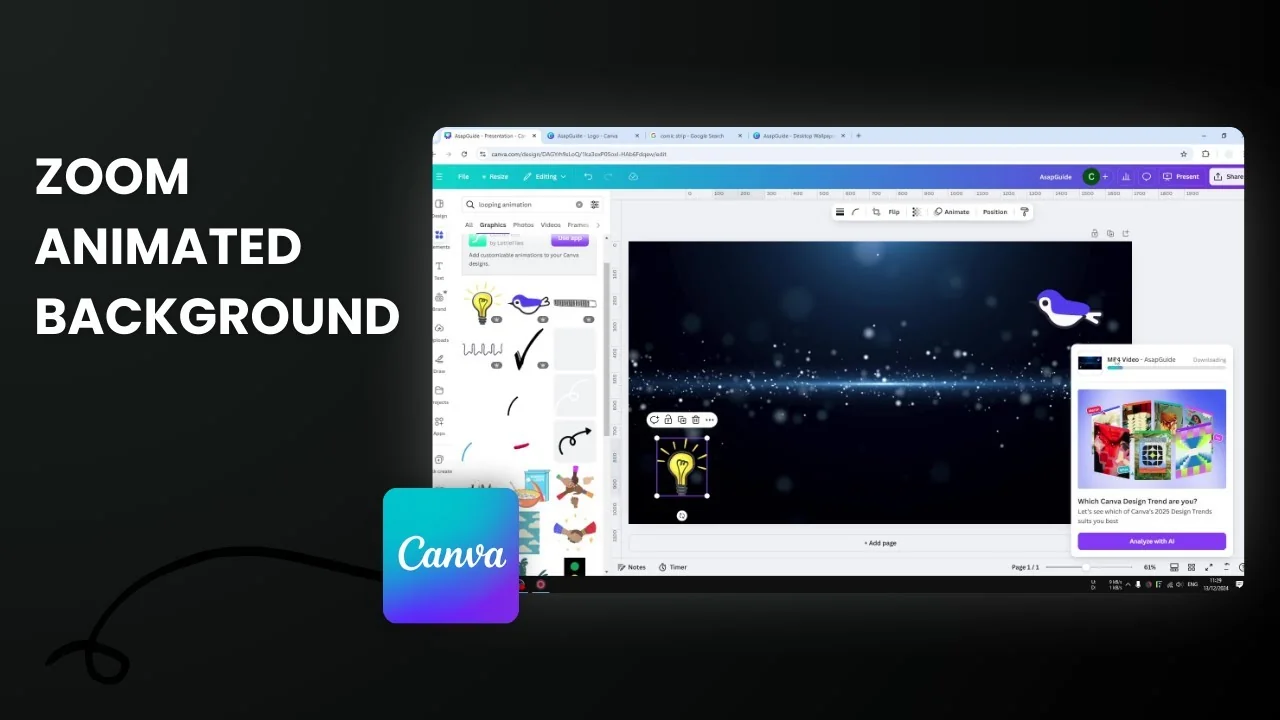
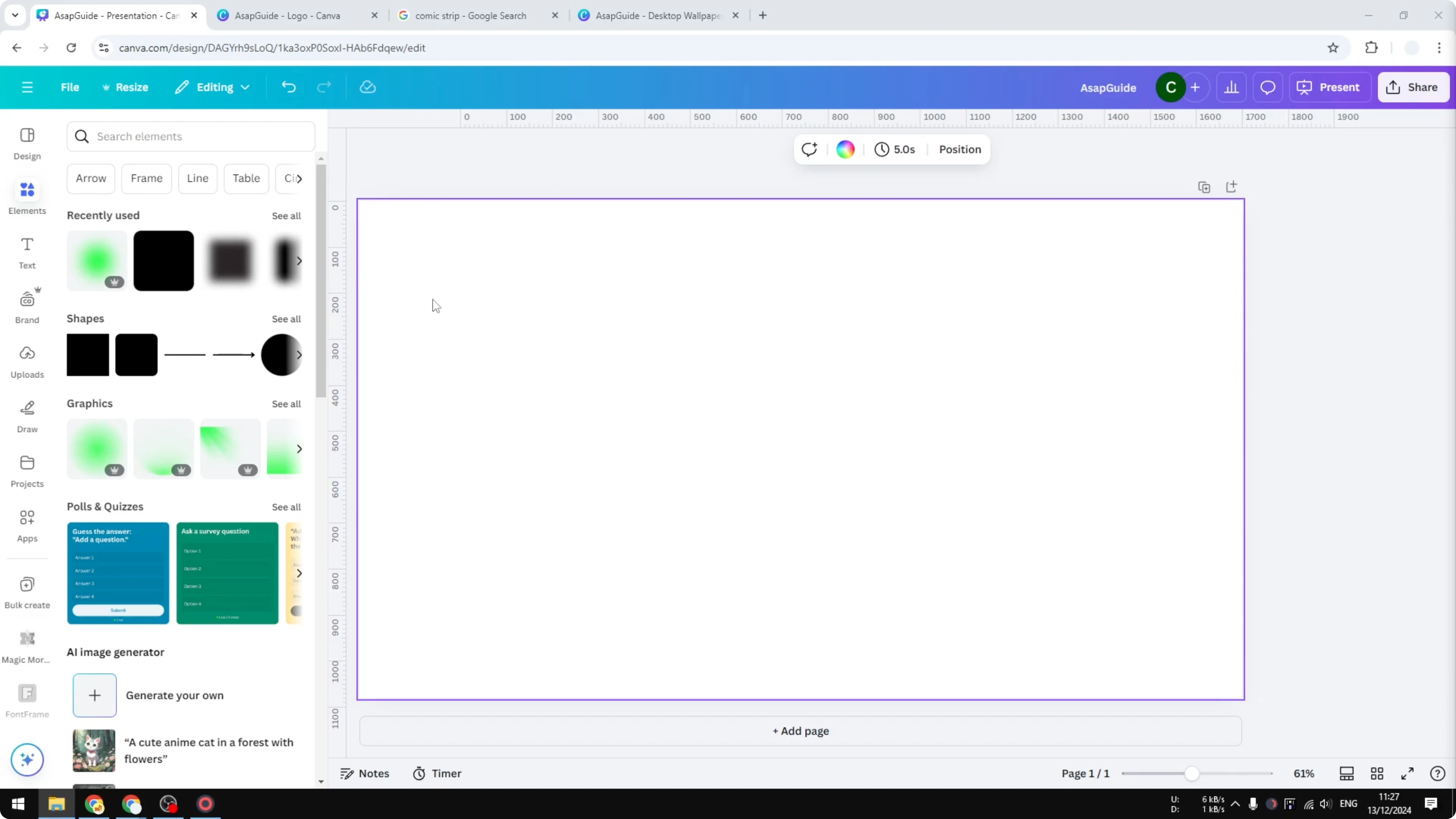
Here is how I create an animated background in Zoom using Canva. Open a design in Canva with a 16:9 aspect ratio, because Zoom uses 16:9. You can start with a YouTube thumbnail, a desktop wallpaper, or a presentation template. I want to make sure every visual element in the design or animation will appear correctly as a Zoom background.
Create an Animated Background in Zoom Using Canva
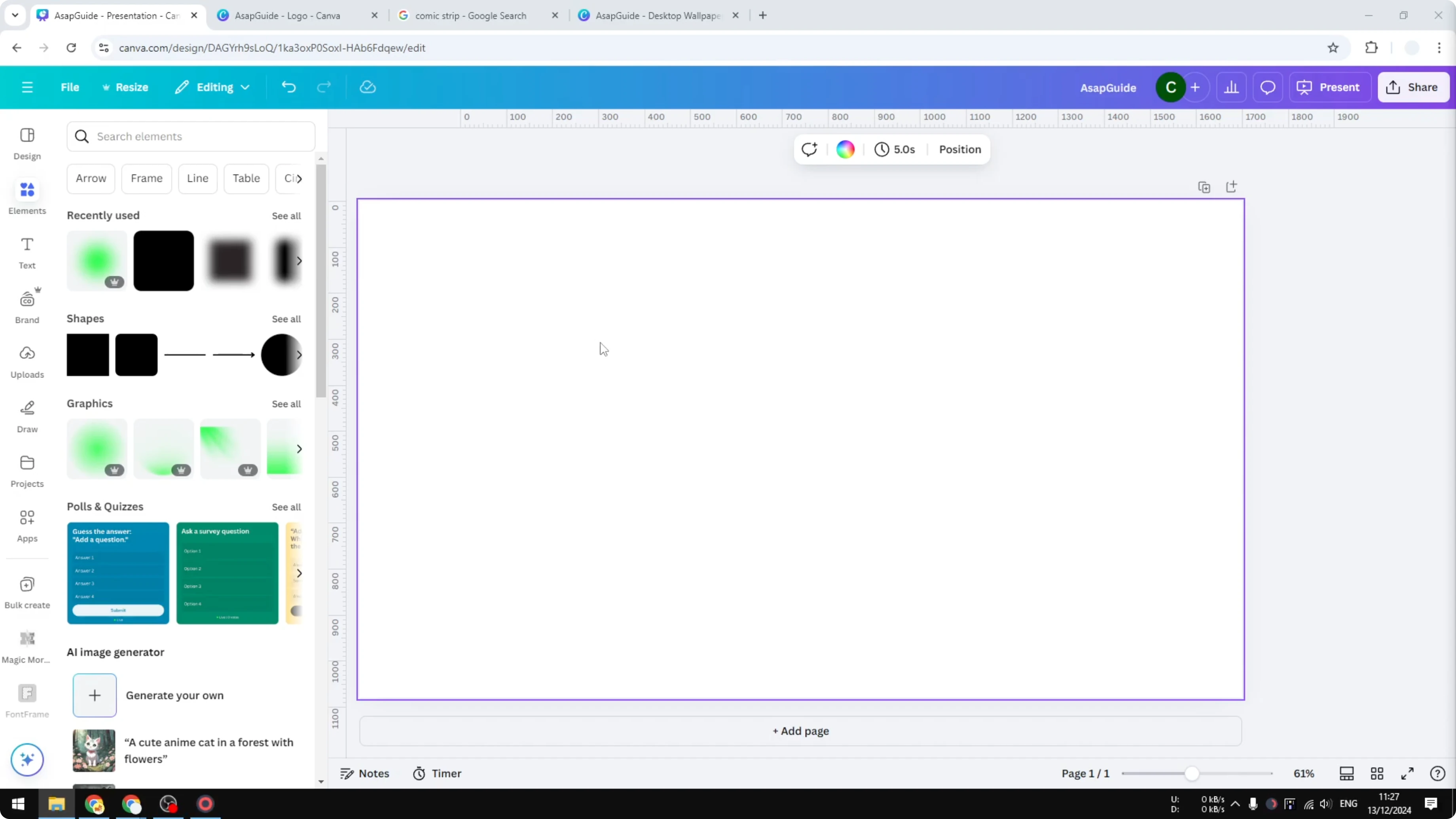
Set up your Canva design at 16:9
- Open a new design in Canva.
- Use a 16:9 aspect ratio. Examples that already use 16:9 include YouTube thumbnails, desktop wallpapers, and presentation templates.
Add animations and graphics
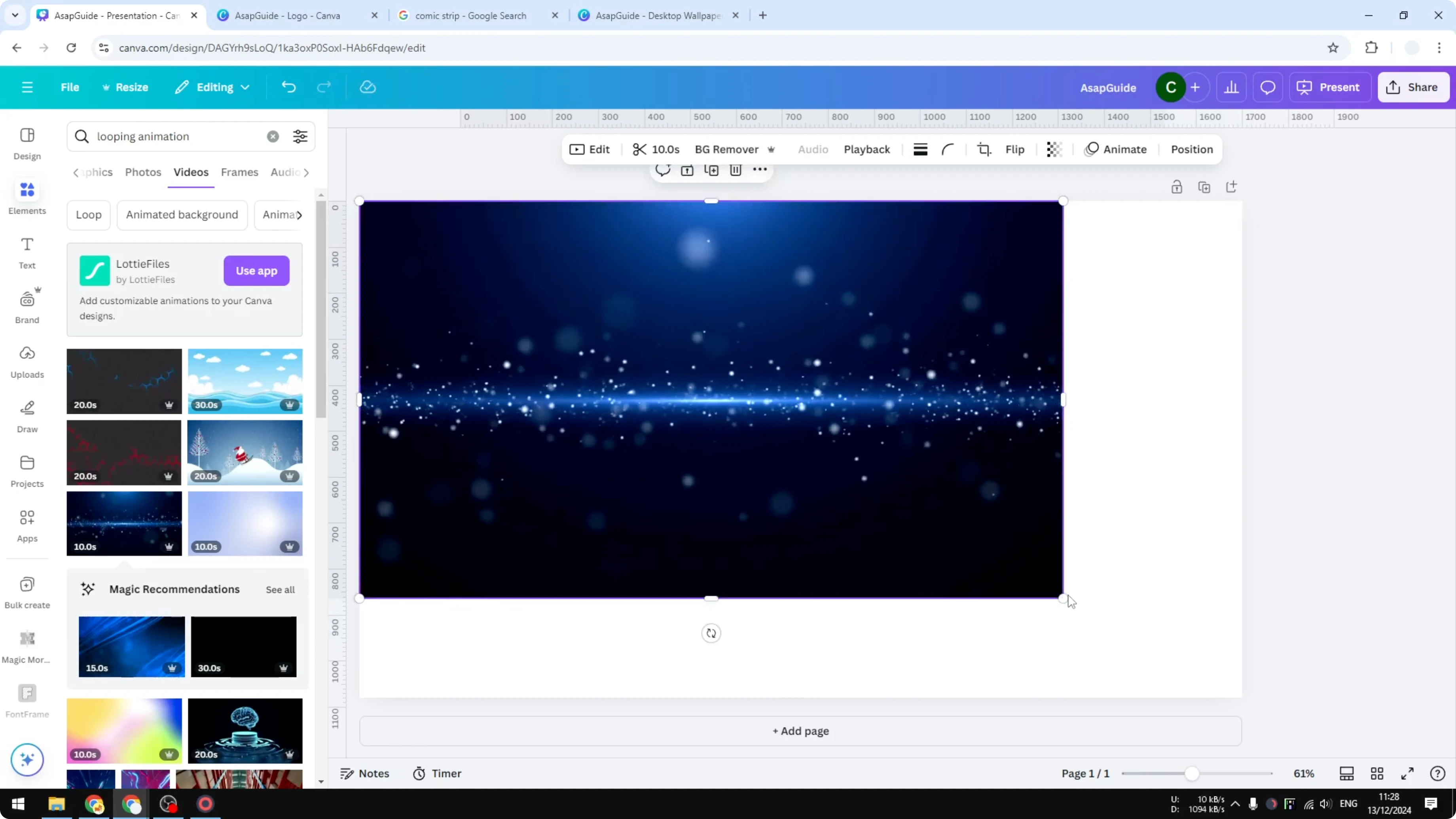
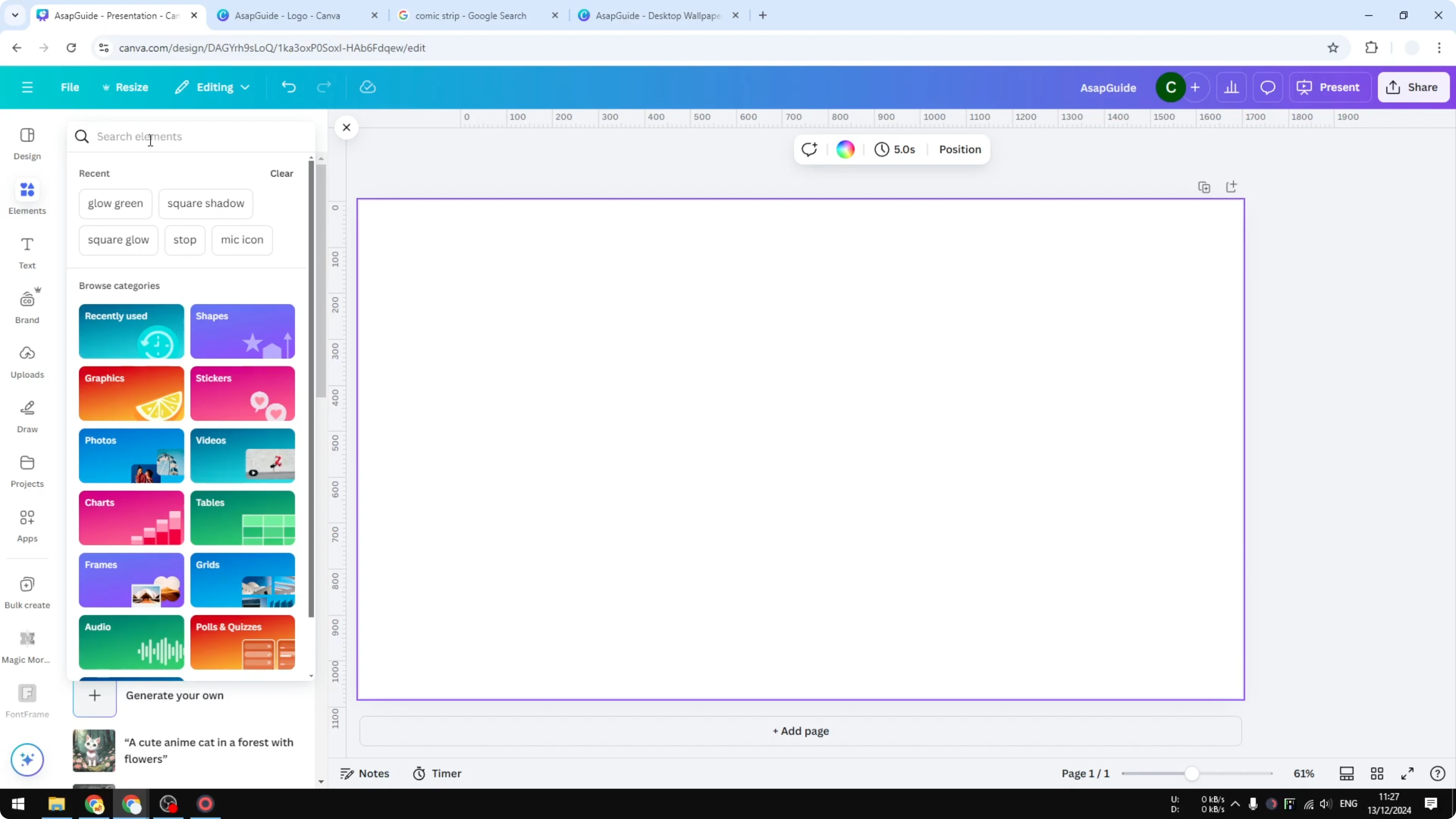
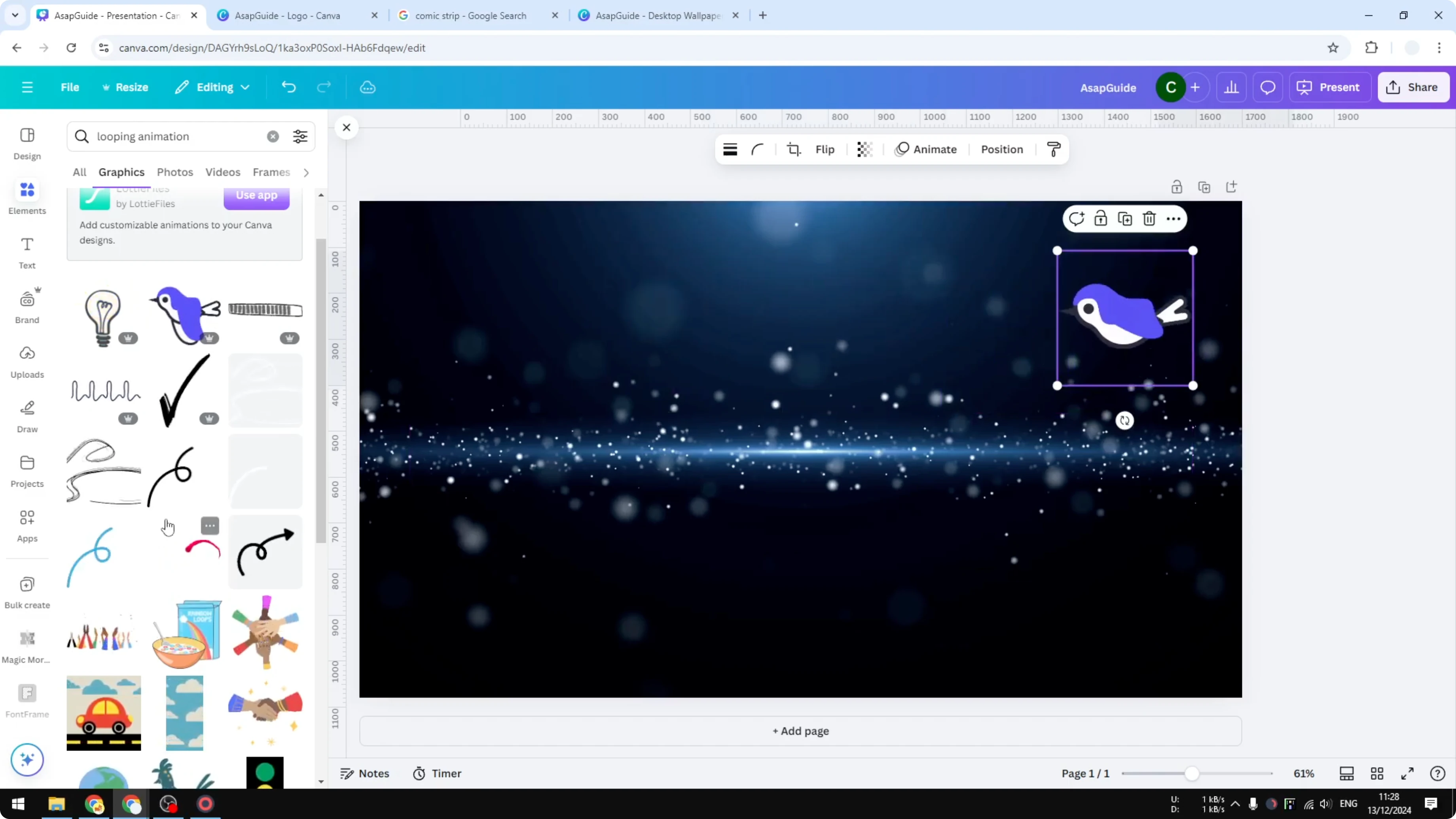
- Go to the Elements section and search for the style of background you want. I search for looping animation. I think looping is the best because it is difficult to distinguish when the animation starts or ends since it is always looping.
- Go to Videos to browse the available animation styles. There are plenty of options and it is up to you which one you want to use. I go with a simple animation I like, and I make sure it covers the entire area.
- Add stickers if you want extra motion. In the Graphics section, you will find plenty of animated options. Click any of them to insert it into your design. This helps make your Zoom background more attractive.
Download settings
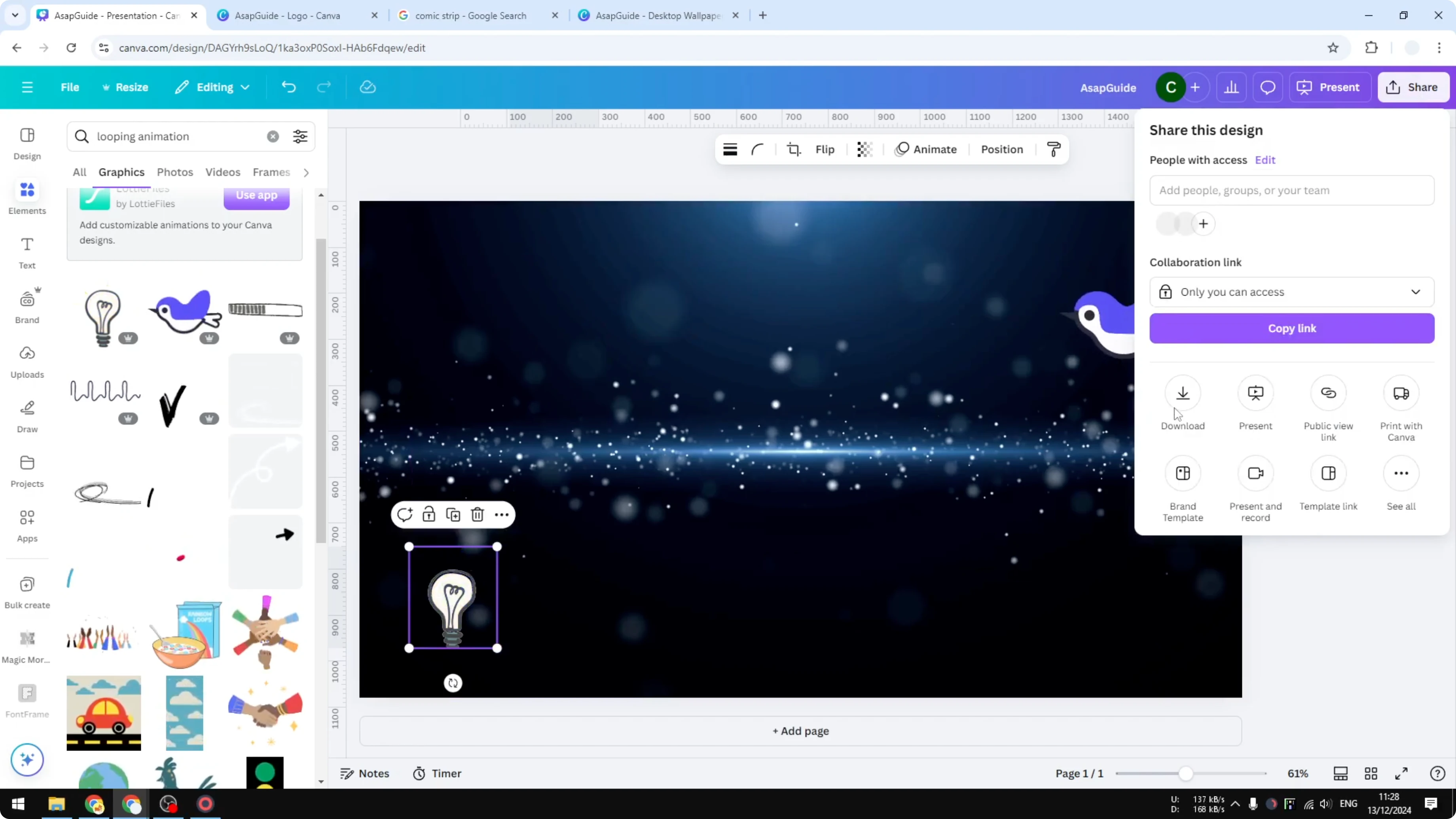
- Click Share, then Download.
- Select MP4 as the format.
- Set the quality to 720p. It is good enough for most cases, but if you want HD quality, go with 1080p.
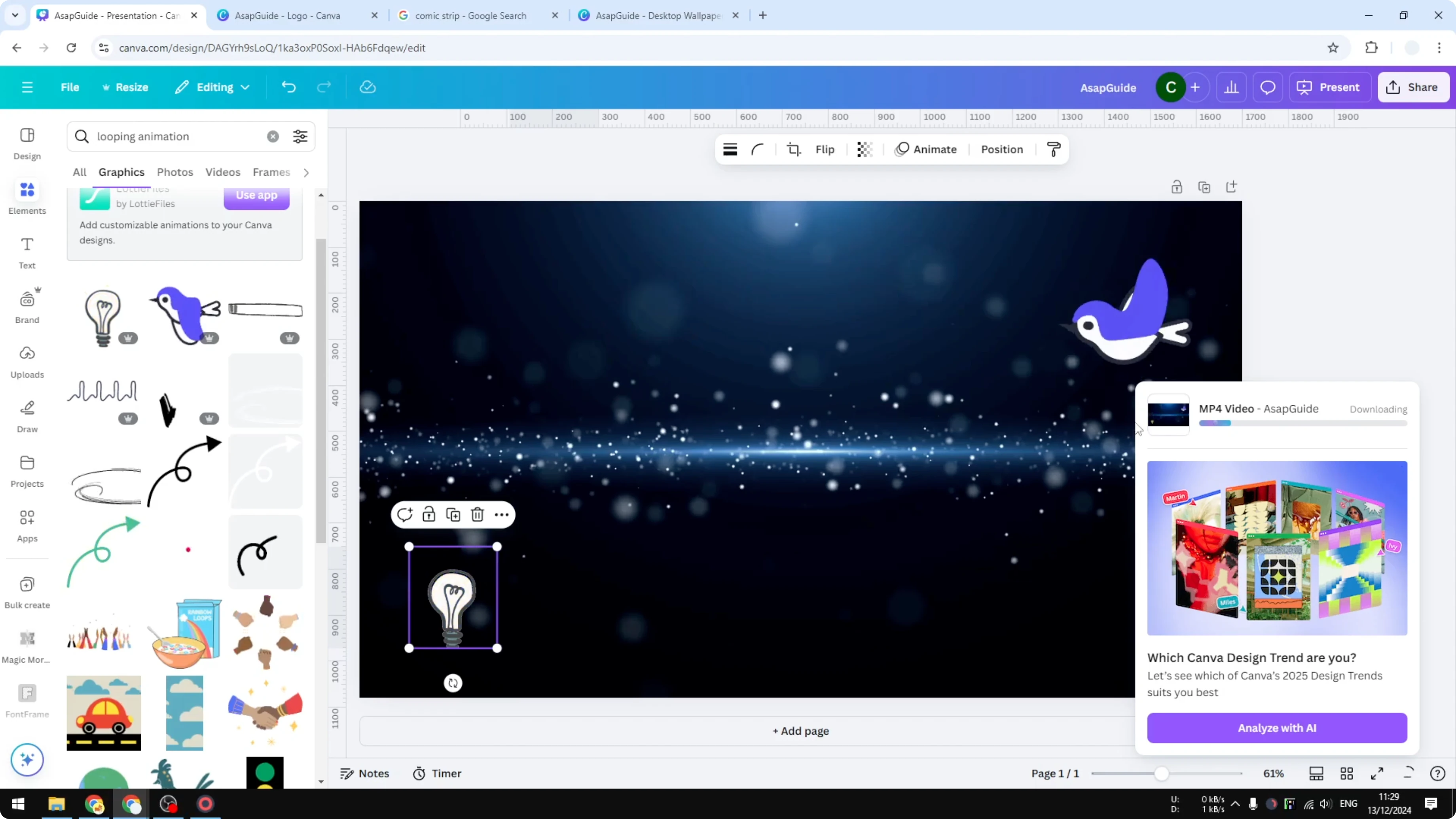
- Click Download. Canva will render the video, and you will get an MP4 file on your computer.
Use it in Zoom
- Upload the MP4 as your Zoom background.
Final Thoughts
That is how you can create an animation in Canva to use as a Zoom background. Start with a 16:9 design, choose a looping animation that fills the frame, add animated graphics to taste, export as MP4, and upload it to Zoom.
Recent Posts

How to Visualize Yourself as a Pixelized Character with AI?
How to Visualize Yourself as a Pixelized Character with AI?

How to Revive Faded Memories and Enhance Image Clarity with AI?
How to Revive Faded Memories and Enhance Image Clarity with AI?

How to Visualize Yourself as an Animal Crossing Character with AI?
How to Visualize Yourself as an Animal Crossing Character with AI?