How to Underline Text in Canva

I’m going to show you how you can underline text in Canva. You can apply an underline to the entire text, a specific word, or even a specific letter in the same text box.
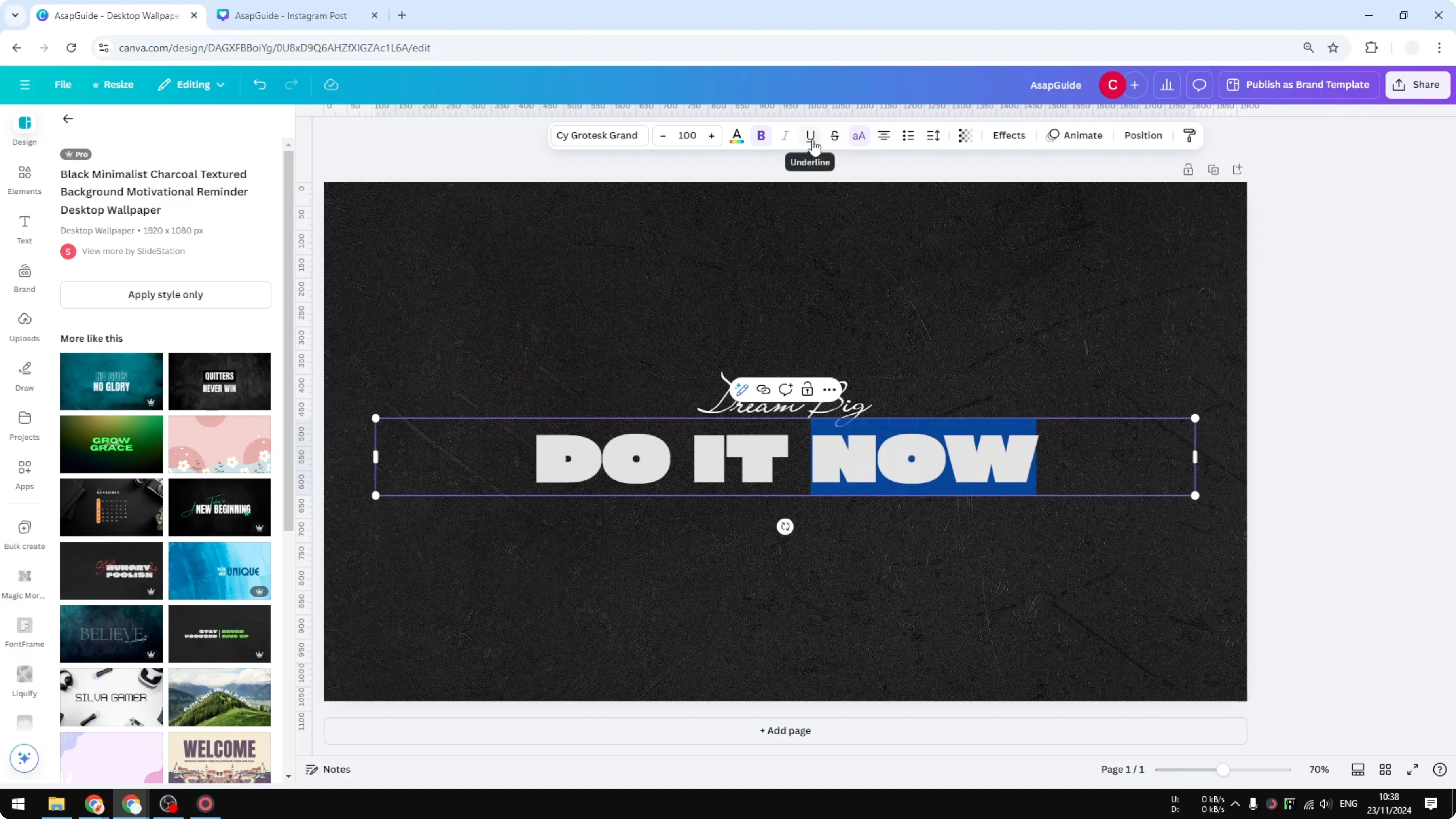
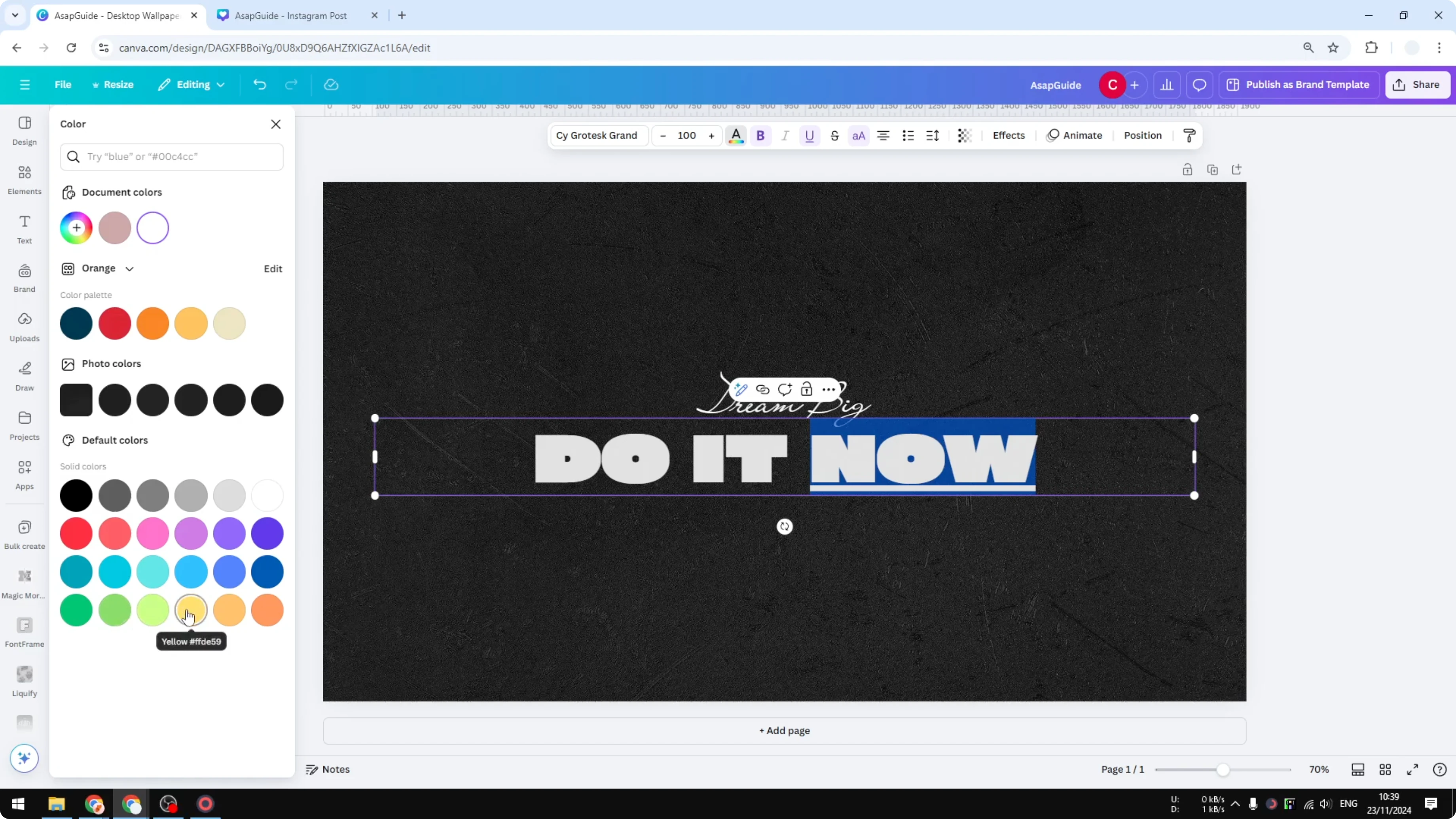
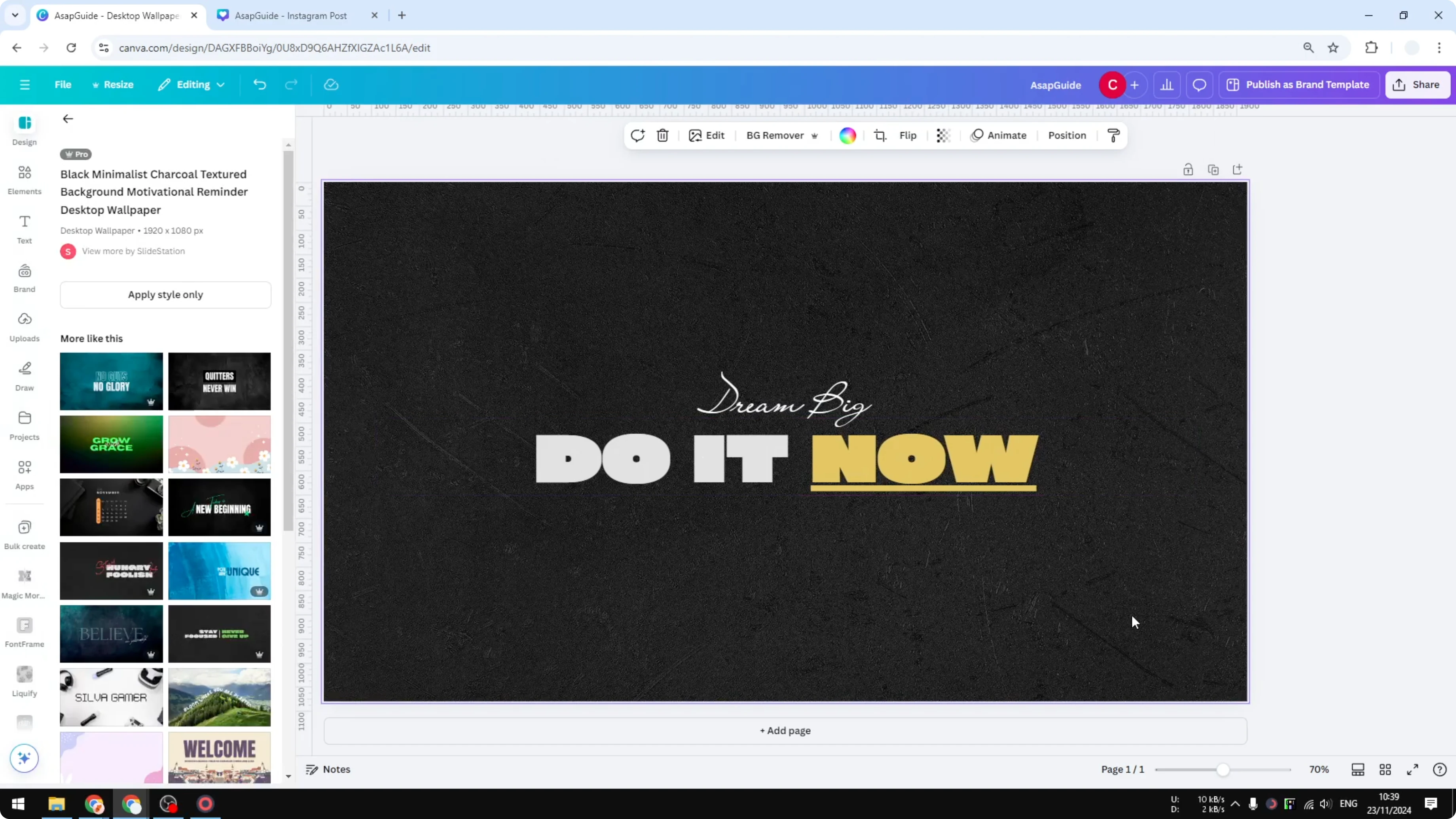
I have a text box that says “do it now,” and I can underline just the word “now.” This is a simple way to emphasize part of a sentence without changing everything.
Underline Text in Canva basics
Select the text you want to underline. Click the Underline option in the toolbar. The underline will be added to the selection.
Read More: Add Background Text Canva
Underline Text in Canva for a single word
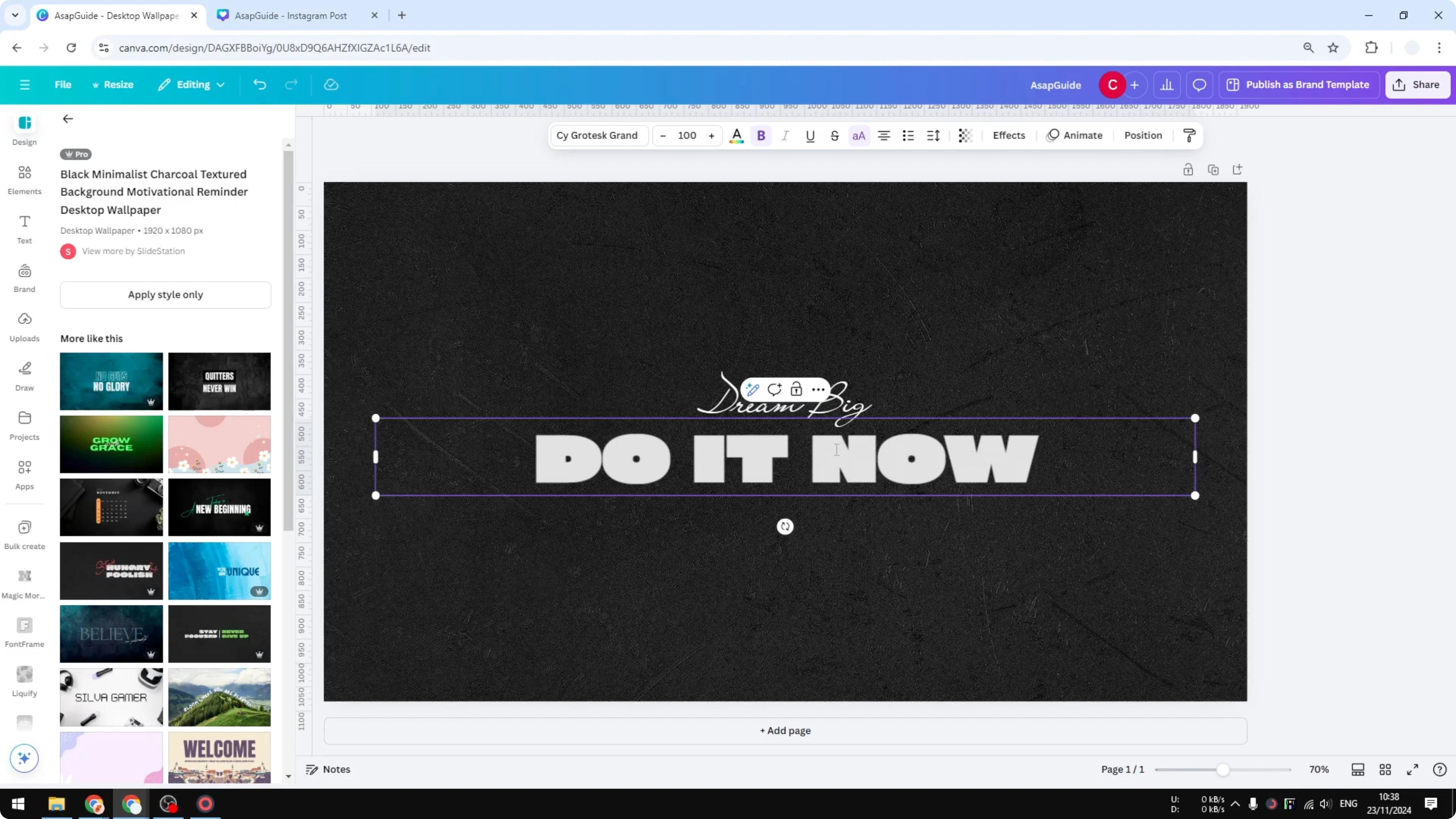
Select only the word you want to highlight. Click Underline to apply it to that word. You will get the underline only where you selected.
Underline Text in Canva for a single letter
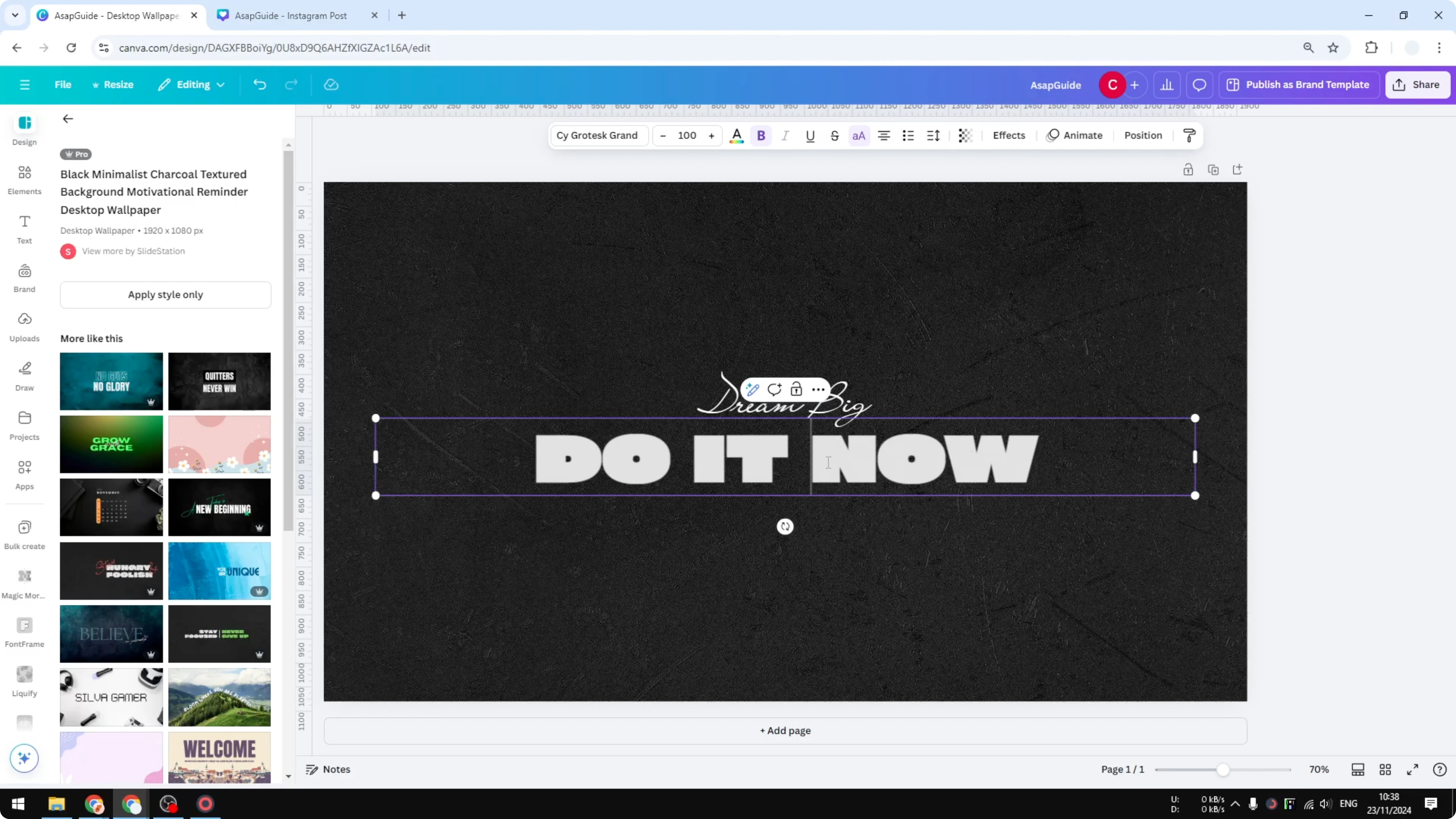
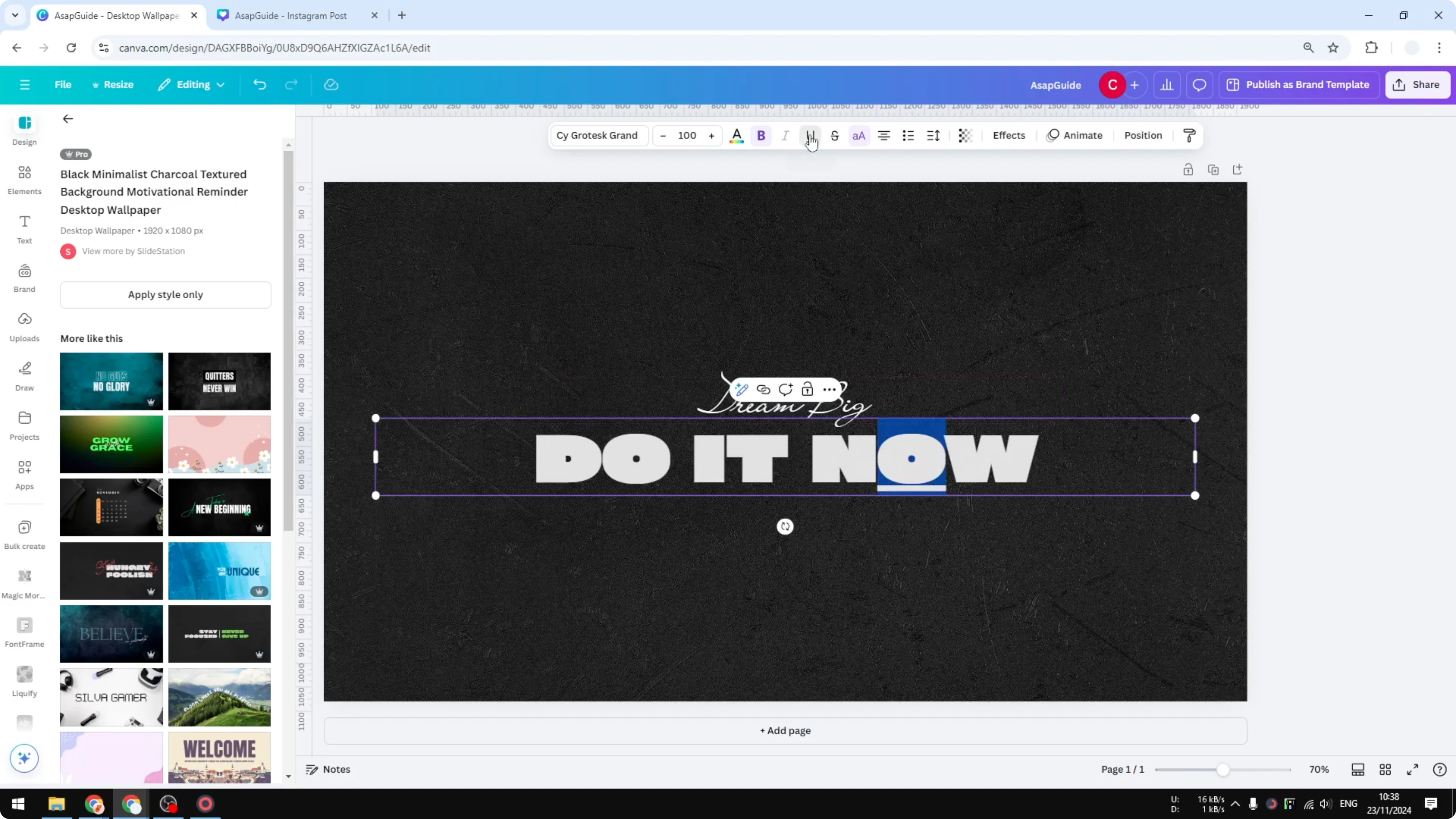
Select the single letter inside the text box. Click Underline. You will see the underline applied just to that character.
Read More: Attach Text Shape Canva
Underline Text in Canva with font considerations
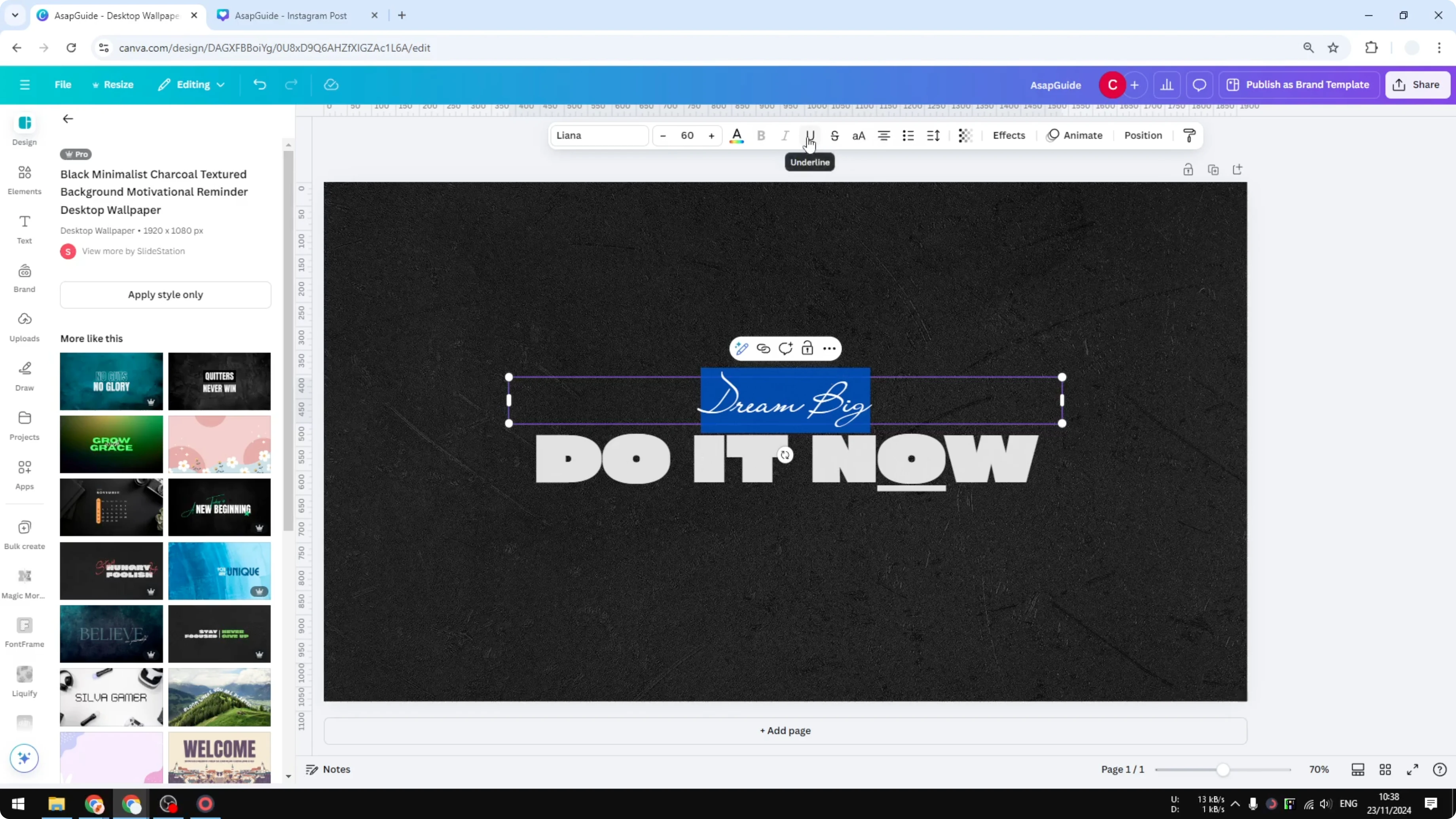
This works on almost all fonts, including different letter cases. Not all fonts look great with an underline. Use it when it makes sense for readability and style.
Underline Text in Canva combined with font changes
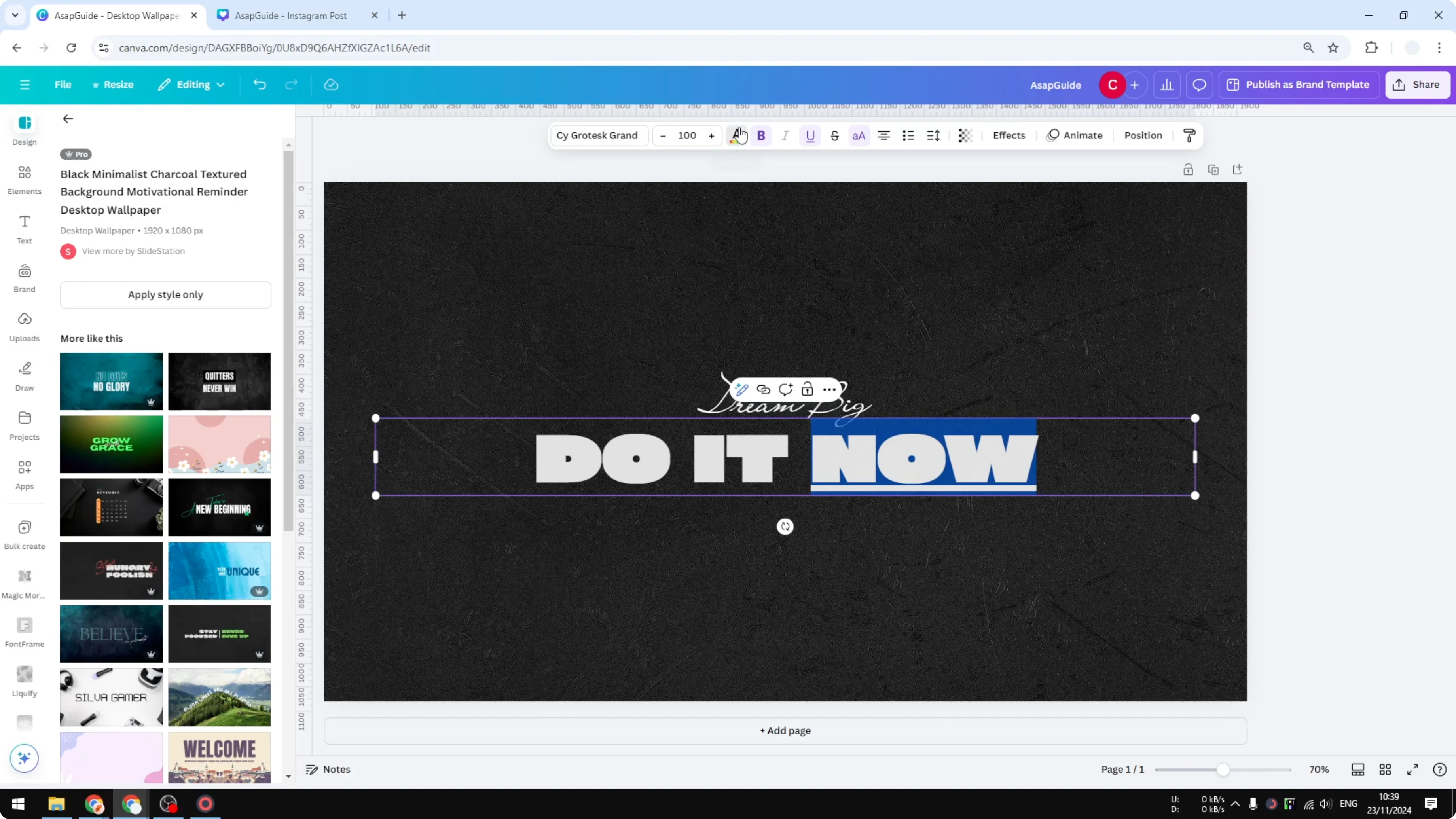
This is very useful to emphasize a point or a specific word in your text box. You can combine the underline with a different font for that word. It will stand out compared to the rest of the document.
Read More: Add Border Text Box Canva
Final thoughts on Underline Text in Canva
Select the exact text you want to emphasize, click Underline, and keep an eye on how your chosen font renders the line. Use it for clear emphasis, and combine it with a font change if you want even more contrast. That’s how you can underline text in Canva with precise control.
Recent Posts

How to Visualize Yourself as a Pixelized Character with AI?
How to Visualize Yourself as a Pixelized Character with AI?

How to Revive Faded Memories and Enhance Image Clarity with AI?
How to Revive Faded Memories and Enhance Image Clarity with AI?

How to Visualize Yourself as an Animal Crossing Character with AI?
How to Visualize Yourself as an Animal Crossing Character with AI?