How to Turn a Photo Black and White in Canva
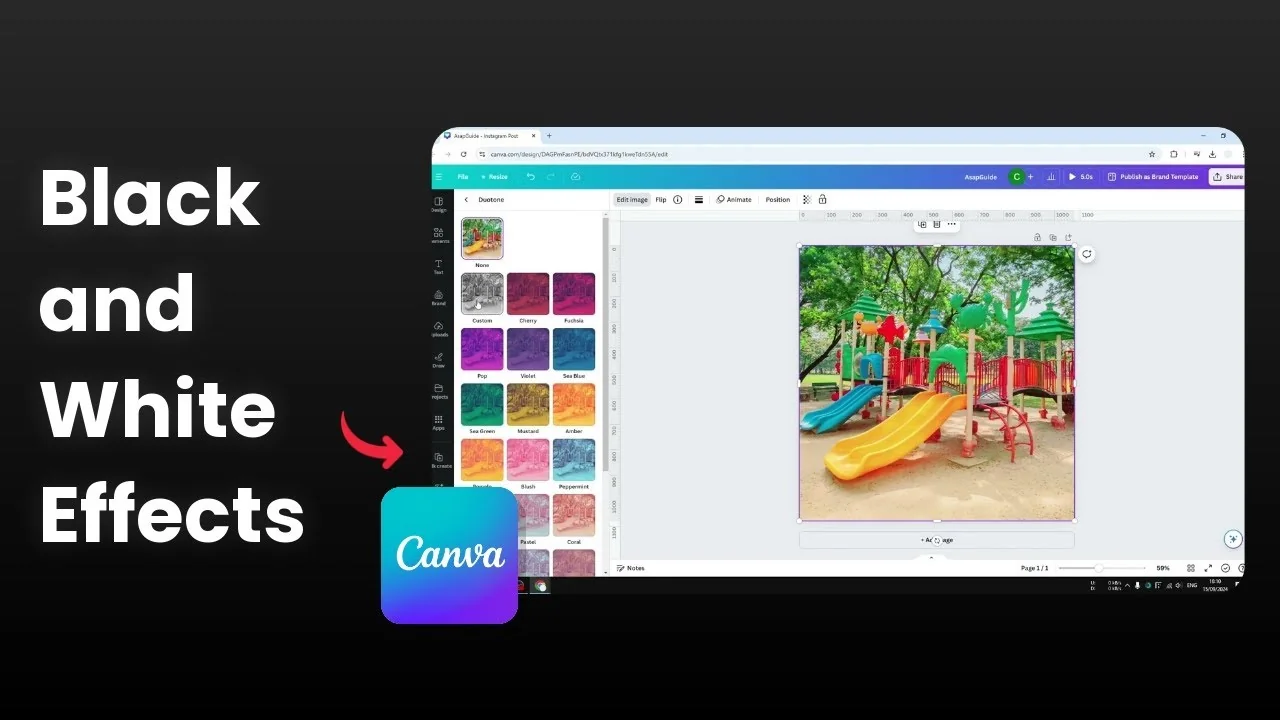
I show you how to turn any photo into monochrome or black and white in Canva. I used a stock picture of a children playground with a lot of colors. I turned it into something that looks like it was taken 50, 60, maybe 100 years ago.
That means black and white with only two colors. The steps are simple, and you can get a crisp result fast. If you are editing moving images, you can also turn videos black and white in Canva using a similar approach.
Filters to Turn a Photo Black and White in Canva
Start with filters if you want a quick monochrome look. Canva has several built in styles that make this easy. I like how sharp the result can be.
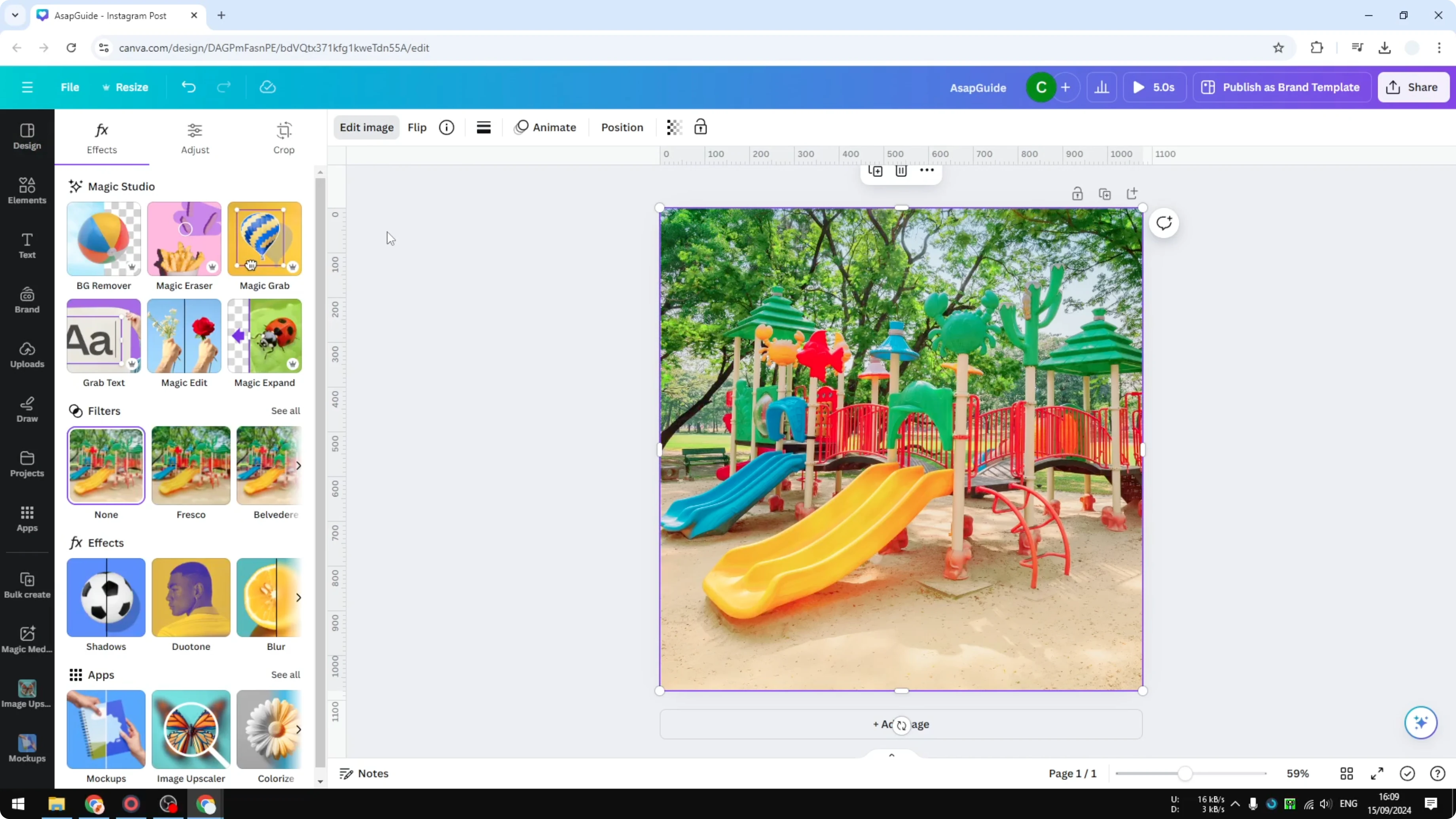
Open filters
Click the photo.
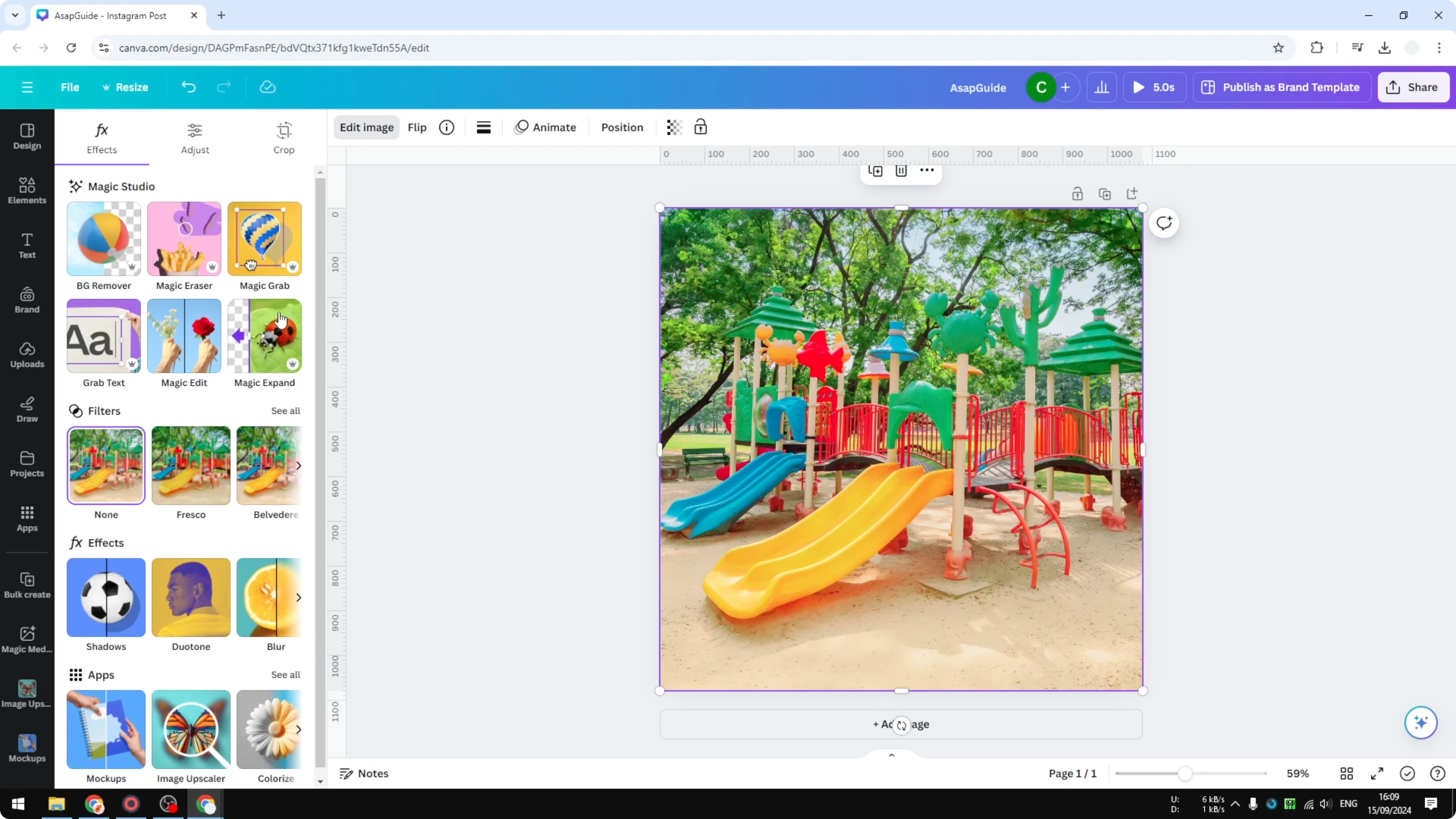
Click Edit image.
Scroll to Filters and click Select all.
Pick a monochrome style
Browse the options and look for the Monochrome category.
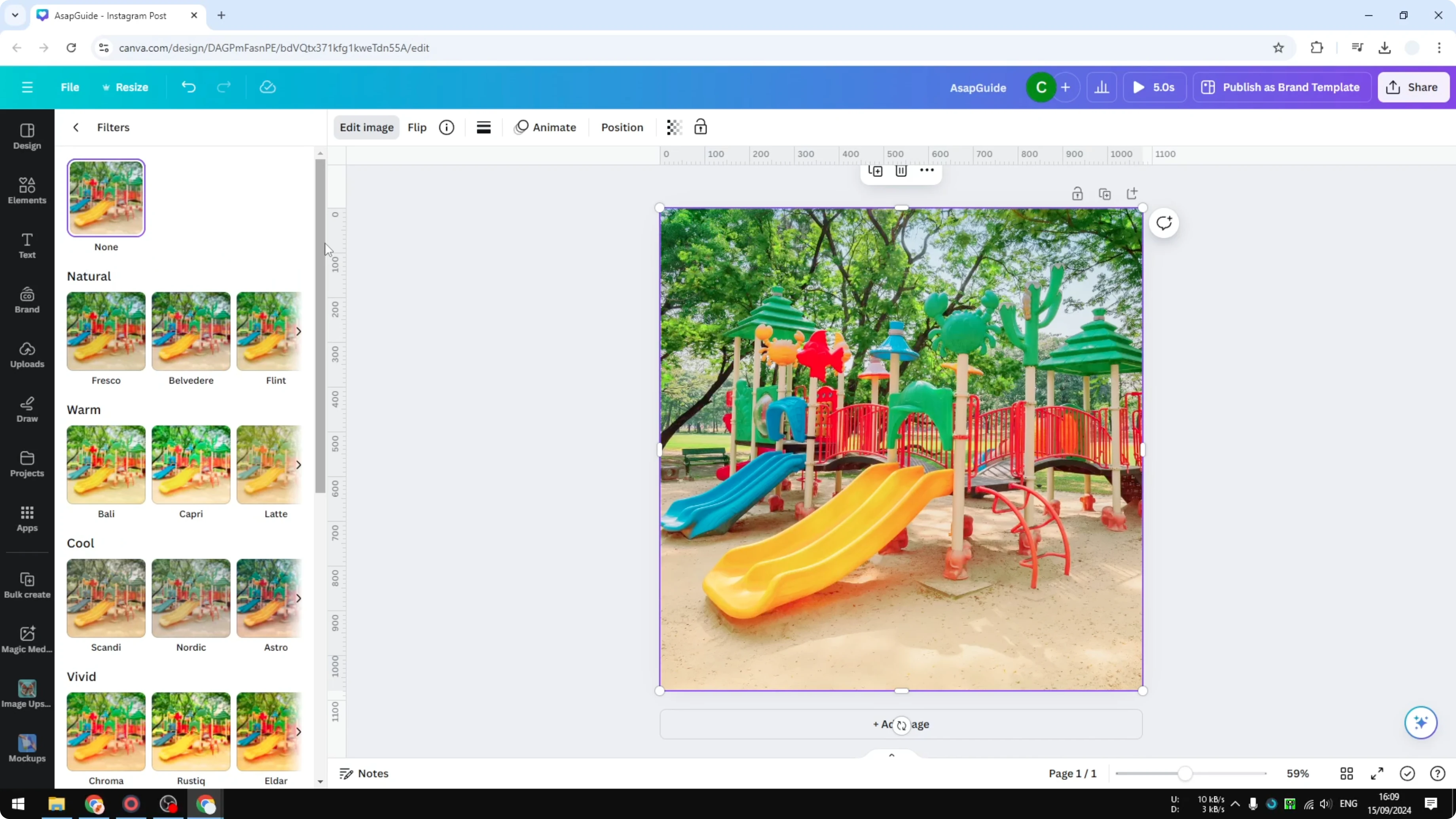
You will see Classic, Ink Effect, and Noir, and if you scroll further you will find even more choices.
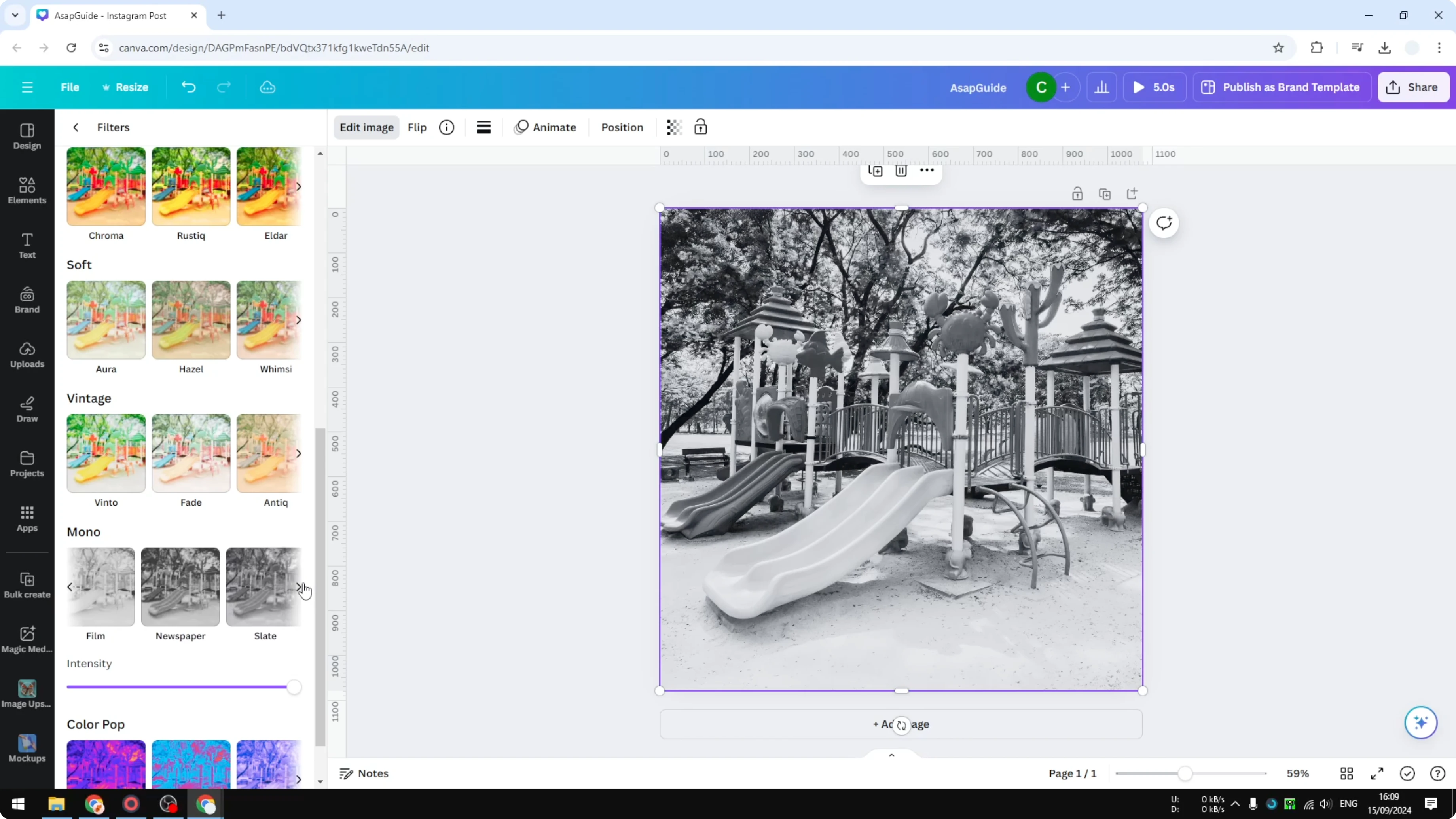
I like Newspaper because it looks pretty cool and it is sharp.
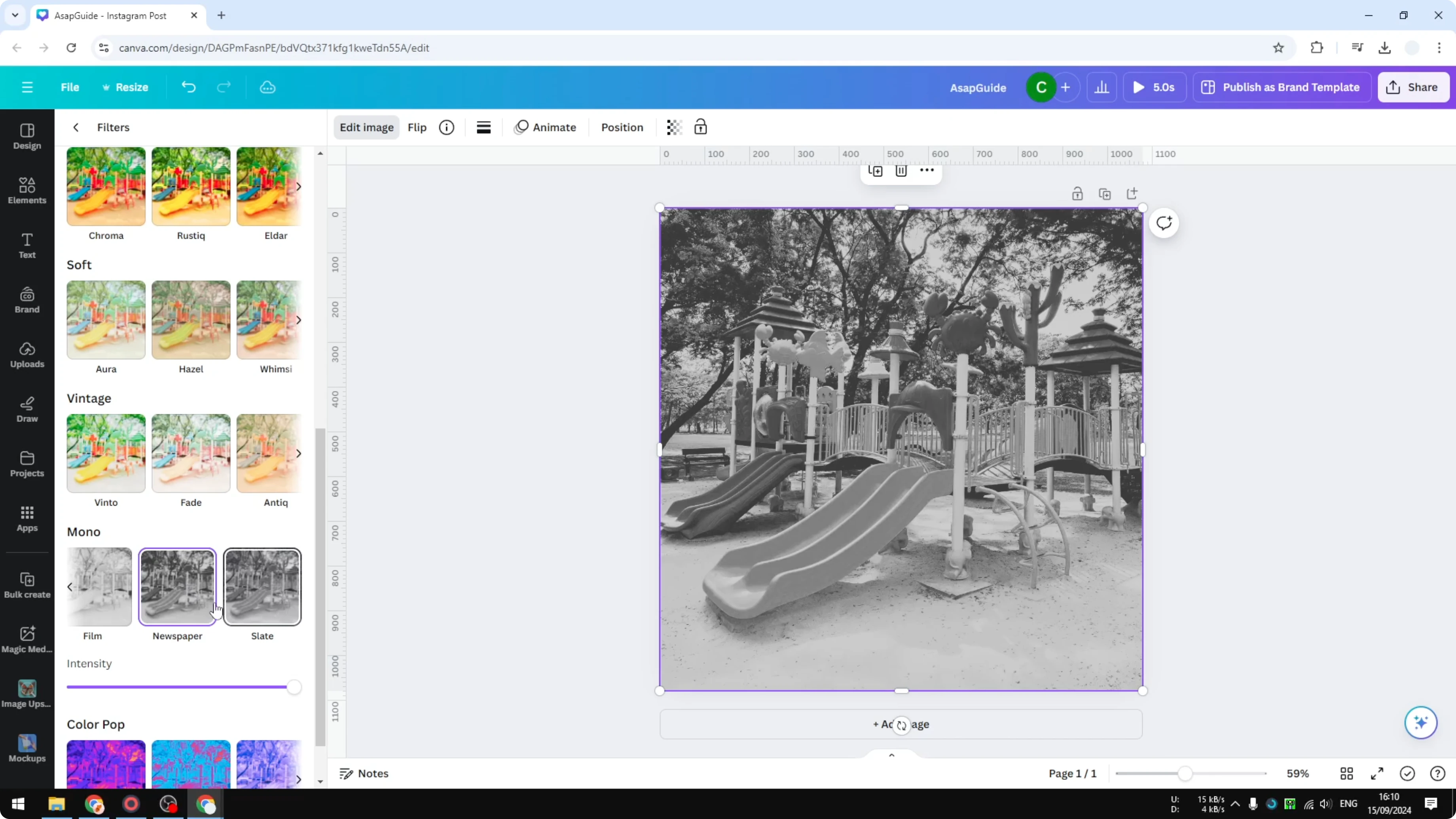
Adjust intensity
Use the Intensity slider of the monochrome effect.
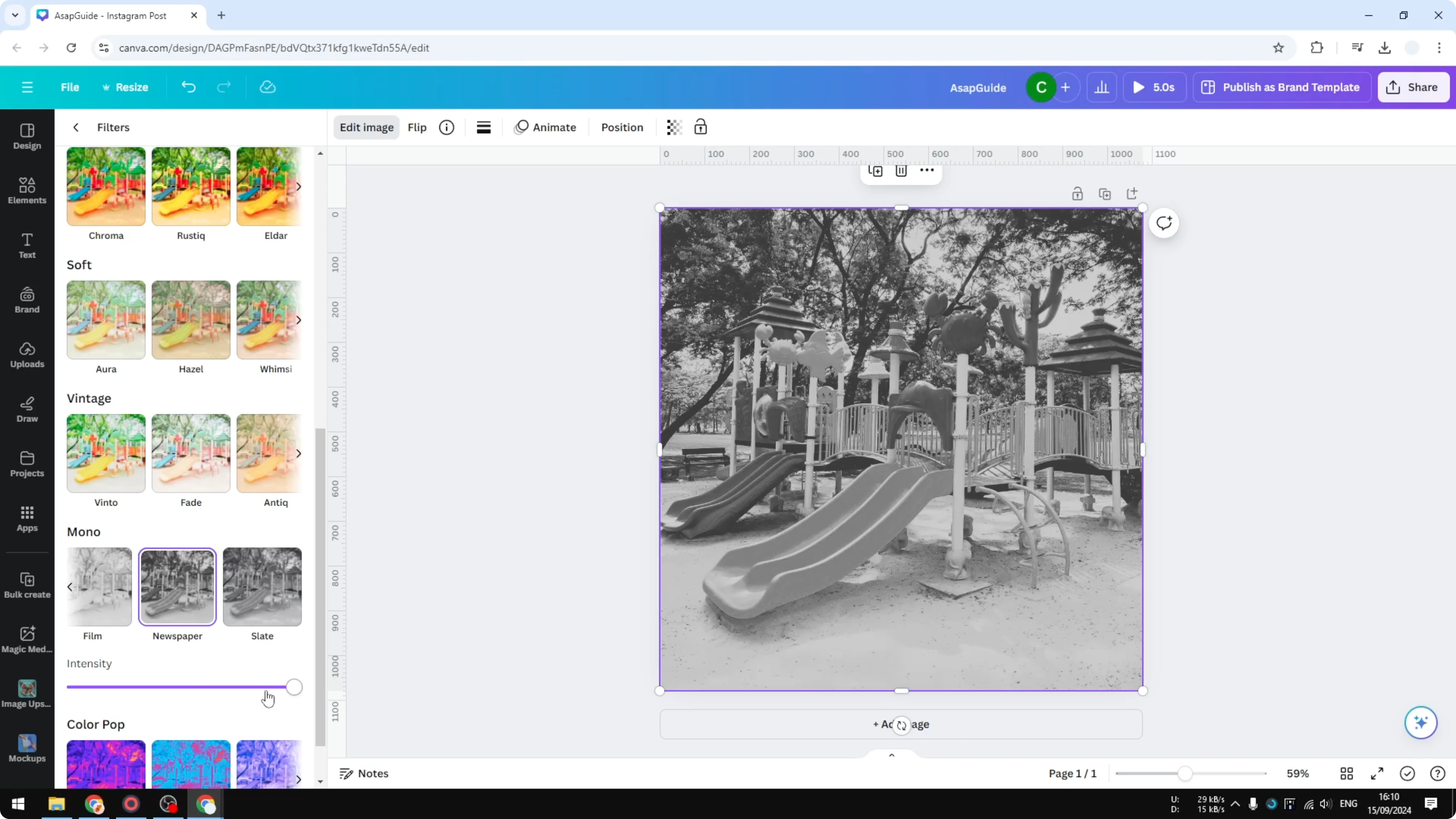
Lower it if you want to let some color stay in the picture.
Set it to max if you want almost no color at all.
This is one solid method to do it, and I think it looks pretty cool. If you are working with branding, you can also make a logo black and white in Canva using the same idea.
Use Duotone to Turn a Photo Black and White in Canva
There is another method you might be interested to try. Duotone applies one color to the dark area and another color to the light area. It can look very interesting.
Find Duotone
Remove any filter you applied earlier.
Click the image, click Edit image, and open Duotone in the Effects menu.
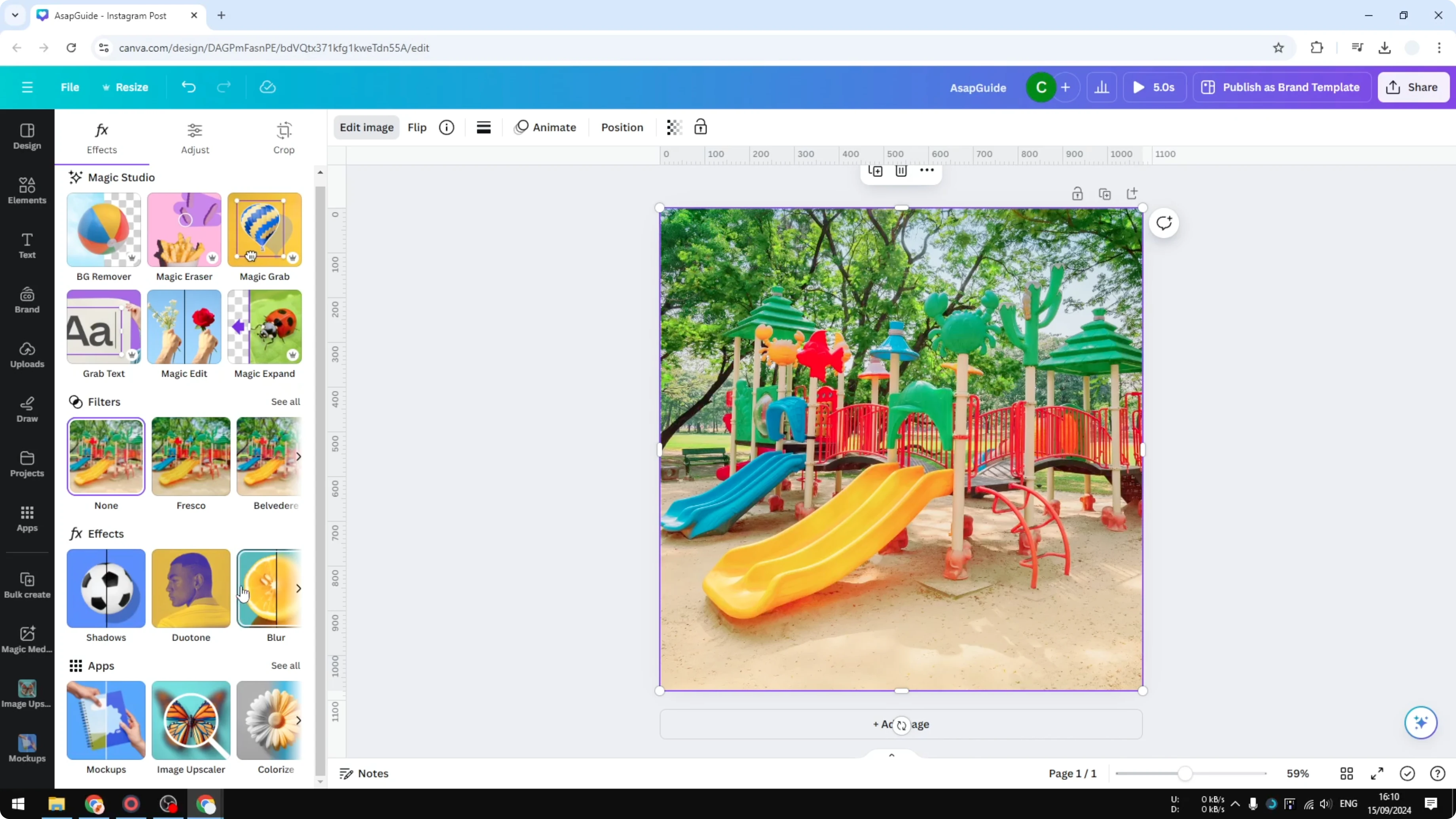
Select Custom.
Set colors
For the light area, set the highlight color. I like using yellow for a bright feel.
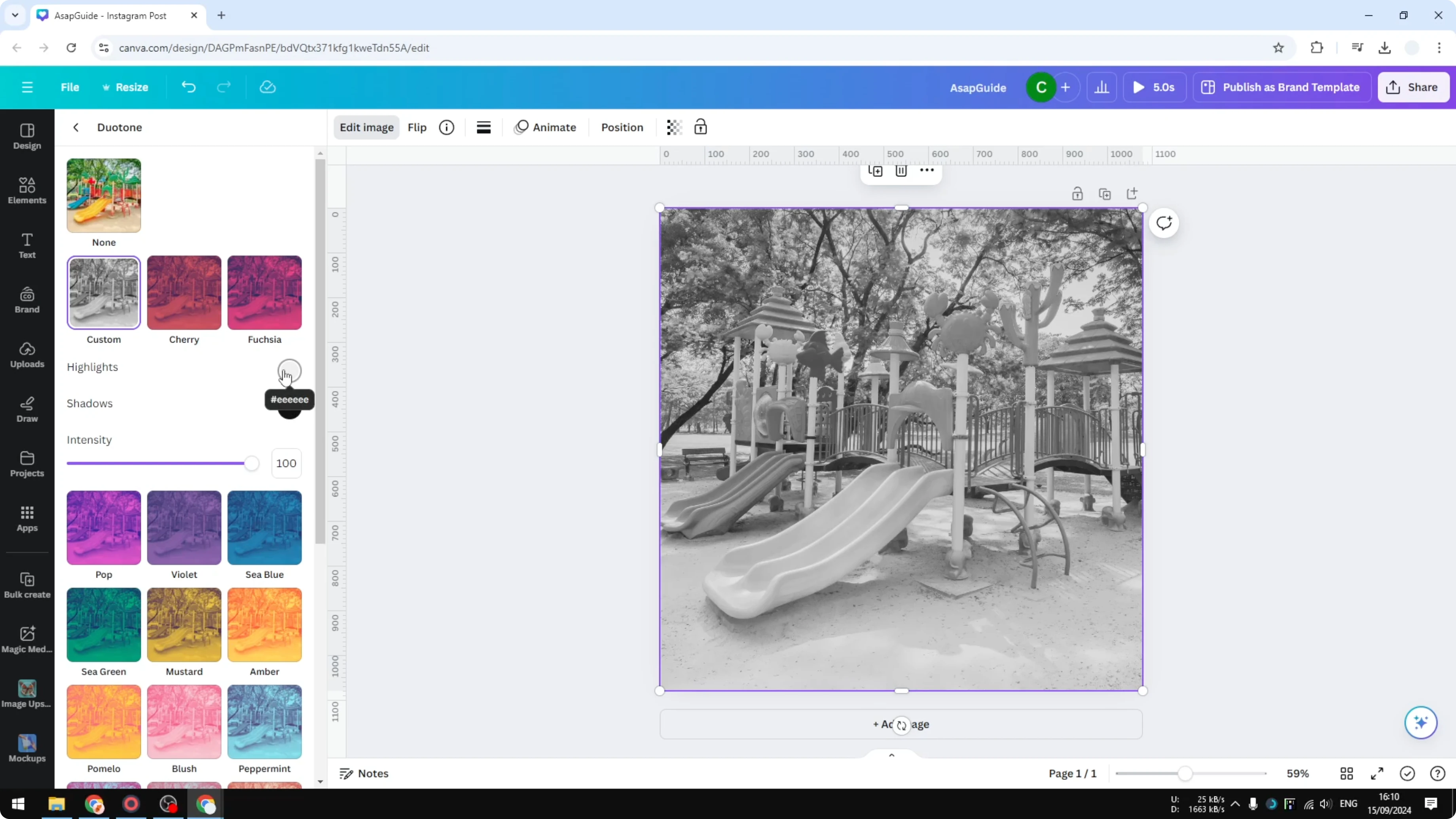
For the dark area, set the shadow color. Red gives a bold tone, and blue looks very interesting too.
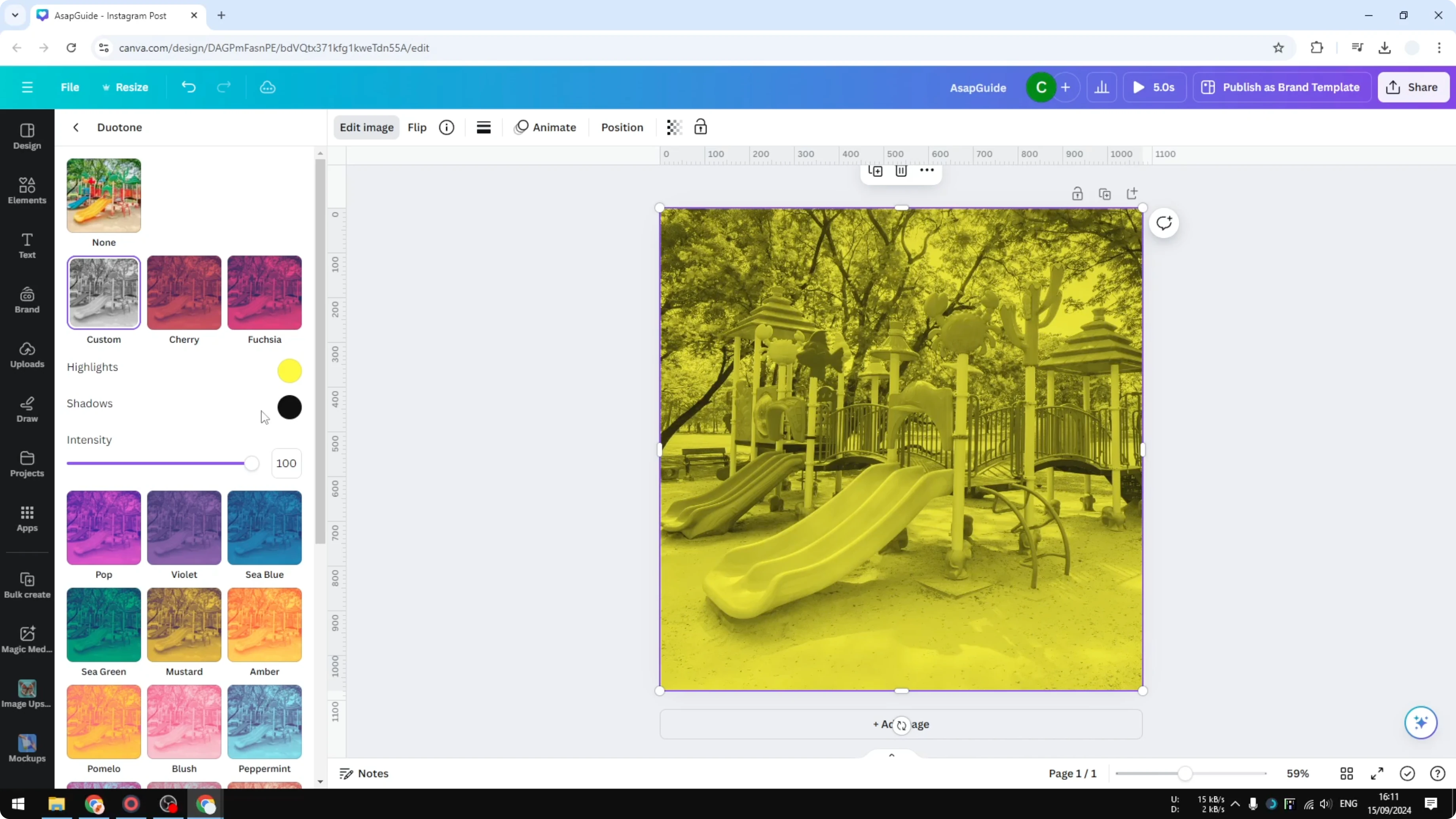
Apply the effect and review the result. It is not technically black and white, but it still falls under monochrome because there are only two colors.
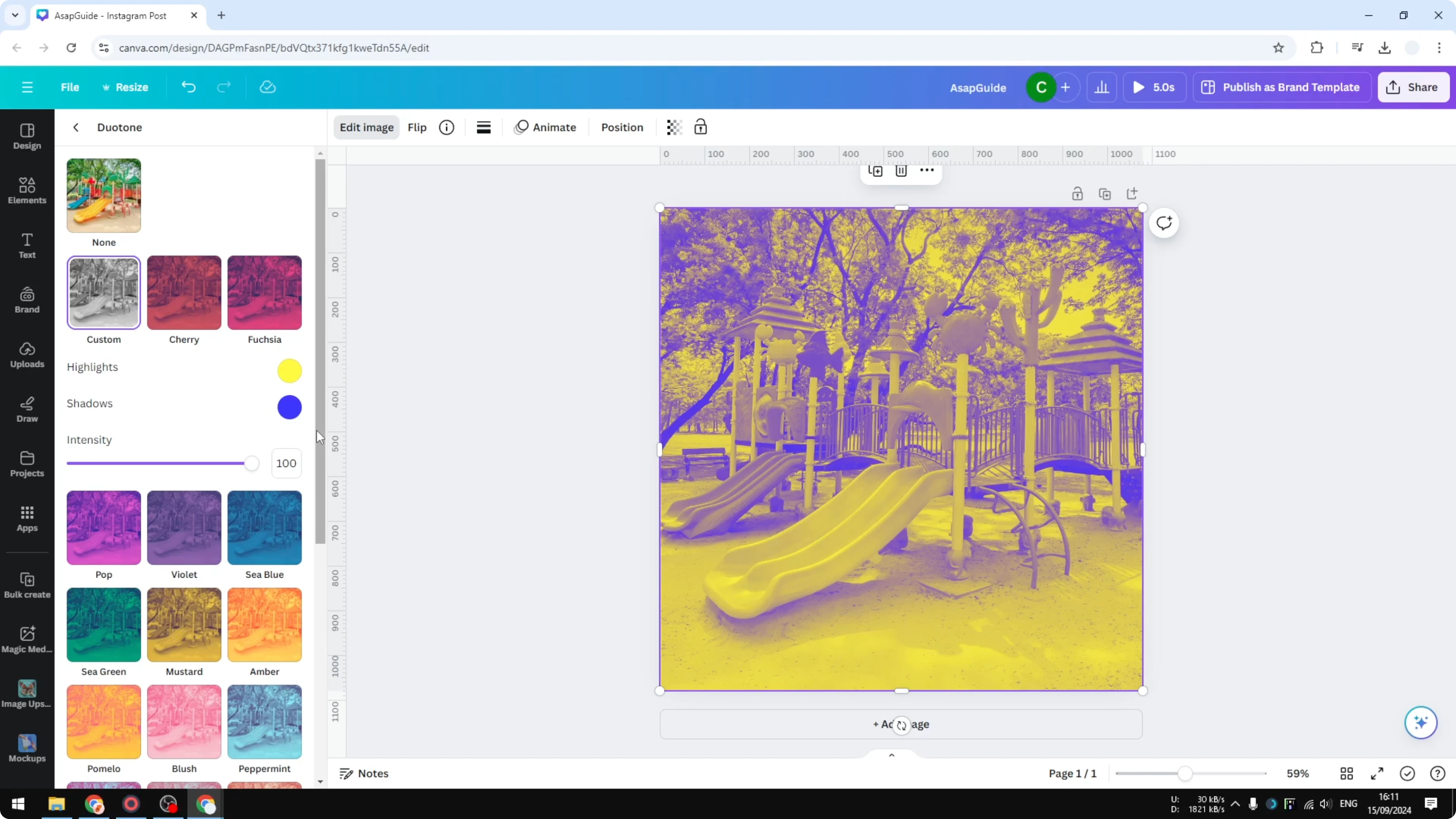
Why use Duotone
This technique gives you a specific aesthetic if you want a stylized monochrome look. It is great when you want a consistent two color theme while keeping contrast. After styling, you can also turn a photo into a video in Canva to add motion or timing.
Final Thoughts on Turn a Photo Black and White in Canva
Filters give you a fast and sharp black and white result, and the Intensity slider lets you keep or remove color. Duotone is not pure black and white, but it is still monochrome with two colors and can look very interesting. Use the method that fits the look you want, and you will get a clean, classic finish.
Recent Posts
How to Visualize Yourself as a Pixelized Character with AI?
How to Visualize Yourself as a Pixelized Character with AI?
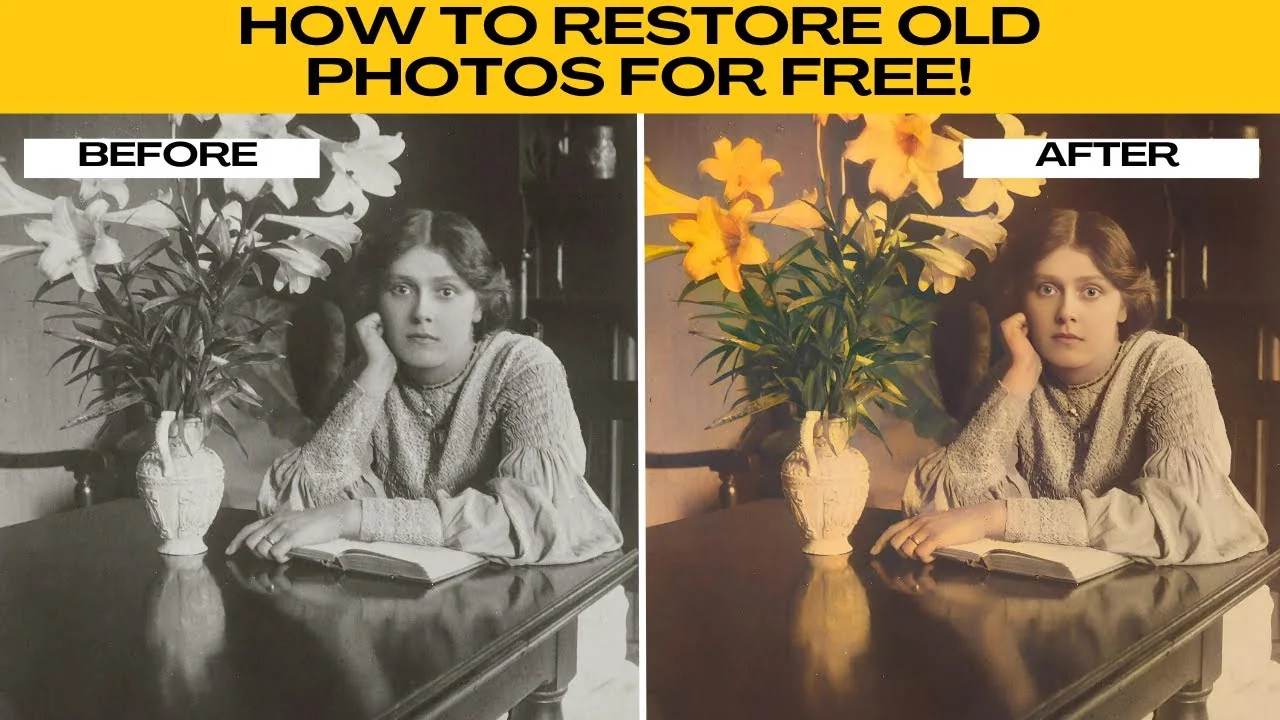
How to Revive Faded Memories and Enhance Image Clarity with AI?
How to Revive Faded Memories and Enhance Image Clarity with AI?
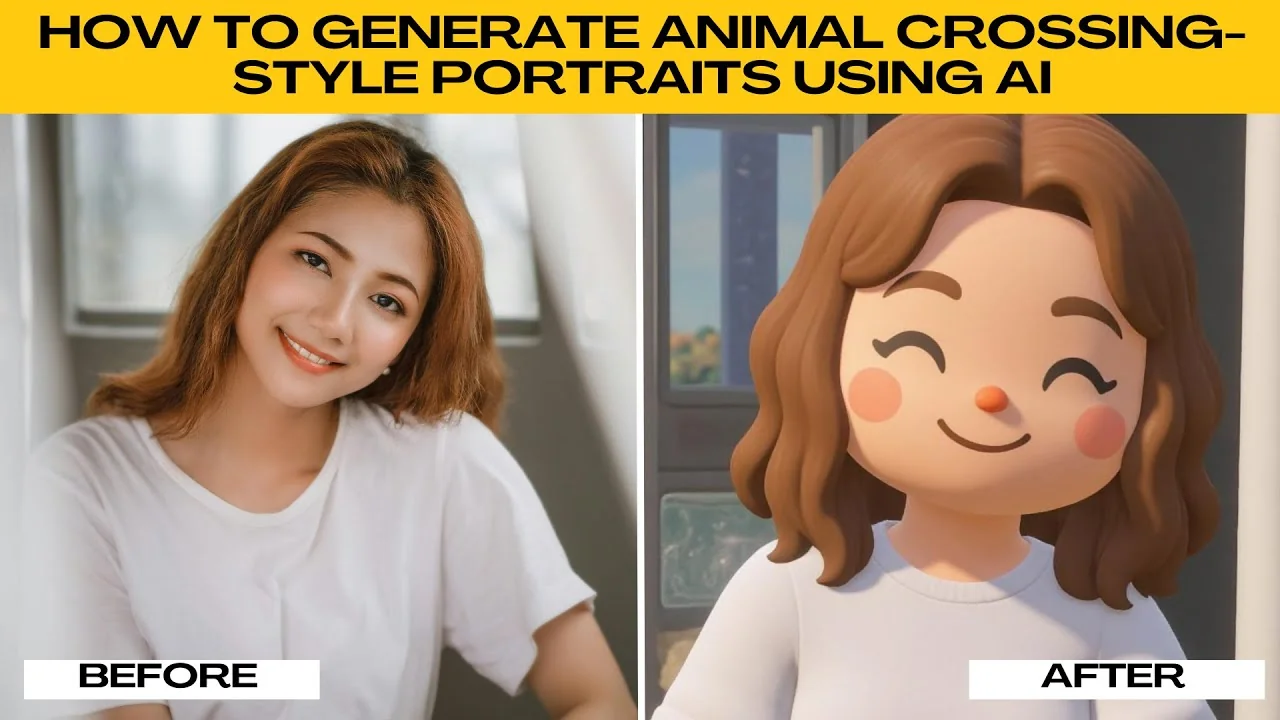
How to Visualize Yourself as an Animal Crossing Character with AI?
How to Visualize Yourself as an Animal Crossing Character with AI?