How to Make Logo Black and White in Canva
I’m going to show you how to make a logo black and white in Canva. This look is popular because it works well for printing, watermarking, and the recent minimalist trend. Turning a colorful logo into just one or two colors is very easy in Canva.
If your logo has a transparent background, you’ll see clean results on any surface. If it doesn’t, export a transparent PNG first to avoid unwanted boxes behind your logo. You can follow this guide to create a clean cutout: make a transparent PNG logo.
Make Logo Black and White in Canva: quick setup
I’ll start with a very colorful logo, like the Google logo with four different colors. The background is transparent, which helps you preview how it will sit on dark or light surfaces. If I change the canvas background to black, you can immediately see the contrast you’ll get.
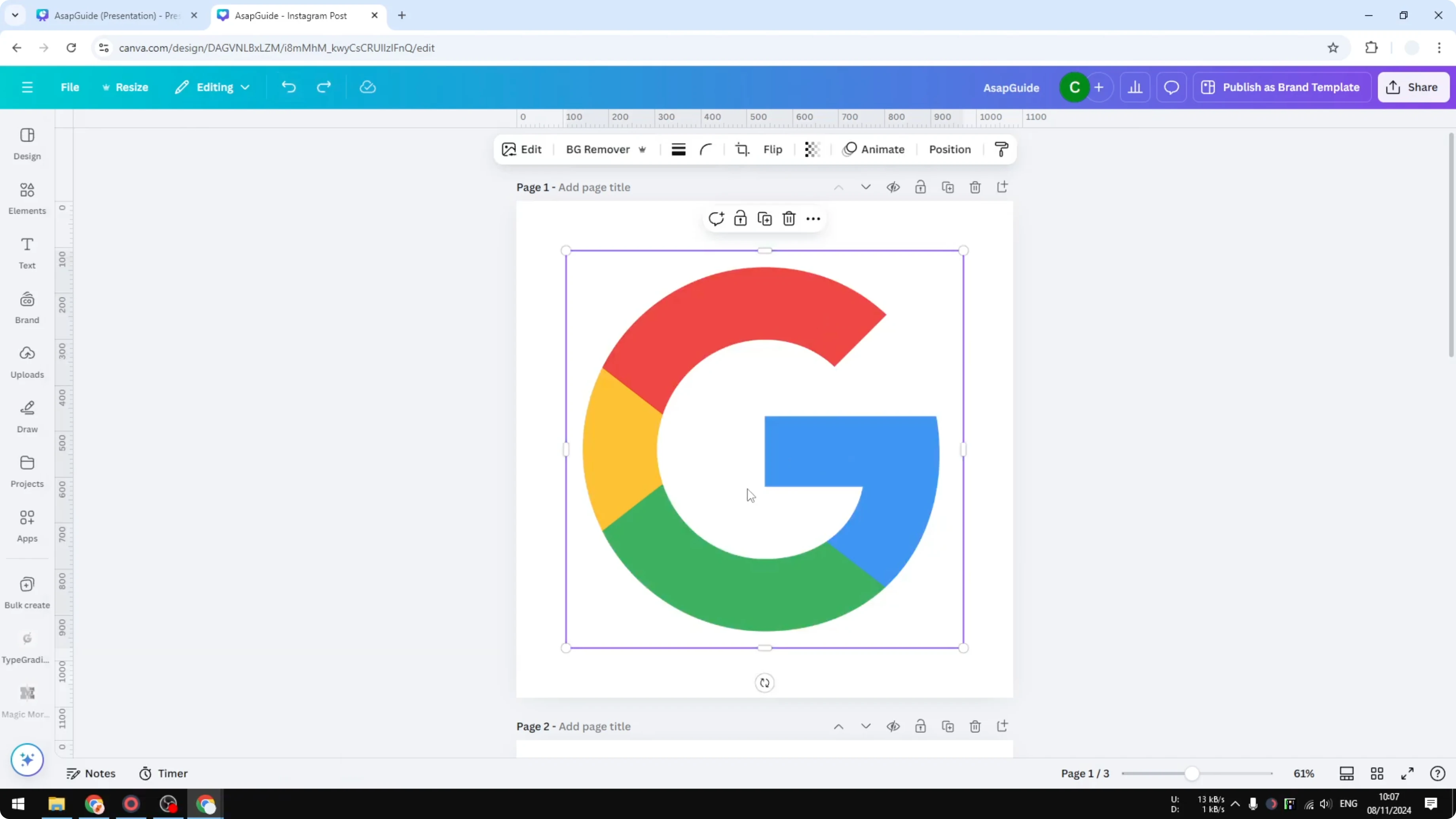
You only need to work on the logo itself. The canvas background is just for preview and contrast. The actual color conversion happens on the logo layer.
Make Logo Black and White in Canva: turn it fully black
Click the logo.
Click Edit.
Open Duotone.
Choose Custom.
Set Highlights to black.
Set Shadows to black.
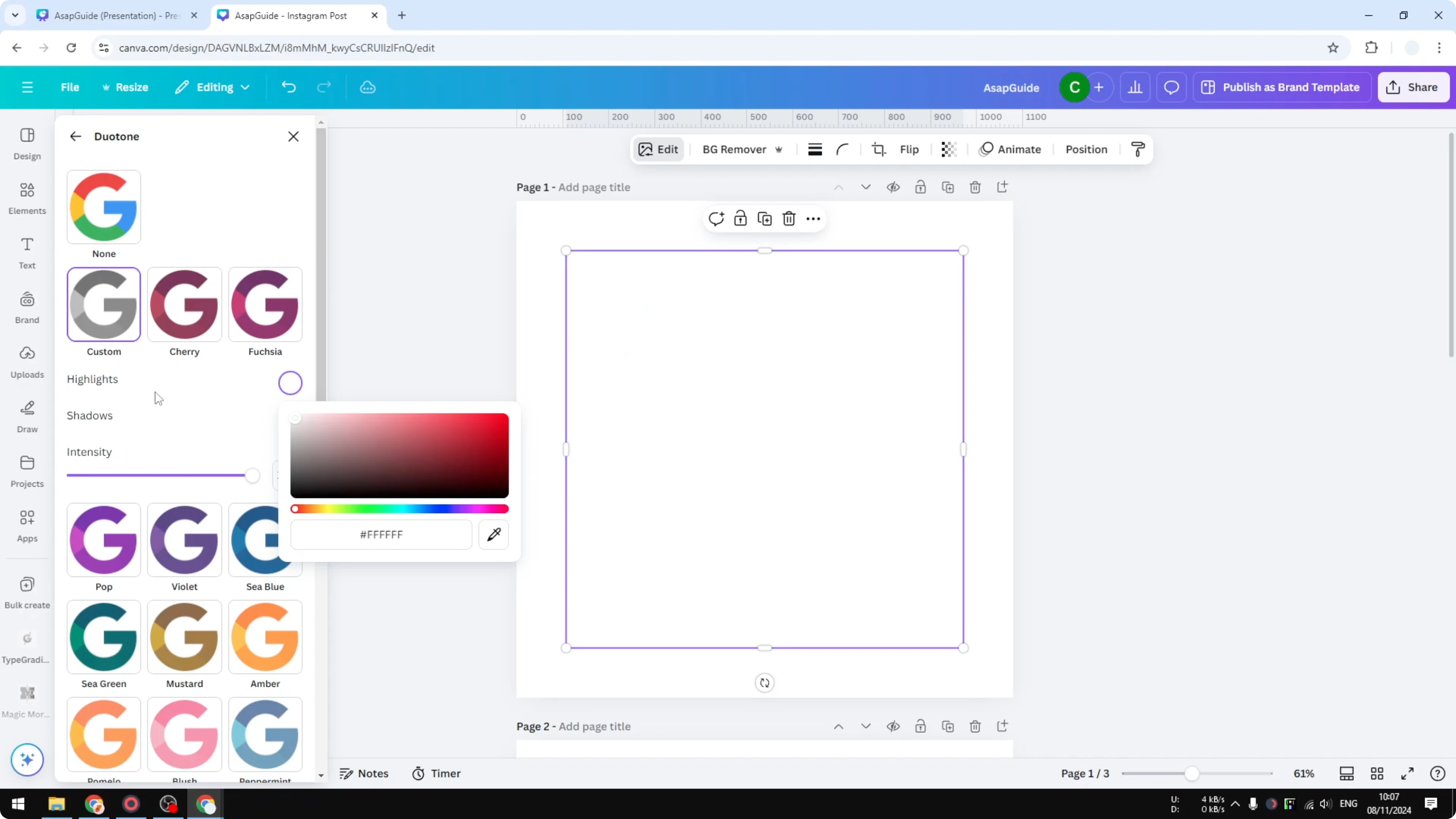
This gives you a fully black version. If you need a single dark tone for stamps or one-color print, this is a solid approach. You can fine tune darkness by nudging the color picker near pure black.
Make Logo Black and White in Canva: turn it fully white
Click the logo.
Click Edit.
Open Duotone.
Choose Custom.
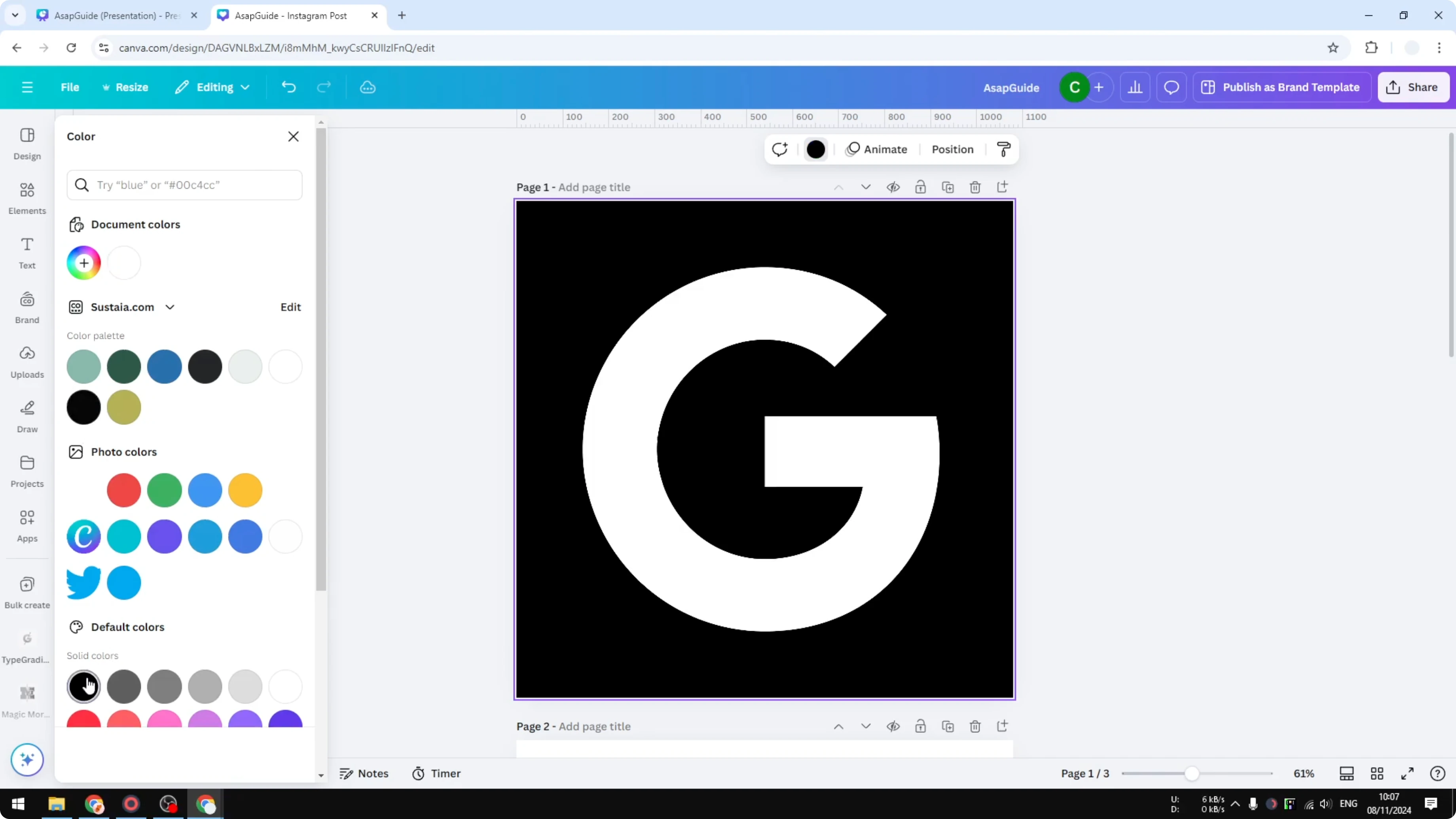
Set Highlights to white.
Set Shadows to white.
Change the canvas background to black to preview the contrast and make sure the white version pops. If you also need to push other artwork or photos to pure white for consistent branding, see this walkthrough on making an image white in Canva. The same thinking applies when you want clean, monochrome marks across different assets.
Make Logo Black and White in Canva: gradients are challenging
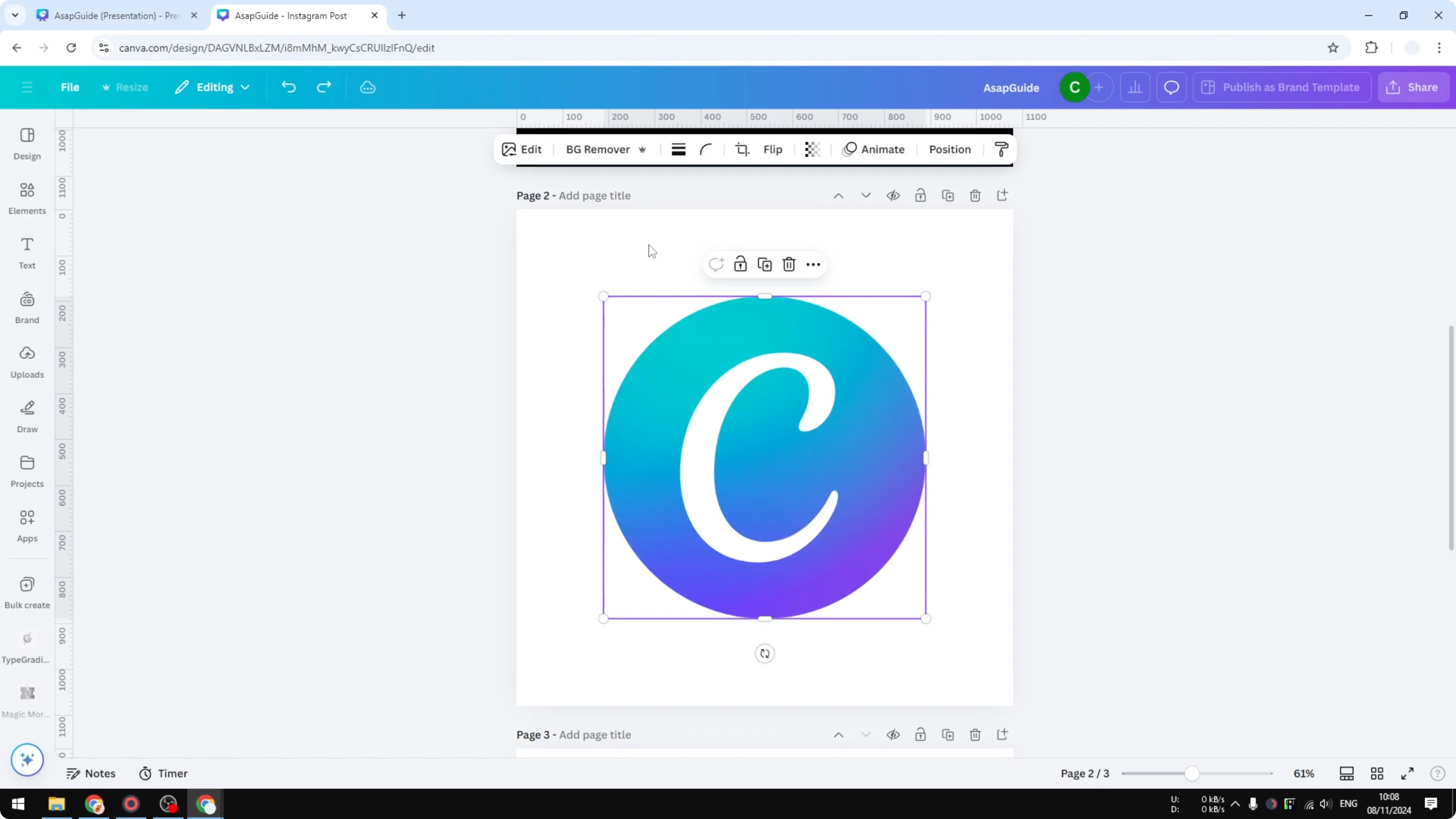
Keep in mind this approach might not be very satisfactory for a gradient logo. Take the Canva logo as an example with multiple gradient colors. It’s difficult to turn that into clean black and white with Duotone alone.
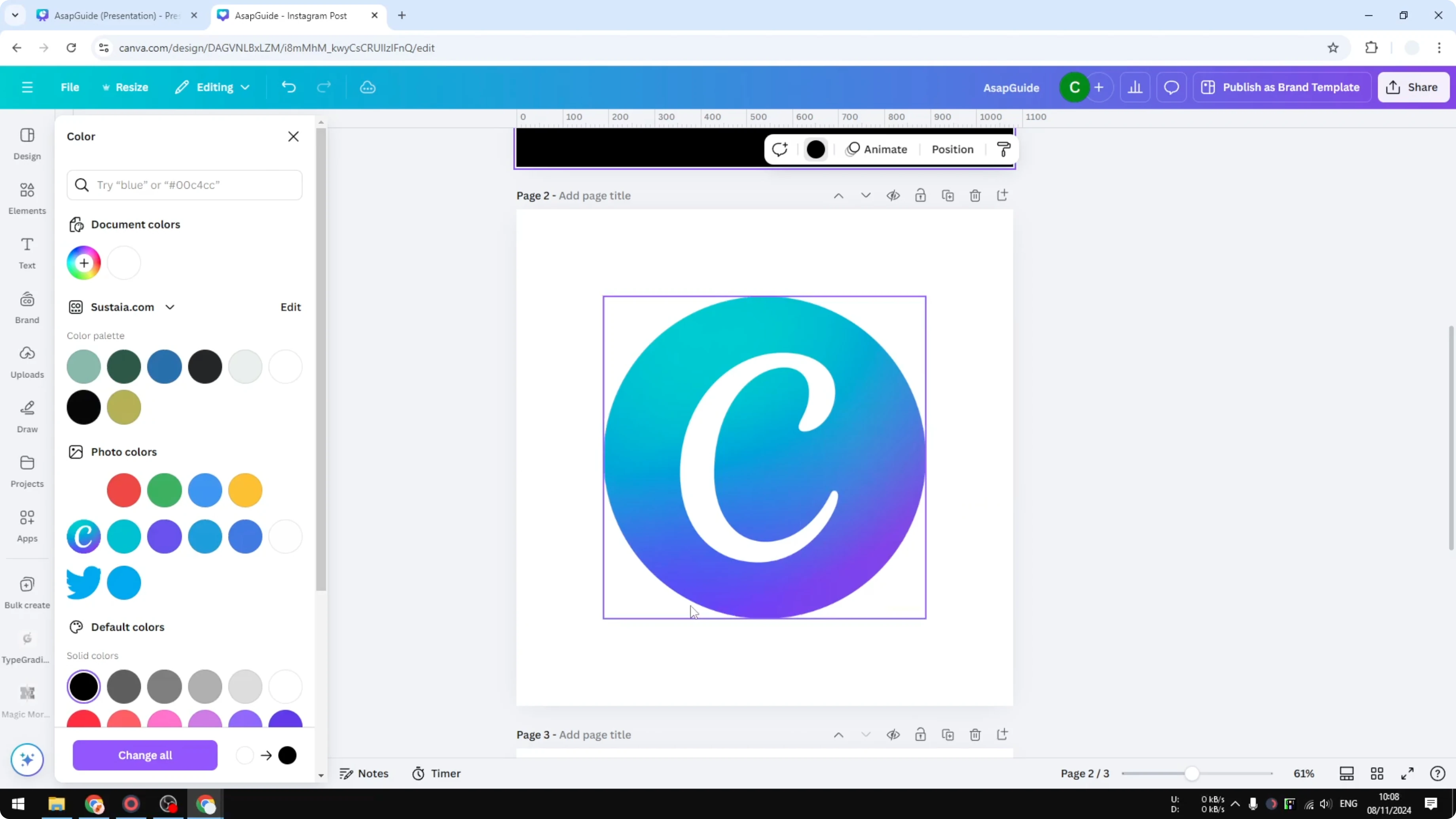
You can still apply the same settings, but the result will rarely look great. I tried making the C white and everything else black, and it just didn’t look right. Gradients are very challenging, and you often have to redesign the mark or pick a simplified, solid-color version.
Make Logo Black and White in Canva: solid logos are easiest
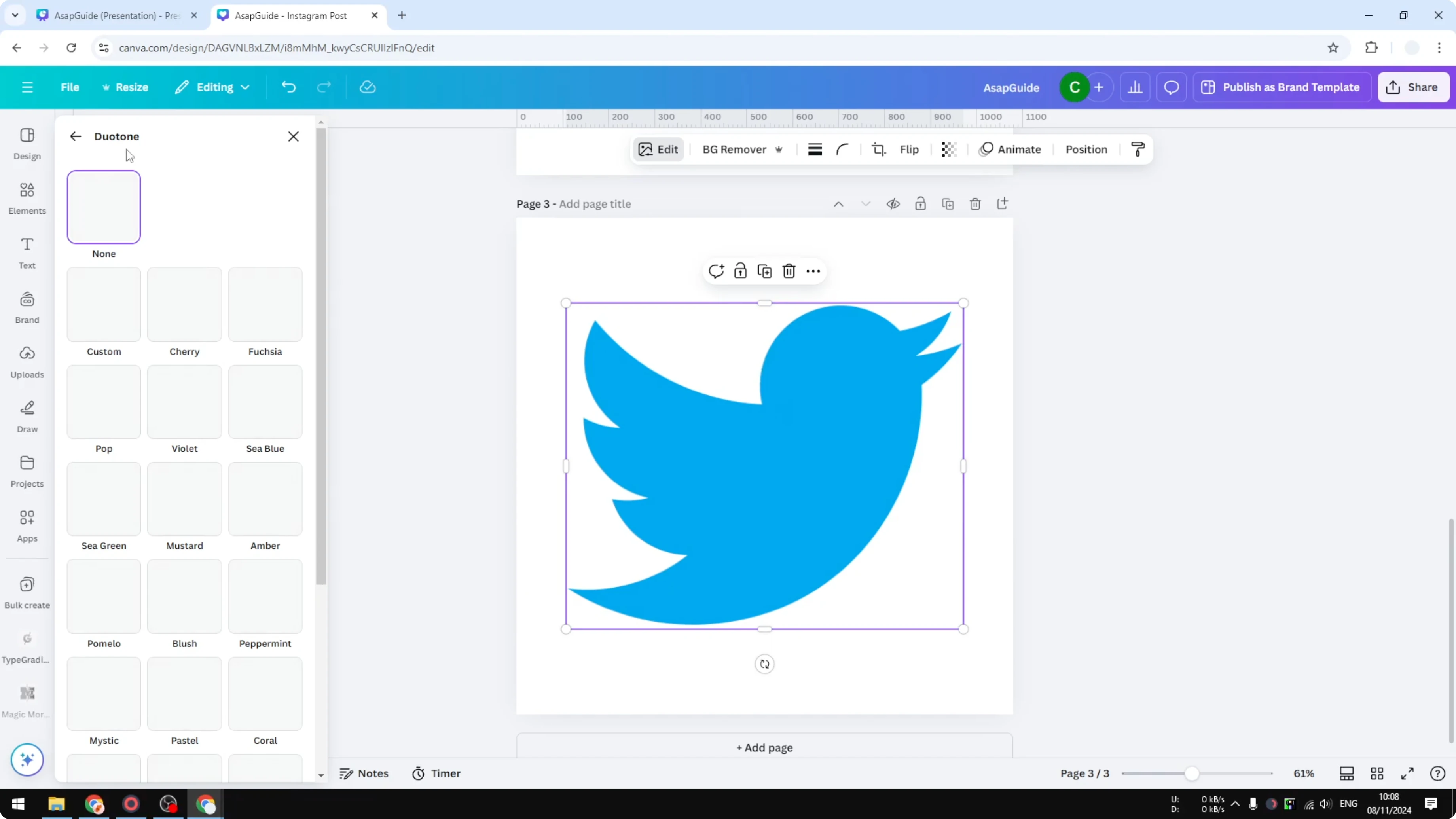
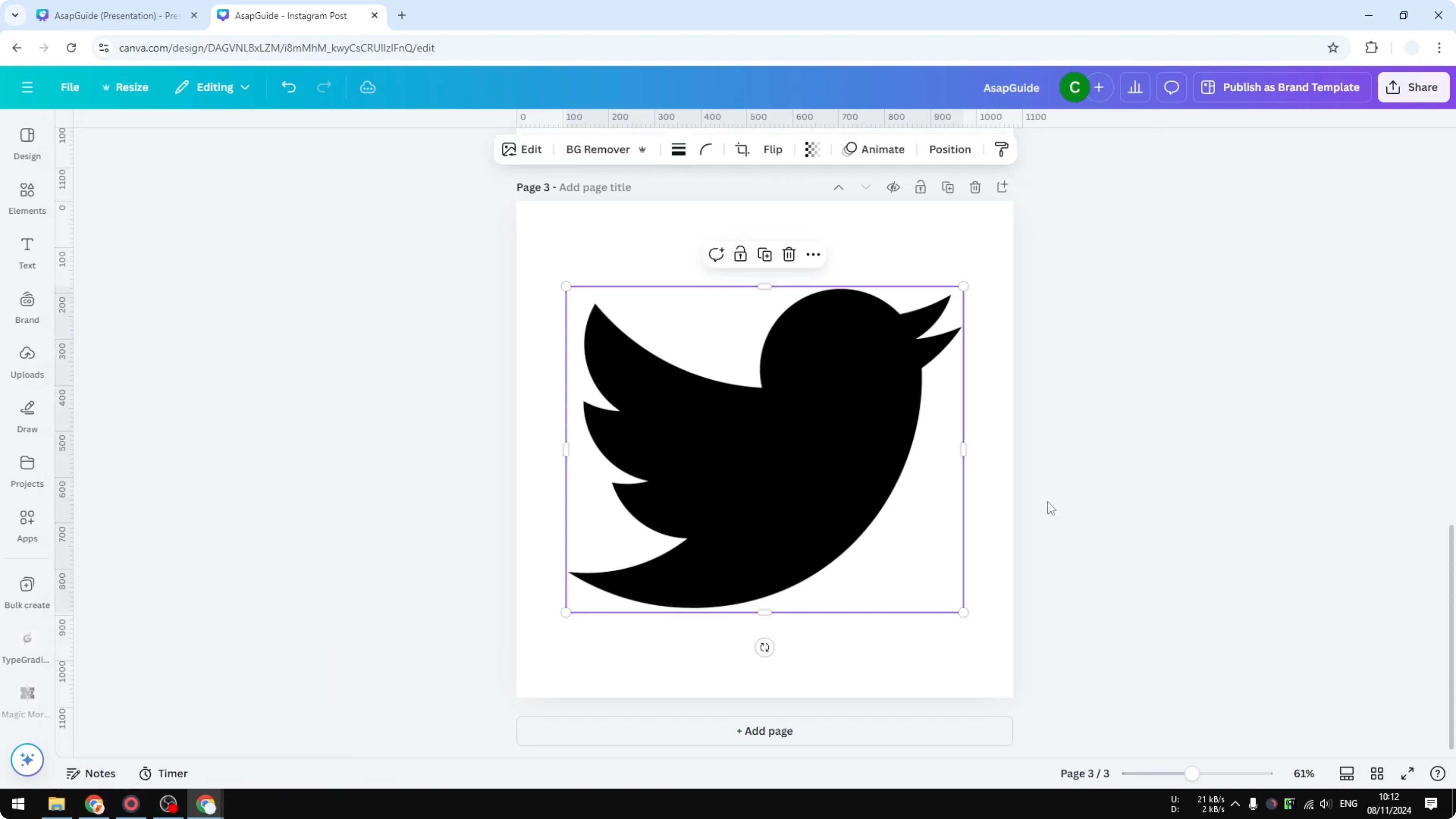
If you have a solid-color logo like the Twitter mark, this is even easier. Apply the same Duotone method and set both Highlights and Shadows to a single color. You’ll get a crisp one-color logo that is perfect for stamps, print, or watermark use.
For moving content, the same idea applies to footage. If you want to apply a monochrome look to clips, here’s how to turn a video black and white in Canva. This keeps your brand elements consistent across images and video.
Final thoughts
You can make any solid logo black or white in Canva by using Duotone and setting both Highlights and Shadows to a single color. White logos look best when previewed on a dark background, and black logos shine on light backgrounds. For gradient marks, expect to simplify or redesign the logo to get a clean monochrome result.
Recent Posts

How to Visualize Yourself as a Pixelized Character with AI?
How to Visualize Yourself as a Pixelized Character with AI?

How to Revive Faded Memories and Enhance Image Clarity with AI?
How to Revive Faded Memories and Enhance Image Clarity with AI?

How to Visualize Yourself as an Animal Crossing Character with AI?
How to Visualize Yourself as an Animal Crossing Character with AI?