How to Create a PNG Transparent Logo in Canva
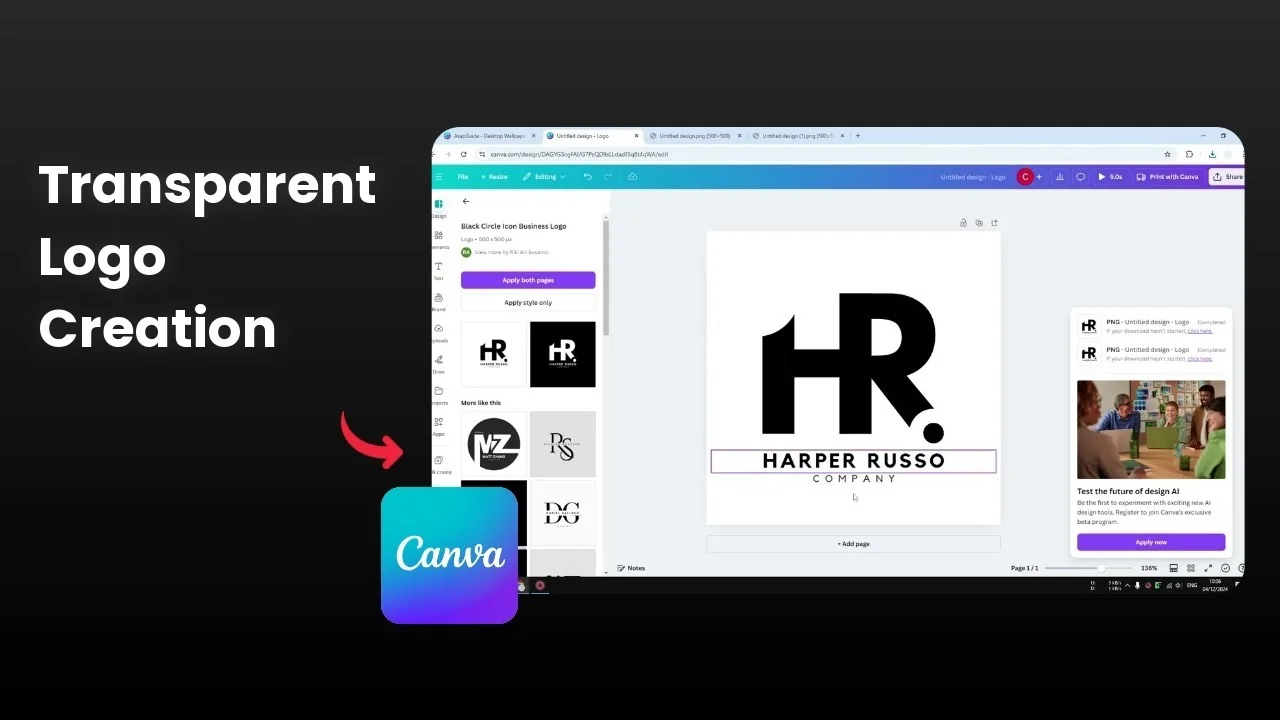
I’m going to show you how to create a PNG logo with a transparent background in Canva. A PNG logo is a regular image that keeps the logo visible while removing the background. Imagine a square picture with a circular logo inside it - the corners become invisible so you end up with a clean circle.
PNG is very useful for logos because you can place them on any color or layout without a white box showing. If you want transparency effects for text too, see overlay text.
Create a PNG Transparent Logo in Canva
Set up your file
I recommend using a square template. I often start with another format and click Resize, then switch to Logo.
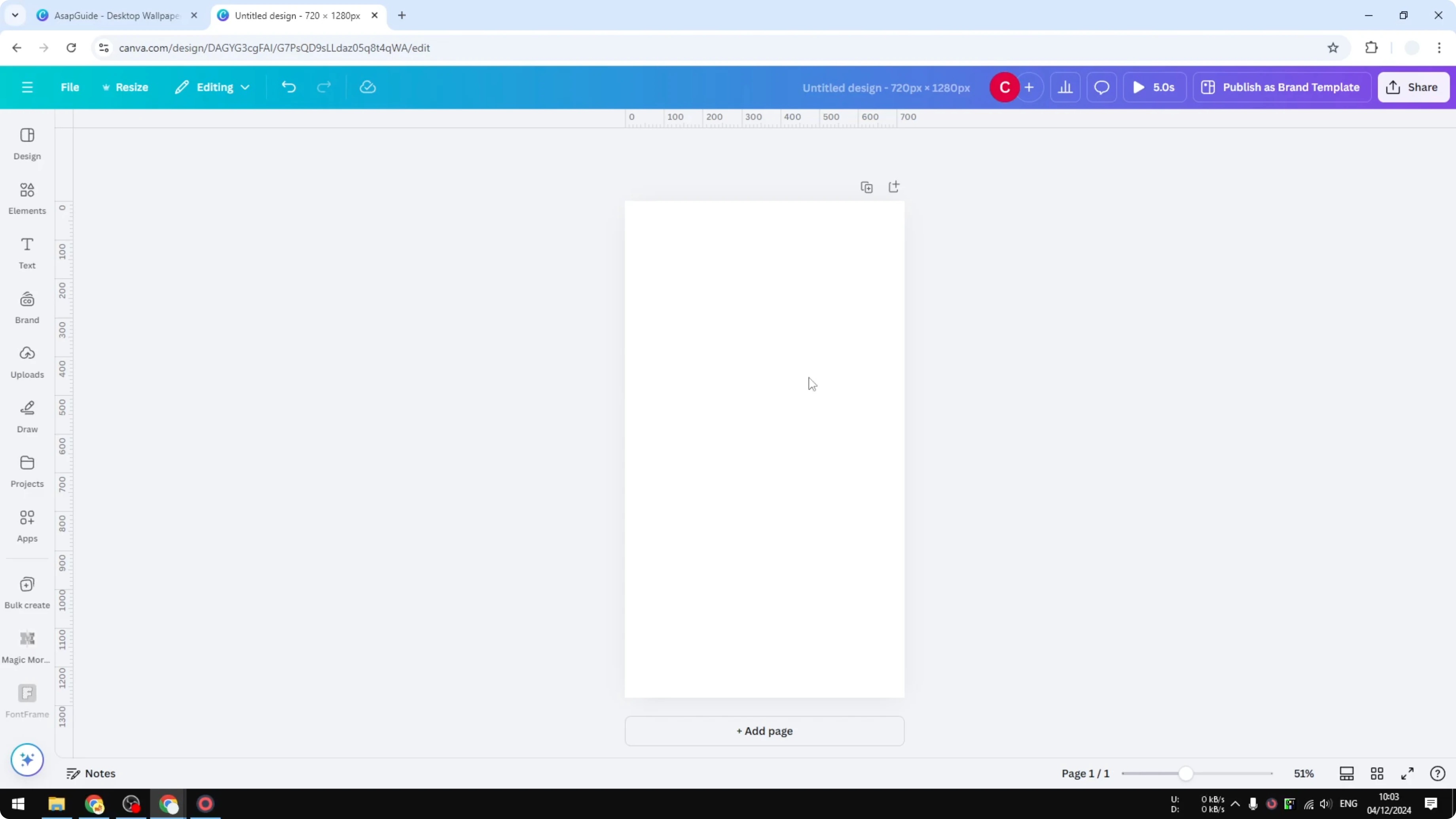
Logo is usually 500x500 pixels. You can use any size you need, bigger or smaller is totally okay.
Create an empty template to start clean. I have seen people using various dimensions and it really depends on your needs.
Add your logo
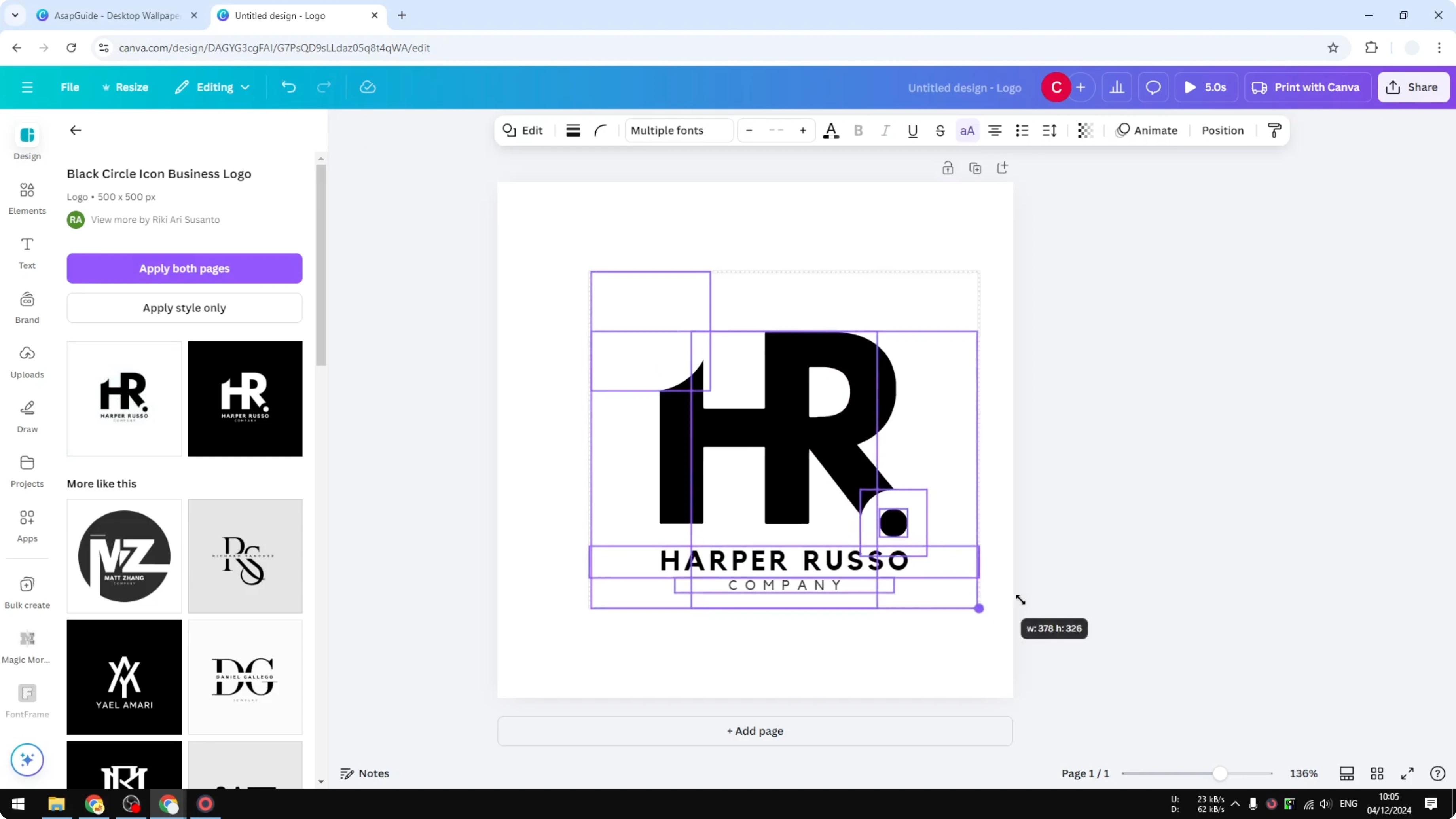
You can add your own logo or pick a logo template from Canva. Choose something simple if you want to test transparency quickly.
Select all elements, make the logo bigger, and center it. Keep it within the canvas borders.
Export with transparency
Click Share. Click Download.
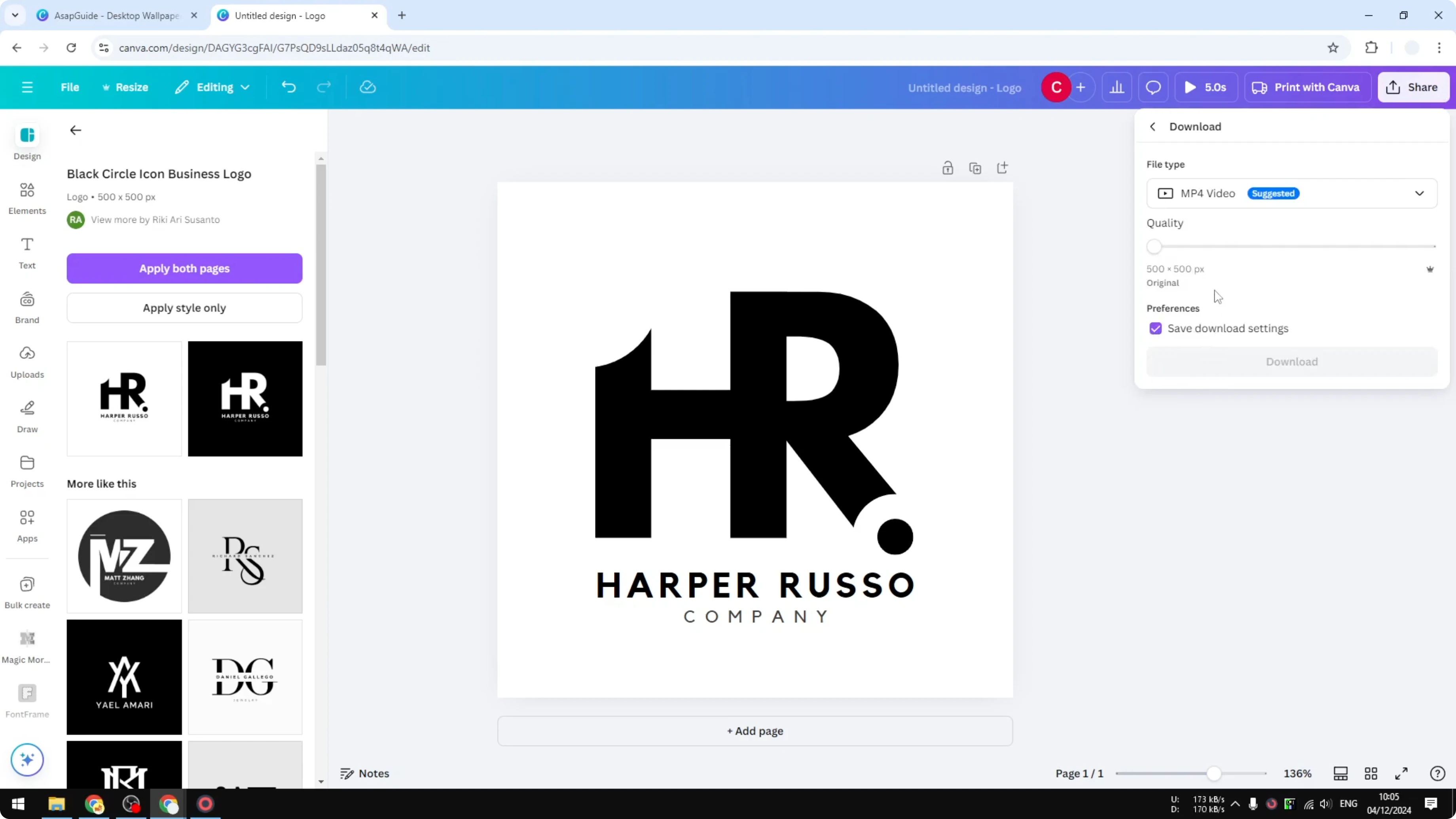
Choose PNG as the file type. If you just download it normally, the background stays visible and you will see a white area.
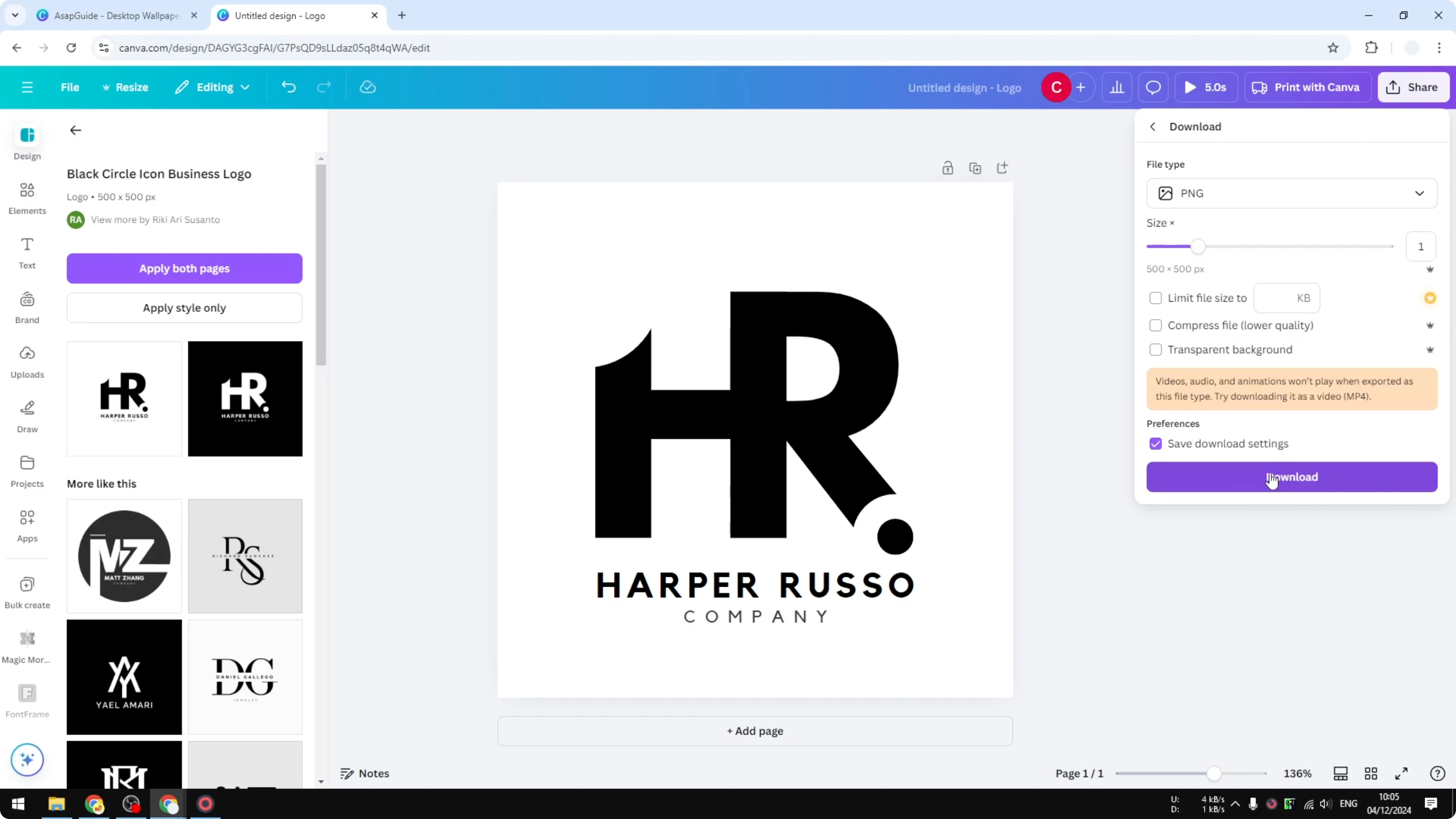
Enable Transparent background. This is the most important setting to apply before clicking Download.
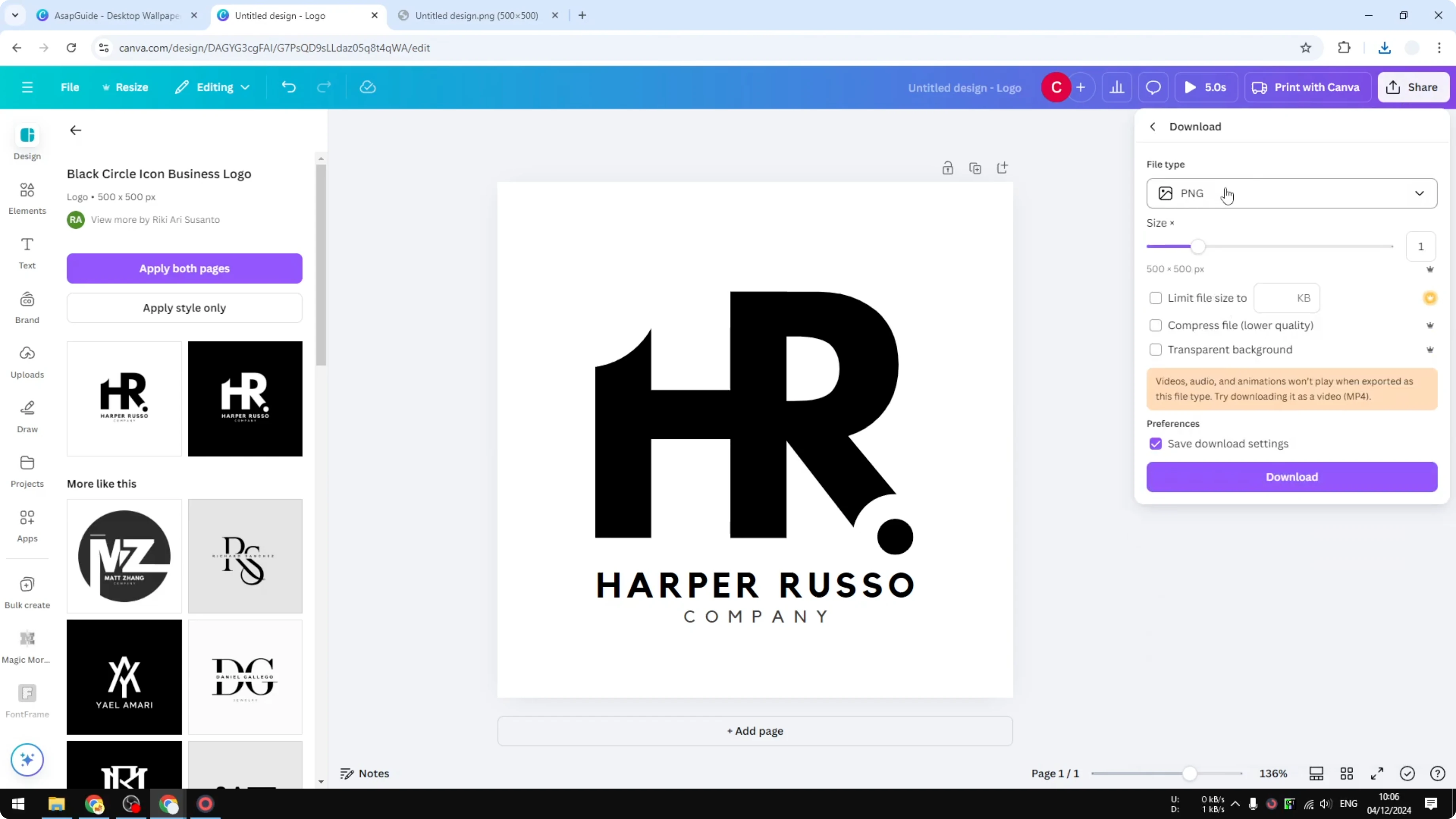
If the white area was showing before, it should be gone now. You will get a PNG with no background.
If the background still shows
Some templates are designed to have a white background, and they may not be intended to be transparent. If the export still shows a visible background, try a different logo template.
Pick a simpler logo and repeat the export with Transparent background enabled. That usually solves it.
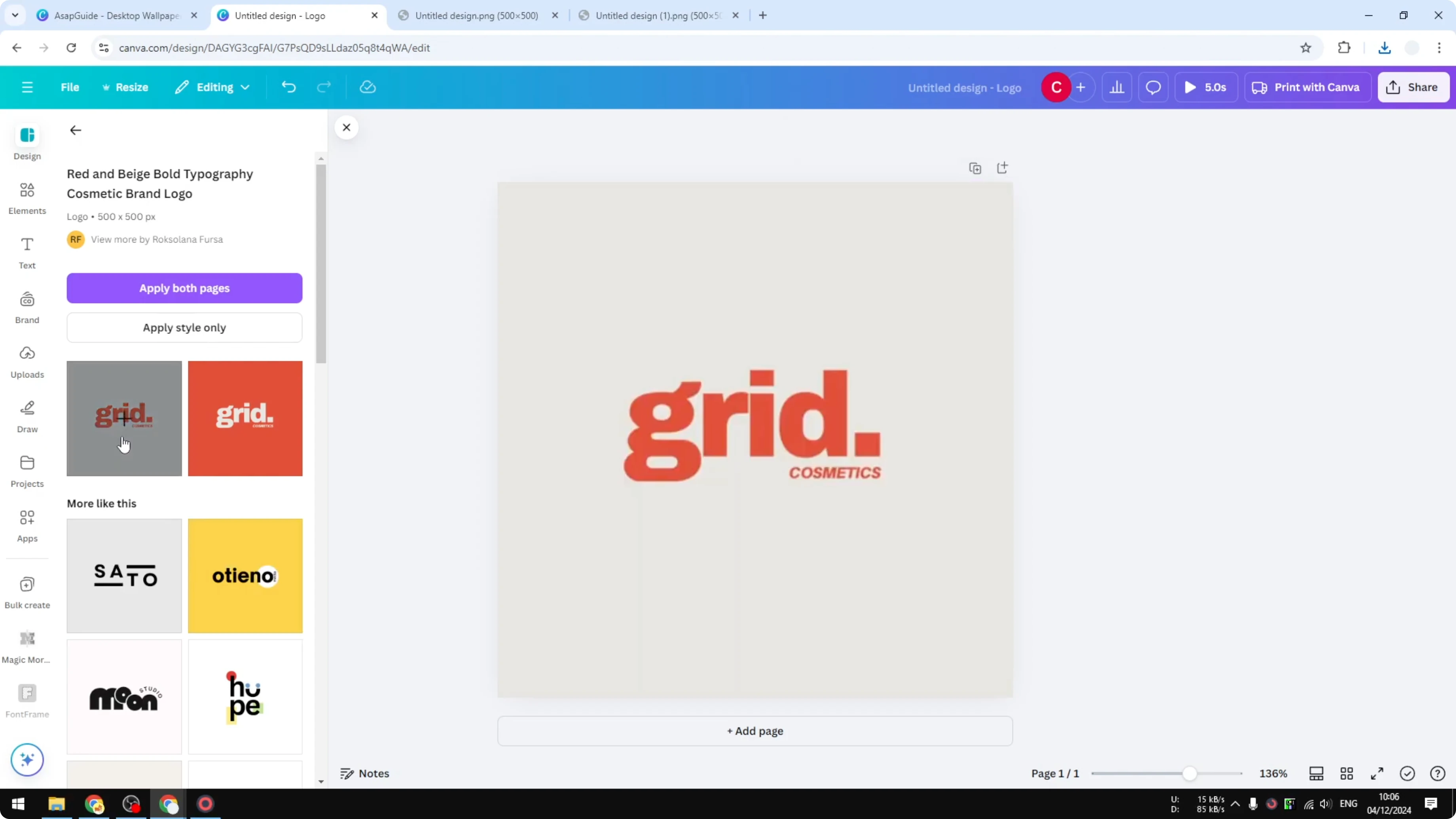
Confirm transparency
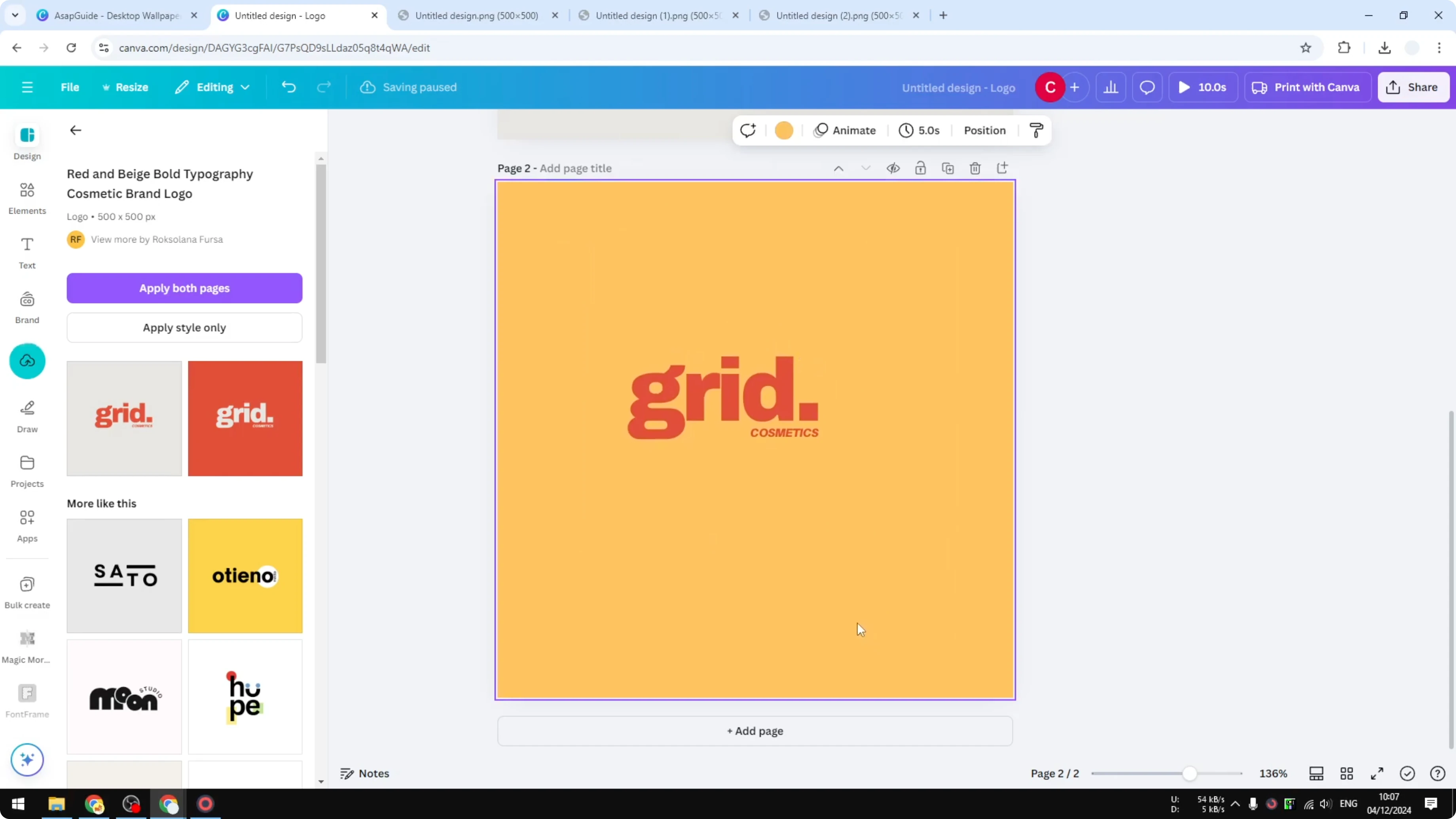
Add a new page and change the background color, for example to orange. Upload the exported logo and place it on the page.
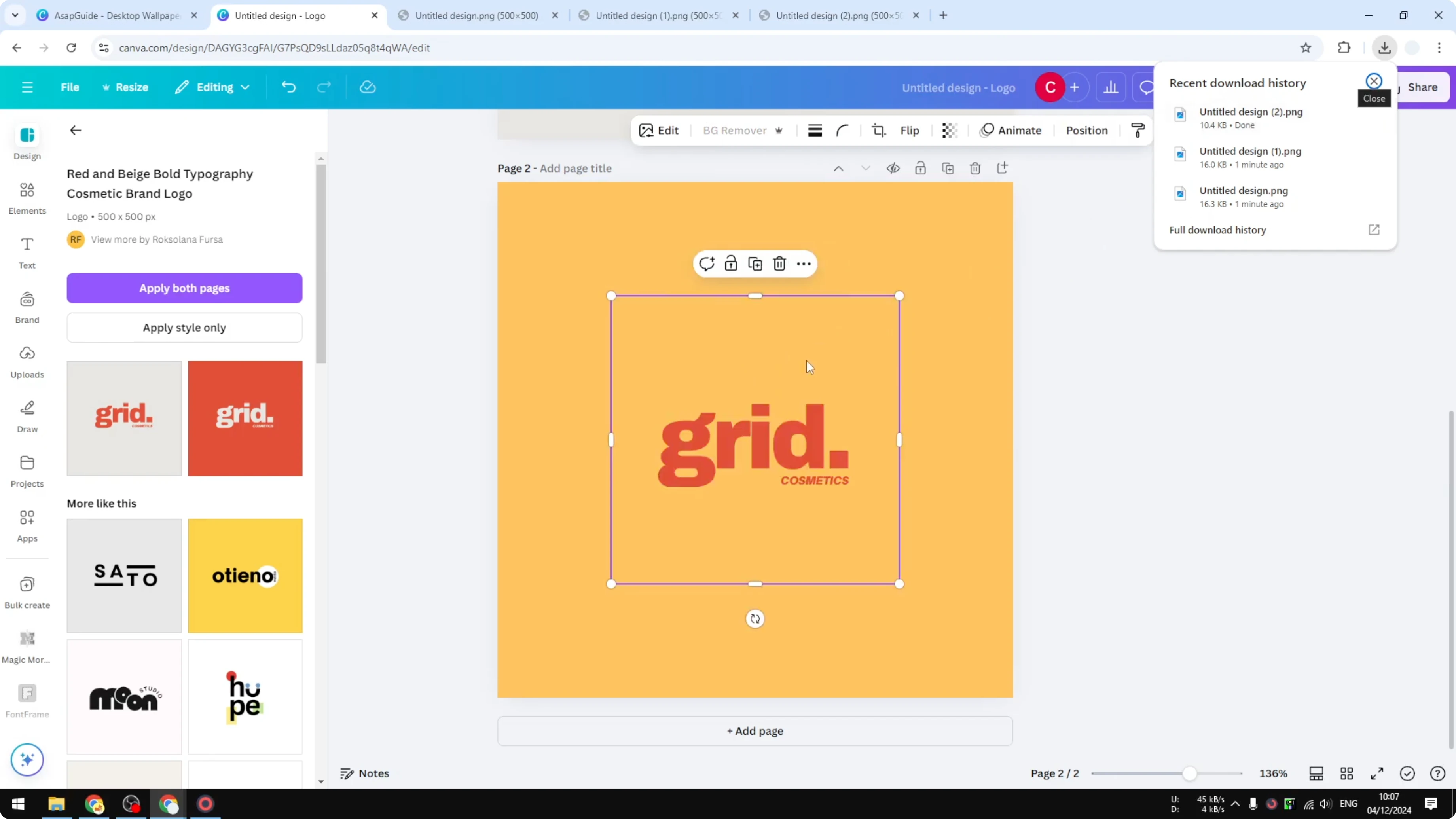
You will see it has no background and sits cleanly on the color. You can change the design color to anything and it will not affect the logo.
If you want to style backgrounds behind your logo, try a soft bokeh effect. For textured letterforms in logo ideas, experiment with grass text.
Final thoughts
A transparent PNG logo lets you keep the logo visible while removing the background. In Canva, the key is exporting as PNG with Transparent background enabled. If a template resists transparency, switch to a simpler logo and try again.
Recent Posts

How to Visualize Yourself as a Pixelized Character with AI?
How to Visualize Yourself as a Pixelized Character with AI?

How to Revive Faded Memories and Enhance Image Clarity with AI?
How to Revive Faded Memories and Enhance Image Clarity with AI?

How to Visualize Yourself as an Animal Crossing Character with AI?
How to Visualize Yourself as an Animal Crossing Character with AI?