How to Turn Video Black and White Monochrome in Canva
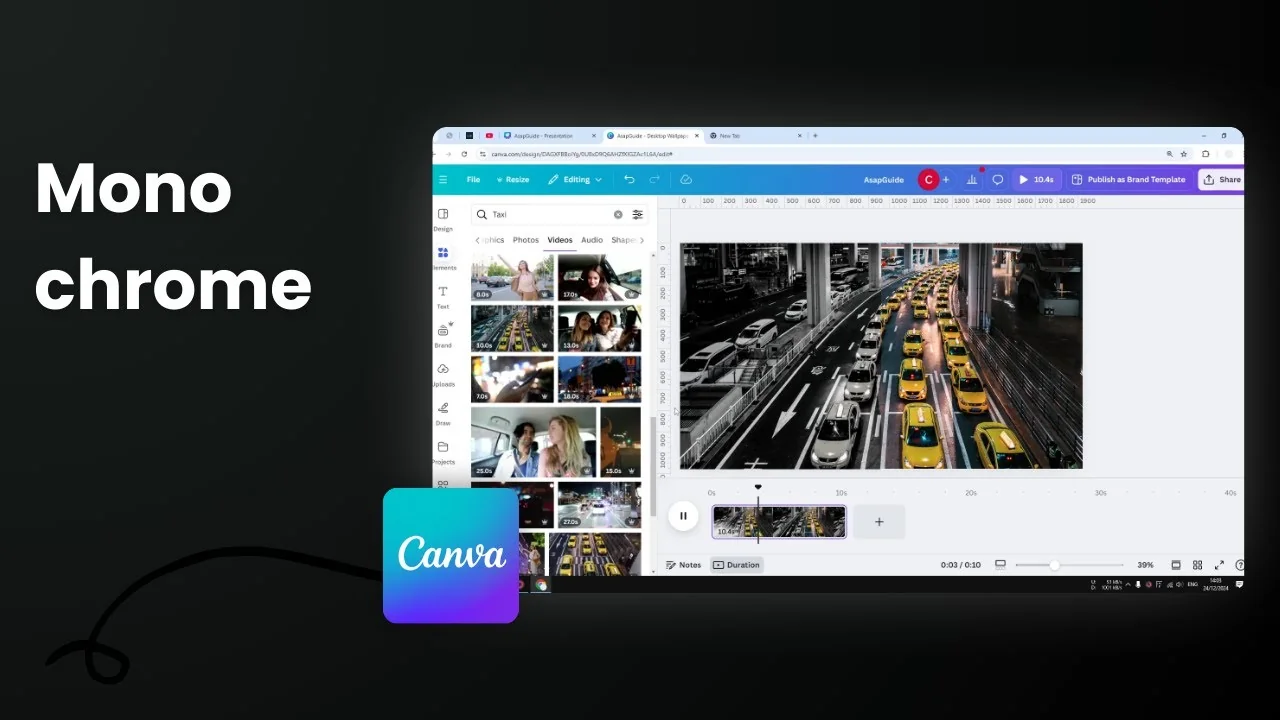
Turning a video black and white in Canva is quick. You can insert a video from the Canva stock library or upload a video from your computer, add it to your document, and apply a monochrome filter.
Turn Video Black and White Monochrome in Canva
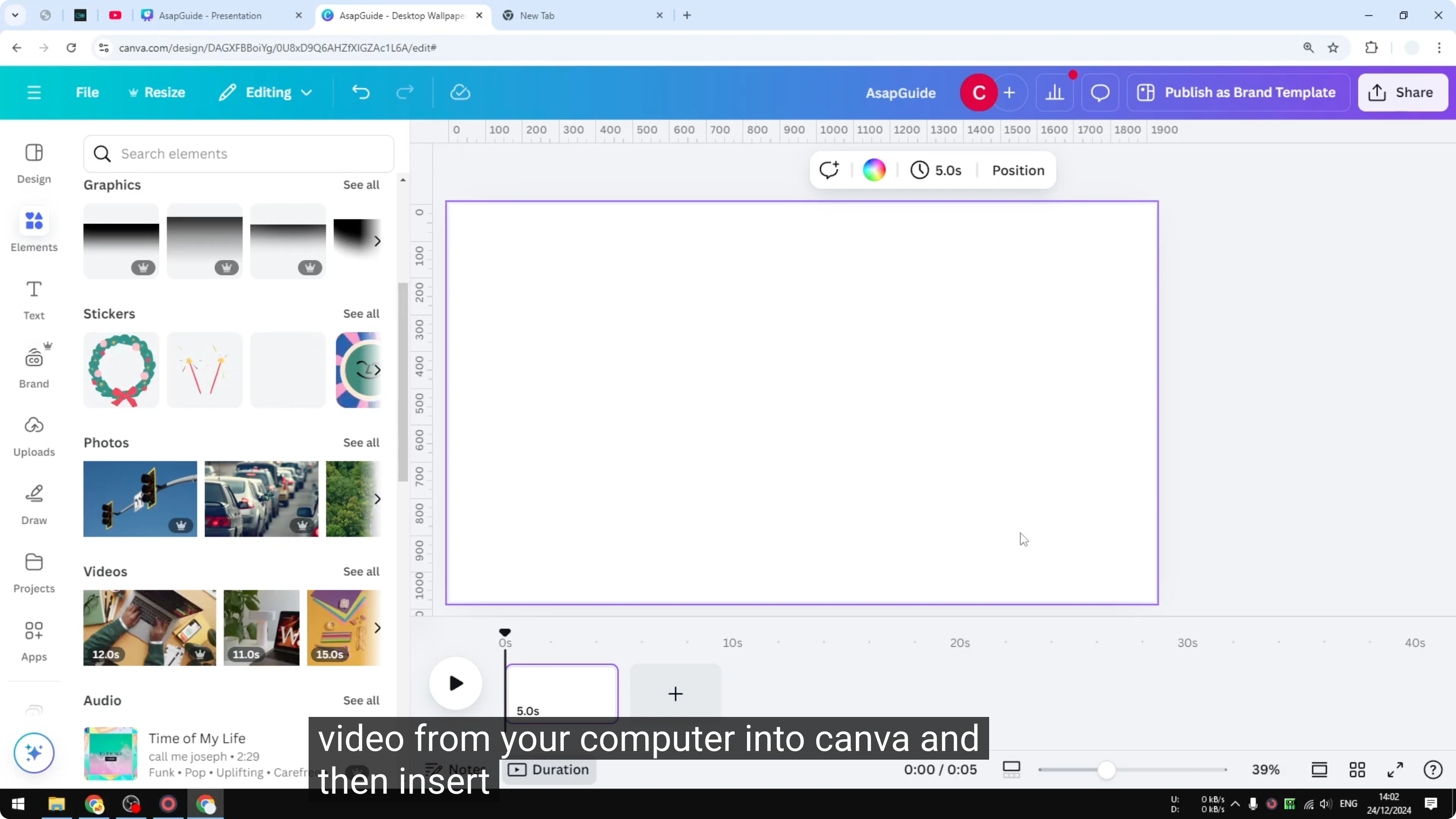
Add your video to the canvas
- Insert a video from the Canva stock library or upload one from your computer.
- Place it in your document and resize it as needed.

Apply a black-and-white filter
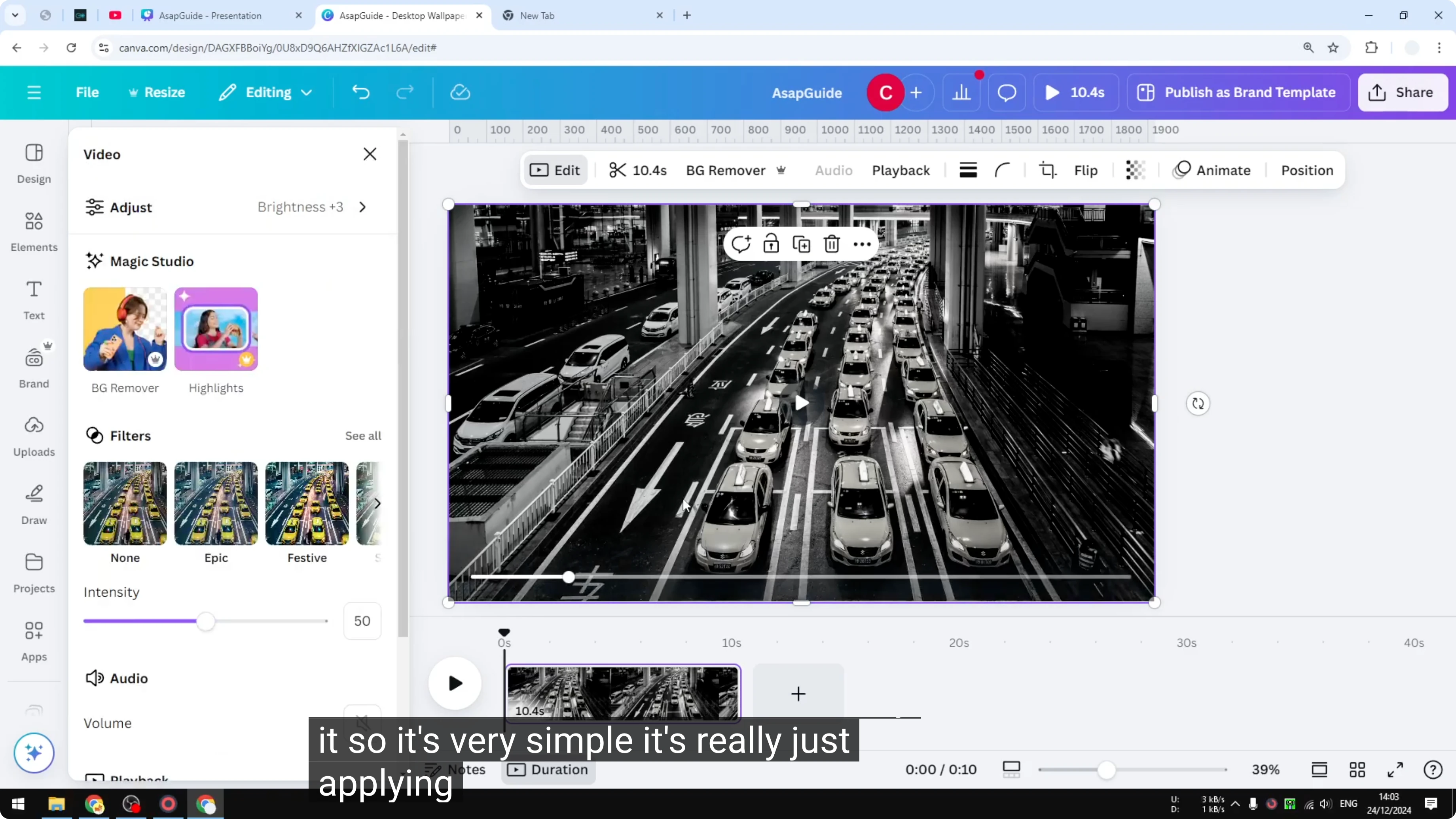
- Click Edit.
- Open Filters, then click See all.
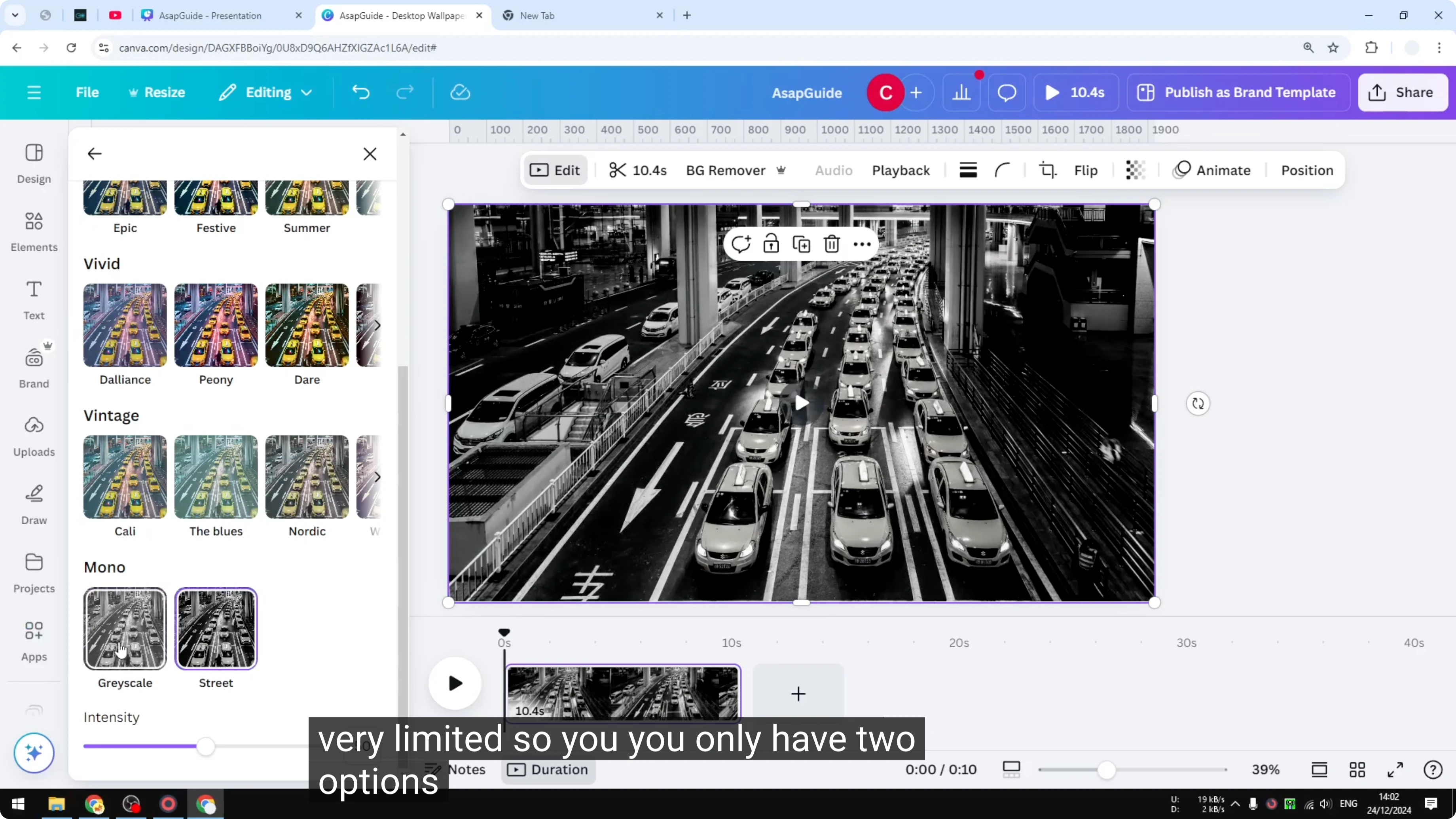
- At the bottom, you will see two presets: Greyscale and Street.
- There are only two presets available. There is no option to modify the level of the color. You can change Intensity, but it is very limited.
- I go with Street because it has a lot more contrast.


Mix black-and-white and color clips in the same design
- The effect is unique to each clip. Every clip in your Canva document can have different filters.
- For example, if you set two videos side by side, you can apply Street or Greyscale to one and set the other to None to keep it in color.


Final Thoughts
Canva makes monochrome video simple: add your clip, open Filters, and choose Greyscale or Street. Street gives more contrast, and Intensity adjustments are limited. Each clip can have its own filter, so you can combine black and white with color in the same design.
Recent Posts

How to Visualize Yourself as a Pixelized Character with AI?
How to Visualize Yourself as a Pixelized Character with AI?

How to Revive Faded Memories and Enhance Image Clarity with AI?
How to Revive Faded Memories and Enhance Image Clarity with AI?

How to Visualize Yourself as an Animal Crossing Character with AI?
How to Visualize Yourself as an Animal Crossing Character with AI?