How to Turn Off Spell Check in Canva
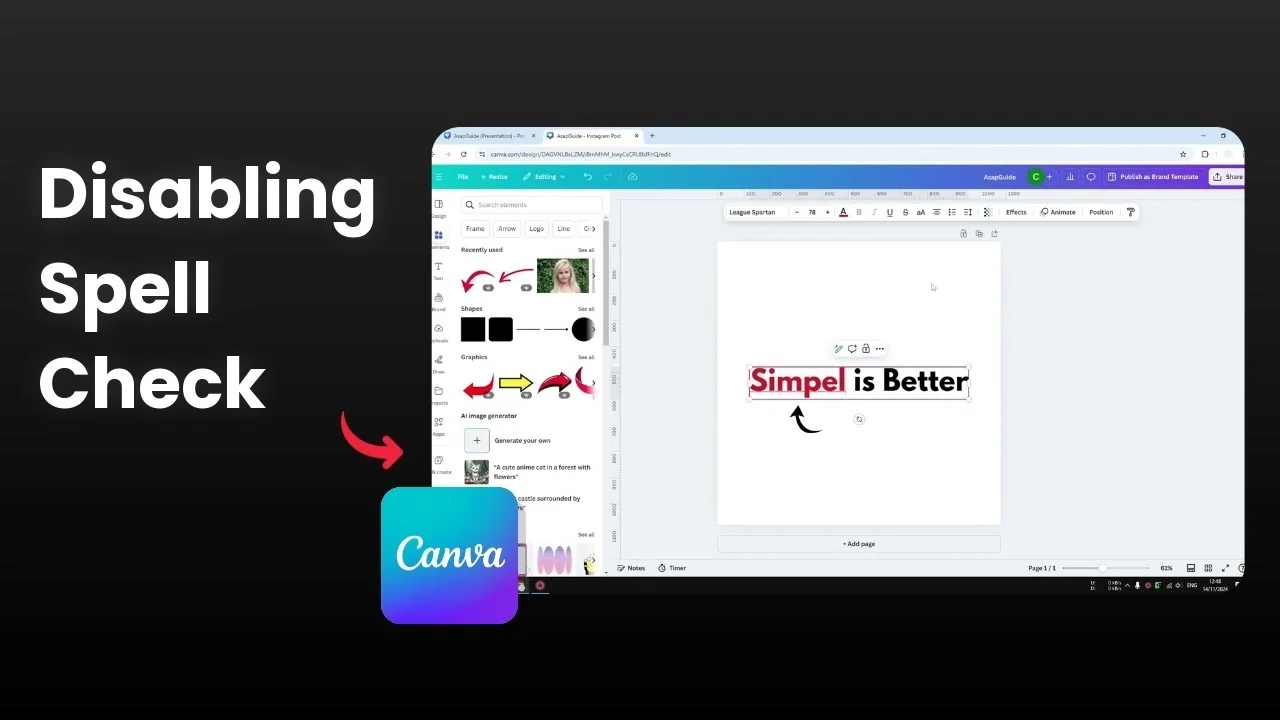
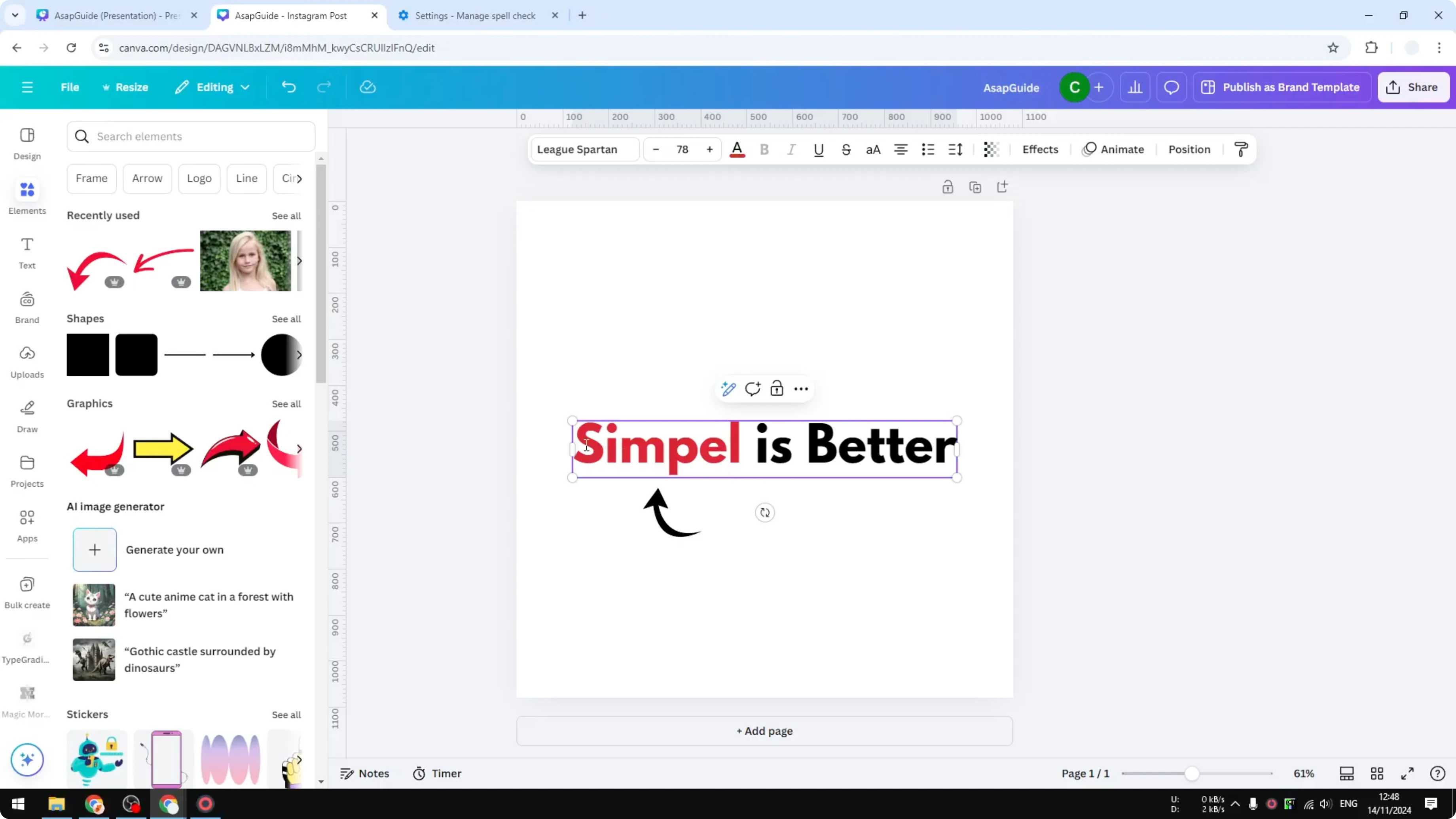
I’m going to show you how to turn off spell check in Canva. For example, I have a text box with the word simple underlined in red, which usually indicates a spelling mistake. The L here is supposed to be after the letter P, so this is not correct in the English dictionary, and that is why the underline appears.
This spell checking is not coming from Canva. It is coming from the browser, and Google Chrome offers an automatic spell checker. If you type something that is not recognized, it will show the red underline, and if you work with different languages or brand names, you will probably see this a lot.
If you want a full walkthrough on reviewing spelling in your designs, see how to do a proper spell check in Canva.
Turn Off Spell Check in Canva on Chrome
Open Chrome.
Click the three-dot menu at the top right.
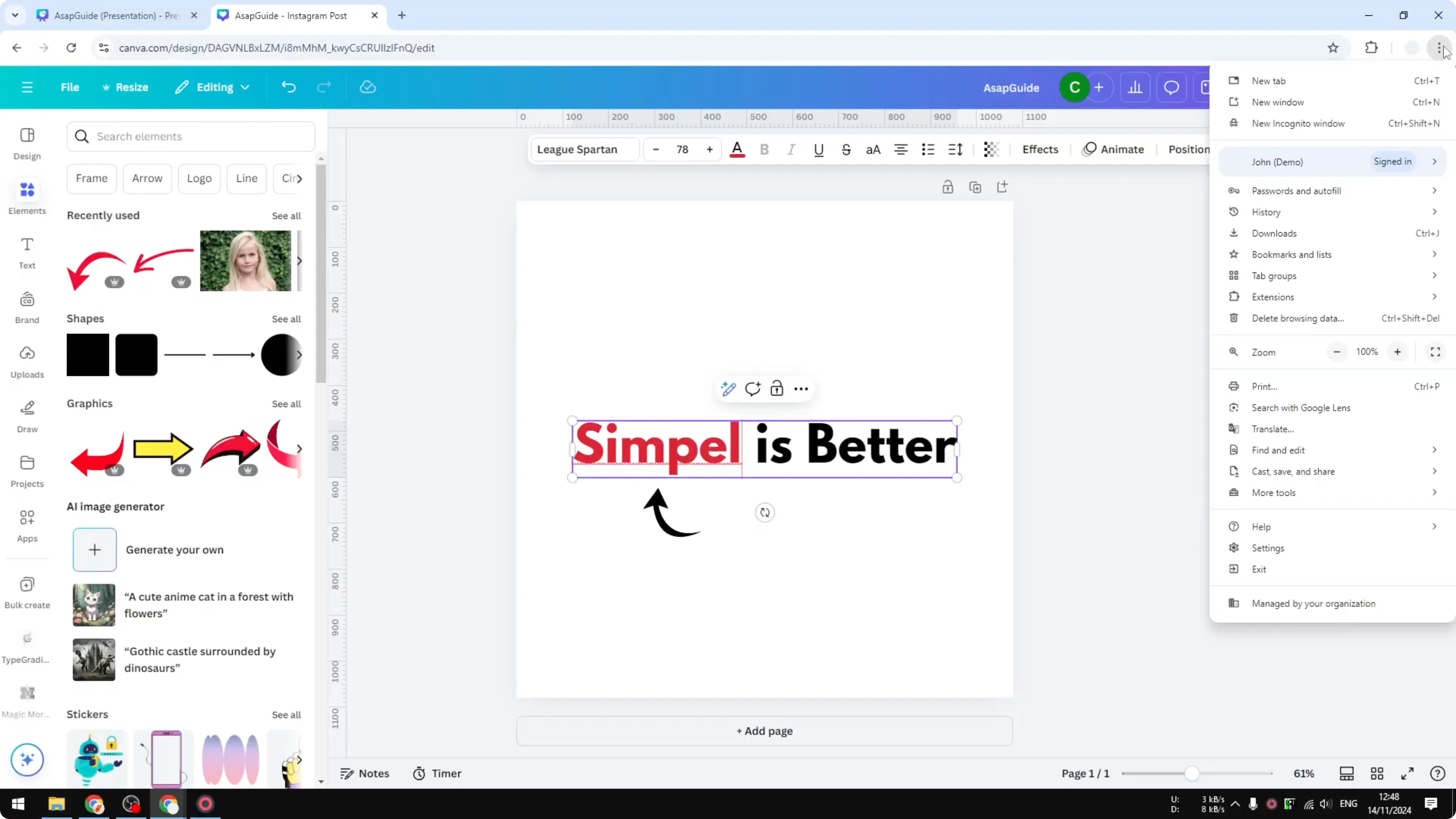
Open Settings.
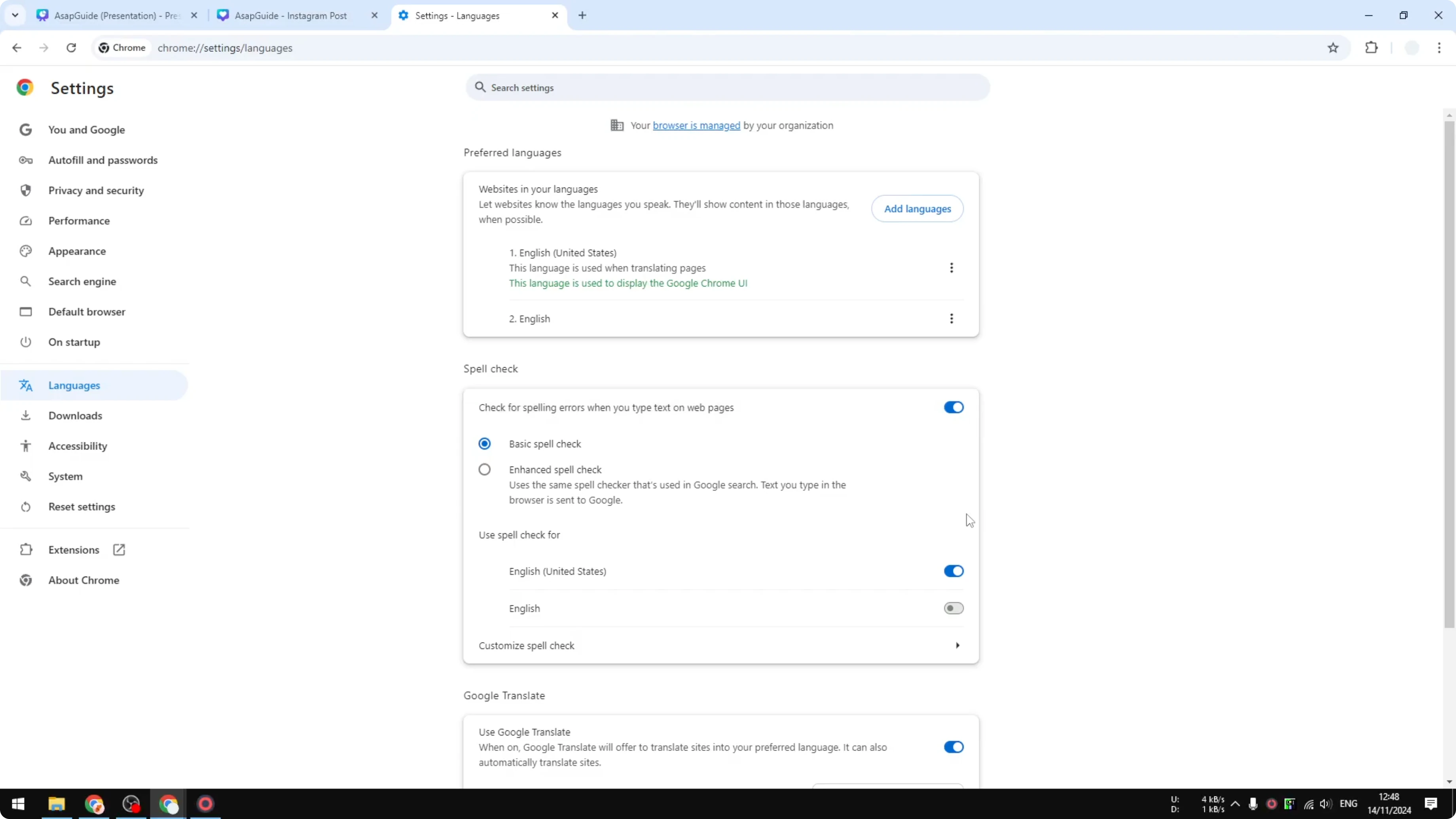
Go to Languages.
Open Spell check.
Turn off spell check.
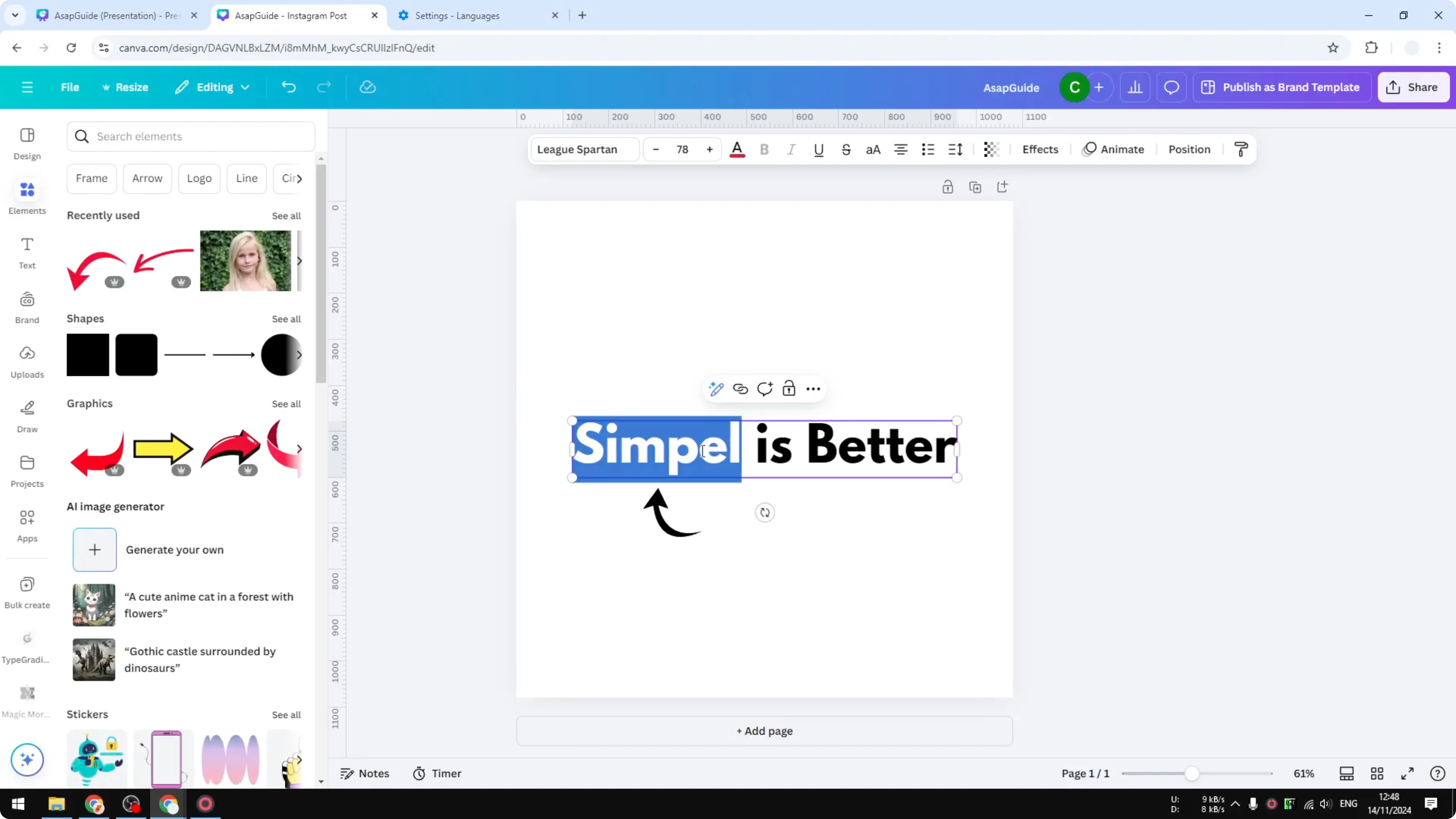
Go back to Canva and the red underline will be gone.
While you fine-tune your text, you might also want to check current design dimensions to confirm your file size.
Customize Instead of Fully Turning Off
I do not recommend turning spell check off for most people, because it is very useful. Keep it on, and customize it by adding words to your dictionary, so Chrome stops flagging terms you intentionally use.
Open Chrome Settings.
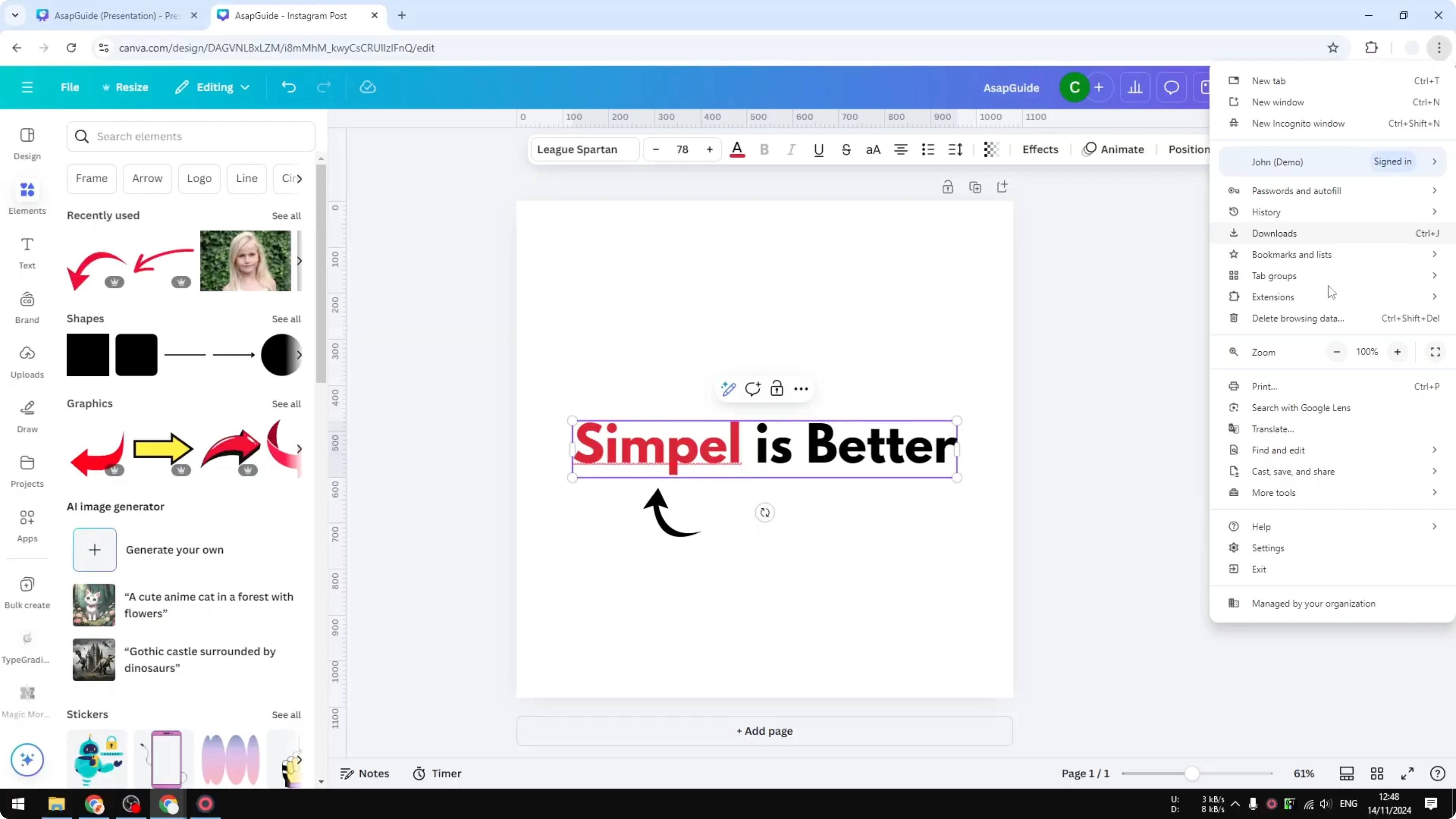
Go to Languages.
Open Spell check.
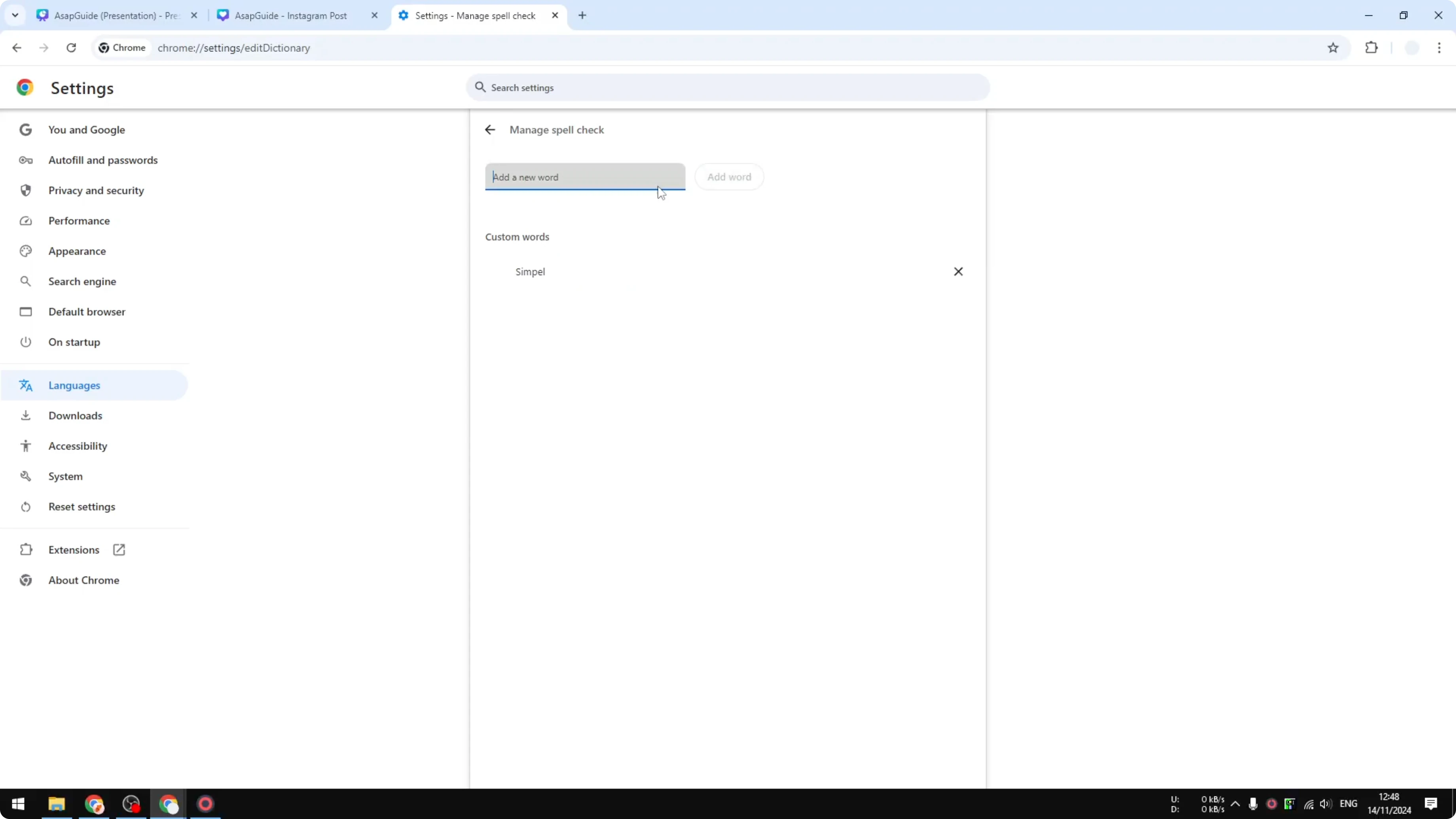
Open Custom spelling or the Add to dictionary option.
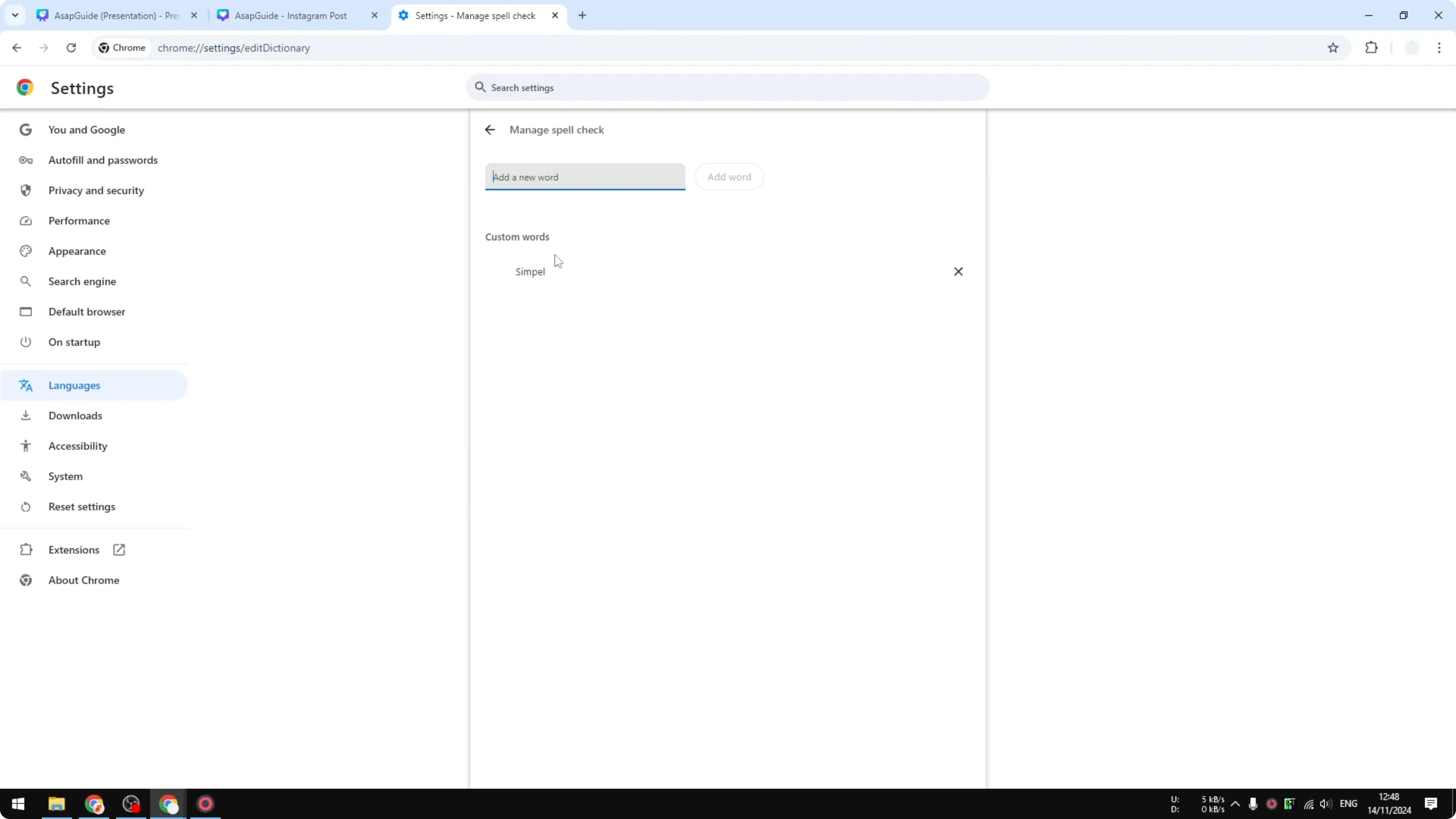
Add the word you want Chrome to allow.
Return to Canva and you will see there is no red underline on that word.
This is helpful when your design includes non-English terms, product names, or brand words that are not in the default dictionary. I keep spell check on, add my custom words, and avoid constant red underlines while keeping real mistakes visible.
Read More: How To Turn A Video Into An Image In Canva
Final thoughts
The red underline you see in Canva is controlled by your browser’s spell checker. You can turn it off in Chrome, but I recommend keeping it on and adding custom words to your dictionary for better accuracy. That way, you remove unwanted underlines without losing helpful spelling feedback.
Recent Posts

How to Visualize Yourself as a Pixelized Character with AI?
How to Visualize Yourself as a Pixelized Character with AI?

How to Revive Faded Memories and Enhance Image Clarity with AI?
How to Revive Faded Memories and Enhance Image Clarity with AI?

How to Visualize Yourself as an Animal Crossing Character with AI?
How to Visualize Yourself as an Animal Crossing Character with AI?