How to Turn a Video into an Image in Canva
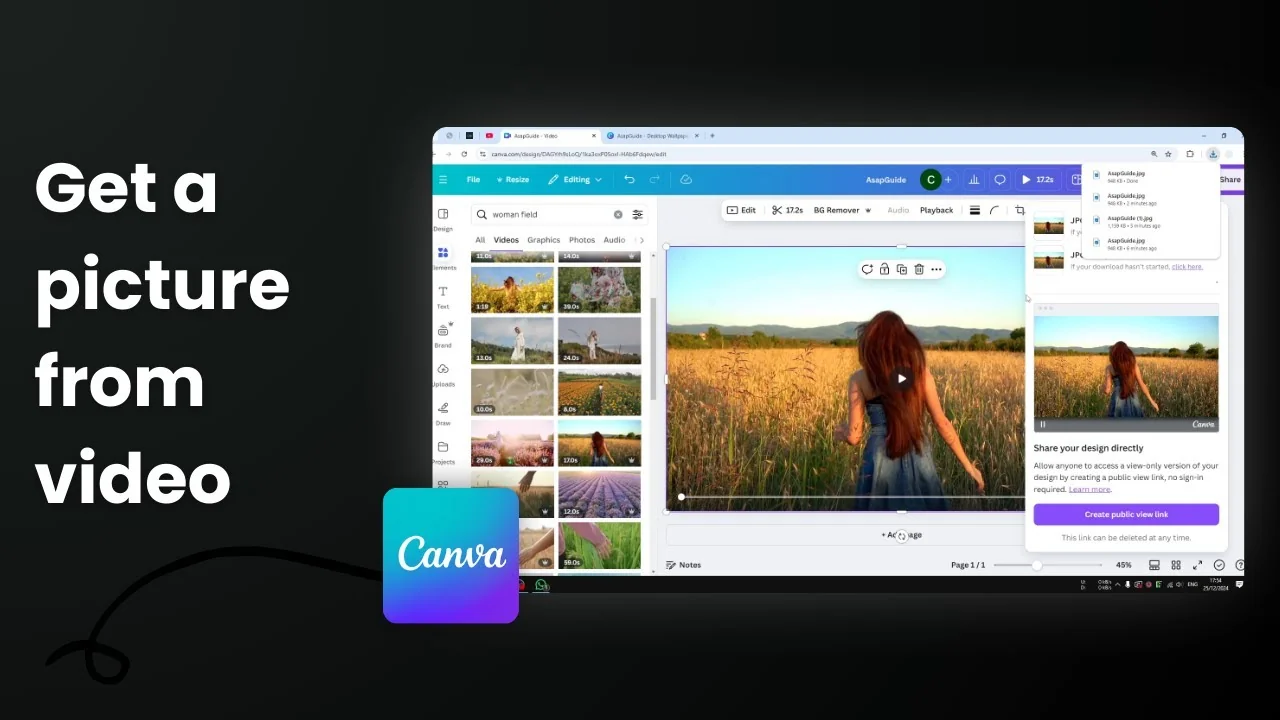
I’m going to show you how you can turn a video into an image in Canva. The idea is to get a frame from the video and save the frame as a picture to your computer, then use the picture for a different purpose.
A video can have hundreds if not thousands of frames, and it can be difficult to pinpoint which frame you want. For example, I inserted a stock video of a woman running away from the camera. As the video progresses, she gets farther from the camera, so selecting the exact moment matters.
Turn a Video into an Image in Canva
Insert your video and fill the frame
- Insert your video from Canva’s stock library or your uploads.
- Make sure the video fills the entire page or frame. You want the whole frame covered by the video.


Download a frame as an image
- Click Share, then Download.
- Choose File type: JPG or PNG. There are also options for PDF, GIF, and SVG if you need formats for web design or animation.
- Click Download.

By default, Canva will take the first frame of the video. That might not be the part you want.
Make Canva export the exact frame you want
I wanted the end part of the video. I wanted the photo where the woman is farther from the camera. Here’s the trick that makes that frame the one Canva exports:

- Open the thumbnail or timeline view and open Duration.
- Remove the sections you don’t want to appear on the frame. Drag the handles to the right or left until the clip becomes very short and starts at the moment you want.
- That section is now the first frame of the video.
- Click Share, Download, choose JPG or PNG, and download.


You’ll get the picture from the exact moment you set as the first frame.
Get a frame from the middle using Split page
If you want a section from the middle of the video:

- Right-click and click Split page at the start of the section you want.
- Right-click and click Split page again near the end of that section.
- Delete the other pages so the middle section stands alone.
- Click Share, Download, choose JPG or PNG, and download.


Final Thoughts
You can get a photo from a video in Canva by making the desired moment the first frame that Canva exports. Either trim the clip so your chosen frame comes first or split the video into pages and keep only the section you need. Then download as JPG or PNG.
Recent Posts

How to Visualize Yourself as a Pixelized Character with AI?
How to Visualize Yourself as a Pixelized Character with AI?

How to Revive Faded Memories and Enhance Image Clarity with AI?
How to Revive Faded Memories and Enhance Image Clarity with AI?

How to Visualize Yourself as an Animal Crossing Character with AI?
How to Visualize Yourself as an Animal Crossing Character with AI?