How To Spell Check In Canva

There is no spell checking feature in Canva yet. There are a few alternatives you can try to make sure the text in your Canva design is accurate and there are no spelling or grammatical errors. Here is how you can do that.
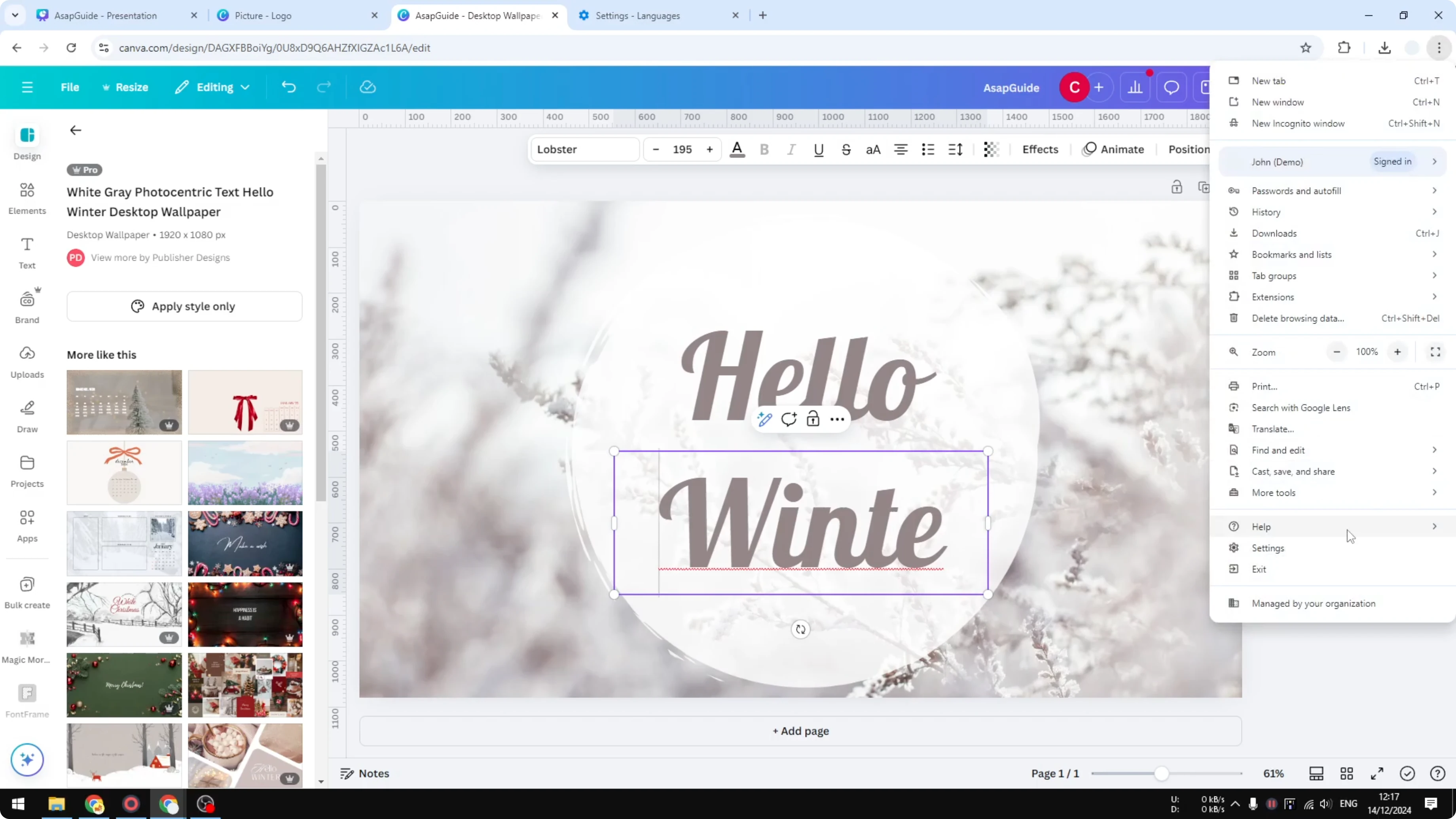
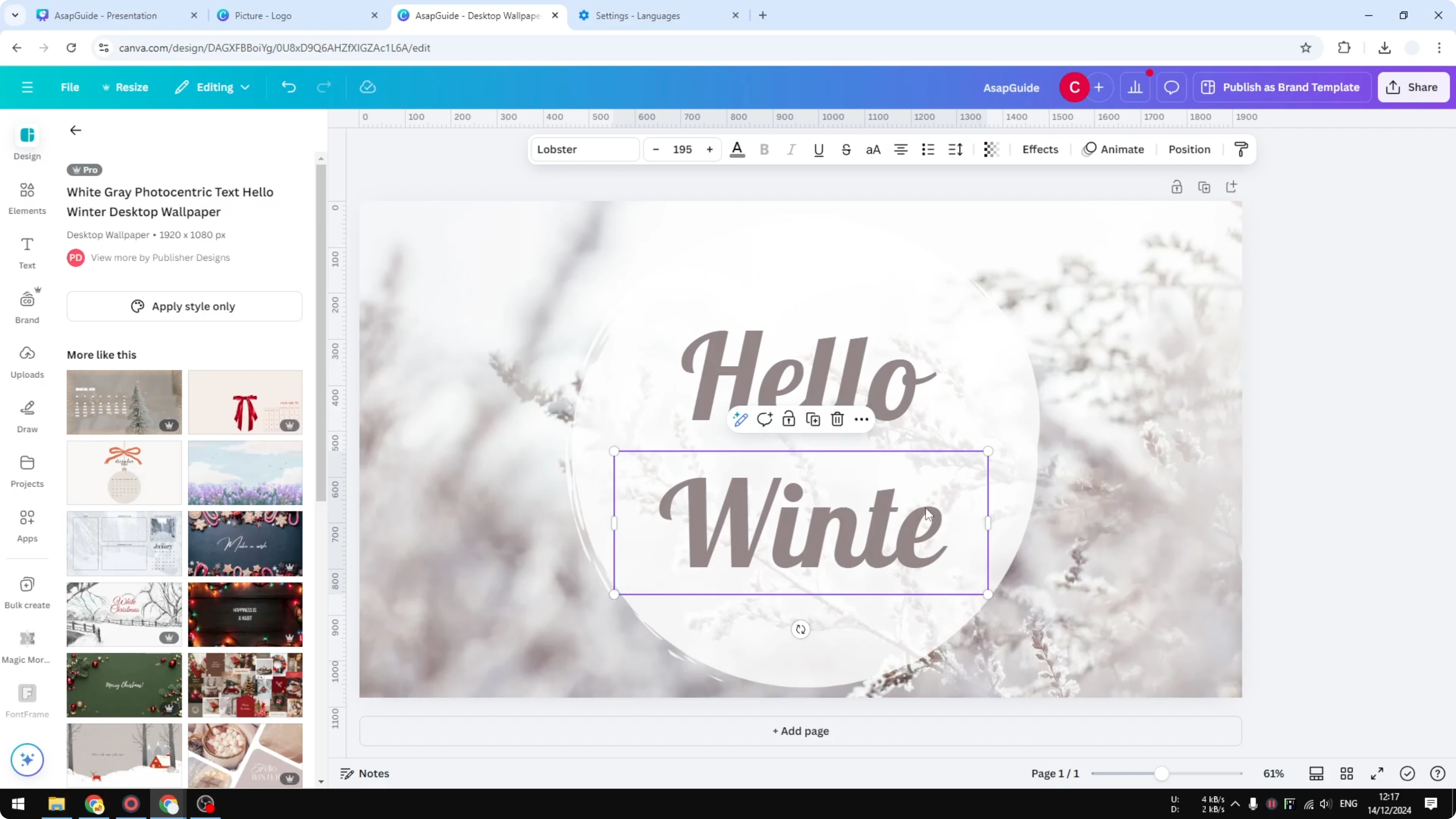
I have a simple design and there is a word that is supposed to be winter, but the last letter is missing. There is a red line under this text and that is a signal from the browser to let the user know that there is something wrong with this text and I should fix it. This red line is created by the browser, not Canva.
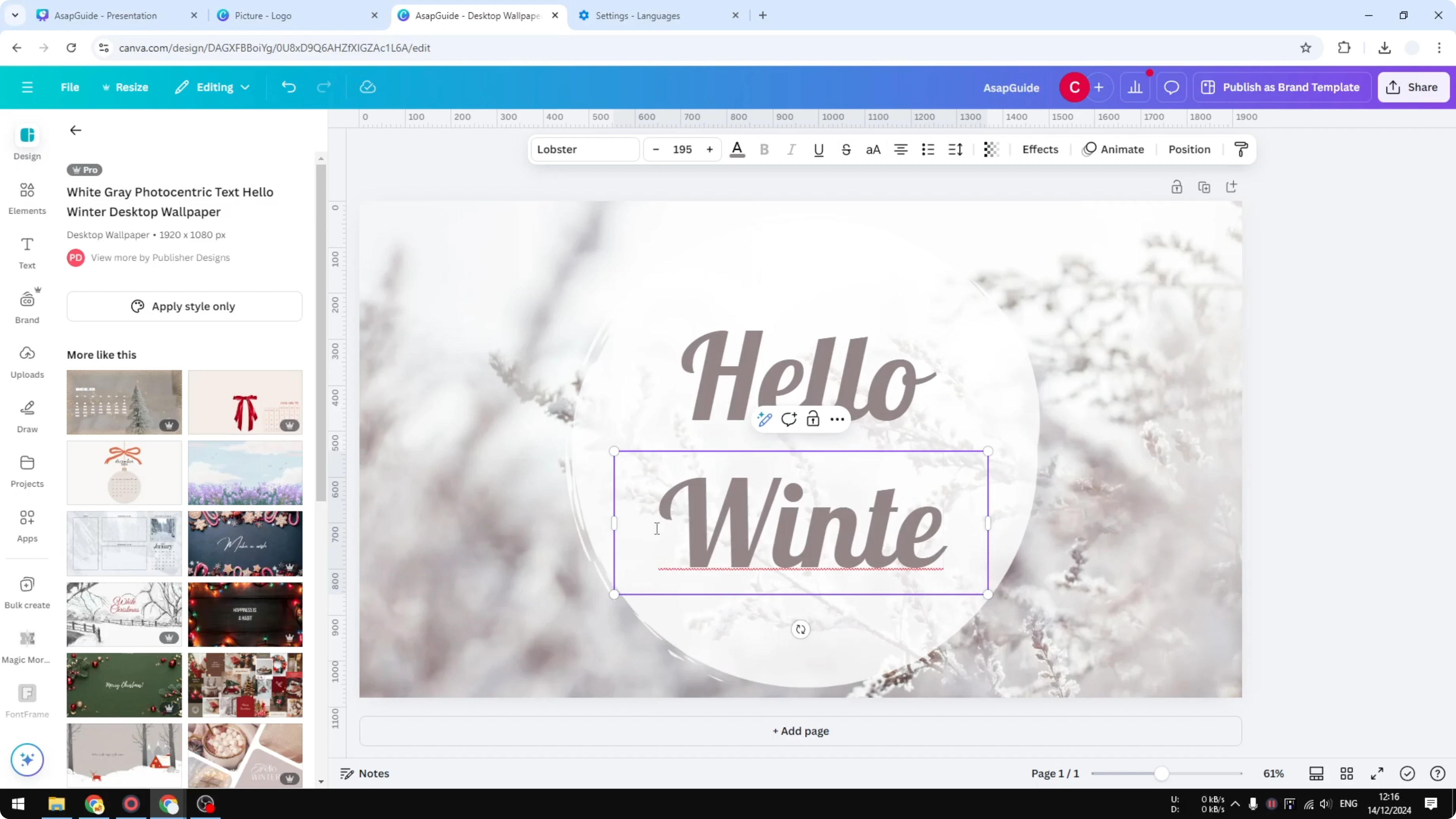
Spell Check In Canva - Use Your Browser
If you are using Chrome, you can enable the built-in spell check.
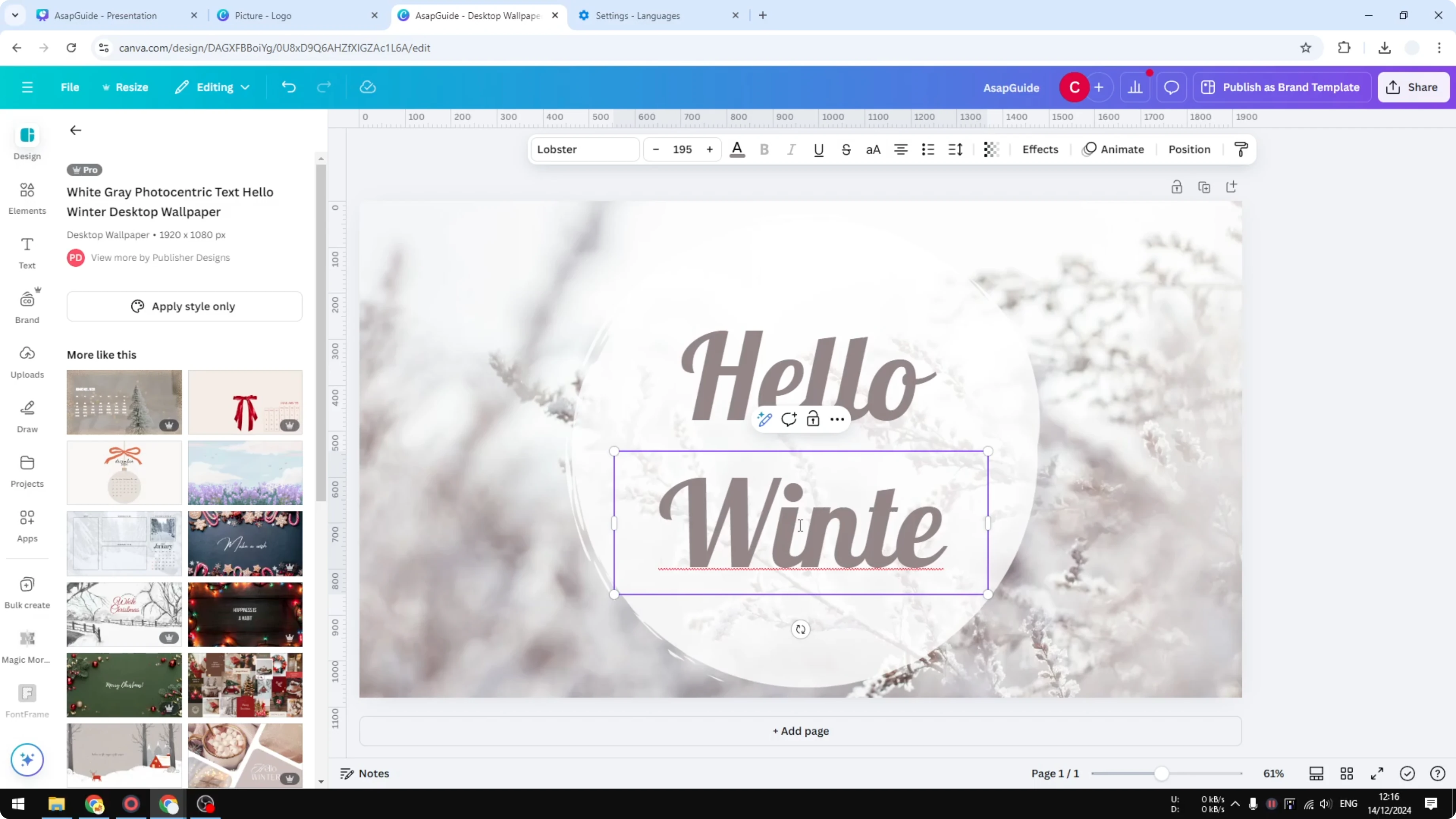
Spell Check In Canva - Enable Chrome Spell Check
- Open Chrome.
- Click the menu and go to Settings.
- Navigate to Languages.
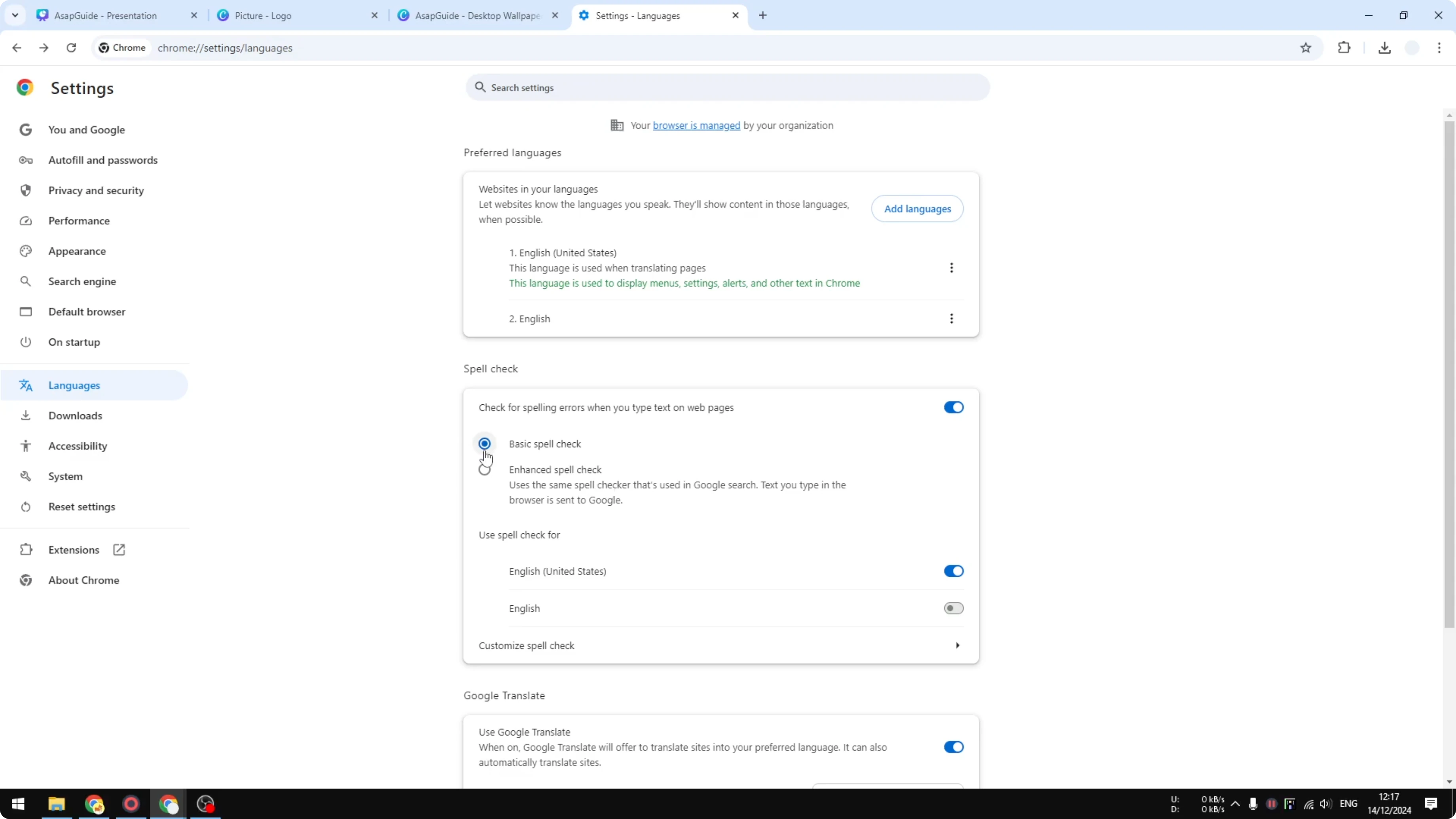
- Enable Basic spell check.
- Select your language. If you work with multiple languages, add another language to your browser.
- You can also enable Enhanced spell check to make the text even more accurate, but usually Basic spell check is good enough.
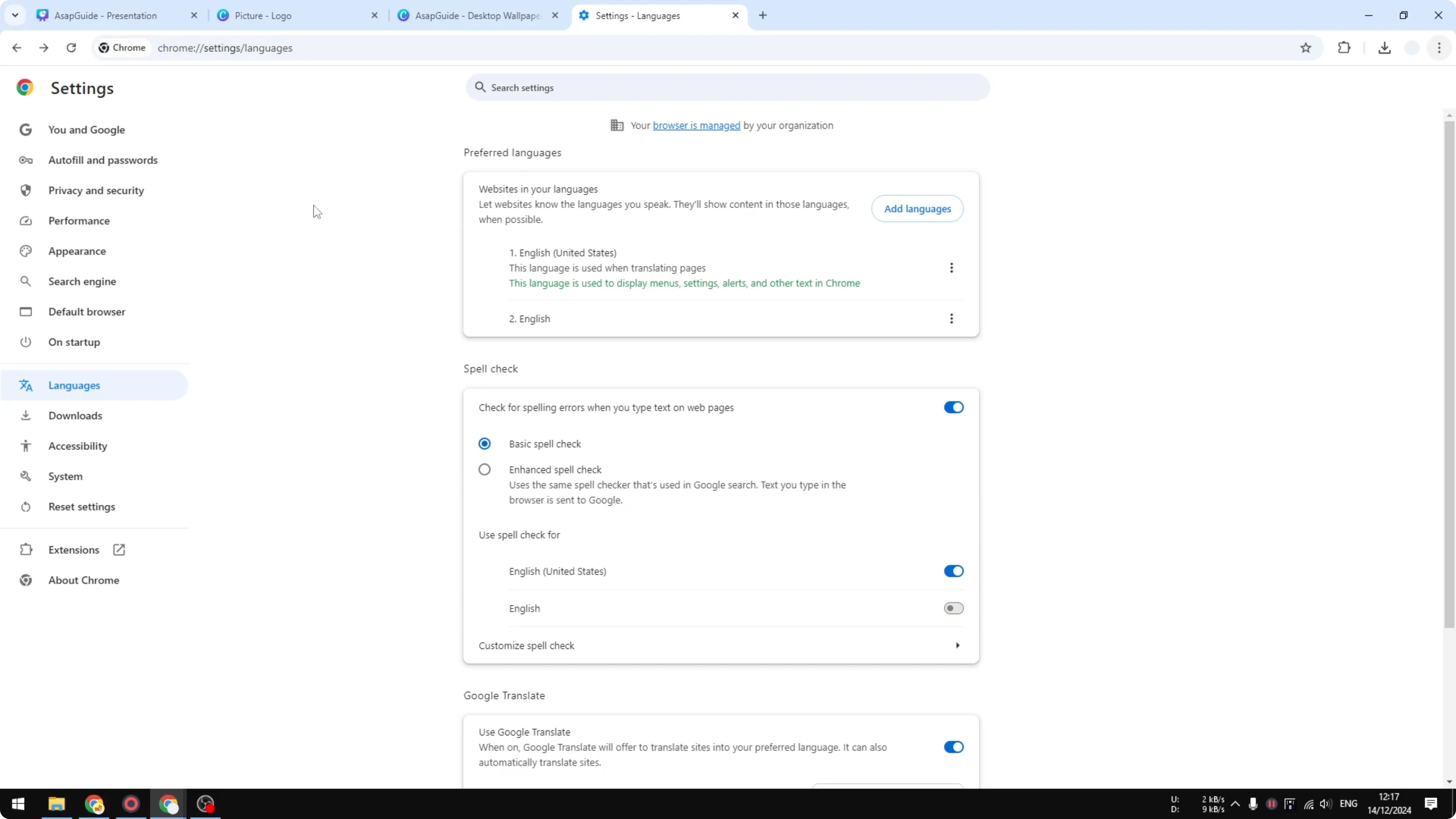
Spell Check In Canva - Try Extensions
Another option is using a Chrome extension like Grammarly. It is very popular, although for a Canva design it can be kind of overkill.
Spell Check In Canva - Use Canva’s Magic Write
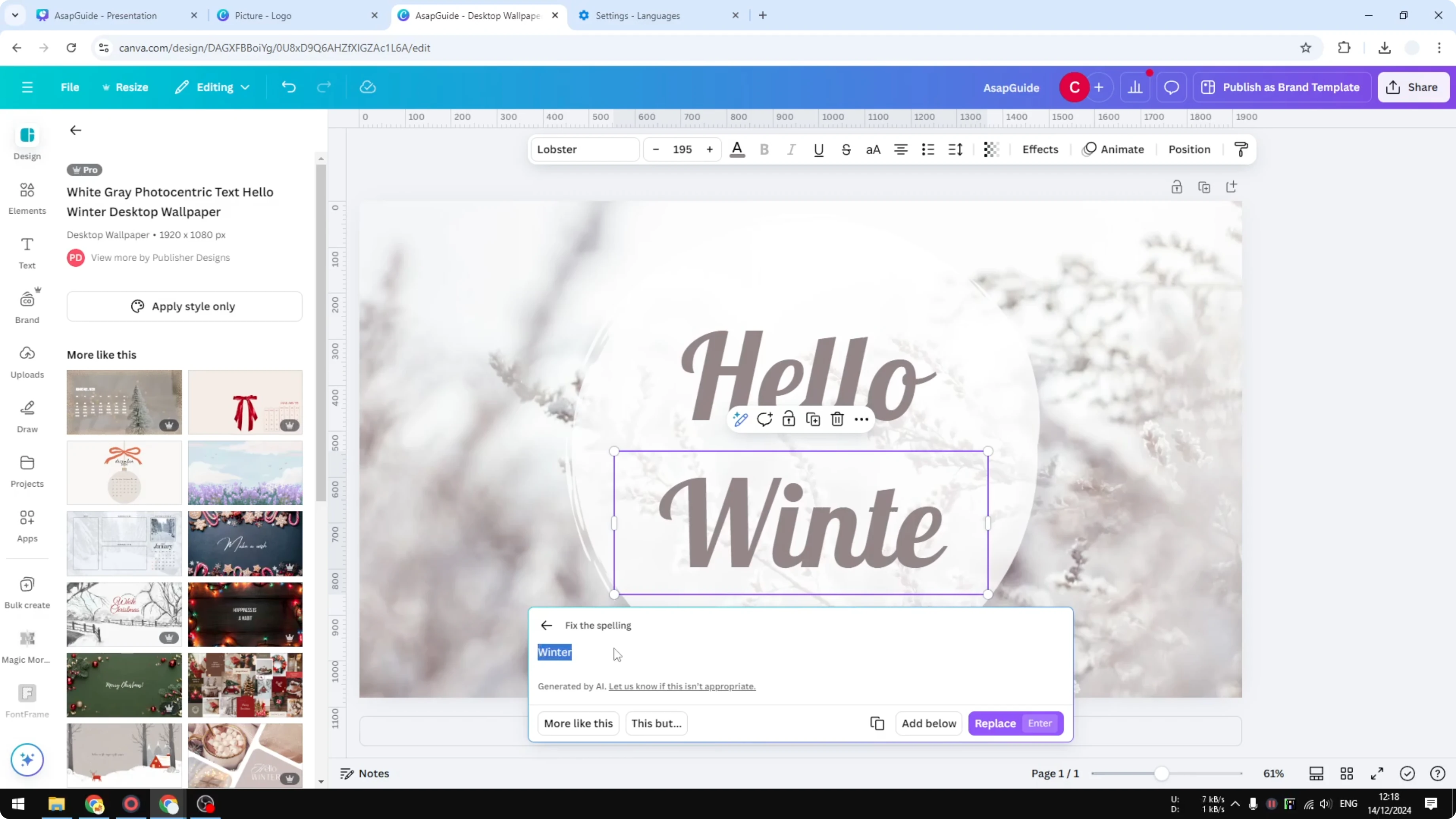
You can also try an AI feature in Canva. There is a Magic Write feature you can click, and you can click Fix spelling. It will suggest what the word is supposed to be.
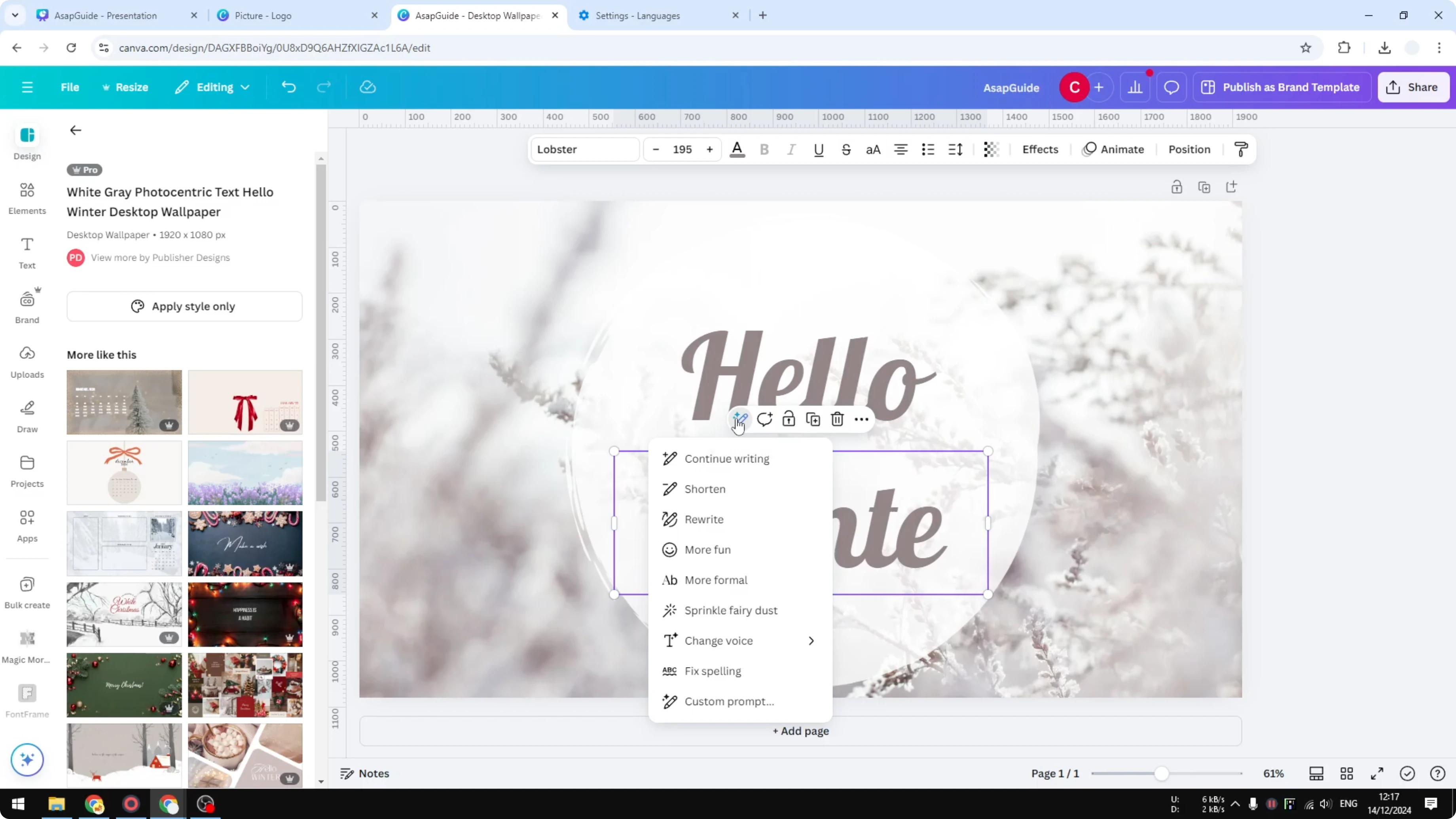
- Select the text in your design.
- Open Magic Write.
- Choose Fix spelling to get a suggestion.
- If the suggestion is not accurate, try again.
- You can also send a custom prompt like fix the spelling or change the letter.
- When it gives the correct word, click Replace to change the text.
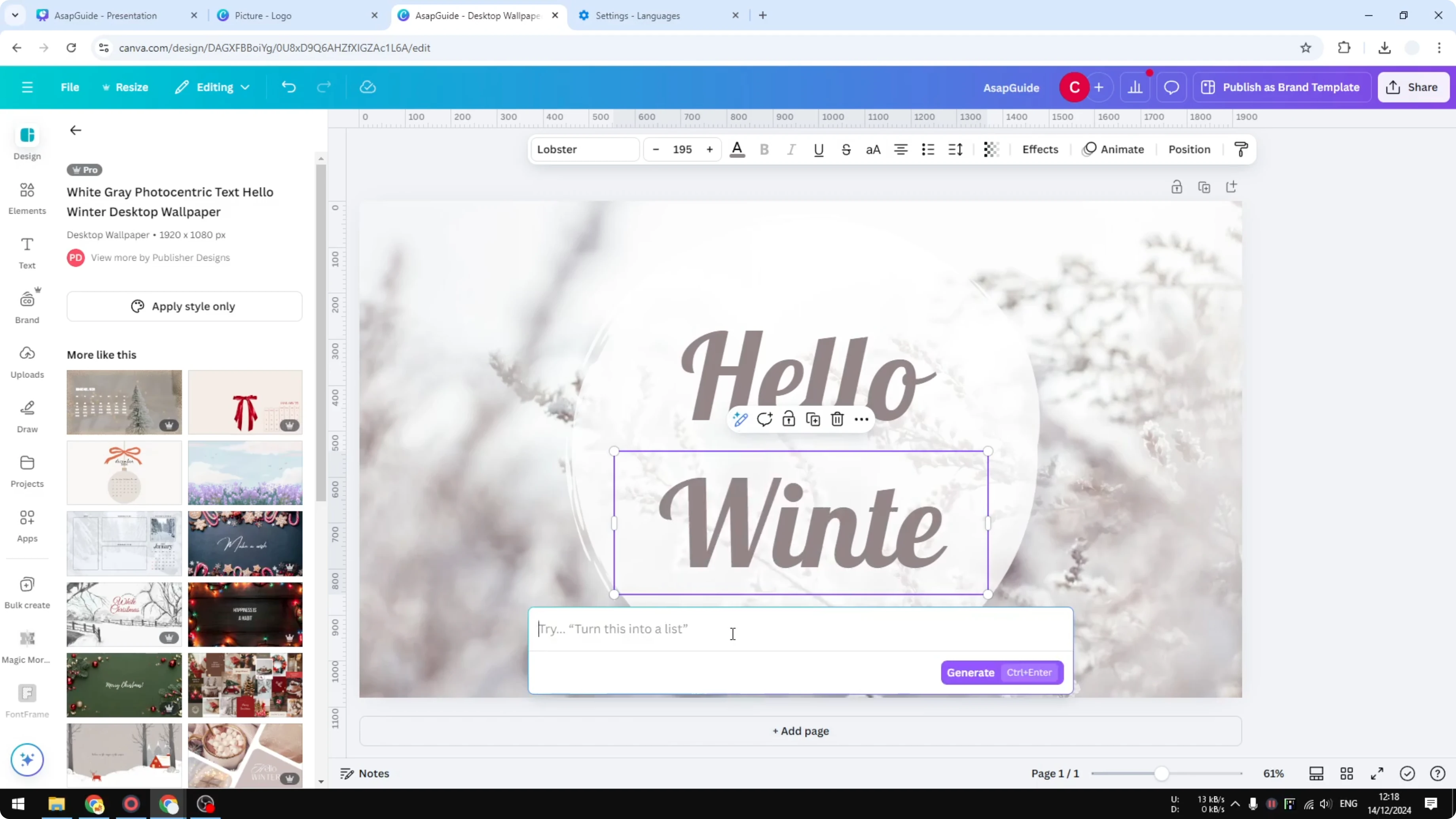
Sometimes AI does not get it right on the first try, so you may need to try again or adjust the prompt. I tried this and got the word winter, which is correct, and replaced the text.
Final Thoughts
Canva does not have a built-in spell checker, but you can rely on your browser’s spell check, add a writing extension, or use Magic Write to fix spelling. Basic spell check in Chrome is usually enough, and Magic Write can help when you want quick in-editor suggestions.
Recent Posts

How to Visualize Yourself as a Pixelized Character with AI?
How to Visualize Yourself as a Pixelized Character with AI?

How to Revive Faded Memories and Enhance Image Clarity with AI?
How to Revive Faded Memories and Enhance Image Clarity with AI?

How to Visualize Yourself as an Animal Crossing Character with AI?
How to Visualize Yourself as an Animal Crossing Character with AI?