How to Check Your Current Design Dimensions in Canva
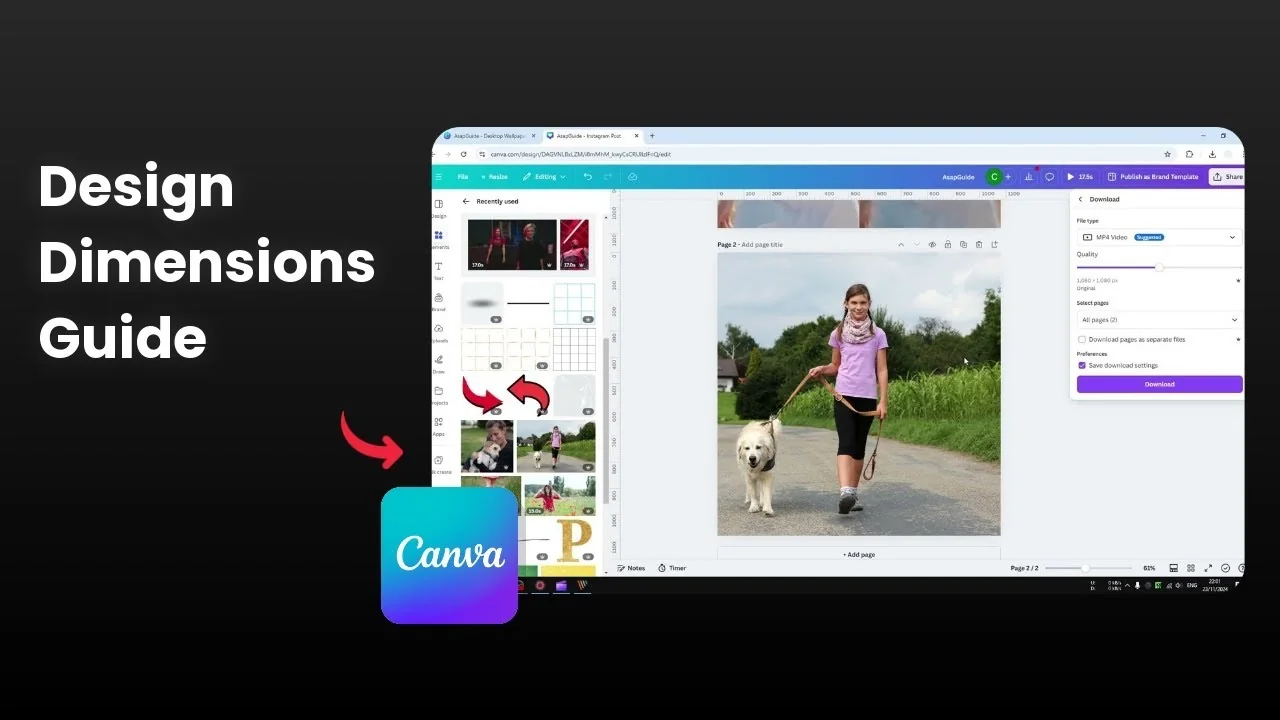
I am going to show you how you can easily check your current design dimensions in Canva. There are three methods that work well for this.
Check Your Current Design Dimensions in Canva
File menu
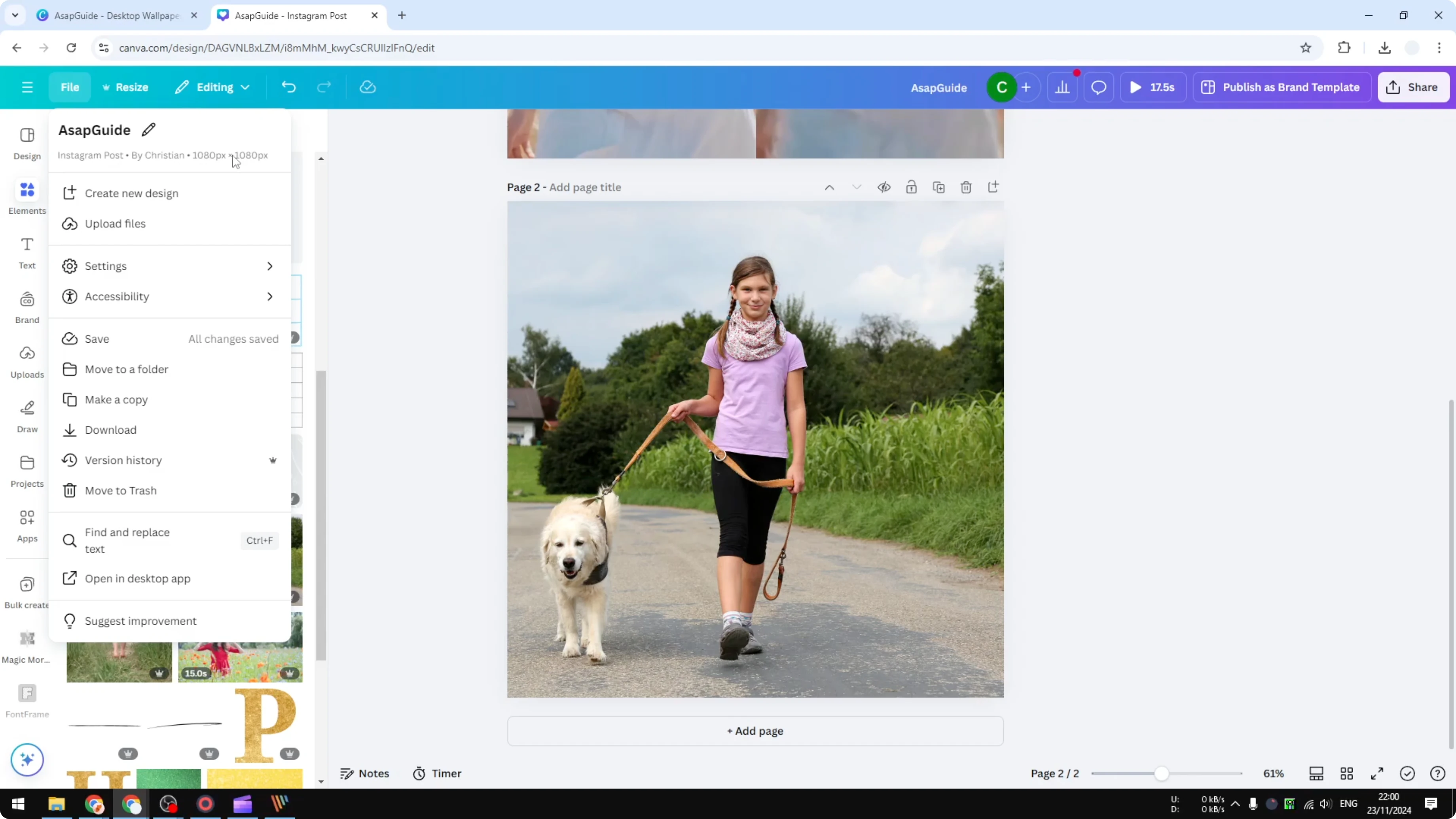
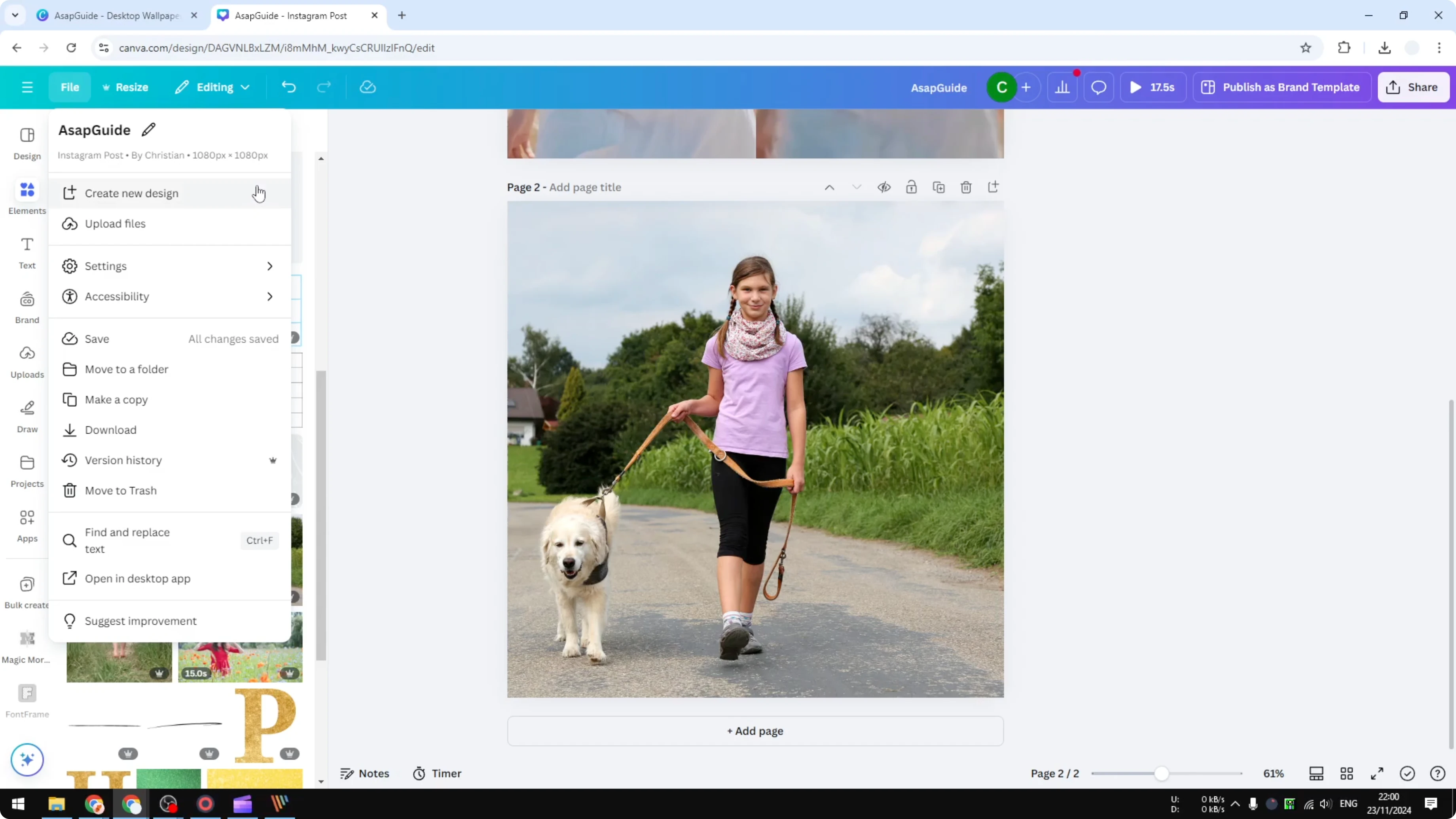
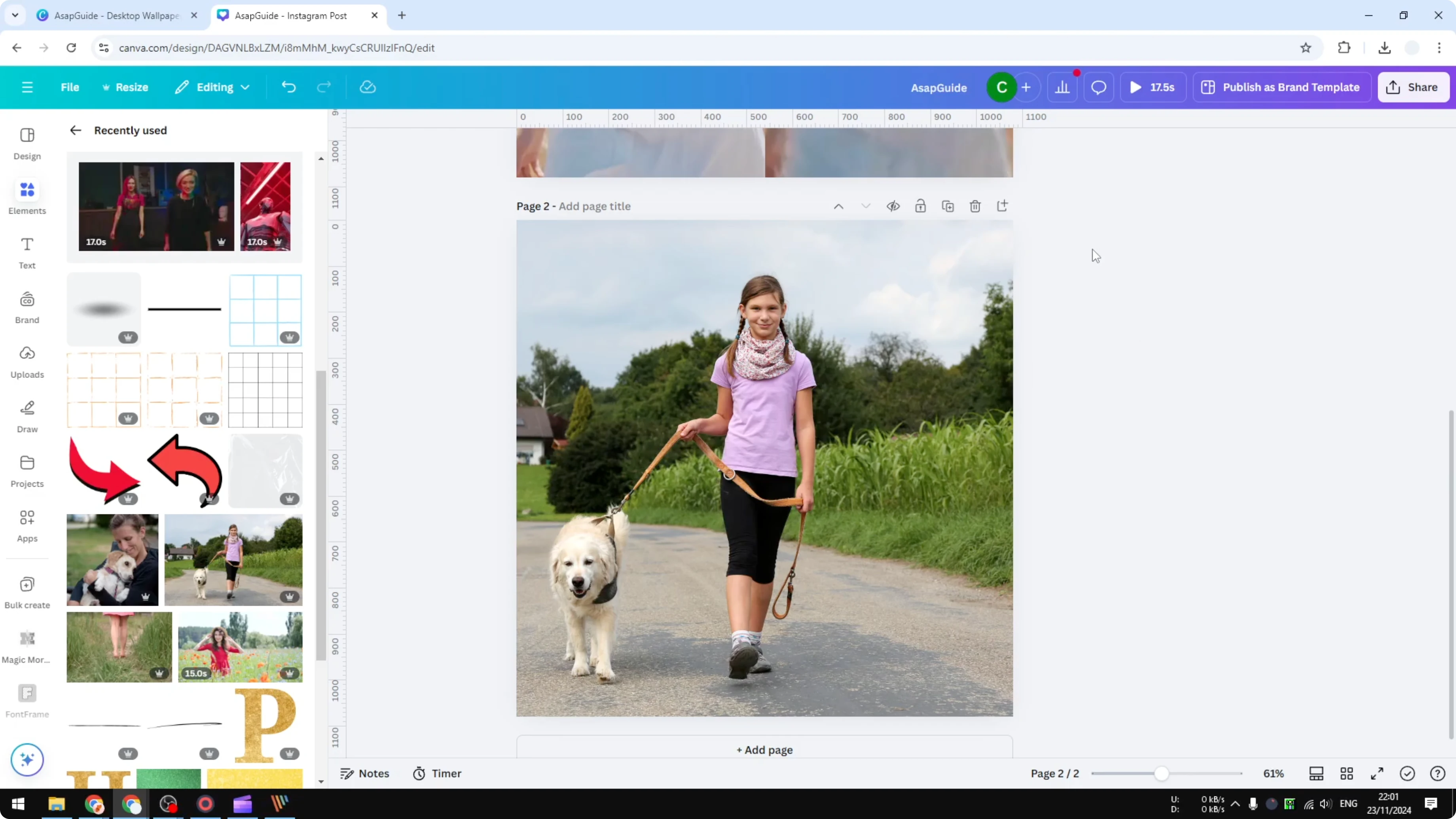
The first method to know the exact dimension of your document is by going to the File menu. Right under the name of the document you will see the template of this document, the owner, and also the dimension of this particular design.
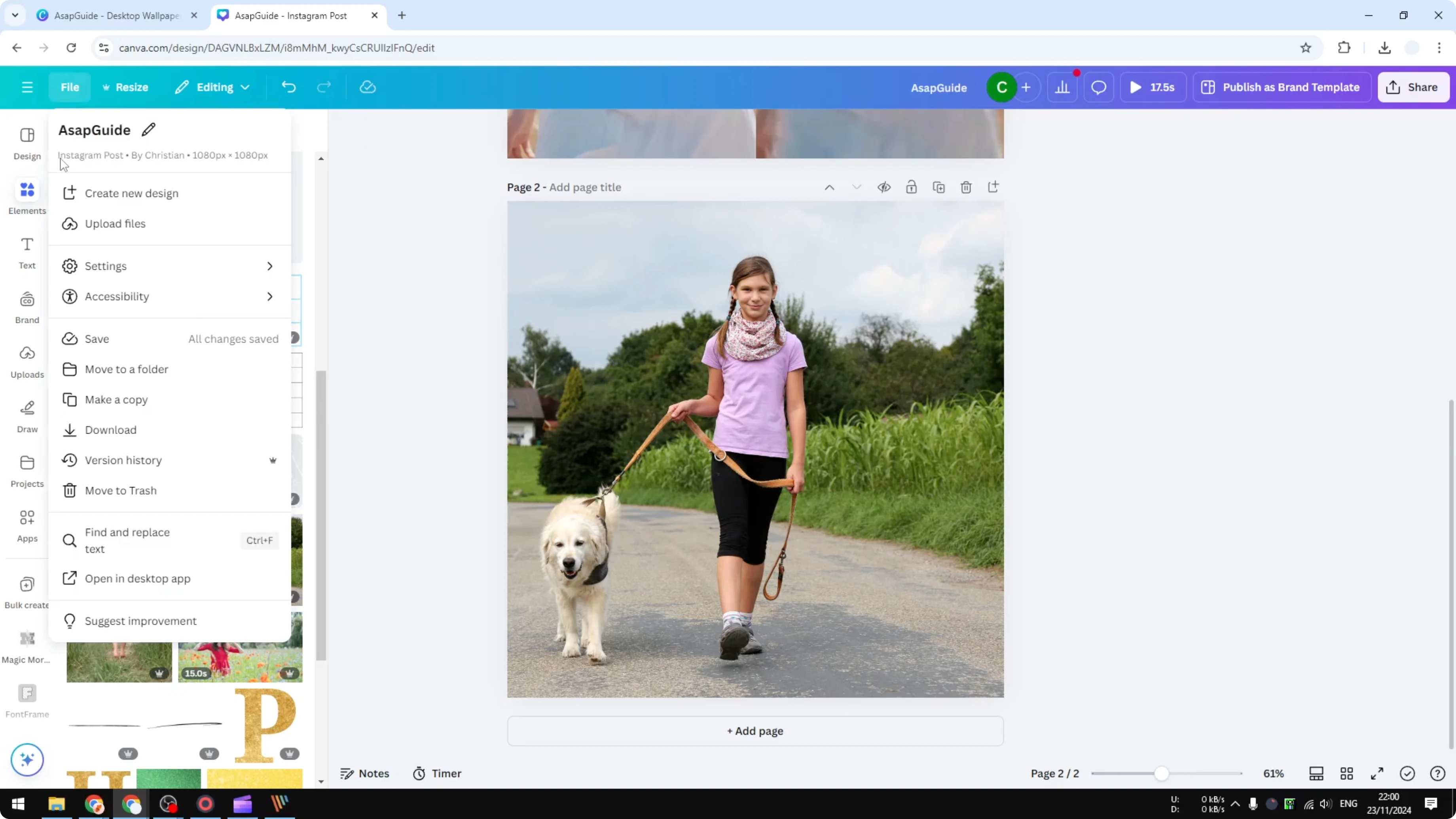
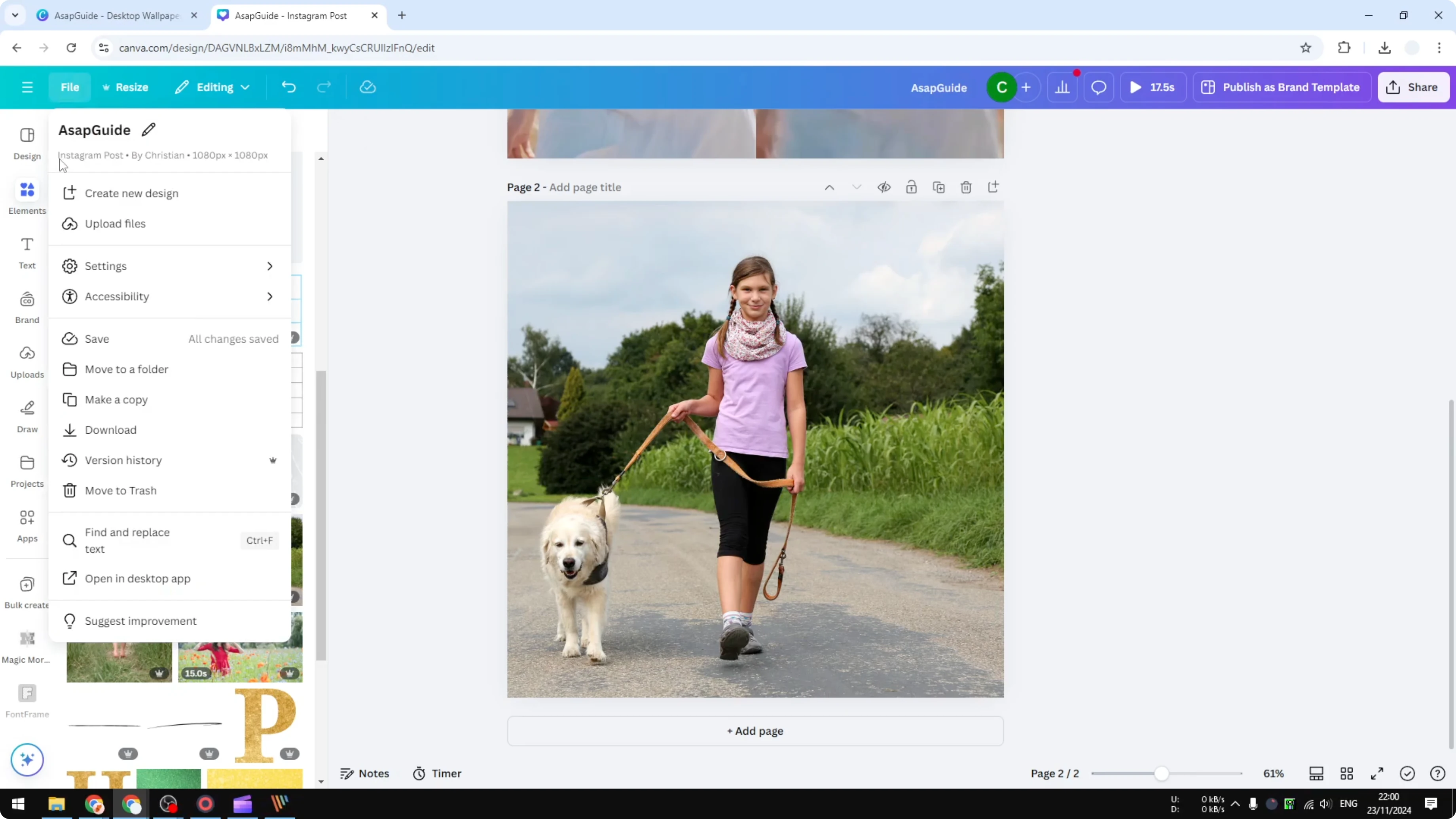
In this case the document is an Instagram post. It is a square picture. That is a simple way to know the dimension of the design.
If you need a specific size next time, see custom dimensions.
Rulers and guides
You can also do this by using rulers. Although this is not exactly easy, if you are interested you can definitely do it.
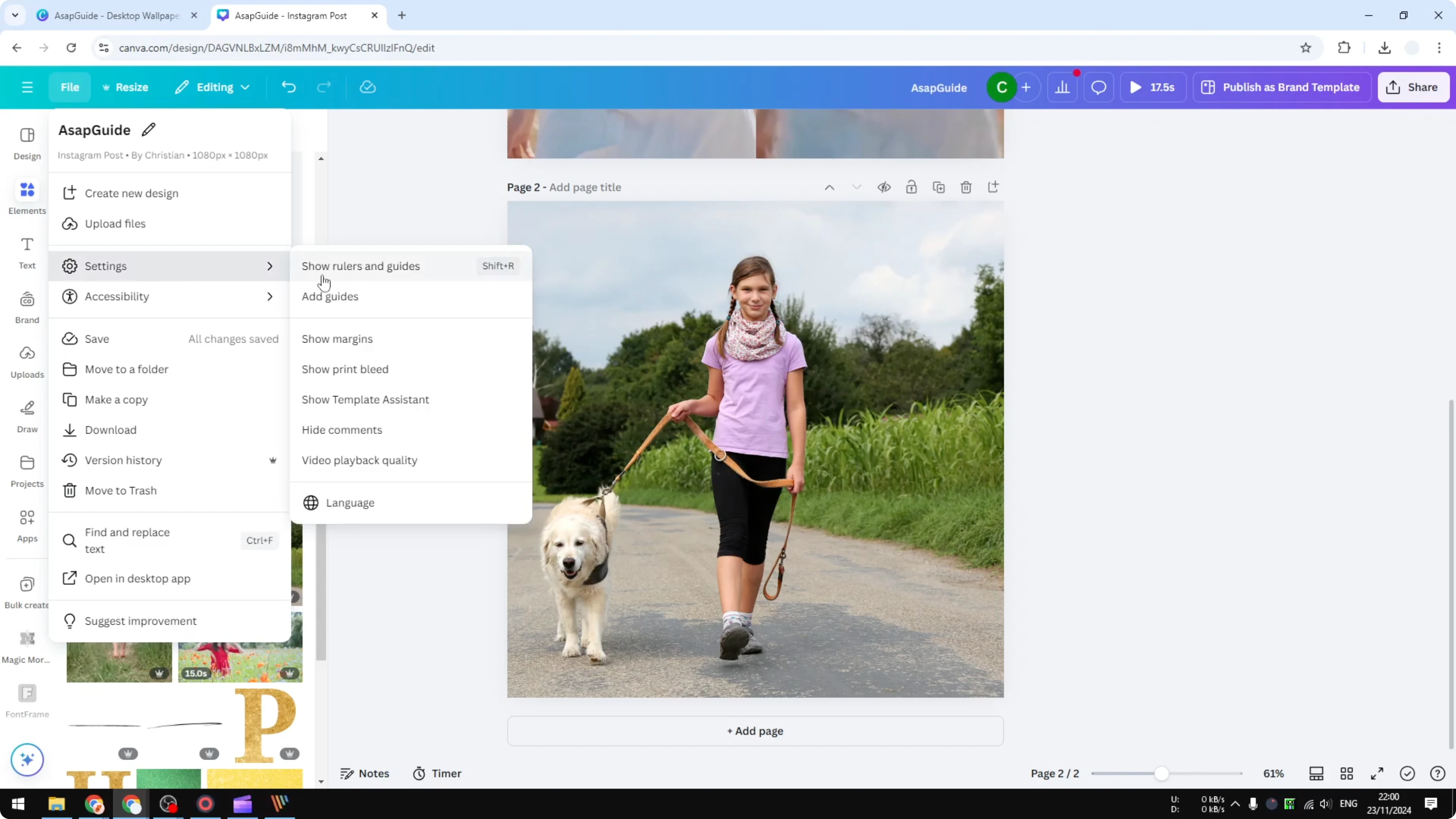
Go to the File menu.
Click Settings.
Enable Show rulers and guides.
You will see the horizontal ruler.
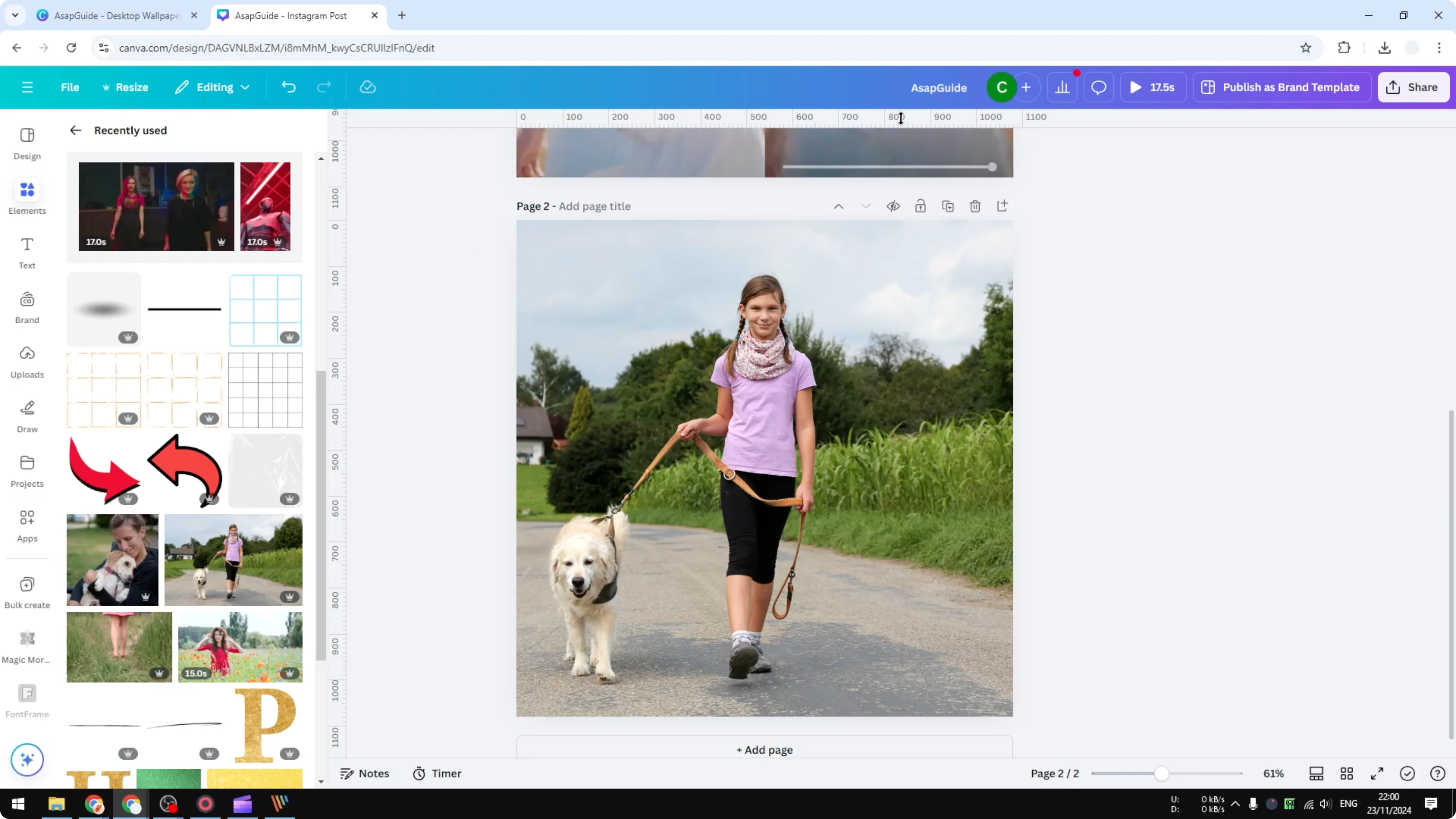
You can see it is about 1080.
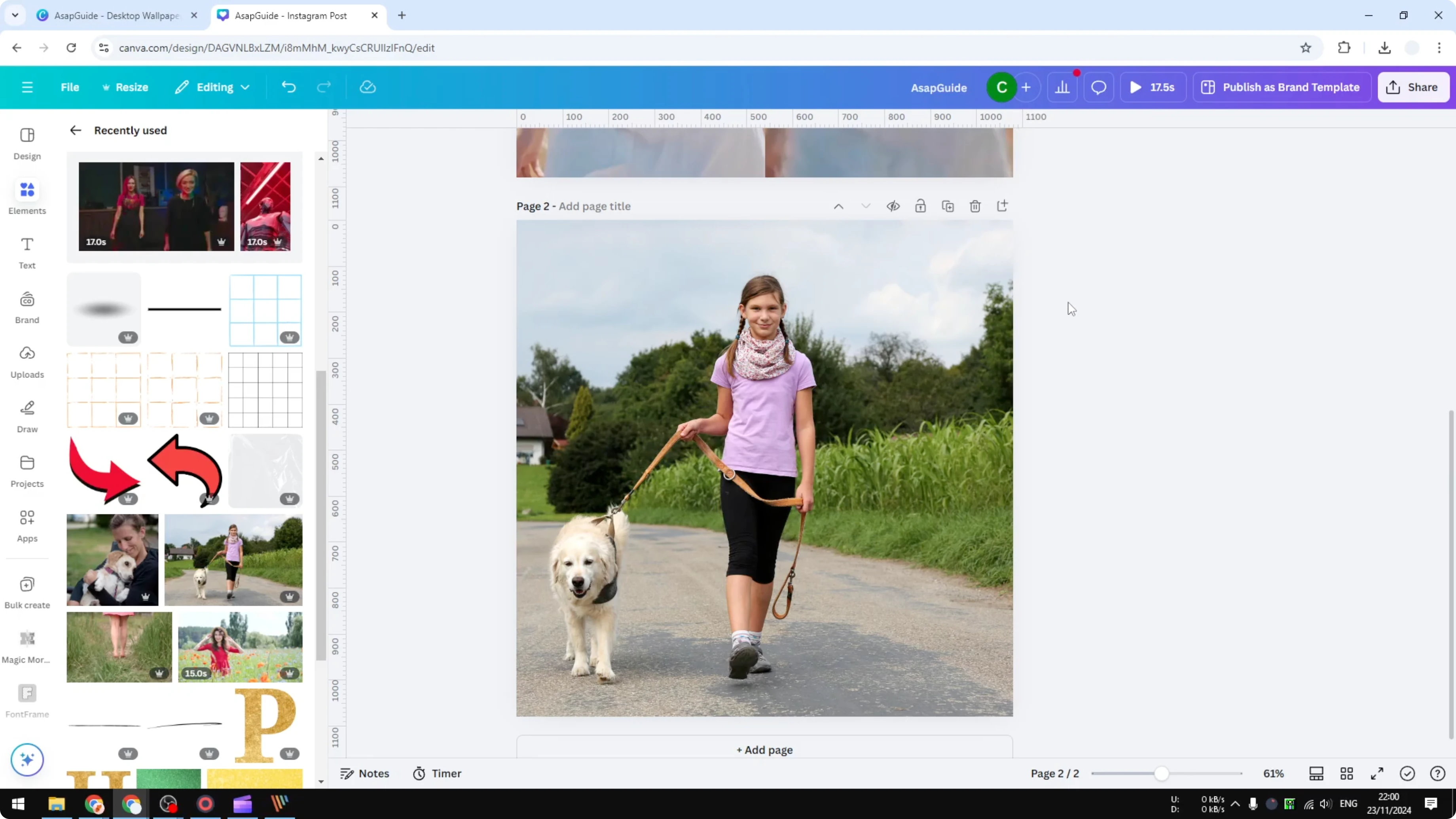
It is fairly accurate to the previous number.
You can see the numbers run from 0 to about 1080.
If you want to move a page to another design while keeping size context, check copy pages.
Share and download
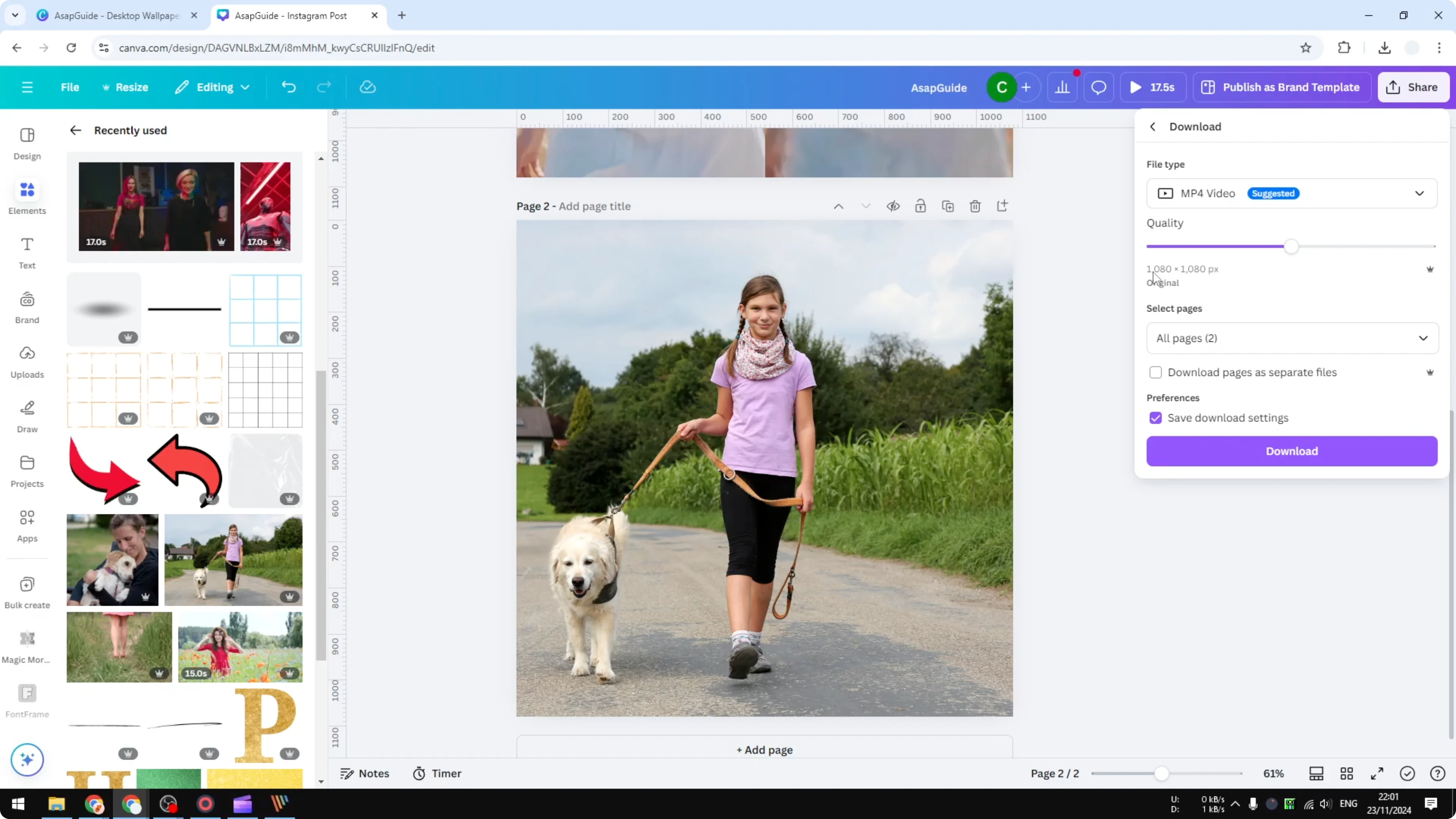
Another thing that you can try is going to Share and clicking Download. In the Original size section you can see the dimension of this particular document.
Read More: How To Make Canva Ai Design Anything For You
Final thoughts
You can check dimensions quickly from the File menu, confirm them with rulers if you like, or read them in the Download panel under Original size. Each method points to the same numbers, so use the one that feels fastest to you. This makes it easy to verify sizes before exporting or repurposing your design.
Recent Posts

How to Visualize Yourself as a Pixelized Character with AI?
How to Visualize Yourself as a Pixelized Character with AI?

How to Revive Faded Memories and Enhance Image Clarity with AI?
How to Revive Faded Memories and Enhance Image Clarity with AI?

How to Visualize Yourself as an Animal Crossing Character with AI?
How to Visualize Yourself as an Animal Crossing Character with AI?