How to Set Custom Dimensions in Canva
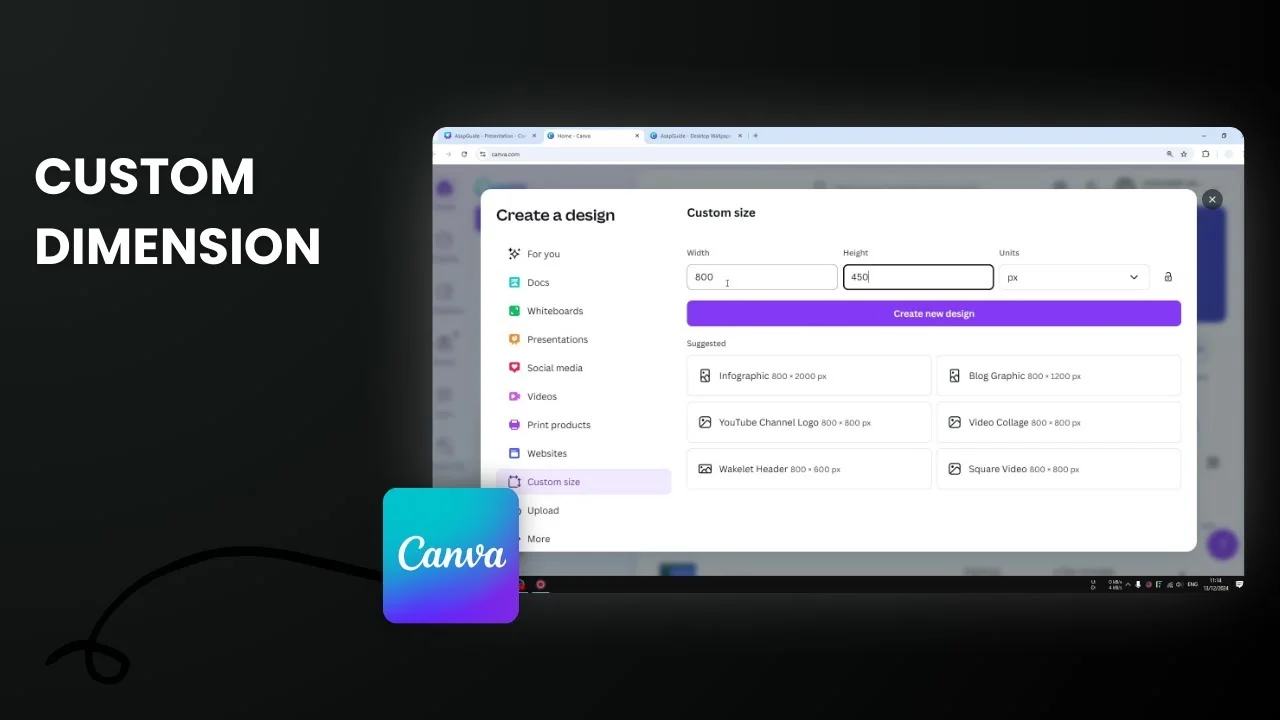
You can start a new template in Canva using a custom shape or a custom aspect ratio. Canva has a lot of aspect ratios or templates like:
- 9 by 16
- 16 by 9
- 3 by 2
- 1 by 1
Sometimes you want to get a very specific dimension that is not the kind of dimension that is known or popular. In that case you want to create a custom template dimension.
Set Custom Dimensions in Canva
Start a new design
Follow these steps:
- Open Canva and navigate to the homepage.
- Click Custom size.
- Specify the width and the height of the canvas. For example, 800 by 450.
- Select the unit: pixels, inches, millimeters, or centimeters.
- Click Create.
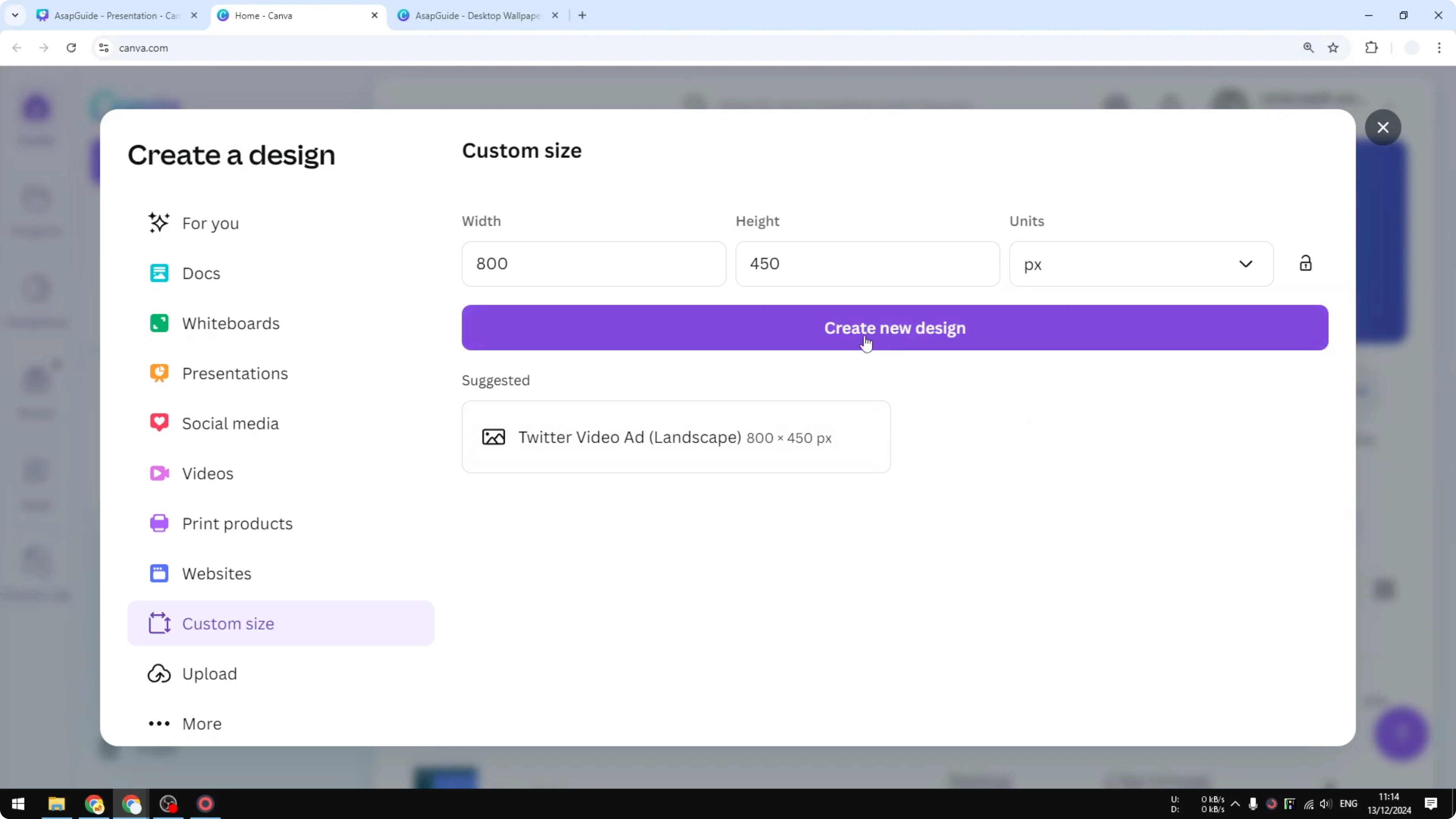
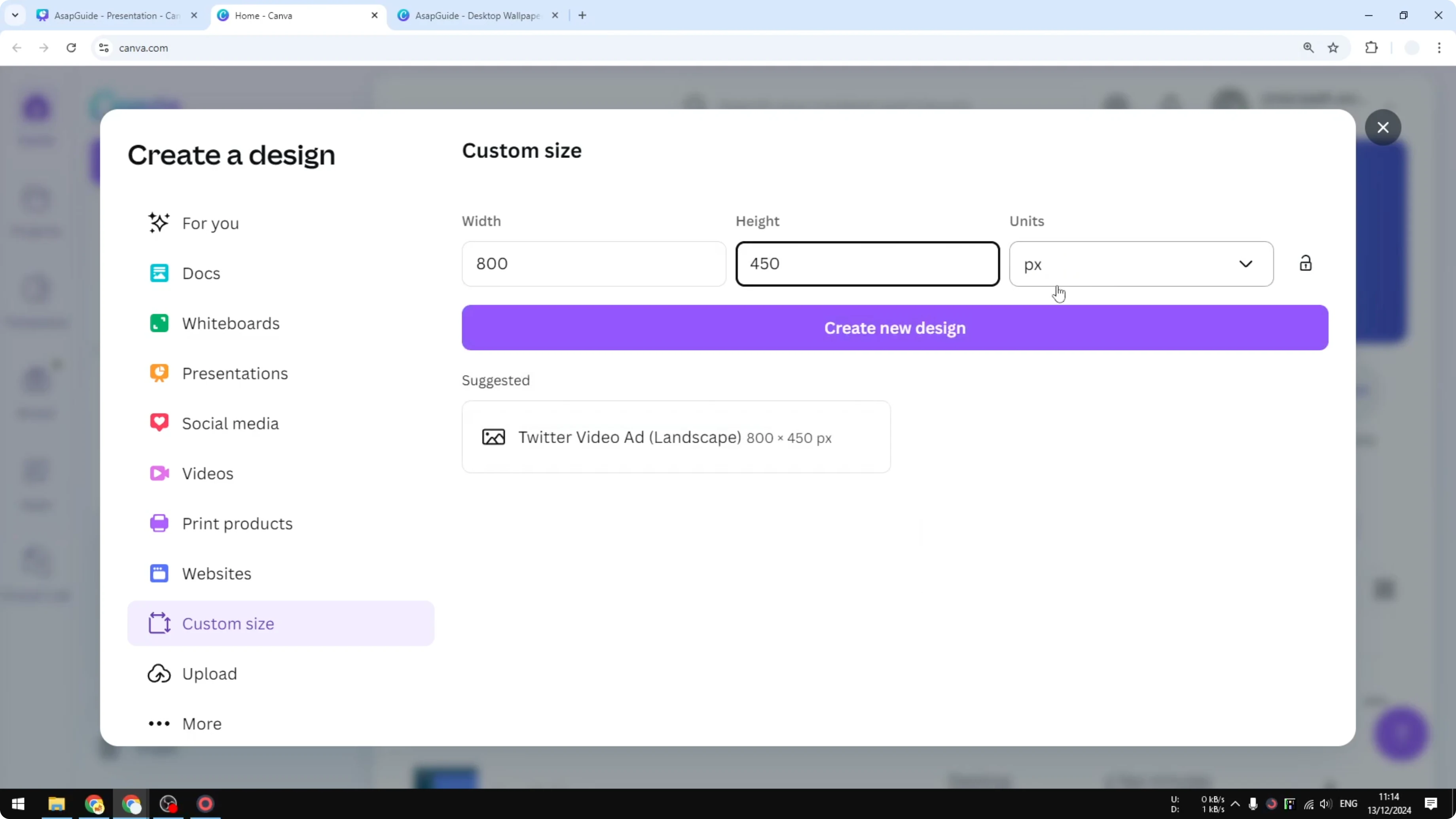
This is just one example, of course.
Resize an existing design
If you already opened a template, you can still customize the dimension.
- Click Resize.
- Click Custom size again.
- Specify the number, like 800 by 300, which is not very common.
- Choose one of these options:
- Copy and resize will create a copy of this document but will have a new dimension.
- Resize this design will just resize this current document.
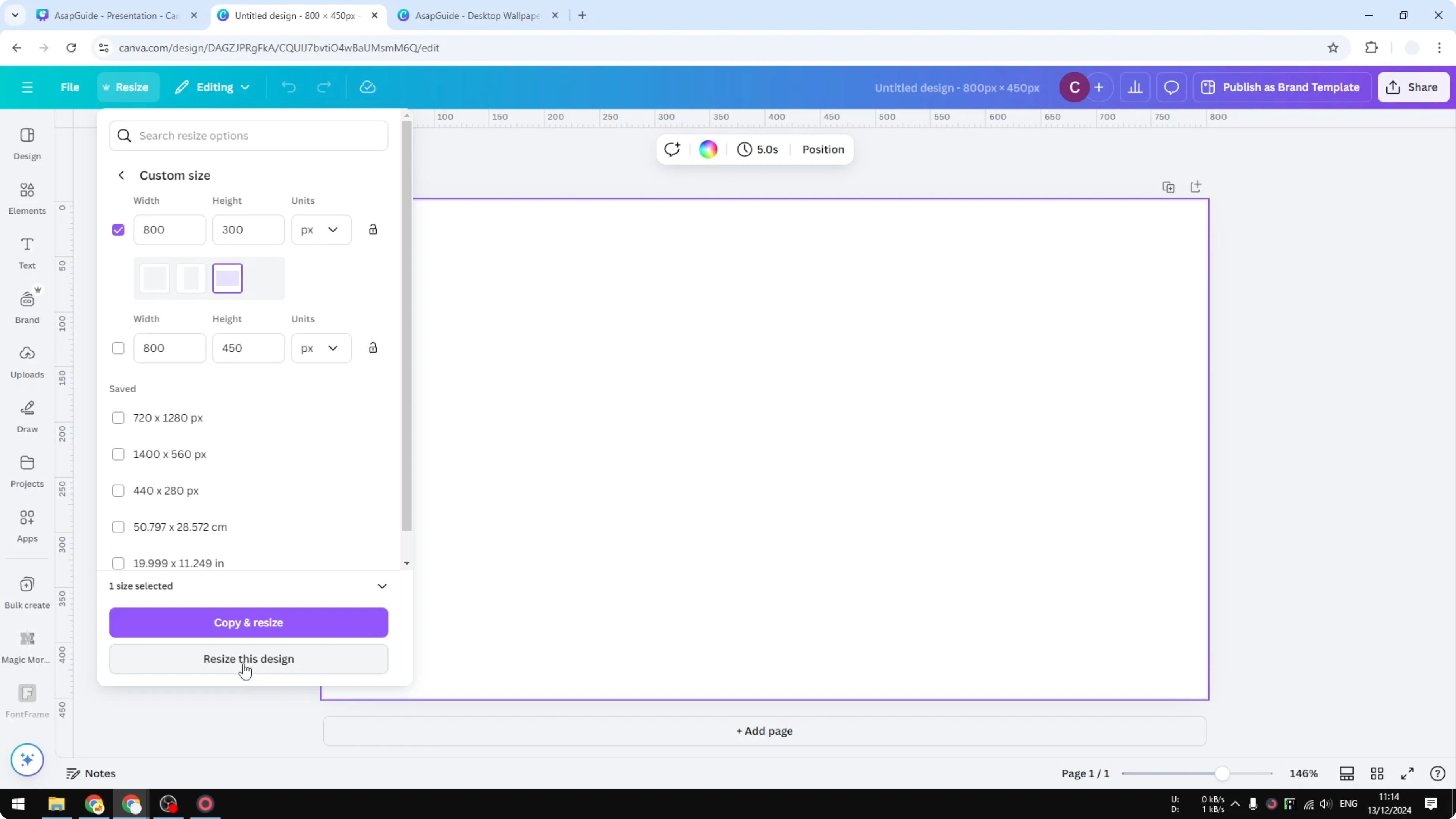
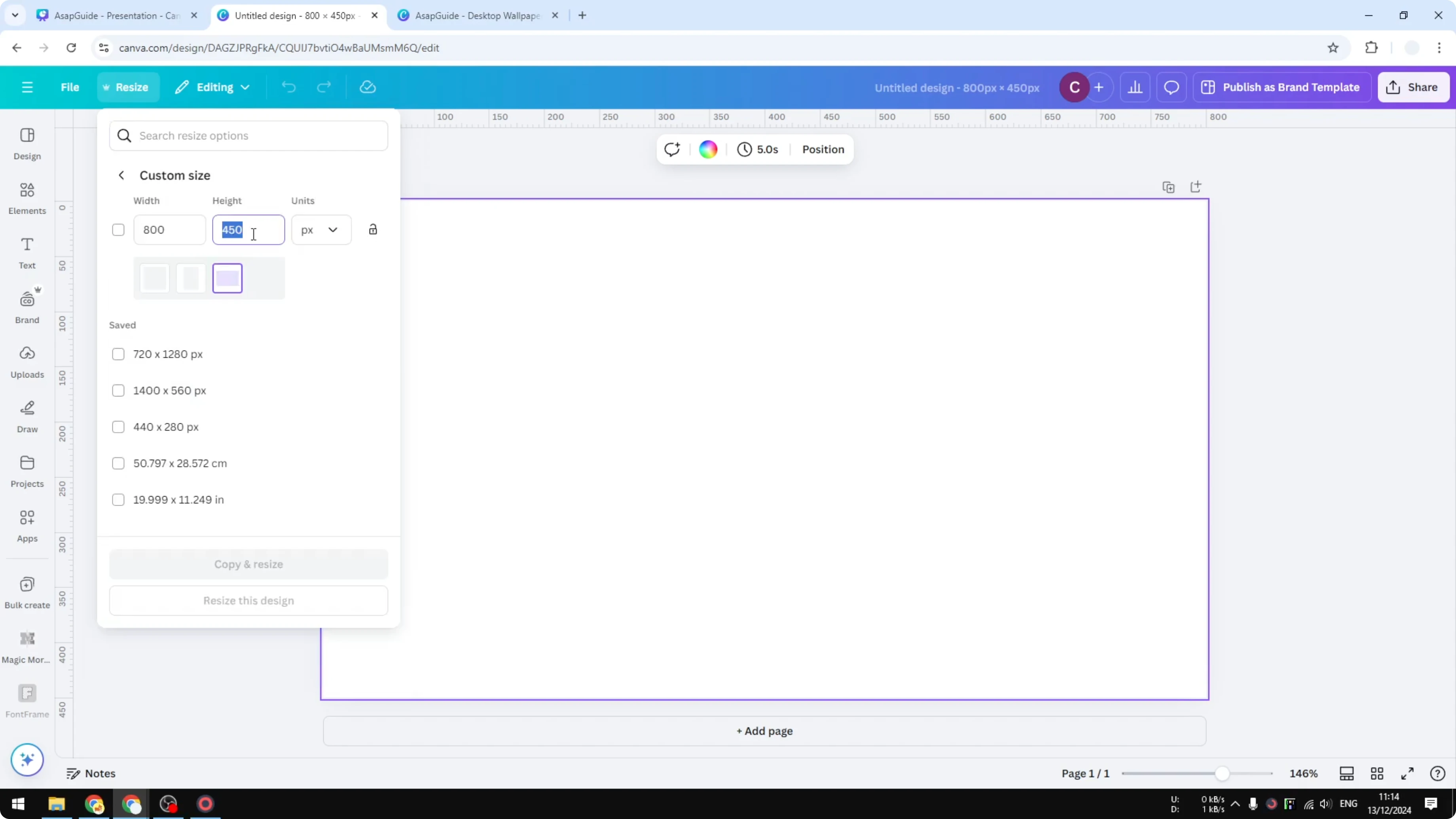
I select the option to resize this design since this document is empty, but if you are working on a project, it is a good idea to create a copy.
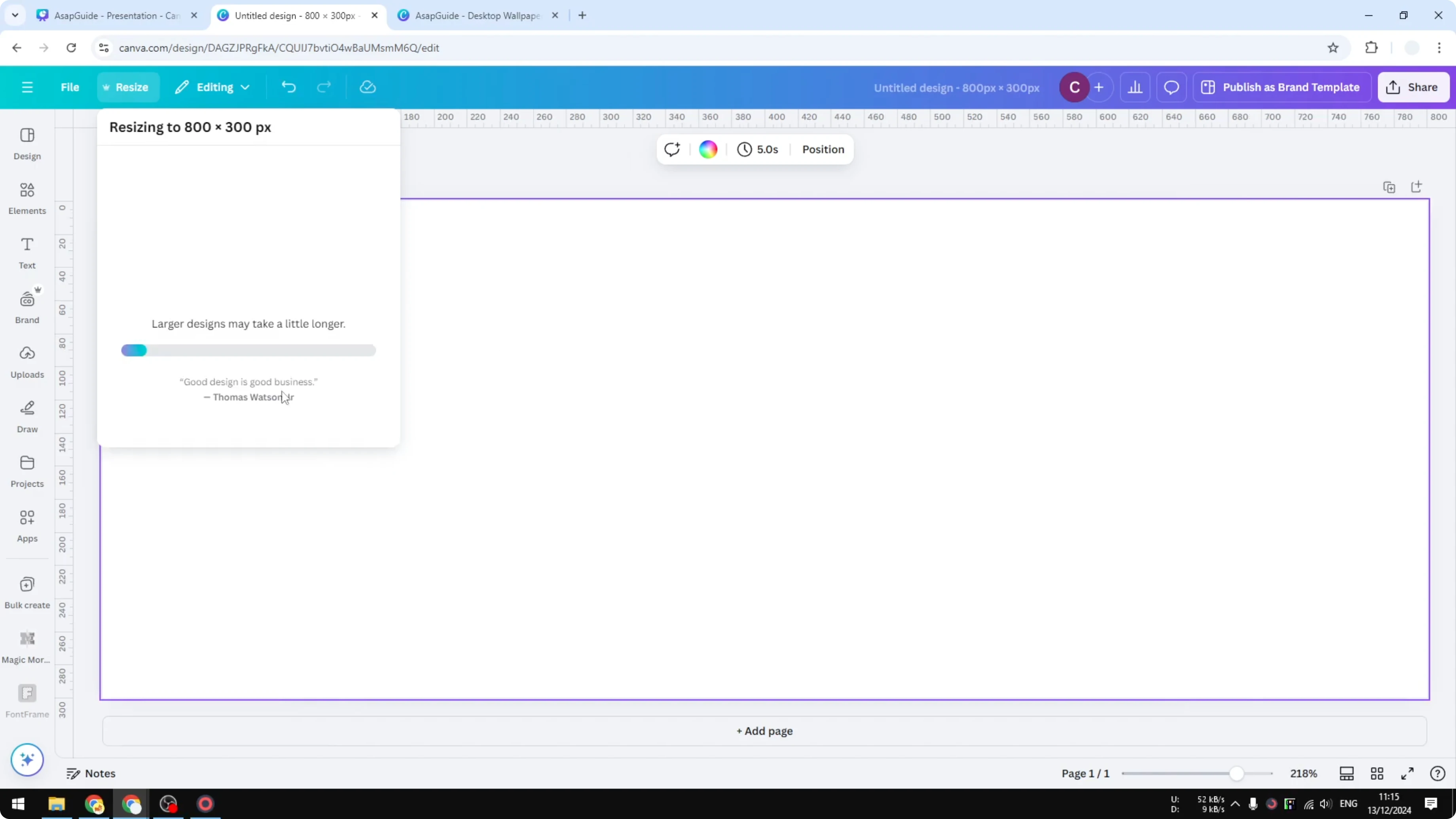
Click Resize this design and Canva will reload the page and give you the same document with a new dimension.
Final Thoughts
That is how you can set a custom dimension in Canva, either by starting a new design or resizing an existing one.
Recent Posts

How to Visualize Yourself as a Pixelized Character with AI?
How to Visualize Yourself as a Pixelized Character with AI?

How to Revive Faded Memories and Enhance Image Clarity with AI?
How to Revive Faded Memories and Enhance Image Clarity with AI?

How to Visualize Yourself as an Animal Crossing Character with AI?
How to Visualize Yourself as an Animal Crossing Character with AI?