How to Make Canva AI Design Anything for You
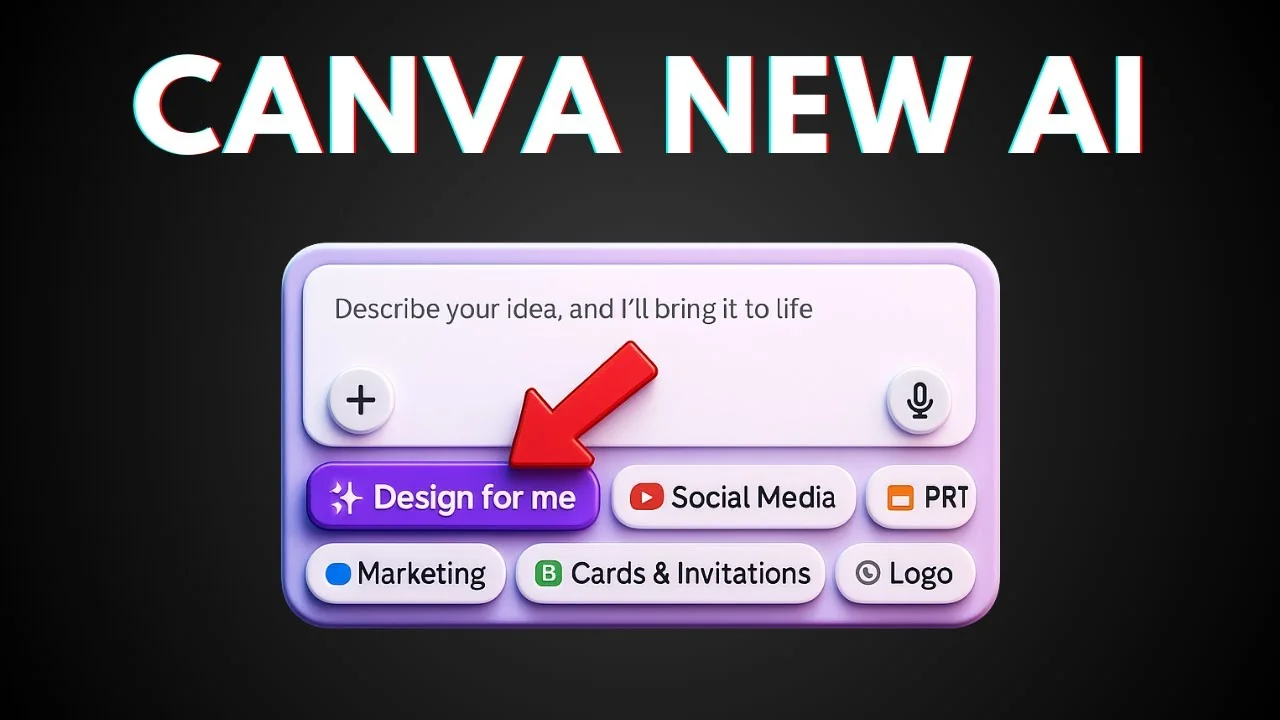
Canva just released a new feature called Canva AI. This lets you generate a design or an initial concept with simple prompting. Go to canva.com, open Canva AI, and describe the design you want it to generate.

I’ll show how I make Canva AI design anything for you, from a quick YouTube thumbnail to an interactive card.
Make Canva AI Design Anything for You: Getting Started
Keep your prompt simple. From my testing, it’s not very useful to write a long prompt for the design mode. Canva AI usually doesn’t care too much about the detail here. There is another mode that lets you prompt with great detail, but I’ll get to that later.
Copyright is a factor. It is quite sensitive with copyrighted material. You cannot say something like Star Wars design or Avengers design. It tends to not be able to proceed with that request.
Make Canva AI Design Anything for You With “Design for me”
I’ll create a simple YouTube thumbnail.

Step-by-step:
- Enable Design for me.
- Select a category like Social media. You can also choose Presentation, Marketing, Cards, and others.
- Enter a short prompt. Example: generate a YouTube thumbnail for a video titled “Amazing Facts About Golden Retriever.”
- Send the prompt.

Generation usually takes less than 20 seconds and produces up to four designs at the same time. Pick the one that looks best, or ask Canva AI to create more designs, add more pictures, or change the color. You can also just write a new prompt in the input.
In the simple editor, you can:
- Change the text
- Change the image
- Change the color

For example, I changed the text to “ASP guide channel” and “Golden Retriever Amazing Facts,” then submitted. If you want to change the color, get more color inspiration, but note that the color is randomly generated.
For full control, click Use Canva editor. That opens the regular Canva editor, where you can:
- Change the picture
- Adjust positions
- Add more elements
- Share and download the image to your computer

Make Canva AI Design Anything for You With “Code for me”
There is another mode called Code for me that allows you to create more interactive and interesting designs.
Prompting with detail
In this mode, you can be very specific. You can specify the color, position of elements, images to use, and more. It generates an HTML page, so it feels like coding with prompts inside Canva to create a design.

Example prompt:
- Create a birthday card with interactive elements where each letter will explode confetti when clicked.
Generation quirks
Sometimes you will see a message like “I’m not sure how to respond.” This happens quite often for some reason. You can try the same prompt again and it may proceed. It feels like it’s still in beta and has some problems, but hopefully it will be fixed soon.

Interactivity and editing
When the design is ready, click a letter and you’ll see the confetti effect. I noticed a cursor at the end of a letter, which came from the browser, not the design. Overall, the result looks great from a simple prompt.

You can click Use in design to modify the design, such as changing positions or sizes, but you cannot edit the code there. To edit the code, go back to Canva AI and adjust the prompt that defines the code behind the elements.
Publishing and downloads
You can download the image, but it will not be interactive anymore. Publish it as a website if you want people to experience the interactive design.

Final Thoughts on Make Canva AI Design Anything for You
For quick concepts, keep prompts short in Design for me. Expect fast generation with multiple variations, quick text and color tweaks, and the option to move into the full editor for detailed changes. If you need precise layout or interactive effects, use Code for me, be specific in your prompt, and be ready to retry if it stalls. Publish interactive results as a website and use the editor for visual refinements. This is a quick way to go from idea to working design.
Recent Posts

How to Visualize Yourself as a Pixelized Character with AI?
How to Visualize Yourself as a Pixelized Character with AI?

How to Revive Faded Memories and Enhance Image Clarity with AI?
How to Revive Faded Memories and Enhance Image Clarity with AI?

How to Visualize Yourself as an Animal Crossing Character with AI?
How to Visualize Yourself as an Animal Crossing Character with AI?