How to Copy Canva Page from One Design to Another
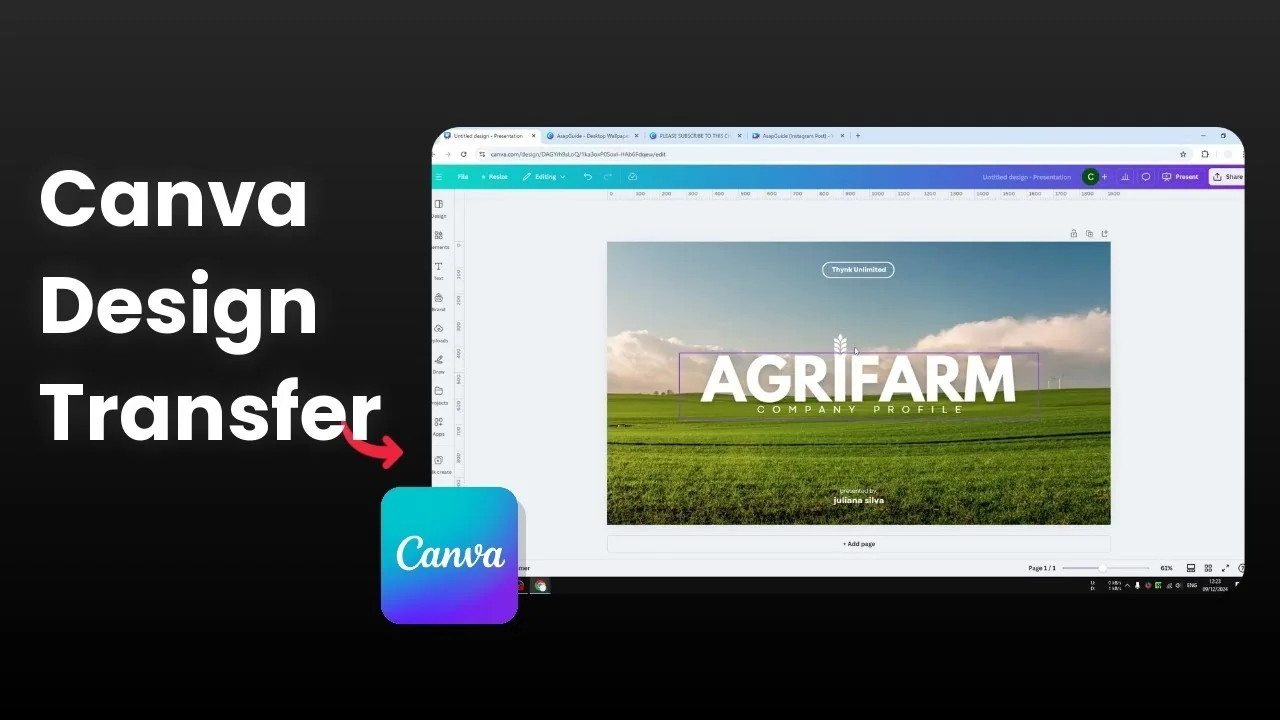
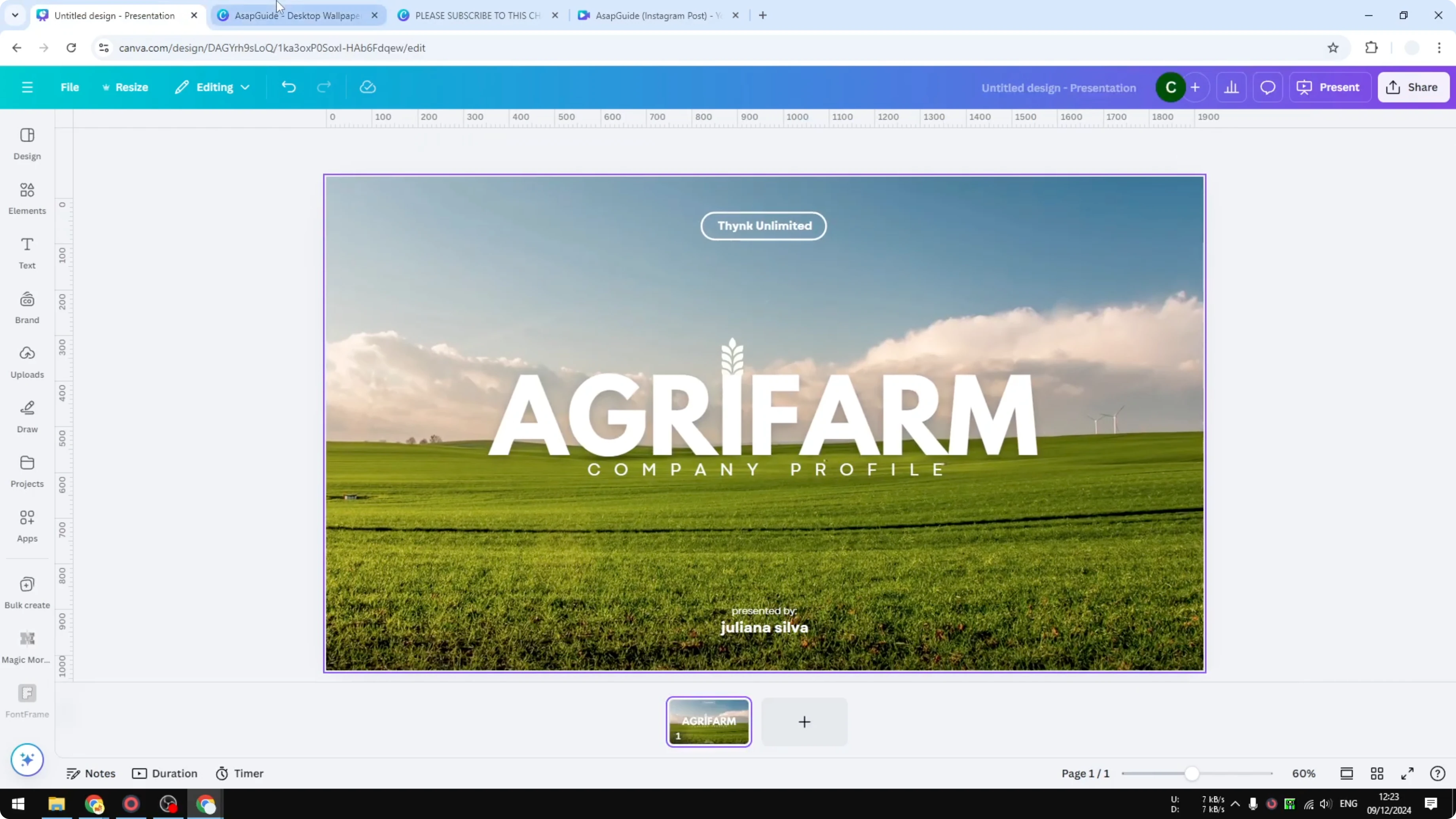
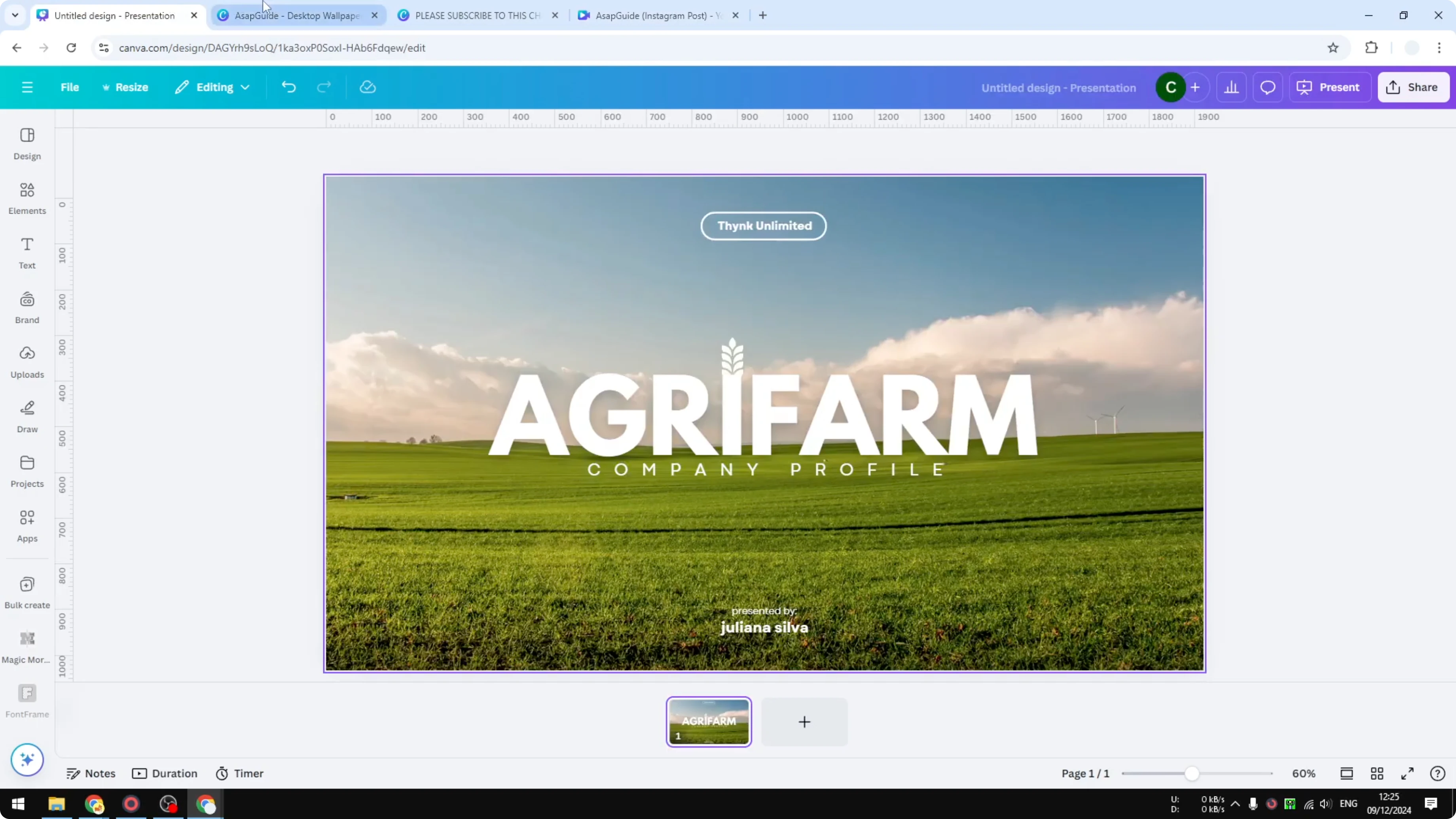
This is the original Canva document. My goal is to copy this whole design to three other pages with different aspect ratios. I want everything to fit in these three documents.
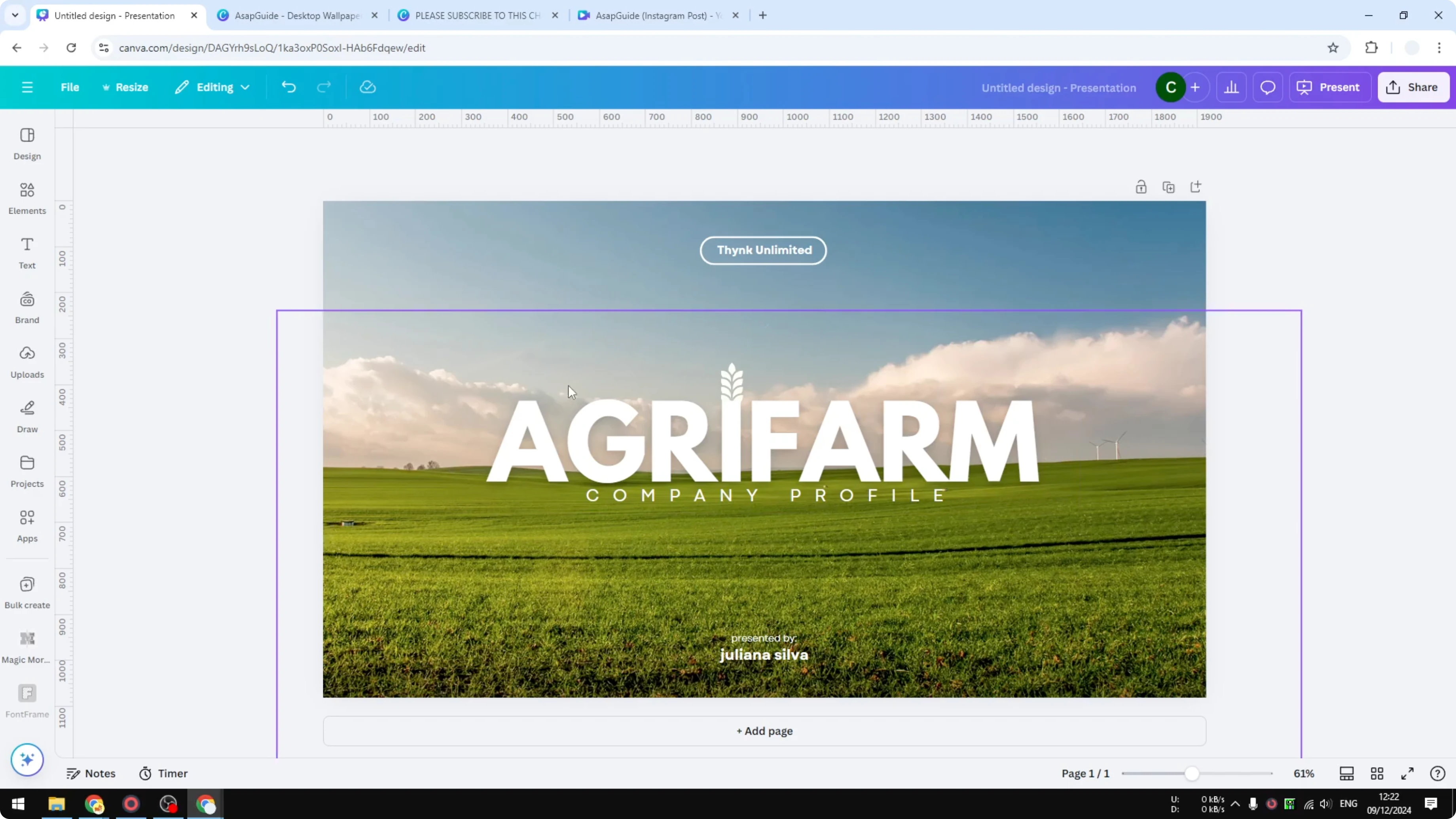
Here is how you can do that.
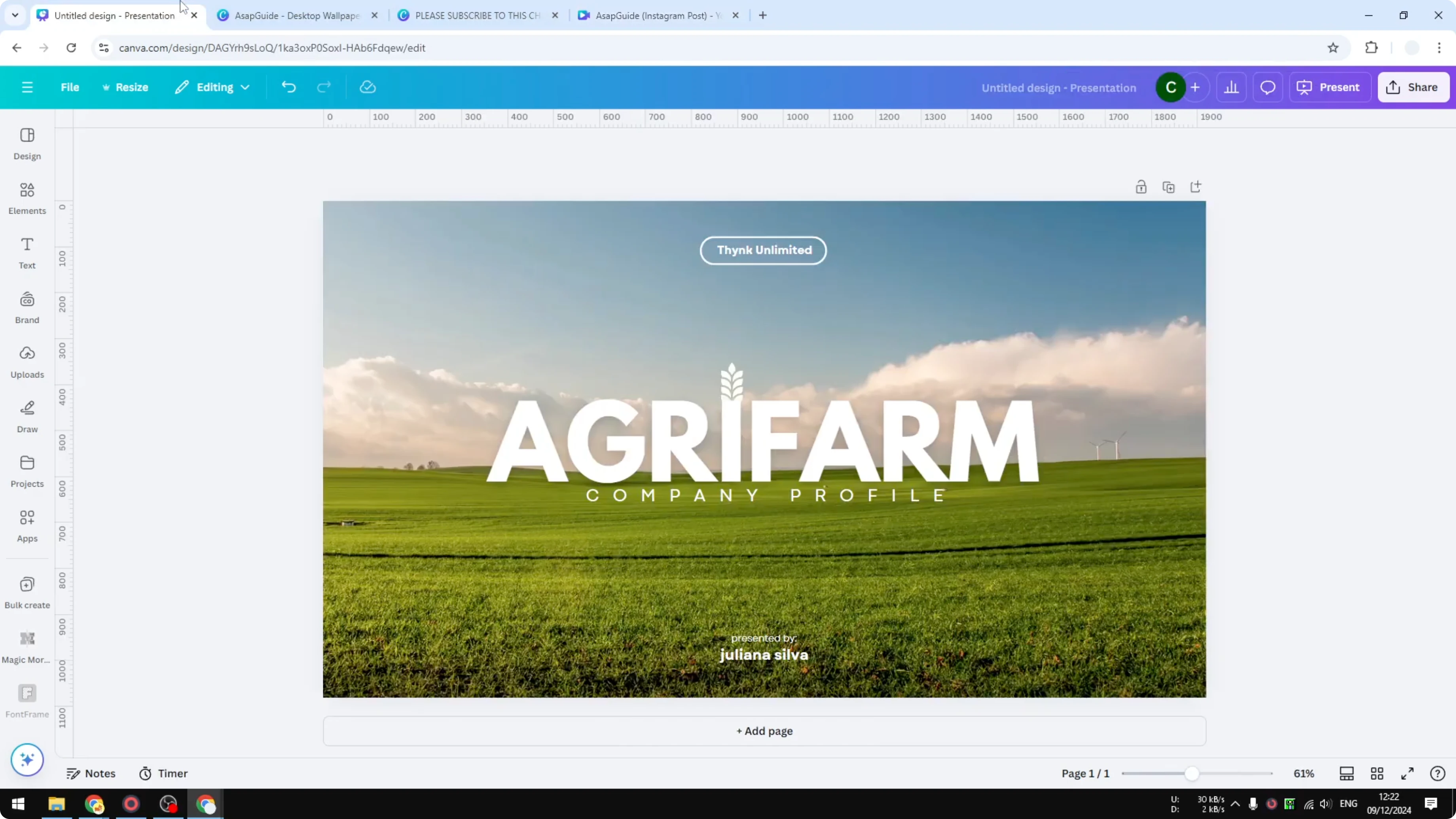
Common mistake
Most people try to copy a page from one Canva document to another by selecting all the elements with Ctrl+A or Command+A, then pressing Ctrl+C or using right click and Copy. They paste that into a new document in Canva. This method is not the best because you are not getting the background, which is probably the most important element for the whole design.
That is why this method does not work well.
Copy Canva Page from One Design to Another - the right way
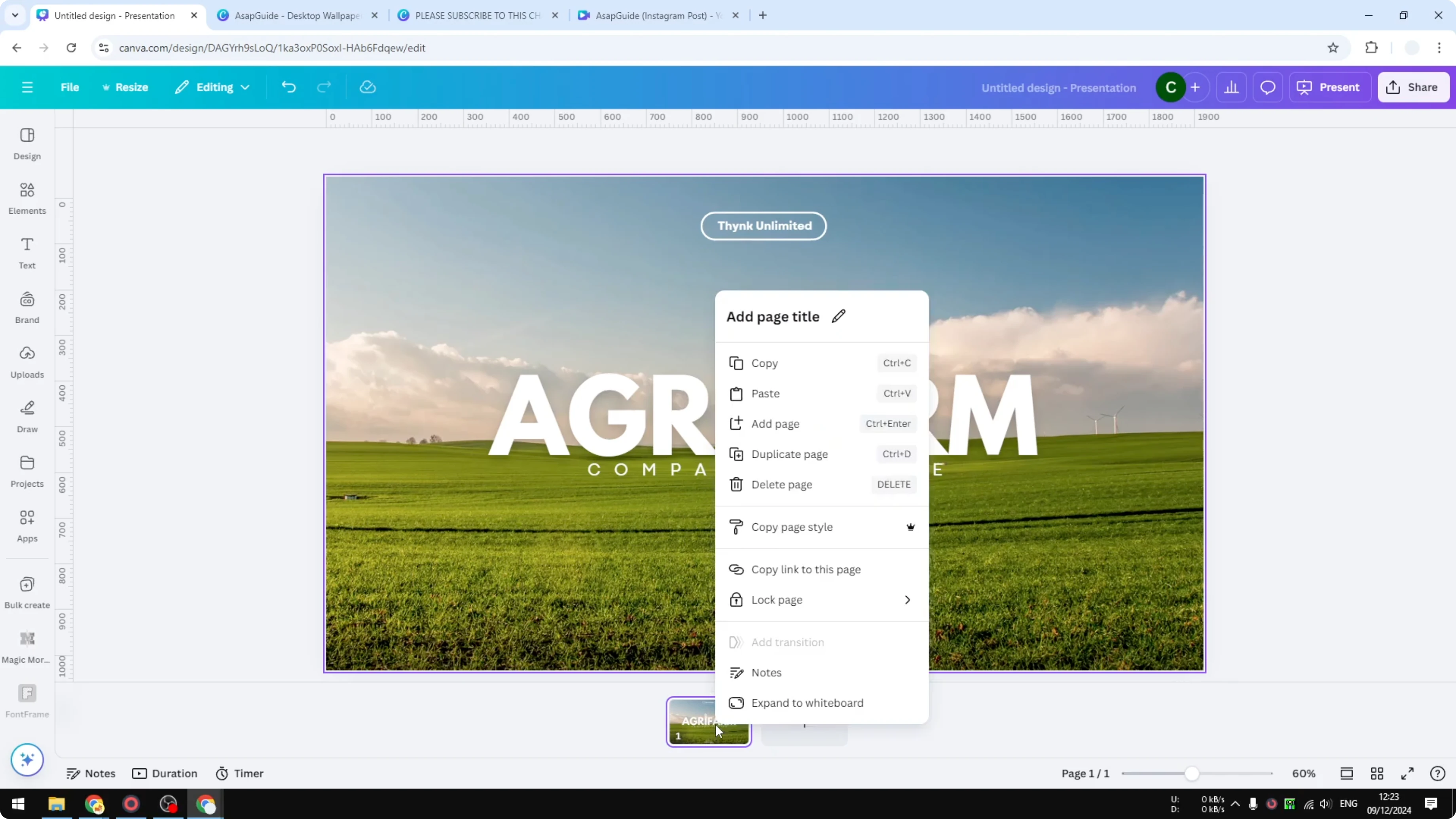
Open the thumbnail view. This opens the sidebar area with page thumbnails. This part is important.
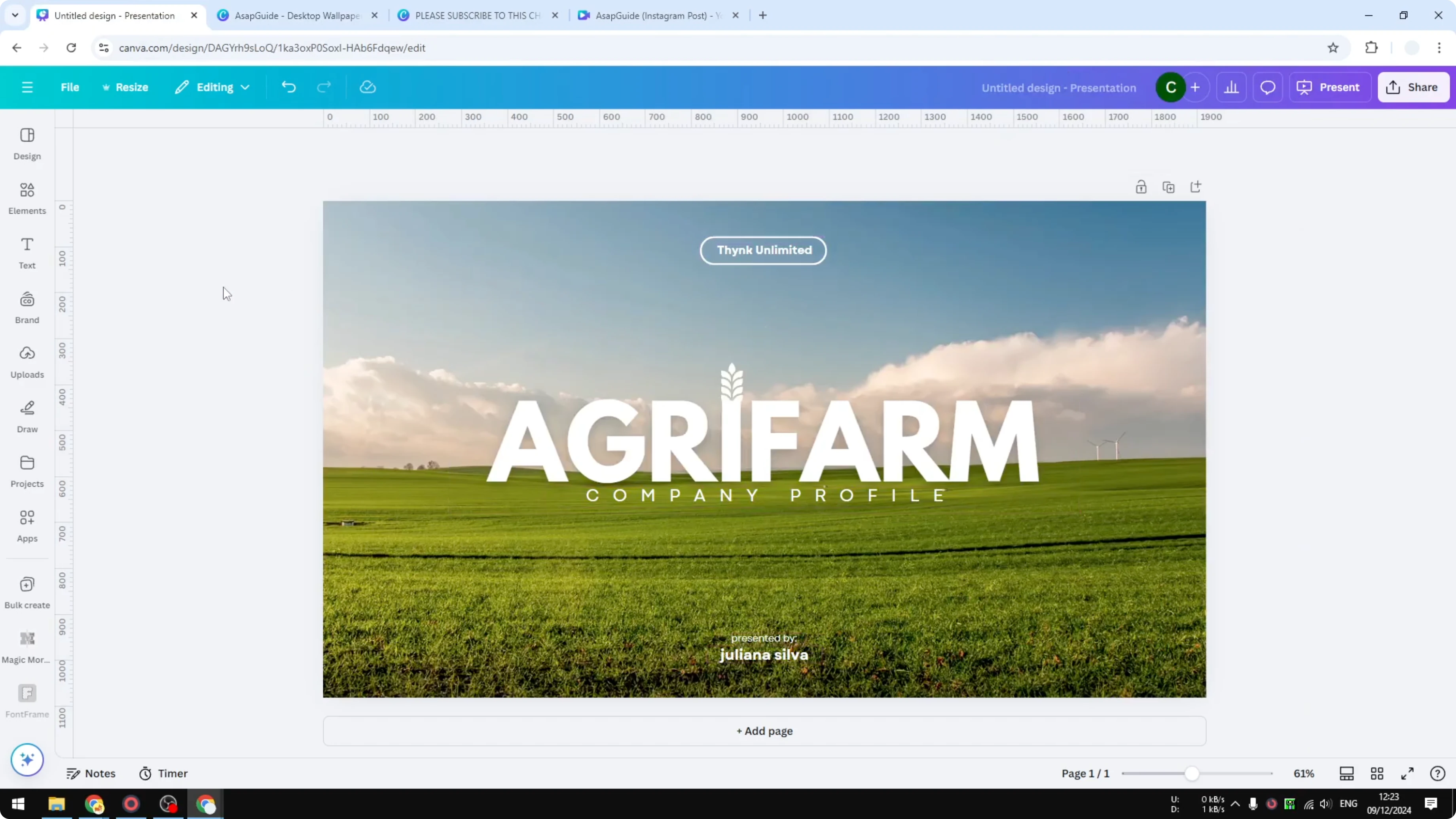
Right click on the page thumbnail and click Copy.
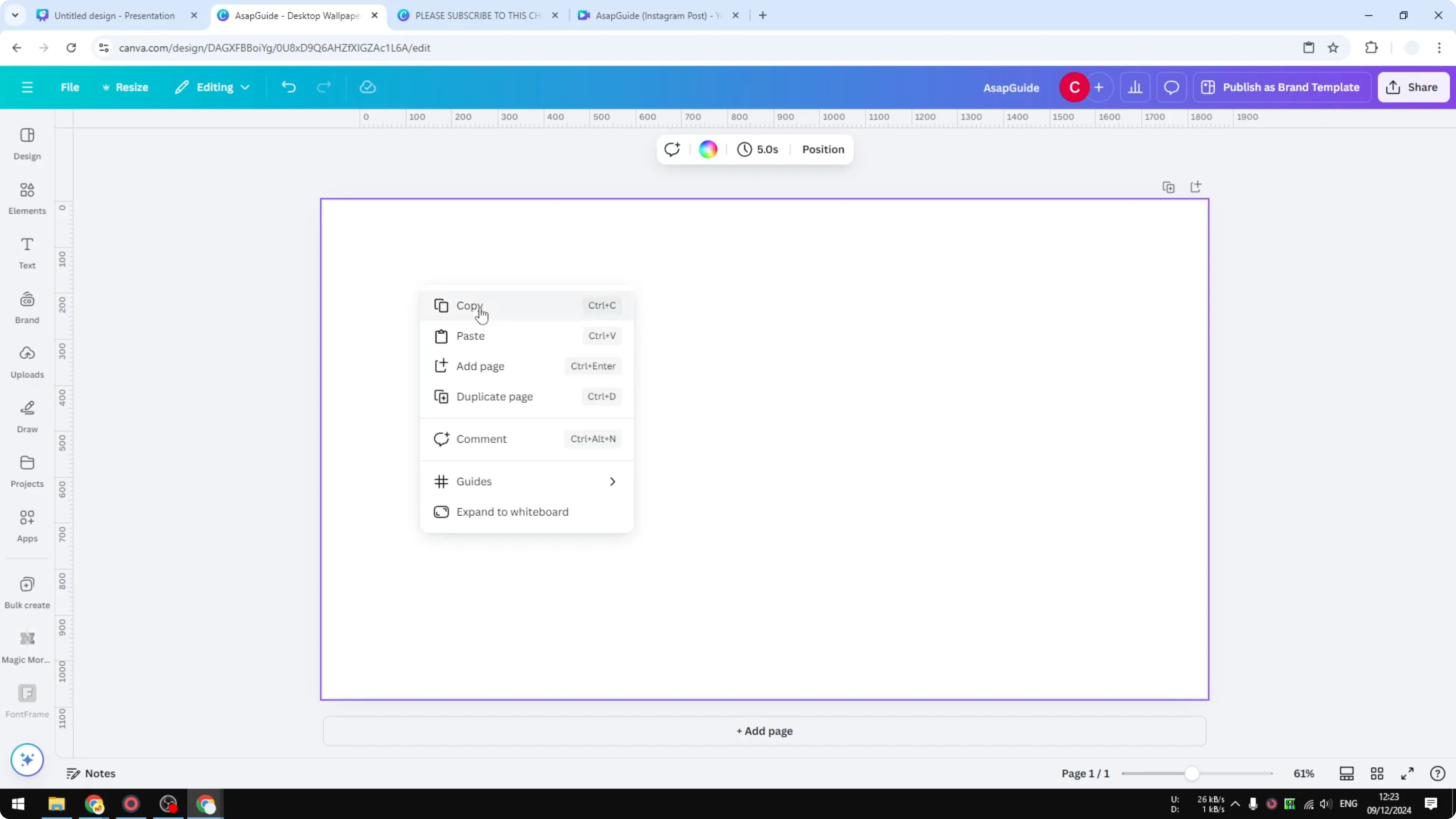
Go to the other document. Right click and click Paste, or press Ctrl+V.
This gives you exactly the same page as the previous document. They are exactly the same even if one is a presentation and the other is a wallpaper.
Square format
For a document with a square dimension, the process is the same. Right click on the thumbnail, click Copy, then right click on the new document and click Paste. Canva will automatically redesign everything into the new aspect ratio.
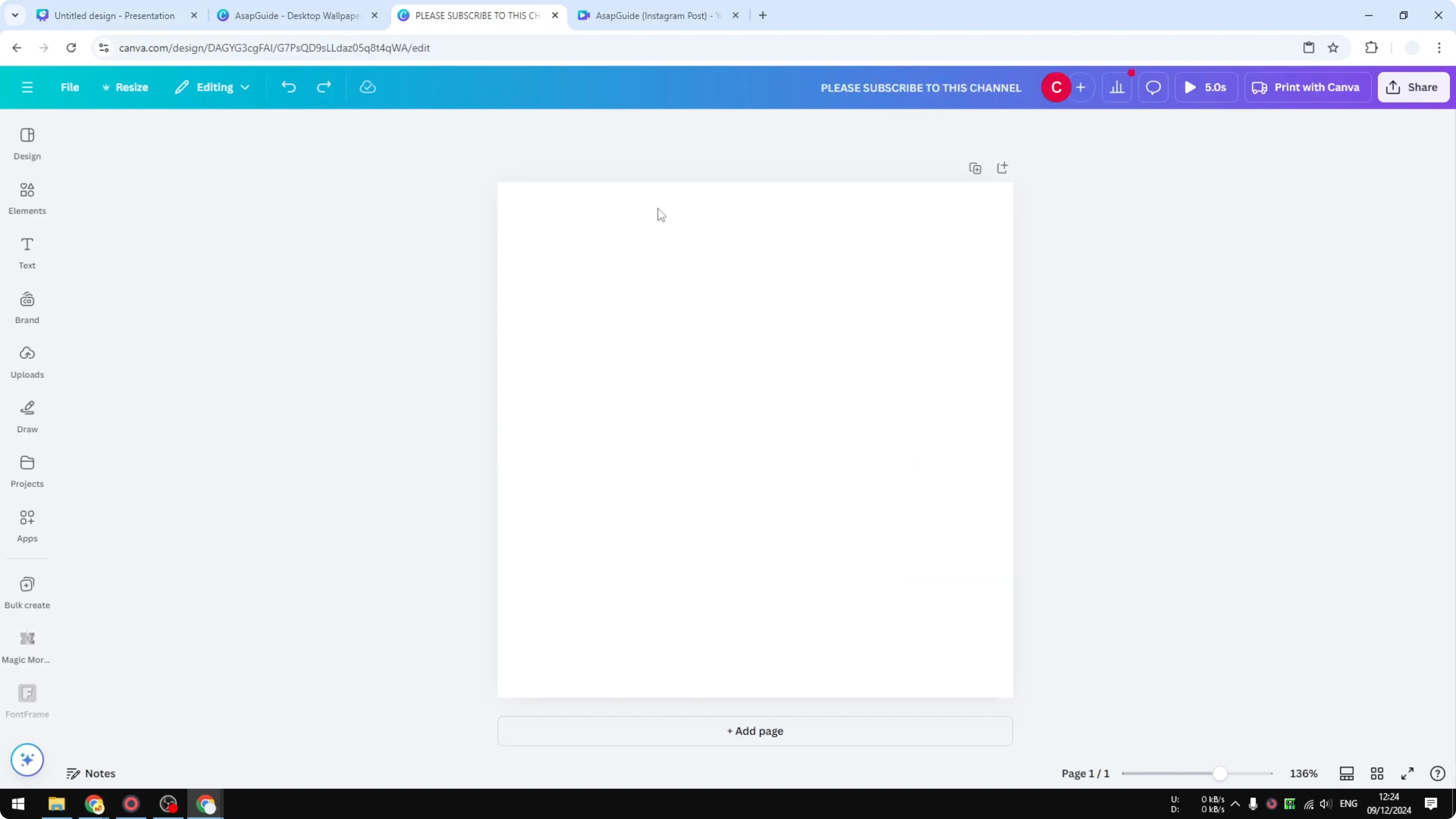
Sometimes the result is good, and sometimes it is not very good. This is the best you can do if you do not want to redesign everything from scratch.
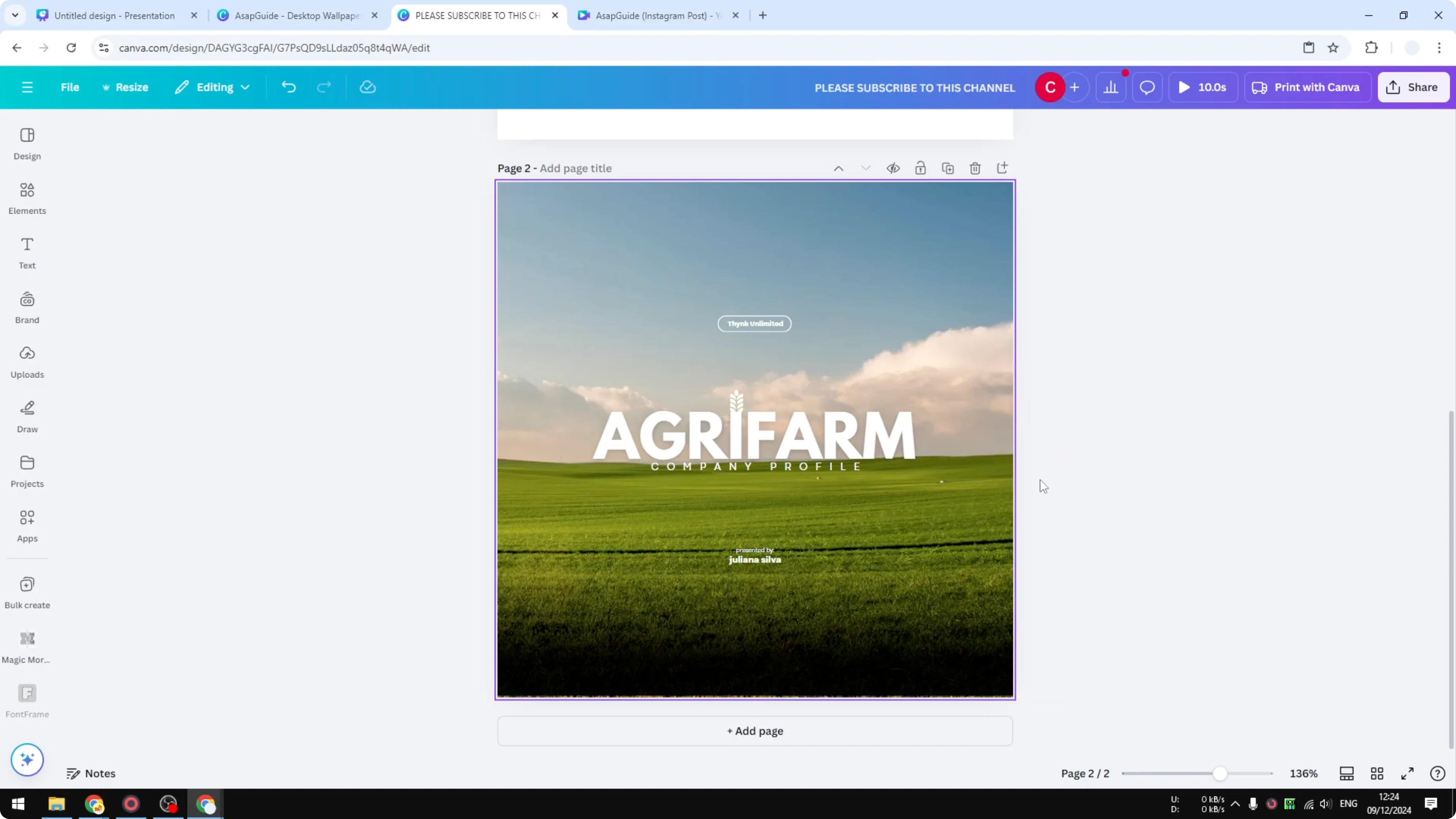
9:16 format
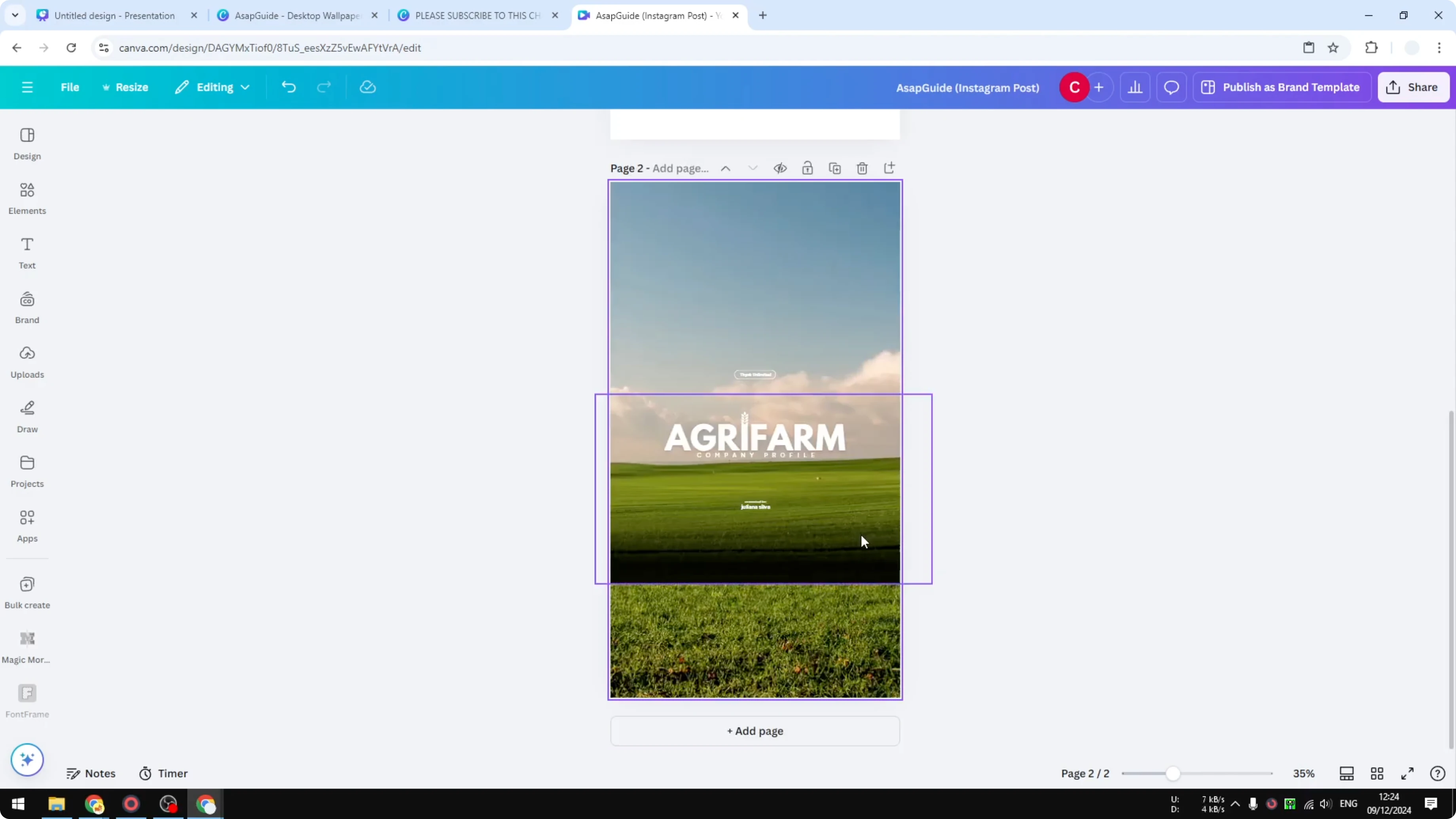
Try the same thing for a new 9 by 16 aspect ratio, which is the opposite of the original document. Copy, paste, and check the result.
There may be a few things to fix manually, like an element that should be at the very bottom. Sometimes you get something very similar, and sometimes you have to do your own editing. I think the results are pretty good.
Final thoughts
That is how you can copy a Canva page from one document to another without having to redesign everything from scratch. Use the page thumbnail copy method so the background and layout come along, and let Canva adapt the design to new aspect ratios. Expect small manual adjustments on formats like square or 9 by 16.
Recent Posts

How to Visualize Yourself as a Pixelized Character with AI?
How to Visualize Yourself as a Pixelized Character with AI?

How to Revive Faded Memories and Enhance Image Clarity with AI?
How to Revive Faded Memories and Enhance Image Clarity with AI?

How to Visualize Yourself as an Animal Crossing Character with AI?
How to Visualize Yourself as an Animal Crossing Character with AI?