How to Stretch Letters in Canva
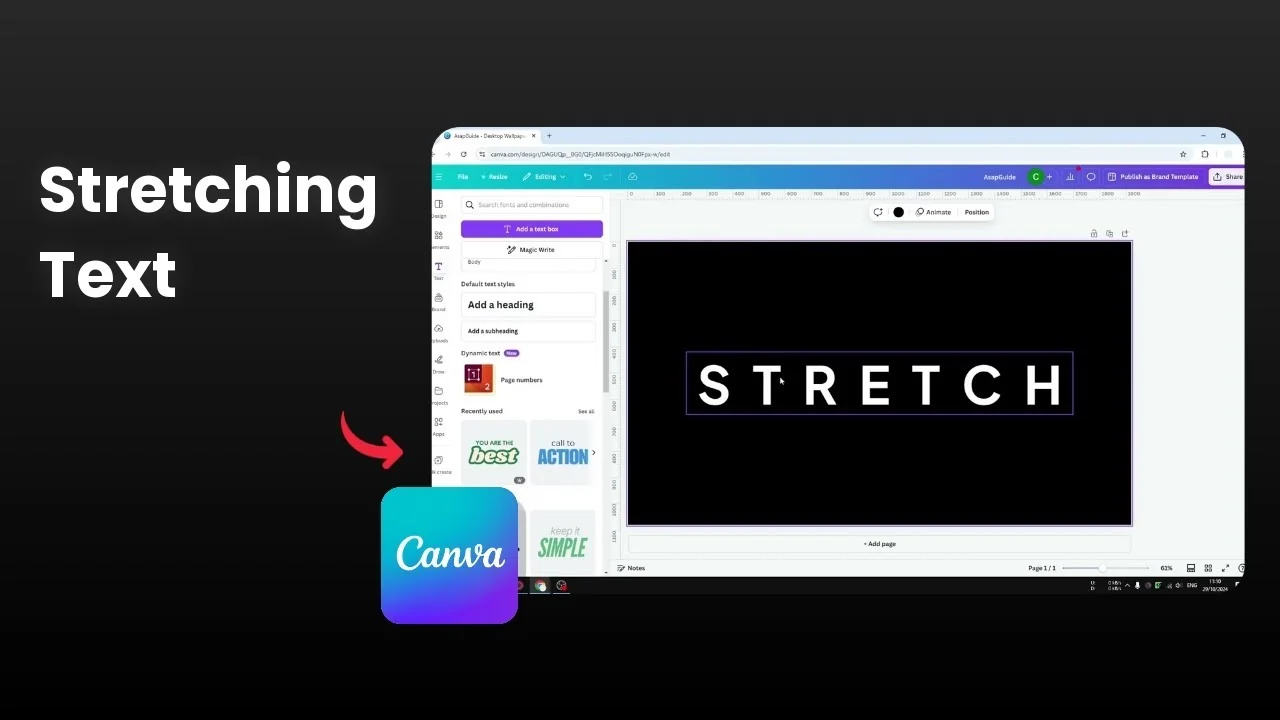
I want to show you how to stretch letters in Canva. The goal here is to make a text box appear wider. There are two methods you can try.
See this guide on stretching text in Canva if you want more approaches to widen your typography.
Stretch Letters in Canva: Letter Spacing
The first method changes the letter spacing value. I like this method because each letter keeps its size, and only the space between letters increases.
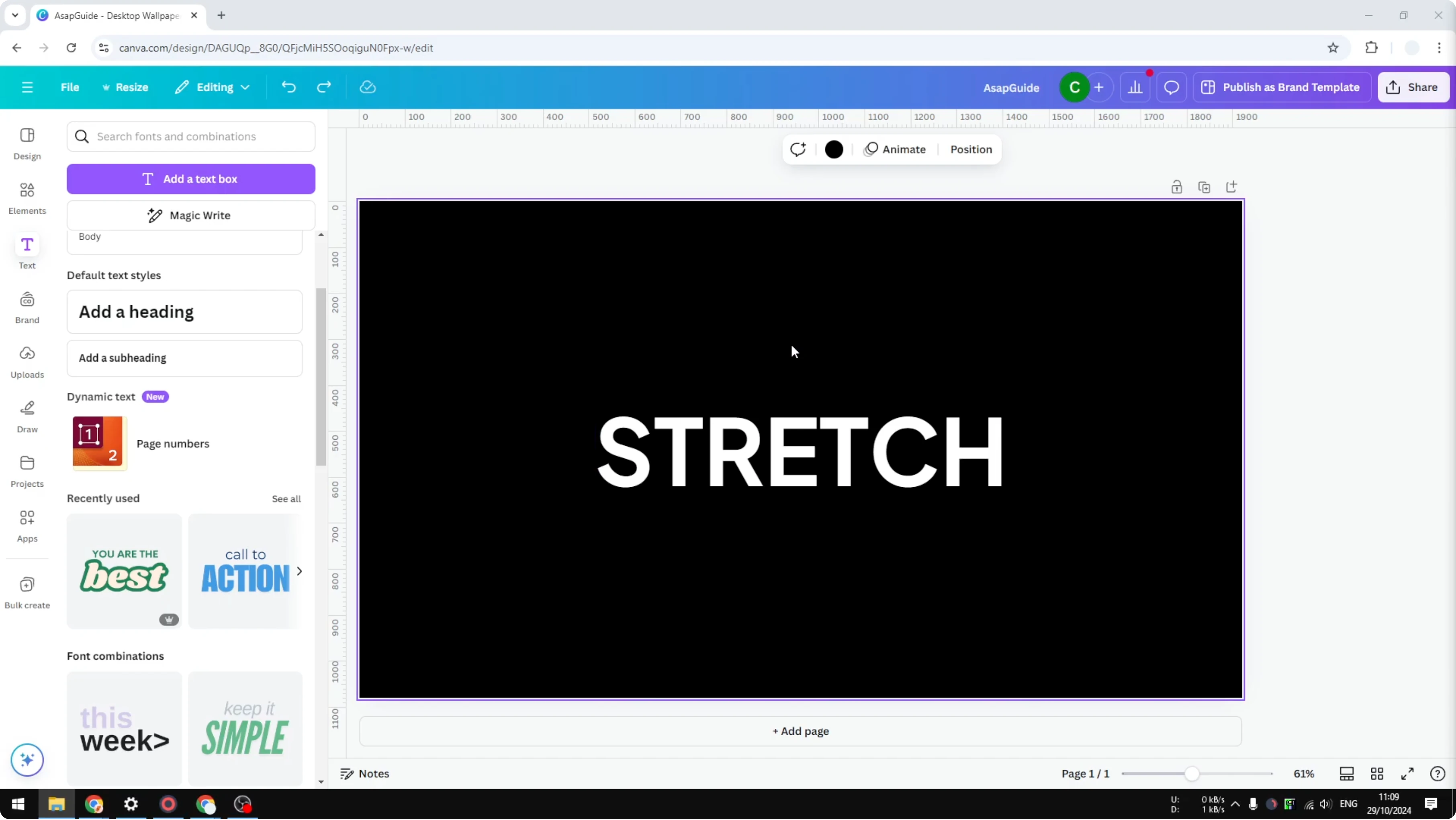
Click or select a text box.
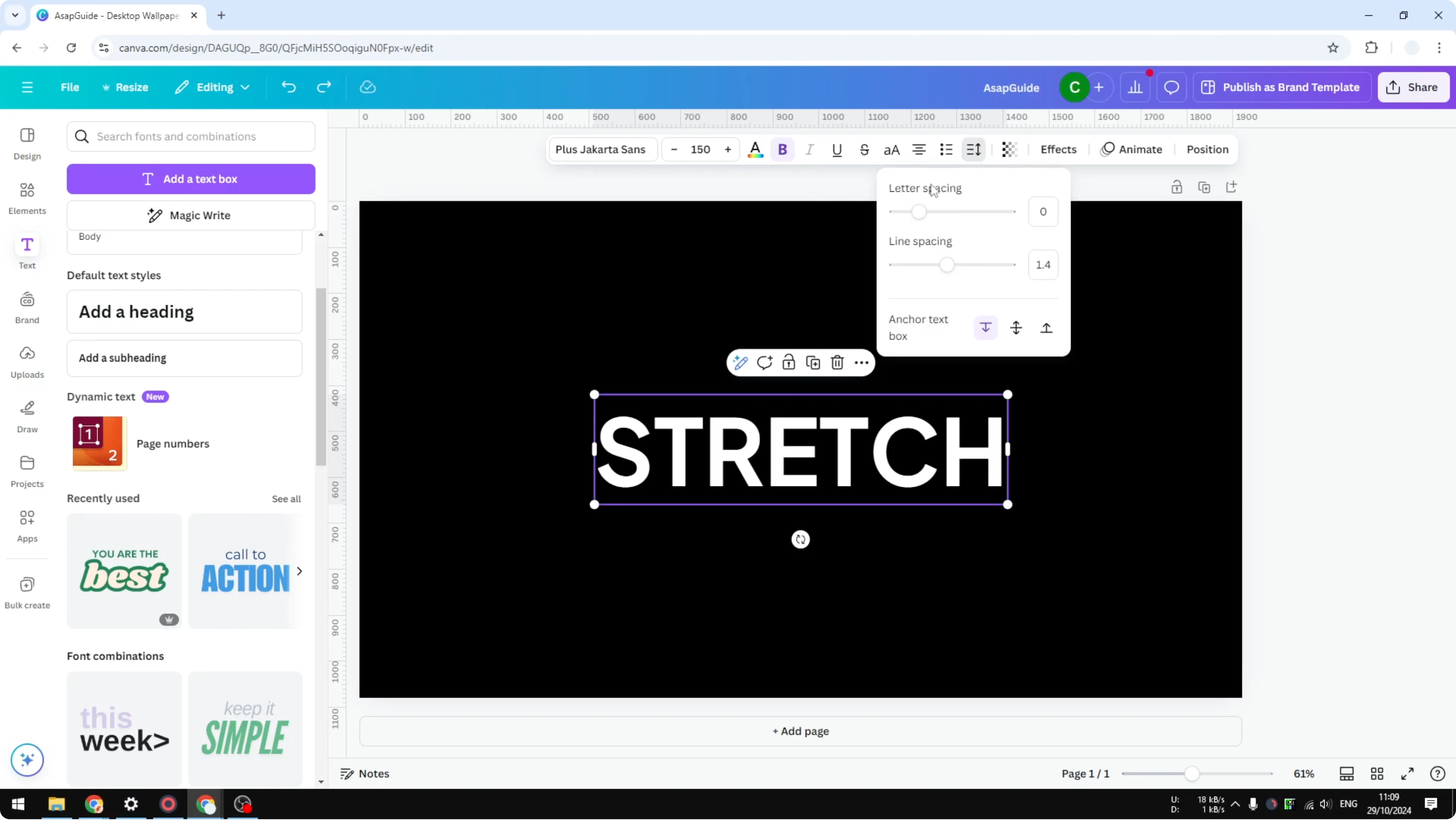
Go to the Spacing menu.
On Letter spacing, move the slider to the right slowly.
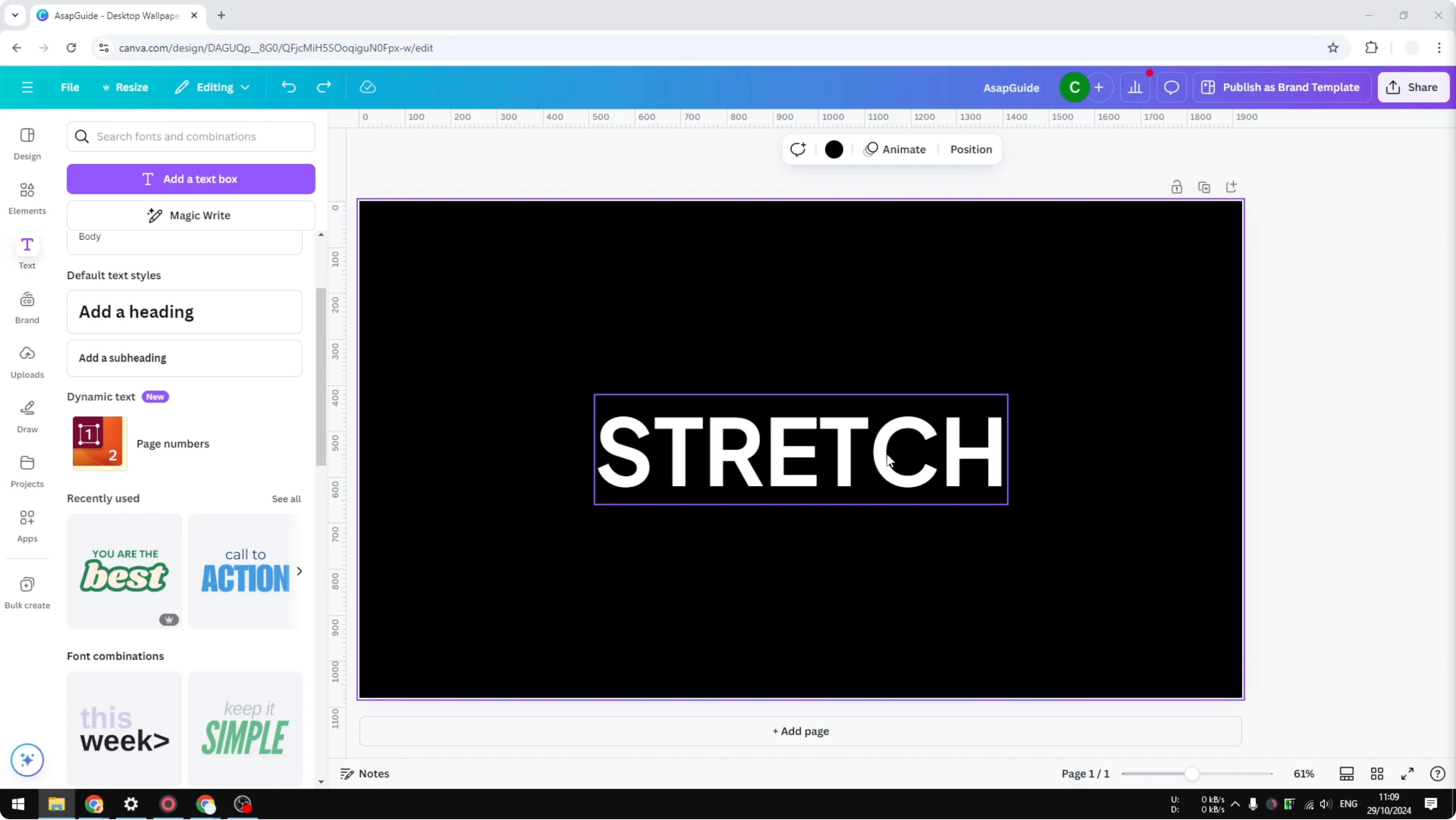
Release the click to apply the setting to that particular text.
If you want to pair this look with see-through lettering, you can make letters transparent in Canva for layered designs.
Stretch Letters in Canva: Typecraft App
The second method stretches the letters themselves. This is useful if you want to warp the text shape, not just add spacing.
Install Typecraft
Go to Apps.
Search for Typecraft.
Click it and click Open.
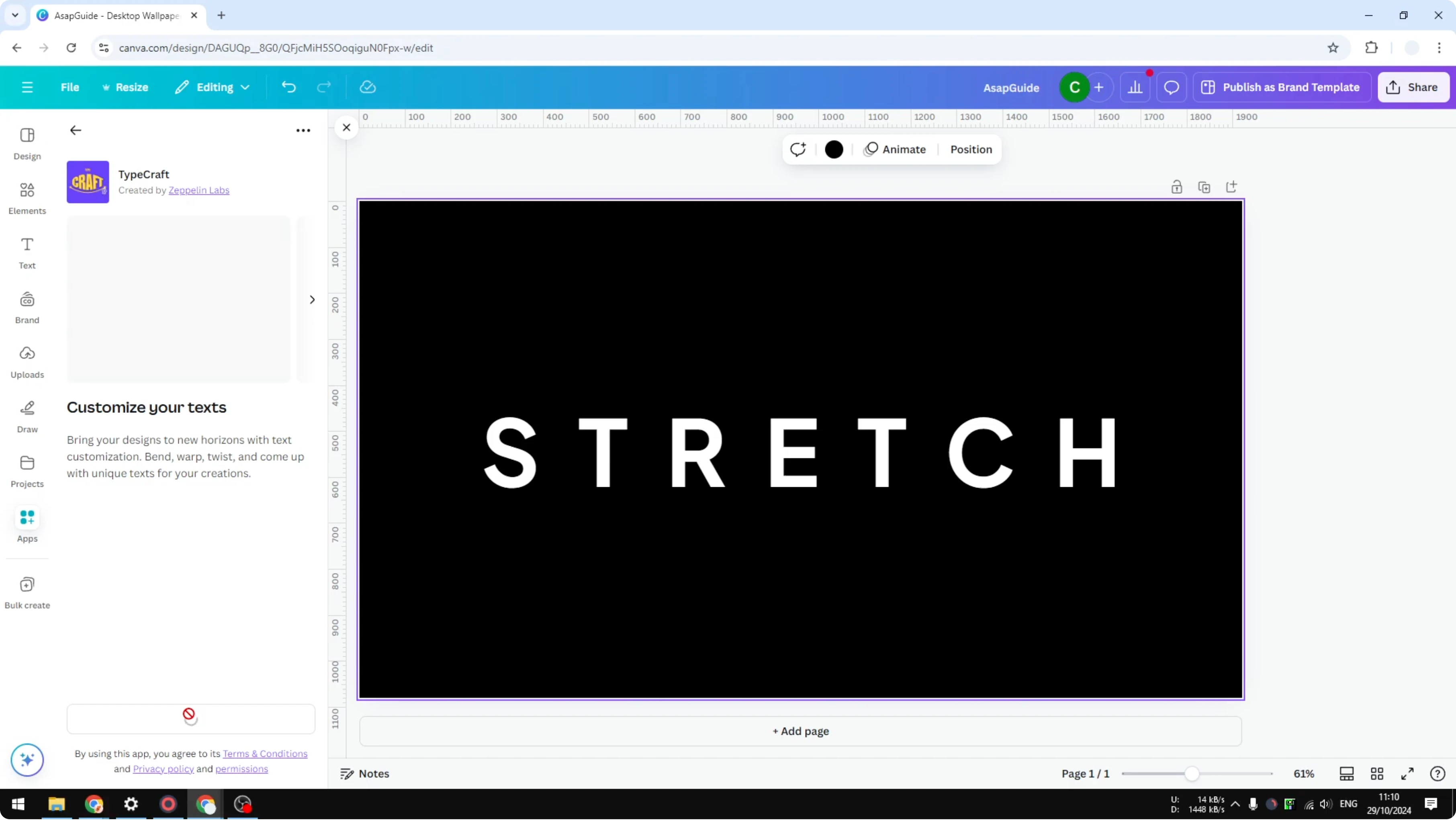
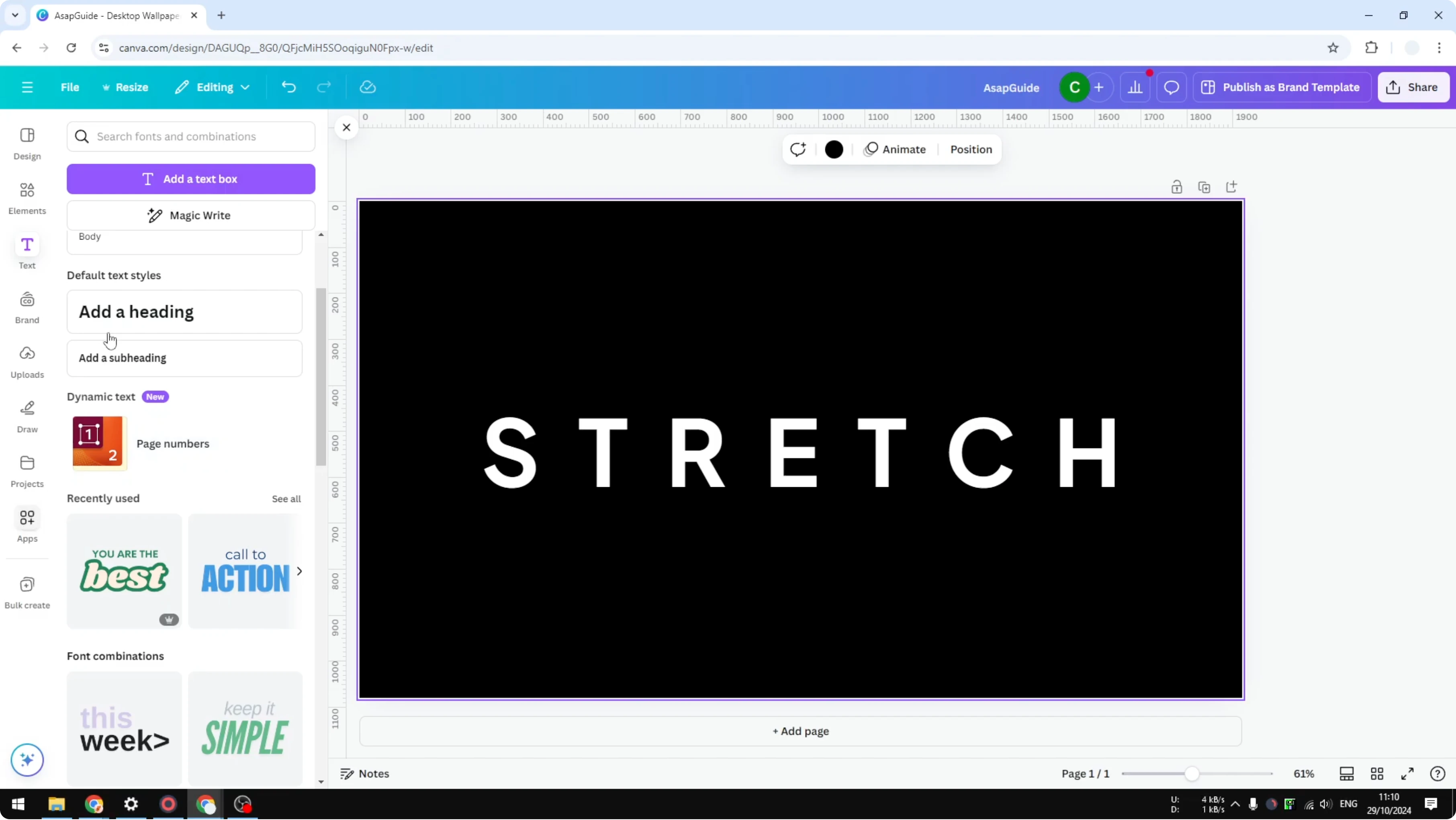
It will be installed to your Canva account, and you will get access to its controls. Enter your text, for example "subscribe". You can change the font, or keep the default font.
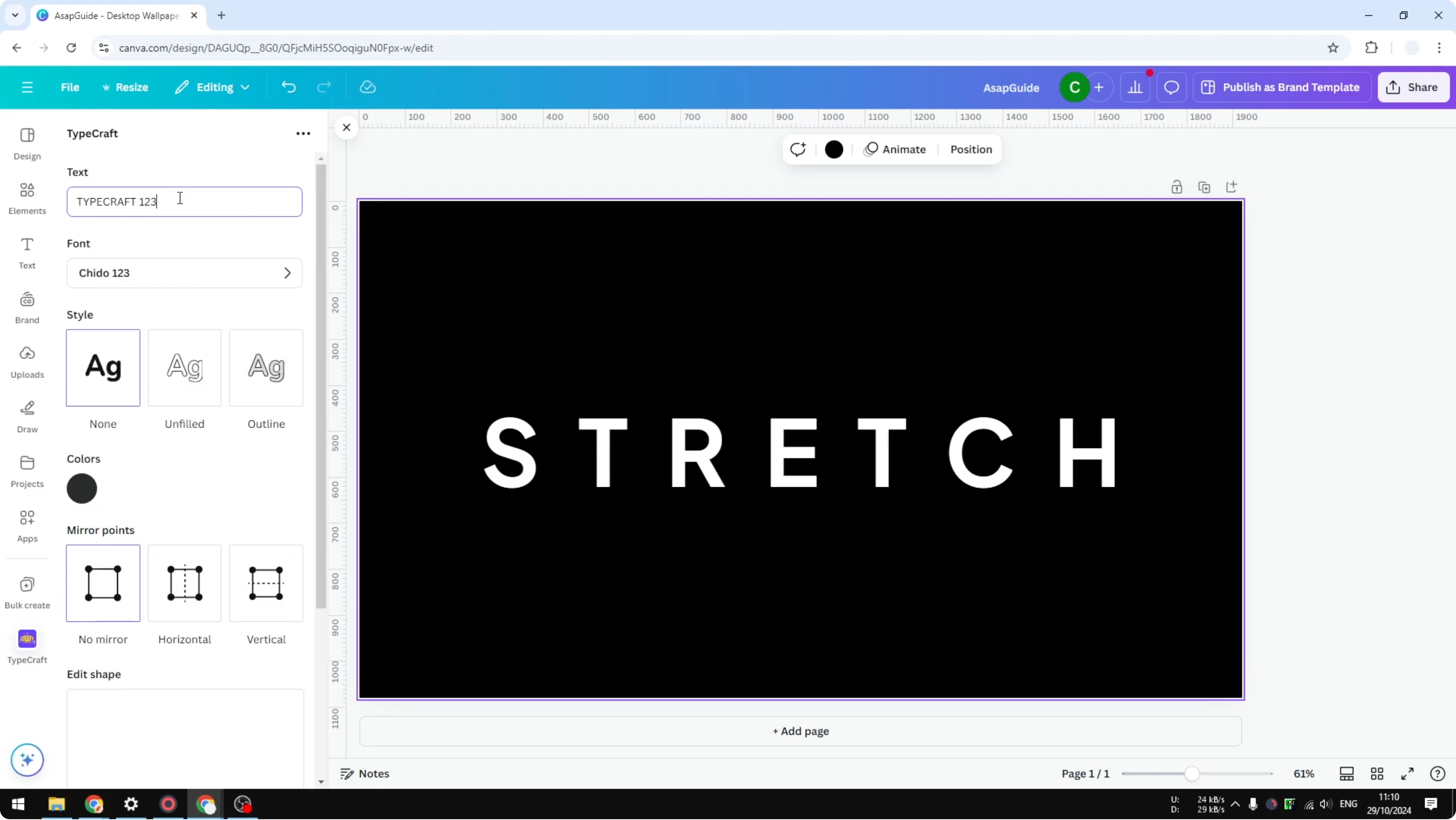
You can change the style to None, Unfill, or Outline. You can change the colors, for example set it to white. If you do not need mirrored stretching, set Mirror to No mirror.
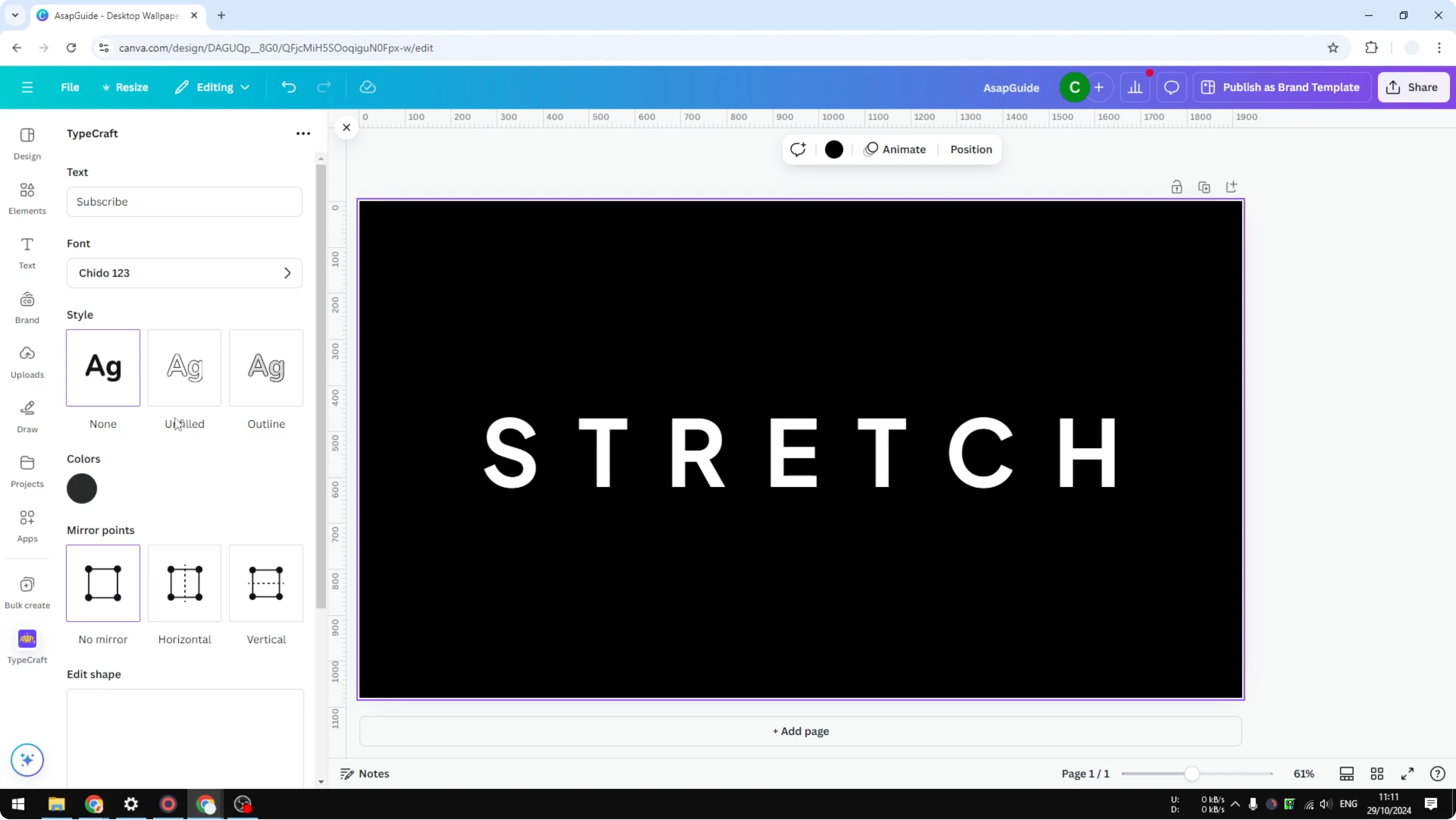
For a decorative effect after you shape the letters, you can also create glitter letters in Canva to add texture.
Stretch with Control Points
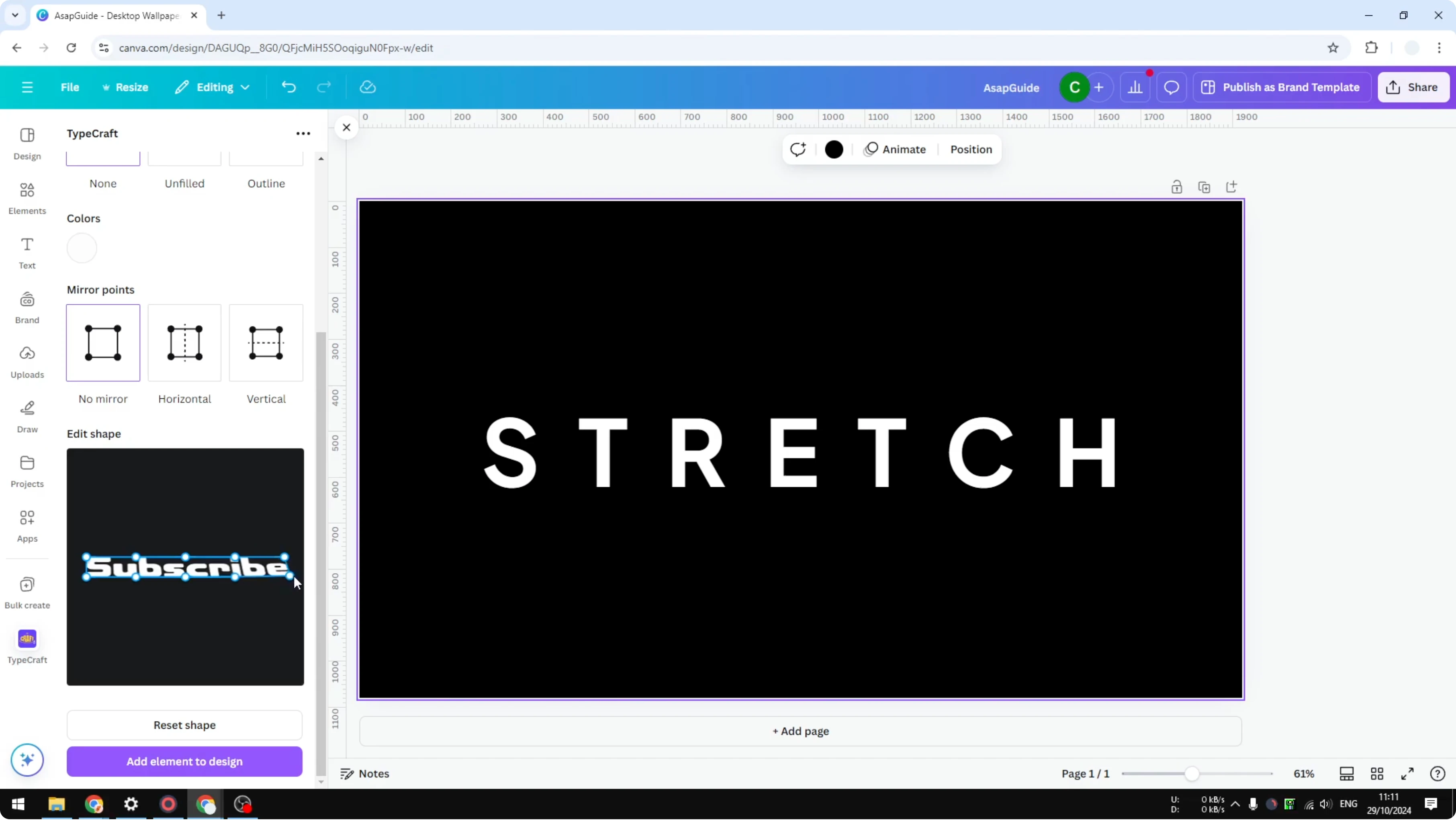
Start stretching the text with the on-canvas controls. On the right side, drag the control point to the right, and do the same for the second control point. Repeat the same steps for the left side.
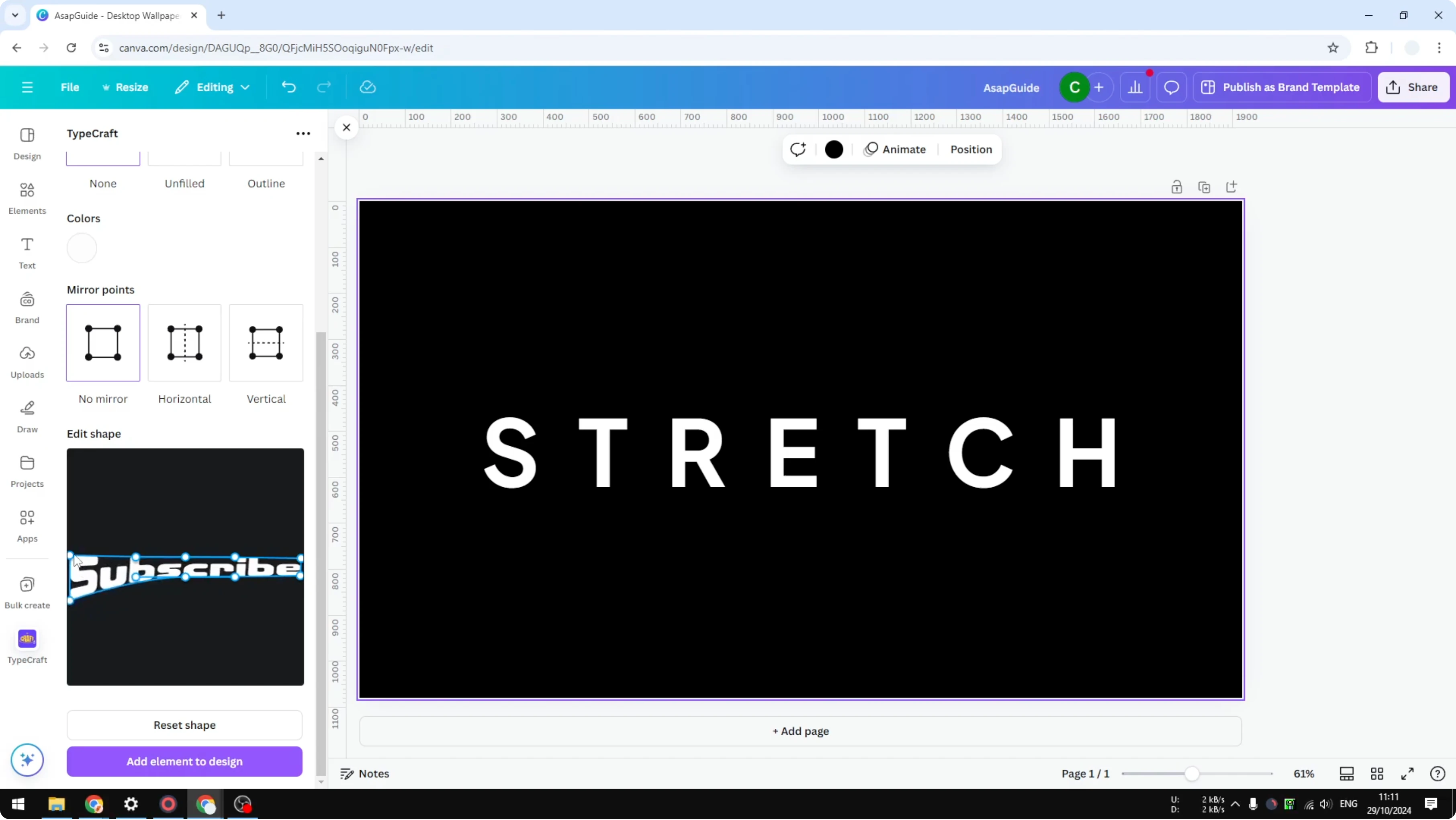
You can make it a bit taller or bigger as needed. When you are done, click Add element to design. That is the second method.
Final thoughts
Use letter spacing when you want a wider look while keeping each letter’s shape intact. Use Typecraft when you want to stretch and sculpt the letters themselves. Both methods can help you quickly make a text box appear wider in Canva.
Recent Posts

How to Visualize Yourself as a Pixelized Character with AI?
How to Visualize Yourself as a Pixelized Character with AI?

How to Revive Faded Memories and Enhance Image Clarity with AI?
How to Revive Faded Memories and Enhance Image Clarity with AI?

How to Visualize Yourself as an Animal Crossing Character with AI?
How to Visualize Yourself as an Animal Crossing Character with AI?