How to Make Letters Transparent in Canva
I’m going to show you how to make letters transparent in Canva. I’ll show the simple method to make any text box transparent and then demonstrate a fading text effect in Canva without any third party tool or apps. If you also need a page-wide fade, see how to create a transparent overlay that sits over your design.
Basics to Make Letters Transparent in Canva
Select the text box. You can select multiple text boxes if you want.
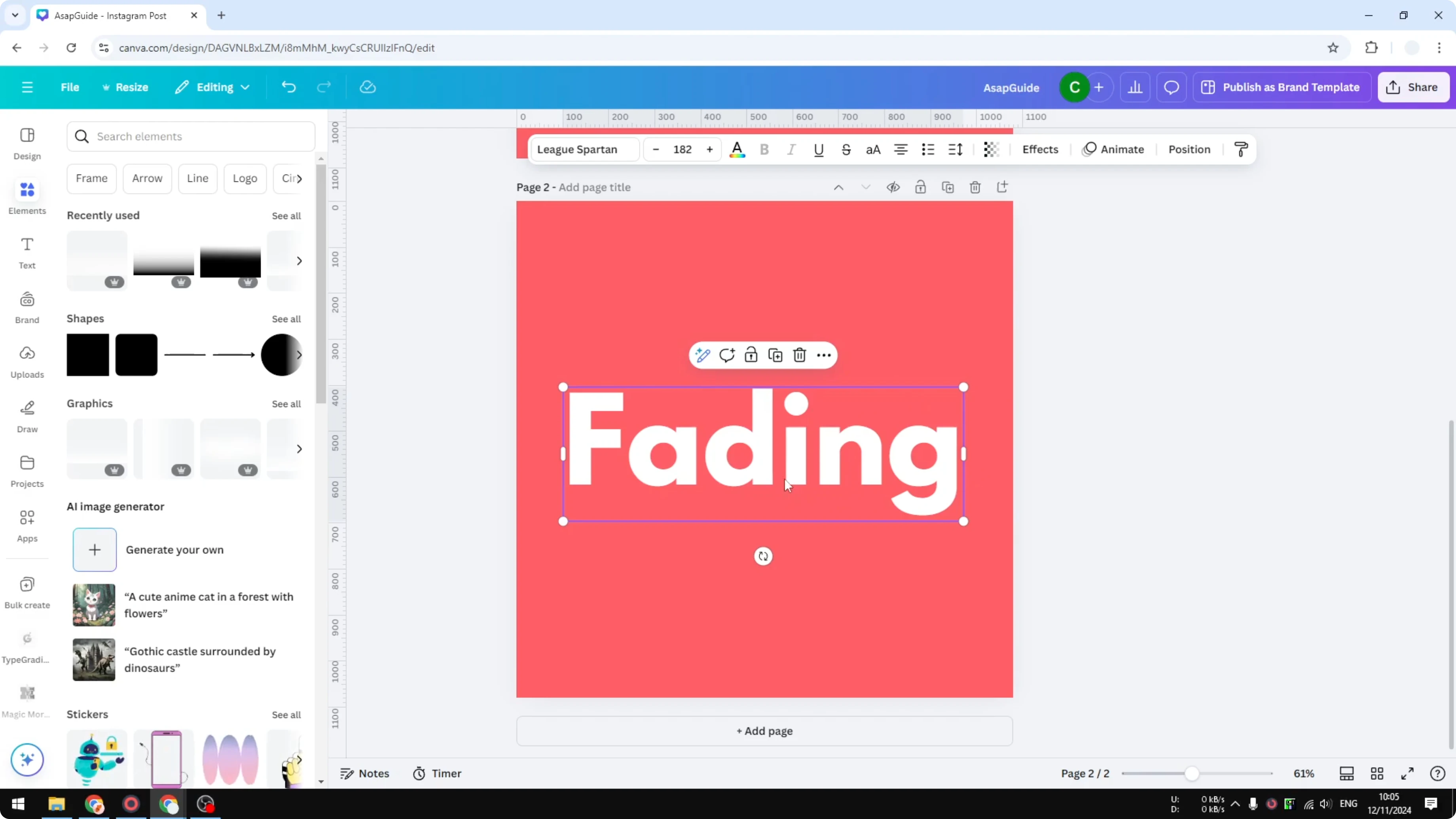
Click the Transparency menu. Adjust the transparency slider to reveal the background behind the text.
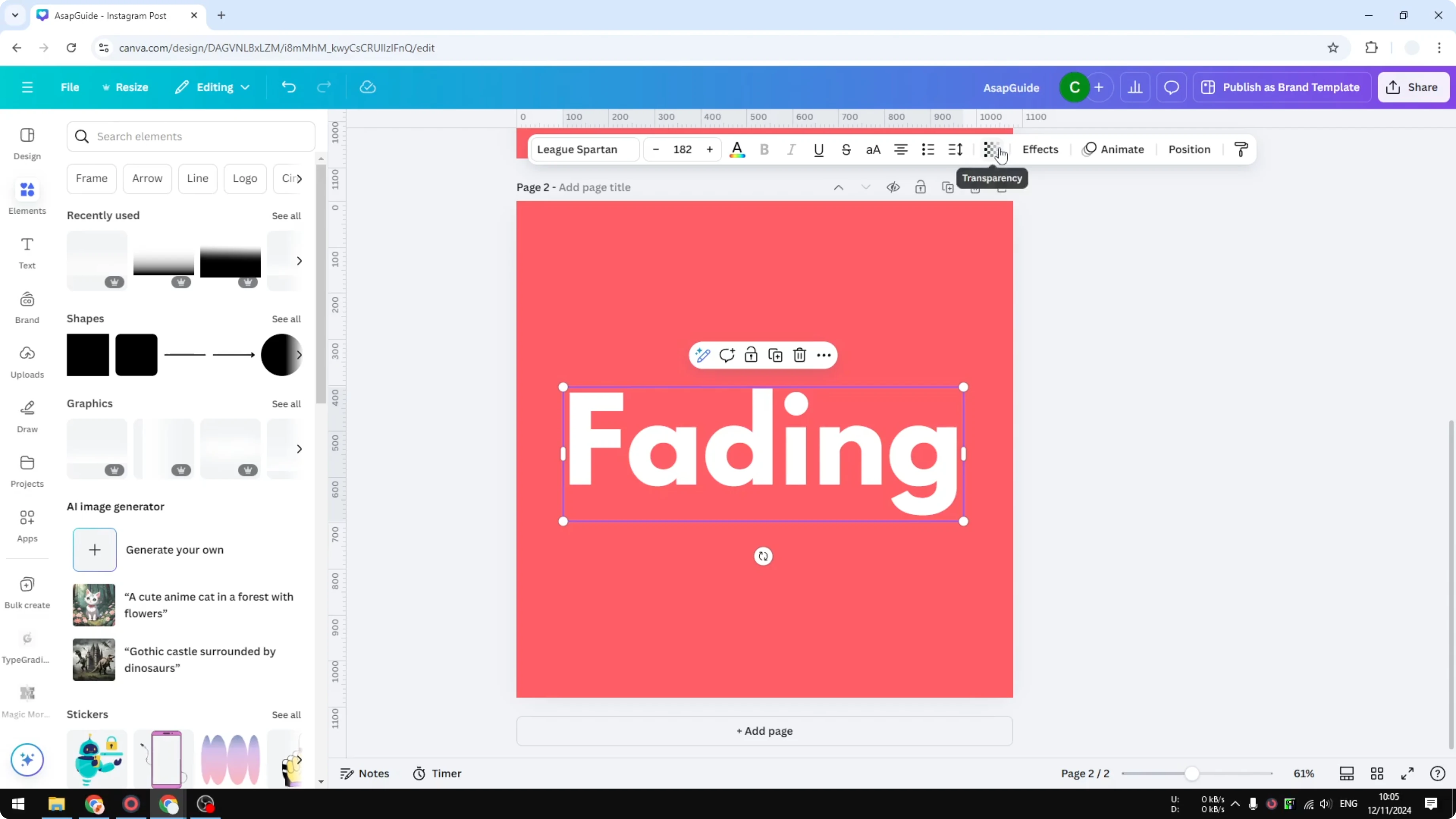
Set the value to 0 for full transparency. Increase the value to bring the text back.
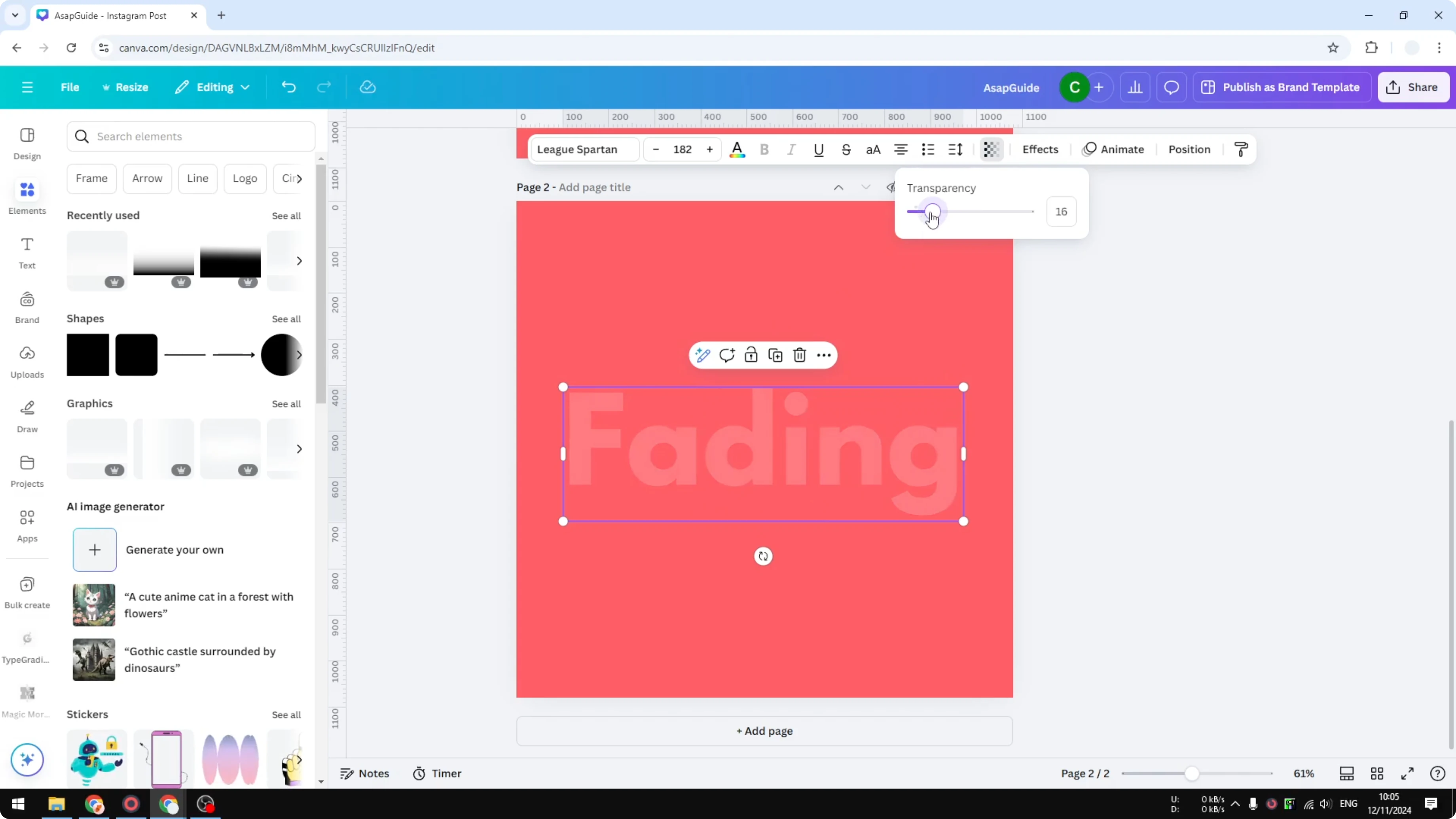
Limitations when you Make Letters Transparent in Canva
Can you make just one or a few letters in a single text box transparent? The answer is no.
You can select individual characters, but the transparency setting applies to the whole text box. It will not apply only to the selected text.
Workaround to Make Letters Transparent in Canva
Create another text box as a duplicate of your original text. In the duplicate, remove everything except the letter you want to fade, for example the letter G.
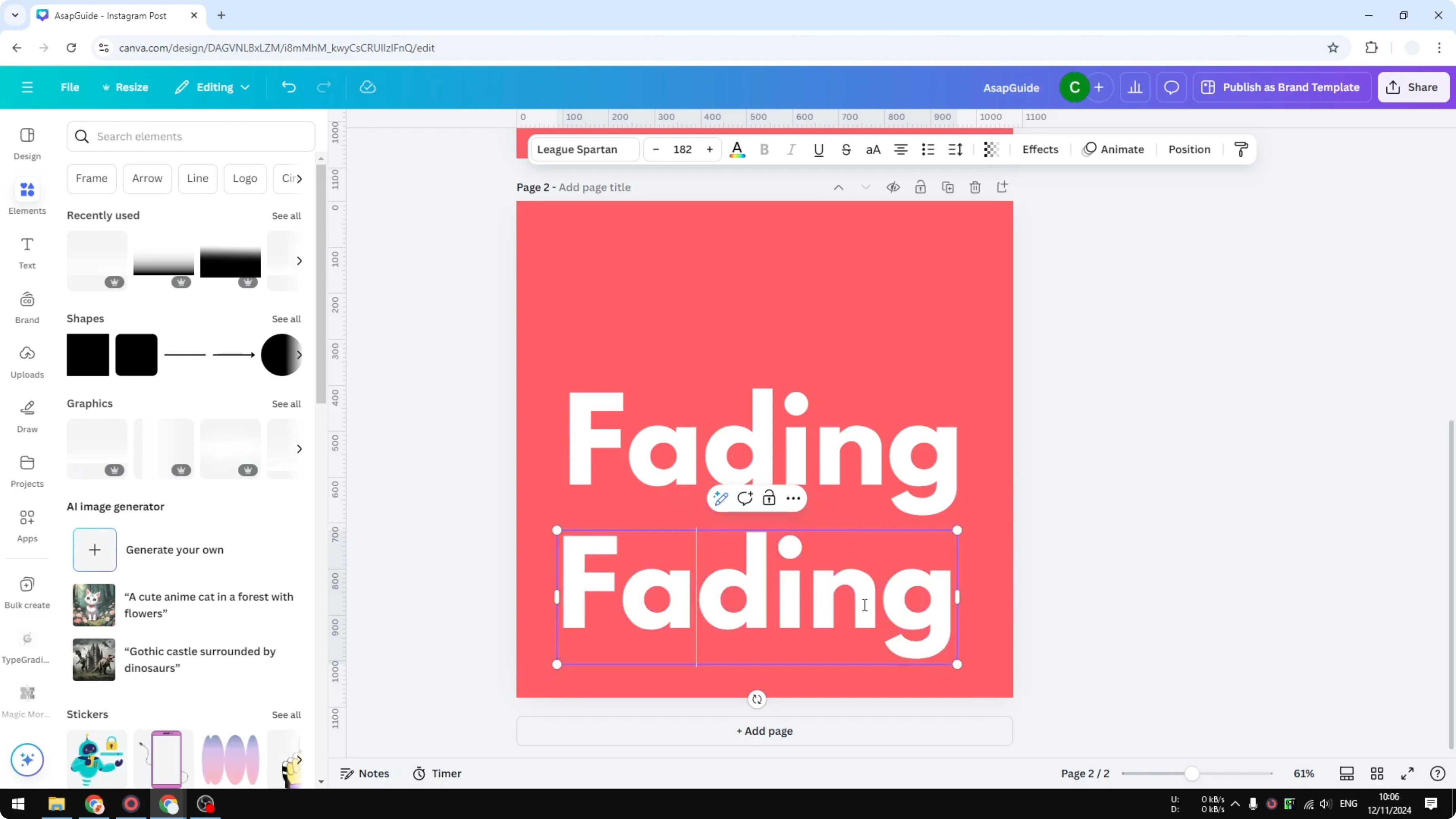
In the original text box, remove that same letter so it doesn’t overlap. Align the single-letter text box over the original text to match the position.
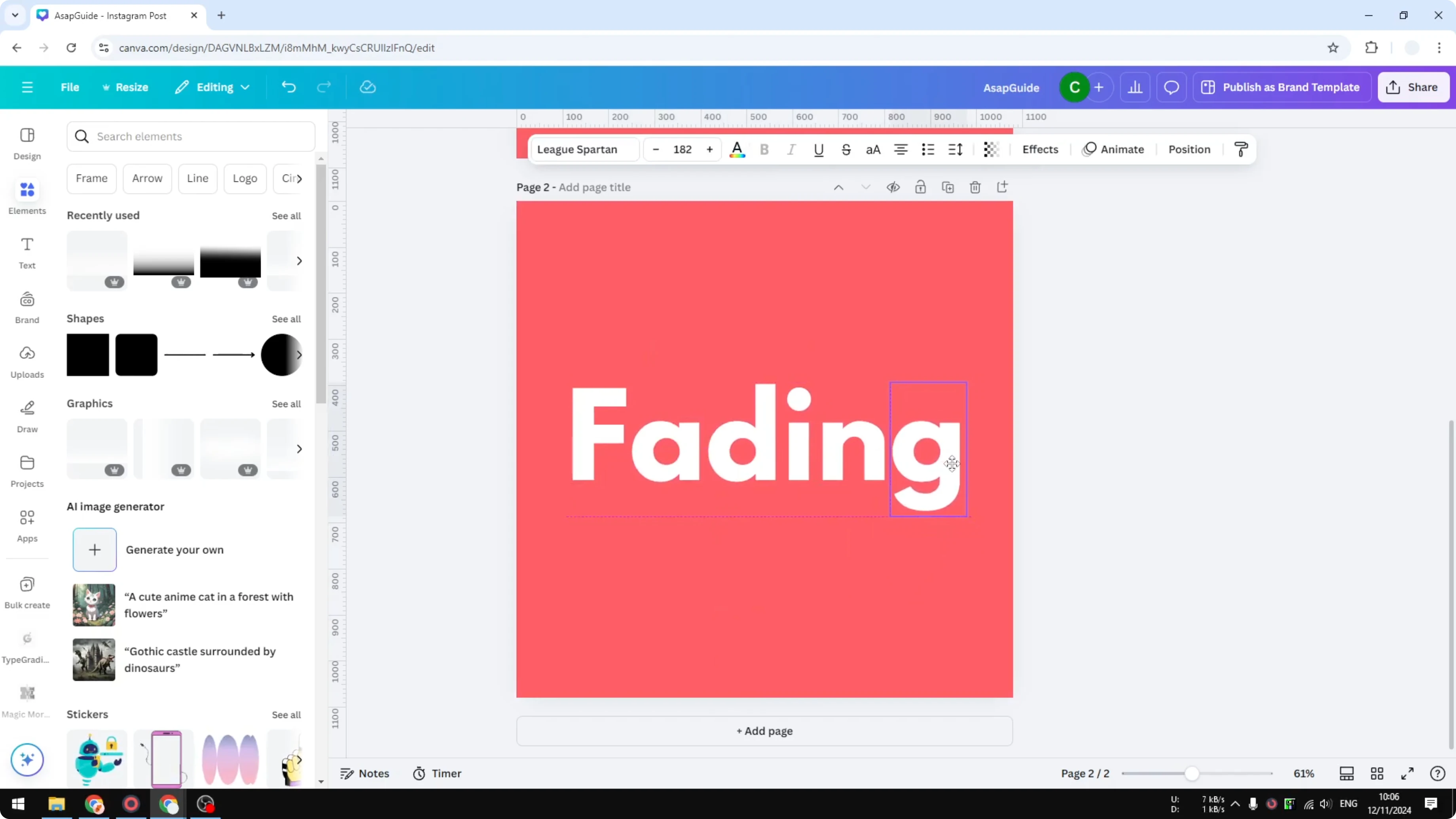
Open Transparency for the single-letter box. Reduce its transparency to get the fade on that letter.
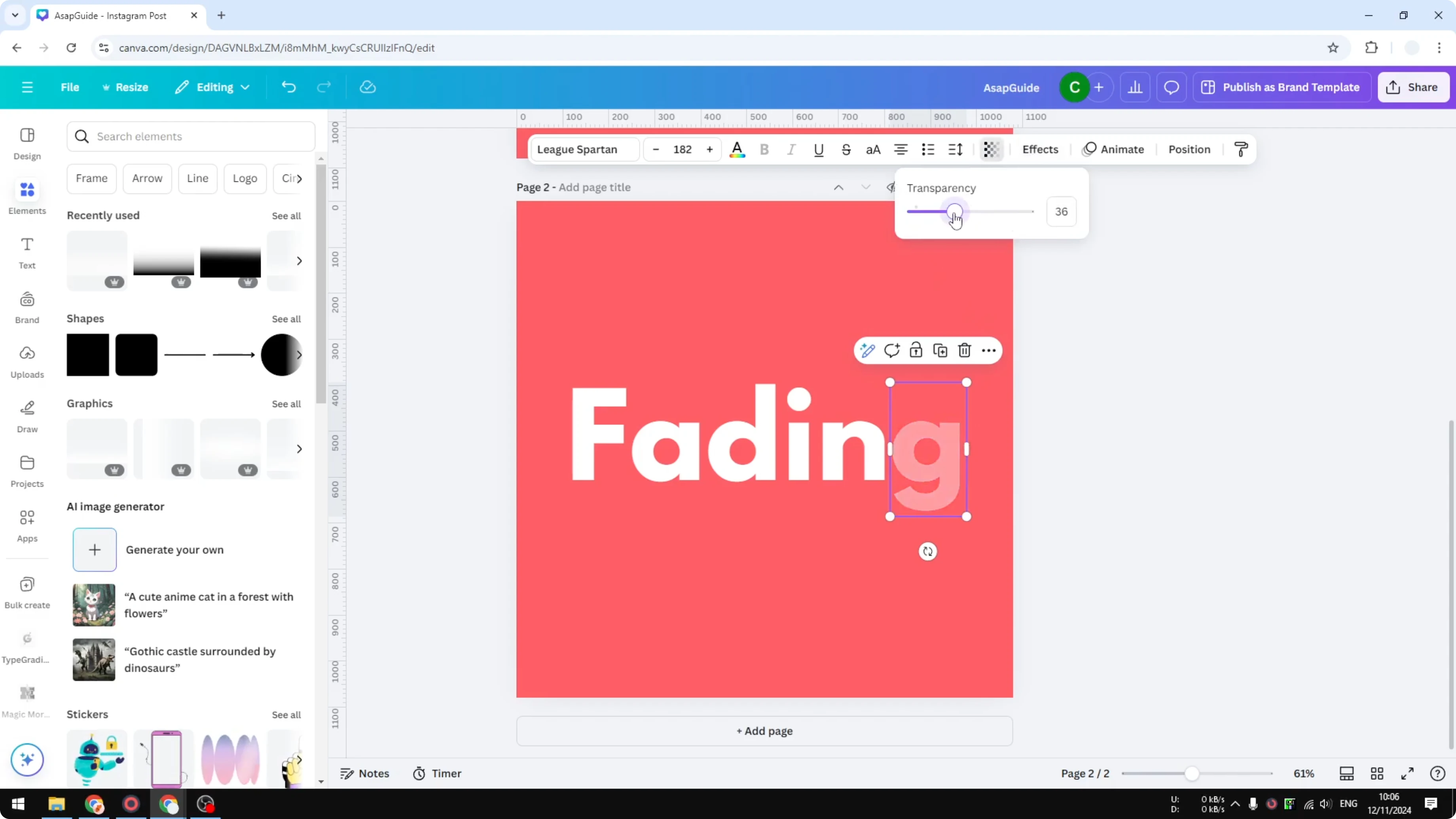
Repeat the process for other letters if you want a gradual fade. It’s not perfect, but it works.
If you are doing this with motion content, you can also make video transparent in Canva using a similar approach with the transparency controls.
Gradient method to Make Letters Transparent in Canva
Duplicate the page if you want to preserve the original. Go to Elements.
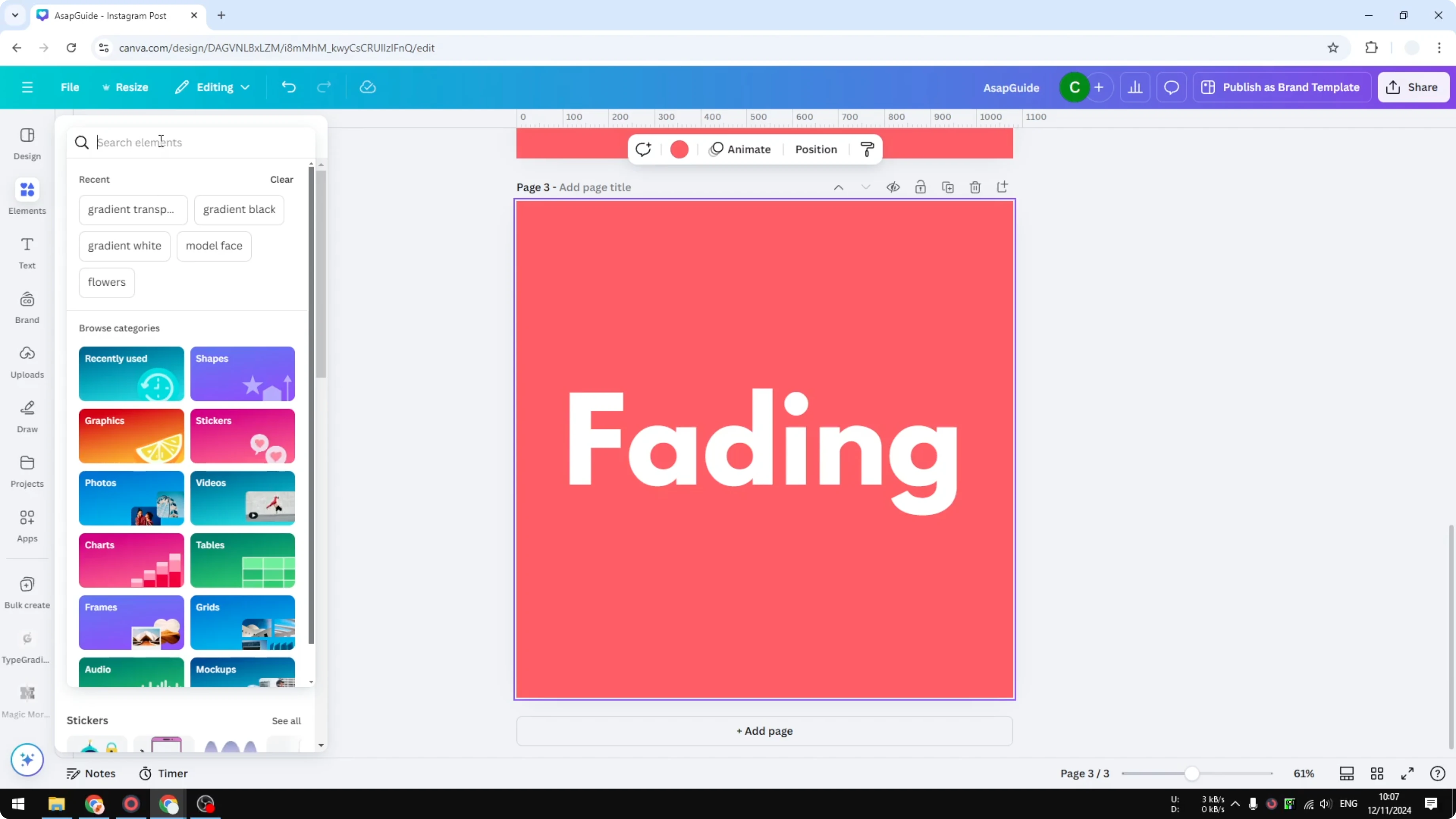
Search for “transparent gradient.” Open Graphics and pick a gradient that fades from solid to transparent.
Place the gradient on the right side of your text. Rotate it so the fade moves across your letters.
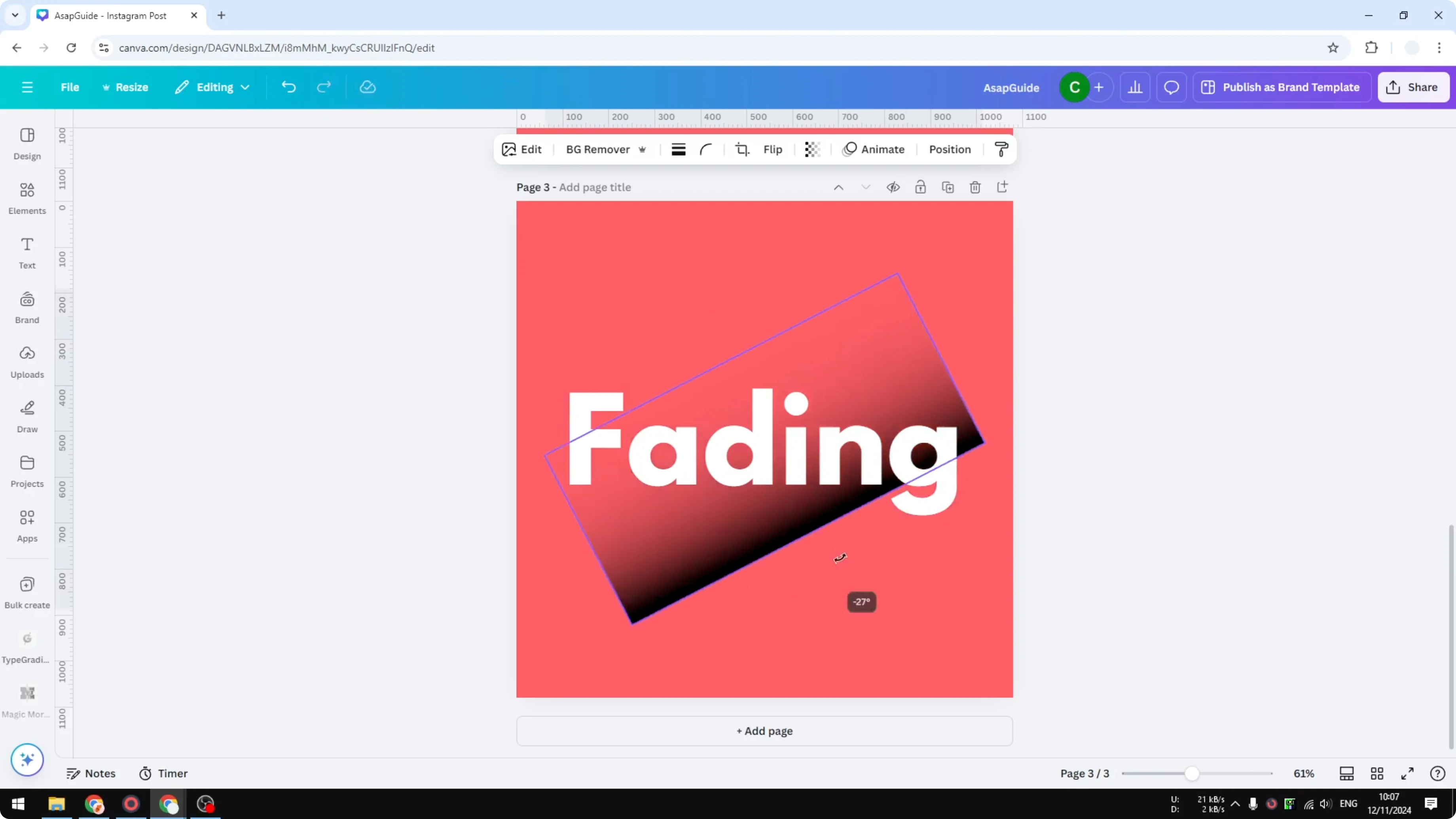
Resize the gradient to cover the area you want to fade. If it sits behind the text, right click it, go to Layer, and choose Bring to front or Bring forward.
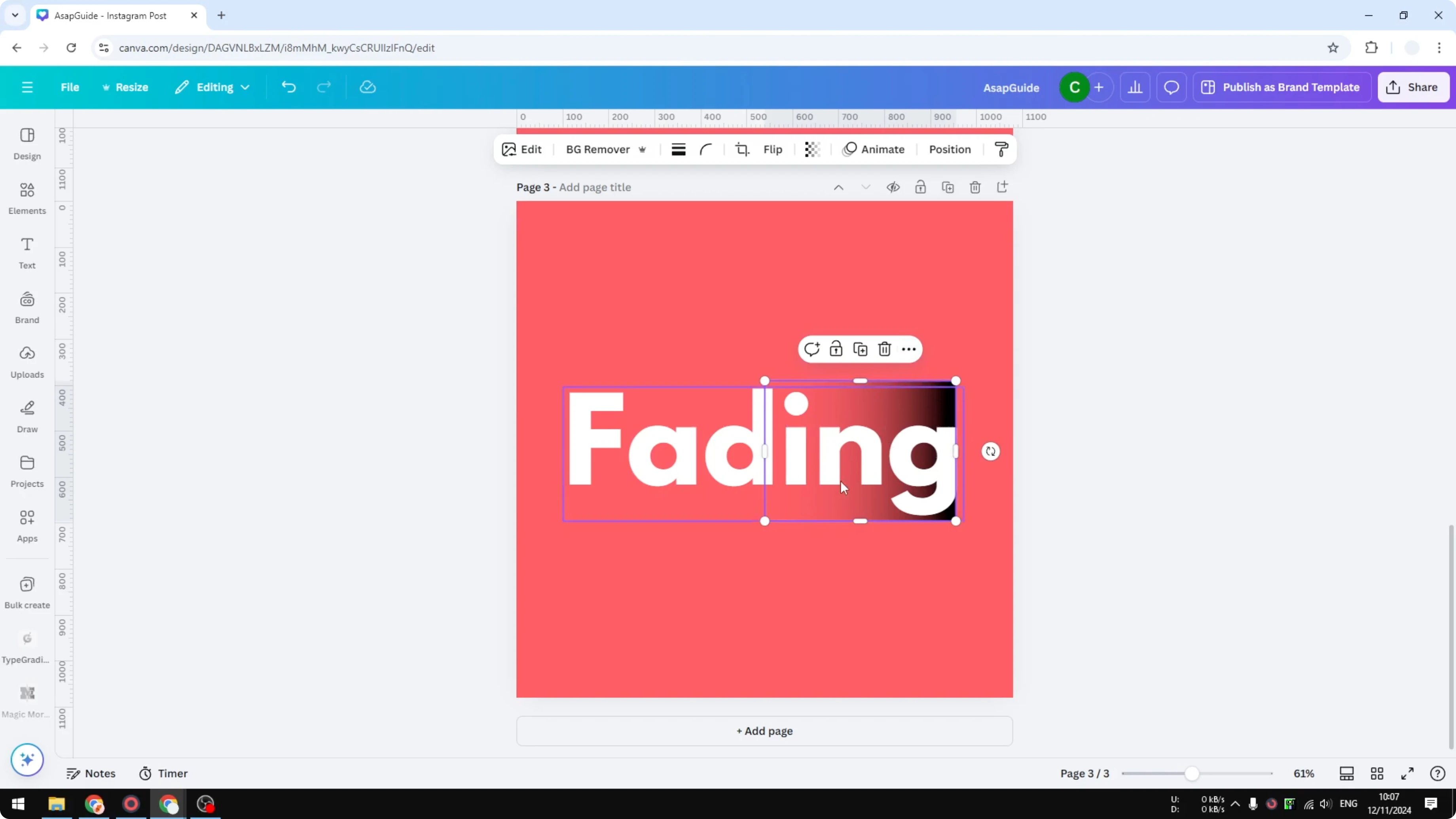
Match the gradient to your background
Click the gradient graphic and then click Edit. Go to Duotone and choose Custom.
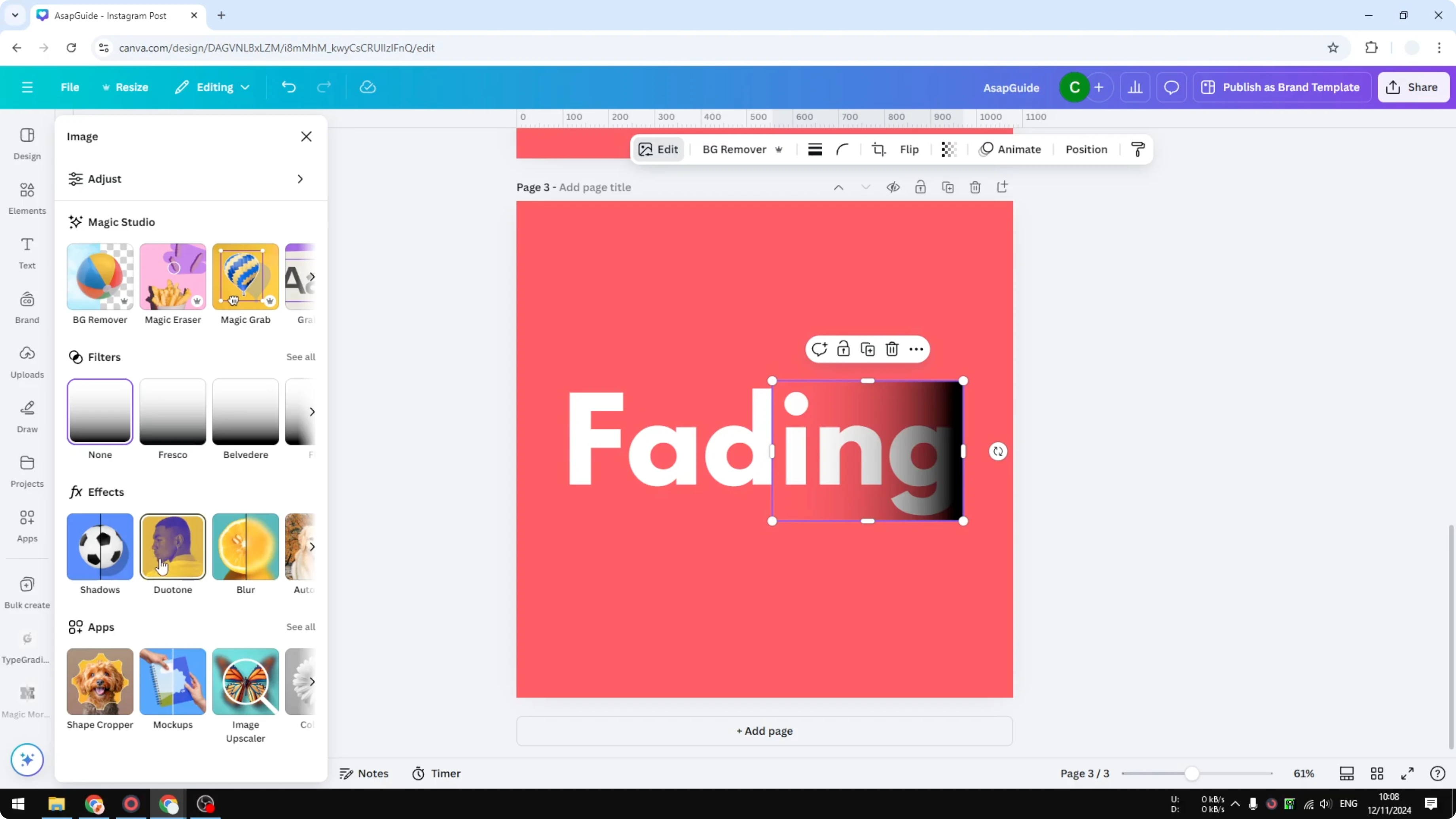
Under Highlight, open the color picker and select the background color. Do the same for Shadow using the color picker on the background.
Set the intensity to 100 percent. This makes the gradient color blend with your background so the text looks like it’s fading out.
Adjust the gradient size and position to control how quickly the letters fade. Extend it to make the fade longer or shorten it for a tighter fade.
For more creative text effects after you make letters transparent in Canva, try adding sparkly texture and create glitter letters for headings or accents.
Final thoughts
Use the transparency slider to quickly fade an entire text box. If you need individual letters faded, separate them into their own text boxes and adjust each one.
For a smoother fade across multiple letters, place a gradient on top, bring it to the front, match it to your background with Duotone, and set intensity to 100 percent. Adjust the gradient’s size and rotation to control the final effect.
Recent Posts

How to Visualize Yourself as a Pixelized Character with AI?
How to Visualize Yourself as a Pixelized Character with AI?

How to Revive Faded Memories and Enhance Image Clarity with AI?
How to Revive Faded Memories and Enhance Image Clarity with AI?

How to Visualize Yourself as an Animal Crossing Character with AI?
How to Visualize Yourself as an Animal Crossing Character with AI?