How to Make Video Transparent in Canva
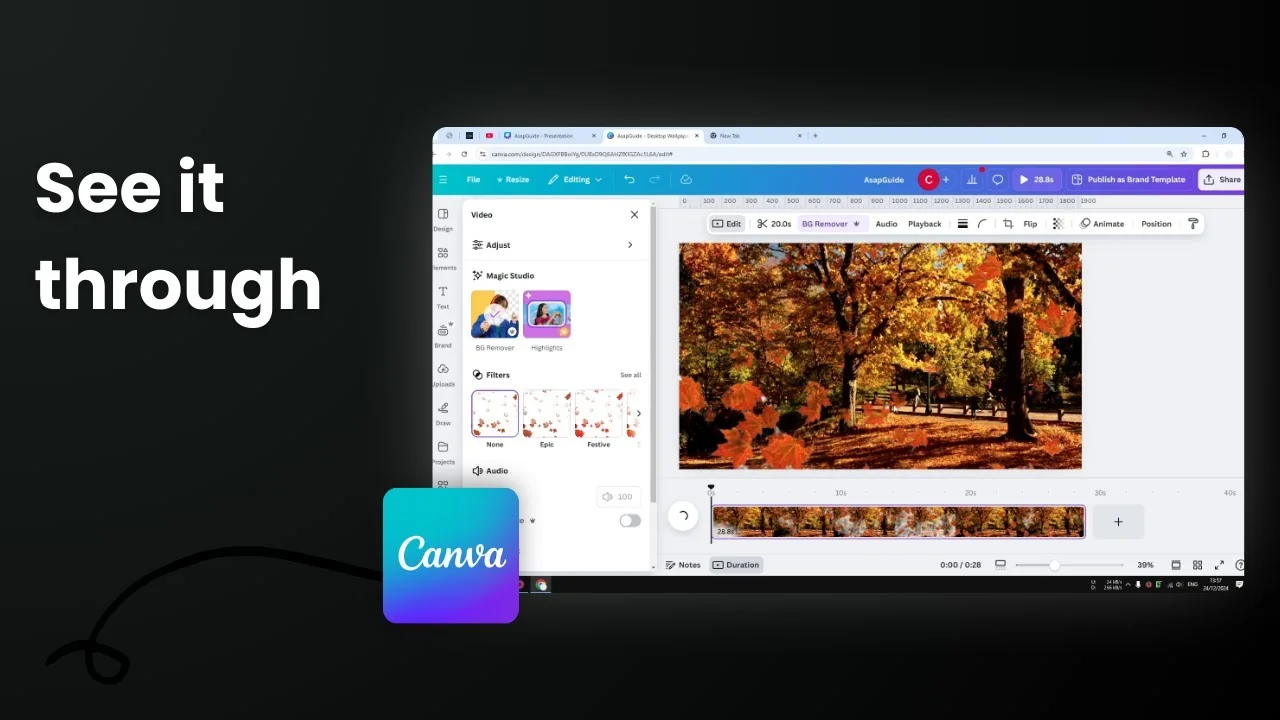
I’m going to show you how to make a transparent video in Canva. This technique is useful if you want to put a video as an overlay on top of another element. The base element could be a photo, shape, graphics, or another video. You can see two content at the same time.
Make Video Transparent in Canva: Step-by-Step
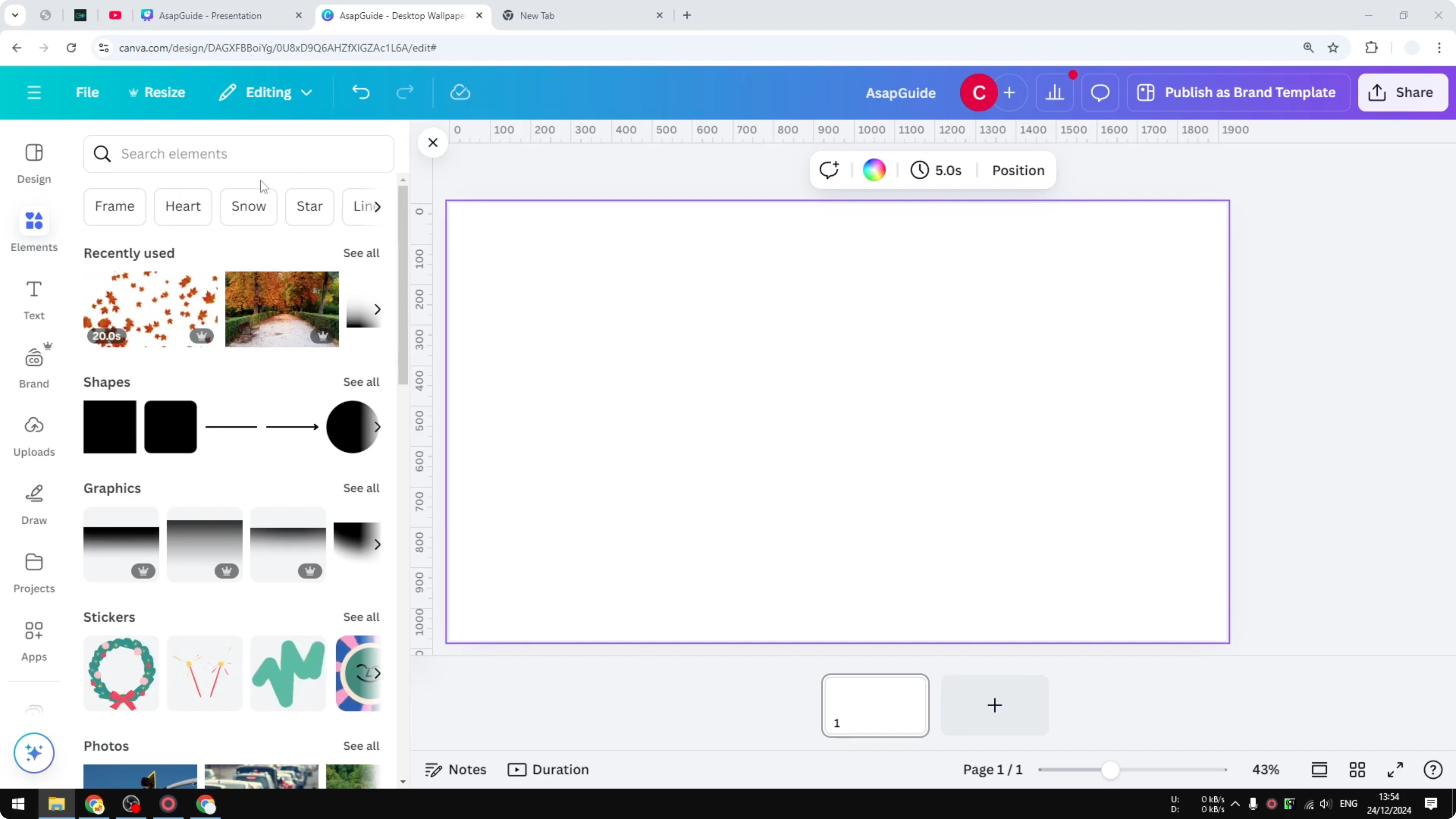
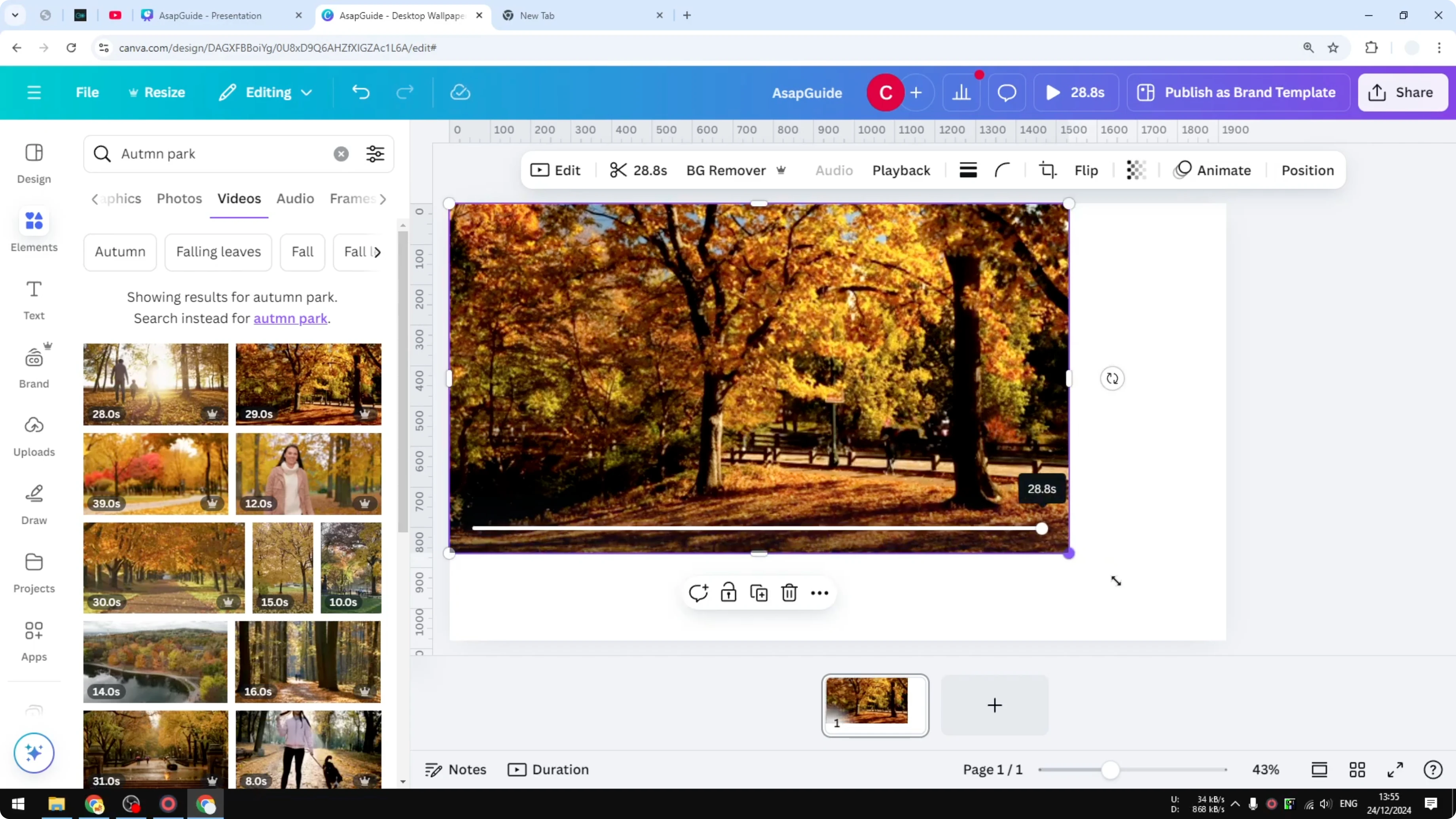
- Insert your base video
- Navigate to the Elements or Uploads menu where you can insert a video into your document.
- Add the video you want to use as the base.
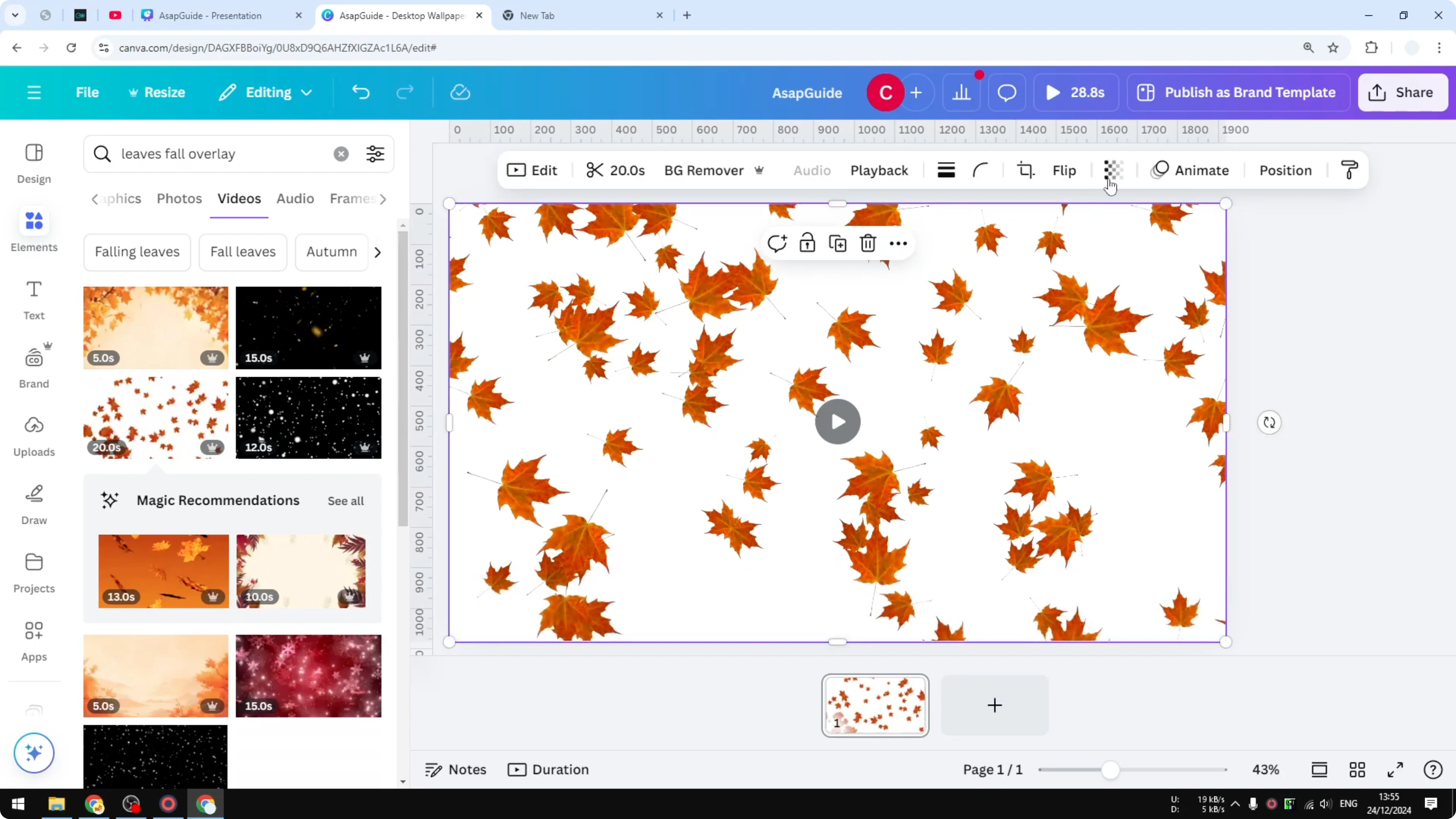
- Add your overlay video
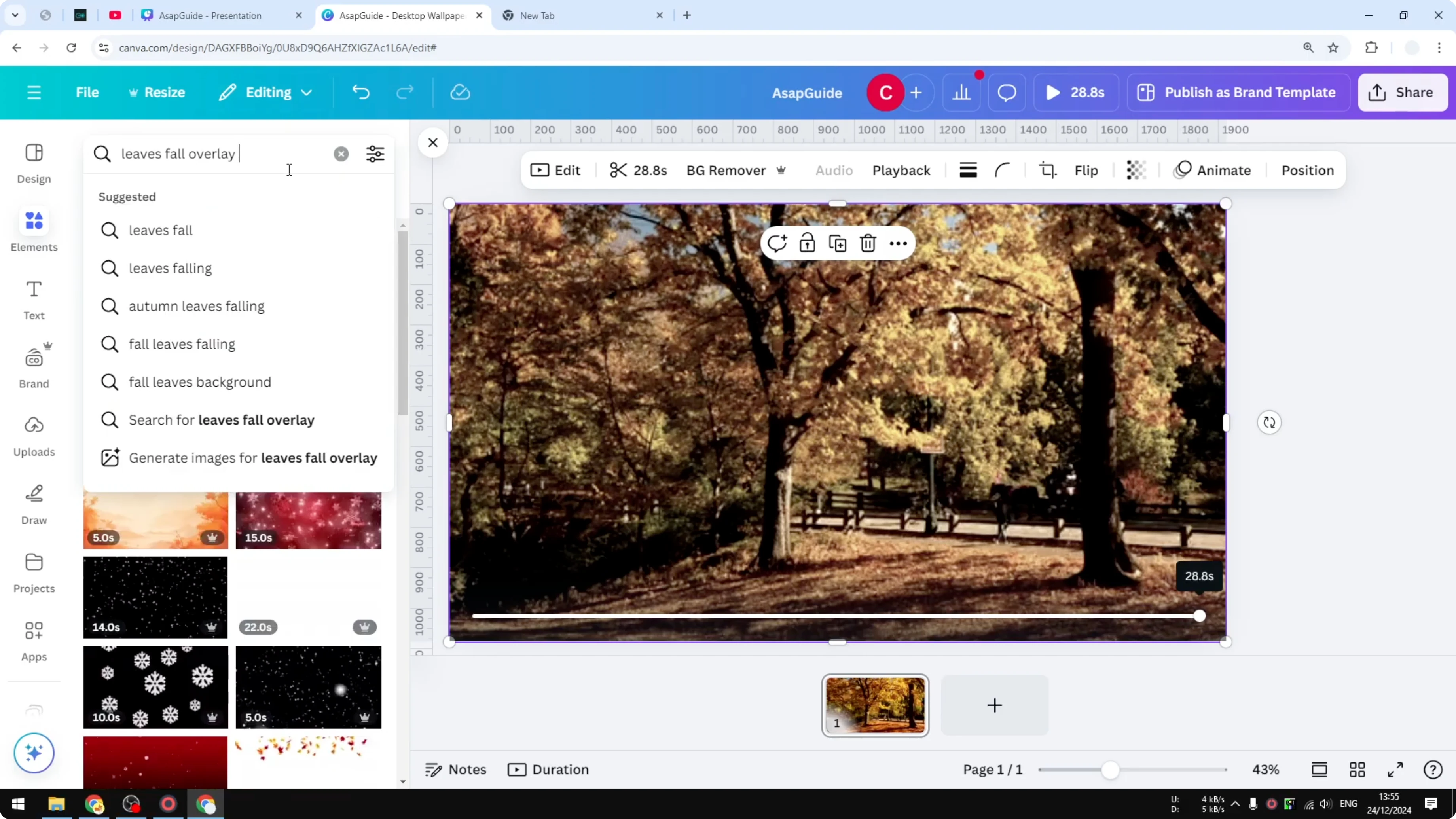
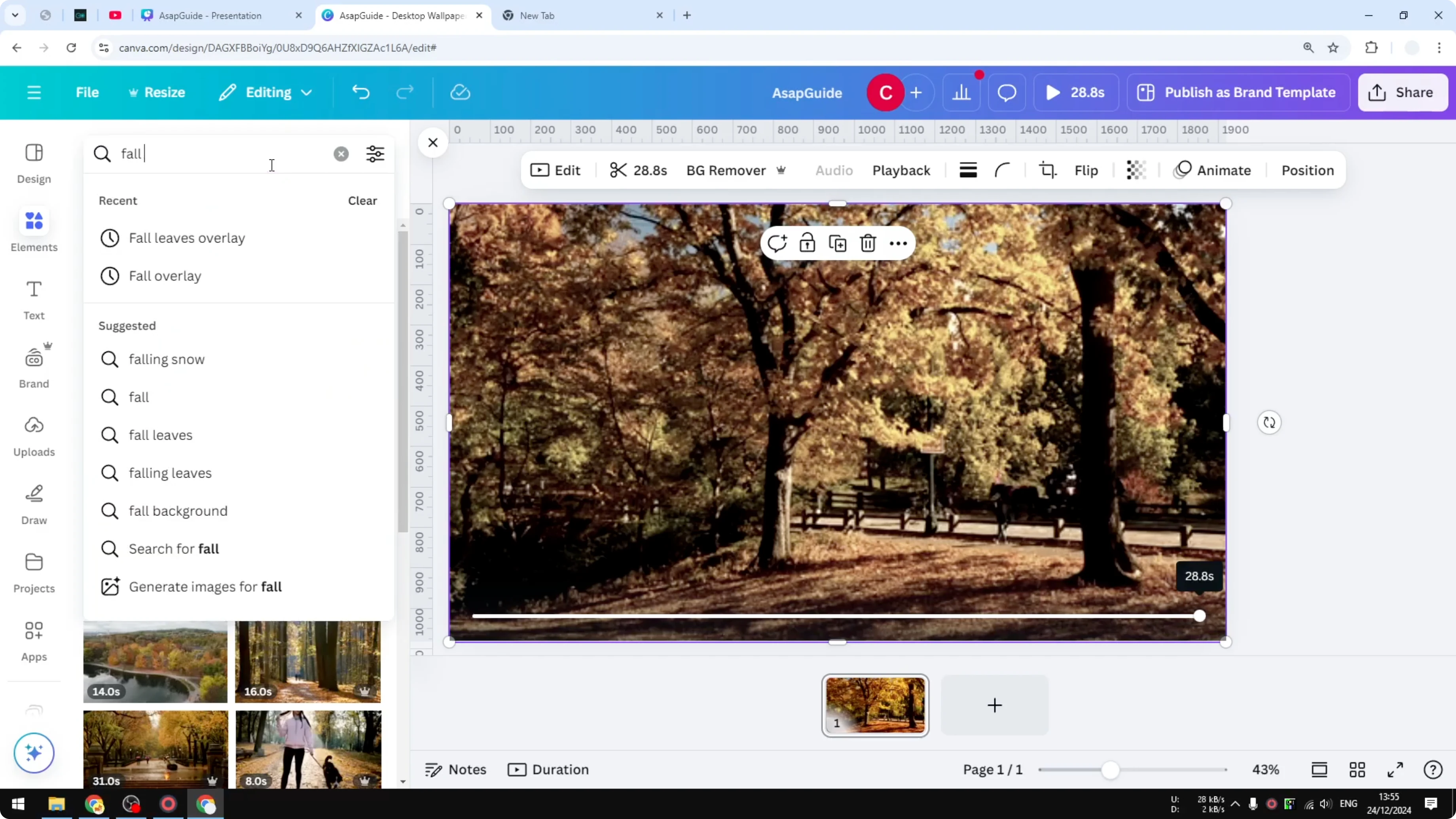
- Add an overlay video on top of the base video.
- You can search using a keyword like green screen because it’s going to make the process easier if you just want to isolate the subject.
- Adjust the transparency
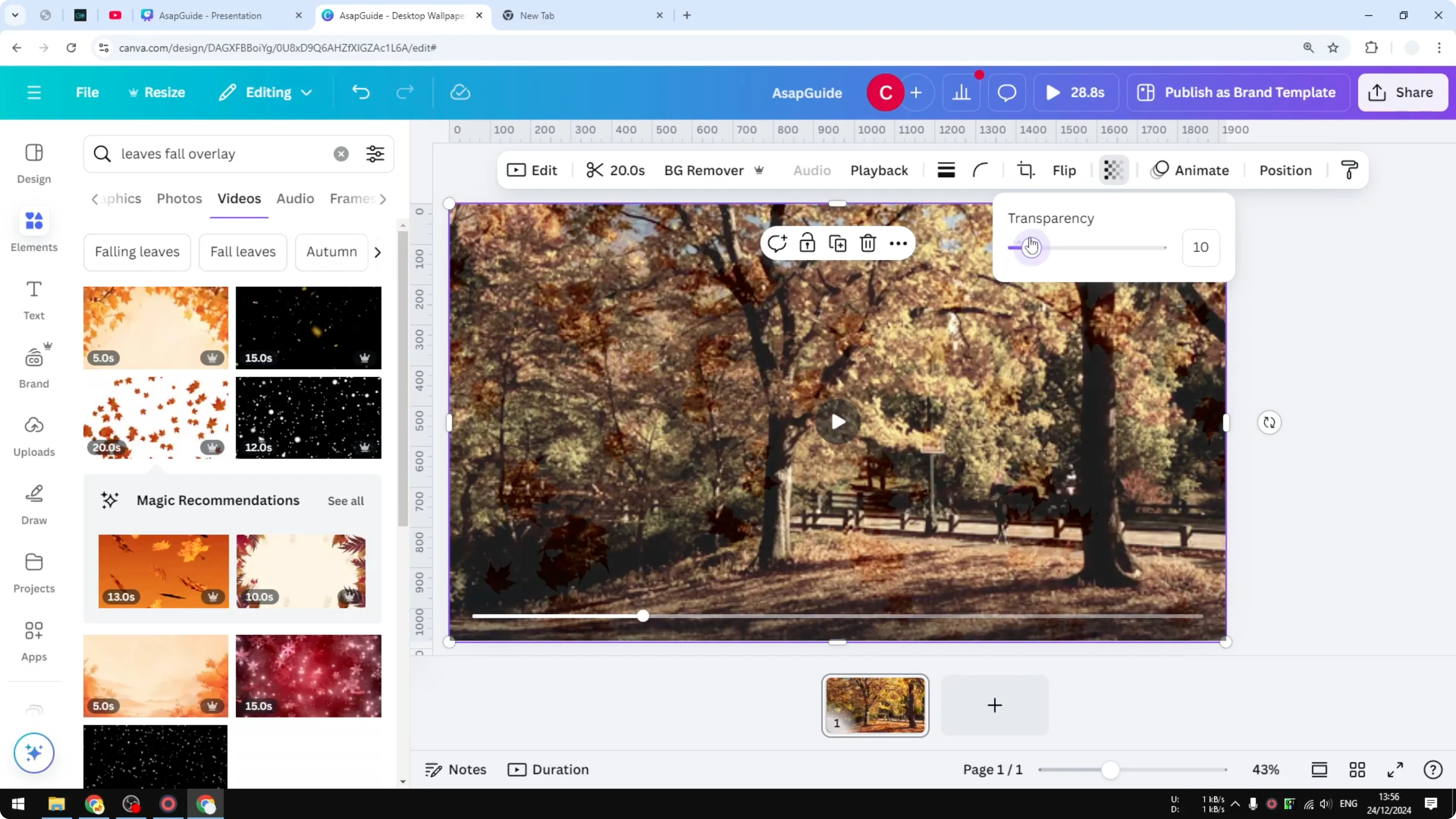
- Click on the overlay video, click Transparency, and adjust the number from 0 to 100.
- 0 means it’s invisible. You probably want to set it to around 10 to 30 percent depending on what kind of video you are trying to get.
- At around 10 percent it may be barely visible, so increase the number a little if needed.
Optional: Remove the background from the overlay
If a solid background in the overlay is in the way, remove the background on that video.
Step-by-step:
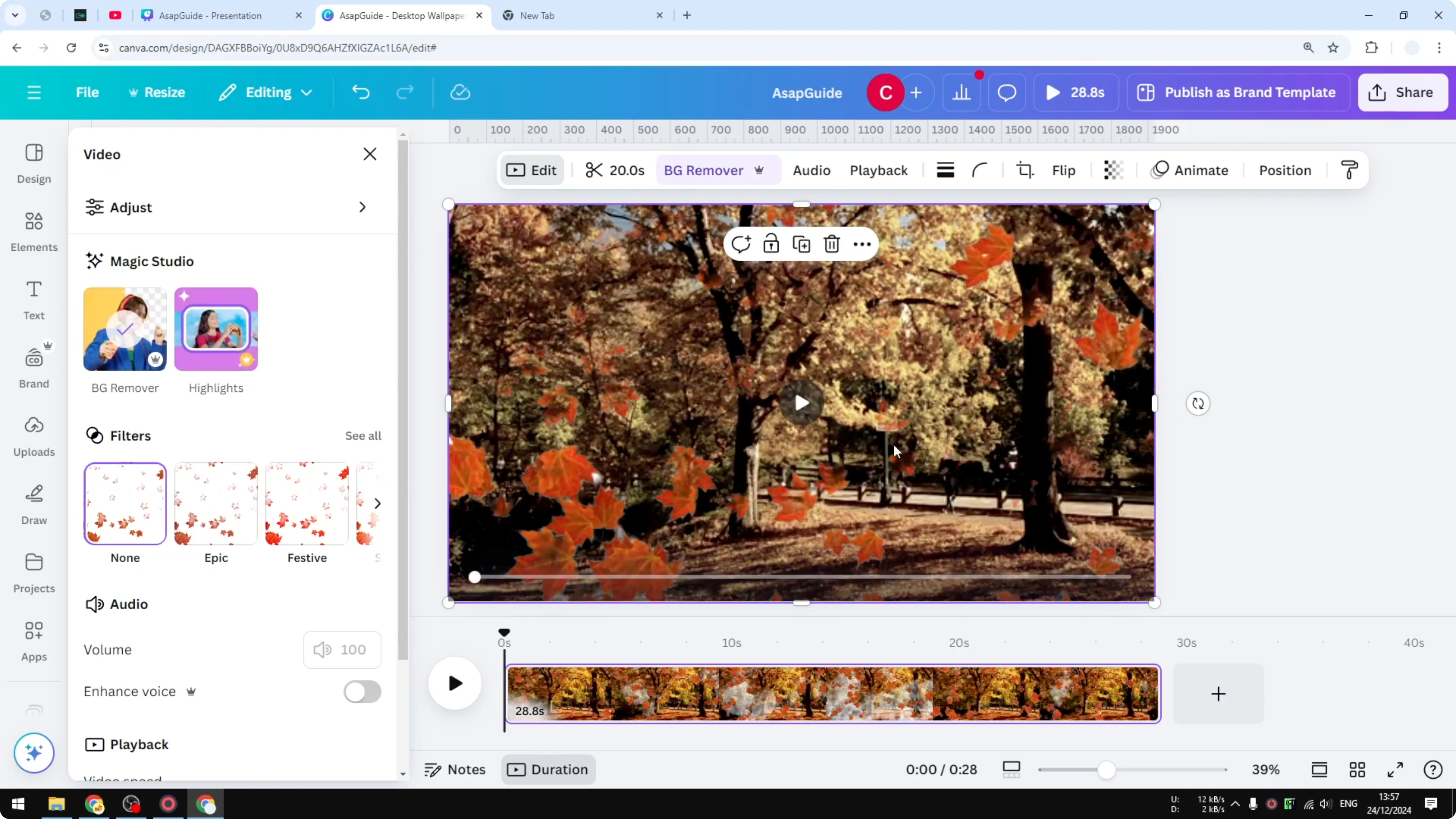
- Click on the video that you want to remove the background from.
- Click Edit.
- In Magic Studio, select Background Remover.
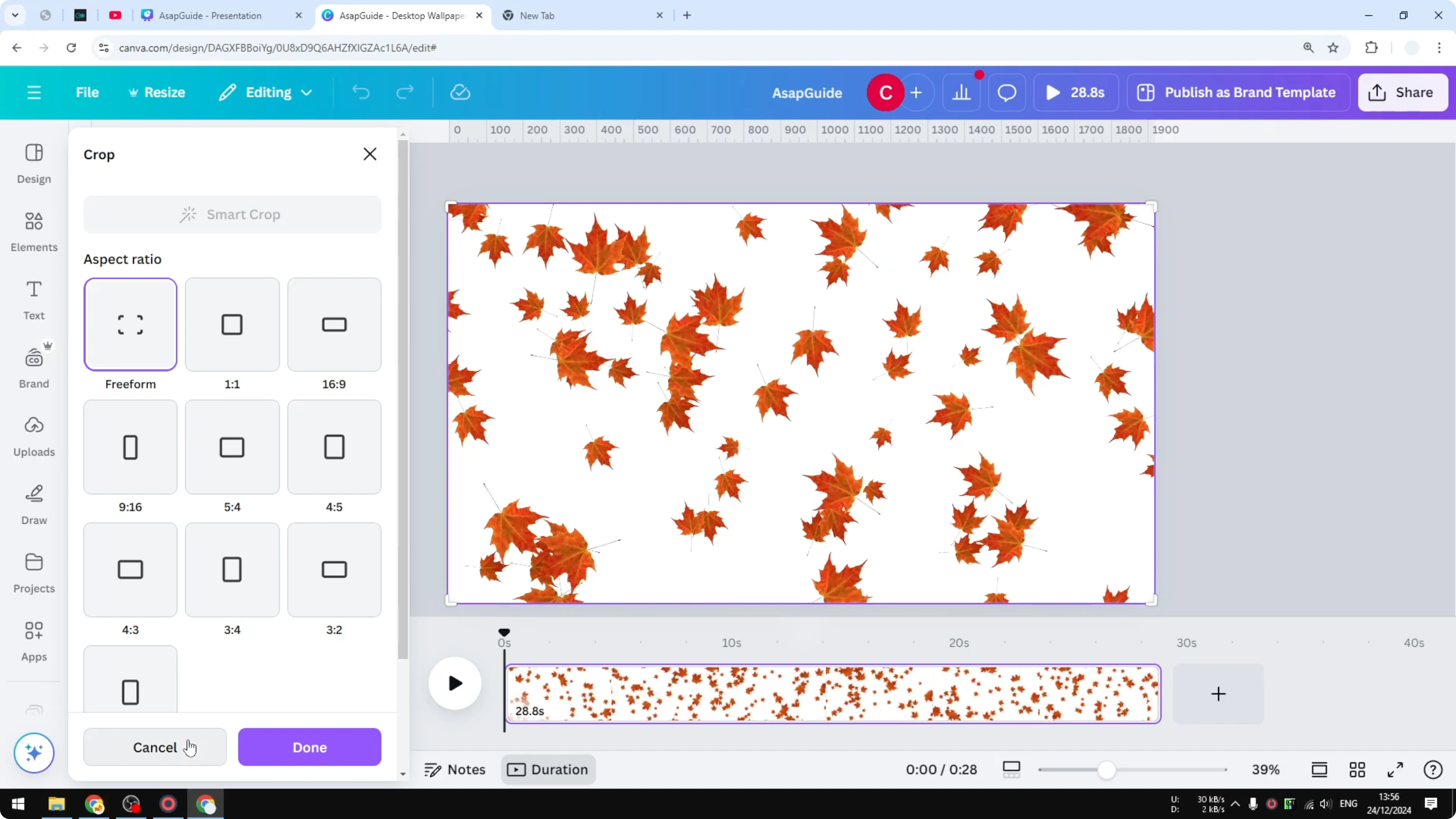
What to expect:
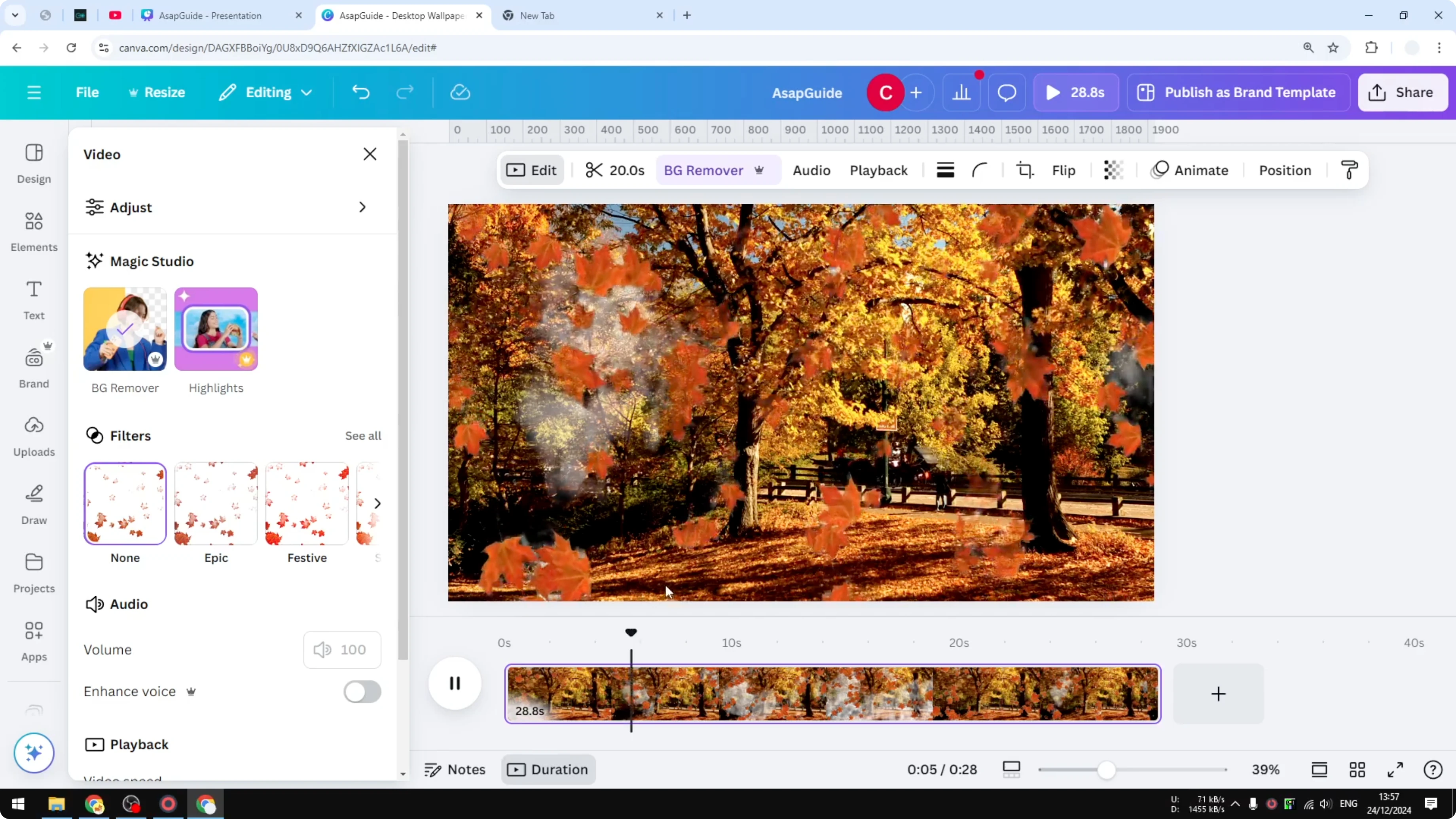
- It will remove the background of the video based on the subject. For example, if the subject is falling leaves and the background is a white solid background, it will try to keep the leaves and remove the white.
- This is an experimental feature in Canva and not working really well every time. It really depends on the video.
- It is far from perfect for some types of footage. If you have a more static video where there’s someone standing or talking, not moving at all, it usually does a much better job.
Final Thoughts
That’s how you can make a video transparent in Canva. Add your base video, place an overlay on top, adjust the transparency to about 10 to 30 percent, and use background removal if a solid background gets in the way.
Recent Posts

How to Visualize Yourself as a Pixelized Character with AI?
How to Visualize Yourself as a Pixelized Character with AI?

How to Revive Faded Memories and Enhance Image Clarity with AI?
How to Revive Faded Memories and Enhance Image Clarity with AI?

How to Visualize Yourself as an Animal Crossing Character with AI?
How to Visualize Yourself as an Animal Crossing Character with AI?