How to Split Video in Canva
I’m going to show you how you can split a video in Canva. This is useful if you have a clip that is too long and you want to make it short, or you might want to remove a section you don’t want to show on your final project.
I have a 20 second clip and I think it’s too long. I just want to get the first 10 seconds of it.
Split Video in Canva basics
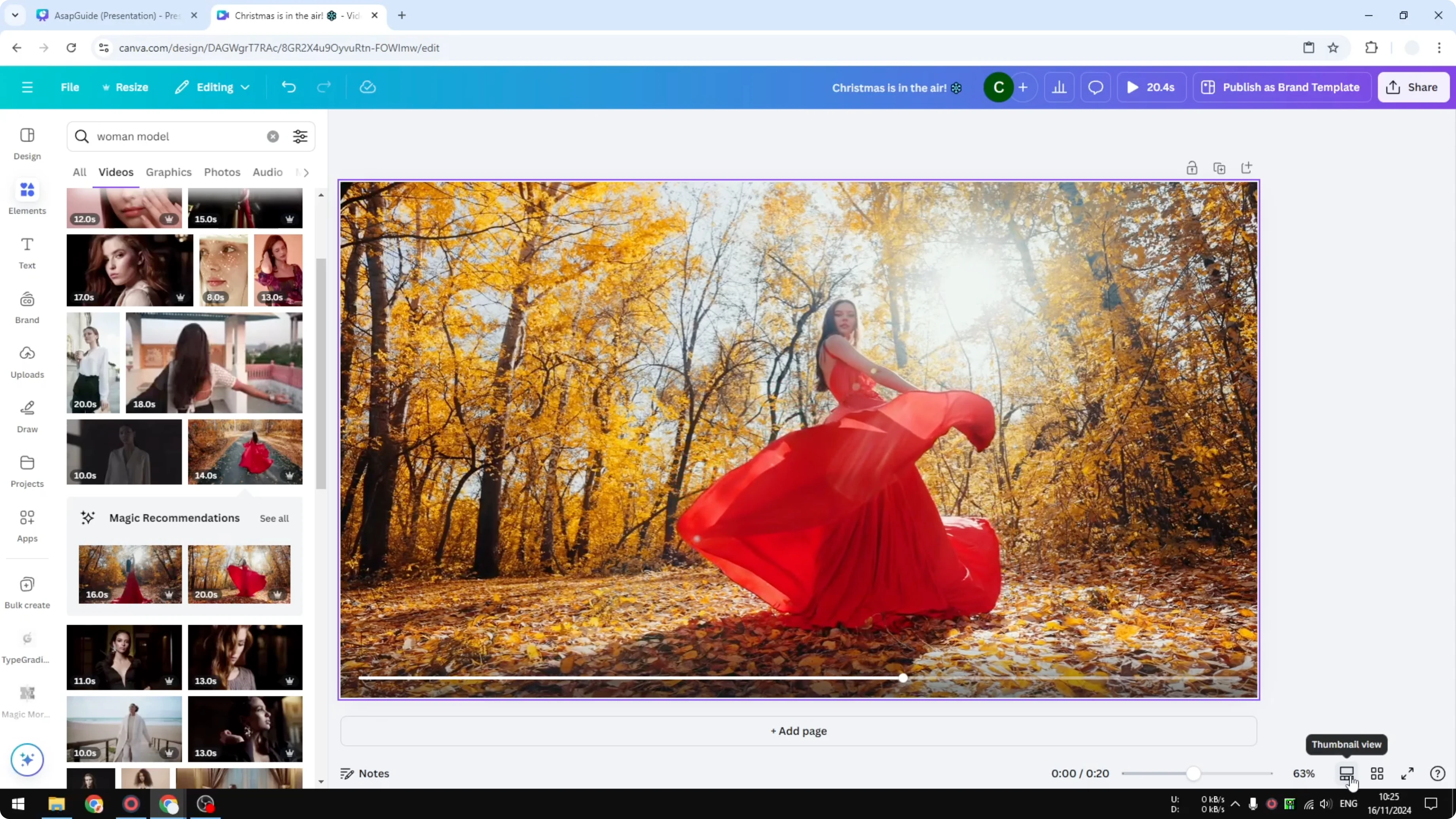
First, I open the thumbnail view. You can click the button at the bottom right corner to see this mode. This tool is very helpful when working on multiple clips.
Read More: How To Split A Video In Canva
Split Video in Canva steps
Place the playhead in the middle of the clip at the 10 second mark.
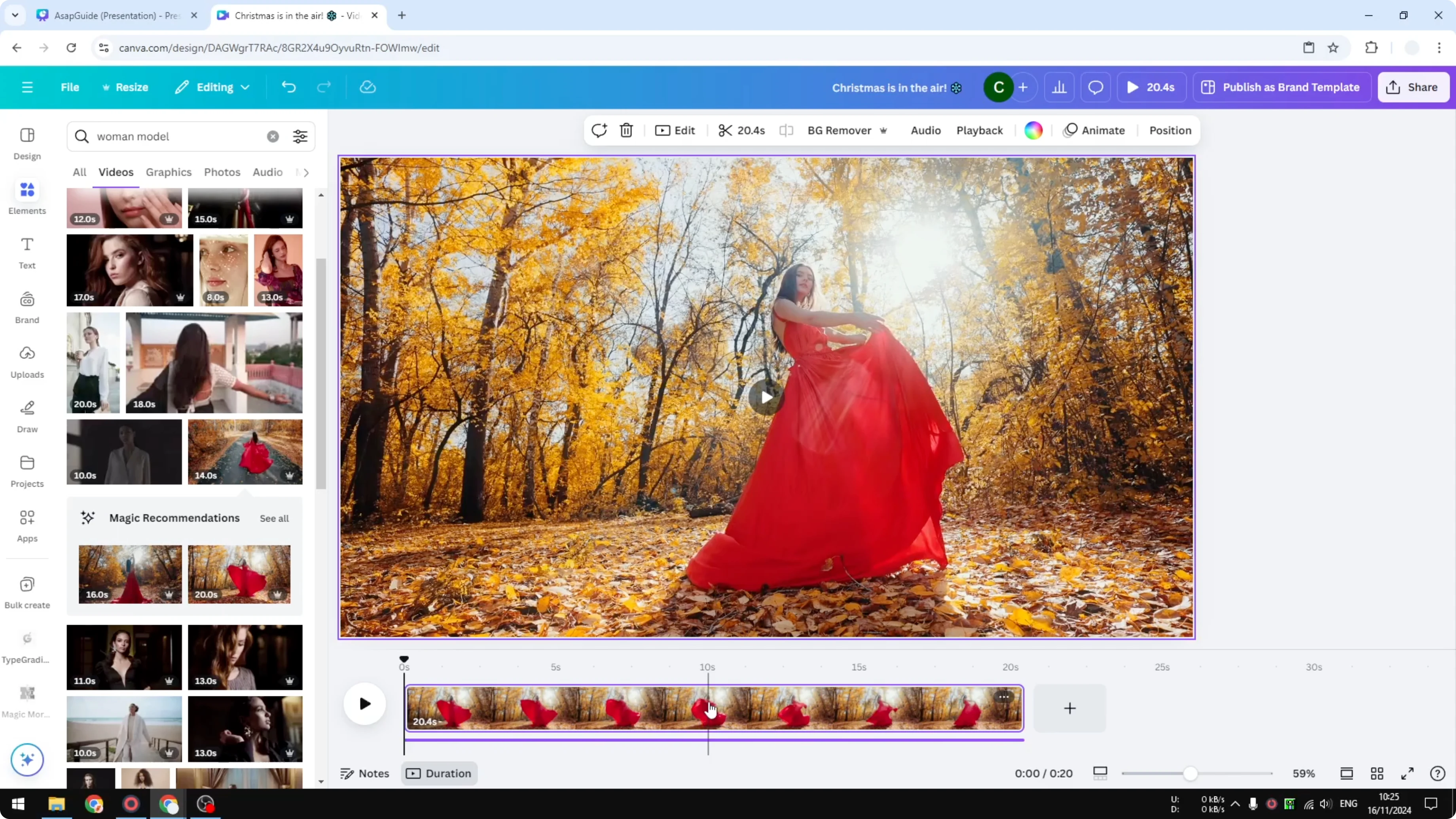
Right-click and click Split page to split the clip into two sections.
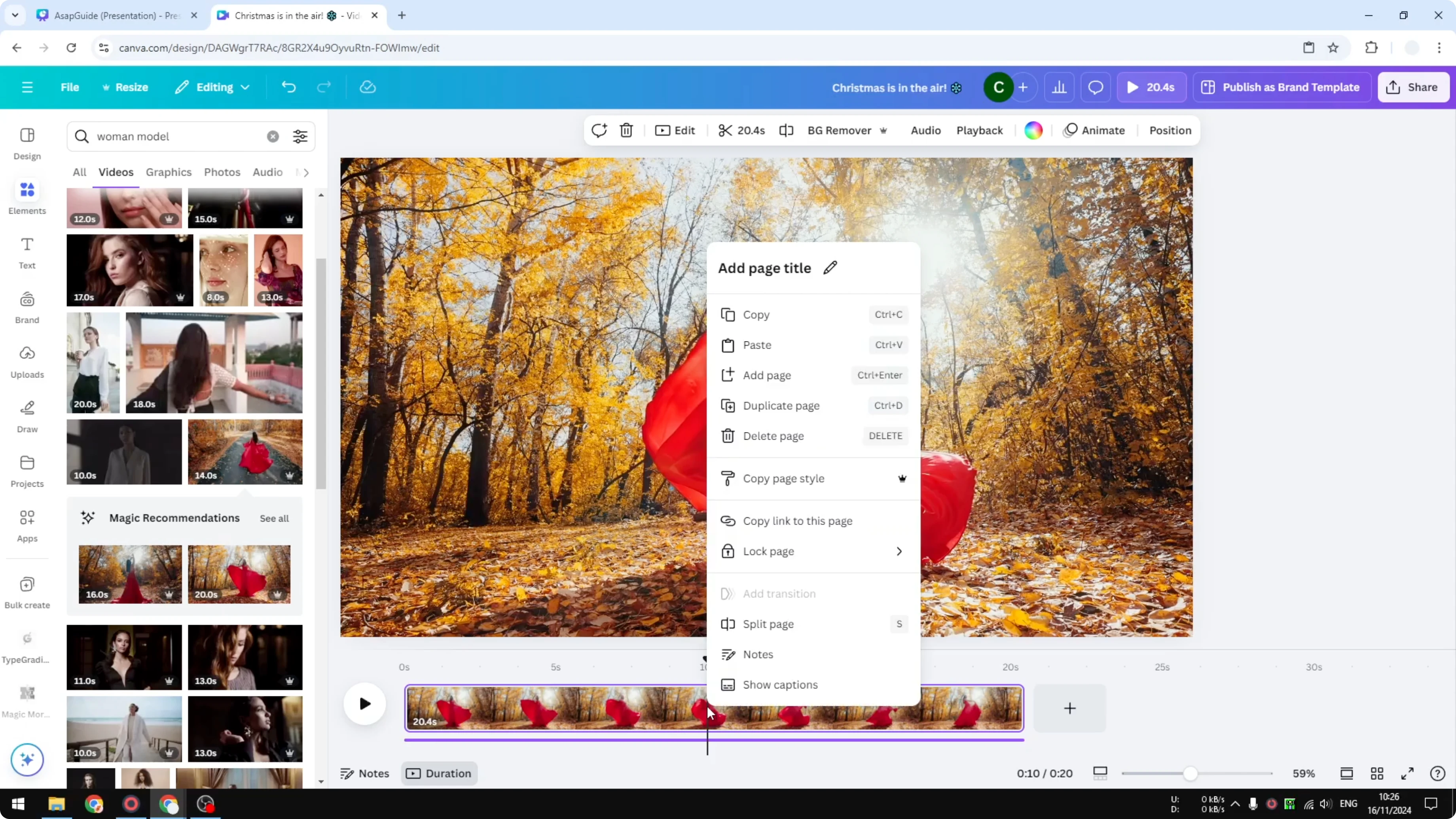
Right-click the second section and click Delete page.
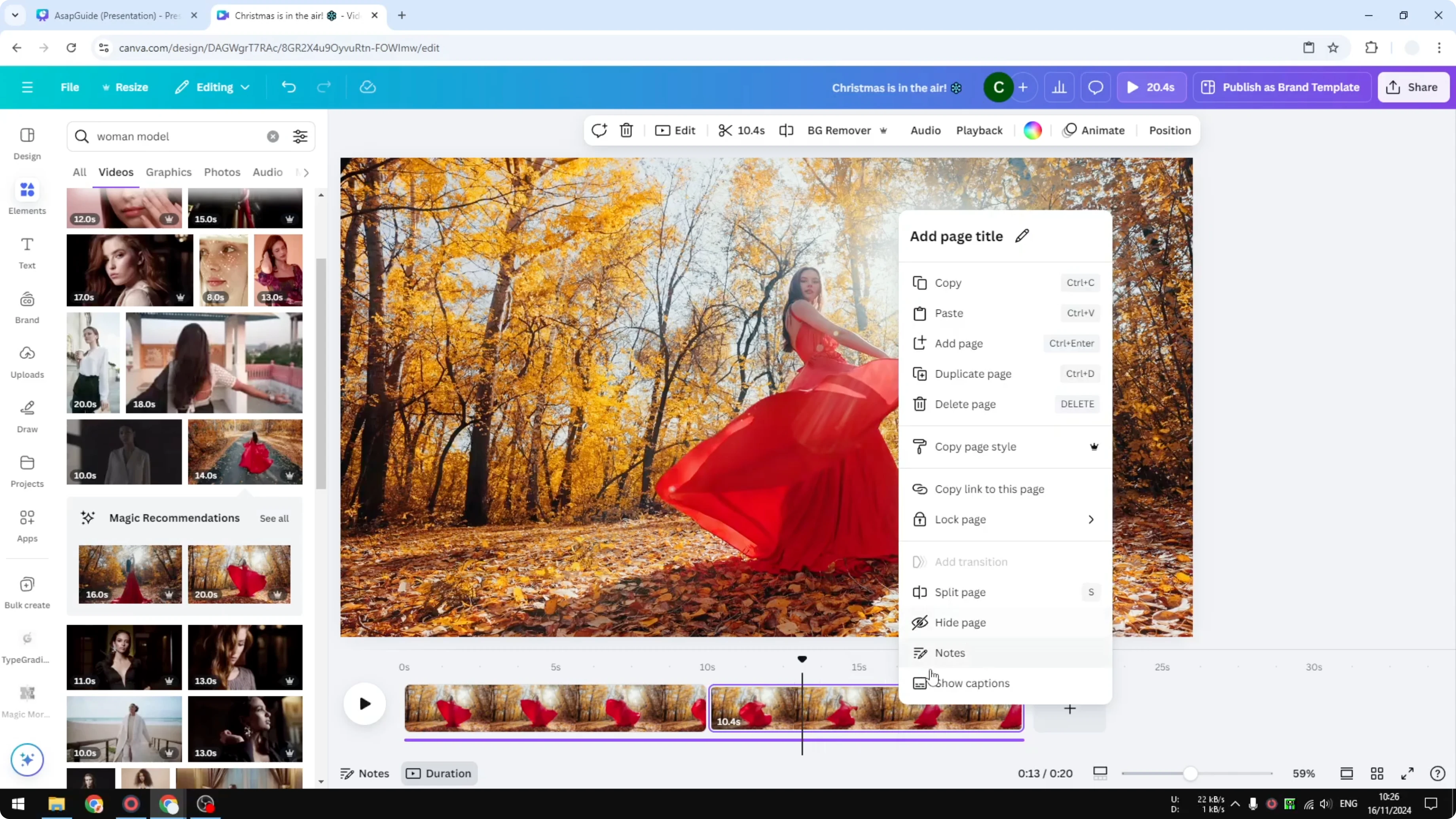
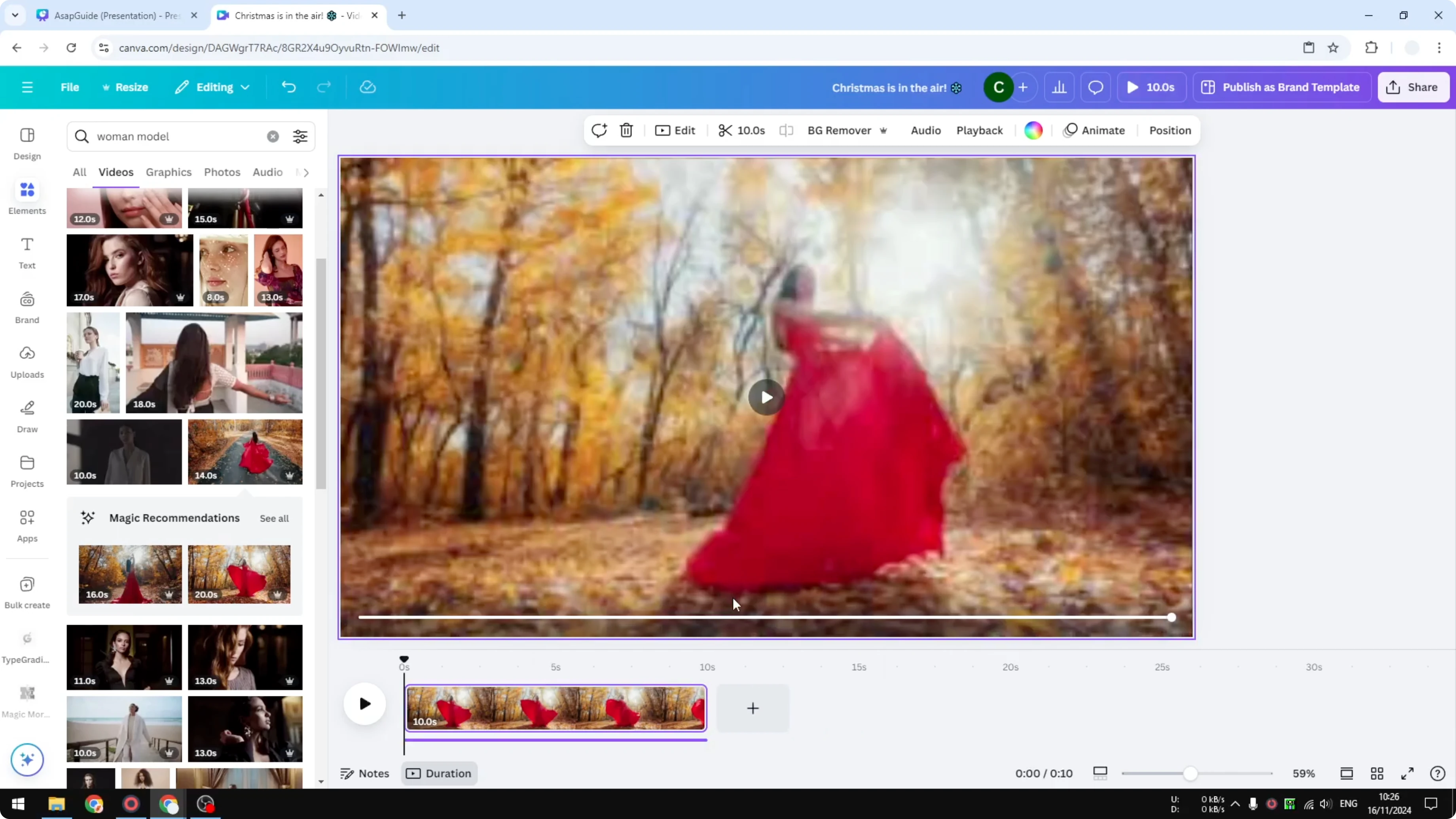
It will split the page, and the sections are separated. Now this clip is just 10 seconds long instead of 20 seconds. That is exactly how you can split a video or a clip in Canva.
Read More: Add Filter Video Canva
Final Thoughts
Splitting lets you keep only the parts you need and quickly remove unwanted sections. With the playhead, Split page, and Delete page, you can trim clips down to the exact duration you want.
Read More: Add Video Transitions Canva
Recent Posts

How to Visualize Yourself as a Pixelized Character with AI?
How to Visualize Yourself as a Pixelized Character with AI?

How to Revive Faded Memories and Enhance Image Clarity with AI?
How to Revive Faded Memories and Enhance Image Clarity with AI?

How to Visualize Yourself as an Animal Crossing Character with AI?
How to Visualize Yourself as an Animal Crossing Character with AI?