How to Split a Video in Canva
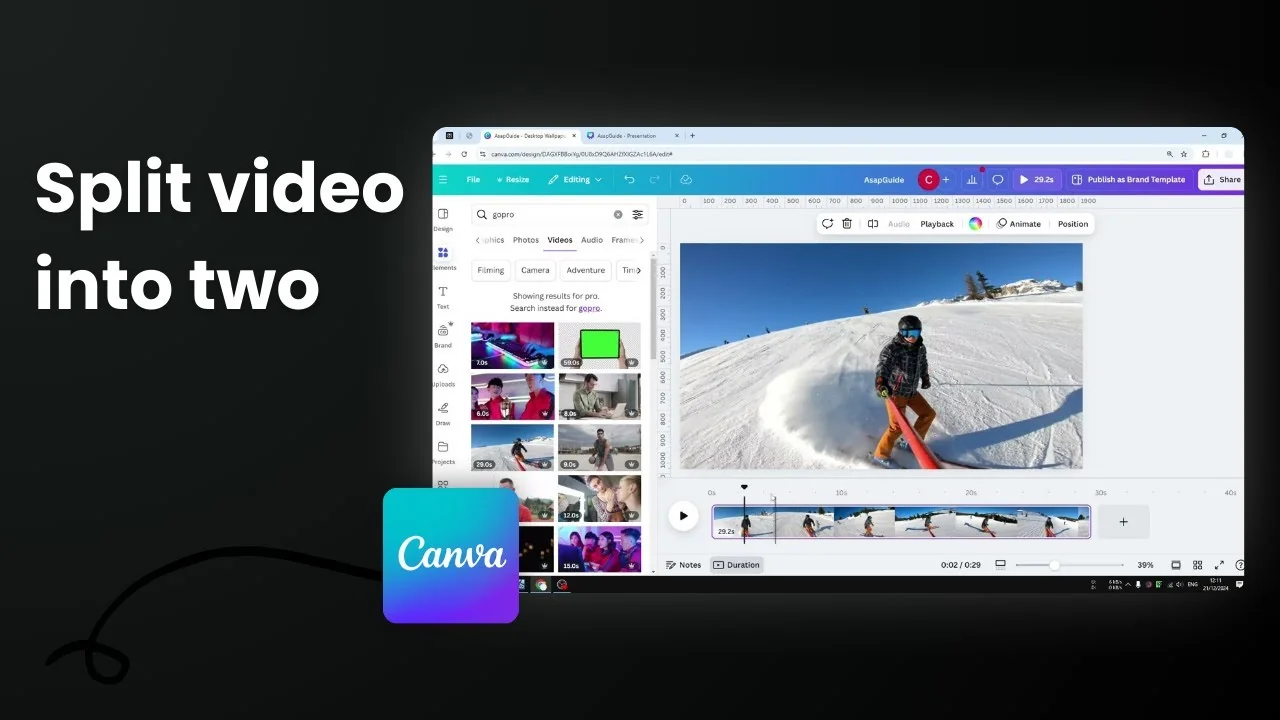
This is how you can split a video using Canva. Splitting is very useful if you want to cut a part of a video that you don't want to show to your viewers.
Split a Video in Canva
Follow these steps:
- Insert the video into your Canva document.

- Open the thumbnail view. Enable the duration view so you can see the timeline of the whole video.
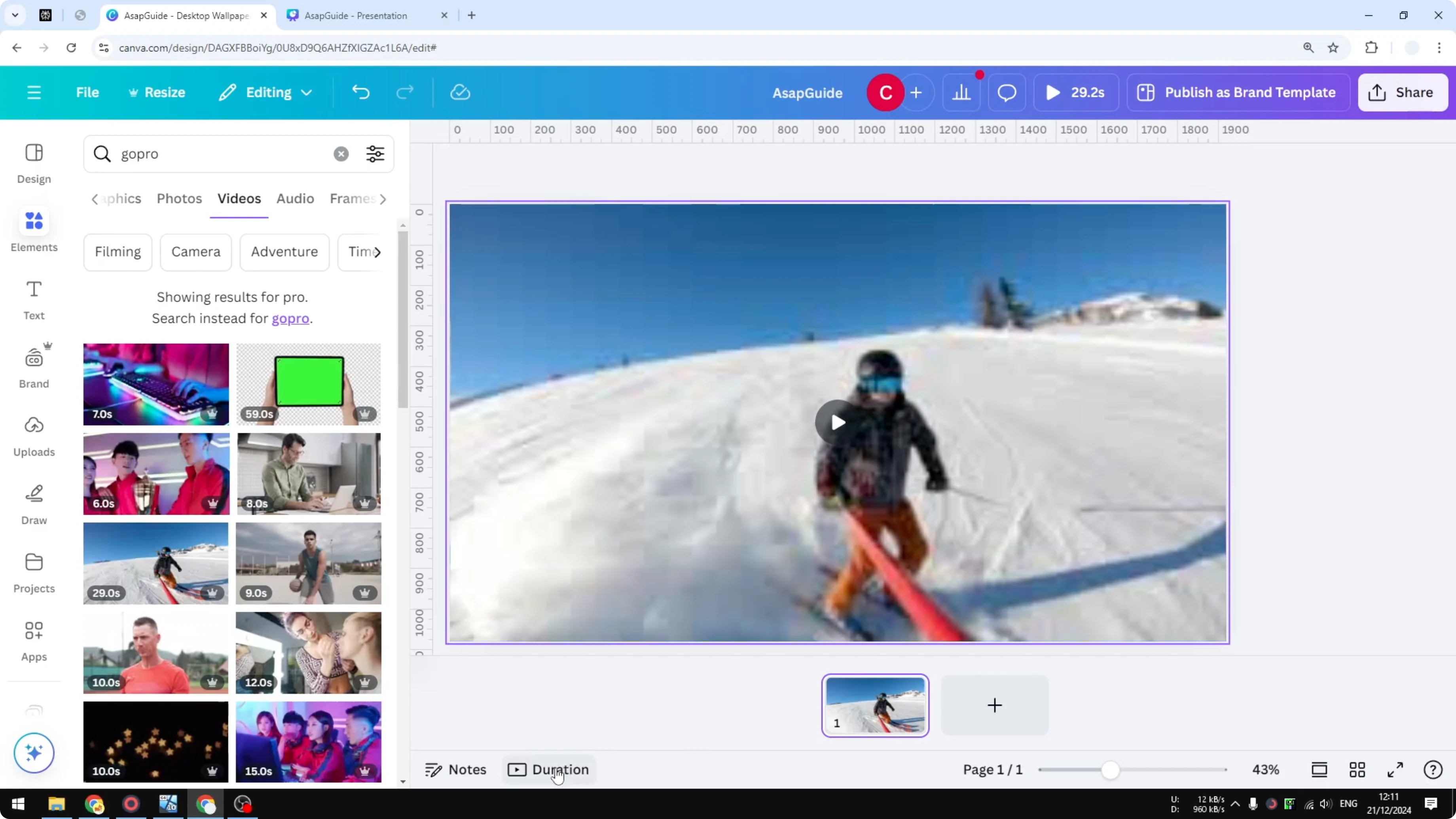
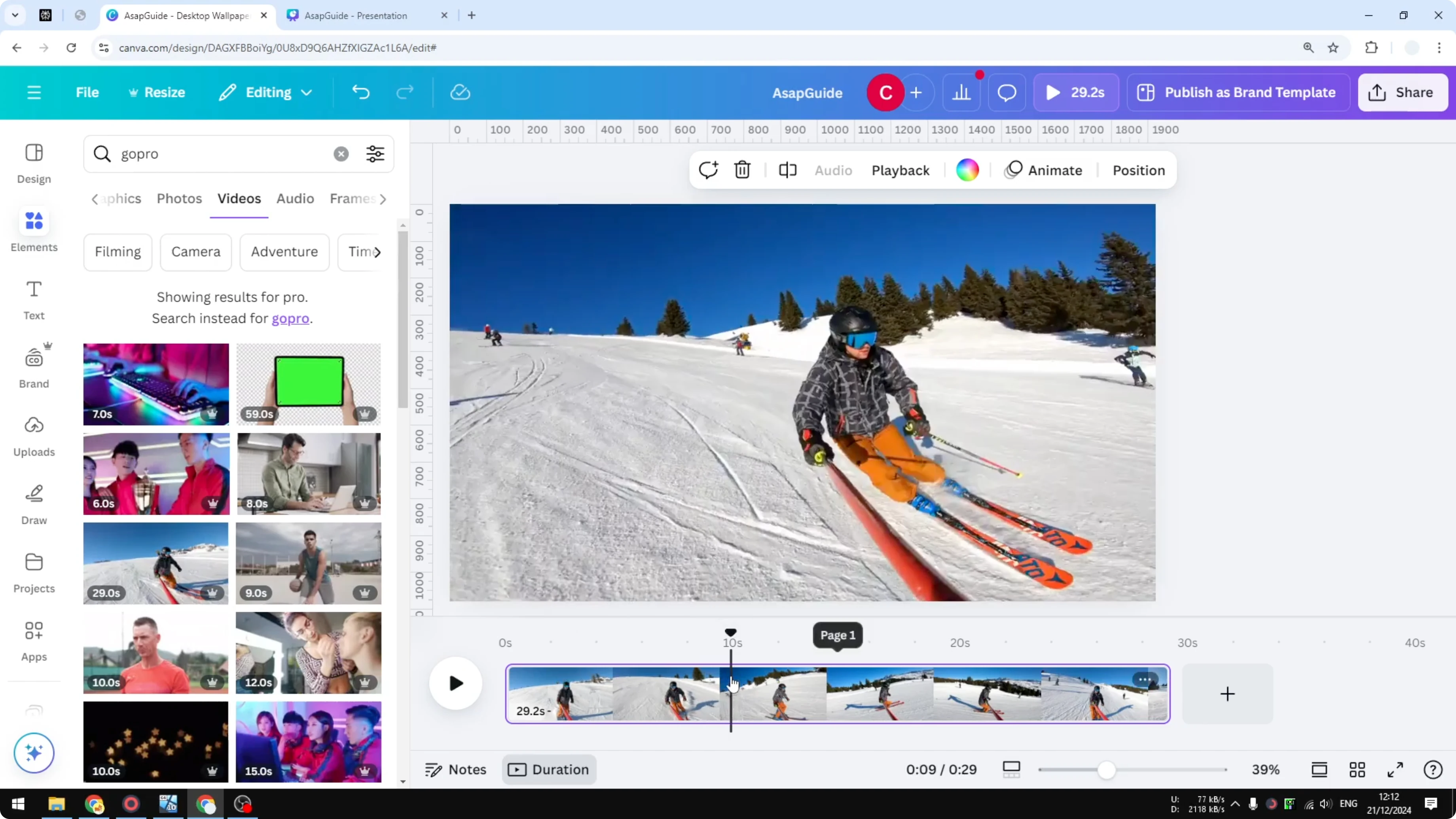
- Click the play button to see the whole video running. If there is a section that you want to remove, for example a section that lasts between 10 to 20 seconds, do this:
- Put the playhead on the area that you want to cut.
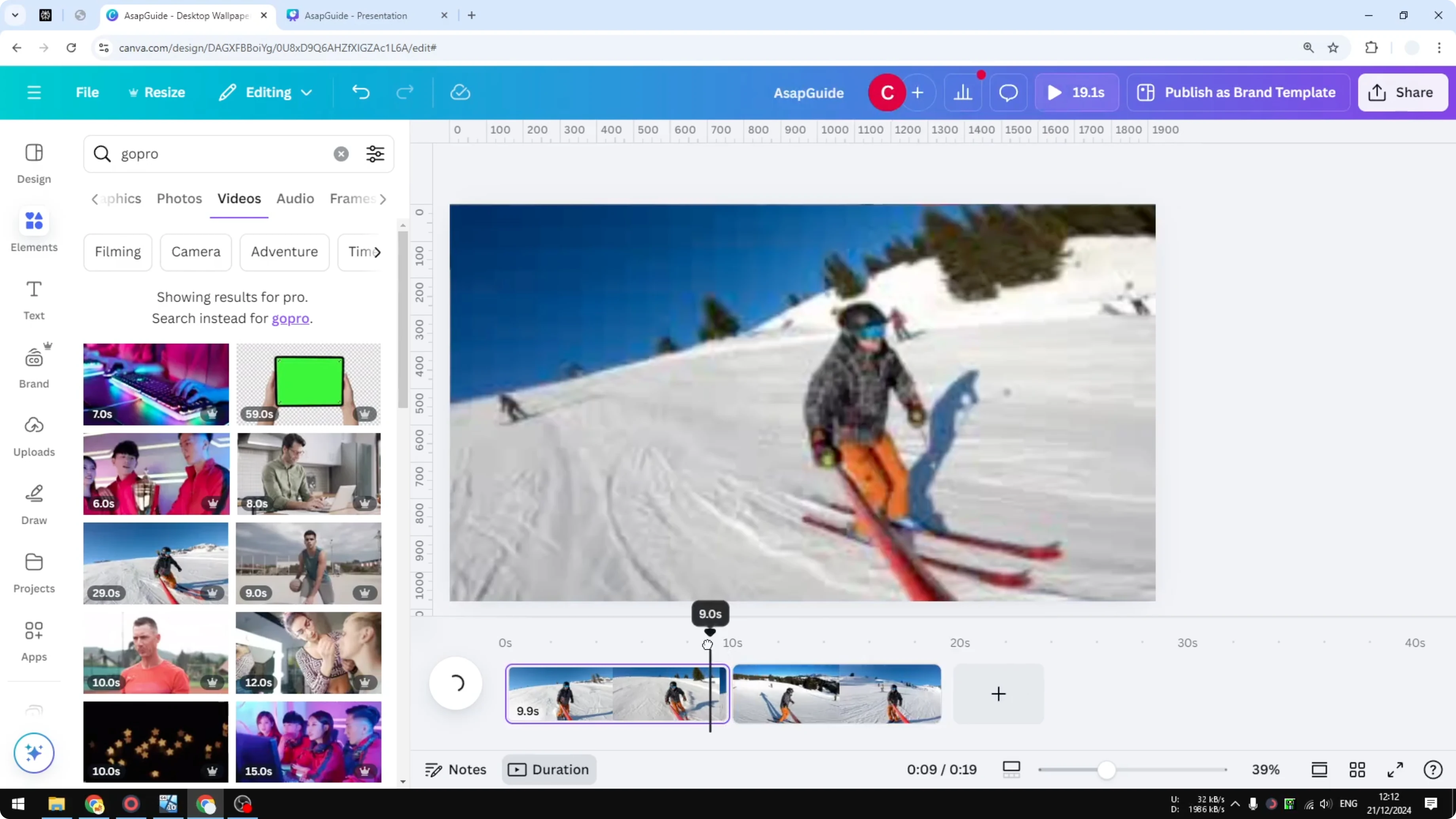
- Right click and click Split page, or use the keyboard shortcut S. That section will be split.
- To split again, put the playhead on the next point you want to cut, right click, and click Split page.


- After two splits, you will have three separate sections of the same video. The middle section is no longer attached to the first and the last section, so you can easily change anything in this section without affecting the others.

- Edit or remove the middle section:
- Make it shorter.
- Edit it, like changing the color or adding some elements.
- Or right click and delete the section you don't want to show to your viewers.


When you delete that section, the video will jump from one section to another, and there will be a cut like that in the final production of the video.
Final Thoughts
That’s how you can split a video using Canva. Use the playhead to set your cut points, split the page, and then edit or delete the section you don’t want to include.
Recent Posts

How to Visualize Yourself as a Pixelized Character with AI?
How to Visualize Yourself as a Pixelized Character with AI?

How to Revive Faded Memories and Enhance Image Clarity with AI?
How to Revive Faded Memories and Enhance Image Clarity with AI?

How to Visualize Yourself as an Animal Crossing Character with AI?
How to Visualize Yourself as an Animal Crossing Character with AI?