How to Speed Up Video in Canva
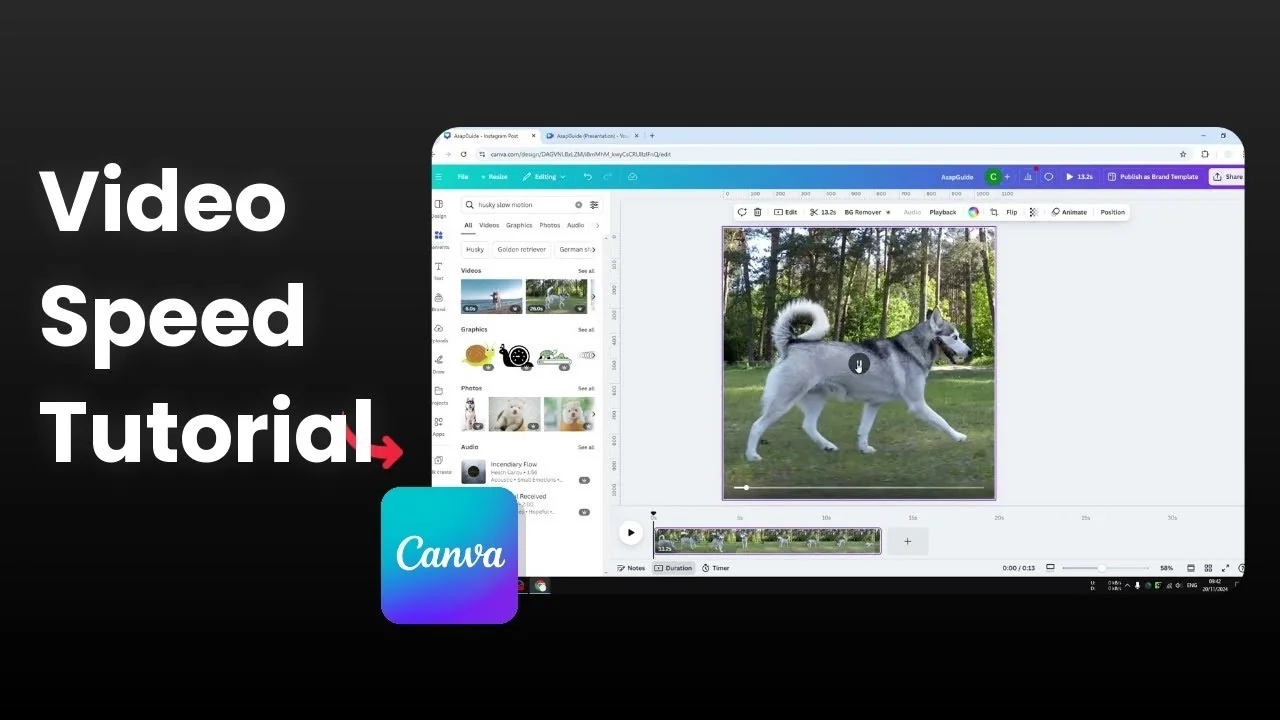
I'm going to show you how to speed up a video in Canva. I have a video of a husky dog running captured with a slow motion camera, which is why everything looks slower. In reality this dog is not slow at all, and you can change the speed so it looks normal.
Speed Up Video in Canva: timeline view
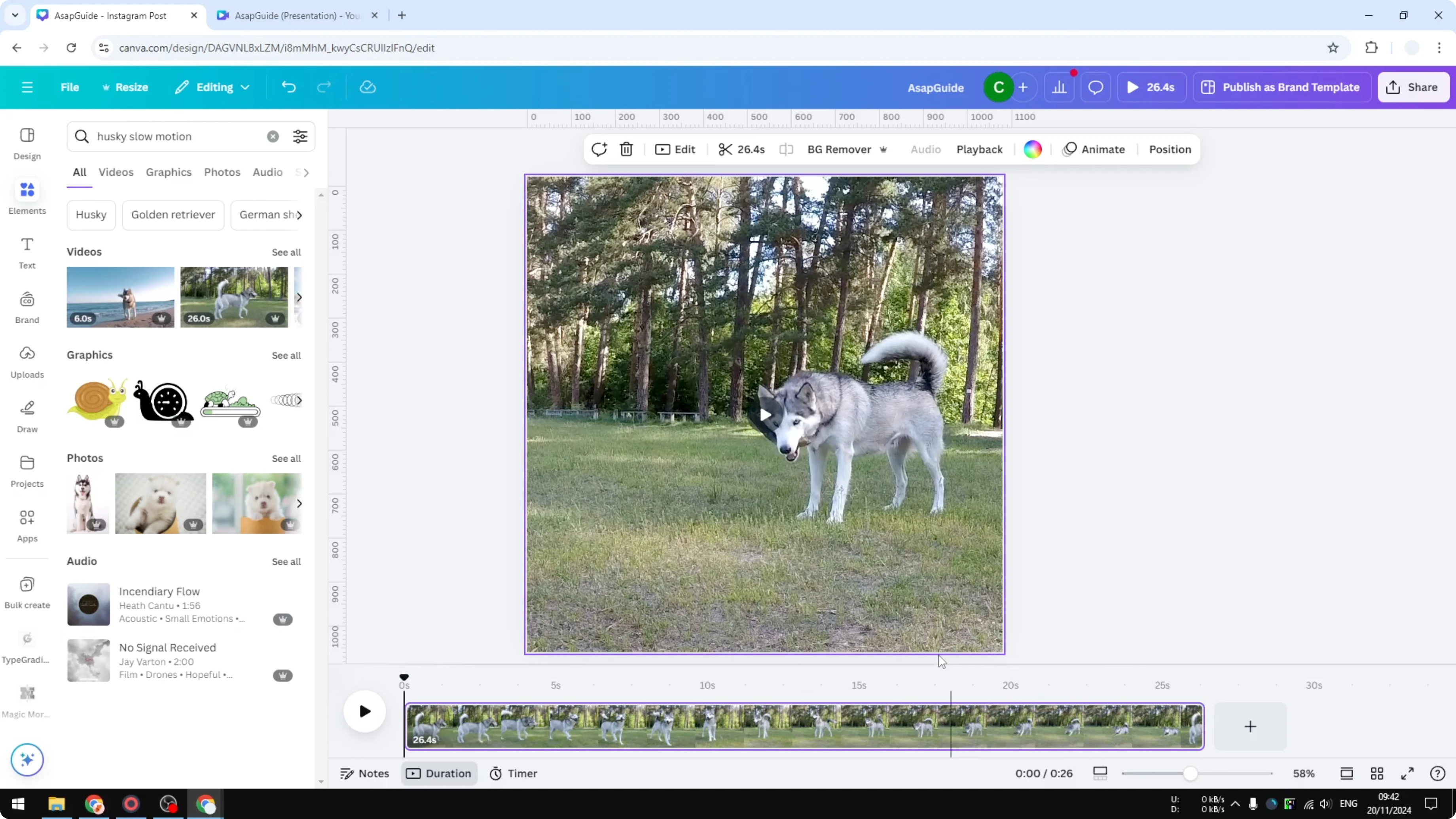
I recommend opening the timeline view. Click Duration to get an idea of how long the footage really is. In this example it was about 25 seconds.
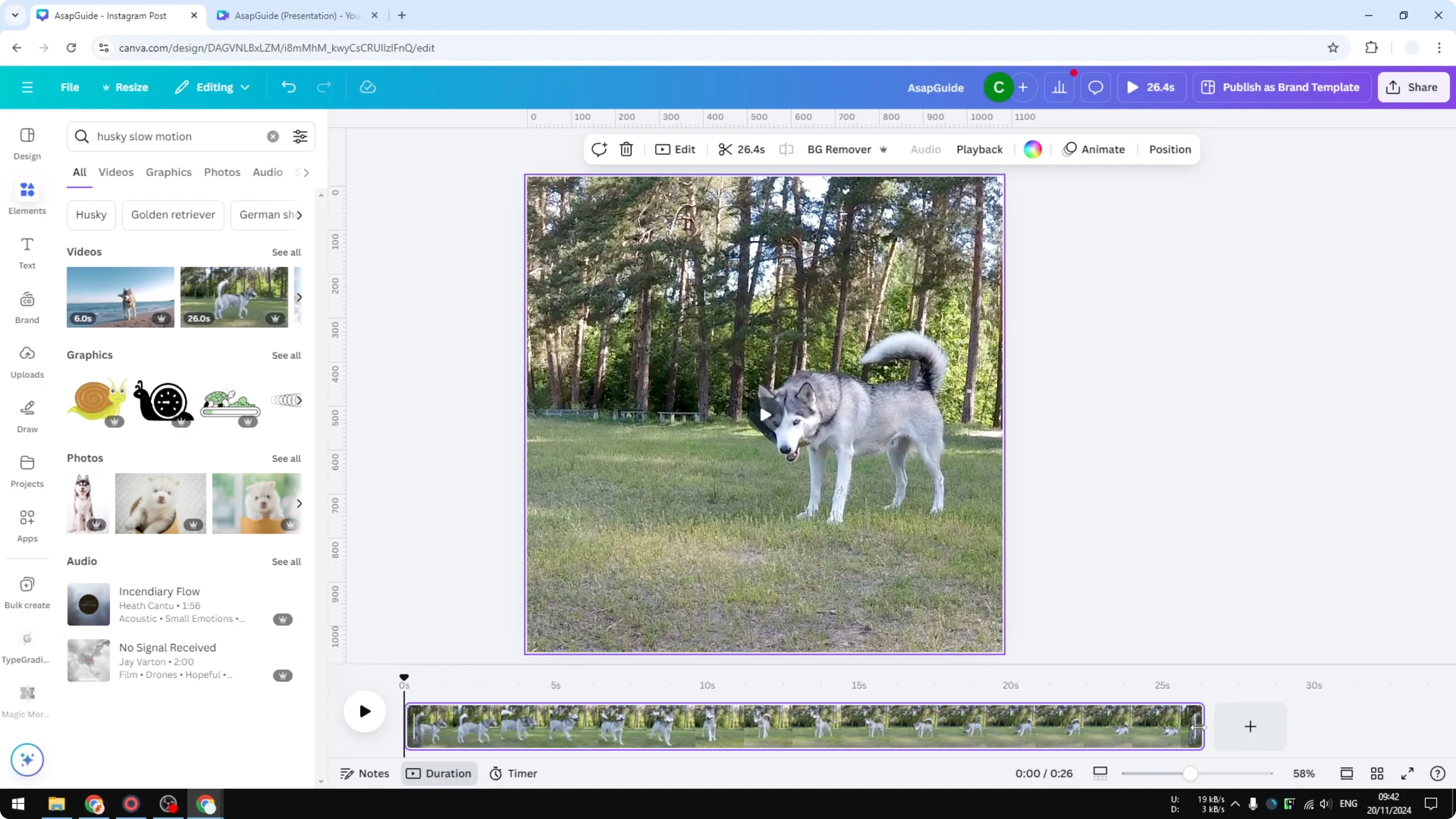
I'm going to speed up this video so the dog will run normally.
Read More: Blur Video Canva
Speed Up Video in Canva: playback speed
Select the video and click Playback. Increase the speed. The normal speed of the video is 1, and you can speed up to twice the original speed.
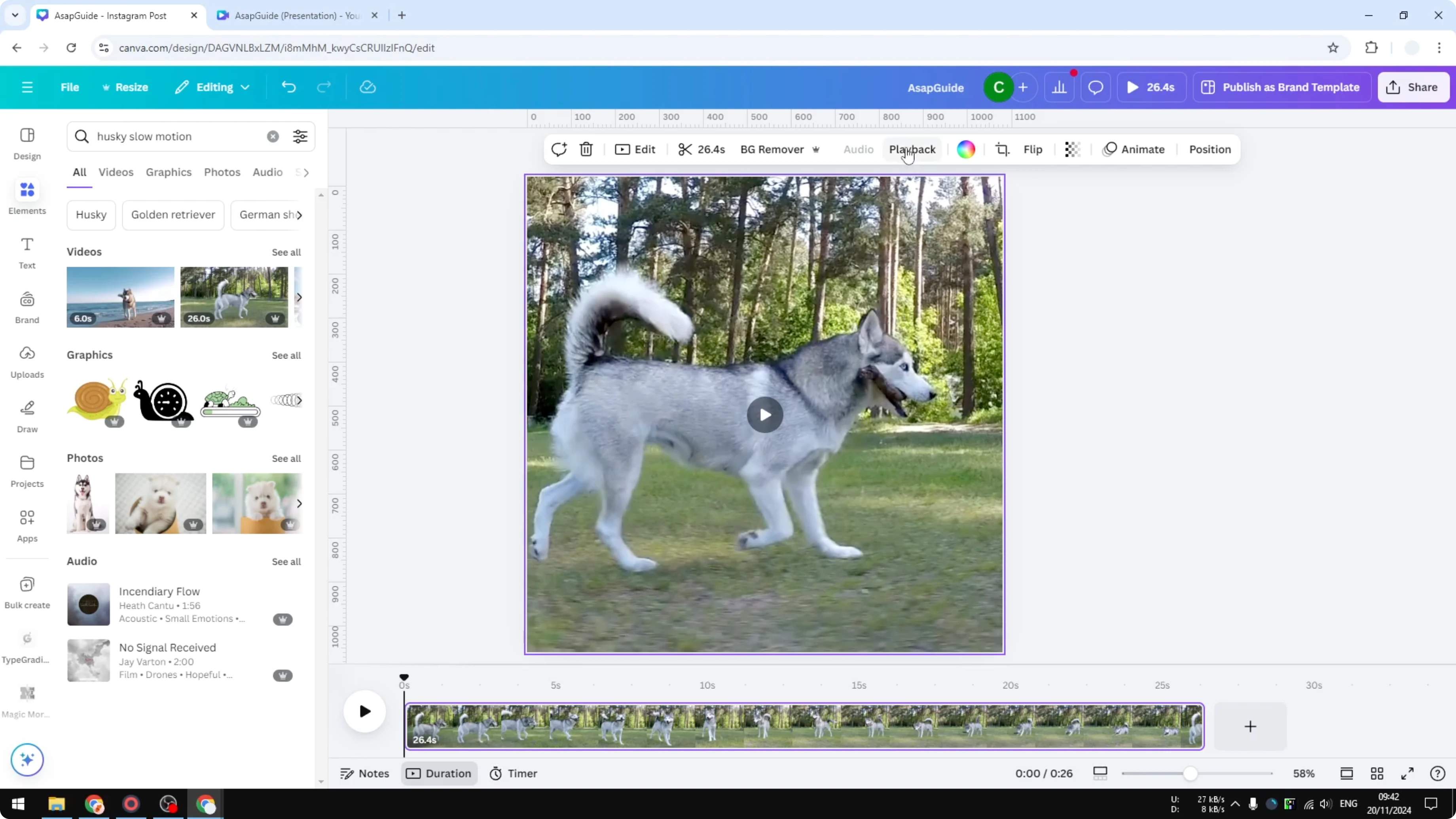
When you play it back, the dog is actually almost normal. It is still a little slow, but much closer to normal than before.
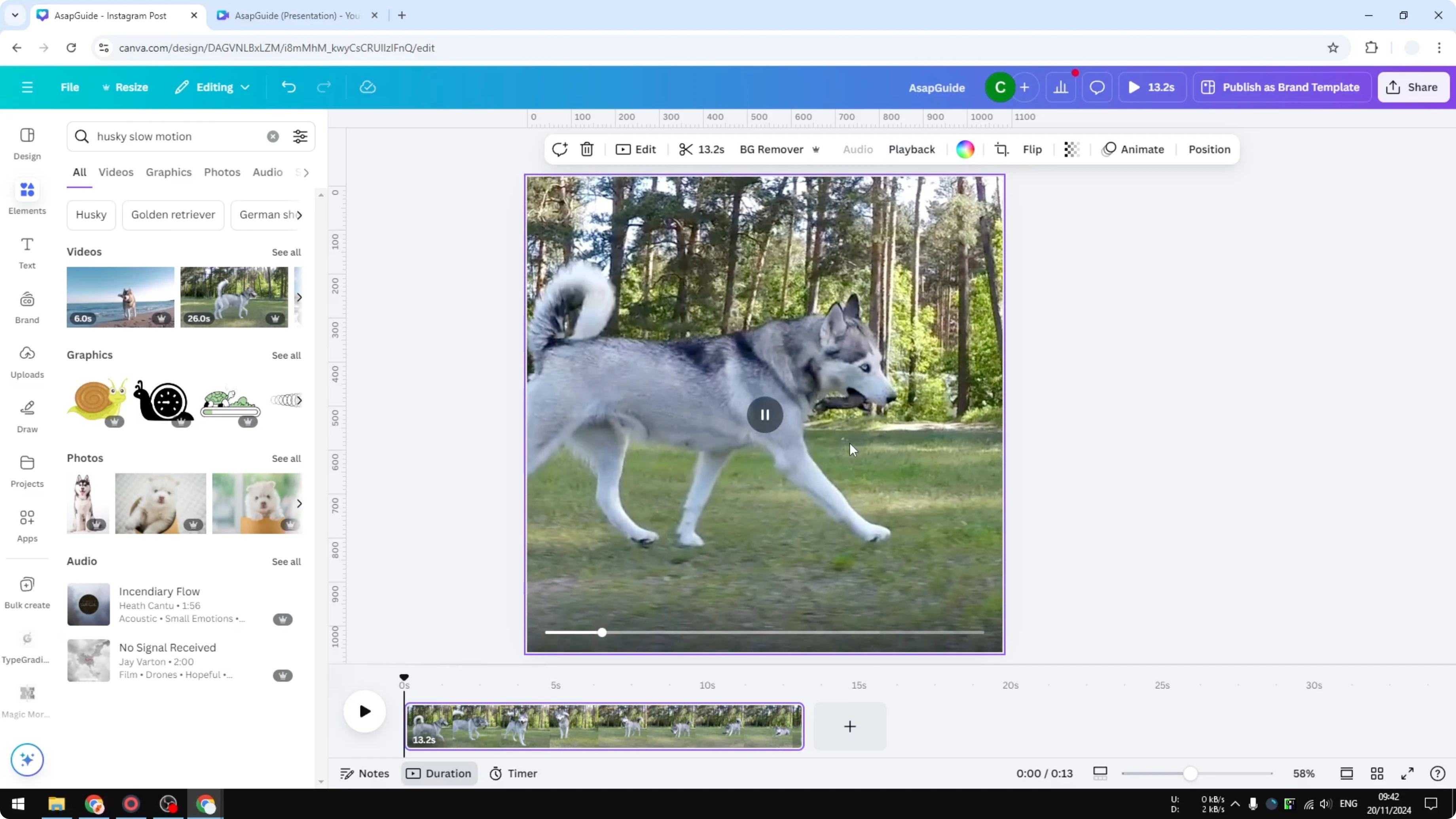
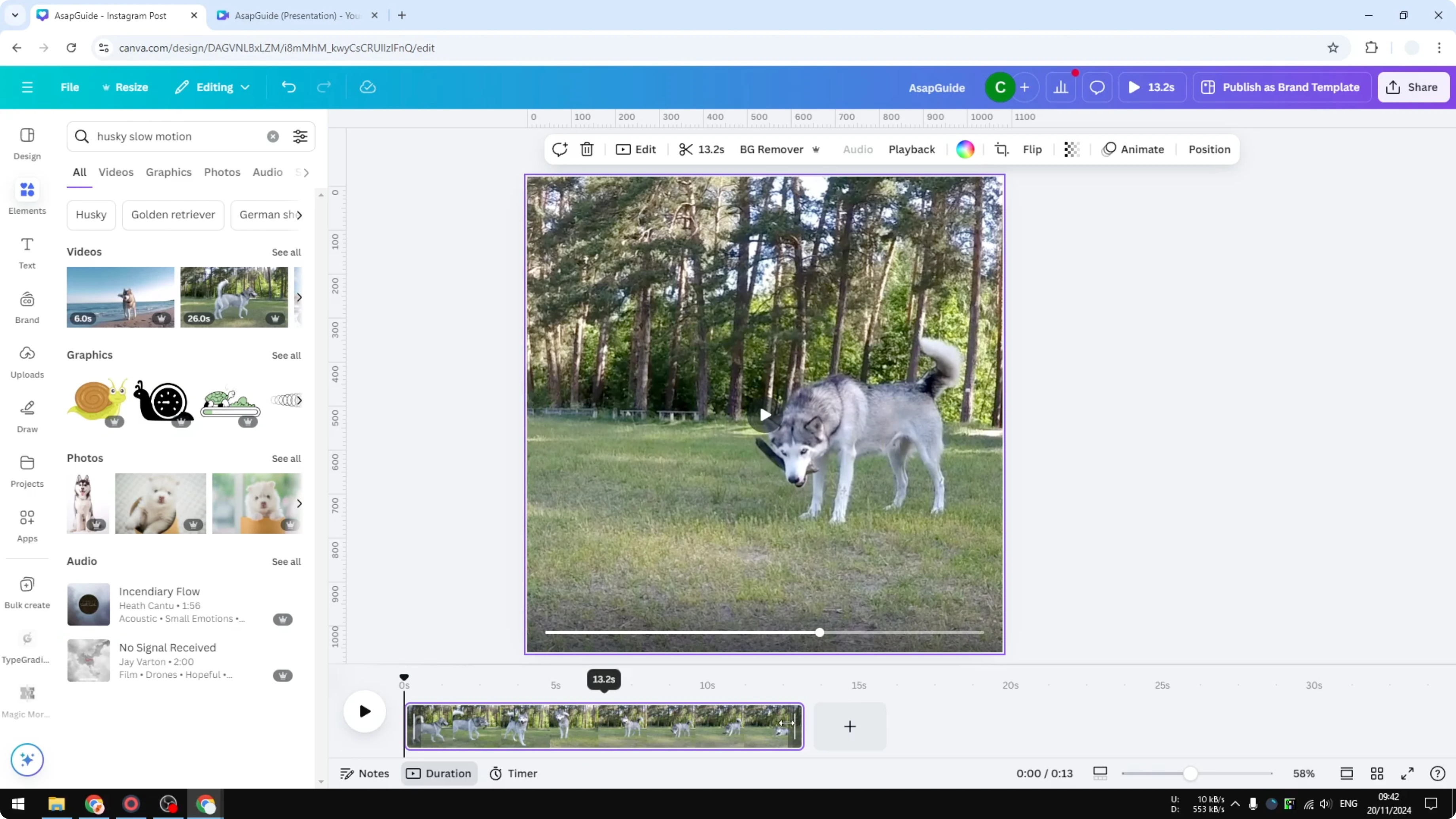
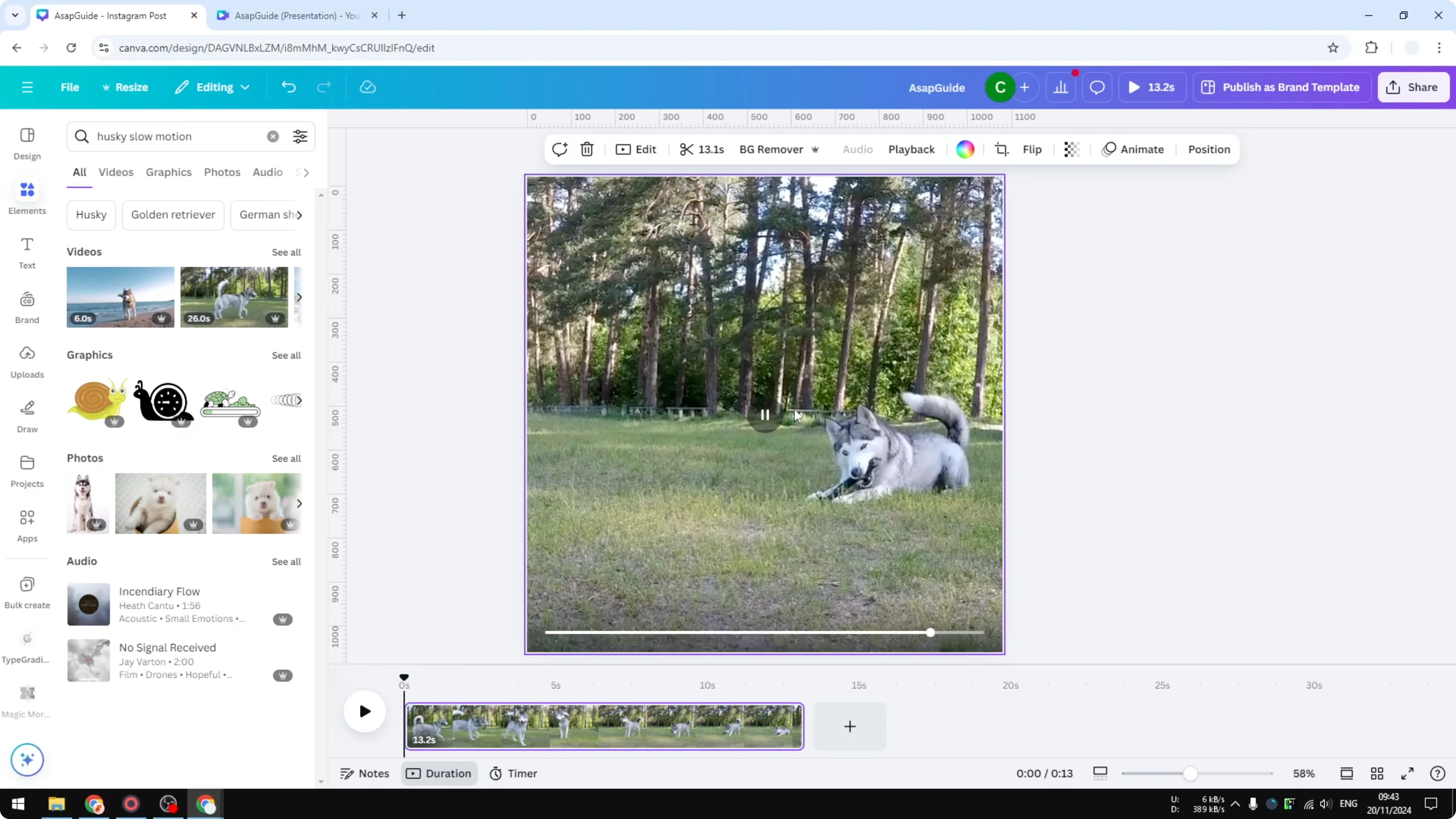
The video duration is cut in half at around 13.2 seconds, while originally it was around 25 to 26 seconds.
Read More: Add Video Transitions Canva
Speed Up Video in Canva: slow motion footage
This method is very useful if you want to speed up slow motion footage. That's how you can do it. I hope you find this helpful.
Read More: Can You Remove Text From A Video In Canva
Final thoughts on Speed Up Video in Canva
Open the timeline to check duration, then use Playback to raise speed up to 2x. Playback at 2x makes slow motion clips look closer to real time and cuts duration roughly in half. This quick change is all you need to fix slow motion footage in Canva.
Recent Posts

How to Visualize Yourself as a Pixelized Character with AI?
How to Visualize Yourself as a Pixelized Character with AI?

How to Revive Faded Memories and Enhance Image Clarity with AI?
How to Revive Faded Memories and Enhance Image Clarity with AI?

How to Visualize Yourself as an Animal Crossing Character with AI?
How to Visualize Yourself as an Animal Crossing Character with AI?