How to Skew Image in Canva
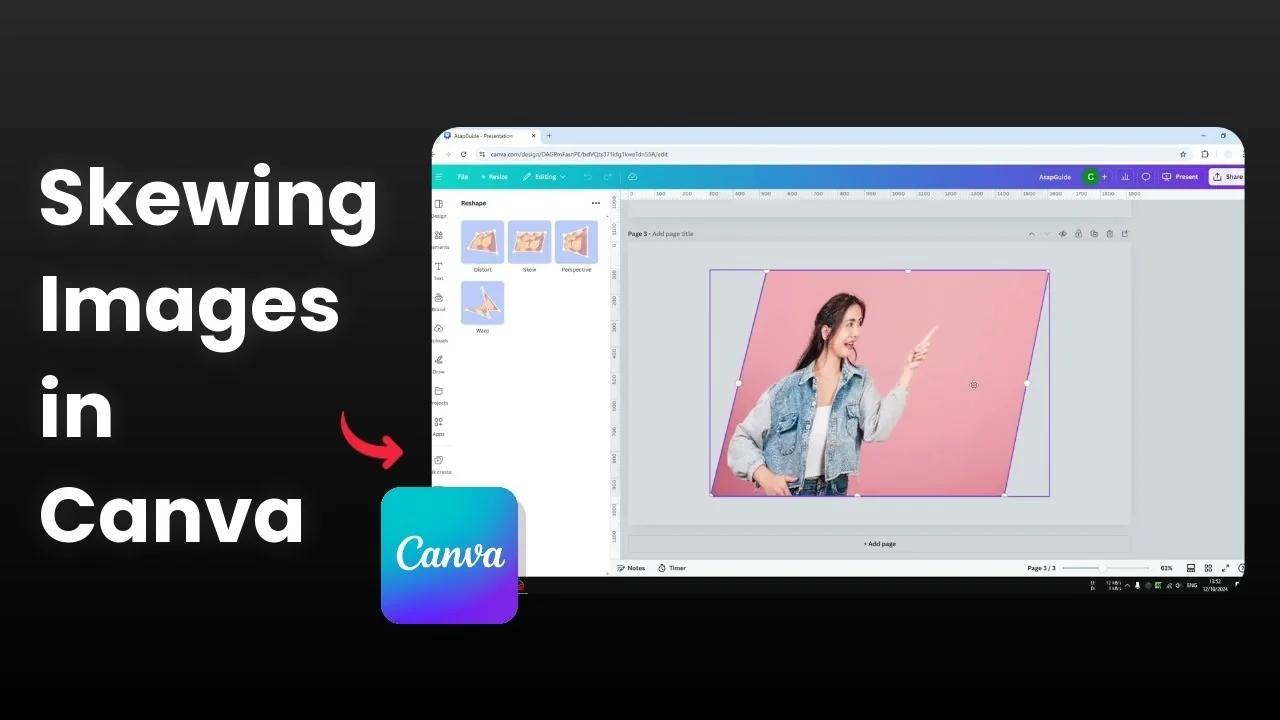
I really hate that Canva has no native feature to skew a picture. It is embarrassing considering how many features it offers, from AI tools to fonts and colors. Changing the perspective of a picture is missing, but there is a simple workaround using apps inside Canva.
At the very least we can use a third party app to get a skew effect integrated in Canva. I will show you two options that work directly inside your design. For a deeper walkthrough on related techniques, see this practical skew image in Canva guide.
Why Skew Image in Canva is tricky
Canva gives you lots of ways to make a design look pretty. Perspective control is not one of them. The fix is to use an app called Skew Image, and if that fails, use Reshape.
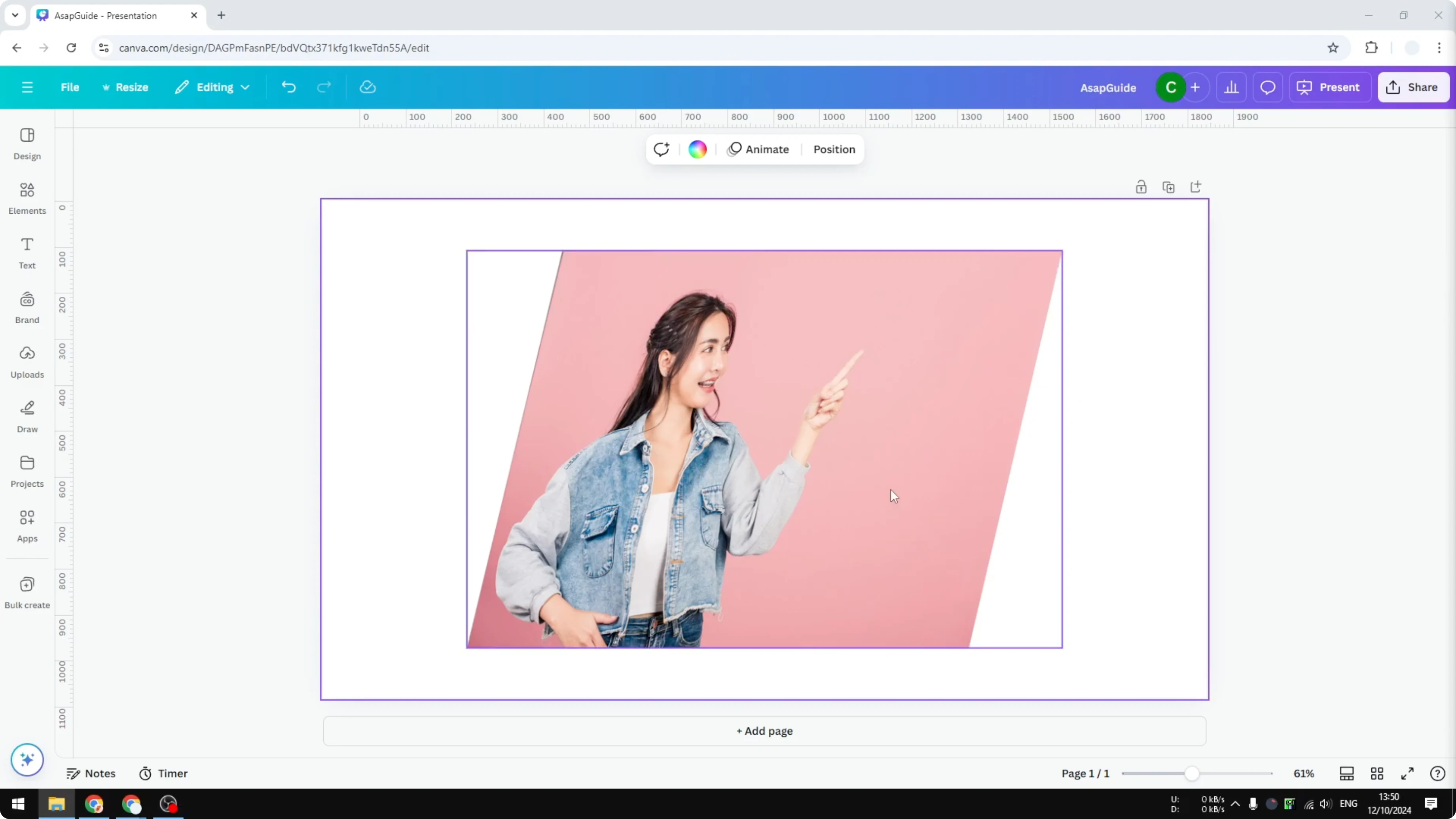
Skew Image in Canva with the Skew Image app
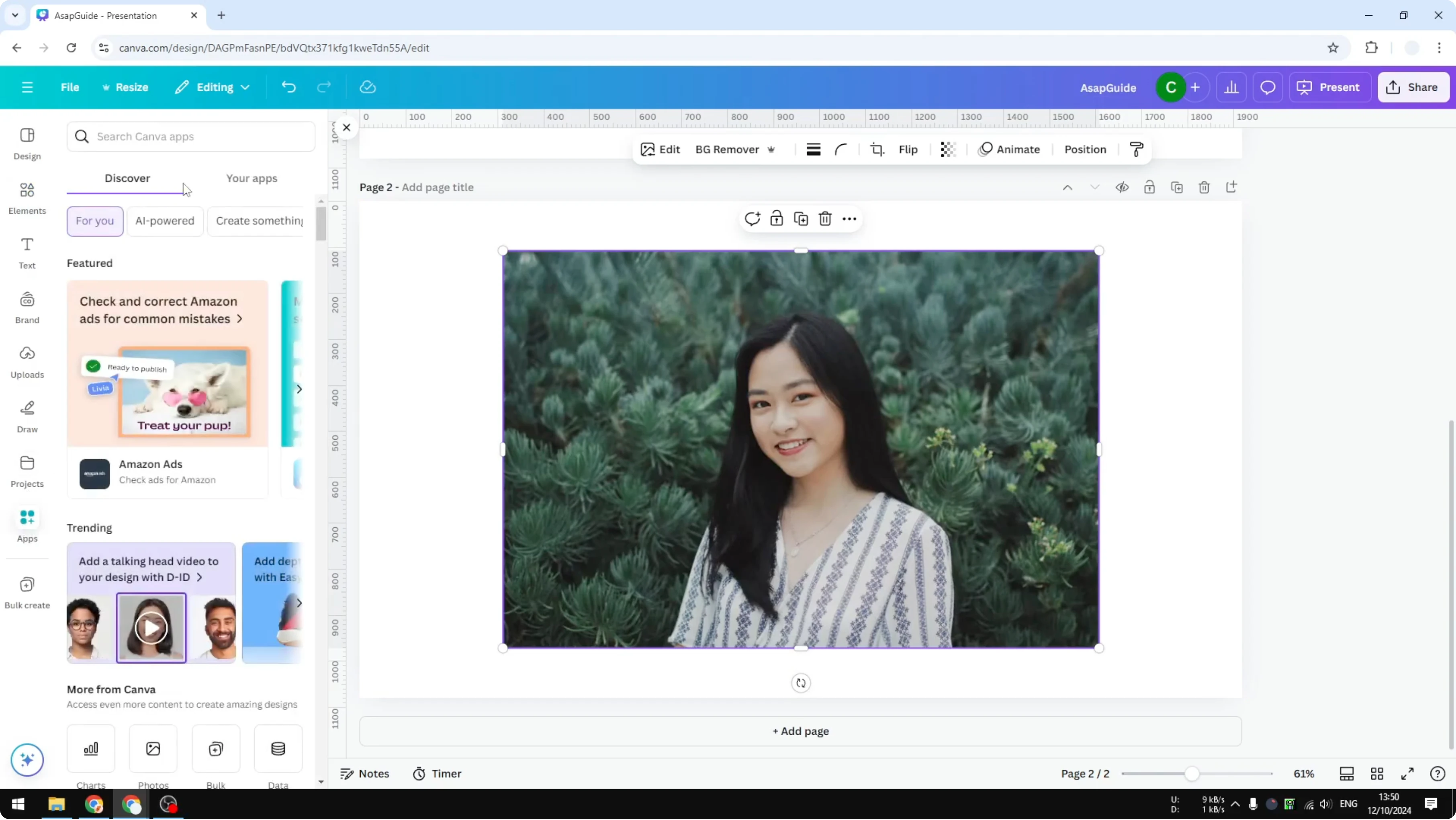
Add a new page in your design and place a picture you want to skew. If you prefer to prepare a layout first, this quick image frames tutorial helps you drop photos into frames before skewing.
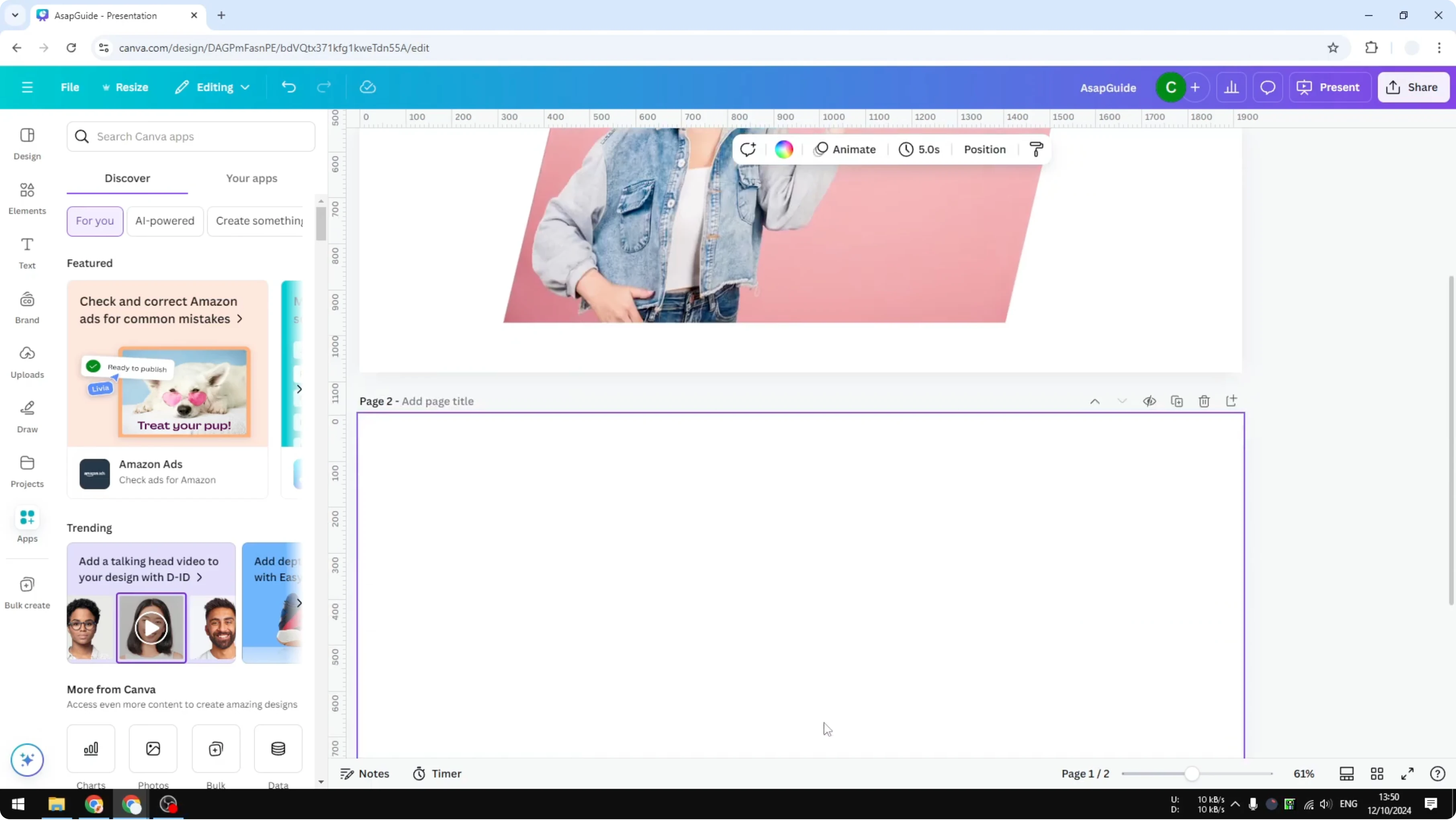
Open the Apps panel in Canva.
Search for “Skew Image.”
Open the app named Skew Image.
You will see settings for Horizontal skew and Vertical skew. Adjust the sliders, or type exact values for precise control. Small increments often look more natural.
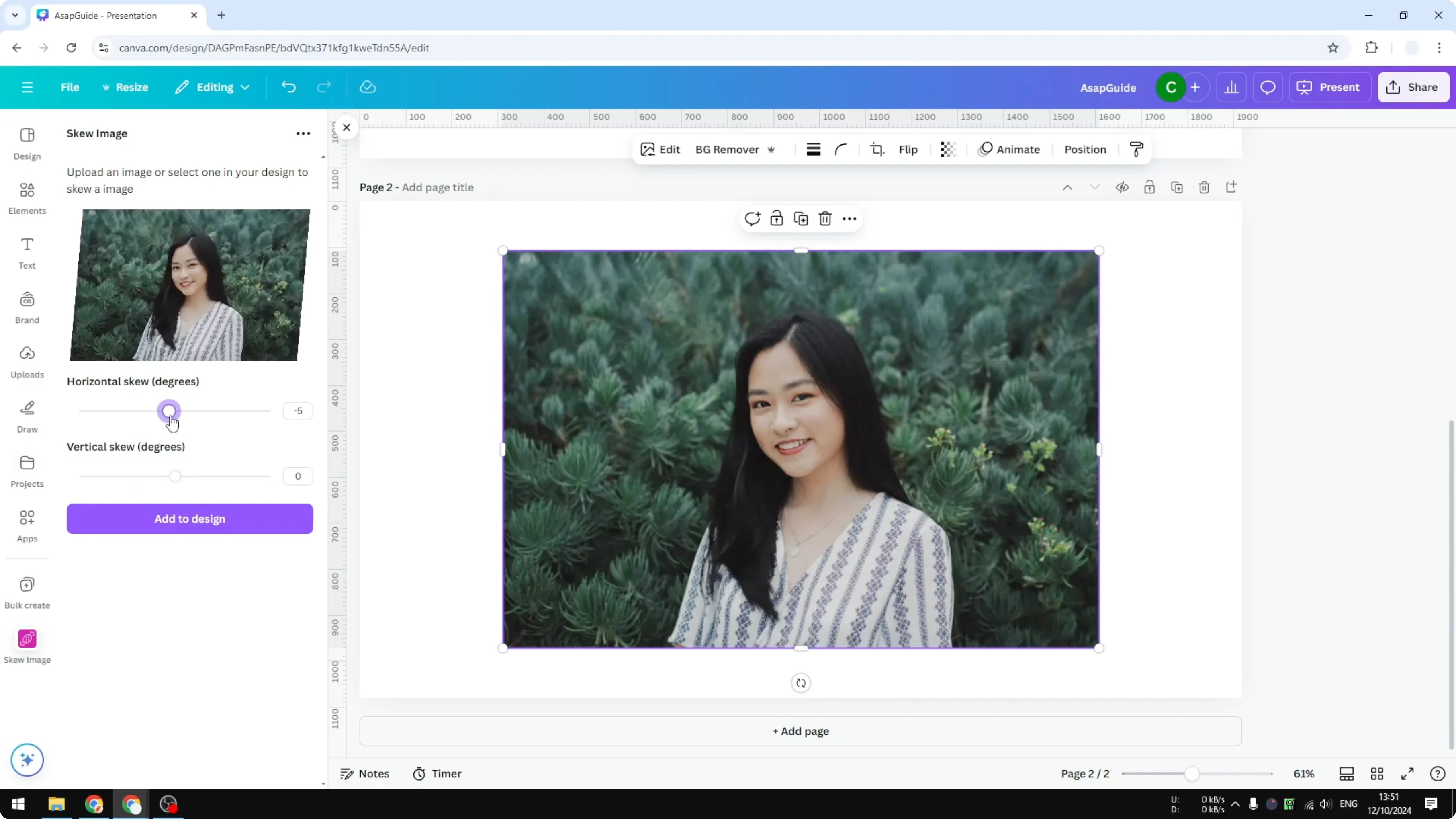
Click Add to design when you are done.
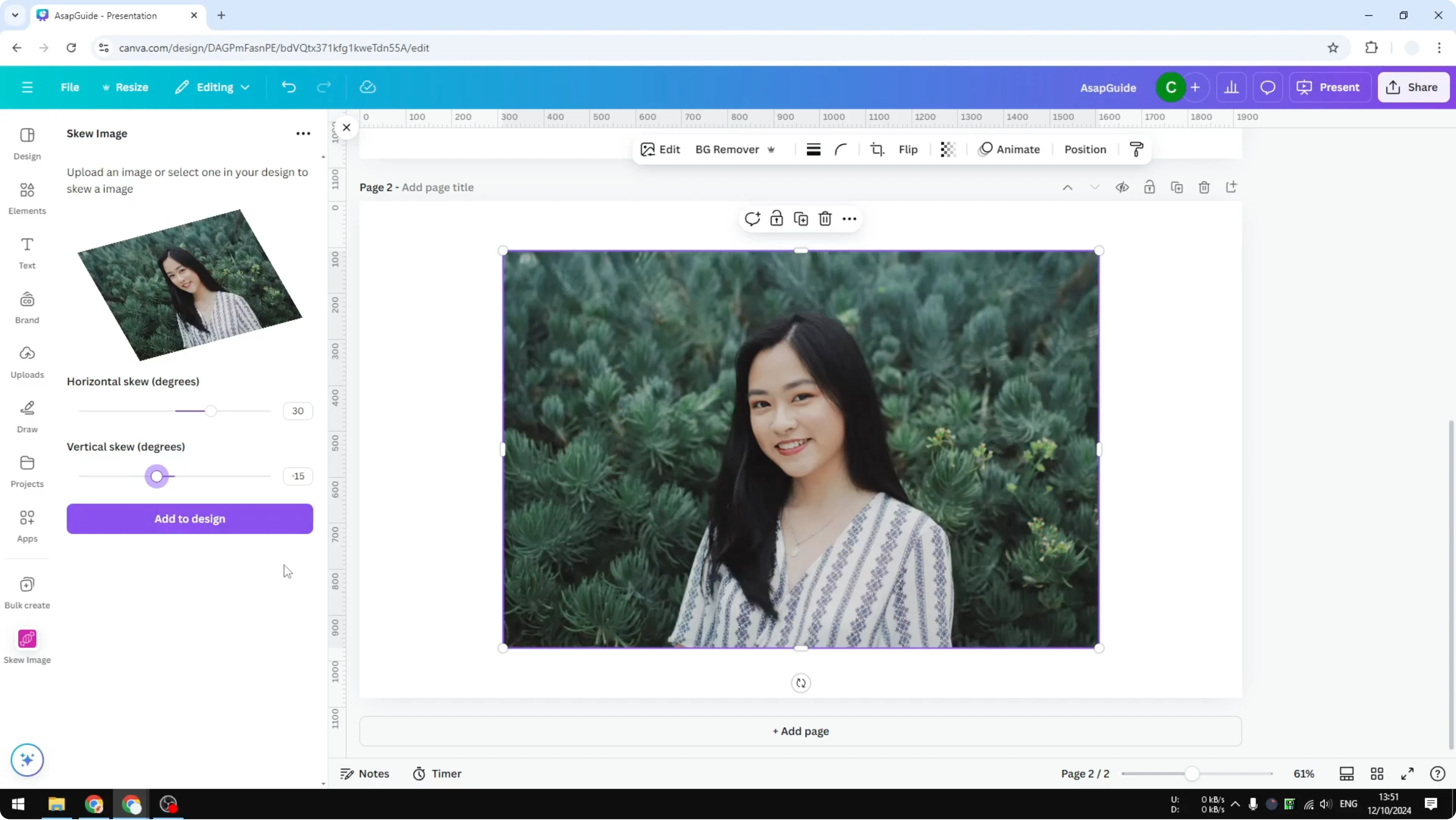
Canva will render the picture and upload the result to your Canva library. You can reuse the skewed version anywhere in your project. If it inserts on a new layer, just position it over your original.
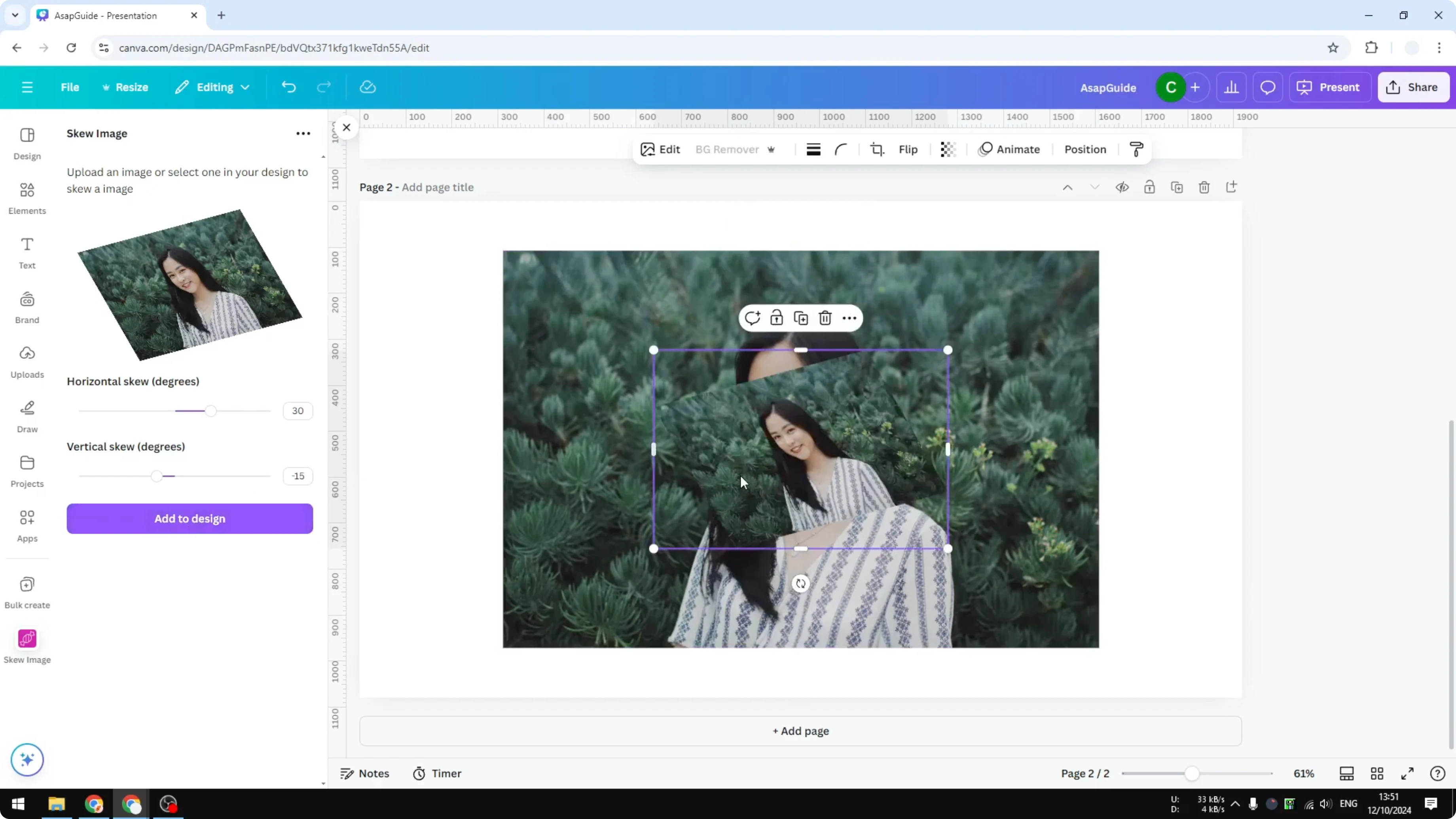
When the Skew Image app fails
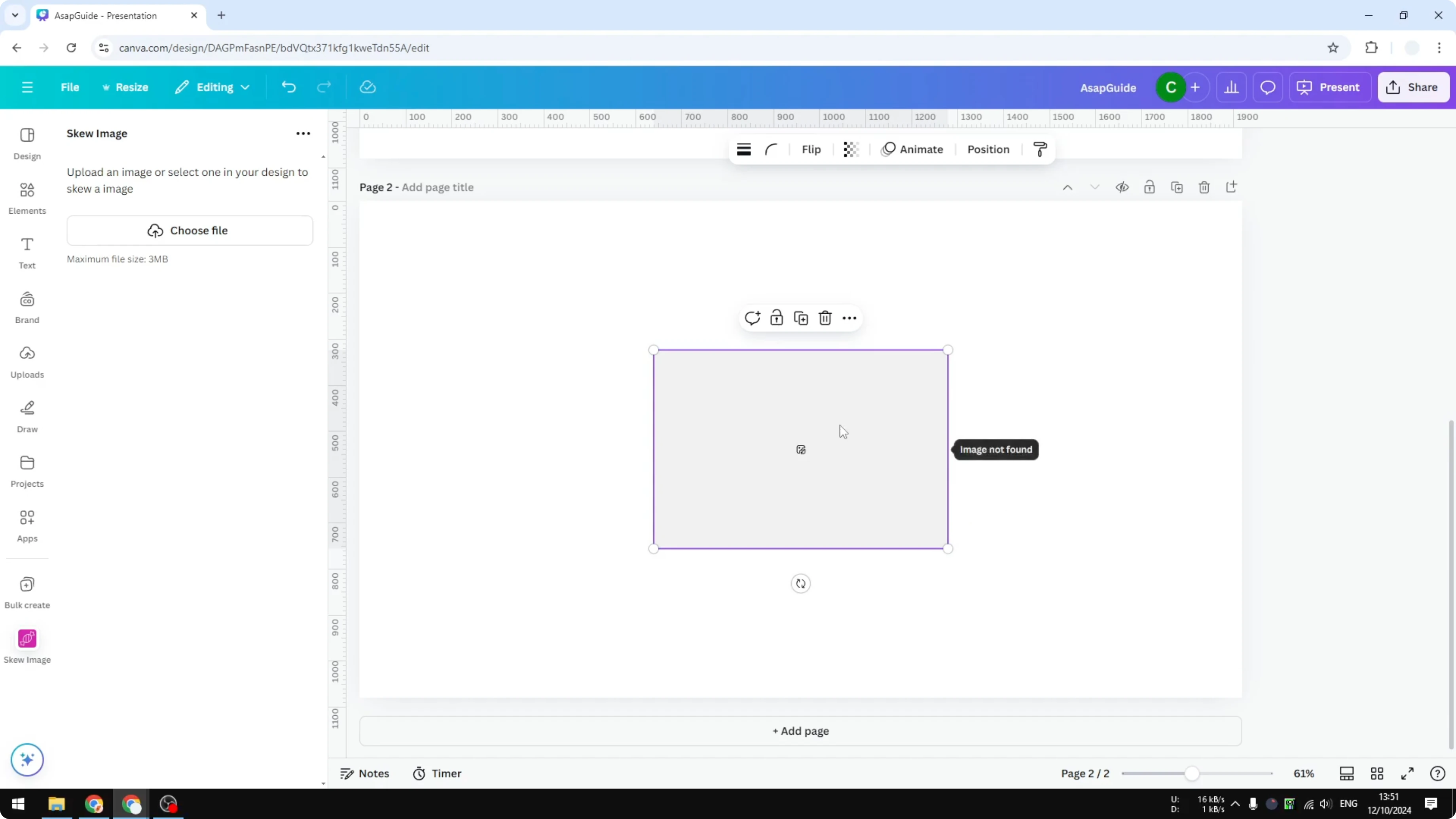
You might notice the image is gone after rendering. I do not know why, but I have seen this happen more than once. If it is not successful, switch to the alternative below.
Skew Image in Canva with Reshape
Add a new page and insert your photo.
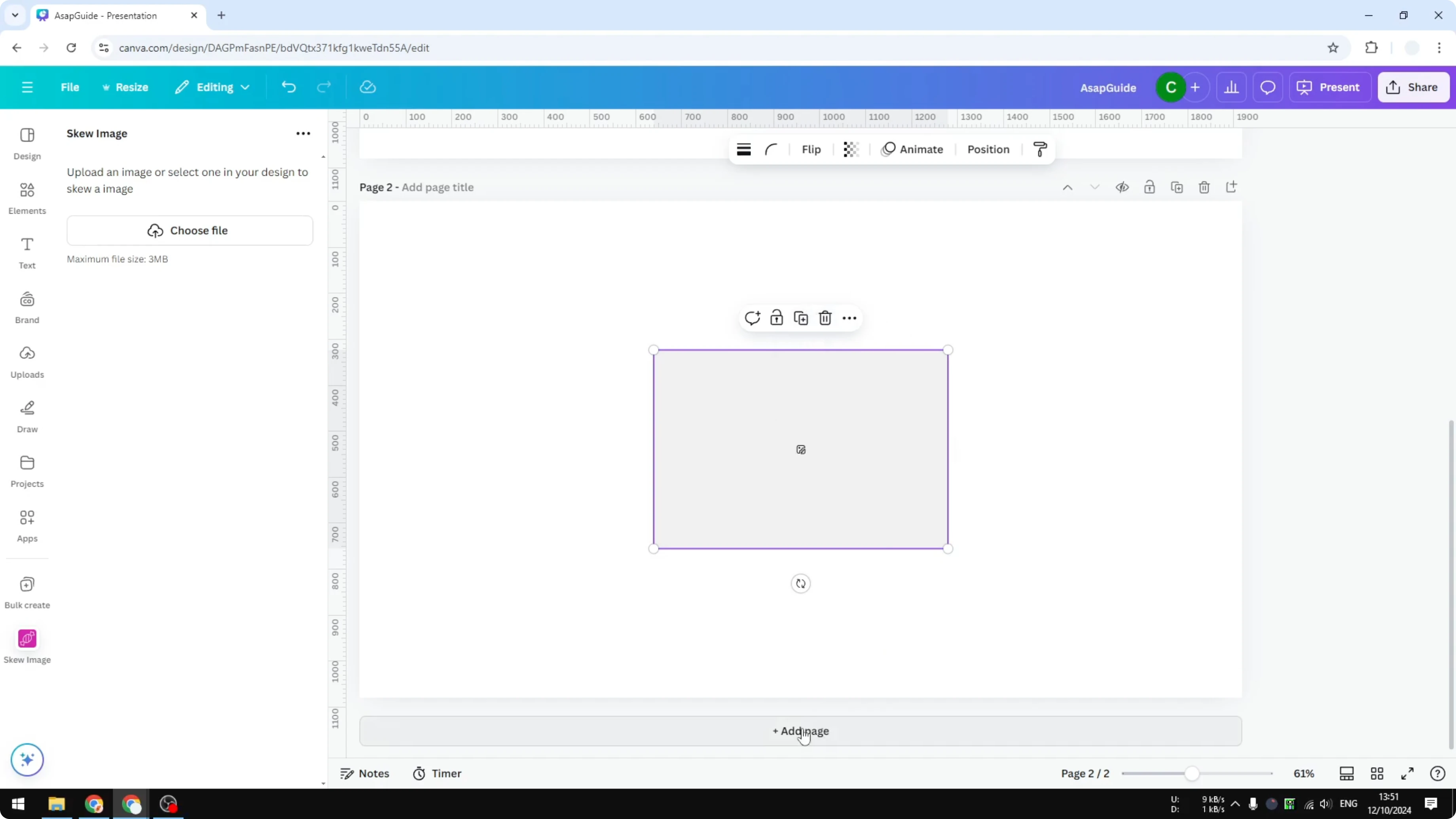
Open the Apps panel again.
Search for “Reshape.”
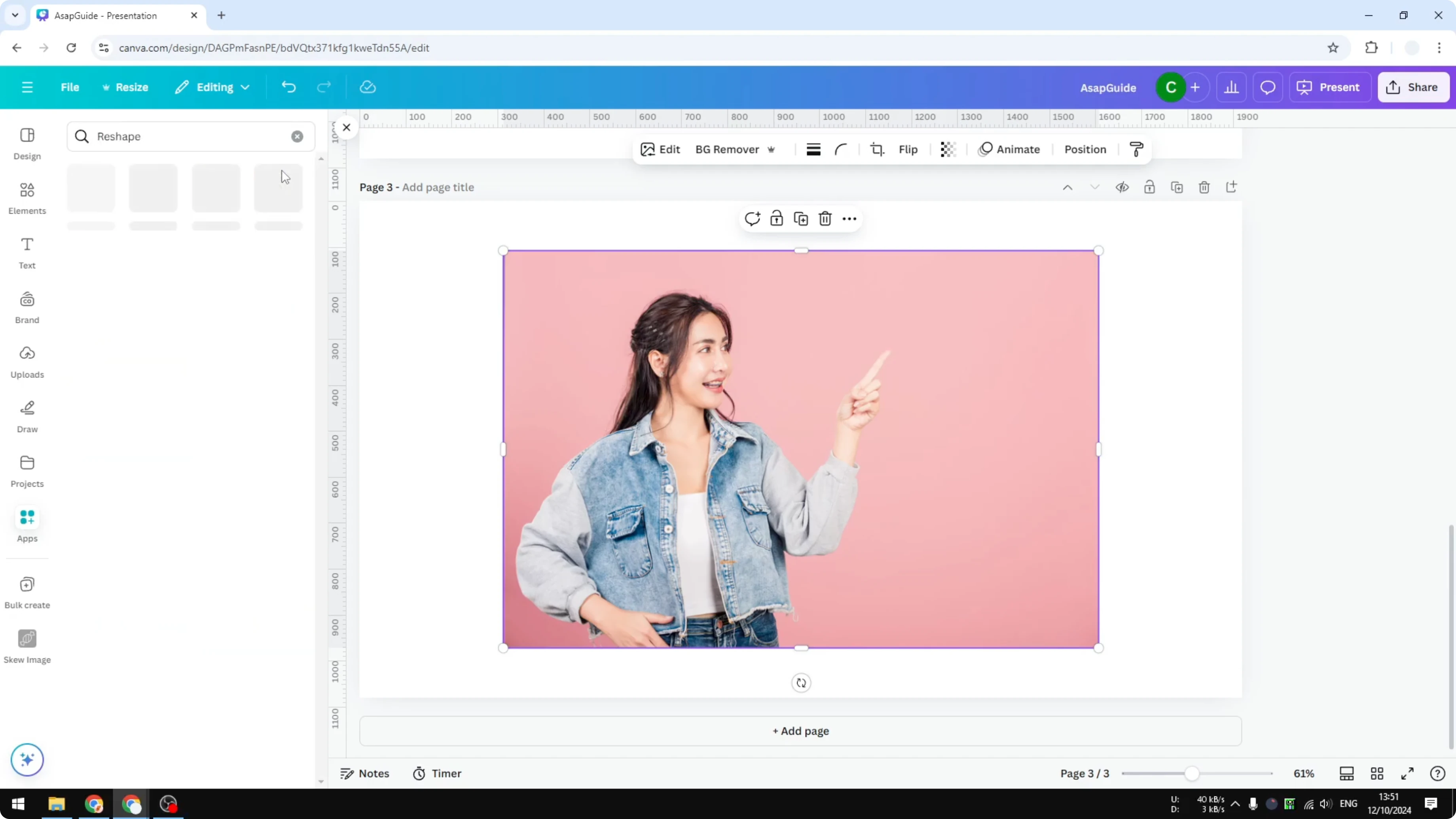
Open Reshape, then choose Skew.
Use the dots or control points along the sides of the picture. Click a point, then click and drag to tilt and skew the image to your taste. Stop when the perspective looks right for your layout.
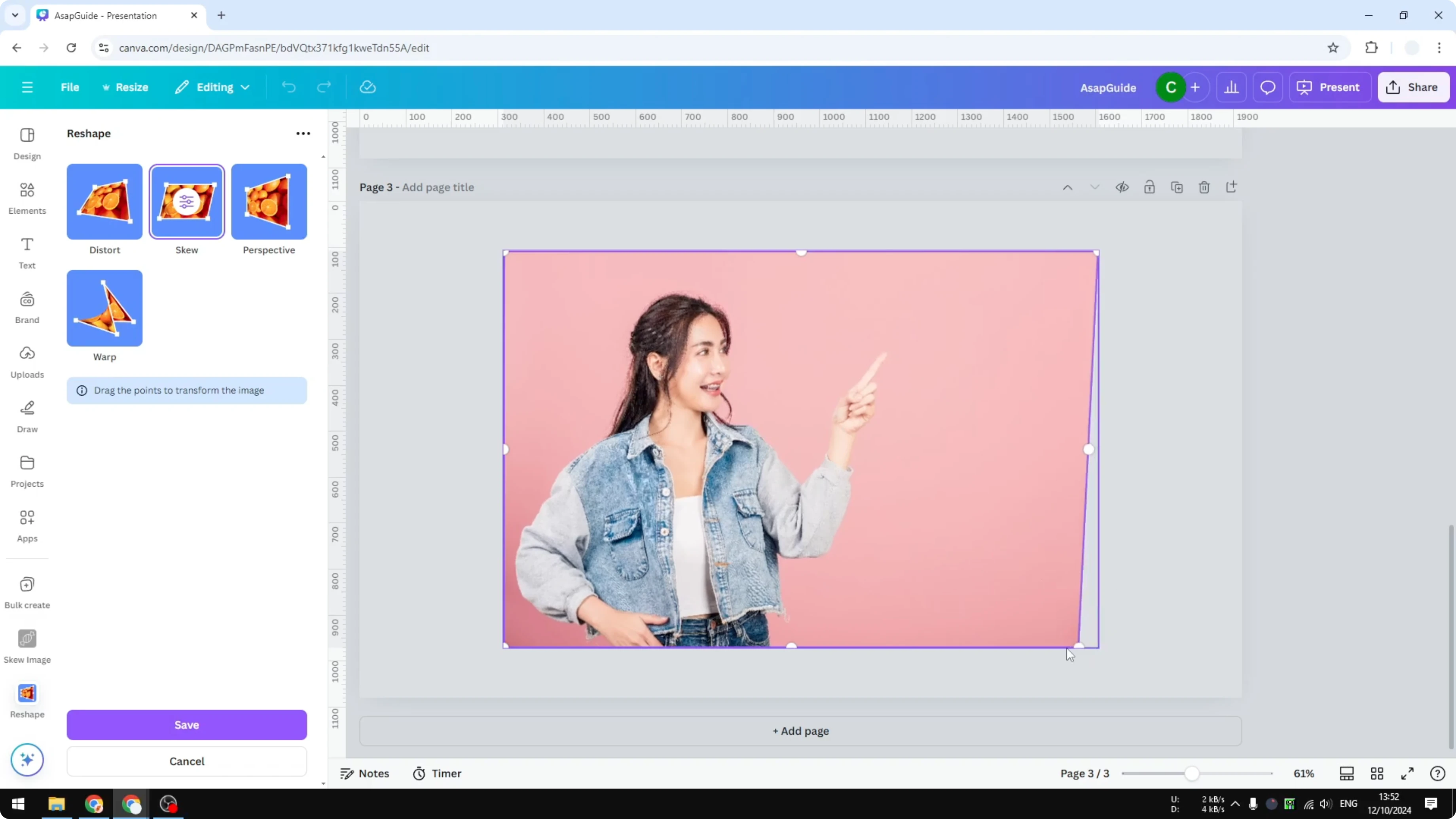
Click Save.
The image will render and be inserted into your design. You can then resize or align it with other elements. If the output looks a bit flat, this quick brightness adjustment guide can help you fine tune exposure.
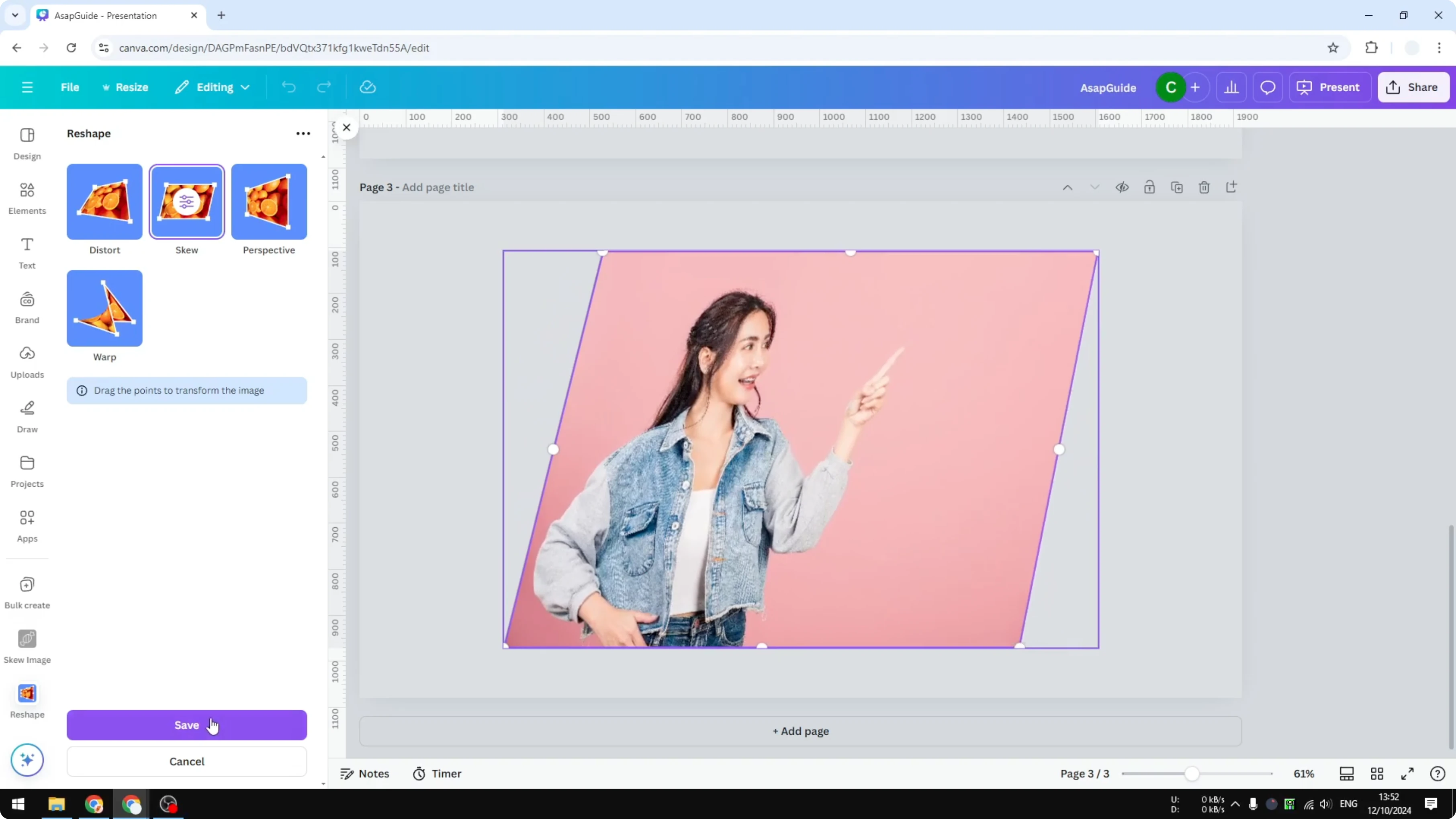
Final thoughts
Canva still lacks a native skew tool, but you can get the look you want with the Skew Image app or the Reshape app. I reach for Skew Image first for quick numeric control, and Reshape when I want to drag points directly. With either option, you can quickly change perspective and keep your design moving.
Recent Posts

How to Visualize Yourself as a Pixelized Character with AI?
How to Visualize Yourself as a Pixelized Character with AI?

How to Revive Faded Memories and Enhance Image Clarity with AI?
How to Revive Faded Memories and Enhance Image Clarity with AI?

How to Visualize Yourself as an Animal Crossing Character with AI?
How to Visualize Yourself as an Animal Crossing Character with AI?