How to Make a Simple Name Tag in Canva
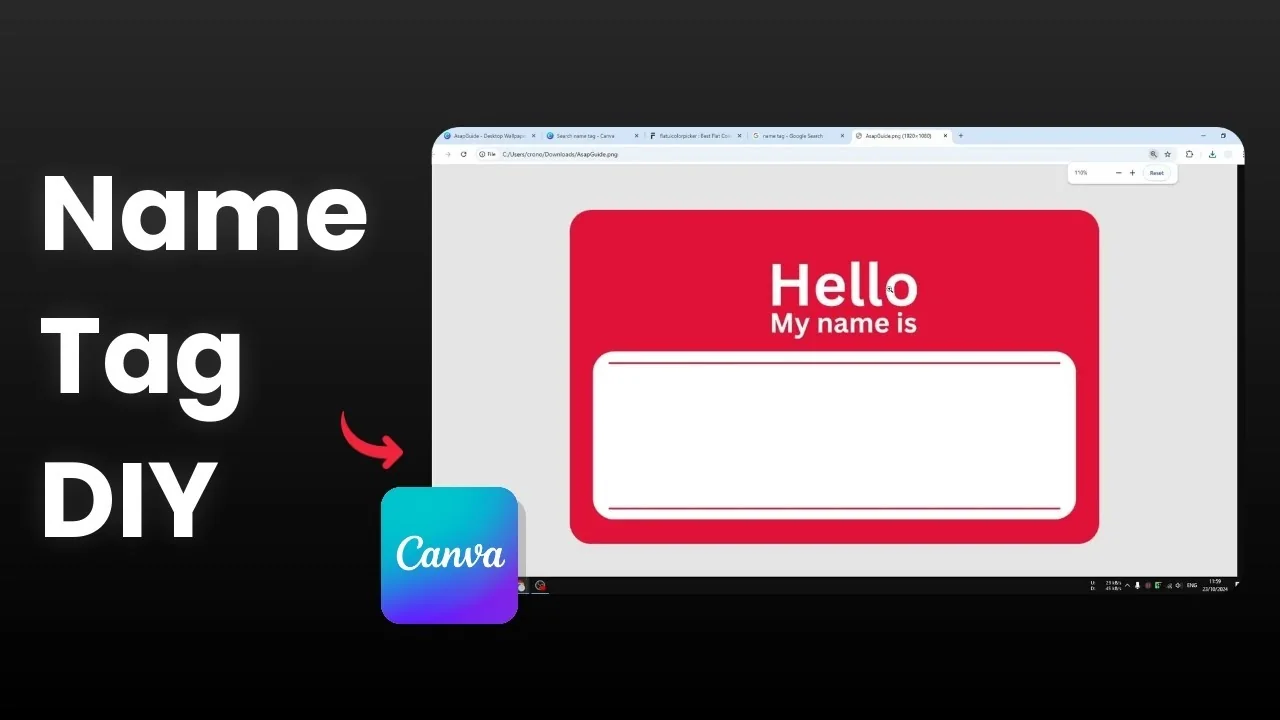
A name tag can have many different designs depending on the purpose, but generally it is very simple. Usually it is just a name, and sometimes the position of the company or any other label that is appropriate. That is exactly the kind of design I will build in Canva.
You can go to the Canva library and search for name tag to find good designs you can adapt or take inspiration from. I am creating my own based on a sample tag. I will keep it simple and quick.
Make a Simple Name Tag in Canva: start from a blank
Start with a blank new template in Canva.
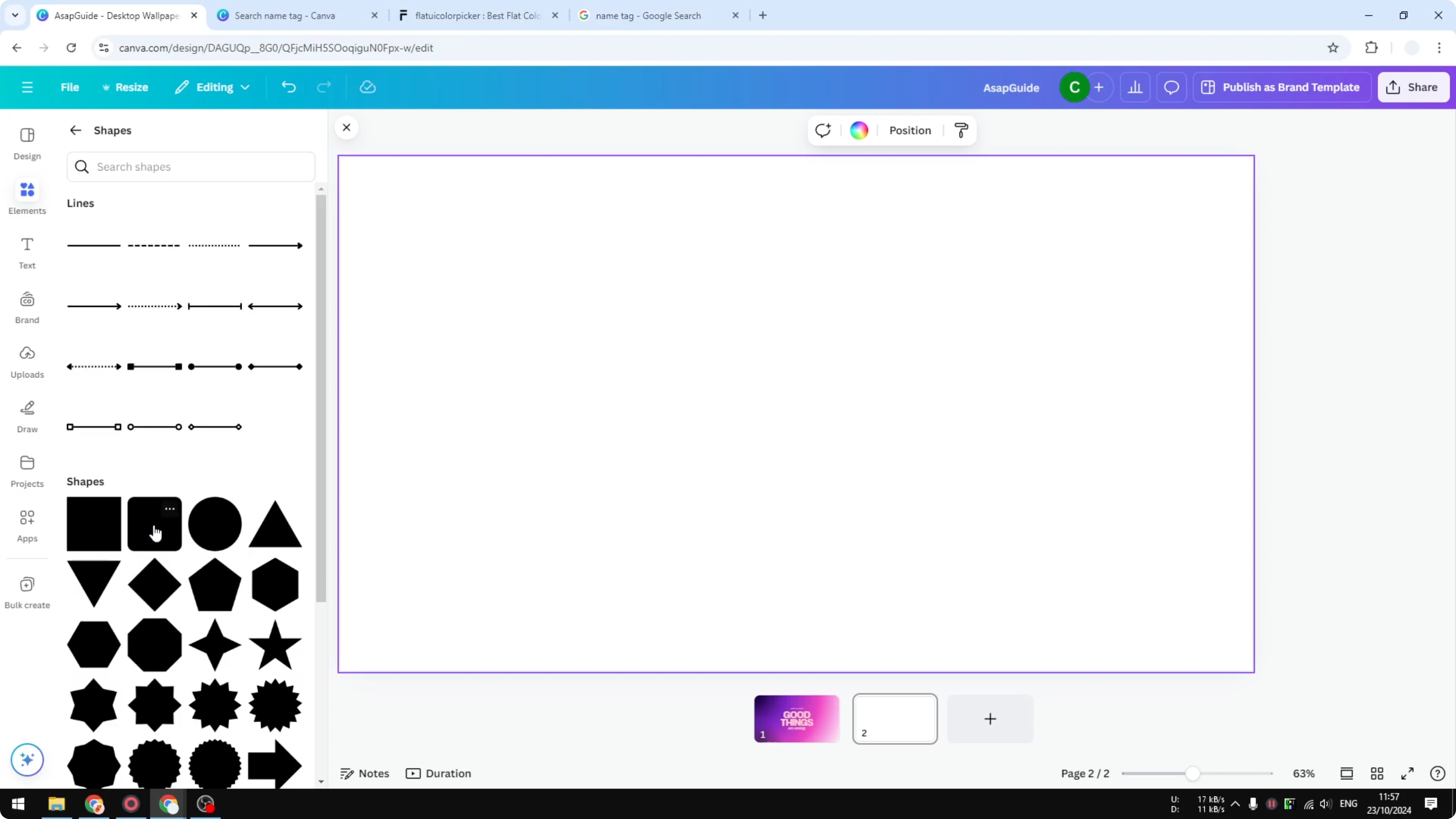
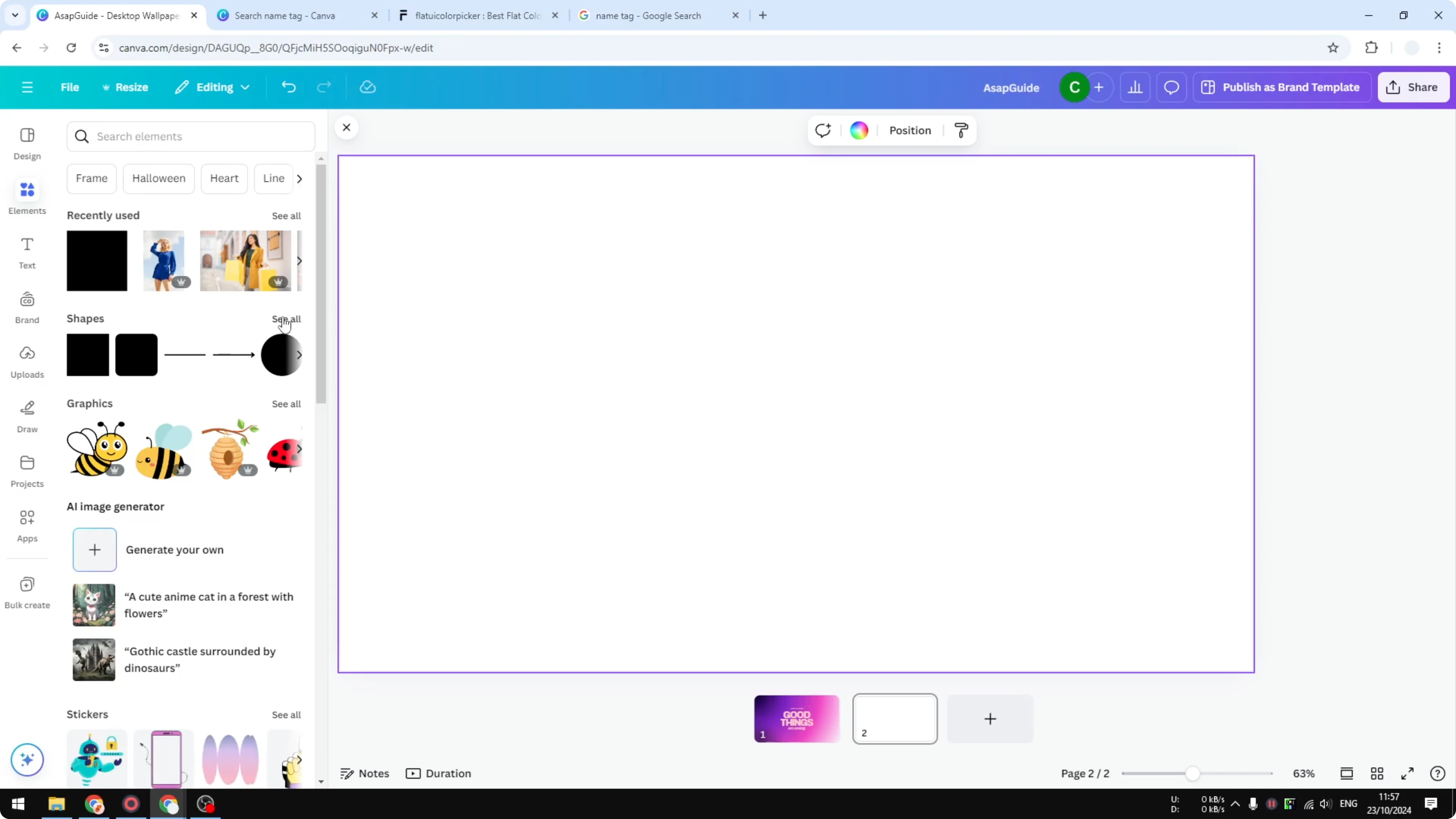
Go to Elements, open the Shapes section, and click See all.
Insert the square with a rounded corner.
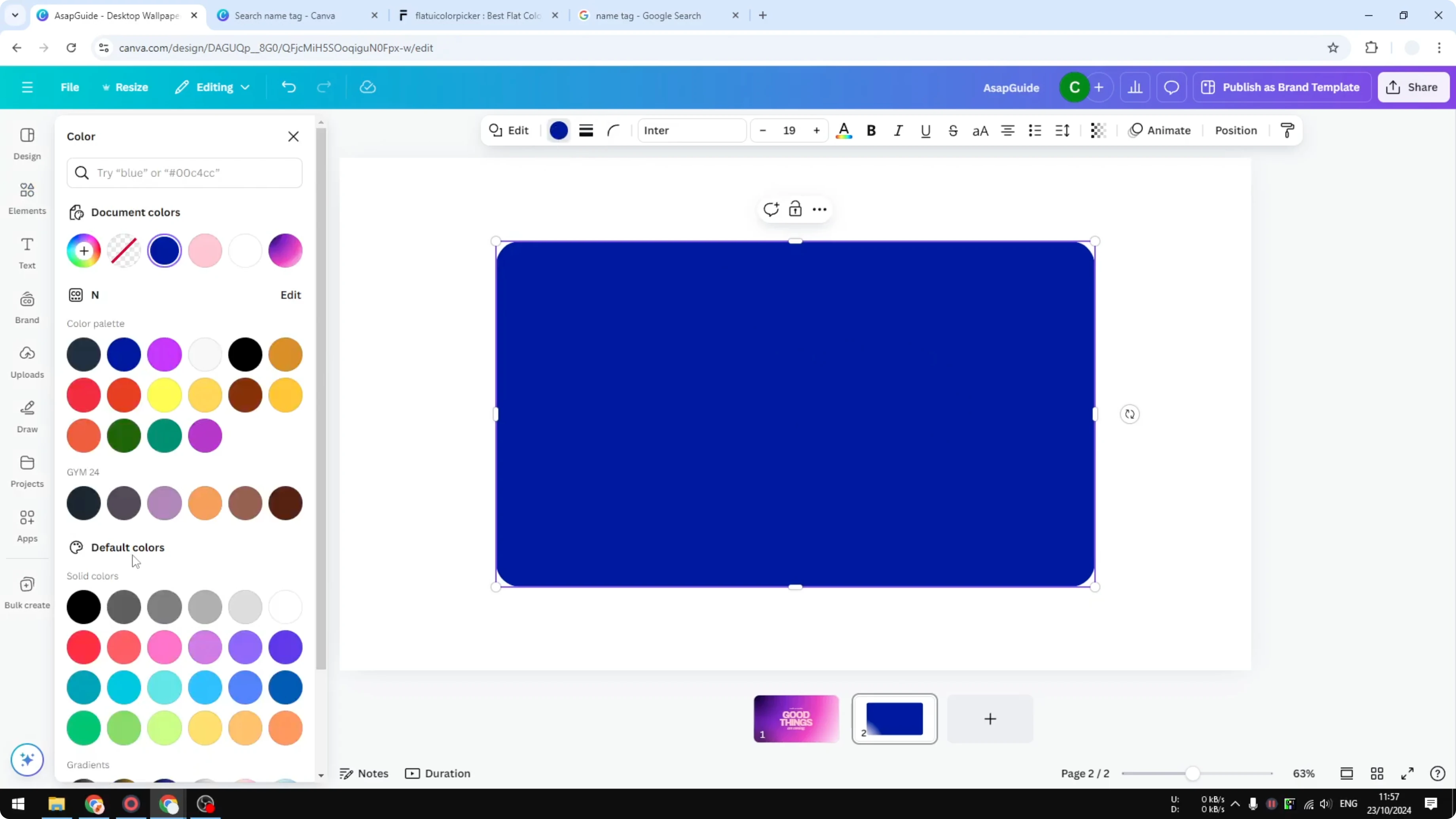
Place the shape precisely in the middle.
Change the color to red.
You can adjust the color later if needed.
If you want a subtle see through color layer on top of a background in other projects, see how to make a transparent overlay.
Text and spacing
Add text for the label Name.
Change the text color to white.
Leave some space on the top because people often create a hole there to connect the name tag with a lanyard.
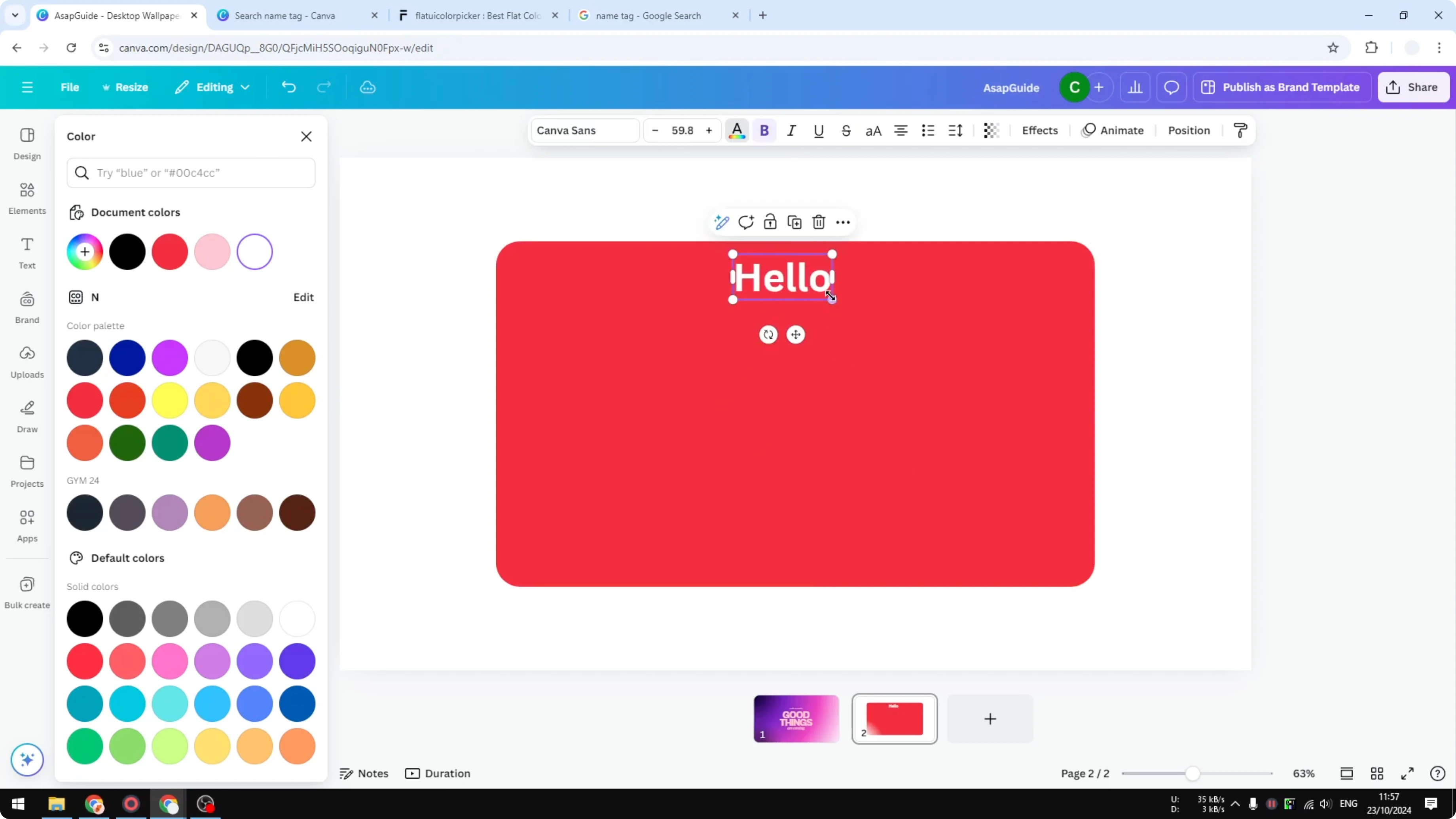
Add another text for the position or any small label.
Change the color and make it slightly smaller.
Adjust the size until it looks right.
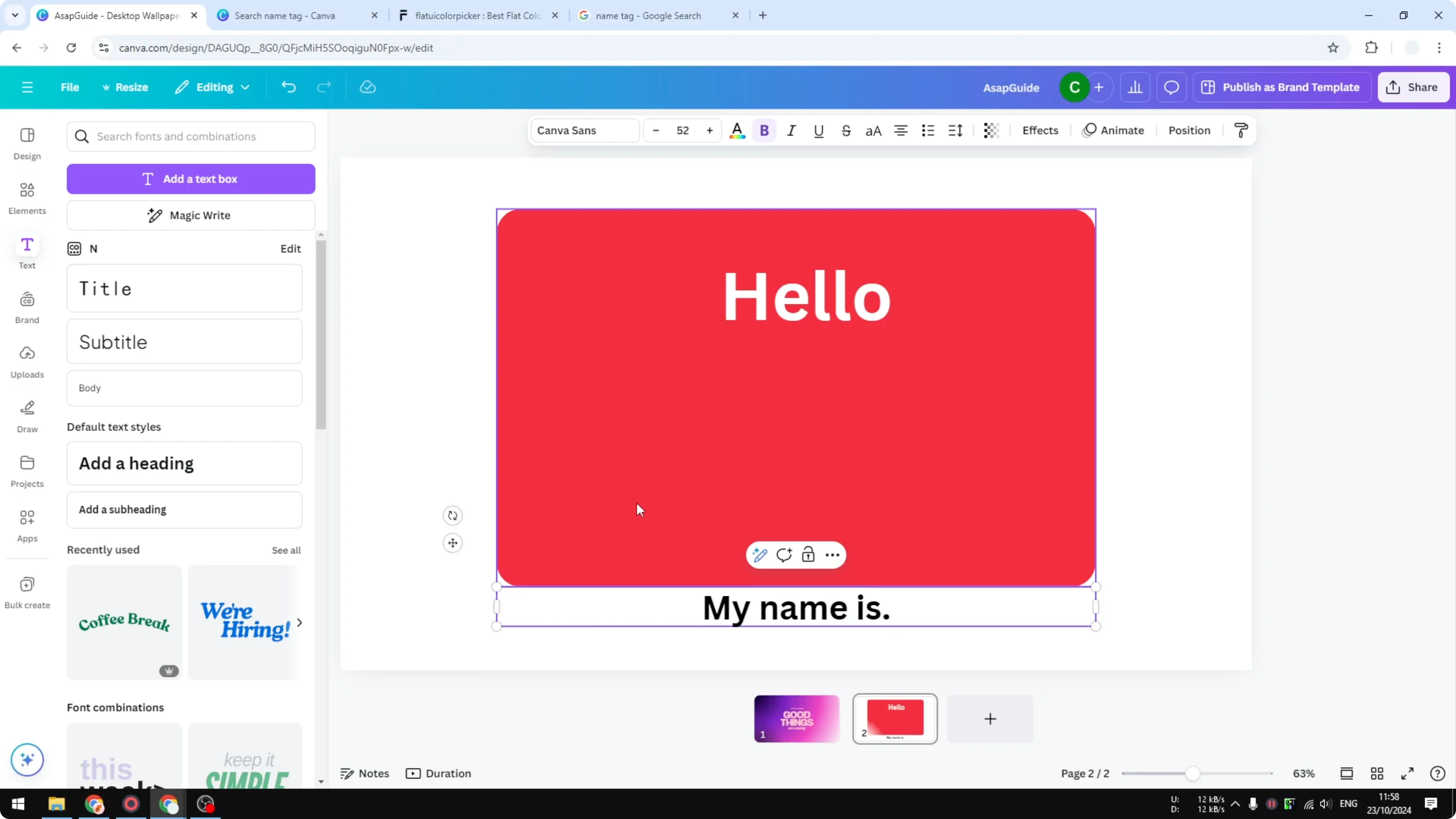
Make a Simple Name Tag in Canva: add the name area
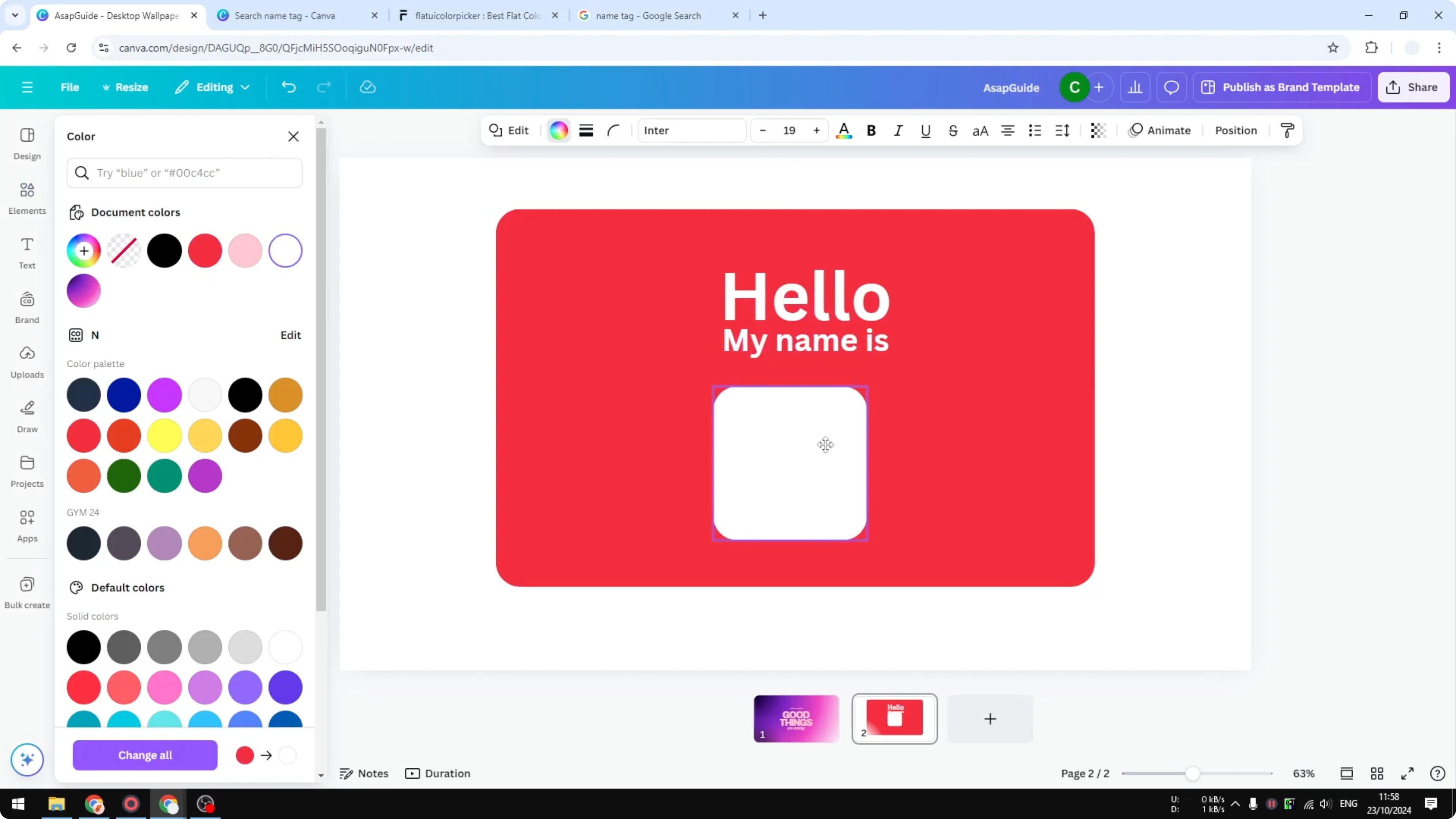
Go back to Elements and add a rectangle shape.
Change the color to white to create the area where people can write their name.
This is very simple and very quick.
If you like fast Canva builds, you can also create a simple before after image as another quick project.
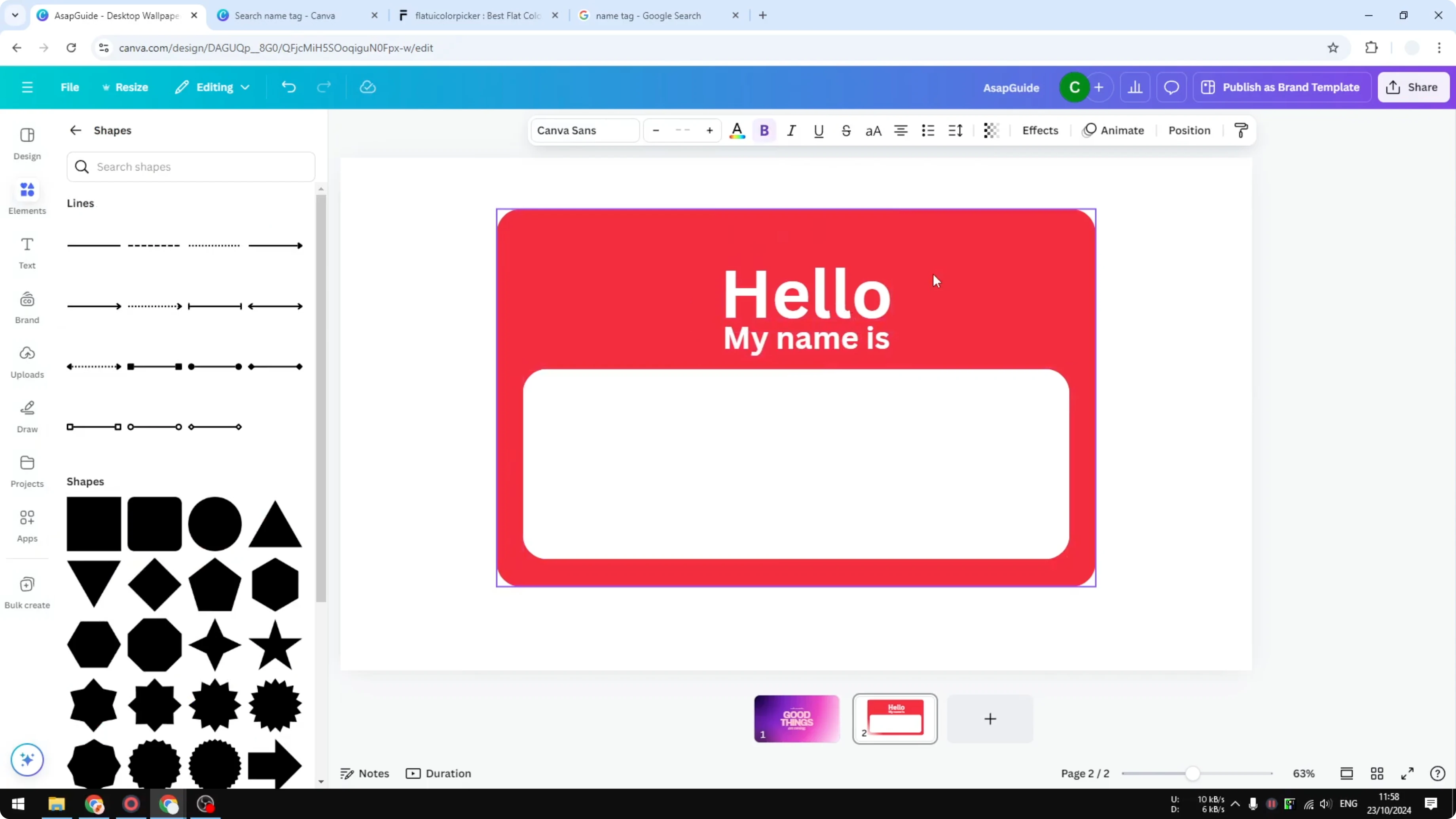
Add lines
Add a line element because this design uses two lines.
Change the line color to red to match the rest of the layout.
Duplicate the line to make the second one.
Make a Simple Name Tag in Canva: export
You can print and use this tag to show your name.
Click Share, then Download.
I recommend using PNG.
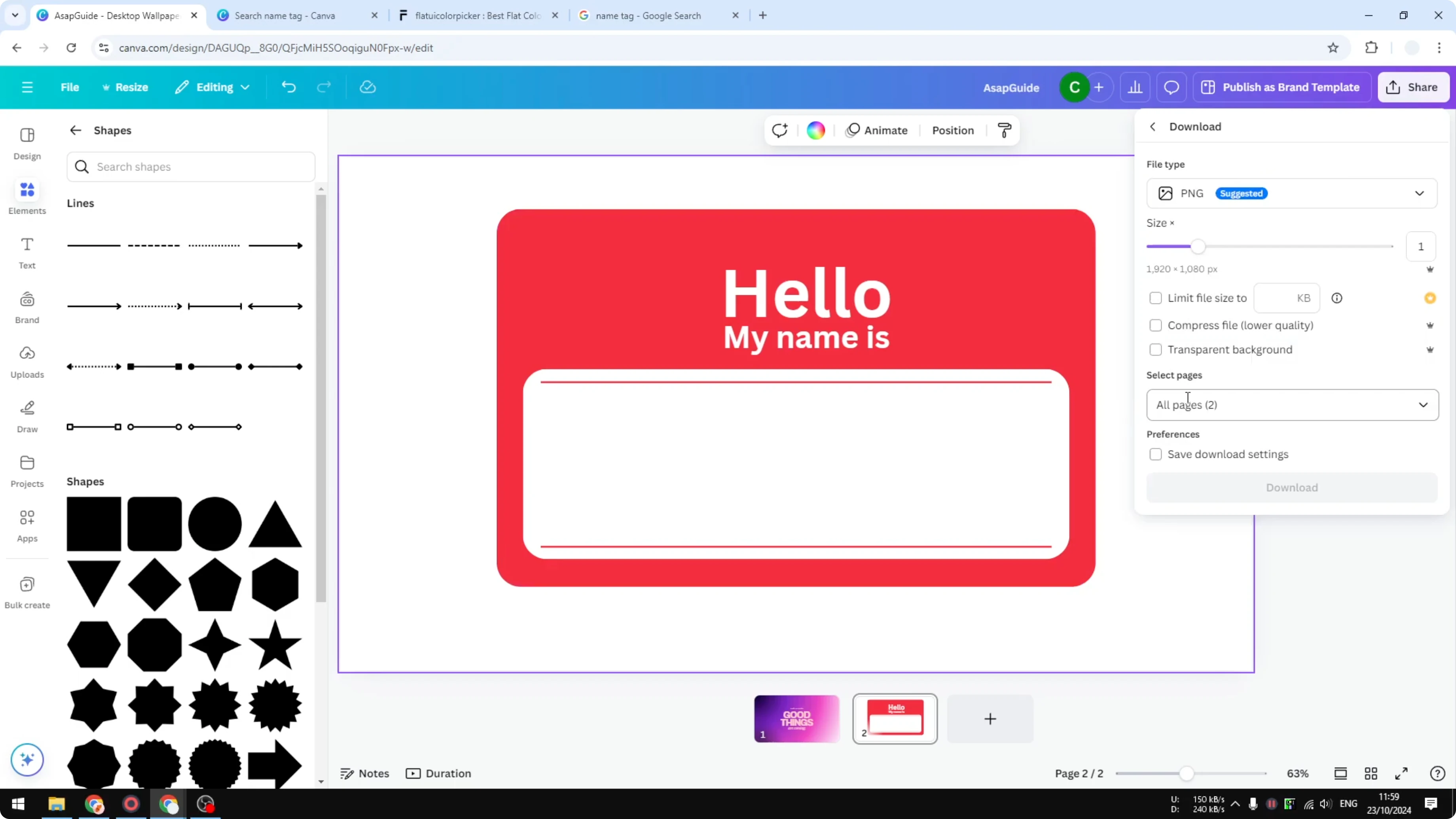
Enable transparent background so the empty background will not be included in the image.
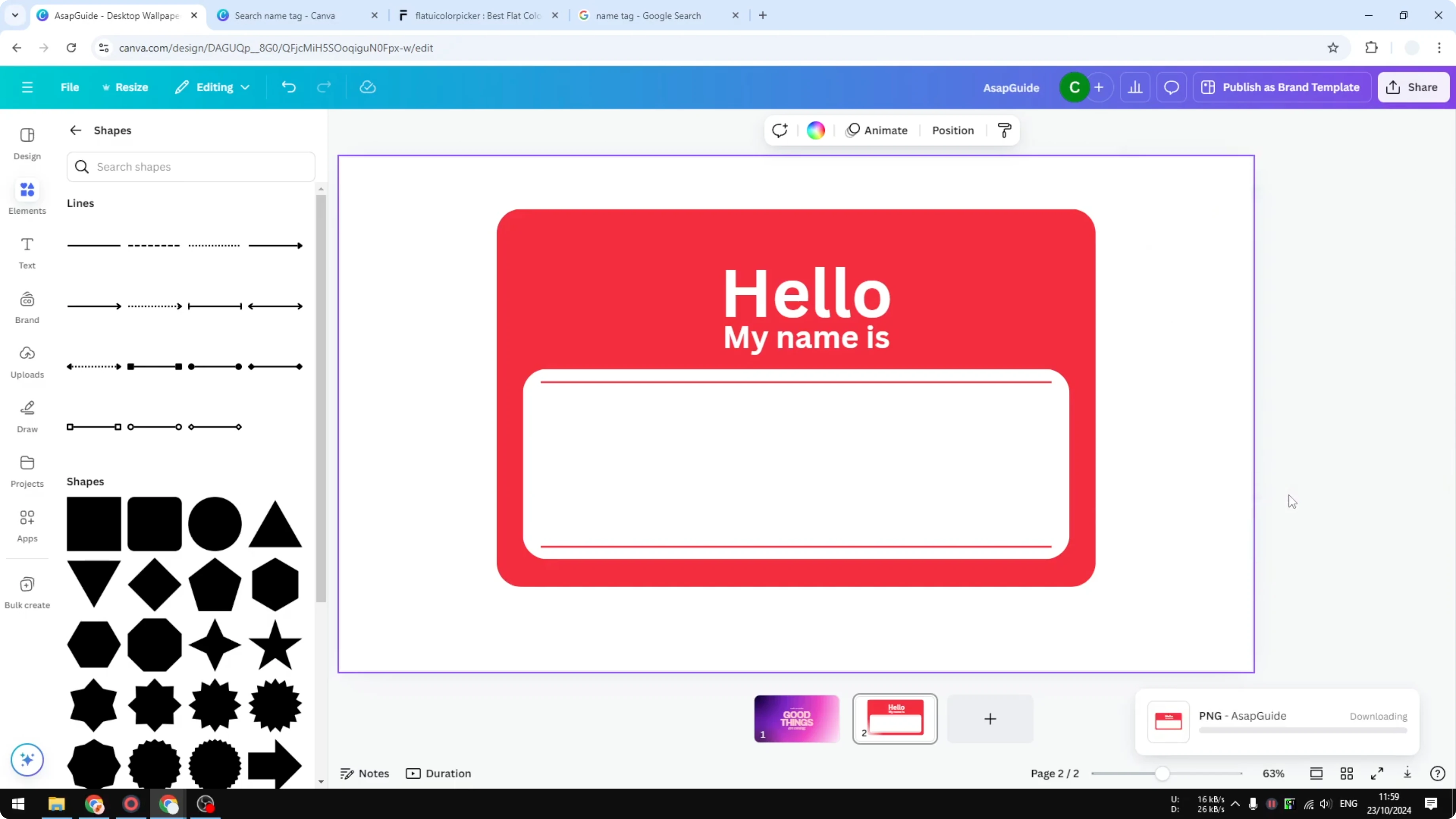
When you are done, download the file and you will get a name tag very similar to the sample.
The color and size may be a bit different, but the structure is the same.
If you want to turn a group of photos into a short video after exporting your graphics, see how to make a video using photos in Canva.
Final thoughts on Make a Simple Name Tag in Canva
You start from a blank template, add a rounded square, set colors, place text, and build a white name area with two lines.
Export to PNG and enable a transparent background for a clean result.
This gives you a simple, printable name tag that works for many events.
Recent Posts

How to Visualize Yourself as a Pixelized Character with AI?
How to Visualize Yourself as a Pixelized Character with AI?

How to Revive Faded Memories and Enhance Image Clarity with AI?
How to Revive Faded Memories and Enhance Image Clarity with AI?

How to Visualize Yourself as an Animal Crossing Character with AI?
How to Visualize Yourself as an Animal Crossing Character with AI?